
What You Need Before Setting Up Your POS
In this article
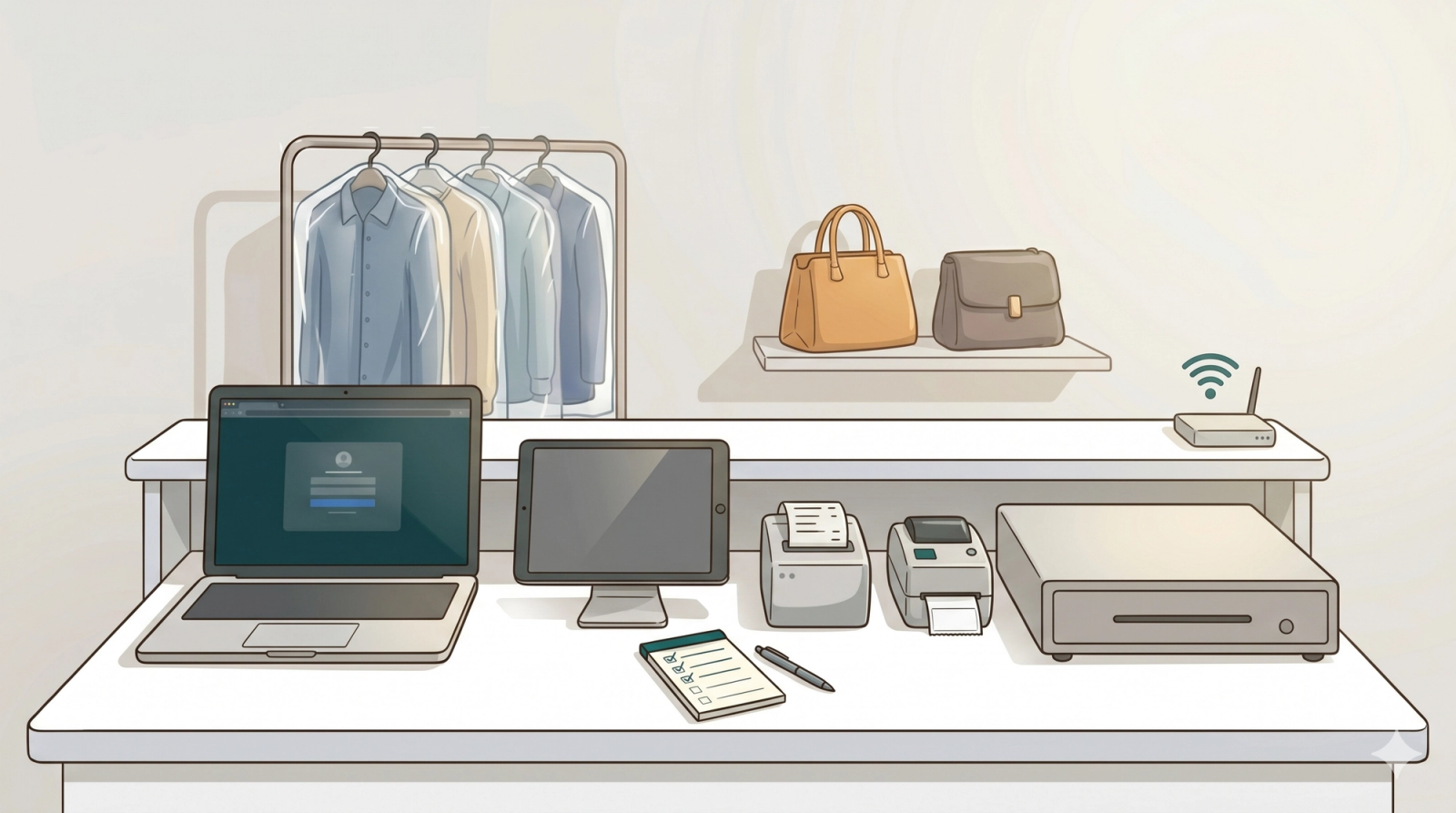
EasyBiz POS takes under 30 minutes to set up, but a few things need to be in place first. This checklist makes sure you don't hit any roadblocks halfway through.
Contents
Contents
Set Up Your Products and Pricing First
Before your POS can show anything at checkout, your products and prices need to already exist in EasyBiz. Without this, your staff won't have anything to select when creating an order at the counter.
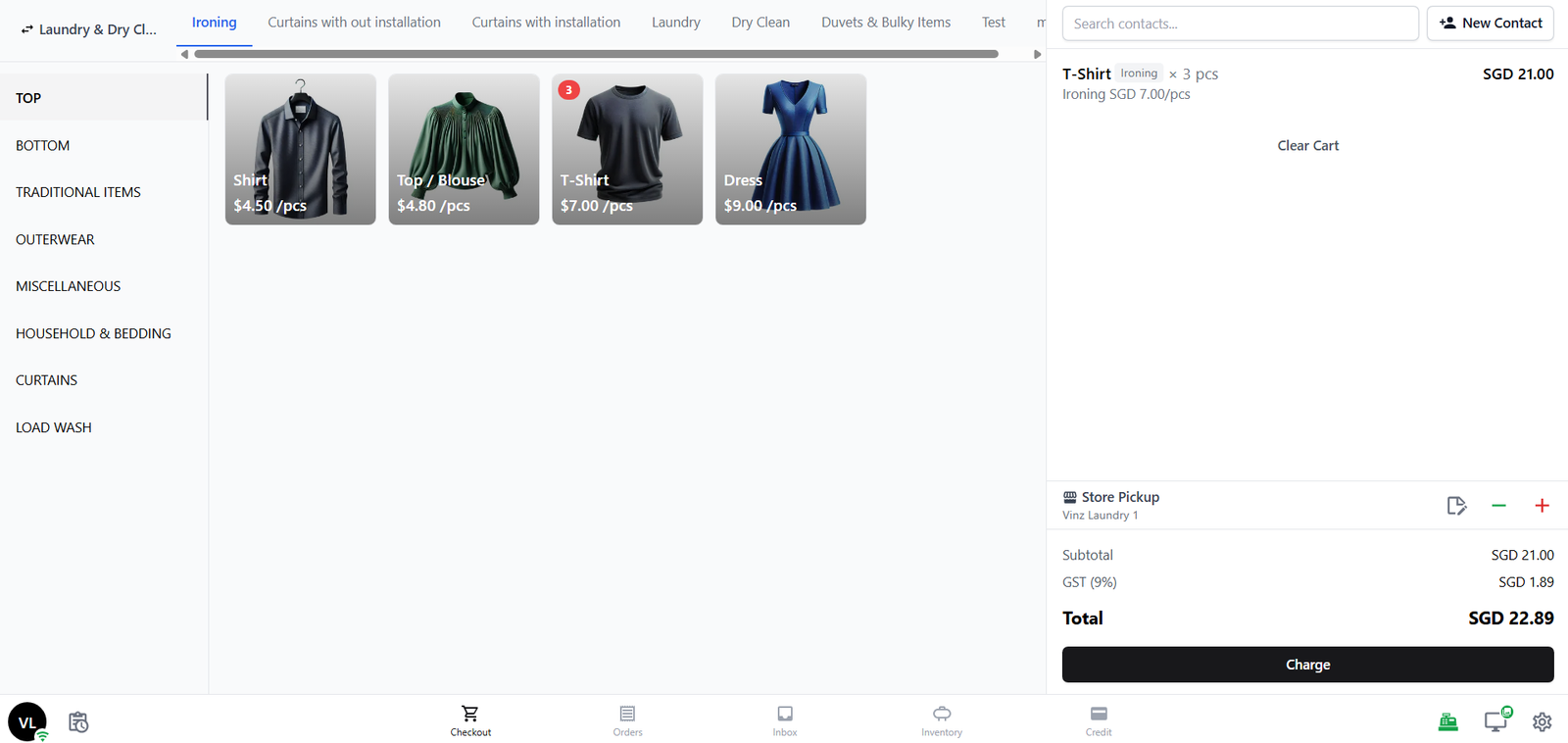
What you need to set up depends on your business type:
- Laundry businesses — set up a Price List with fixed prices (e.g. Shirt $2.50, Pants $4.00). Each item has a set price, so counter staff just taps and goes.
- Bag repair businesses — set up Collections. Since prices vary by item and condition, services are grouped into named collections that your staff can browse at the counter.
Not sure where to start? See [Introduction to Products and Pricing] for the full walkthrough.
Set Up Your Business Unit
Your Business Unit tells EasyBiz what kind of business you run — for example, Laundry, Dry Cleaning, or Bag Repair. It controls everything your POS needs: what items appear on the order screen, how orders are priced, what your receipts look like, and how orders flow from drop-off to collection.
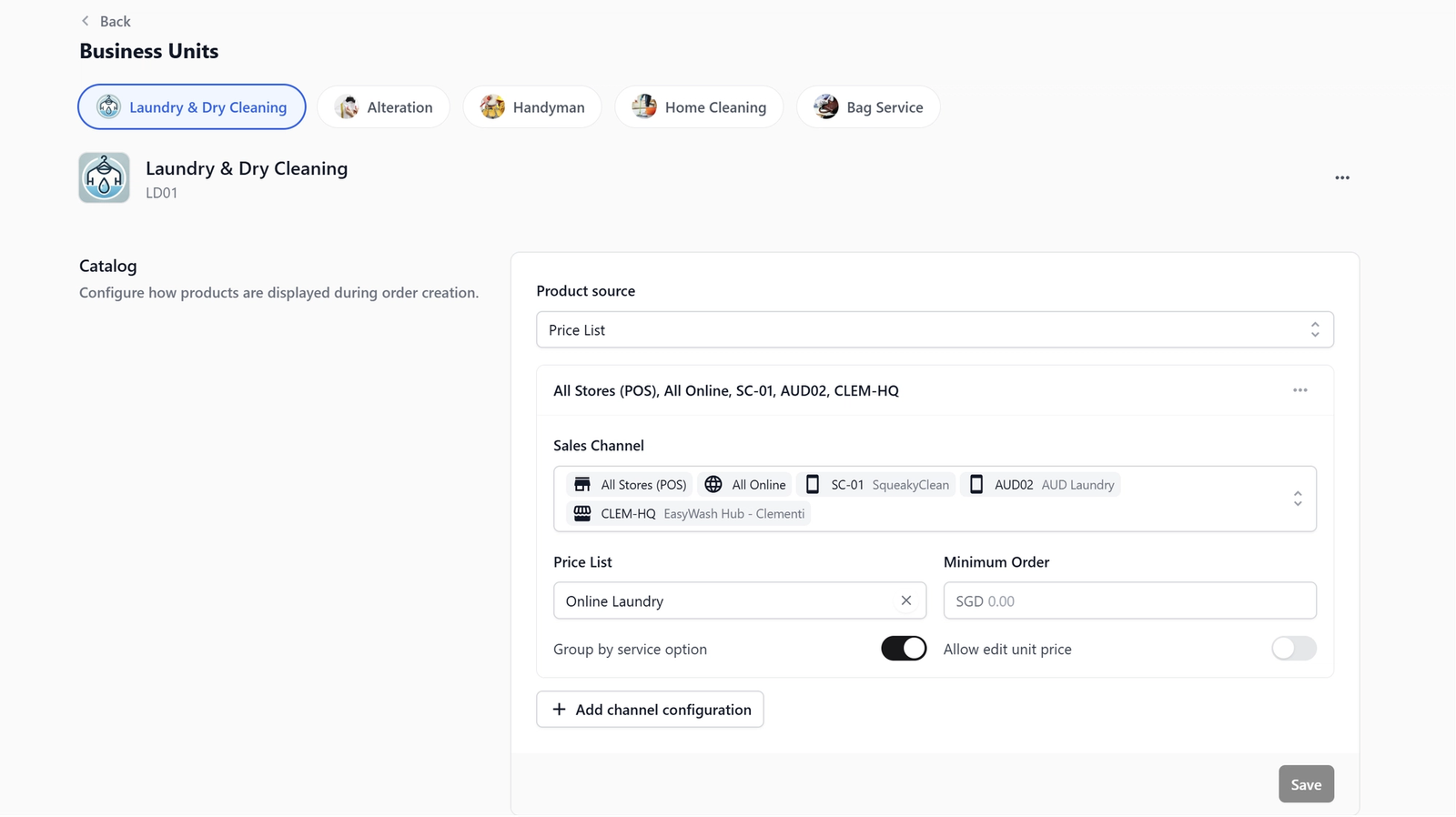
Your POS app pulls its catalog, pricing, and document templates directly from your Business Unit. If this isn't set up first, your counter will have nothing to sell.
For the full setup guide, see [Setting Up Your Business Unit].
Set Up Your Market & Location
Before creating your POS location, make sure your Market and Location are already set up in EasyBiz. Your Market represents the country your business operates in, such as Singapore or Malaysia, and controls the currency, dial code, locale, and numbering used on receipts, invoices, and customer-facing pages.
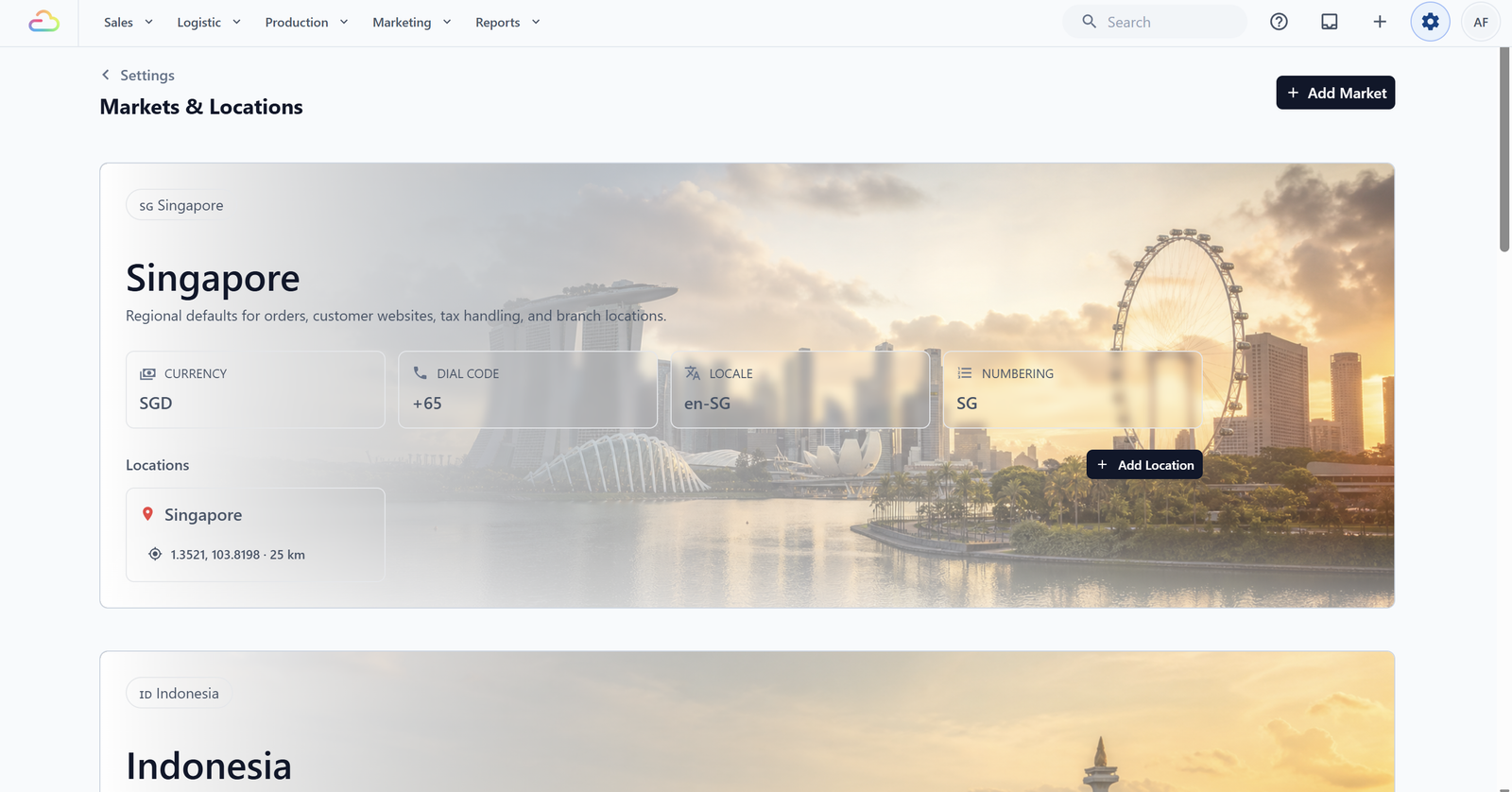
Your Location represents the city or operating area inside that market. This helps EasyBiz know where the POS outlet belongs, which timezone to use, and how delivery or dispatch coverage should be handled. Most businesses only need one market and one location to start, but if you operate in multiple countries or cities, set those up first before adding your POS location.
For the full setup guide, see [Introduction to Markets & Locations].
What You Need on Setup Day
Your POS device
This is the screen your staff will use at the counter. EasyBiz POS works on a Windows PC, Mac, or iPad — it runs entirely in your web browser, so there's nothing to install. Just open the browser, sign in, and you're ready to go.
Internet connection
A stable internet connection is required at all times. EasyBiz POS does not support offline mode — every transaction is processed and synced in real time. We recommend making sure your counter has reliable Wi-Fi or a wired connection before going live.
Hardware (optional but recommended)
You don't need any extra equipment to get started. But if you'd like to set up a full counter experience, here's what's supported:
- Receipt printer: Any standard ESC/POS thermal printer. Connects via USB or Bluetooth. Can print automatically after payment if auto-print is enabled.
- Label printer: Any TSPL-compatible thermal label printer (common brands include TSC, Zebra, Godex, and Citizen). Connects via USB or Bluetooth. Prints item labels and package sticker labels.
- Cash drawer: Connects to your counter through your receipt printer using the standard RJ11/DK port. Can be opened from the POS when connected.
- Customer-facing display: Any spare tablet, phone, or screen with a browser. Paired with a 6-digit code on the same Wi-Fi network. Shows the order summary, customer form, scheduling options, or a welcome poster when no order is in progress.
Set Up Your POS Staff [Optional]
If you'd like your staff to clock in before using the counter, or if you want to track who handled each transaction, you can set up POS Staff Management. This is entirely optional — your POS is fully functional without it.
POS Staff Management lets you register your counter staff by name and give each person a 4-digit passcode. When Shift Management is turned on, the POS shows a clock-in screen at startup. Staff enter their passcode using the on-screen keypad and the POS unlocks for their session.
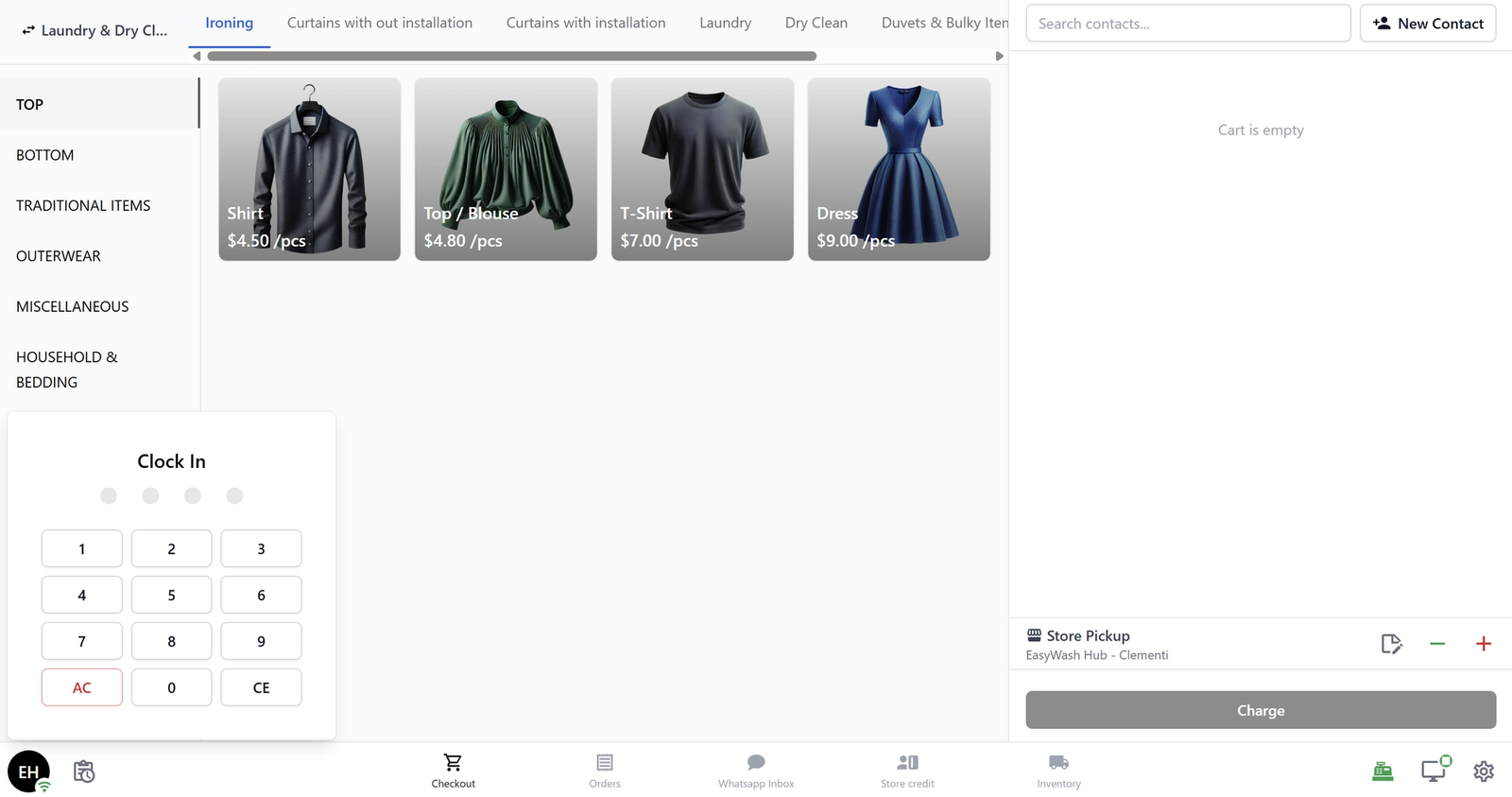
For the full setup guide, see Set Up POS Staff Management.
FAQs
What if I haven't set up my price list yet?
No problem — you can complete your price list or collections first, then come back to continue with POS setup. Go to Settings → Products & Pricing to get started, or follow this guide [Introduction to Products & Pricing].
What's the difference between a price list and collections?
A price list is for businesses with fixed, standard prices — like laundry shops where a shirt is always $2.50. Collections are for businesses where prices vary per item — like bag repair, where the cost depends on what work is needed.
What devices can I use as my POS screen?
Any Windows PC, Mac, or iPad with a modern browser works. There's nothing to install — just open your browser and sign in to EasyBiz.
Is staff clock-in mandatory?
No. By default, the POS is accessible to any signed-in team member without a passcode. Staff clock-in is only required if you turn on Shift Management and set the Time Clock to Required mode. See [Set Up POS Staff Management] for details.
What's Next?
Now that you have everything you need, continue to [Setting Up a New POS Shop] to register your first physical POS location in EasyBiz.
Give feedback
Up next
Setting Up a New POS ShopCreate a shop for each outlet so your orders, receipts, staff access, and reports stay correctly separated, then complete its profile, opening hours, and company setup.
Read more