
Set Up WhatsApp Inbox on Your POS
In this article
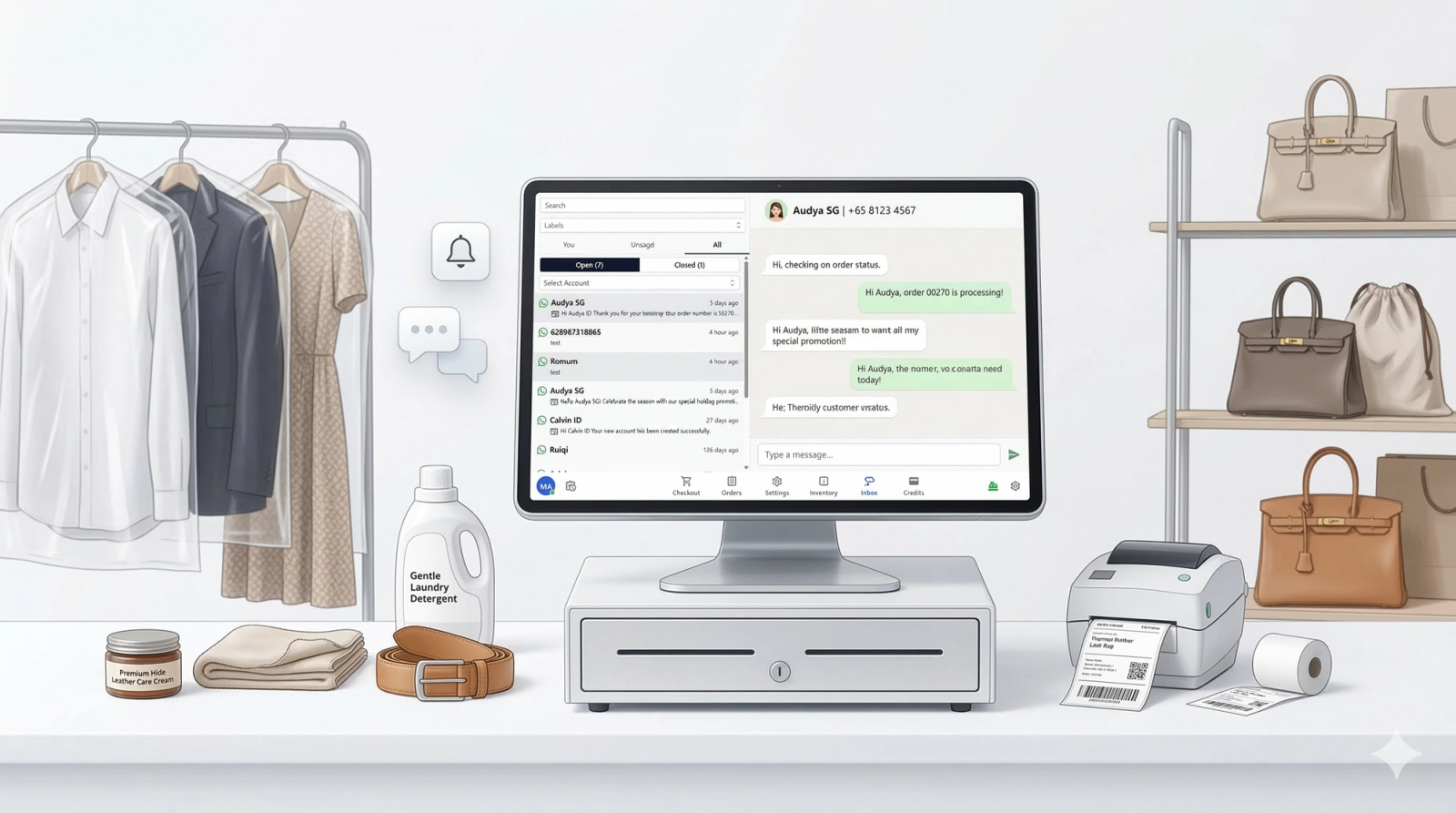
The POS Inbox lets your counter staff view, read, and reply to WhatsApp conversations without ever leaving the POS screen. When a customer messages "Is my laundry ready?" your staff can look it up and reply instantly — from the same screen they use to process orders.
Contents
Contents
What Is the POS Inbox?
The Inbox is a messaging screen built right into your POS app. It connects to your business's WhatsApp account and shows all your customer conversations in one place — so your counter staff can read and reply to messages while they work.
Why do you need it?
Without the Inbox, your staff would need a separate phone or browser tab open just to check WhatsApp messages. That means switching back and forth, missing messages during busy periods, and no easy way to know which conversations have been handled.
With the Inbox on your POS:
- Staff stay on one screen. They can check messages between serving customers — no app-switching needed.
- Nothing gets missed. An unread badge on the tab shows how many messages are waiting, and a notification sound plays when new messages arrive.
- Anyone on shift can help. Unassigned conversations appear in a shared tab, so whoever is free can pick them up.
- It's all in real time. Messages sync instantly — whether someone replies from the POS or from the console, everyone sees the same thing.
Think of it as your shop's WhatsApp inbox, but built into the same screen your cashier already uses every day.
Before You Start
- Your business must have a WhatsApp Business account connected. This is set up through the console's Integration / Company settings — not in the POS setup itself. Learn how to connect your WhatsApp account →
- If WhatsApp is not connected, the Inbox will still display any existing conversations, but staff won't be able to start new ones (the WhatsApp button won't appear).
Setting Up the Inbox Feature Block
Put the conversation inbox right on the POS so your front counter can answer customer messages without switching apps.
The Inbox block is not enabled by default. Add it when you want the POS to handle messaging alongside taking orders. Conversations come from WhatsApp and any other channels you have connected.
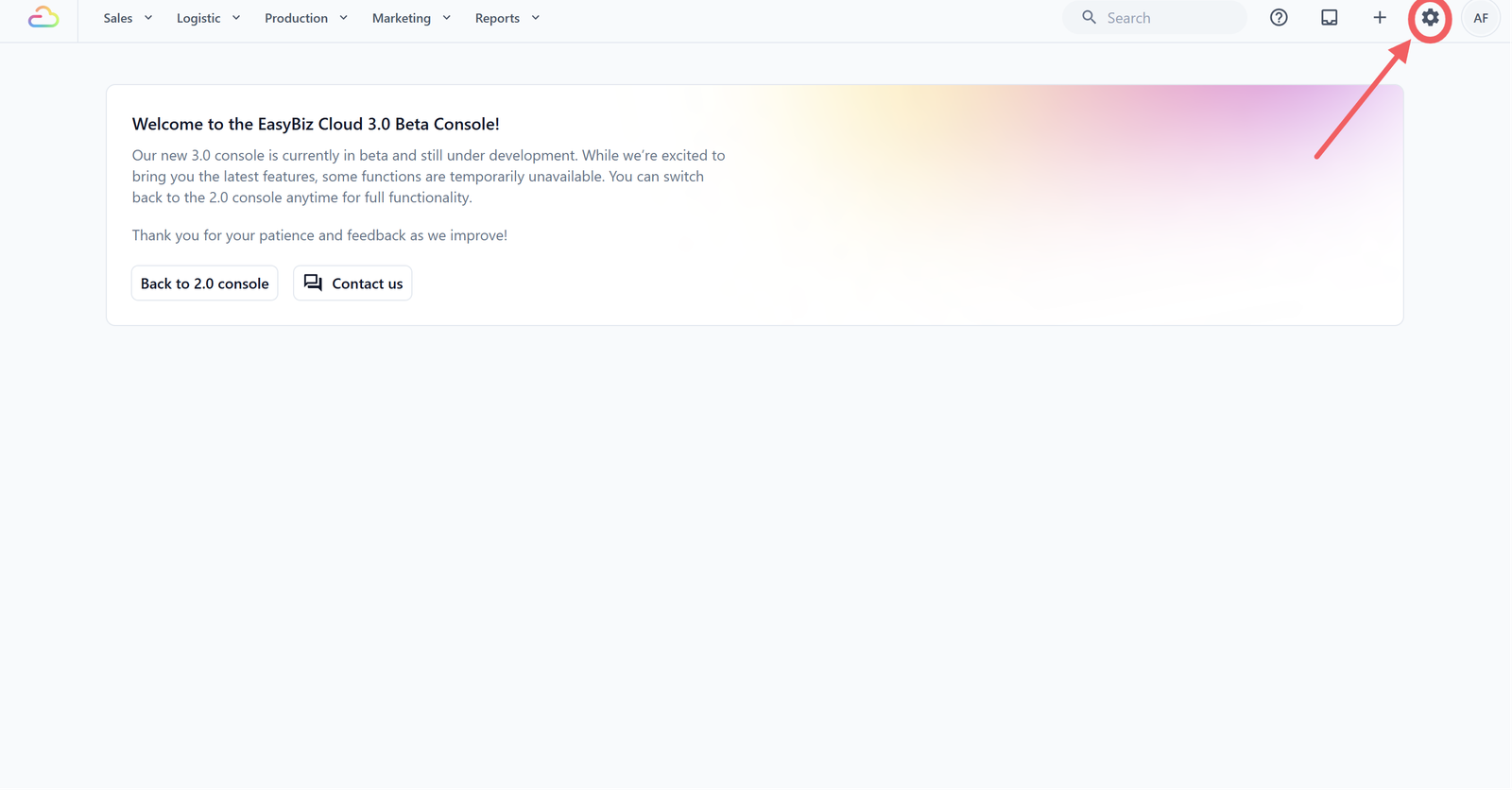
- Click the ⚙️Settings icon in the top-right corner.
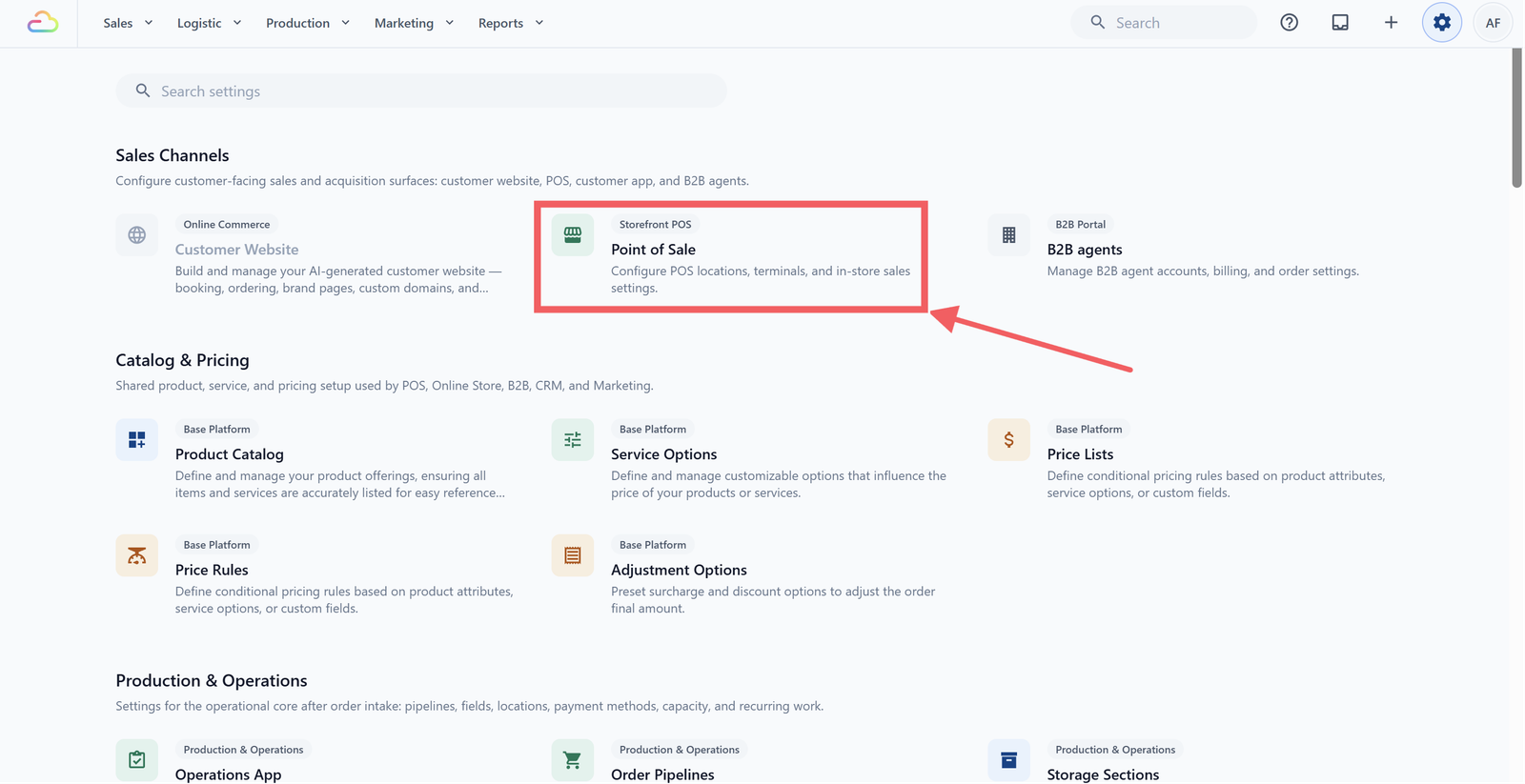
- Under the Sales Channels section, click Point of Sale.
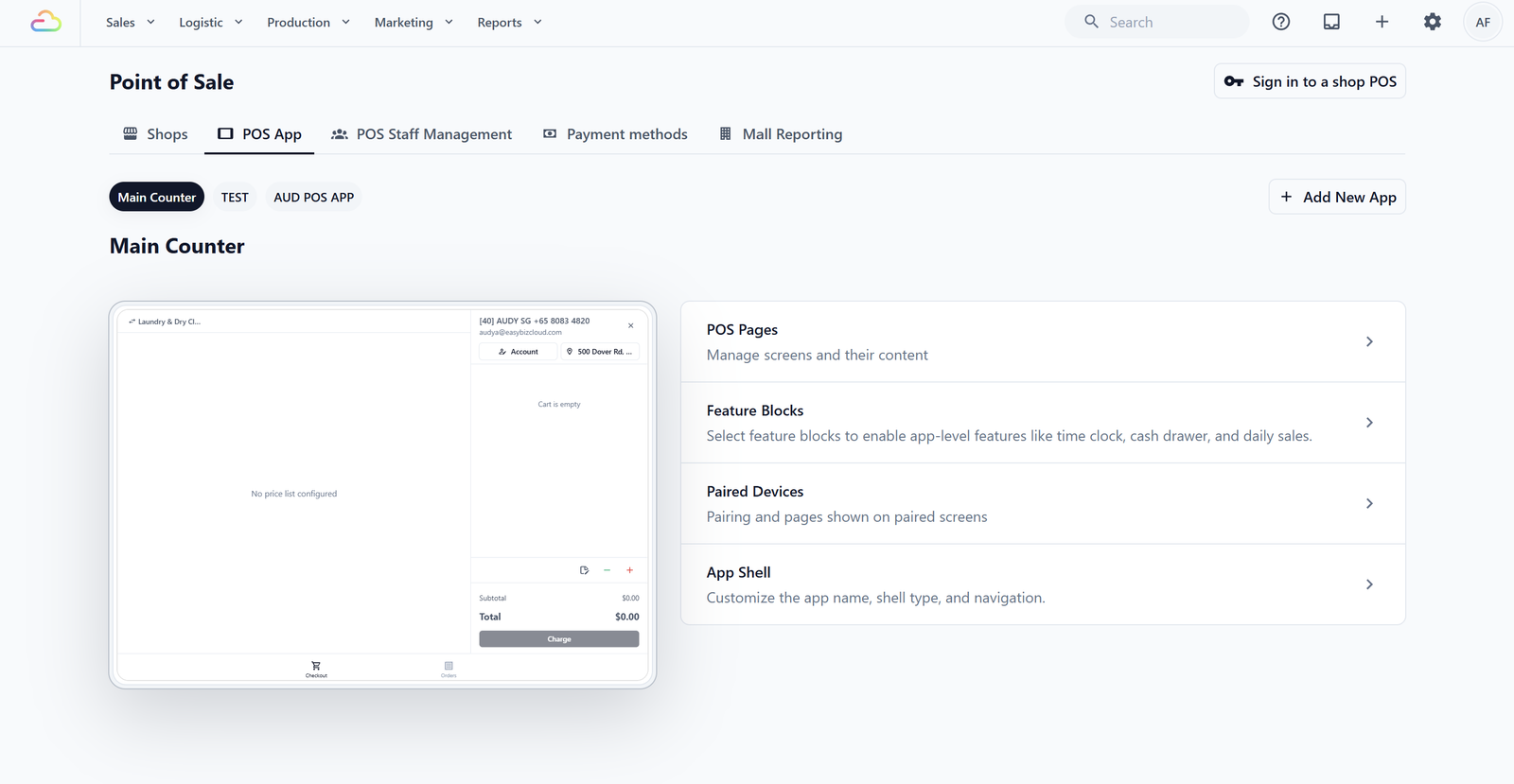
- Click POS App, then open the app you want to set up.
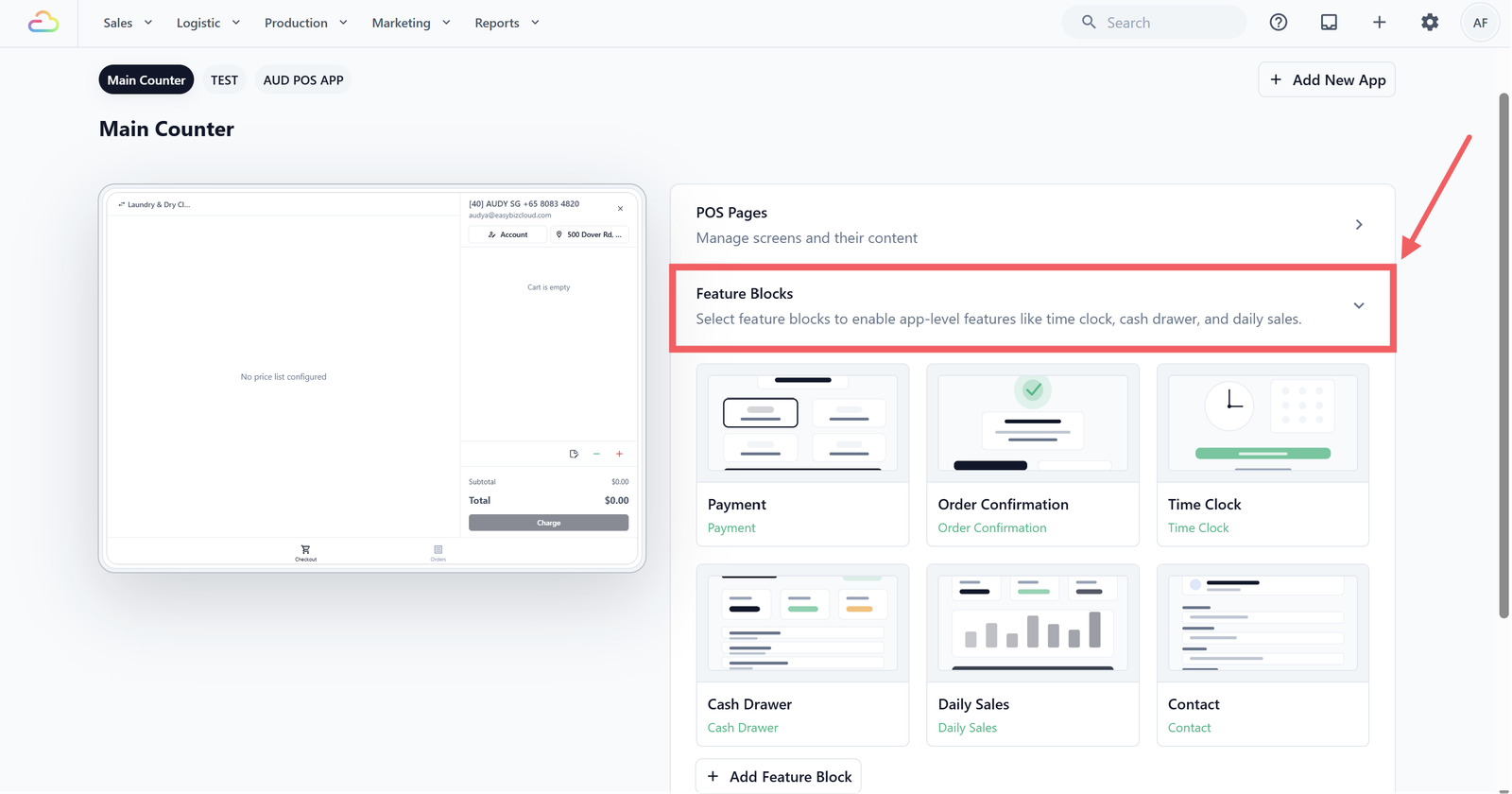
- In the right-hand panel, click Feature Blocks to expand the section.
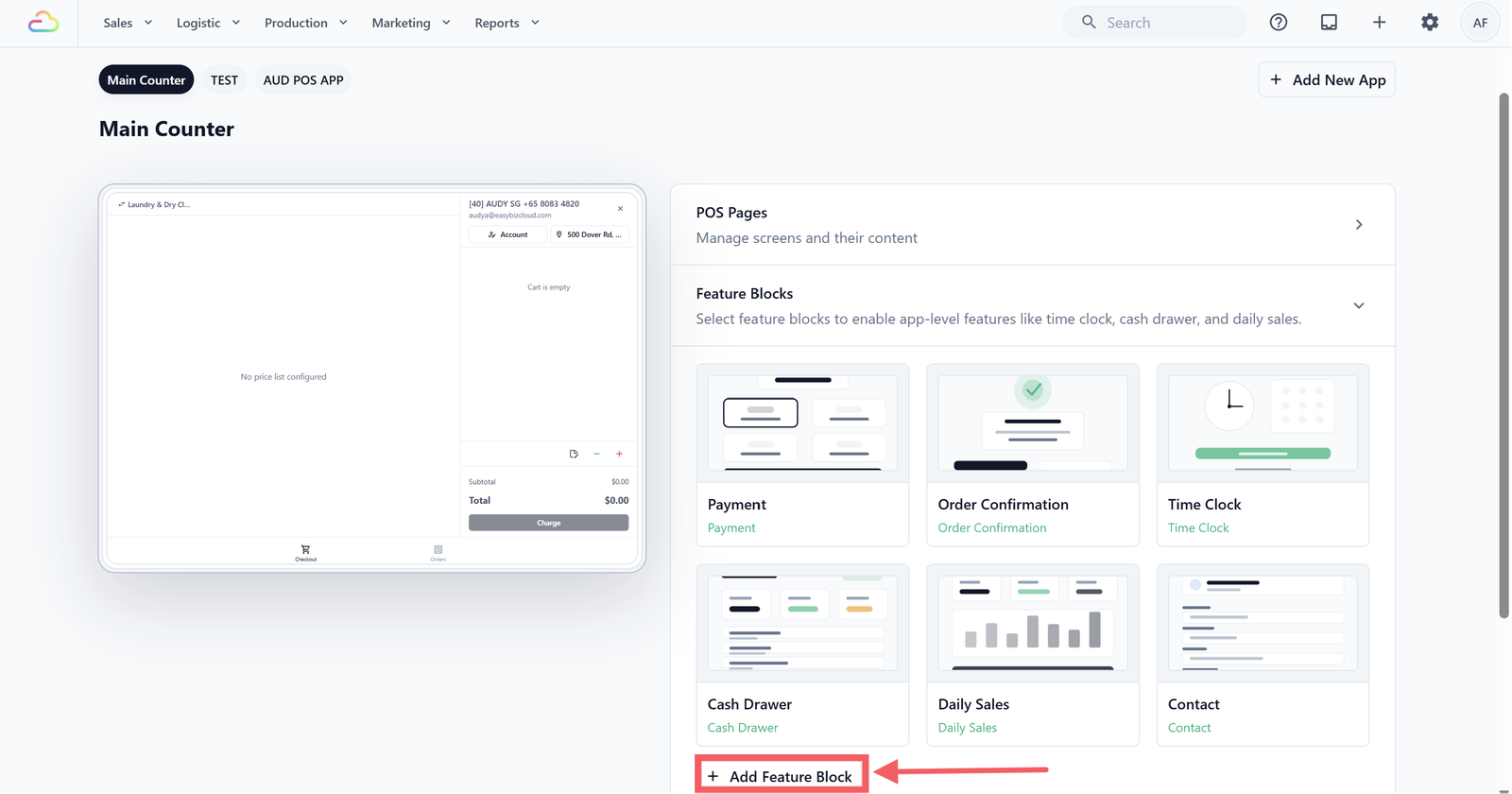
- Click + Add Feature Block .
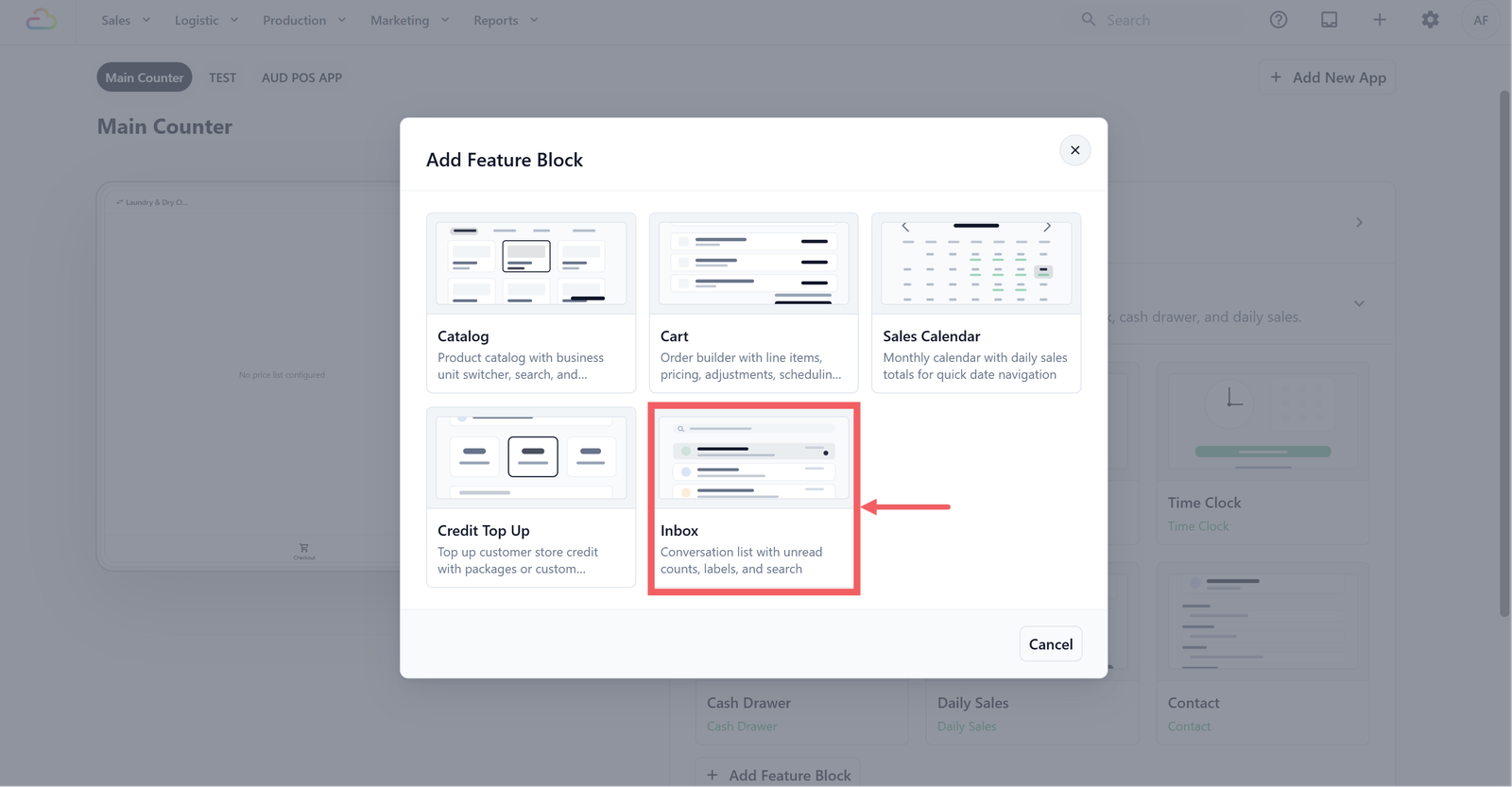
- In the Add Feature Block dialog, click the Inbox card.
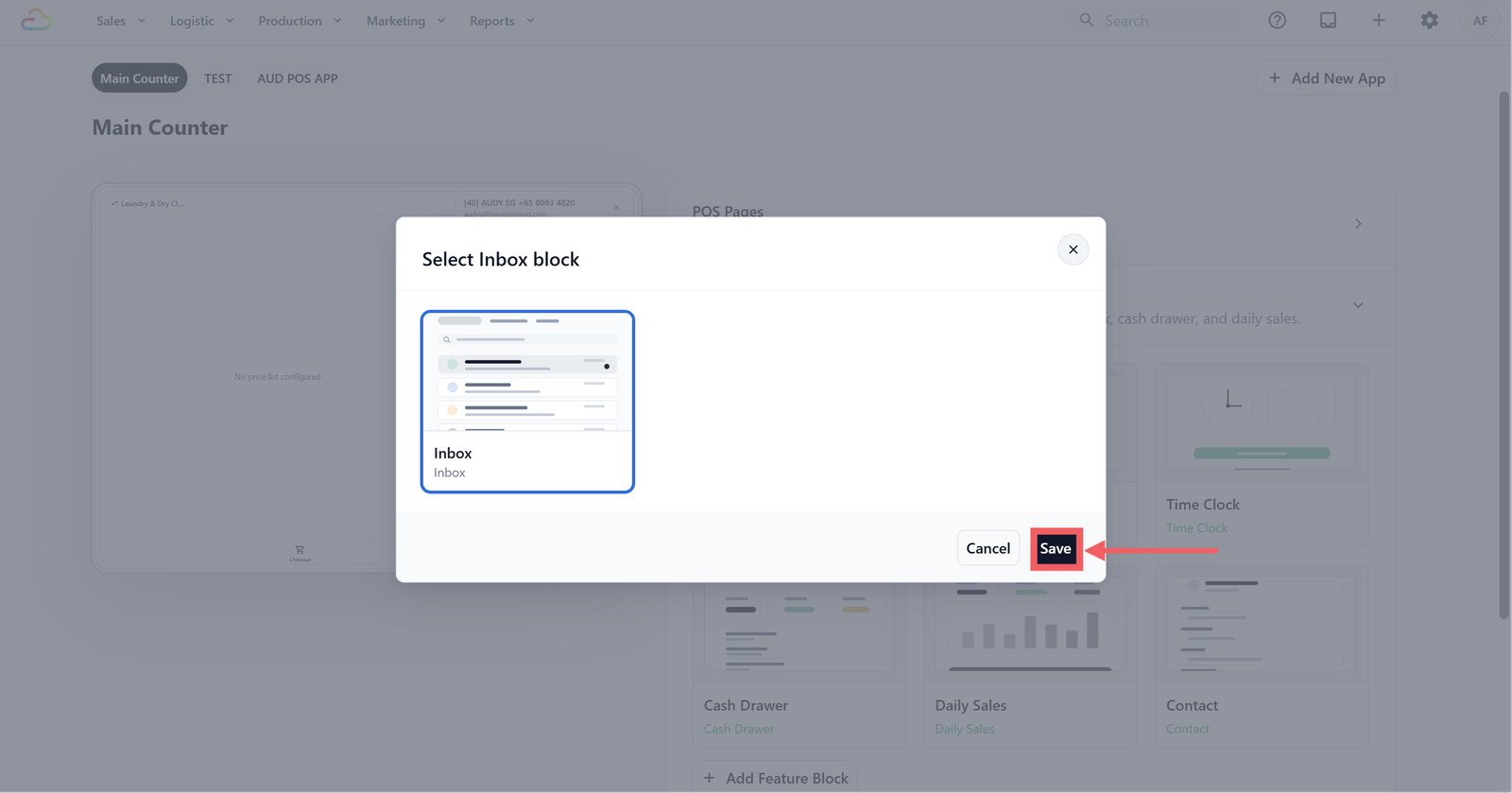
- Click Save.
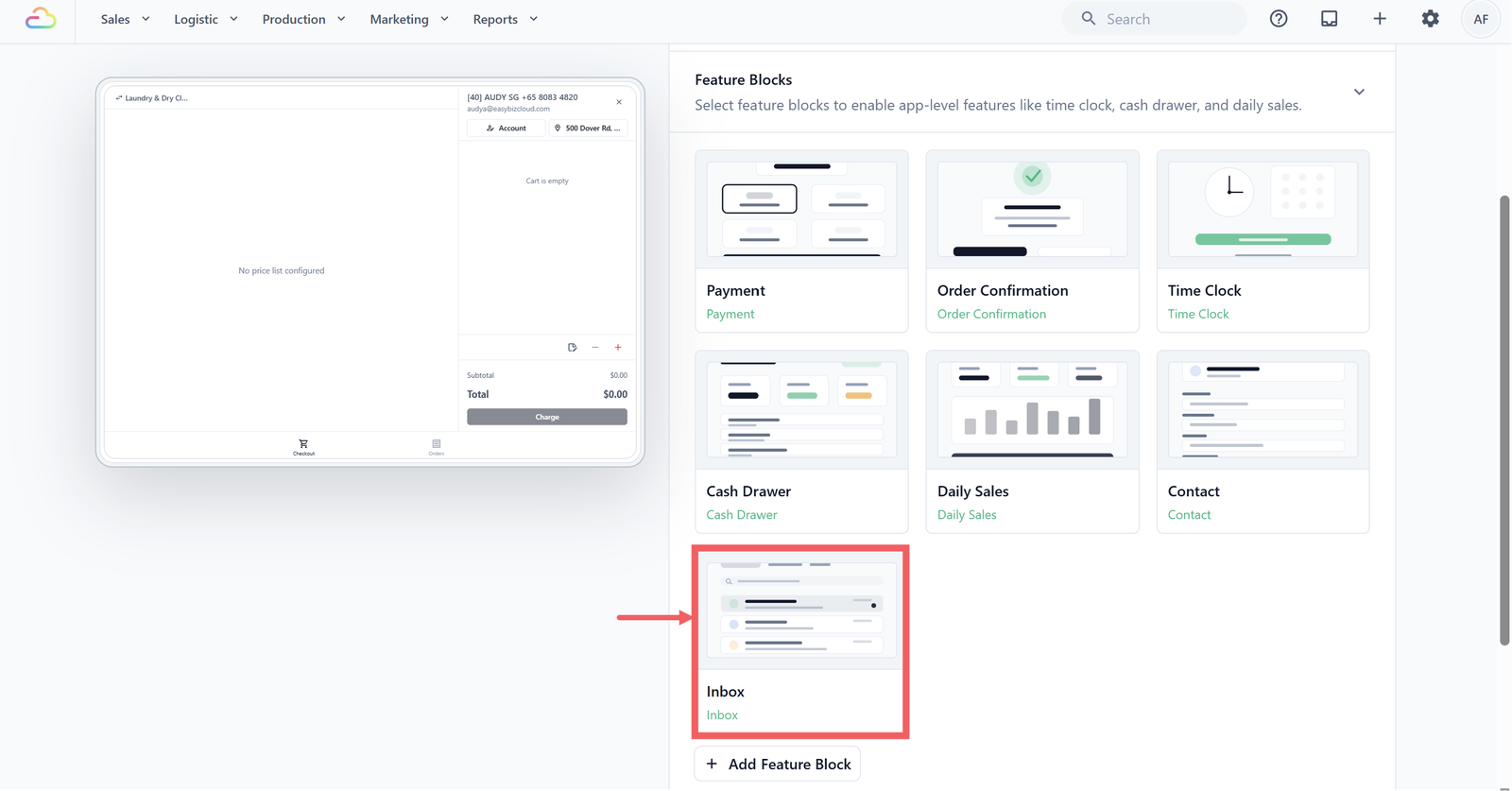
- Click the Inbox card to open its settings.
Inbox Settings
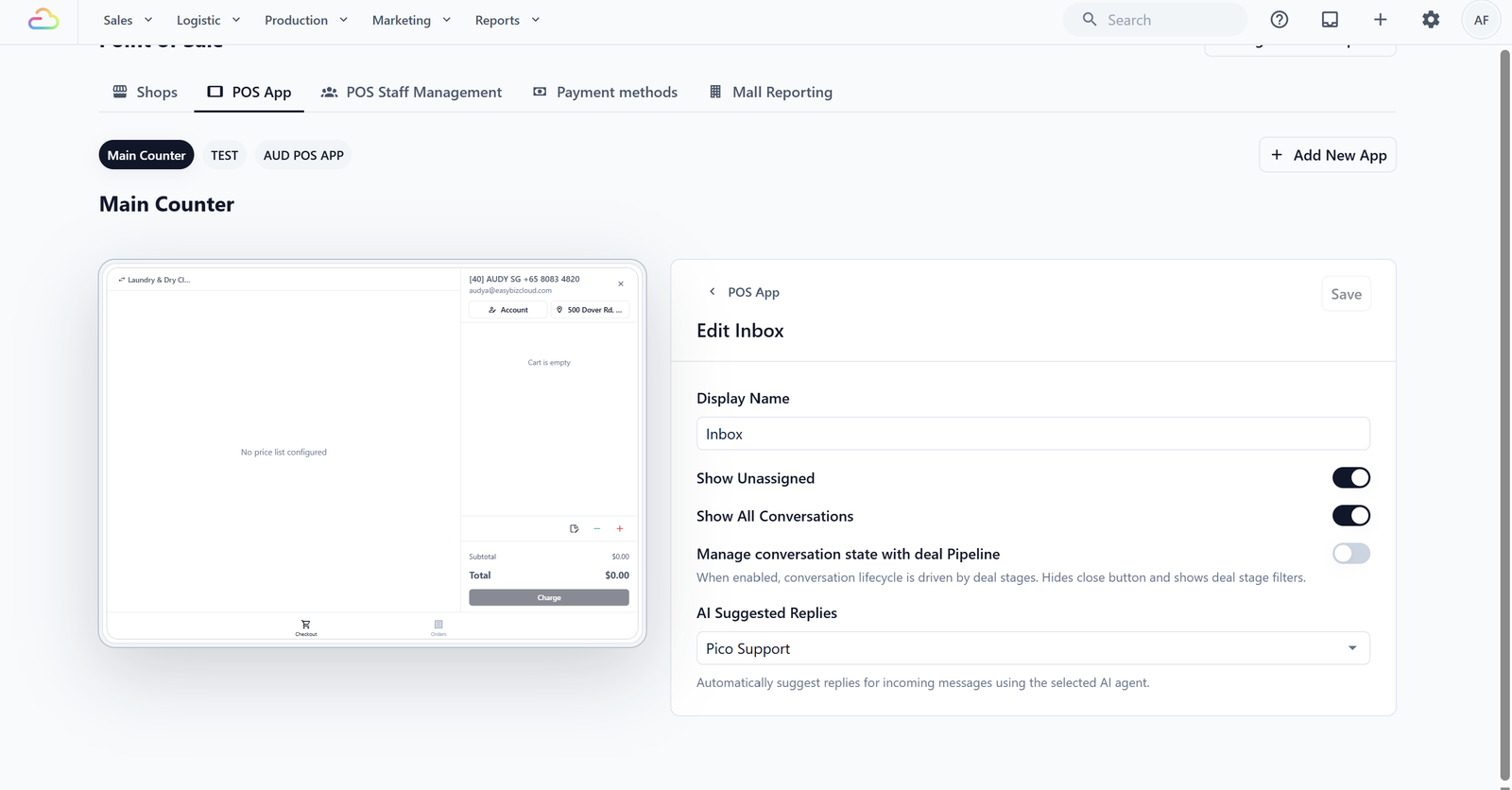
You can access these settings during block creation or anytime by tapping the Inbox block in your app editor.
| Setting | Default | What it does |
|---|---|---|
| Show Unassigned | On | Shows or hides the New tab — a list of conversations not yet assigned to any staff member. |
| Show All Conversations | On | Shows or hides the All tab — a list of every open and closed conversation. |
| Manage conversation state with Deal Pipeline | Off | Replaces the simple open/closed system with deal pipeline stages. When turned on, the Close button is hidden and stage filters appear instead. |
| AI Suggested Replies | Off | Lets you pick an AI agent that auto-suggests reply drafts for incoming messages. |
Add the Inbox Page to Your POS
The Inbox page is the actual screen your staff will tap to read and reply to WhatsApp messages. It's a split-screen layout: conversation list on the left, message thread on the right. You need to add this page first, then it can be opened from the POS tab bar.
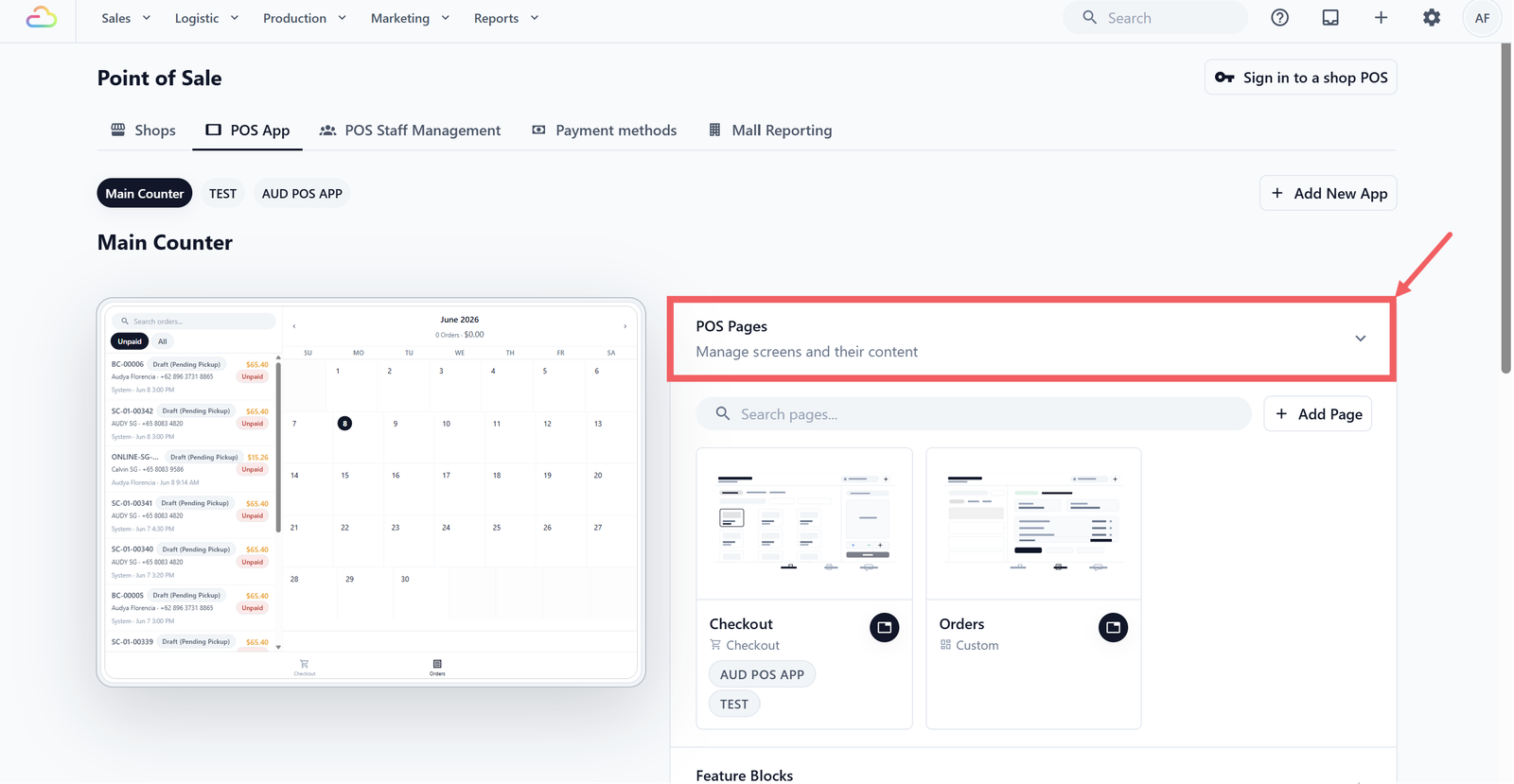
- On the POS page, Click POS Pages to expand the section.
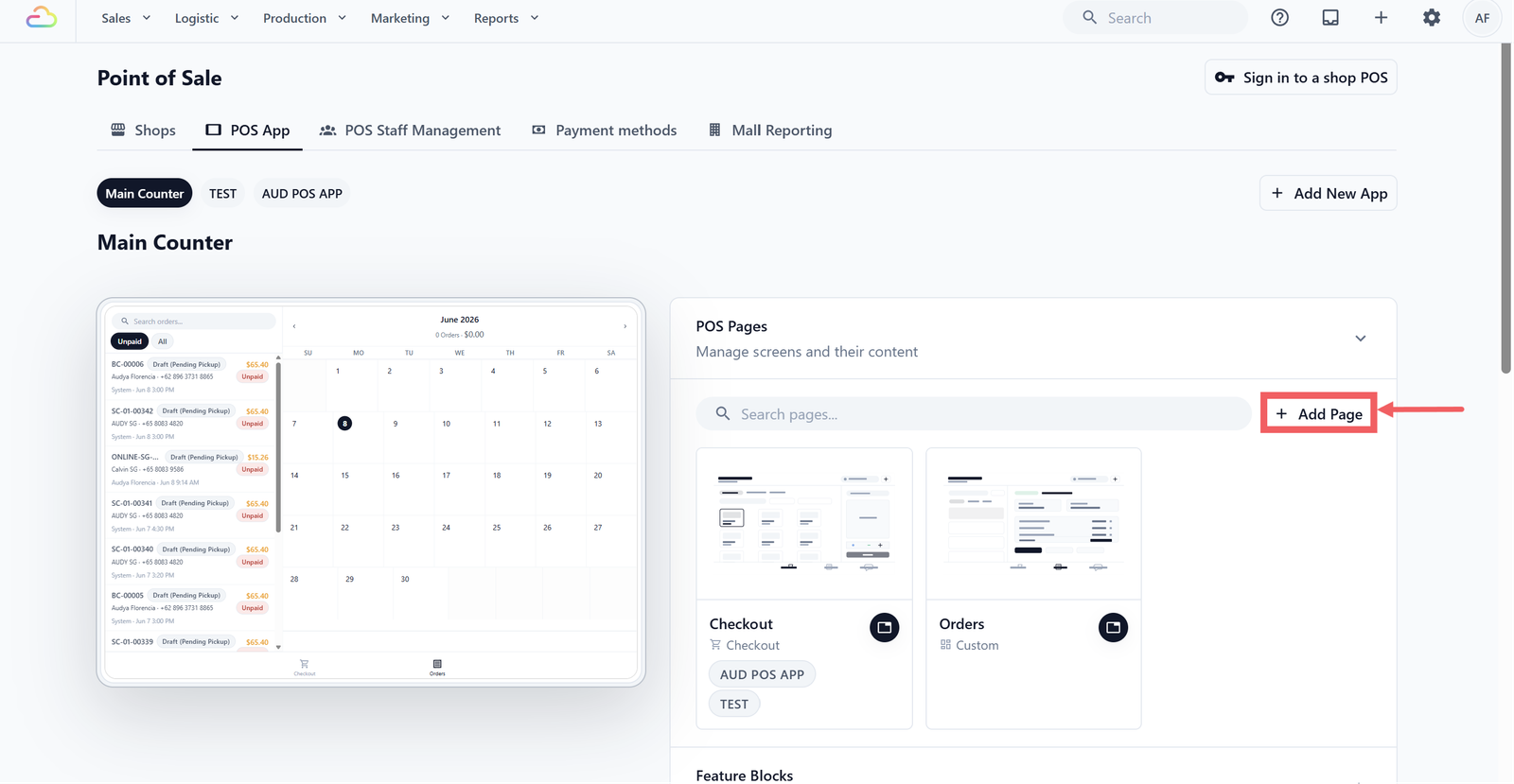
- Click + Add Page.
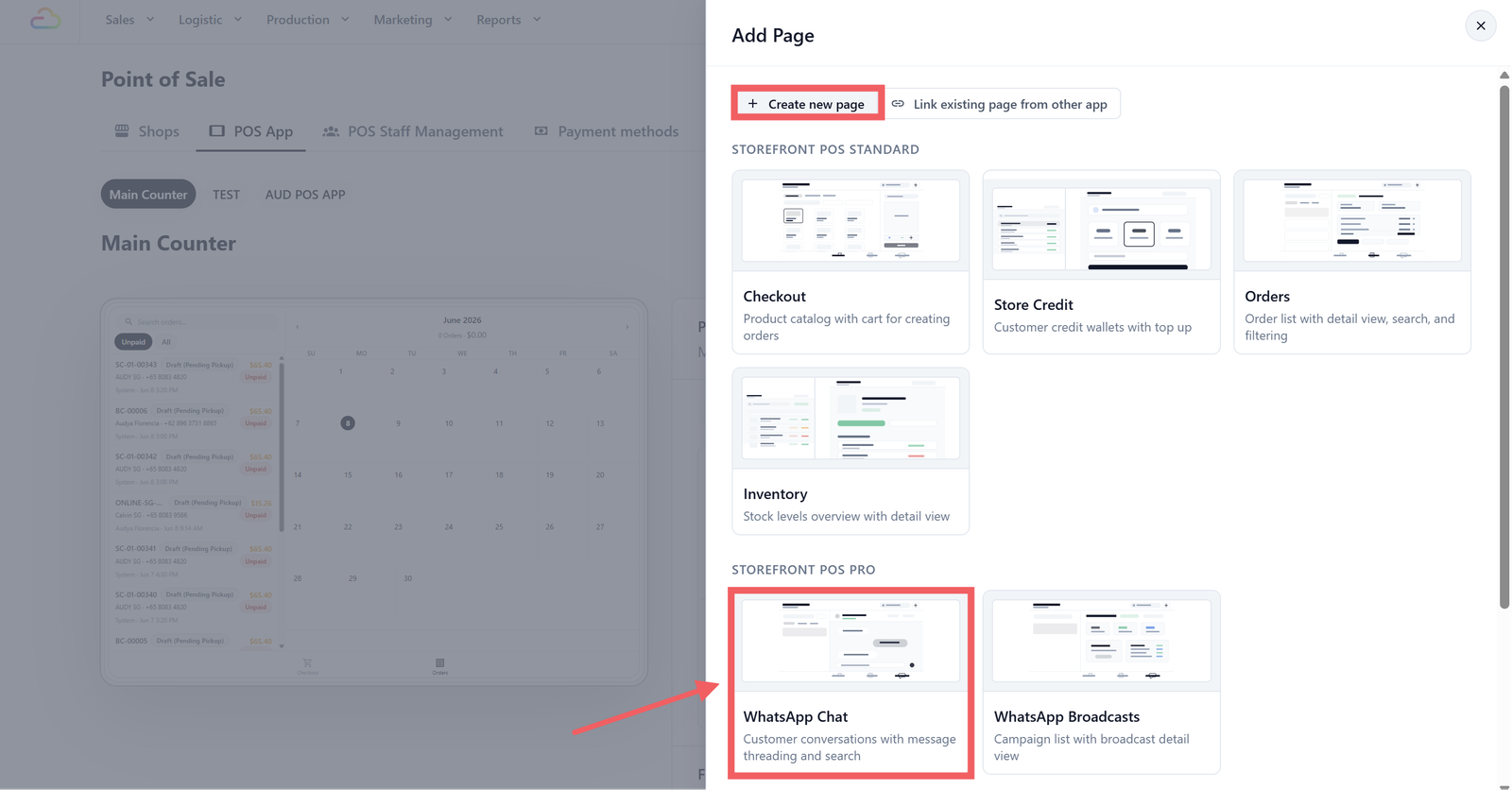
- In the Add Page drawer, keep the Create new page tab selected.
- Scroll to the Storefront POS Pro section and click the WhatsApp chat template card.
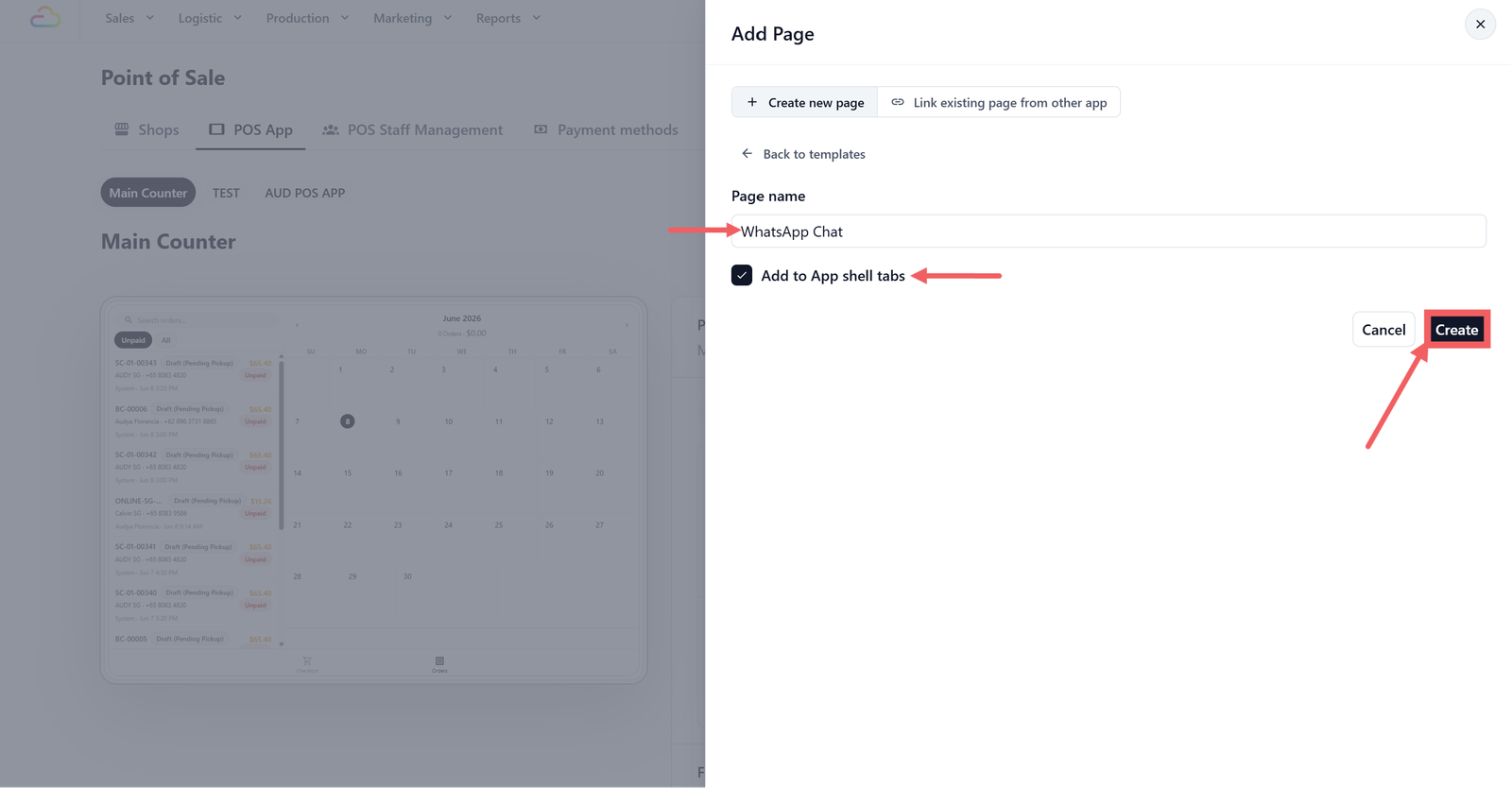
- In the Page Name field, enter the label staff will see on the POS tab — for example "Inbox" or "Messages".
- Tick Add to App shell tabs so the page shows up in the POS bottom tab bar. (Leave it unticked if you want to add it to a specific tab slot manually later.)
- Click Create.
How Your Staff Will Use It
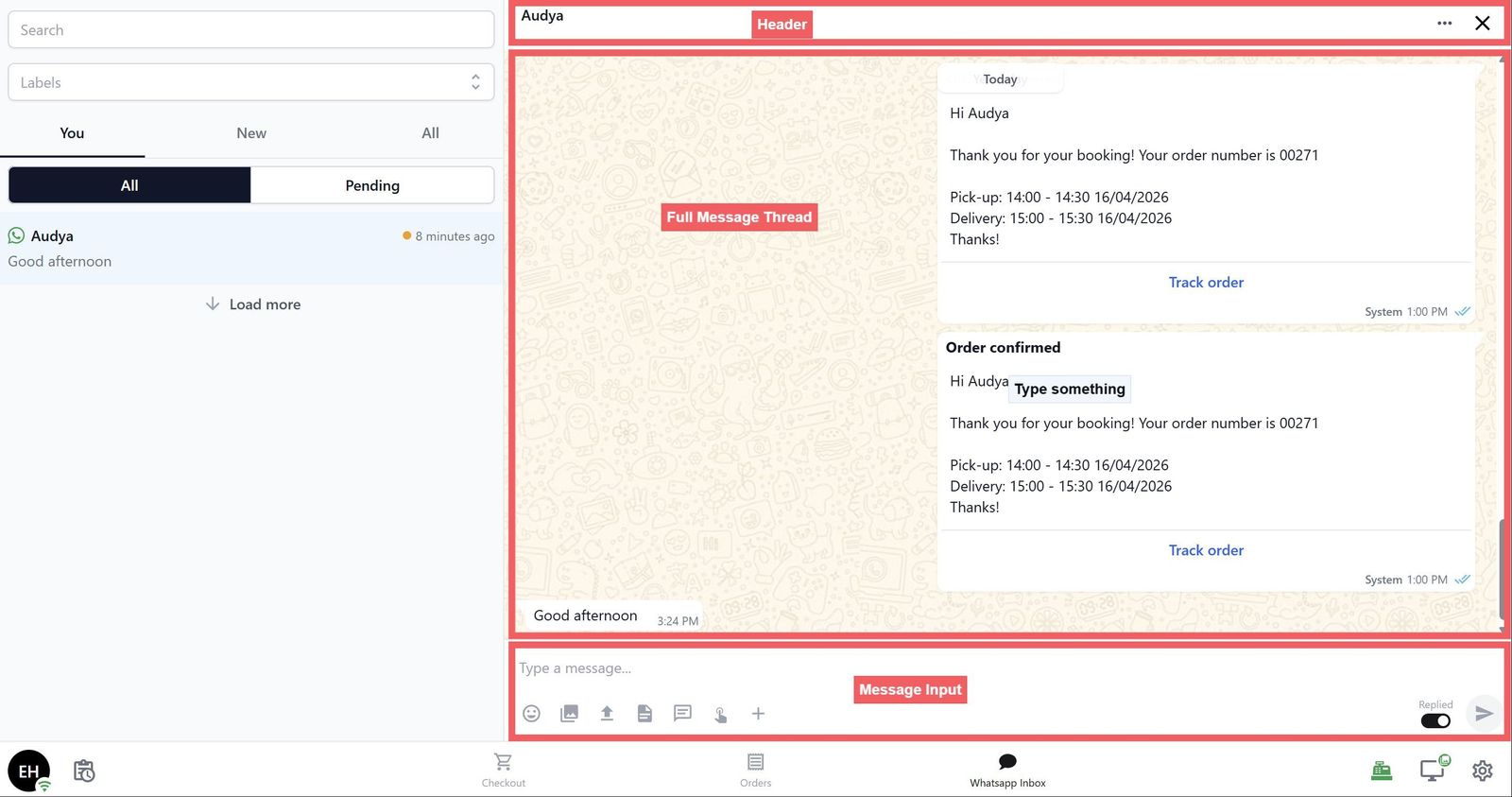
When staff tap the Inbox tab on the POS, they'll see a split-screen view.
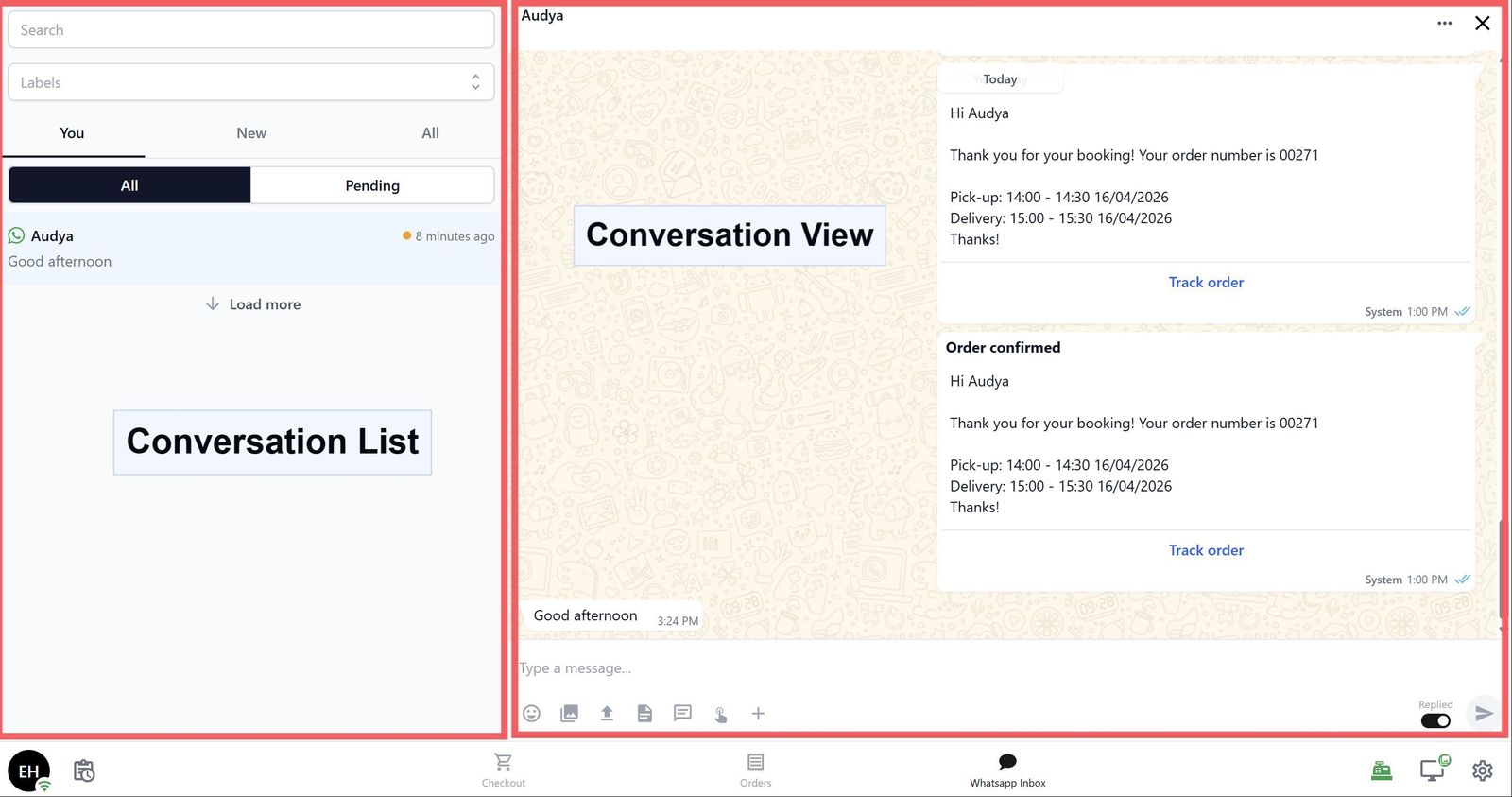
Left Panel — Conversation List
- Search bar at the top to find conversations by customer name.
- Label selector to filter conversations by label.
- Three tabs (when both optional tabs are enabled):
| Tab | What it shows |
|---|---|
| You | Conversations assigned to the logged-in staff member (active). |
| New | Unassigned conversations waiting to be claimed. Shows a badge count. |
| All | Every conversation. Has a sub-toggle between Open and Closed, plus a filter by team member. |
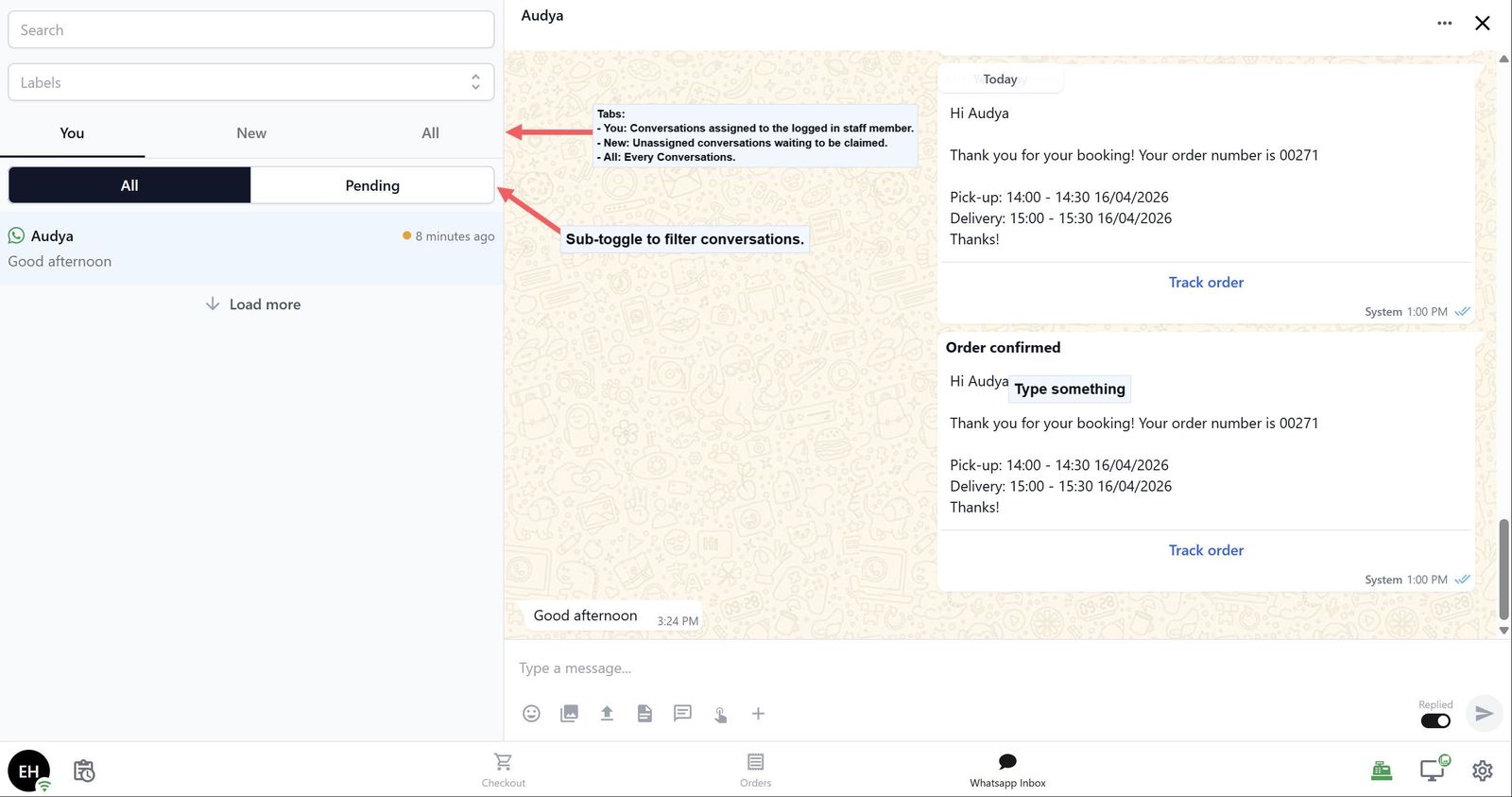
- The You and All tabs also have an All / Pending sub-toggle to show only conversations waiting for a business reply.
- Conversations are sorted newest first. Each row shows the customer name, last message preview, timestamp, and unread count.
Right Panel — Conversation View
- Header with the customer name, WhatsApp icon, and an overflow menu ⋮.
- Full message thread with timestamps.
- Message input at the bottom for typing replies.
Replying to Messages
Staff can type and send free-form replies to any active WhatsApp conversation that's within the 24-hour messaging window.
Starting a New Conversation
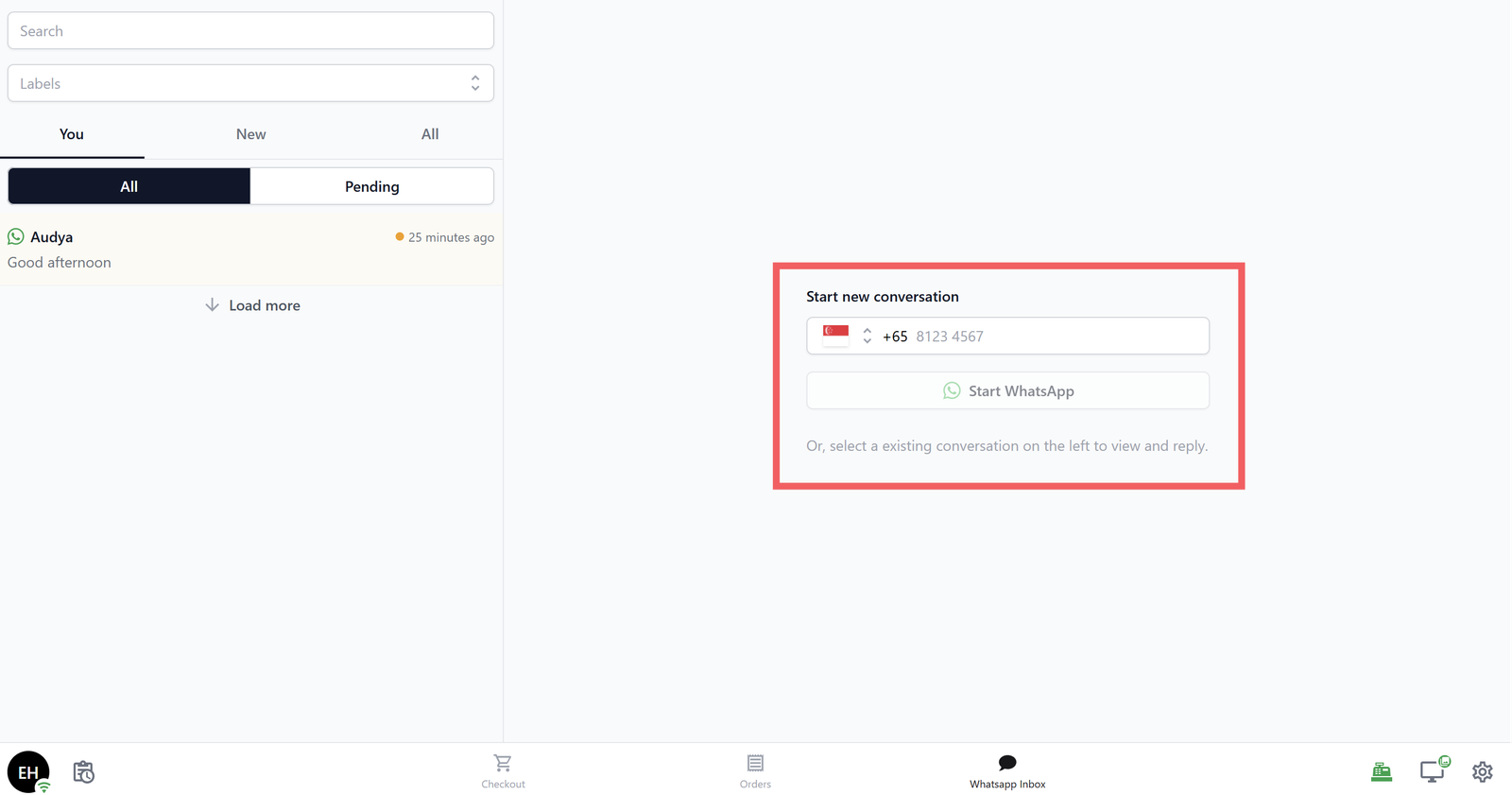
When no conversation is selected, the right panel shows a Start new conversation form:
- Enter the customer's phone number.
- Select the WhatsApp account (if your business has more than one connected).
- Tap Start WhatsApp.
Closing and Reopening Conversations
- To close a conversation: tap the overflow menu ⋮ in the conversation header and select Close conversation.
- To reopen a closed conversation: an Attend button appears in the input area — tap it to claim and reopen the conversation.
Claiming Unassigned Conversations
If a conversation is unassigned (in the New tab), the message input area is replaced by an Attend button. Staff must tap Attend to claim the conversation before they can start typing.
Real-Time Updates
The Inbox syncs in real time — new messages appear instantly without refreshing, and the unread badge in the POS tab bar updates automatically. A notification sound also plays when a new message arrives, so staff won't miss anything even if they're on a different tab.
FAQs
What if no one claims a conversation?
Unassigned conversations sit in the New tab until a staff member taps Attend. If you've turned on the Show Unassigned setting, the tab badge will count these — helping make sure nothing gets missed.
Does the POS Inbox sync with the console Inbox?
Yes — both the POS and the console read from the same data, so they are always in sync. A conversation replied to in the console will show the reply on the POS too, and vice versa.
Give feedback
Up next
Set Up Store Credit on Your POSLet your customers prepay for services by loading store credit directly from your POS.
Read more