
What Is EasyBiz POS?
In this article
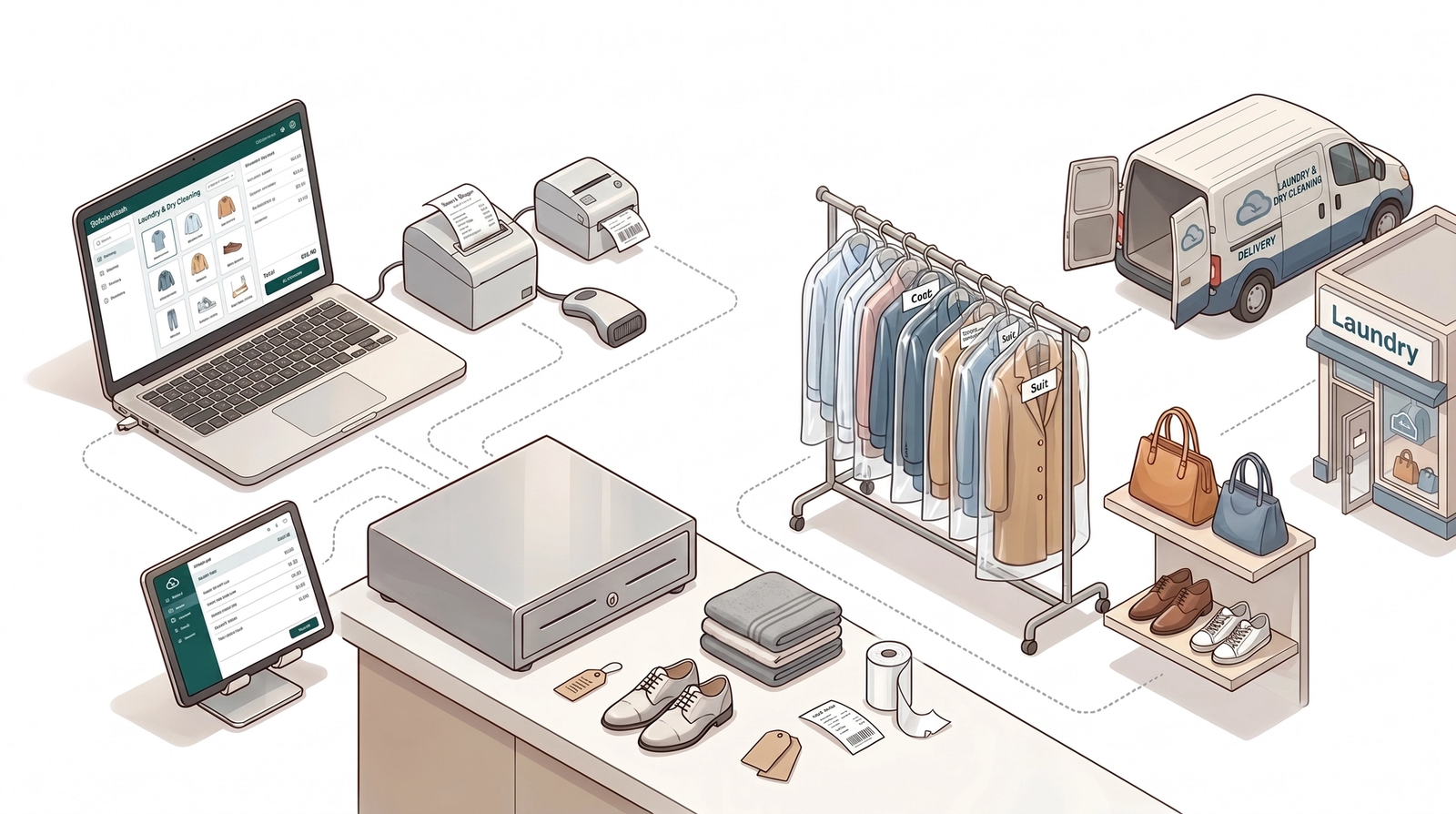
EasyBiz POS helps you manage your daily counter operations — from taking orders and collecting payments to tracking every job and closing the day.
Contents
Contents
What Is a POS?
POS stands for Point of Sale. It is the system you use at your shop counter to take orders, collect payments, and keep track of your sales. Think of it as your digital cash register, but one that can do much more than just handle cash.
What Can You Do with EasyBiz POS?
With EasyBiz POS, everything your staff needs is on one screen — no switching between apps, no paper records, and no manual calculations. It runs in your web browser, so there is no software to install. Just open it on your computer, tablet, or phone and you are good to go.
Here is how it helps you run your shop day to day:
- Take orders and collect payments in one go: Select items, add them to the cart, assign a customer, and collect payment all from the same screen. No need to write things down separately.
- Accept multiple payment methods: Cash, Card, PayNow, GrabPay, Bank Transfer, etc. The system records every transaction for you automatically.
- Track every order without digging through paperwork: See all your orders and their statuses at a glance — pending, processing, ready for pickup, or delivered. You always know where each job stands.
- Print labels for every item: The system generates labels for each item in an order, so you can tag and track them easily. No more handwriting tags or guessing which item belongs to which customer.
- Manage your cash drawer from open to close: Set your opening cash amount, and the system tracks every cash payment against its order. At the end of the day, you will know exactly how much should be in your drawer.
- Get daily reports instantly: Run a Close the Day report to see your total sales, income breakdown, and any outstanding balances, all calculated for you.
What Does EasyBiz POS Look Like?
EasyBiz POS has a clean, simple layout with navigation tabs at the bottom of the screen. The tabs and features you see will depend on how your POS is set up — you can customise it to match your business needs.
Here is a quick look at how it works for different types of businesses:
Getting Started
You will be setting up your POS app in the EasyBiz Console — this is your management dashboard, where you configure everything before your staff uses the POS at the counter. The guides below will walk you through each step so you can be up and running quickly.
See [What You Need Before Setting Up Your POS] to get started.
Give feedback
Up next
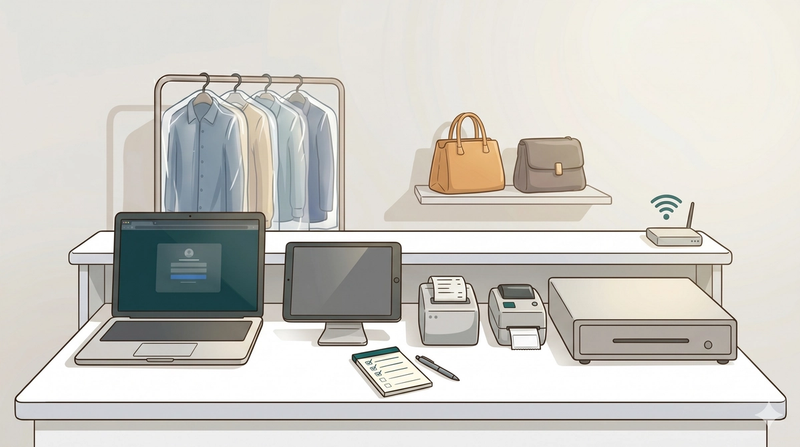
What You Need Before Setting Up Your POSBefore you start, make sure these things are ready — this is your pre-setup checklist.
Read more