
Set Up Time Clock on Your POS
In this article
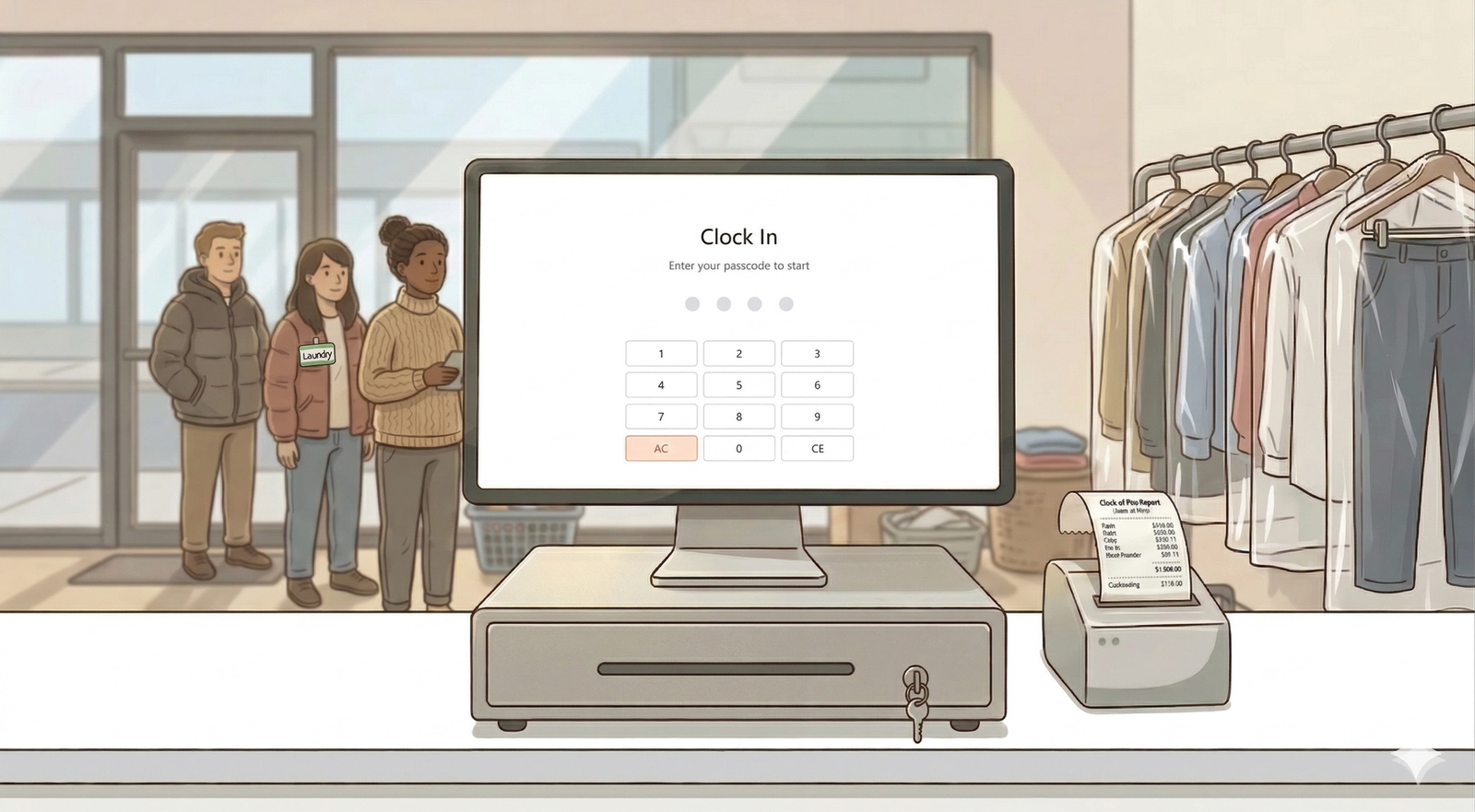
This guide walks you through setting up the Time Clock on your POS — an optional feature that lets your staff clock in and out for their shifts. You will learn how to keep it optional or make it mandatory, depending on how you run your shop.
Contents
Contents
What Is the Time Clock?
Your POS comes with a built-in Time Clock that lets your staff clock in and out for their shifts. By default, the Time Clock is set to optional — meaning your staff can choose to clock in, but they are not required to.
Set Up the Time Clock Feature Block
You can choose how strict you want this to be, depending on how you run your shop:
- Keep it as optional (default): Your staff can clock in and out if they want, but it is not required. This works well for most shops, so you can skip the steps below if you are happy with this setting.
- Make it mandatory: If you want to make sure all your staff clock in before they start working, follow the steps below to update this setting.
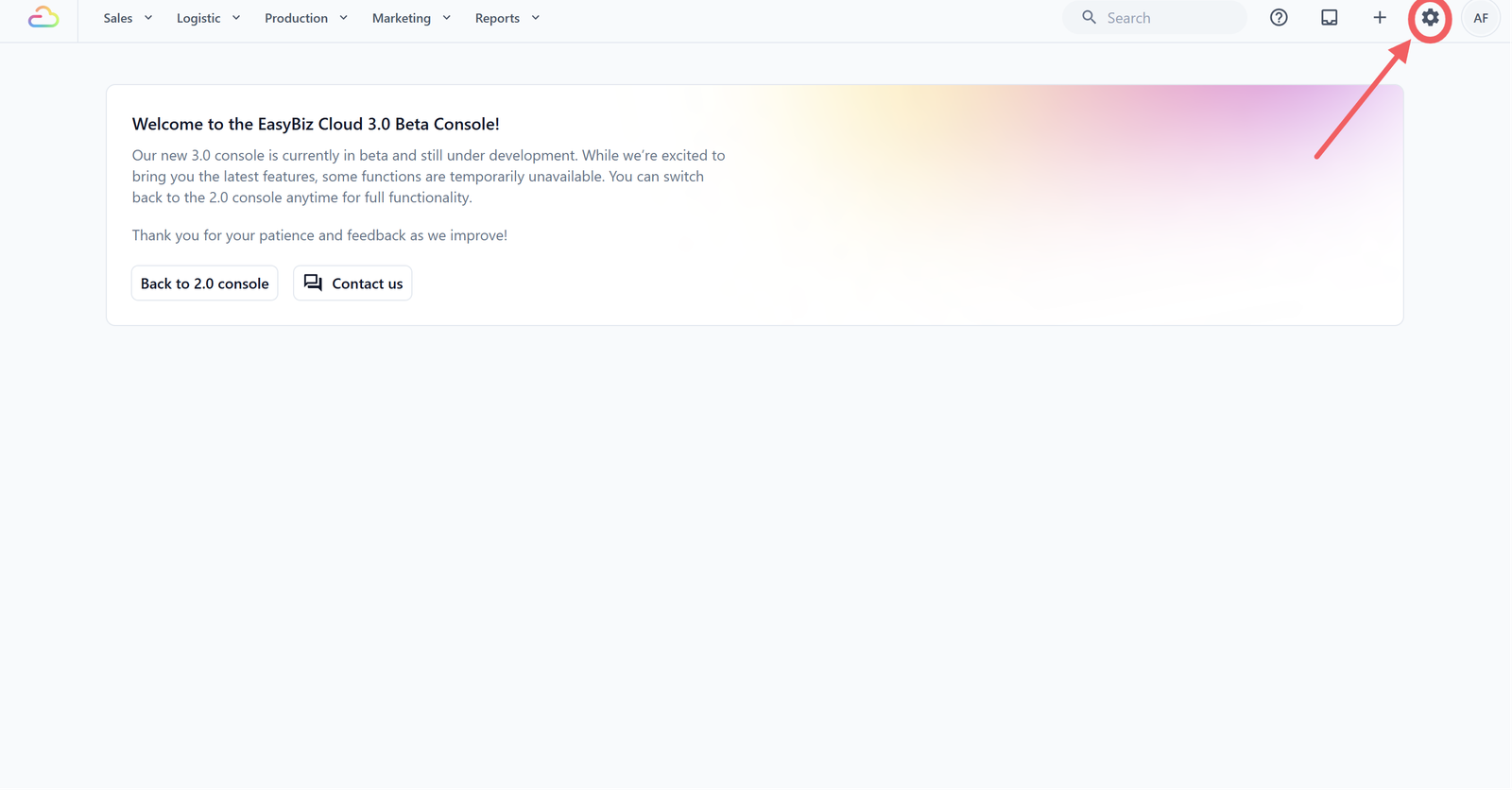
- Click the ⚙️Settings icon in the top-right corner.
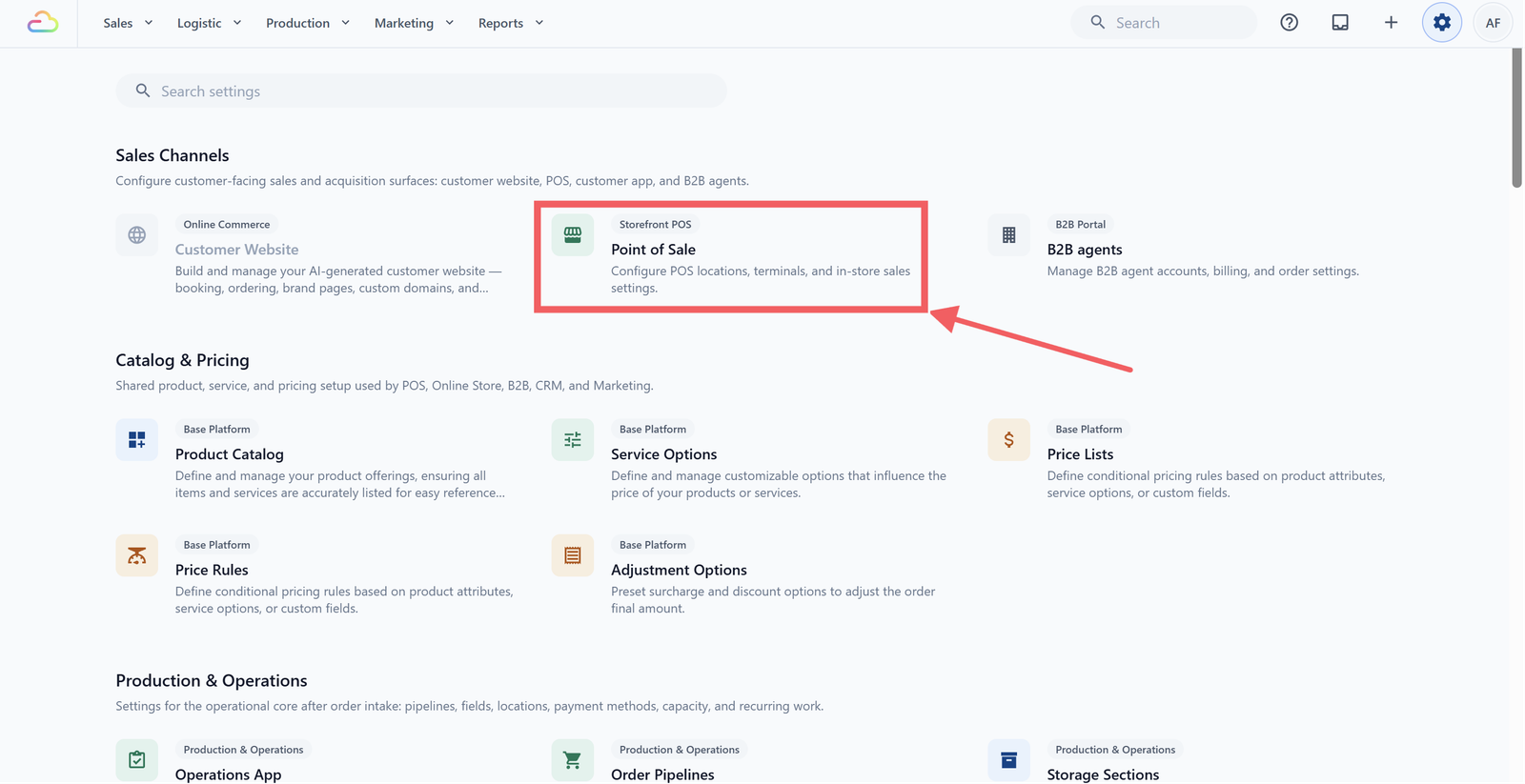
- Under the Sales Channels section, click Point of Sale.
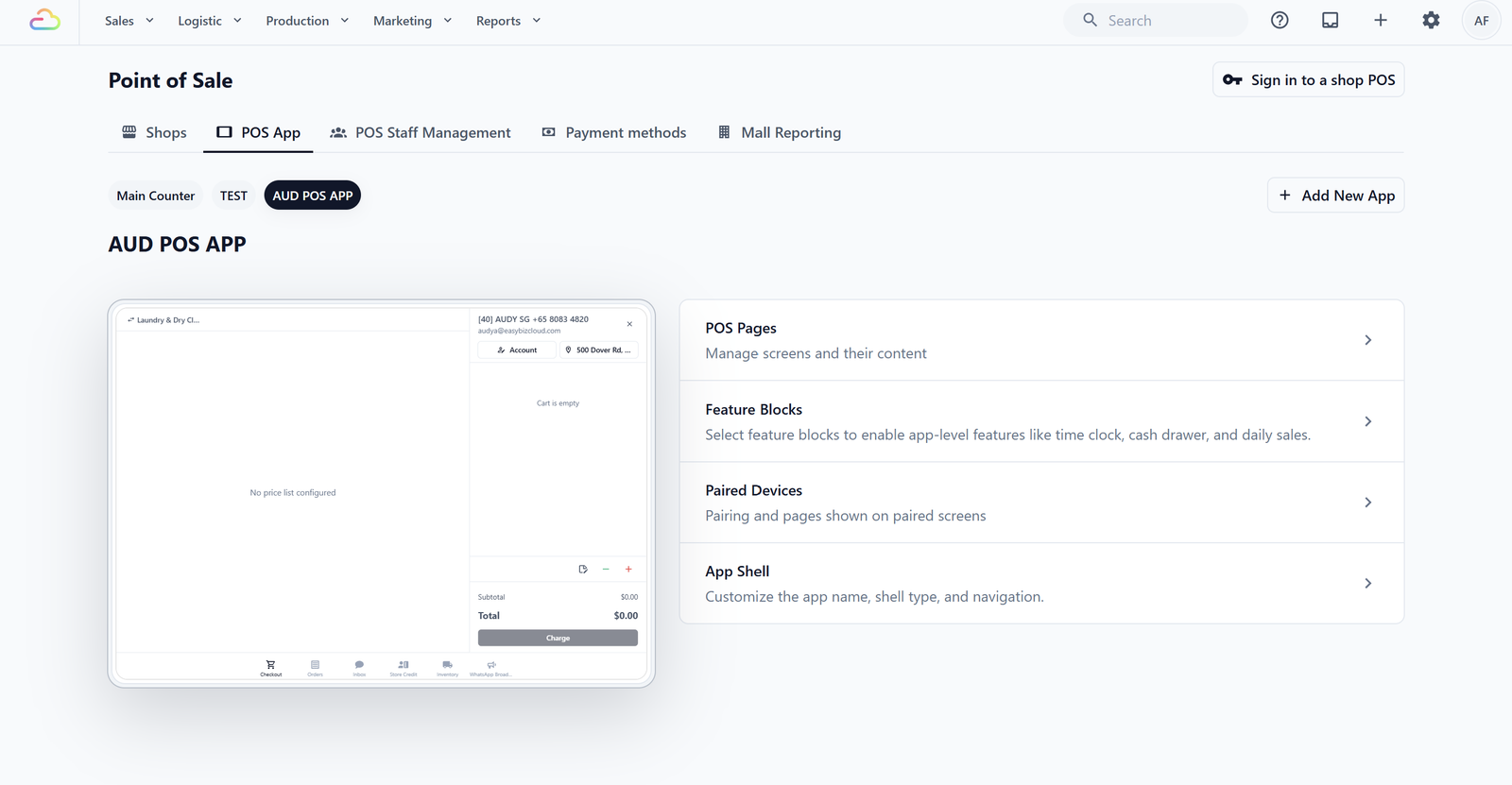
- Click POS App, then open the app you want to set up.
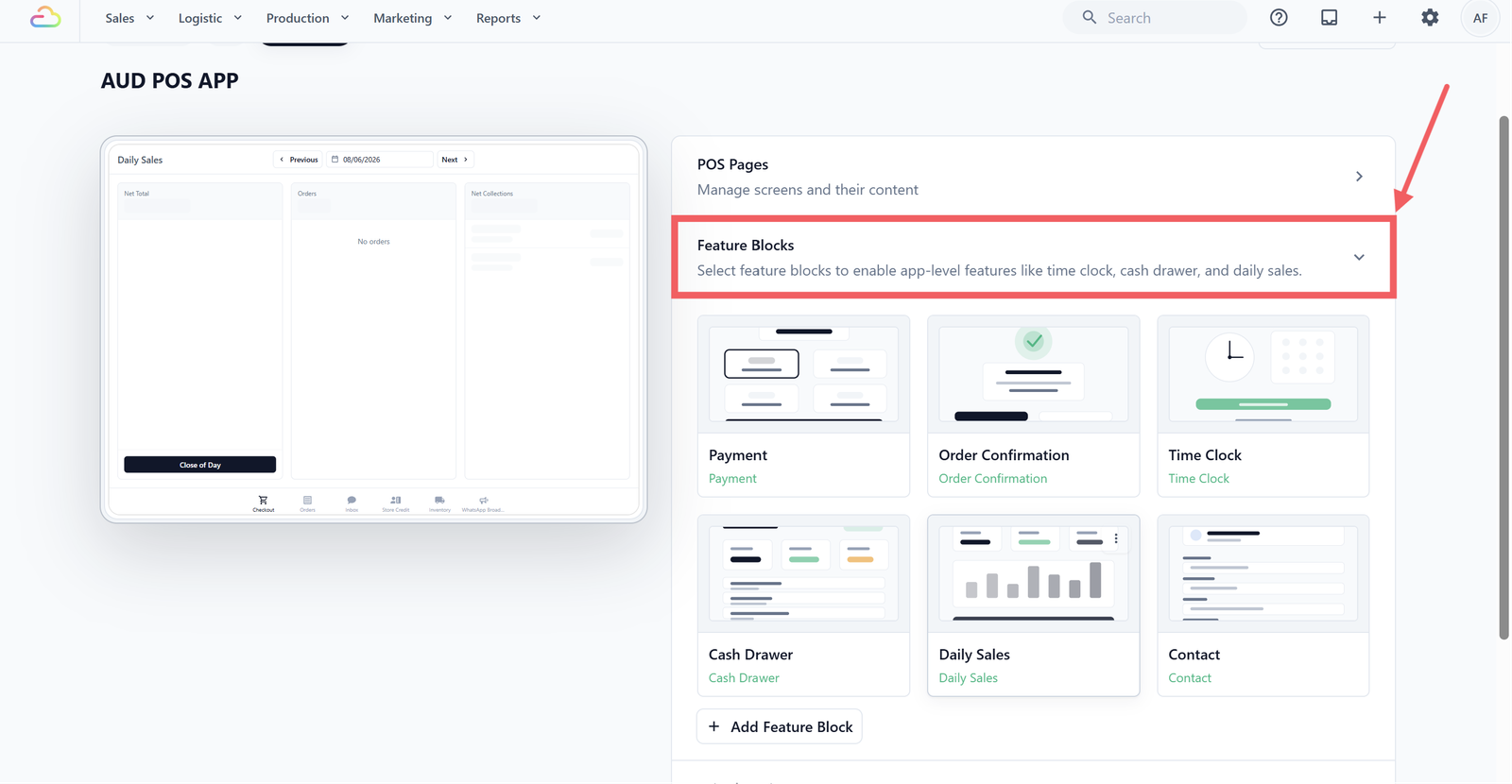
- In the right-hand panel, click Feature Blocks to expand the section.
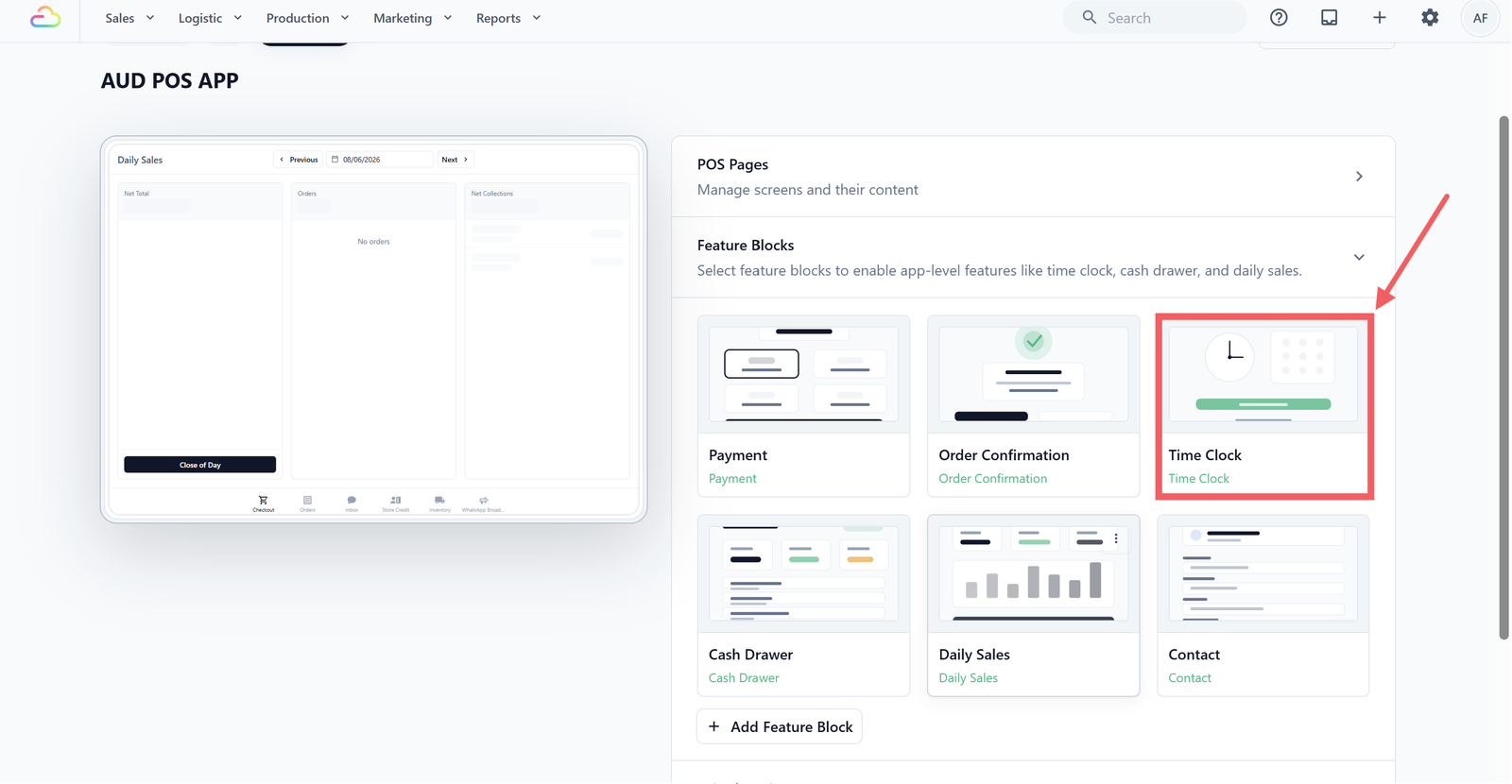
- In the default grid, click the Time Clock block.
Time Clock Settings
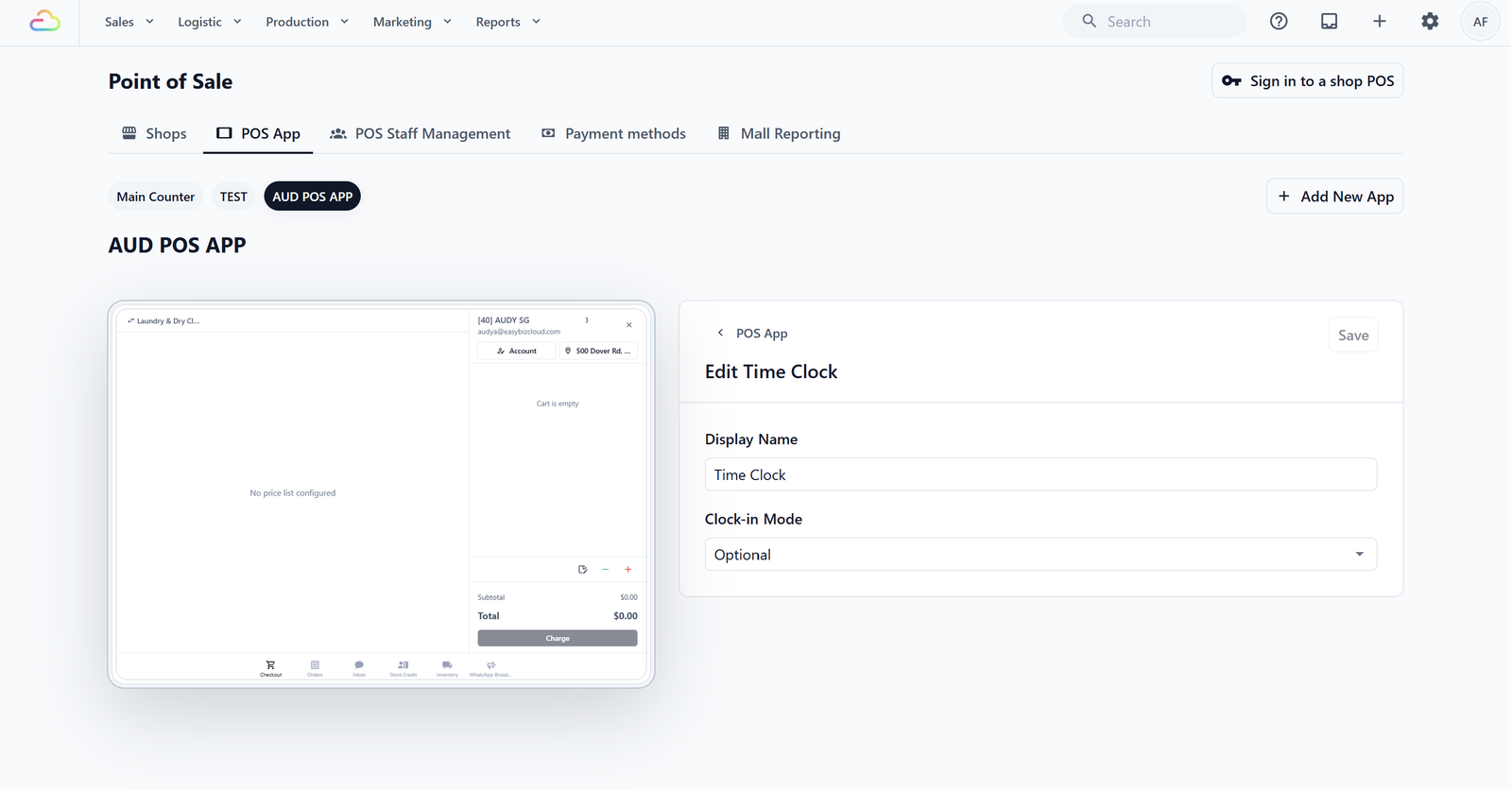
Display Name
A free-text label that appears on the POS button. Leave it as "Time Clock" unless your staff calls it something else (for example "Punch In").
Clock-in Mode
| Option | What happens |
|---|---|
| Optional | Staff can clock in if they want to, but the POS still works without it |
| Required | Staff must clock in before any other POS feature opens |
Click Save in the top-right when done.
How It Works on the POS
Here is what your staff will see when using the Time Clock on the POS device.
Clocking in
How your staff clocks in depends on the Time Clock setting you chose:
If Time Clock is set to Required:
When a staff member opens the POS, the Time Clock screen appears immediately. They will need to enter their passcode to clock in before they can access the Checkout, Orders, or any other screens.
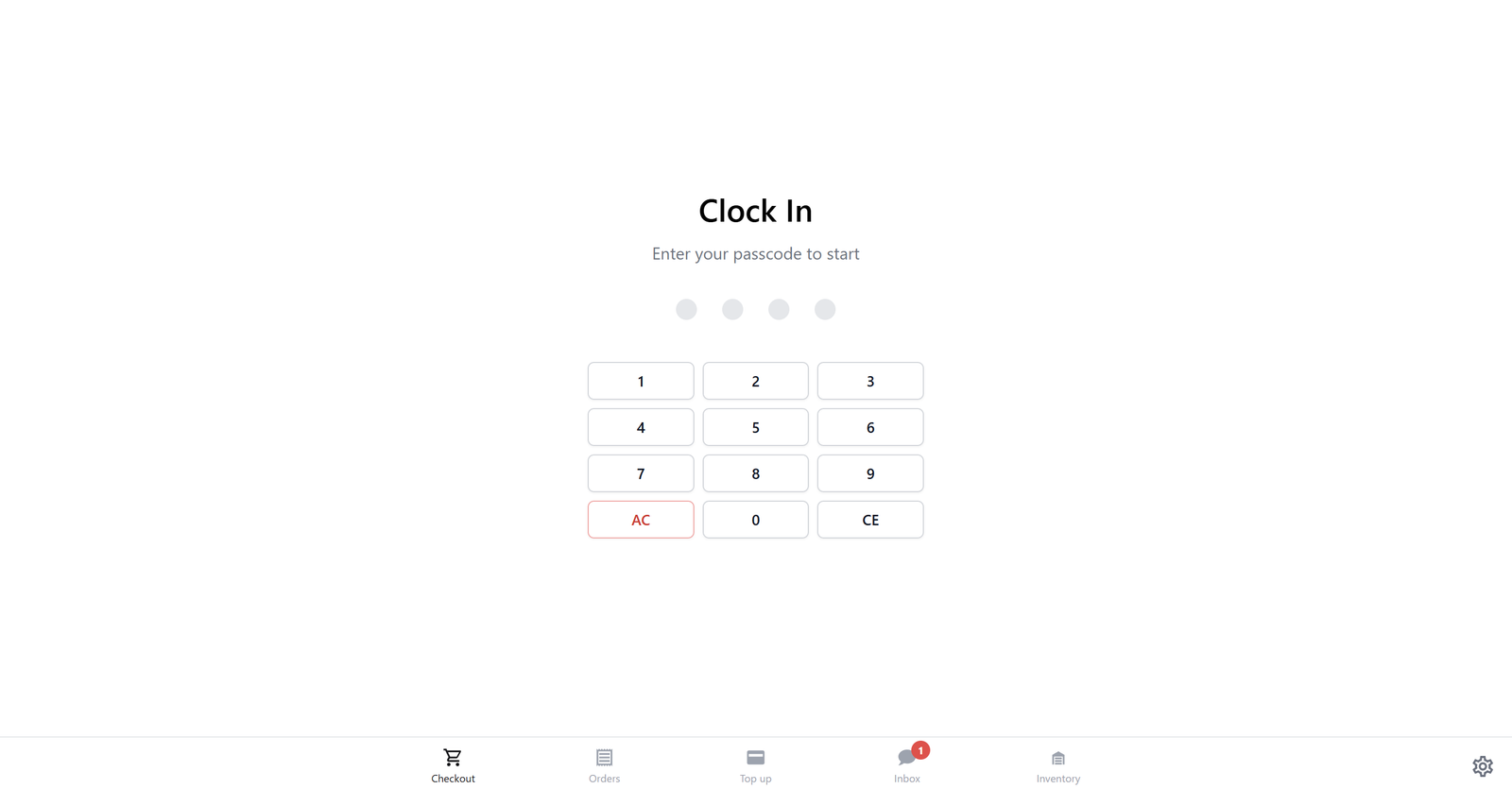
If Time Clock is set to Optional:
The Time Clock screen will not appear when staff opens the POS — they can go straight to Checkout. If they want to clock in:
- Tap the profile icon at the bottom-left of the POS screen.
- The clock-in numpad will appear in a popup. Enter the 4-digit passcode.
- Once the passcode is entered, the system will record the clock-in time. The profile icon will update to show the staff member's initials, confirming they are clocked in.
Once clocked in (in either mode), the staff member's name and clock-in time will be displayed on screen. They can now use the POS as normal — taking orders, processing payments, and so on.
Clocking out
At the end of their shift, your staff can clock out from the POS:
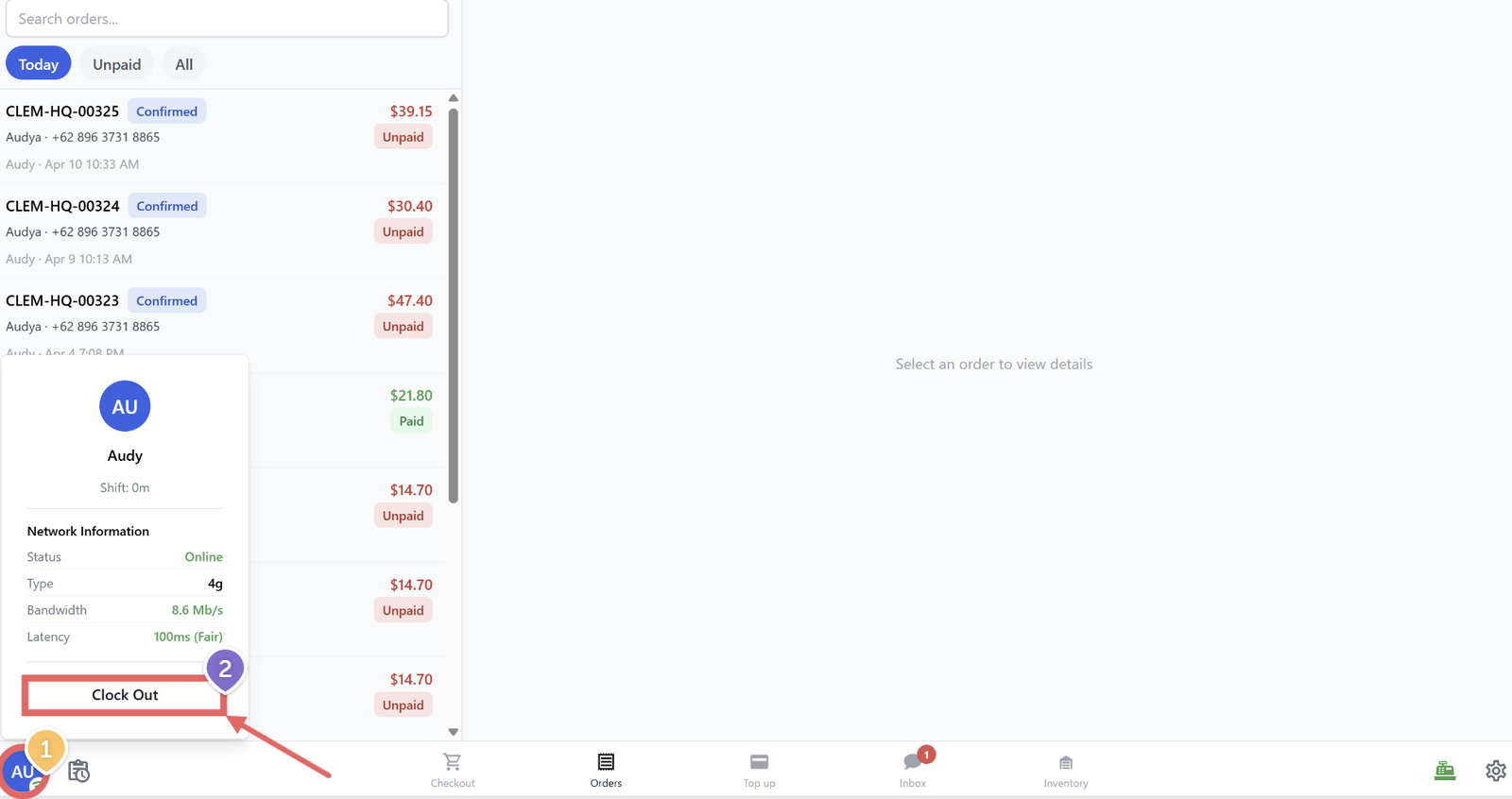
- Tap the profile icon at the bottom-left of the POS screen.
- A popup will appear showing their name, current shift duration, and the Wi-Fi connection status of the POS device. Tap the Clock Out button at the bottom of the popup.
What If a Staff Member Forgets to Clock Out?
If a staff member forgets to clock out at the end of their shift, the system will keep their session open until they clock out manually. There is no automatic clock-out — so their recorded hours will keep running until someone clocks them out.
FAQs
Do I have to set up Time Clock?
No. By default it's Optional — staff can clock in if they want but aren't required to. Skip the setup entirely if you're happy with that.
What's the difference between Optional and Required?
Optional — POS goes straight to Checkout; staff can clock in via the profile icon if they want. Required — staff must enter their 4-digit passcode on the Time Clock screen before they can access Checkout, Orders, or any other screen.
Does the system clock staff out automatically at the end of the day?
No. There's no auto-clock-out. If a staff member forgets, their session keeps running until someone clocks them out manually. The next time they try to clock in, they'll have to clock out of the previous shift first.
If two staff work the same shift, do they share one clock-in?
No. Each staff member clocks in and out individually with their own passcode, and the system keeps a separate record for each person.
Give feedback
Up next
Set Cash Drawer on Your POSLearn how to set up and use the Cash Drawer to track cash payments on your POS.
Read more