
Setting Up Your Payment Methods at POS
In this article
Payment Methods is where you control which payment options are available to your point-of-sale, and where you set up cash drawer tracking. This page is split into three parts: connecting Stripe for cards and e-wallets, managing your custom methods like cash and bank transfer, and turning on Cash Drawer Management. Most shops only need to check the toggles here on day one and come back later if they connect Stripe or change how they handle cash. The buttons your staff actually taps at the counter are controlled separately on your POS app's Payment block, which picks from the methods you make available here.
Contents
Contents
Before You Start
You need a POS app already set up. See [Create Your POS App].
If you plan to accept cards, GrabPay, or PayNow through Stripe, you also need to connect Stripe first. The Stripe section in this article walks you through that.
How this page works with your POS app's Payment block
Two pages work together to decide what staff sees at the counter:
| Page | What it controls |
|---|---|
| Payment methods tab (this page) | Which methods are available to your POS — Stripe sub-methods, custom methods like NETS or Bank Transfer, and Cash Drawer Management |
| POS app's Payment block | Which available methods appear at the counter, and in what order |
Configure this Payment methods tab first. Then open the Payment block in your POS app to choose which available methods show up at the counter and arrange them. The Payment block is covered in [Create Your POS App].
Where to find your payment methods
- Click the ⚙️ Settings in the top-right corner.
- Under the Sales Channels section, click Point of Sale.
- Click the Payment methods tab at the top.
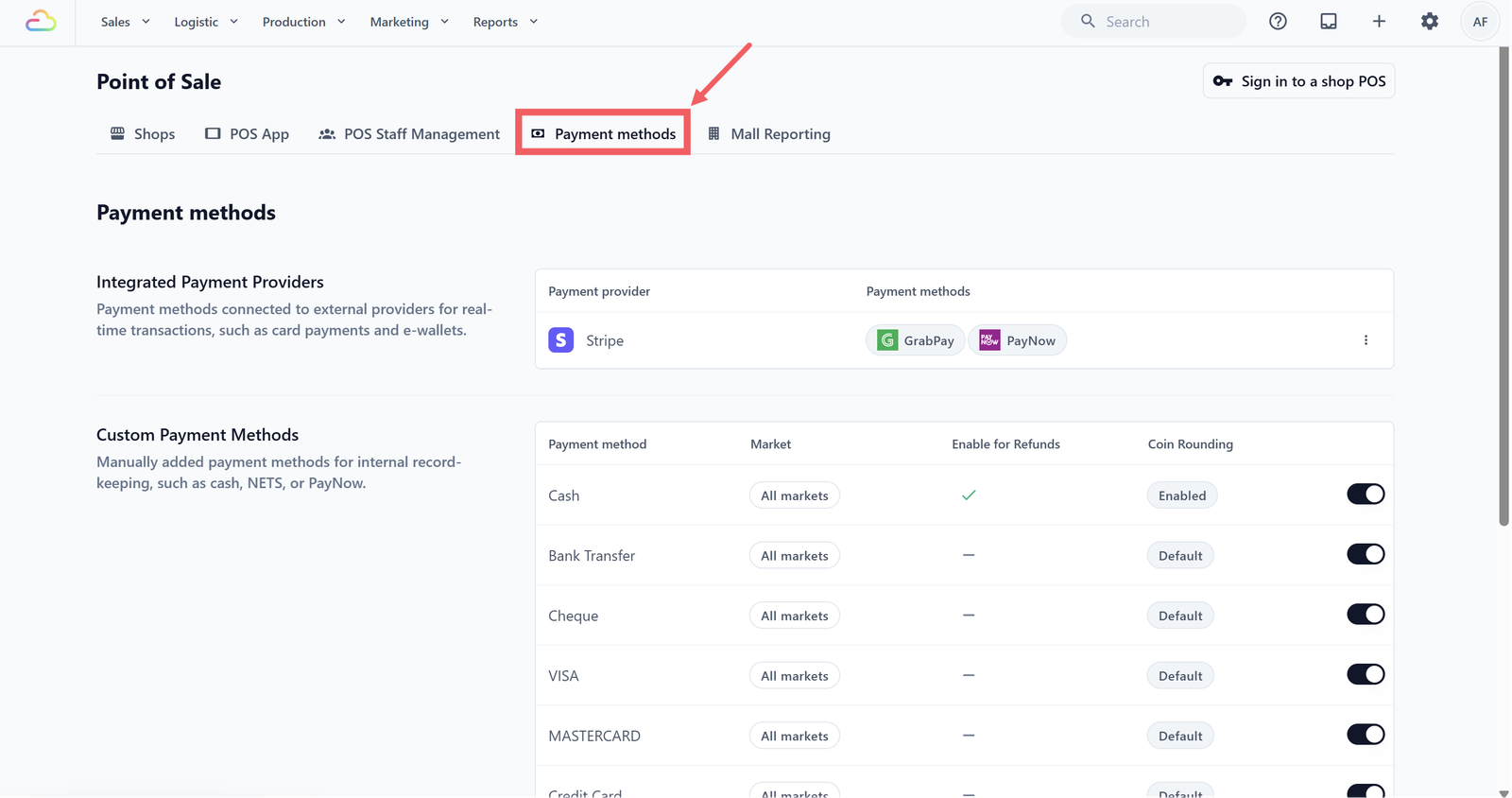
You will see three sections: Integrated Payment Providers, Custom Payment Methods, and Cash Drawer Management.
Setting up Integrated Payment Providers
Integrated Payment Providers process card and e-wallet payments through an external service. Today, this section shows Stripe only. If you only take cash and manual card or bank payments, you can skip this section.
Connect Stripe first
Before Stripe payment methods can be used at POS, connect Stripe from the Integrations page.
- Click the ⚙️ Settings in the top-right corner.
- Under the Administration section, click Integrations.
- Find Stripe and click Connect.
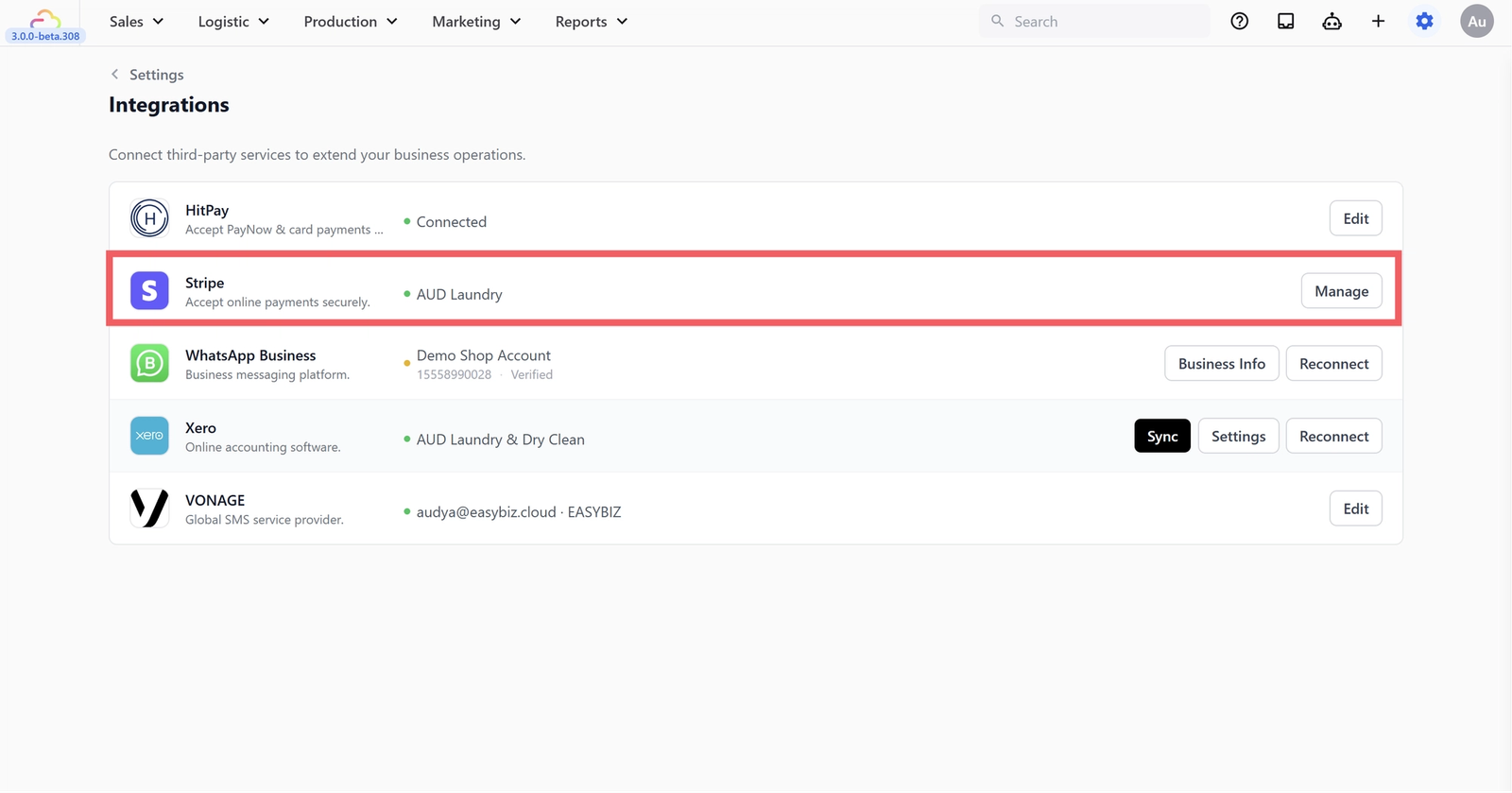
You will be sent to Stripe's own onboarding page to enter your business and bank details. Once you finish on Stripe's side, you will be returned to the Integrations page in EasyBiz with Stripe marked as Connected.
Choose which Stripe methods are available at POS
Once Stripe is connected, pick which Stripe methods (such as PayNow or GrabPay for Singapore accounts) become available to add to your POS app's Payment block.
- Go back to ⚙️ Settings > Sales Channels section > Point of Sale > Payment methods tab.
- On the Stripe row in Integrated Payment Providers, click the ••• three-dots and Edit.
- Toggle on each method you want available at POS.
- Click Save.
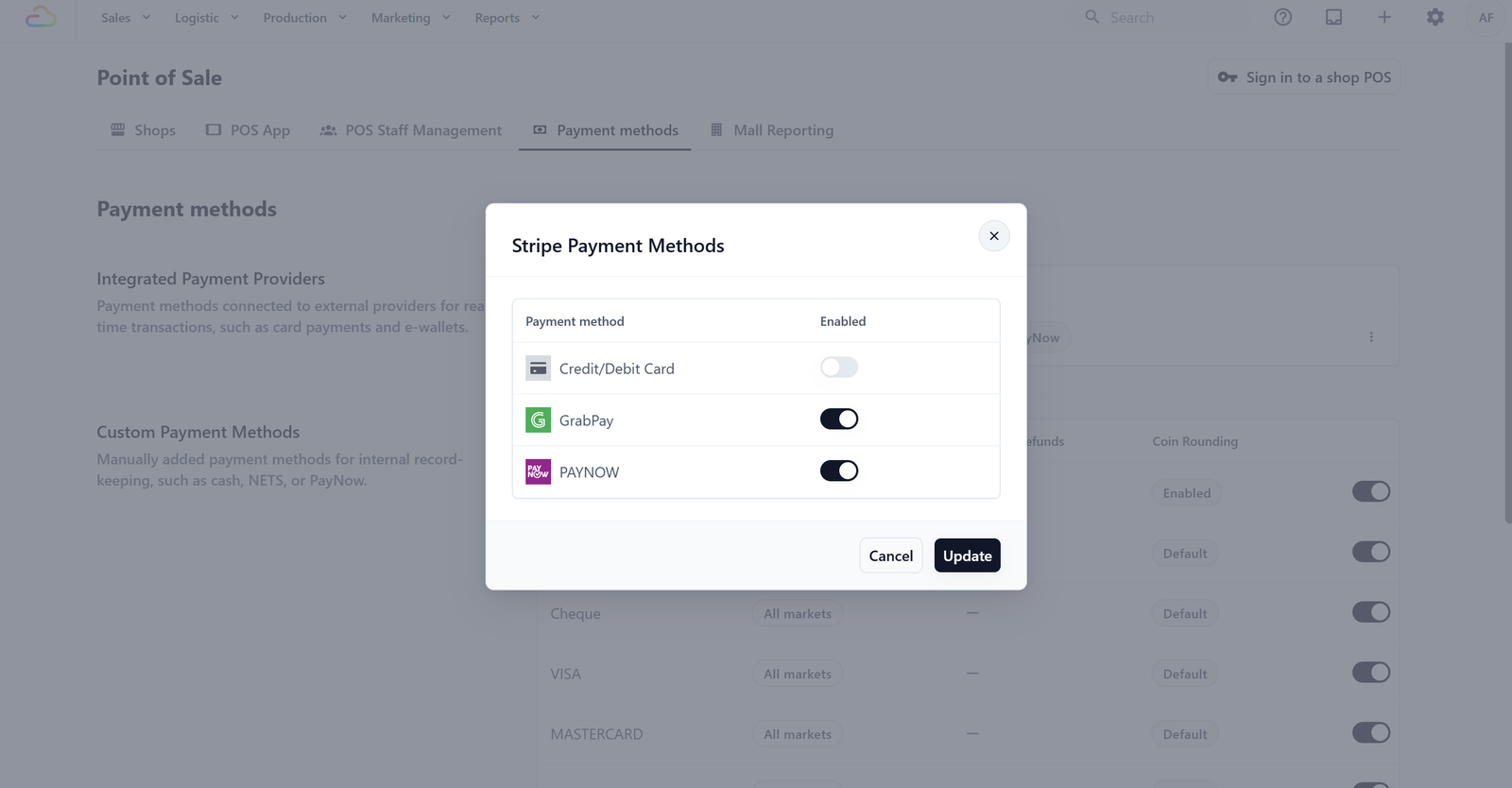
All Stripe method toggles start off, even after Stripe is connected. You turn each one on individually. If Stripe is not yet connected, the toggles in the dialog are greyed out.
Setting up Custom Payment Methods
Custom Payment Methods are for payments handled outside EasyBiz but recorded at POS. Examples are cash, bank transfers, cheques, or card payments processed on a separate bank terminal sitting next to your counter.
Your account starts with several common methods already set up, such as Cash, Bank Transfer, and the major card brands.
The toggle on each row controls whether the method is available at POS. Turning it off hides the method from your POS app's Payment block selector but does not delete it.
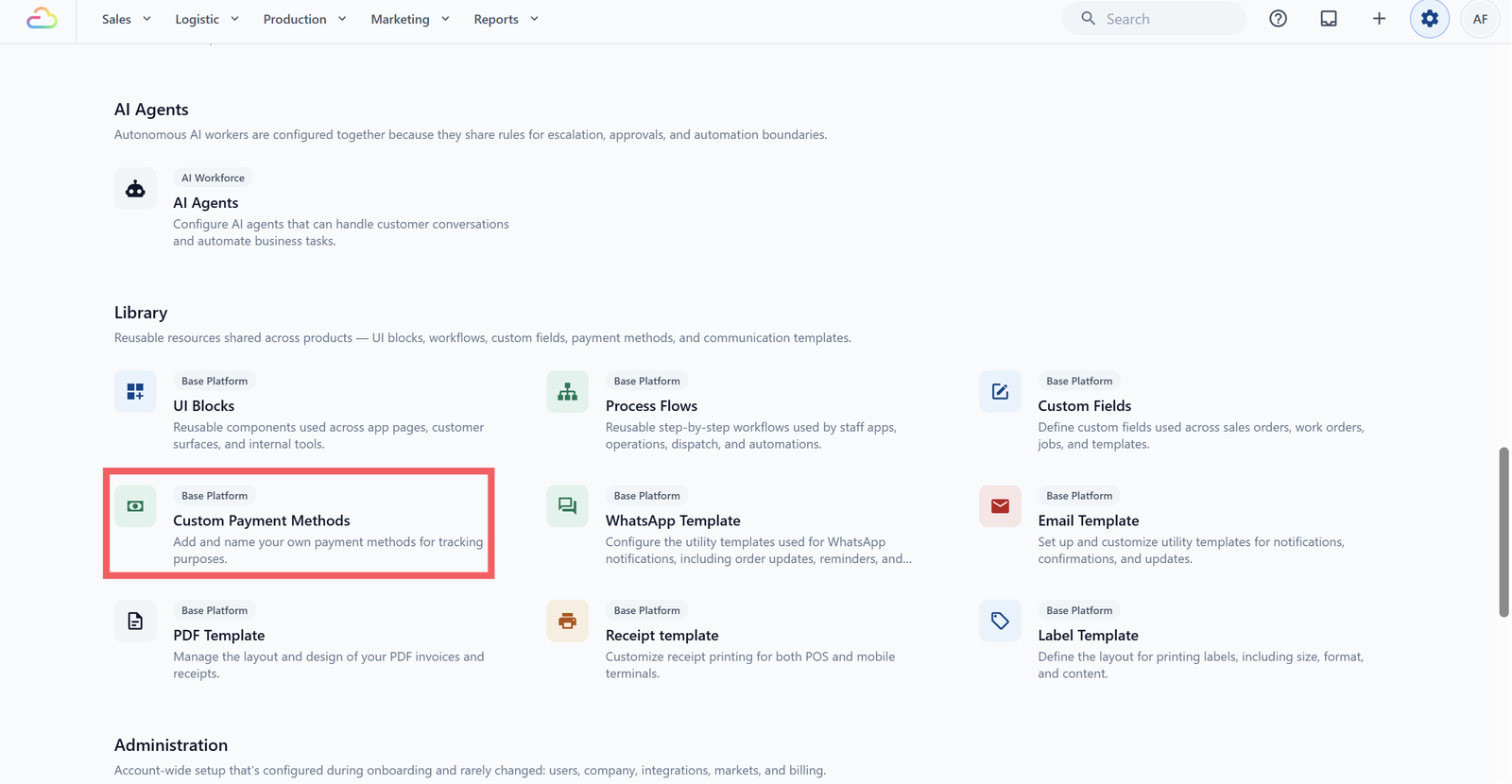
To add new methods or change existing ones, click Manage custom payment methods. This opens ⚙️ Settings > Operations > Custom Payment Methods, which shows the same list with full edit and delete controls.
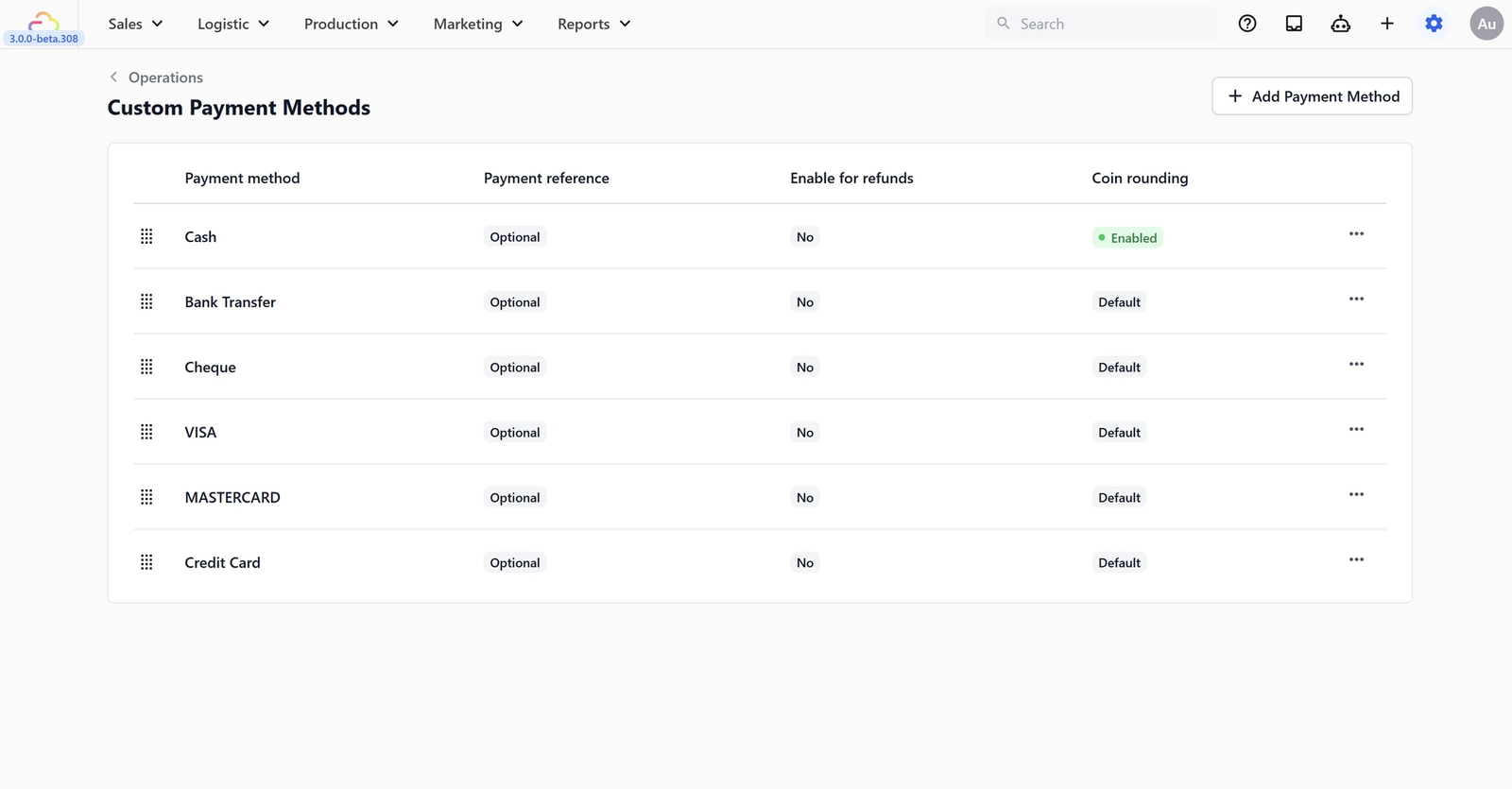
Configuring a payment method
Click + Add Payment Method to create a new one, or click the three dots on a row and choose Edit to change an existing one. Both dialogs have the same fields. Only the button at the bottom is different (Add or Update).
- Icon -> Optional. Pick an icon shown next to the method name at POS to help staff spot it quickly.
- Payment method name -> Type the name your staff will see at POS. Keep it short and clear.
- Mandatory payment reference -> Turn this on if staff must enter a reference (like a transfer ID, terminal approval code, or cheque number) before confirming the payment. They will not be able to complete the sale without filling in the reference.
- Enable for Refunds -> Turn this on if this method can also be used when issuing refunds.
- Coin rounding -> Turn this on for cash-style rounding. When on, two more fields appear: Coin increment and Rounding direction.
- Coin increment
| Pick this | Result |
|---|---|
| 5 | Rounds the total to the nearest 5 cents |
| 10 | Rounds the total to the nearest 10 cents |
- Rounding direction
| Pick this | Result |
|---|---|
| Nearest | Rounds up or down to the closest increment, whichever is nearer |
| Up | Always rounds up to the next increment |
| Down | Always rounds down to the previous increment |
Coin rounding here is per payment method (typically used on Cash so the till does not deal in 1-cent coins). It is separate from the company-wide rounding under ⚙️ Settings > Administration > Company > Rounding, which controls the precision of order totals. The two settings do not override each other.
Cash Drawer Management
Cash Drawer Management lets your staff start a cash session, record cash movement, and close the day with an expected-versus-actual count. Turn the toggle on to activate this at POS. For the full staff flow at the counter, see [Set Cash Drawer on Your POS].
Float Adjustment
Float Adjustment sets the starting cash amount left in the drawer after each session closure. This is the cash your staff begins the next shift with.
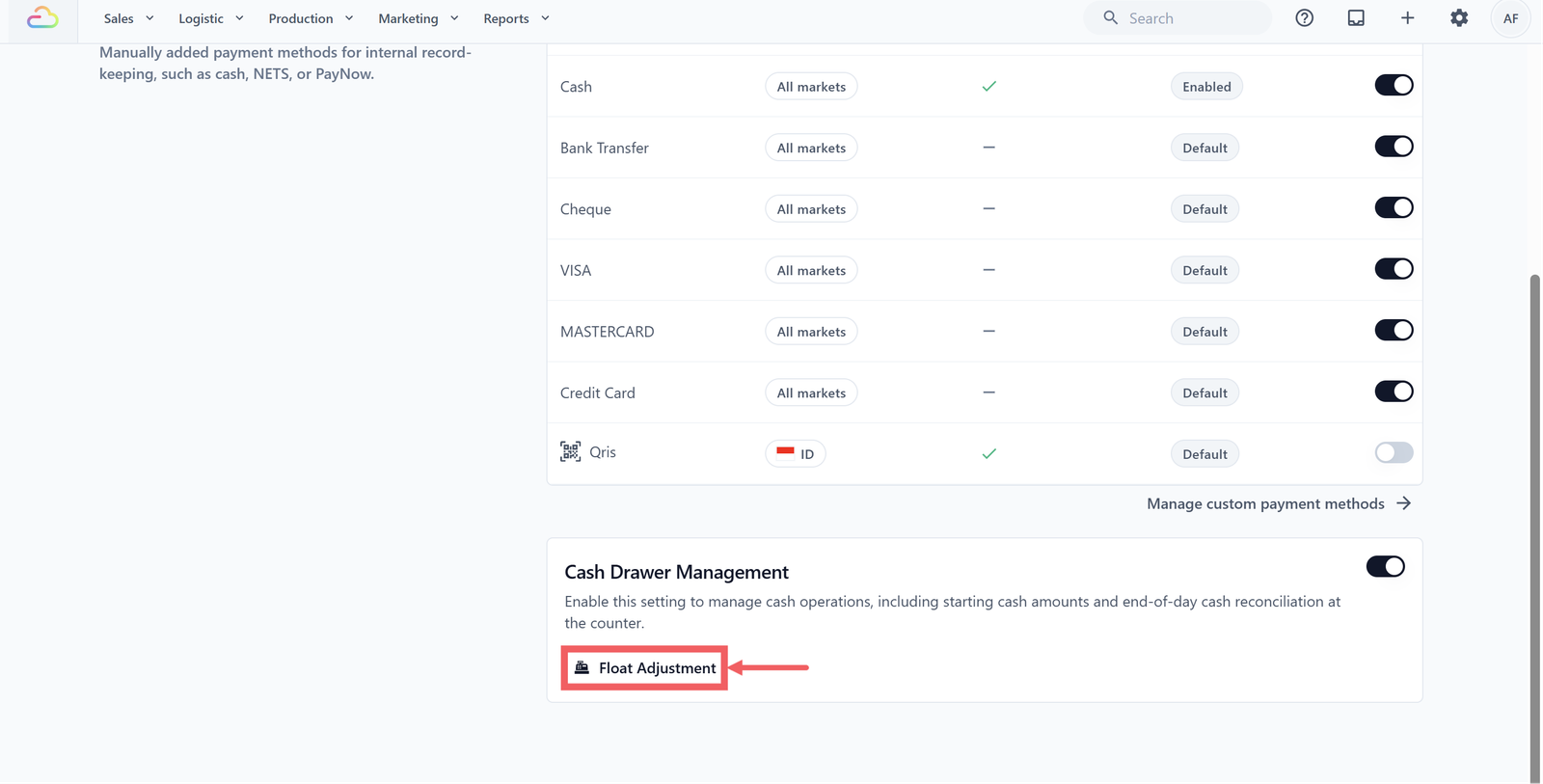
Click Float Adjustment to open the dialog. You will see:
- Enable Float Adjustment toggle
- Float Amount field for a global amount across all locations
- Set by location to set a different amount per POS location
If you set a per-location amount, it overrides the global Float Amount for that location. Locations without a per-location amount fall back to the global one.
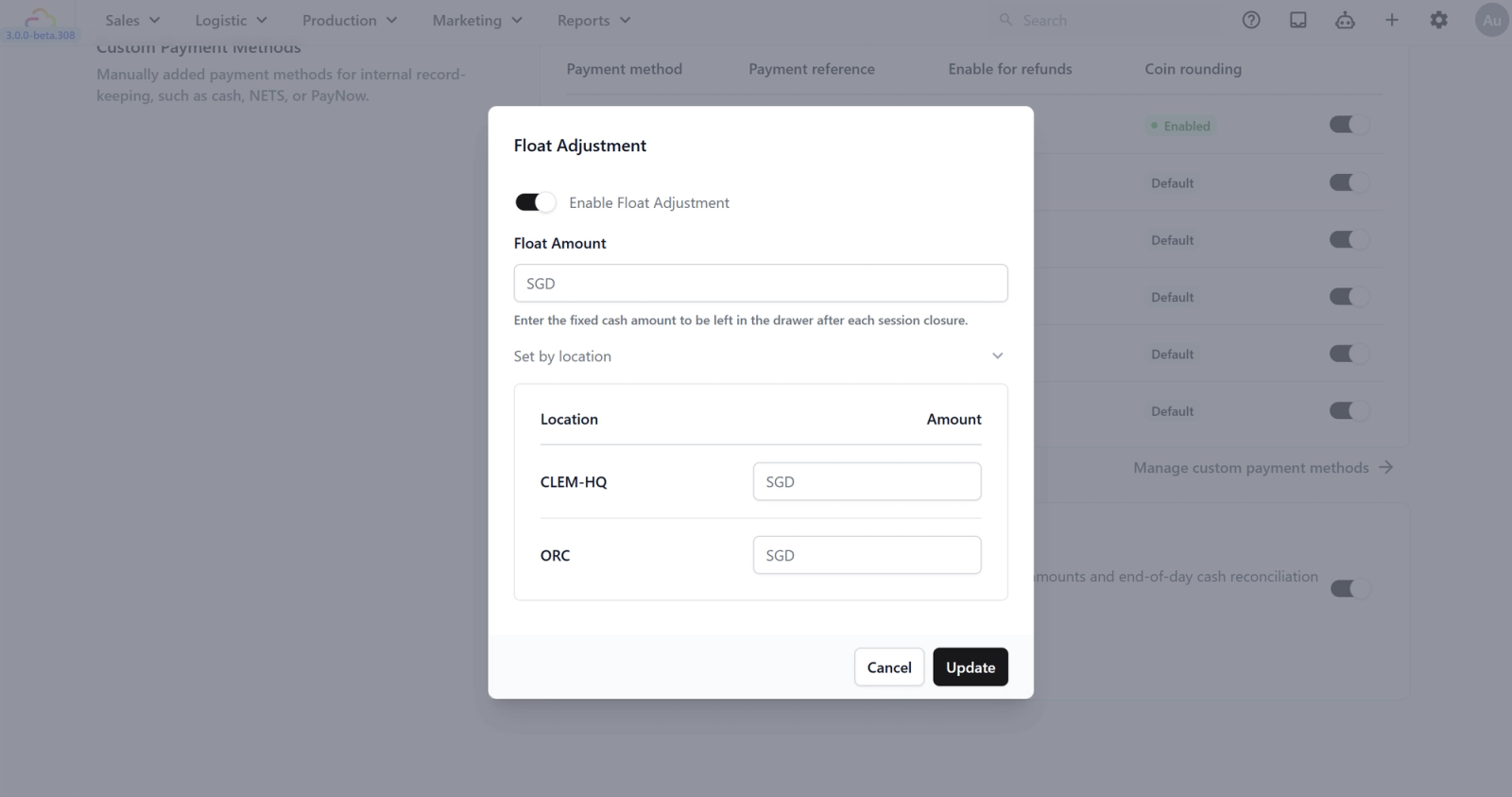
The location list comes from your POS Locations (the locations that hold a POS license). Locations that do not have POS will not appear here.
FAQs
Do I need to set up Stripe before I can use POS?
No. POS works fine with cash and any custom payment methods you add. Connect Stripe only when you want to accept PayNow or GrabPay at the counter.
I enabled a method on this tab but it's not showing at POS, what's missing?
Open your POS app's Payment block in ⚙️ Settings icon > App Studio > Apps and add the method to the list there. This Payment methods tab decides what is available; the Payment block decides what staff actually sees at the counter.
Can I have different payment methods at different locations?
The list of custom payment methods is shared across your whole account. To show a different set of buttons at each counter, configure the Payment block on each POS app separately.
Can I delete Cash from my payment methods?
No. Cash is locked and cannot be deleted. You can disable it using the row toggle if your shop does not accept cash, but the method itself stays.
What happens if I disconnect Stripe later?
Past Stripe payments stay in your order history. Any Stripe methods left in your Payment block will fail when staff try to collect payment, so disable them on this tab and remove them from the Payment block until Stripe is reconnected.
Does Cash Drawer Management affect my Close of Day Report?
Yes. When Cash Drawer Management is on, the cash totals from each session feed into the Close of Day Report. It does not affect Time Clock.
What's Next
Now that your payment methods are available, continue to [Sign in to your POS] to connect your POS device and start taking orders at the counter.
Give feedback
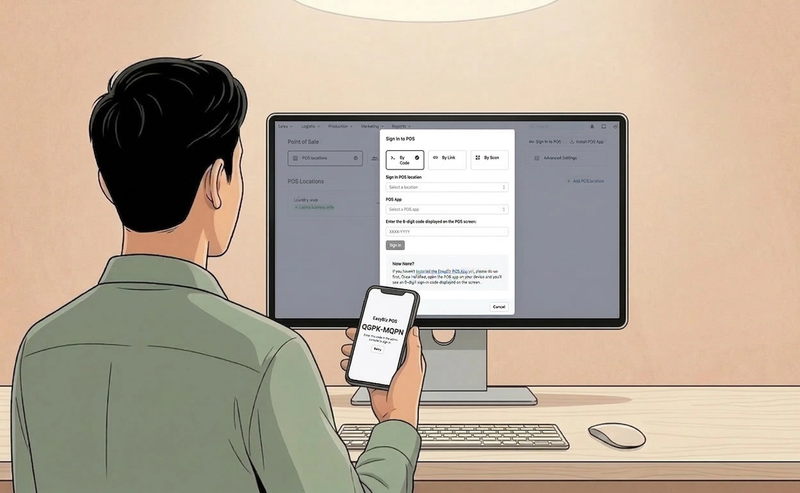
Up next
Sign In to Your POSConnect your POS device to EasyBiz Cloud so your staff can start taking orders at the counter.
Read more