
Setting Up Retail Products
In this article
Retail Products are anything you sell at a fixed price at the counter, such as care kits, leather conditioner, dust bags, hangers, or detergent. Unlike Service Items (which need a service applied to calculate the price), Retail Products carry a Unit Price built in and ring up immediately at the POS. This guide covers every field in the Add Retail Product form, variants and bundle inventory, where Retail Products sit in your Collections, and how to find, edit, or delete them.
Contents
Contents
How to Access Retail Products
- Click the ⚙️ Settings icon in the top-right corner.
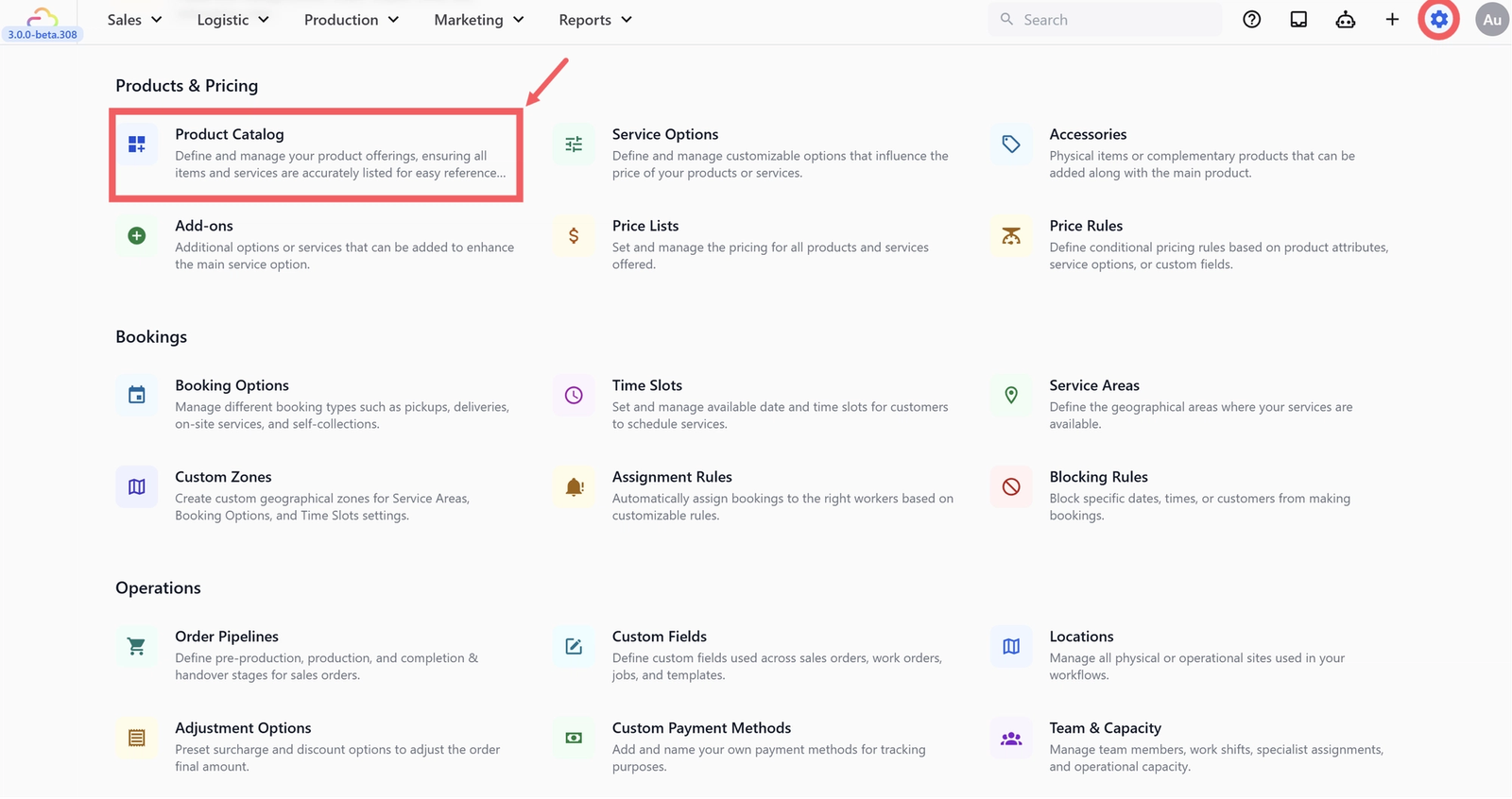
- Under the Products & Pricing section, click Product Catalog.
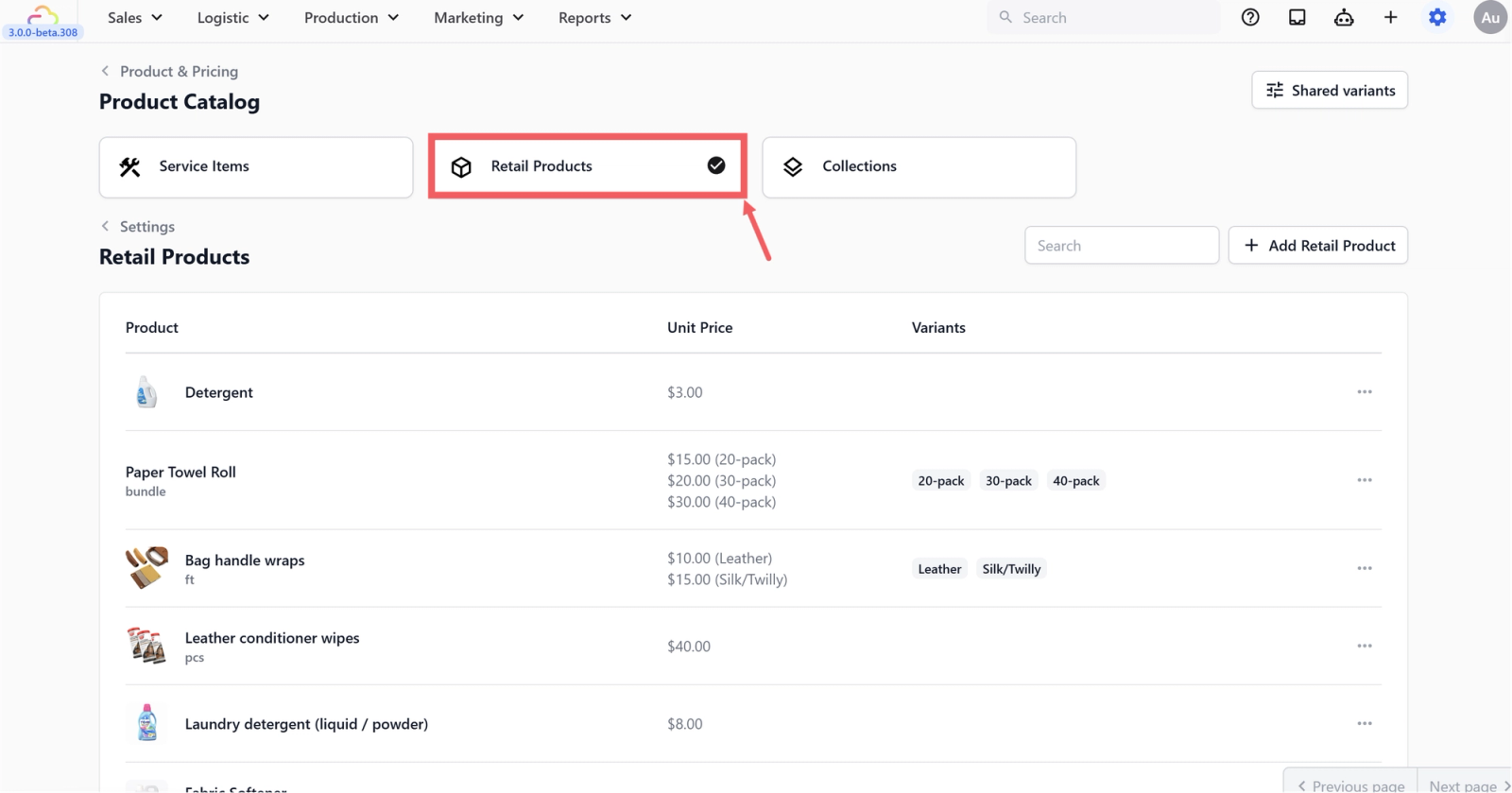
- Click the Retail Products tab.
Adding a Retail Product
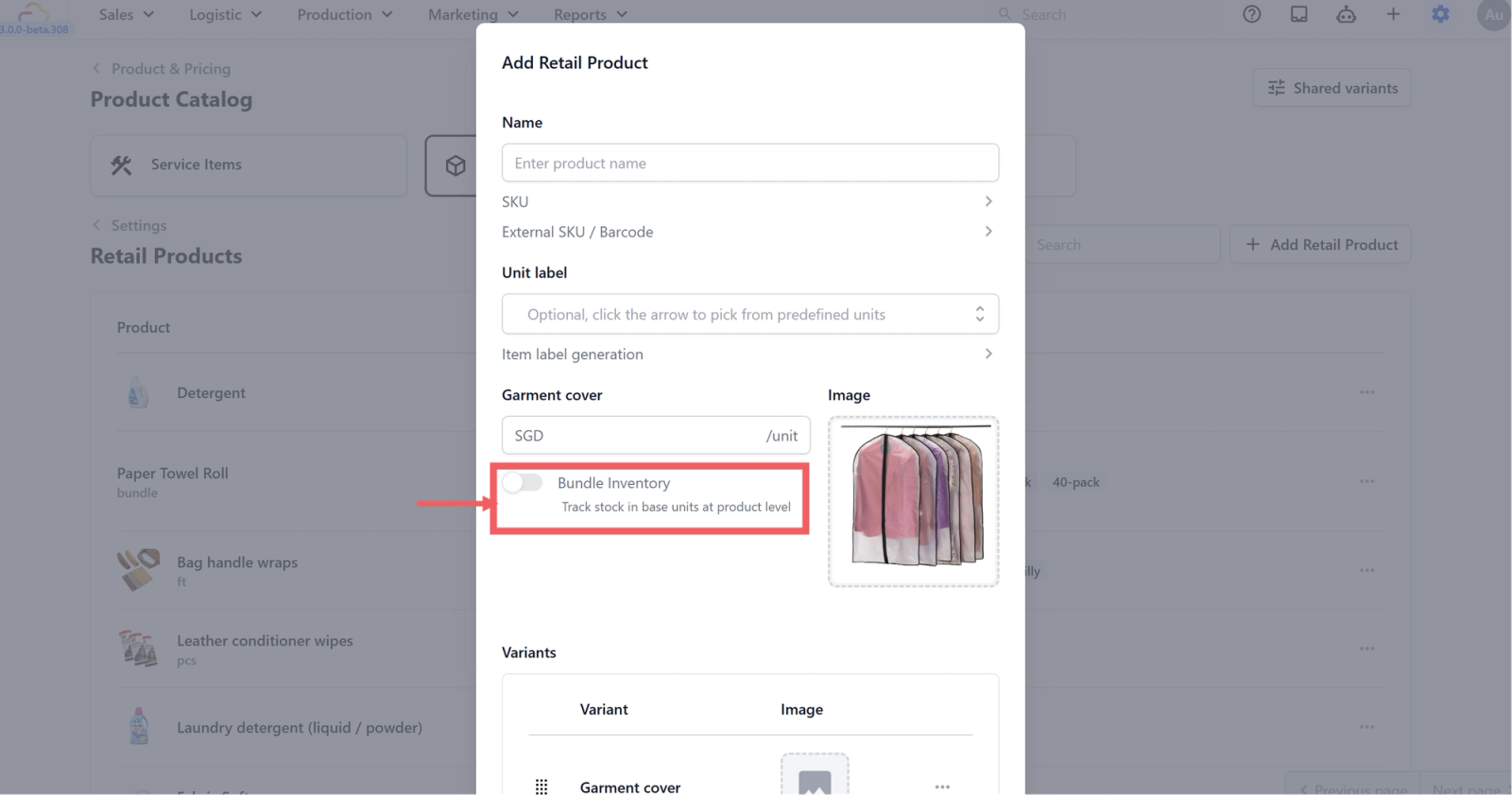
Click + Add Retail Product at the top right. The dialog is similar to Service Items, with one important difference: Retail Products have a Unit Price field instead of a Fulfillment field.
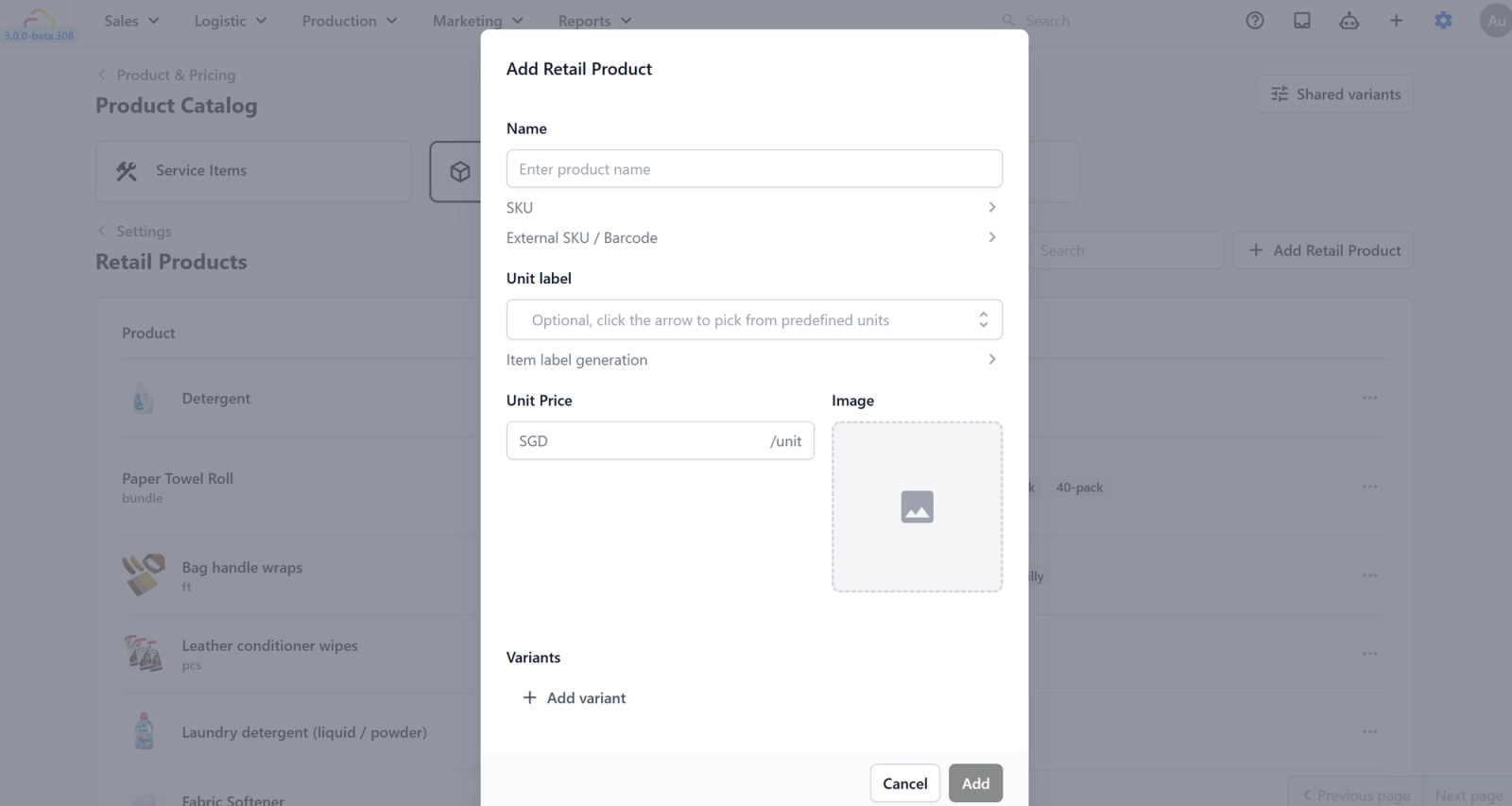
Name
What your staff sees on the POS. Use the customer-facing product name.
SKU
Leave on Auto generate SKU, or click the arrow to set your own.
External SKU / Barcode
Enter the supplier barcode if you scan products at checkout. Leave blank otherwise.
Unit label
How this product is sold. Use pcs for individual items, bottle, pack, or set for grouped items.
Item label generation
Leave at the default unless you specifically print labels for retail items.
Unit Price
The selling price per unit in your local currency. This applies automatically when staff add the product to an order.
Image
Upload a clear product photo. Highly recommended for retail products since staff scan visually at checkout.
Click Add to save.
Variants on Retail Products
Variants on Retail Products work the same way as on Service Items, with one extra capability: each variant carries its own Unit Price.
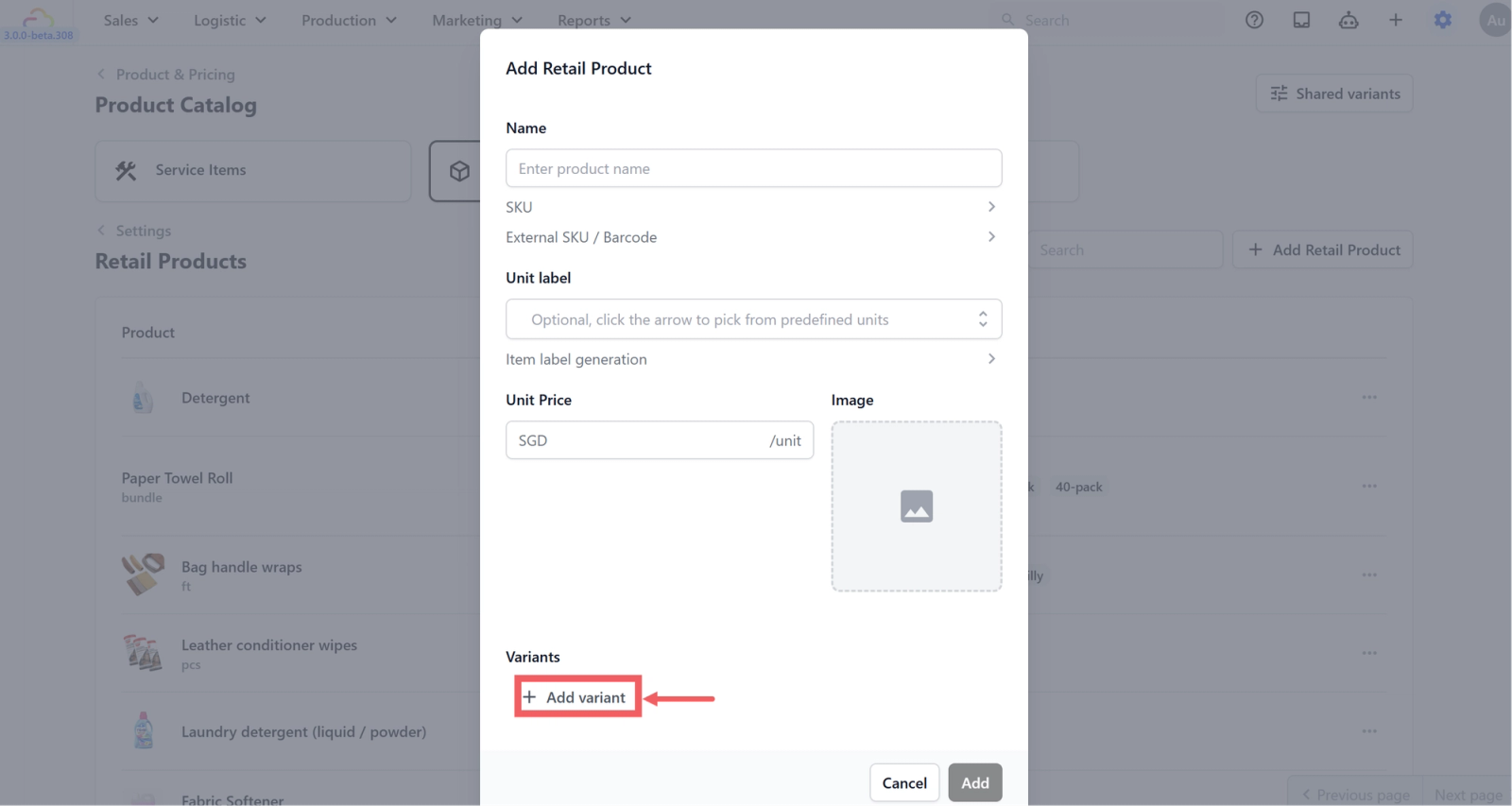
To add: click + Add variant, choose Add custom variant or Select from shared variants, fill in the name and price, then click Add. Drag to reorder.
For details on Shared Variants, see Setting Up Service Items.
Bundle Inventory
When a product has variants, a Bundle Inventory toggle appears with the description "Track stock in base units at product level." Turn this on when you sell the same physical product in different bundle sizes at different prices.
| Variant | Price | Base Quantity |
|---|---|---|
| 1 pc | $1.00 | 1 |
| 3 pcs | $2.50 | 3 |
| 6 pcs | $4.50 | 6 |
When a customer buys the 5-pack, the system deducts 5 base units from your stock. The 10-pack deducts 10. Your stock count stays accurate regardless of the bundle size sold.
Collections
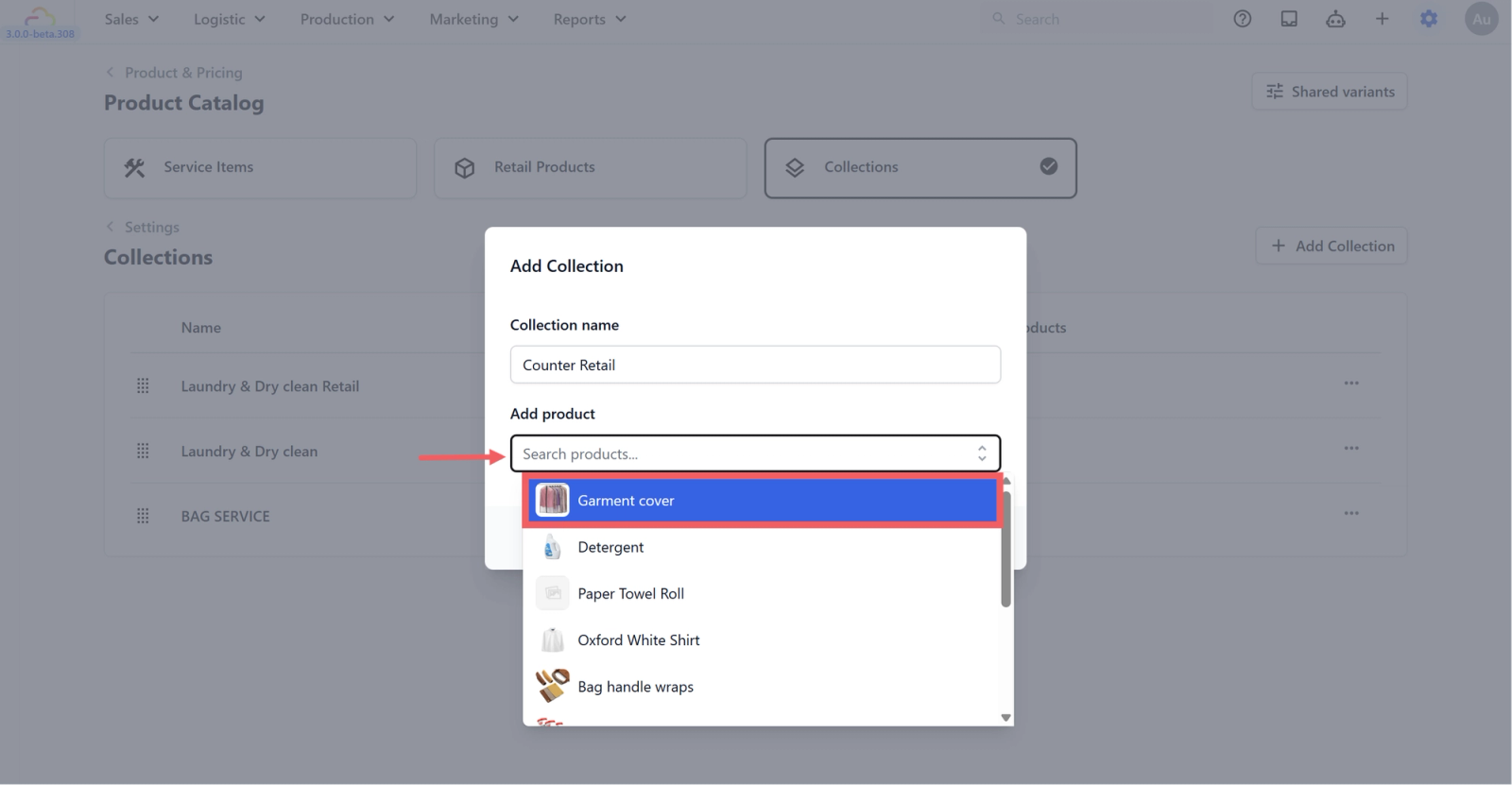
Retail Products live in the same Collections as Service Items. You can put them in their own collection (e.g. Counter Retail) or mix them in with Service Items in a service-specific collection (e.g. Dry Cleaning containing both cleaning services and garment covers). Collections control what appears on each tab at the POS.
Searching, Pagination, Editing and Deleting
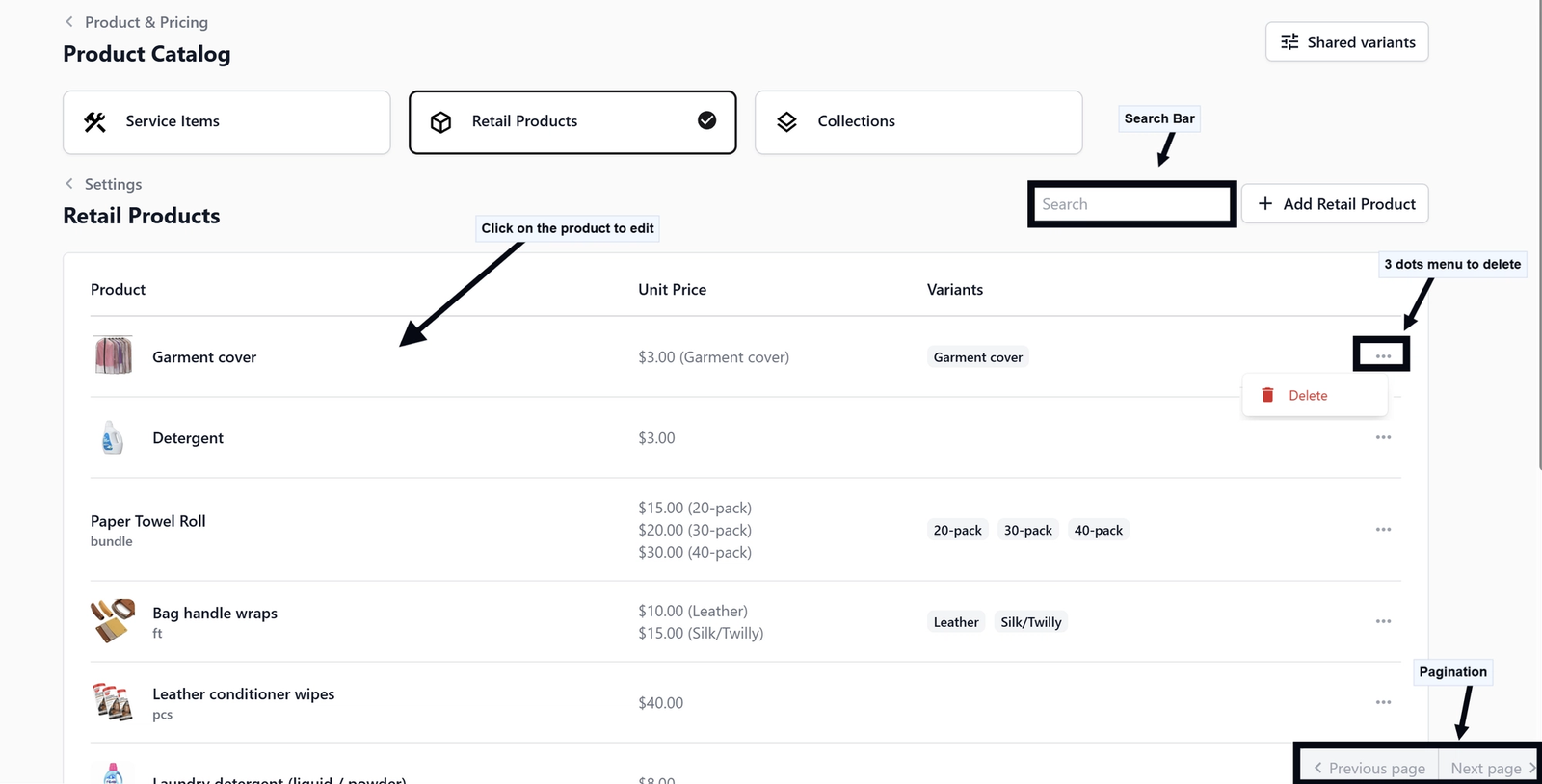
The Retail Products tab has a search bar at the top right. Use it to find products by name. If your catalogue is large, page through using Previous page and Next page at the bottom right.
To edit a product, click on the product to open its details. To delete, click the ••• three-dots menu and select Delete. As with Service Items, deleting a product that is in an active price list prompts a warning listing the affected price lists.
FAQs
My product has different prices at different shops. Should I make variants?
No. Variants are for size, colour, or pack-size. Different prices per shop are handled by publishing separate Consumer Price Lists per sales channel.
What is the difference between Unit Price here and the price in a price list?
Unit Price here is the default price for the product. When a Consumer Price List is published to a sales channel, the price list value overrides the Unit Price on that channel. The Unit Price acts as the fallback if a sales channel has no price list assigned.
Do Retail Products print labels?
Only if your Item label generation is configured to print one. Most shops leave this off for retail since the product already has its own packaging.
Can a Retail Product have a Service Option attached?
No. Service Options only apply to Service Items. If you need a service applied to a sellable product, set it up as a Service Item instead.
Why does my stock not deduct when a customer buys a 3-pack?
Check that Bundle Inventory is on for that product, that Base Quantity is 3 on the 3-pack variant, and that the product has a stock record under Inventory Management.
What's Next
With your Retail Products set up, continue to Setting Up Service Options to define the work you do on Service Items, or jump to Setting Up Consumer Price Lists to publish prices to your sales channels.
Give feedback
Up next
Setting Up Service OptionsTell EasyBiz what services you offer and how each one is priced so your staff always picks the right service and the price calculates itself.
Read more