
Setting Up Add-ons
In this article
Add-ons are optional paid extras that staff can attach to a line item during checkout, such as gift wrapping, starch, express service, disinfection, or hardware polishing. Each add-on carries a fixed surcharge per unit and is charged on top of the service price. This guide covers every field on the Add-on dialog, where add-ons appear at the POS, how the surcharge interacts with tax, drag-reorder, and edit/delete.
Contents
Contents
How to Access Add-ons
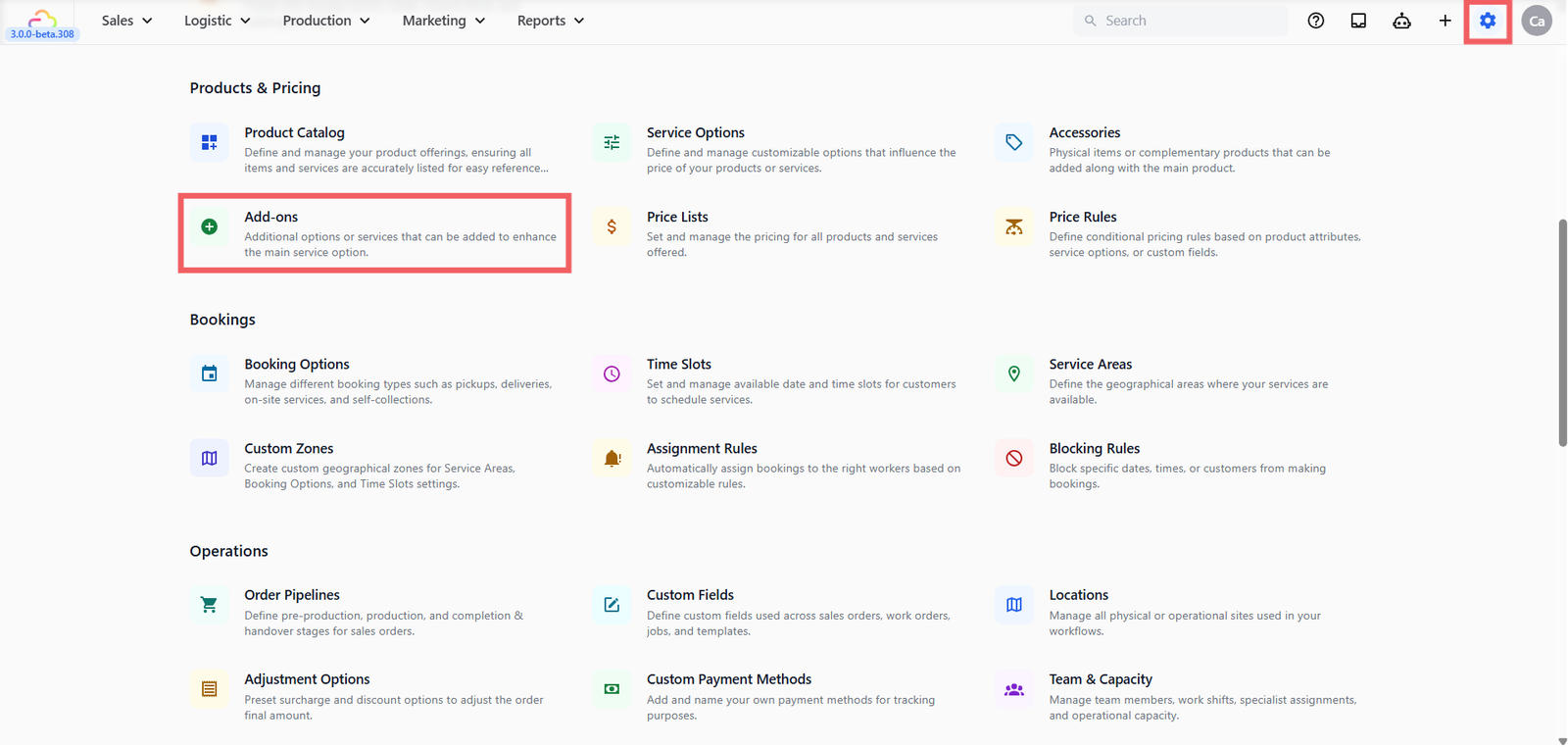
- Click the ⚙️ Settings icon in the top-right corner.
- Under the Products & Pricing section, click Add-ons.
Adding an Add-on
Click + Add Add-on at the top right. A dialog opens with three fields.
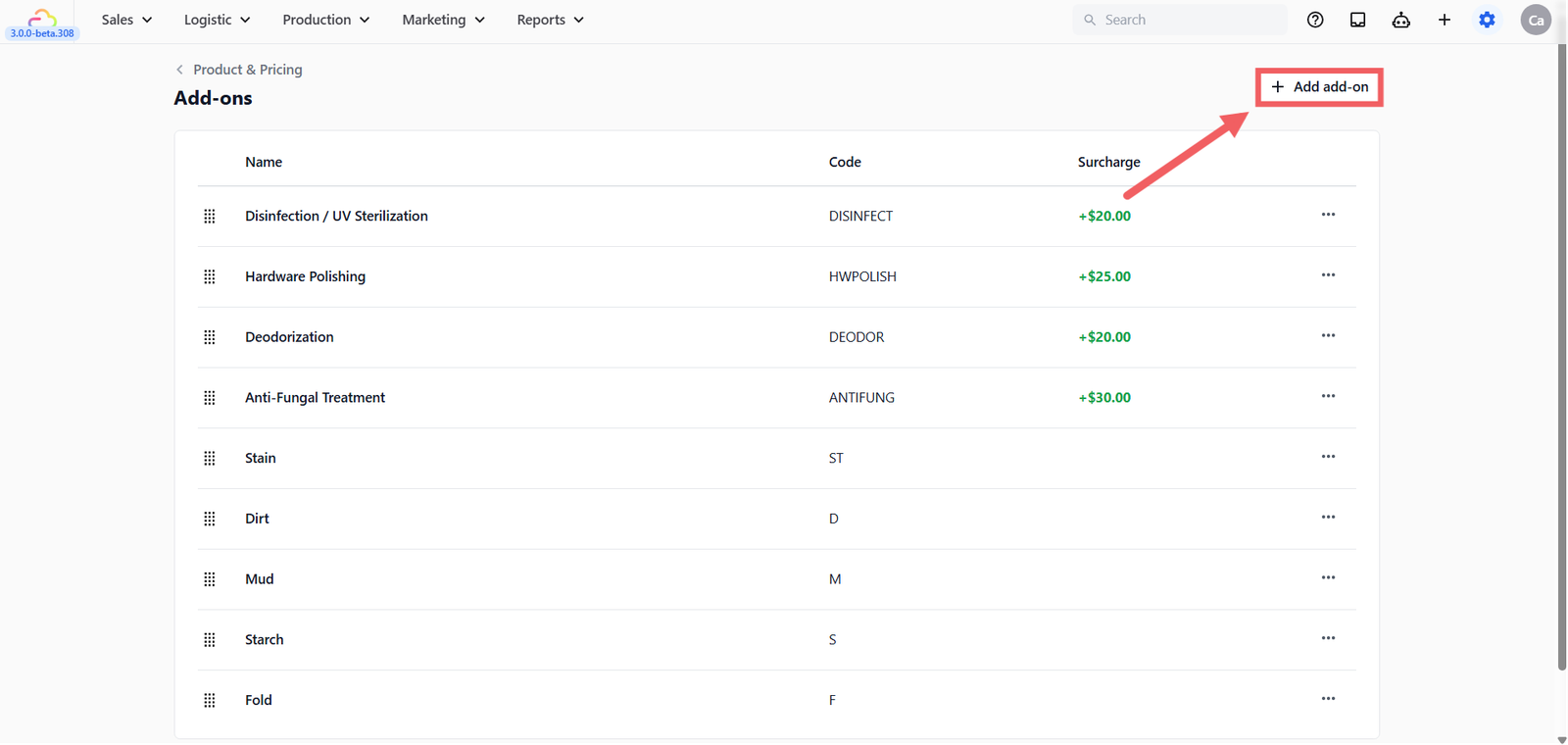
- Add-on name -> What your staff sees in the POS picker. Keep it short and customer-facing. For example: Disinfection, Hardware Polishing, Gift Wrapping, Starch, Express.
- Add-on code -> Short internal code used for reporting, label printing, and downstream systems. Auto-uppercases. For example: DISINF, POLISH, GW, EXPR.
- Surcharge -> The additional amount added to the line total per unit when this add-on is selected.
Click Add to save.

Where Add-ons Appear at the POS
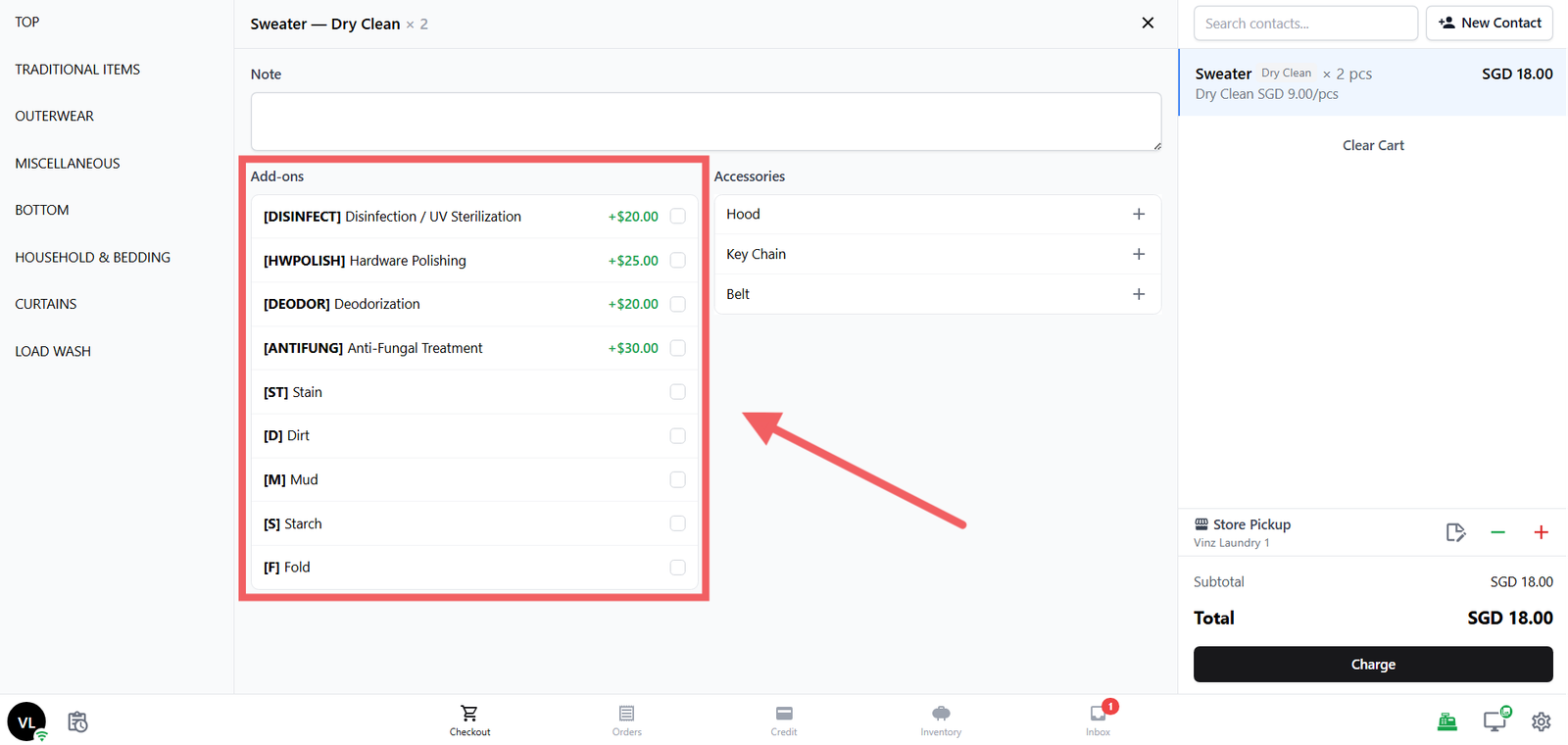
Add-ons appear in the line-item edit panel at the POS, alongside Accessories. After adding a Service Item to the order, in the cart clock staff tap the line item, click the Edit button and select the relevant add-ons on.

Each toggled add-on multiplies its surcharge by the line item's quantity.
Tax Behaviour
Add-on surcharges are added to the line total before tax is applied at the order level. They follow the price list's tax setup, not their own setting. If your price list is set to Tax-Inclusive (GST 9%), both the service price and the add-on surcharge are treated as already including GST. If your price list is Tax Excluded, both are taxed at checkout.
Always check your tax preview after adding new add-ons, especially during your first publish. See Setting Up Consumer Price Lists for the tax settings dialog.
Drag-Reorder
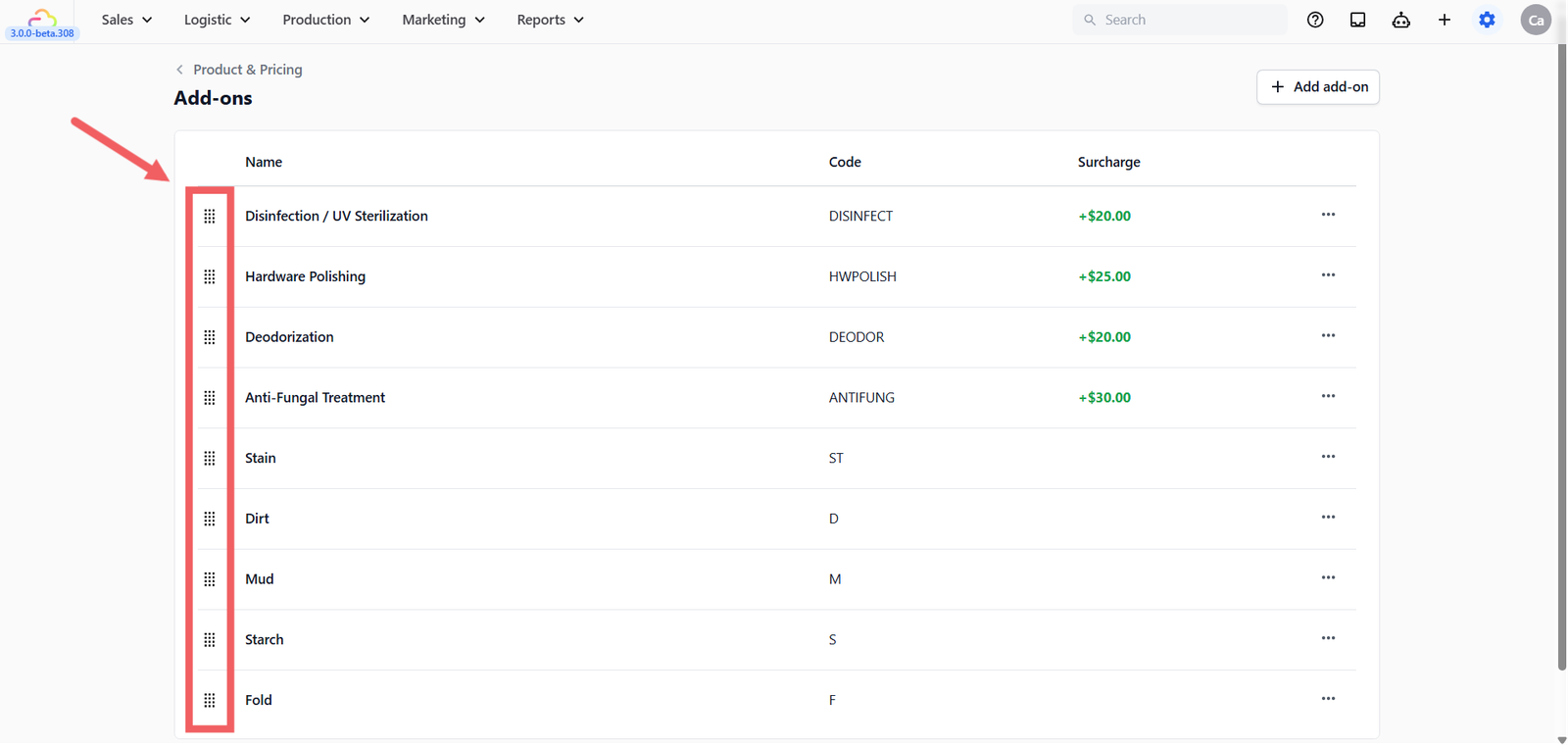
Click and hold the drag handle (six dots on the left of each row) to drag an add-on up or down. The order on the settings page is the order shown in the POS Add-ons picker.
Edit and Delete
Click the ••• three-dots menu on a row to Edit or Delete.
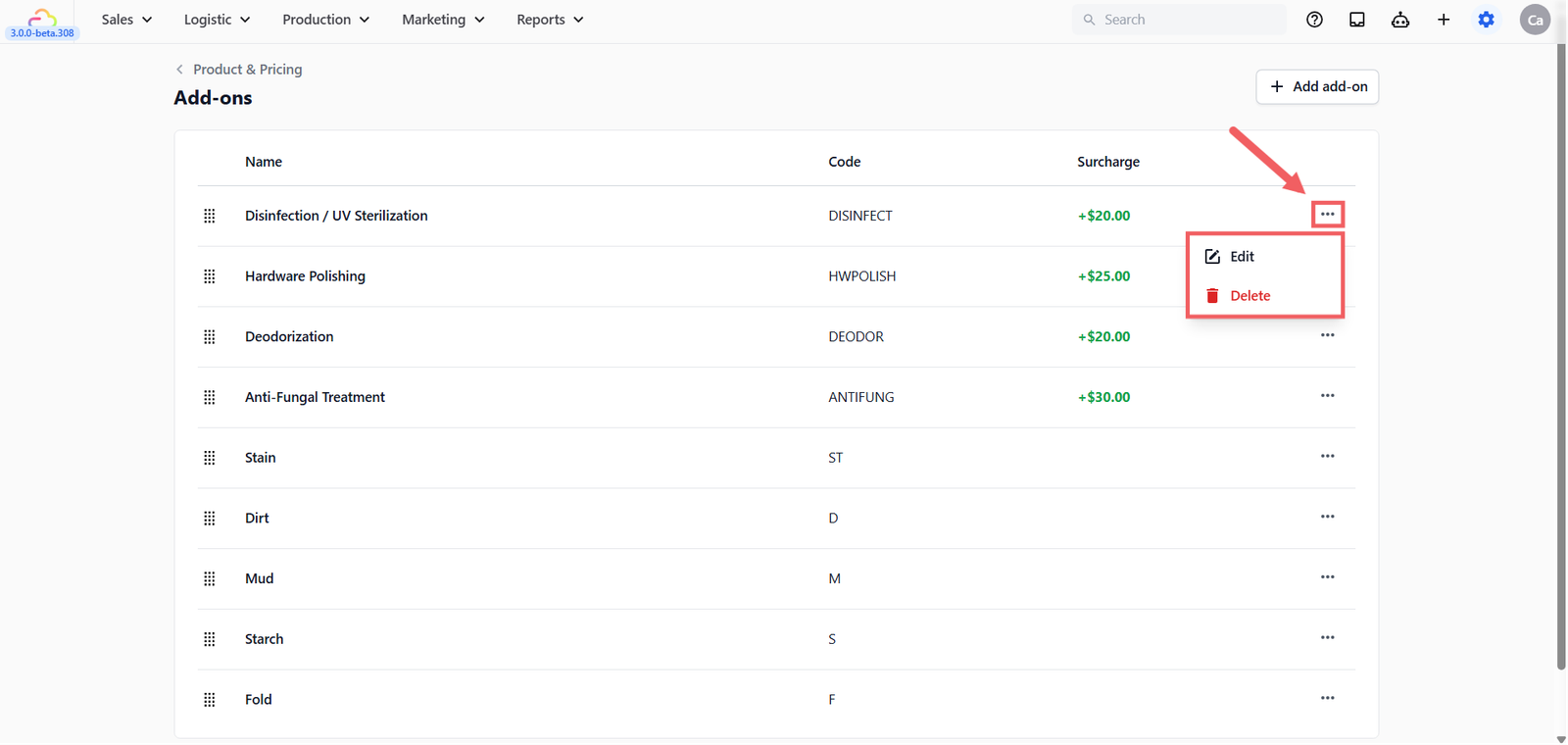
Editing updates the name, code, or surcharge for all new orders. Past orders keep their original surcharge. Deleting removes the add-on from the picker. Past orders are unaffected.
FAQs
Is an Add-on charged per item or per order?
Per item, multiplied by the line item's quantity. If a customer brings 3 bags and Disinfection is toggled on, the surcharge applies 3 times.
Can the same Add-on be applied multiple times to the same line?
No. Add-ons are toggle on/off per line item. To represent multiple of the same surcharge, increase the line item's quantity or set up two separate add-ons.
Do Add-ons appear in the customer-facing online store?
Add-ons are a counter-side feature applied during checkout. The online store does not show the Add-ons picker.
Why is the Add-on code field useful?
The code is what prints on internal labels and shows in reports. A short code (e.g. DISINF) keeps printed labels readable when an item has multiple add-ons.
What's Next
If you have not yet defined the services your add-ons attach to, see [Setting Up Service Options]. Otherwise continue to [Setting Up Consumer Price Lists] to publish the prices that surround them.
Give feedback
Up next
Setting Up Consumer Price ListsPublish a structured price list of all your services and retail products so your POS, online store, and customers always see the right price for the right channel.
Read more