
Manage Price List Versions
In this article
Every Consumer Price List with version control turned on supports multiple versions: an active live version that orders use today, optional draft versions for upcoming changes, and a full history of every previously published version. This guide explains the version badges (Active vs Draft), how to draft a new version, the edit flow, the version history table, the difference between Preview and Publish, how to republish an old version, and how Rename and Delete work.
Contents
Contents
How to Access Your Price List Versions
- Click the ⚙️ Settings icon in the top-right corner.
- Under the Products & Pricing section, click Price Lists.
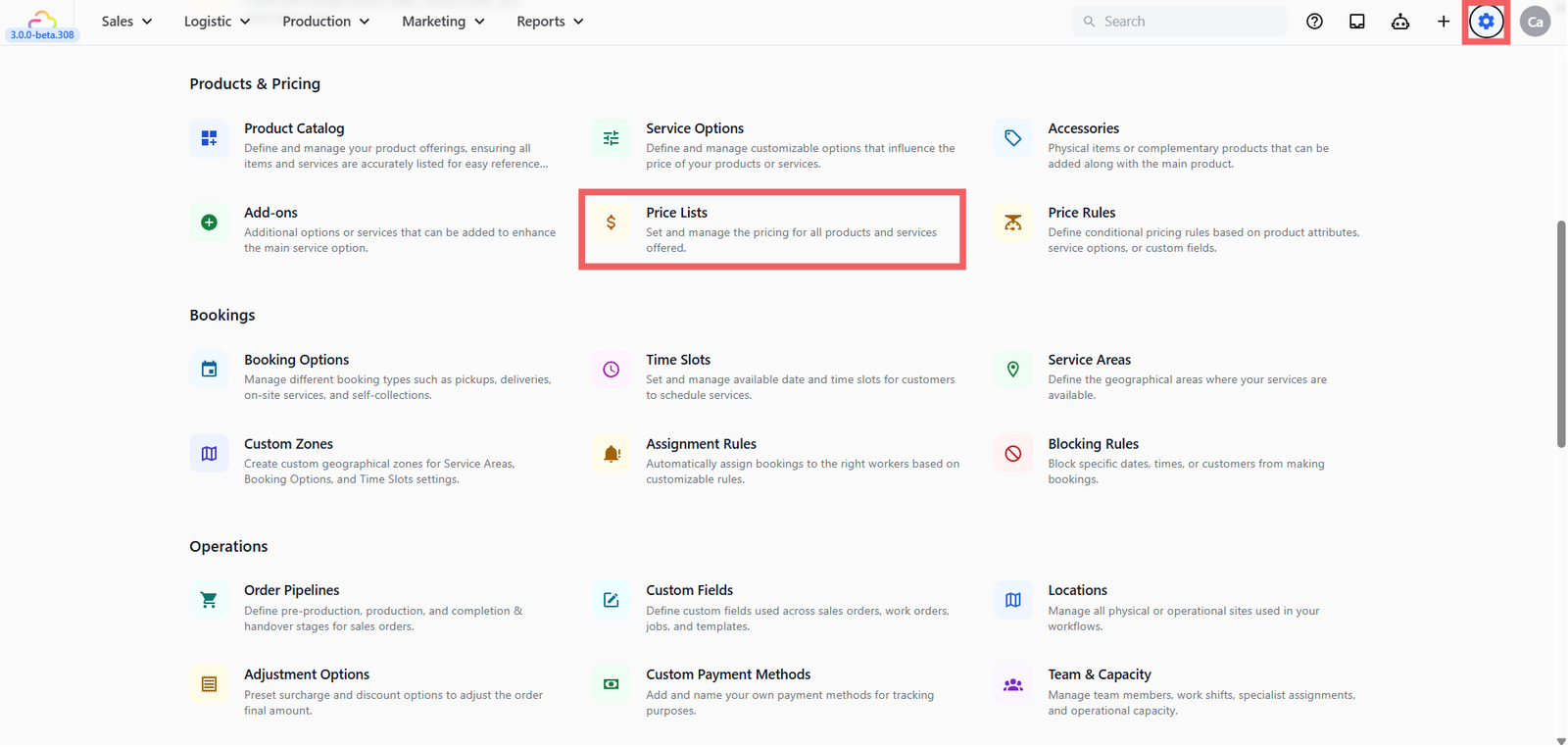
- You land on the Consumer Price Lists tab and see your price lists in a table.
Each row shows:
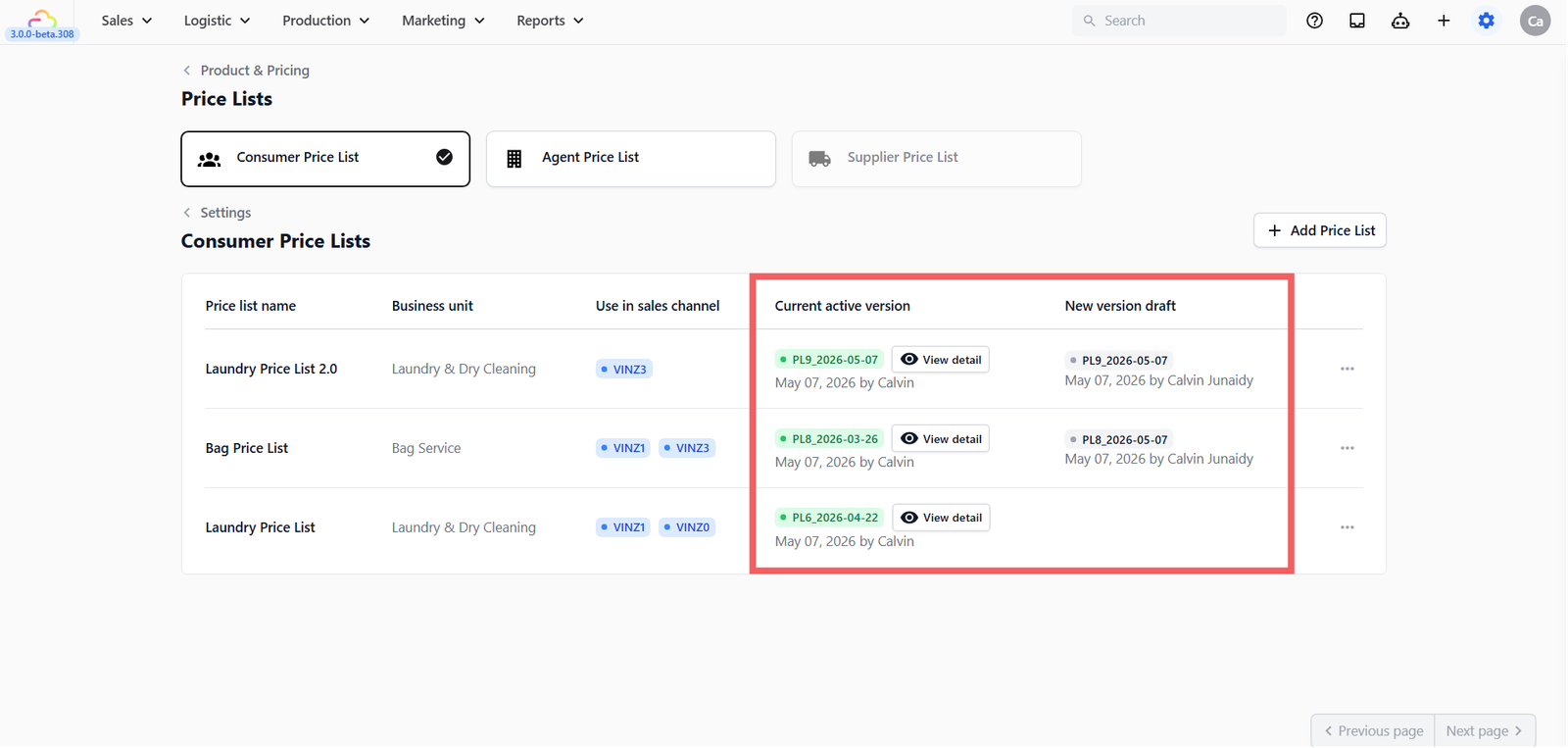
- Current active version -> the version your POS and online store are using right now, with a green badge.
- New version draft -> any draft you have started but not yet published, with a grey badge.
Every action starts from the ••• three-dots menu on each row.
Updating Prices on a Price List
To change prices, you work on a draft and publish it when ready. The button you click depends on whether a draft already exists for this price list.
- Find your price list in the Consumer Price Lists table.
- Click the ••• three-dots menu on that row.
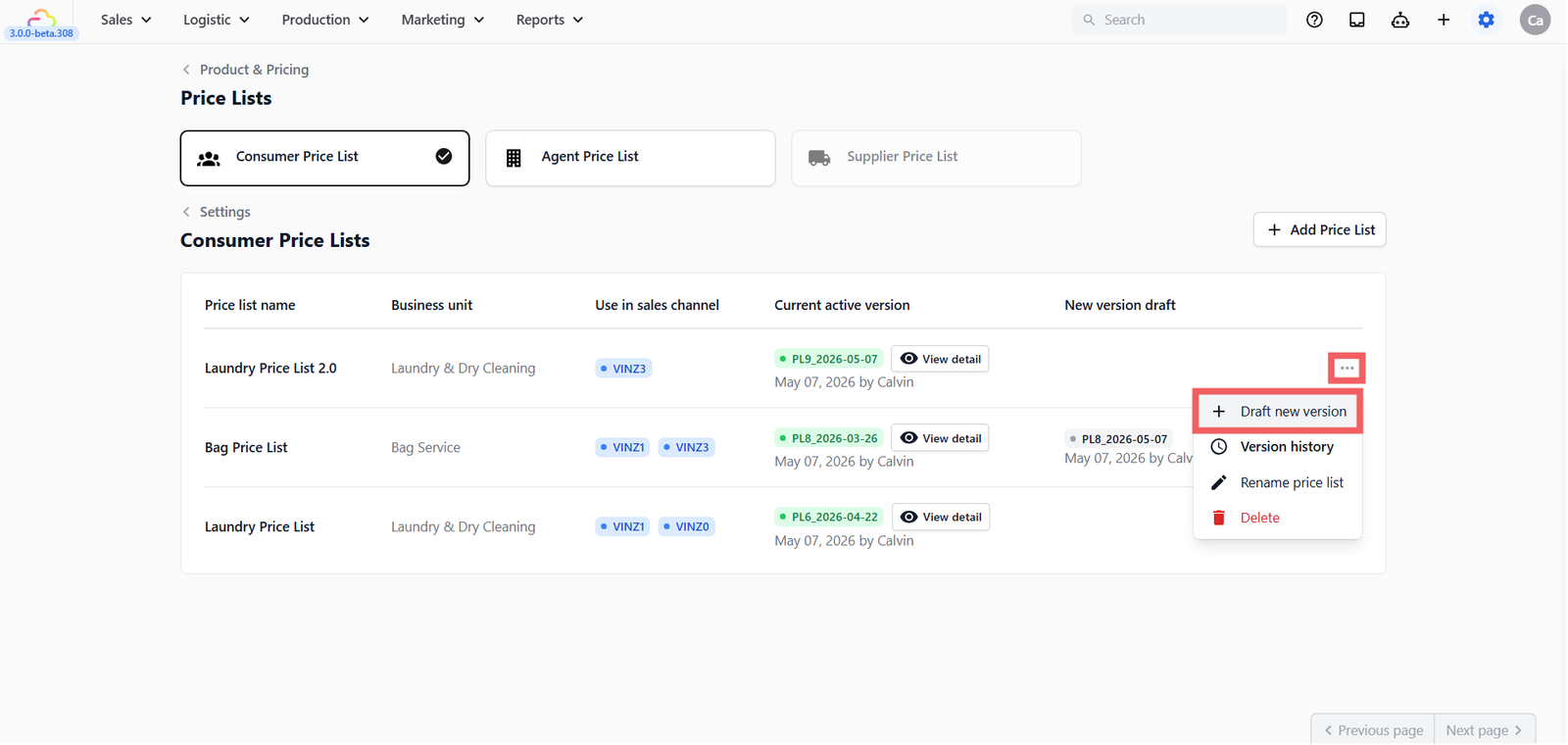
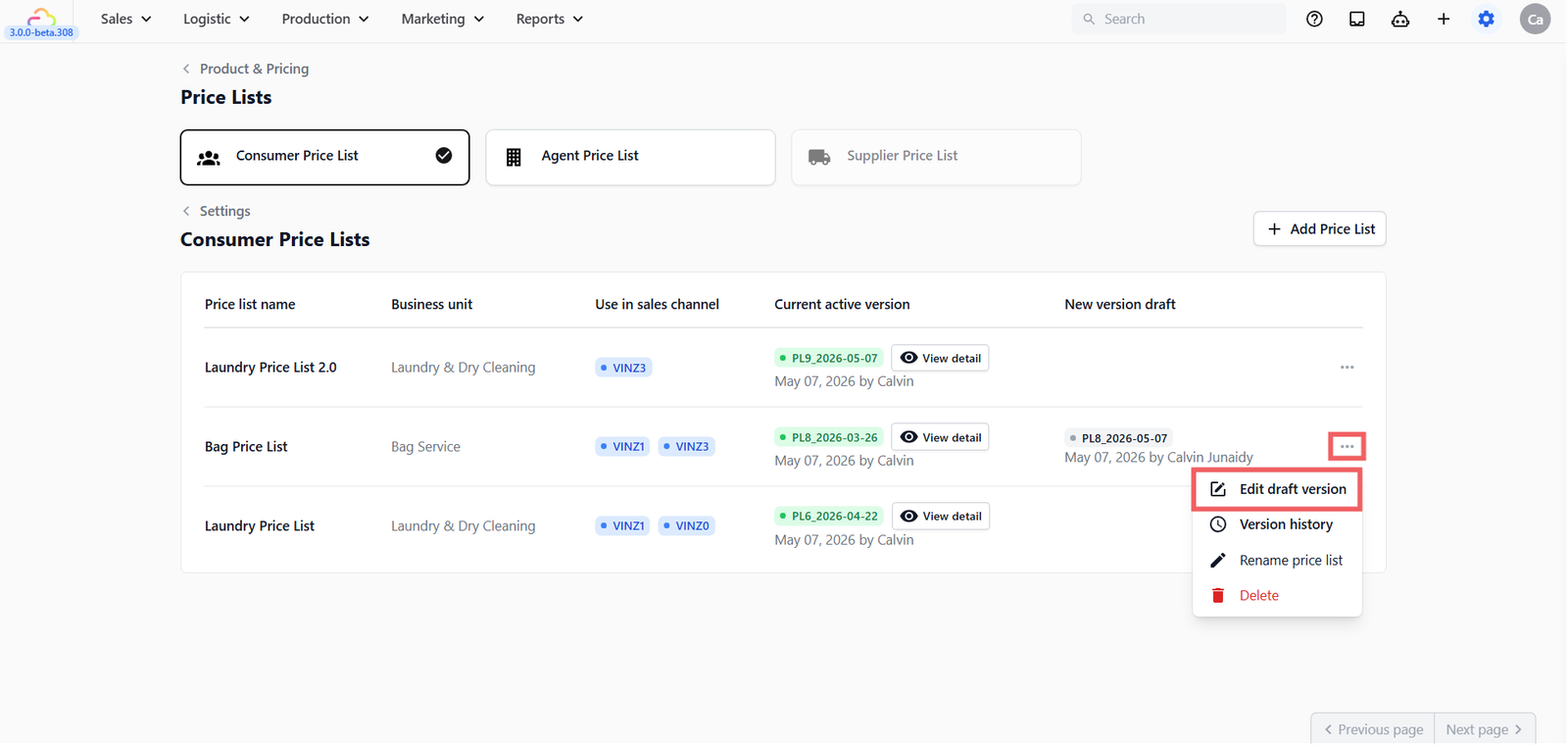
- Click the first option in the menu:
- + Draft new version -> appears when there is no draft yet. Clicking it clones the current Active version into a fresh draft and opens the editor.
- Edit draft version -> appears when you already have a draft in progress. Clicking it opens that existing draft in the editor.
The editor works the same way as creating a new price list. Add categories, change prices, attach service options, anything you need. See [Setting Up Consumer Price Lists] for editor mechanics.
Preview and Publish
When you are done editing in the draft, click Preview at the top right of the editor to see exactly what staff and customers will see. The preview is read-only and matches the customer-facing layout.
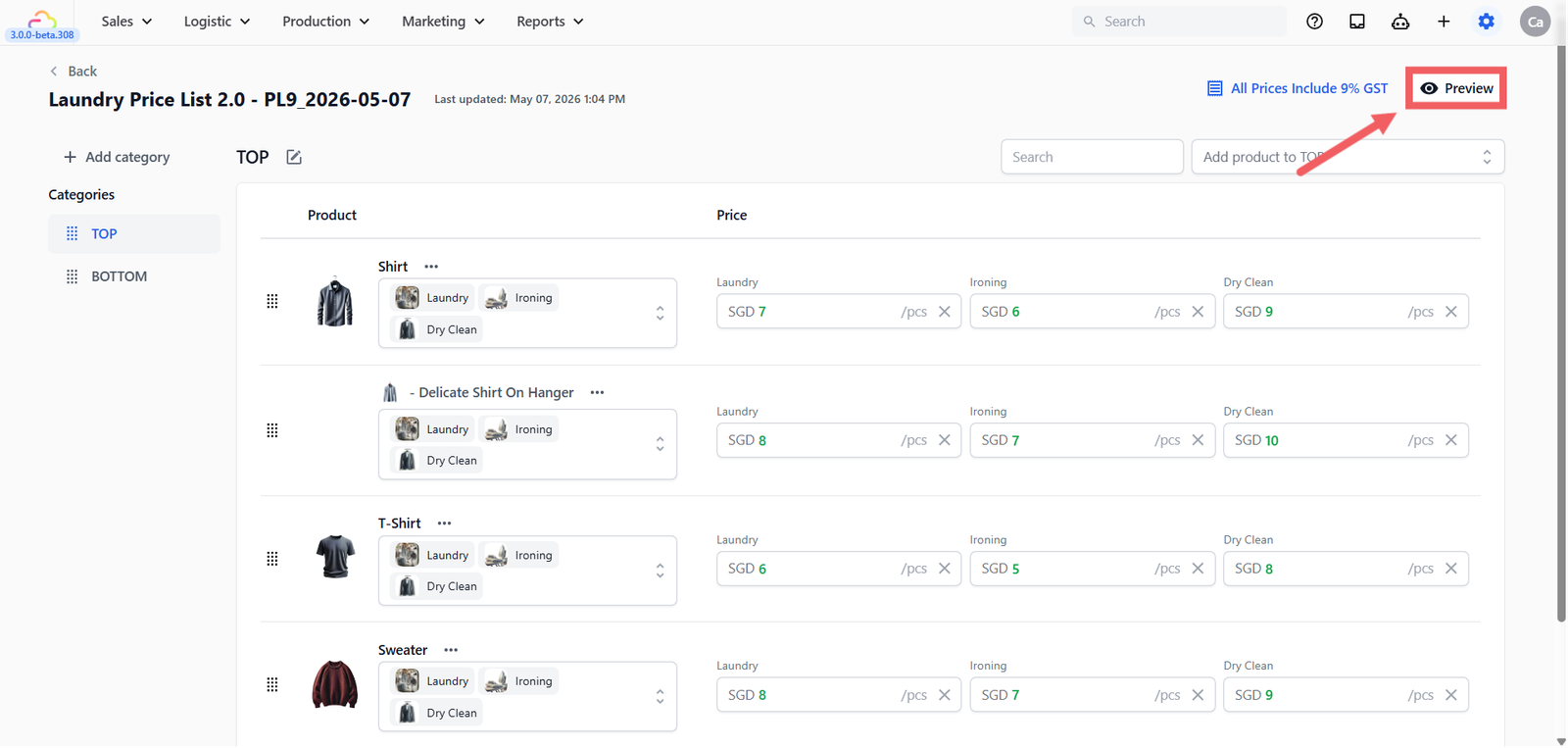
Once you are happy, click Publish. When you publish:
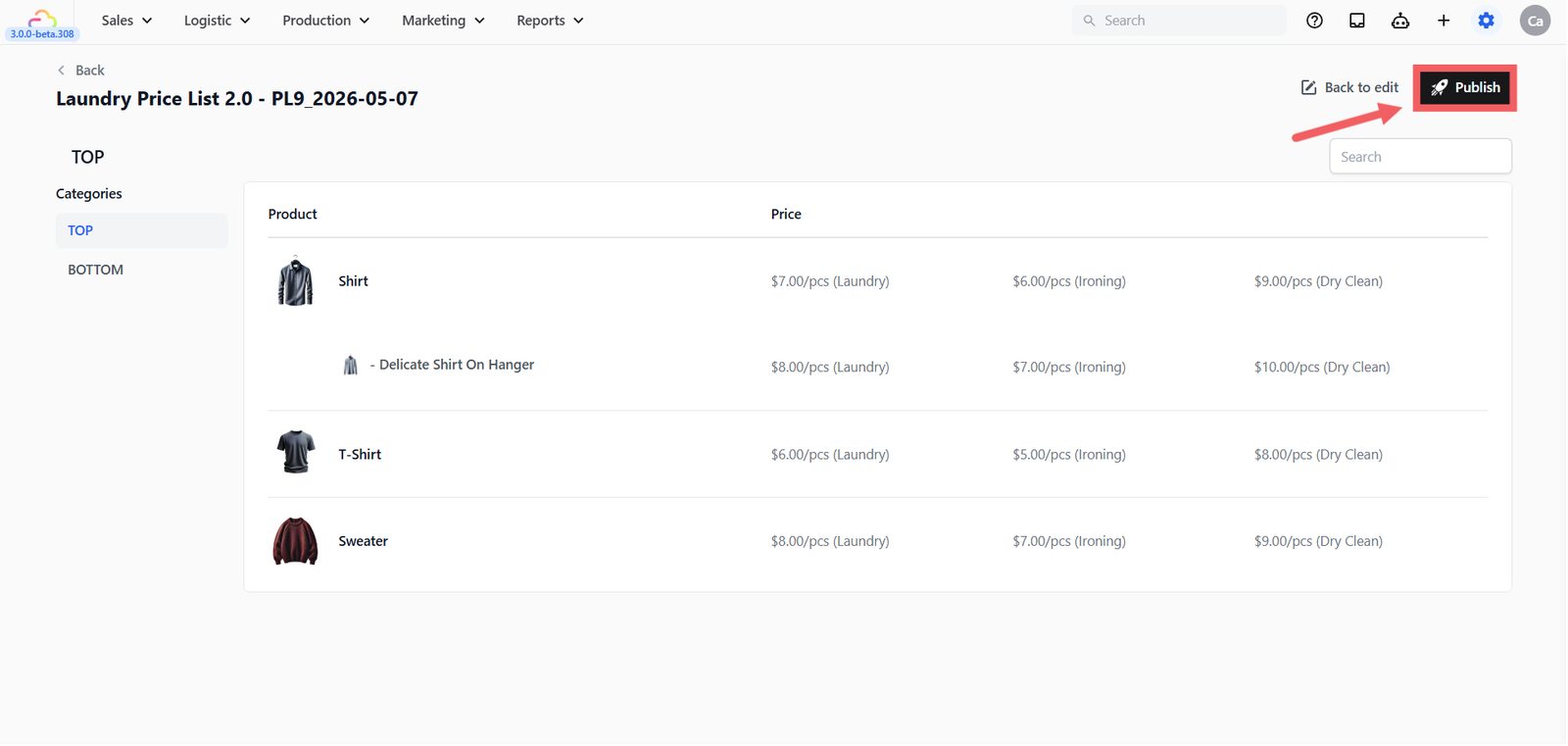
- The draft becomes the new Current active version (green badge).
- The previously active version moves into Version History.
- Any sales channel currently linked to this price list through your Business Unit picks up the new version automatically.
Viewing Version History
Every published version is kept in Version History so you can review past prices or roll back to an earlier version.
- Find your price list in the Consumer Price Lists table.
- Click the ••• three-dots menu on that row.
- Click Version history.
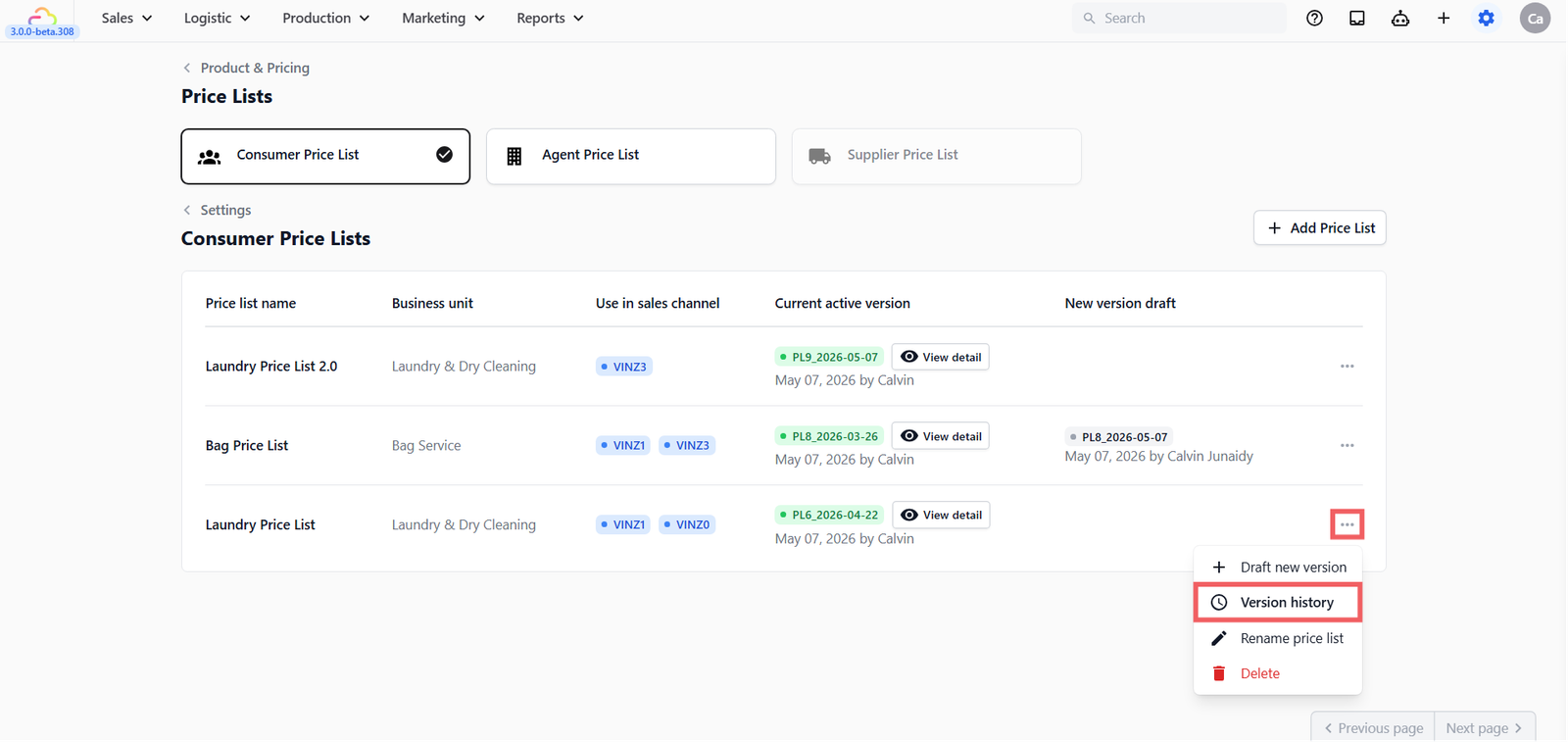
Each row shows:
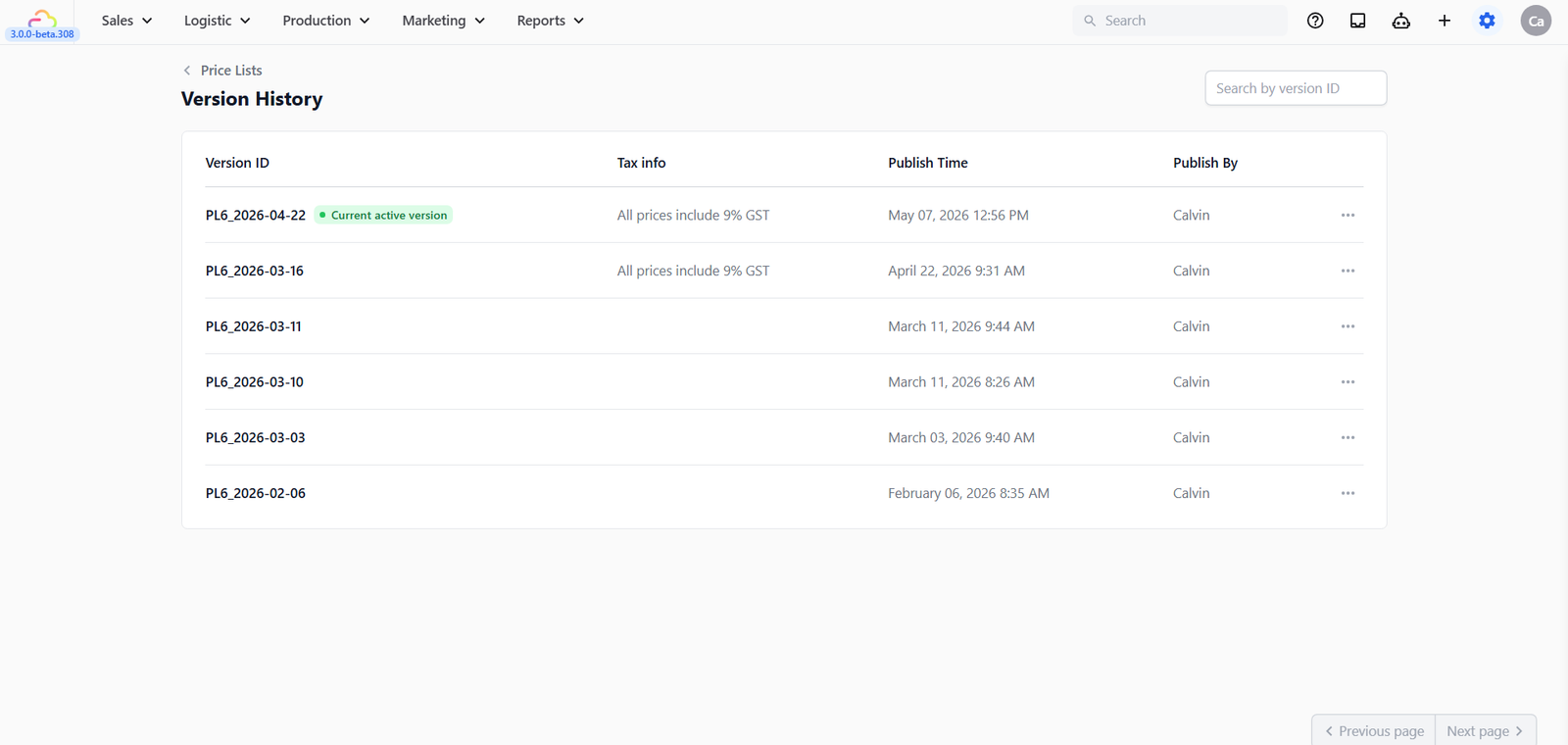
- Version ID -> an internal identifier for that version.
- Tax info -> the tax mode and rate at the time (e.g. 9% GST included).
- Publish Time -> when this version went live.
- Publish By -> which staff member published it.
Use the search bar at the top right to find a specific version by ID.
Three-dots menu on a version row
Click the ••• three-dots menu on any historical version to see two options:
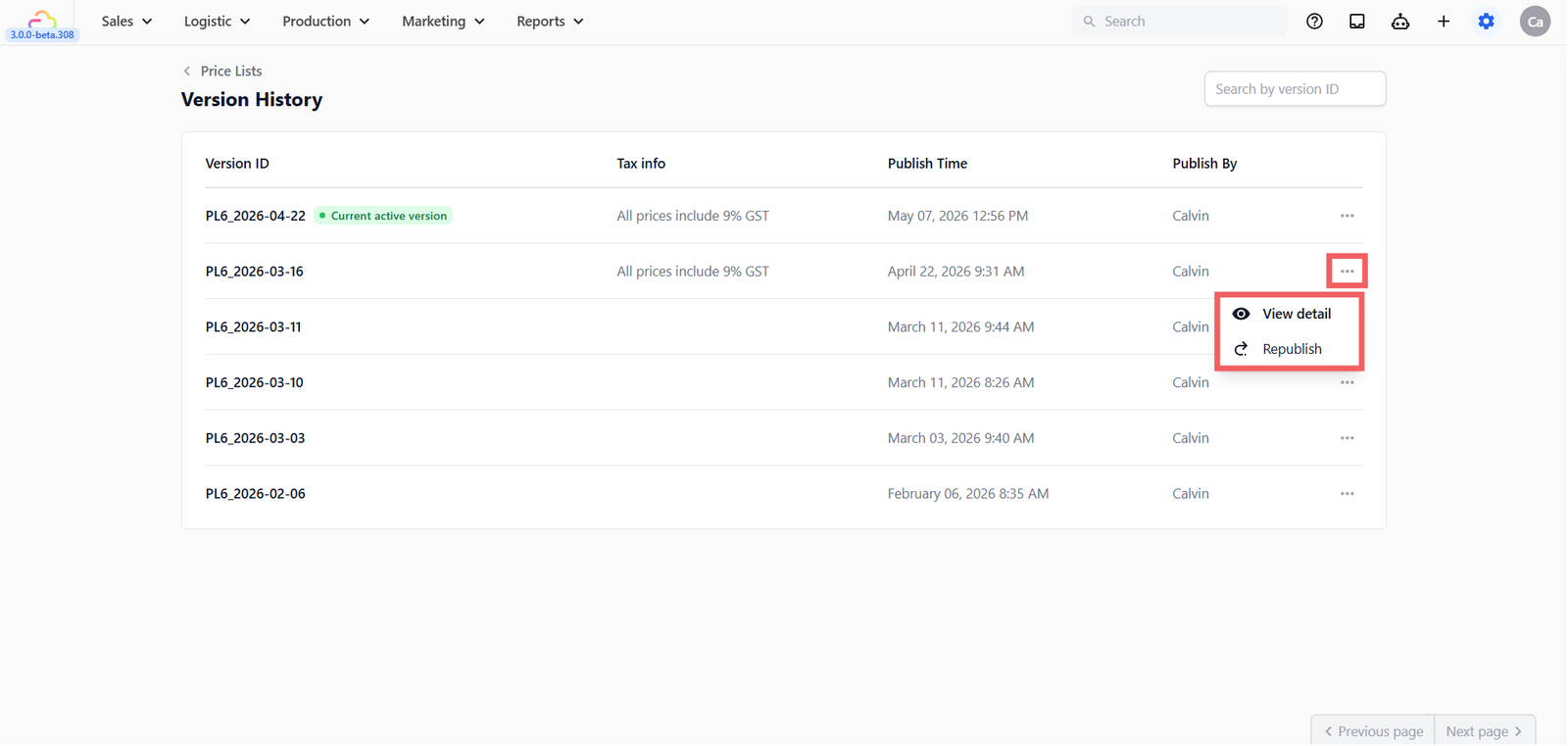
- View detail -> opens a read-only view of that version, showing every product, price, and service option as it was at the time. Useful for checking what prices applied to an old order.
- Republish -> promotes that historical version back to Active immediately. The current Active version becomes a historical entry. Use this to roll back a price change quickly without redrafting from scratch.
Renaming a Price List
The price list name is shared across all versions, so renaming changes it everywhere the price list is referenced.
- Find your price list in the Consumer Price Lists table.
- Click the ••• three-dots menu on that row.
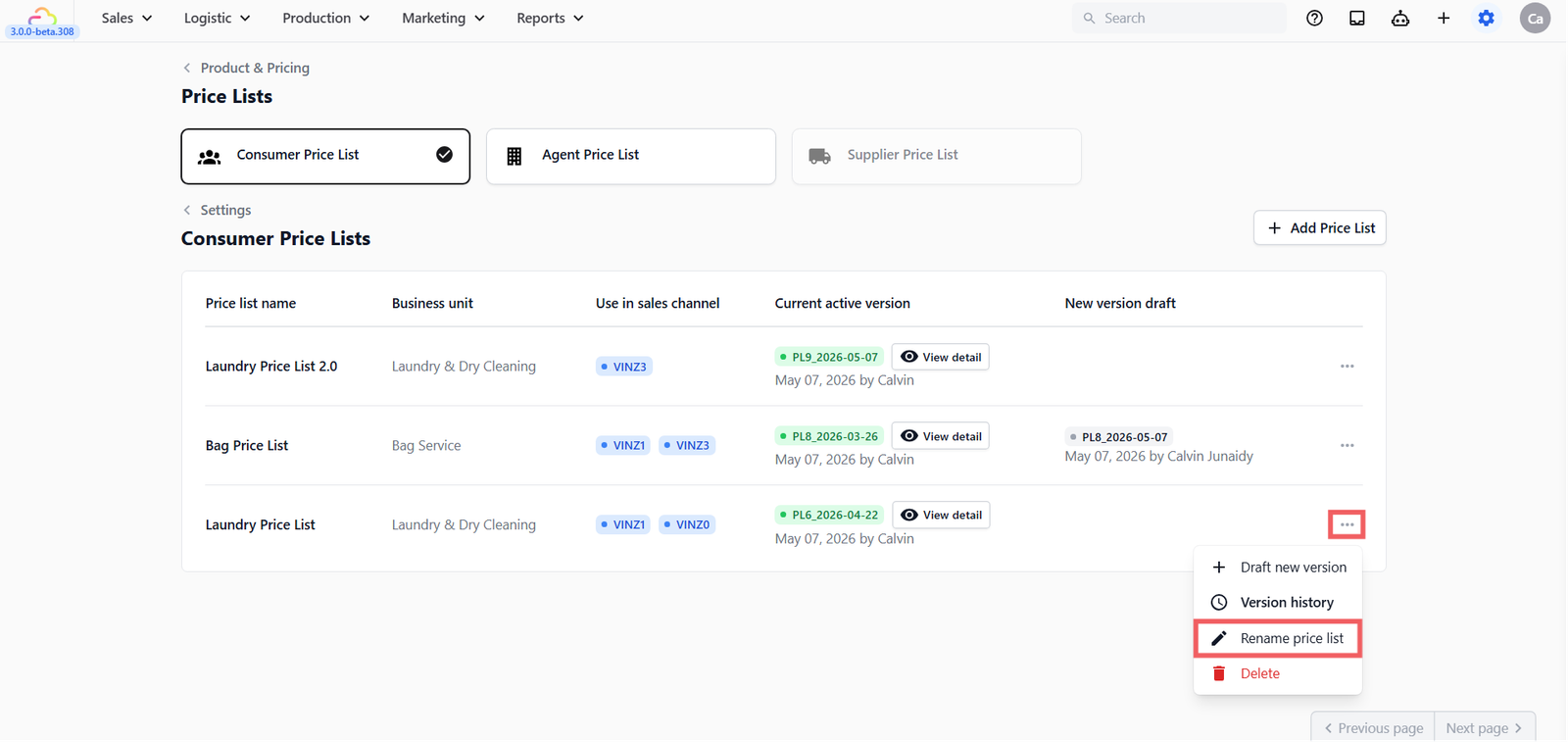
- Click Rename price list.
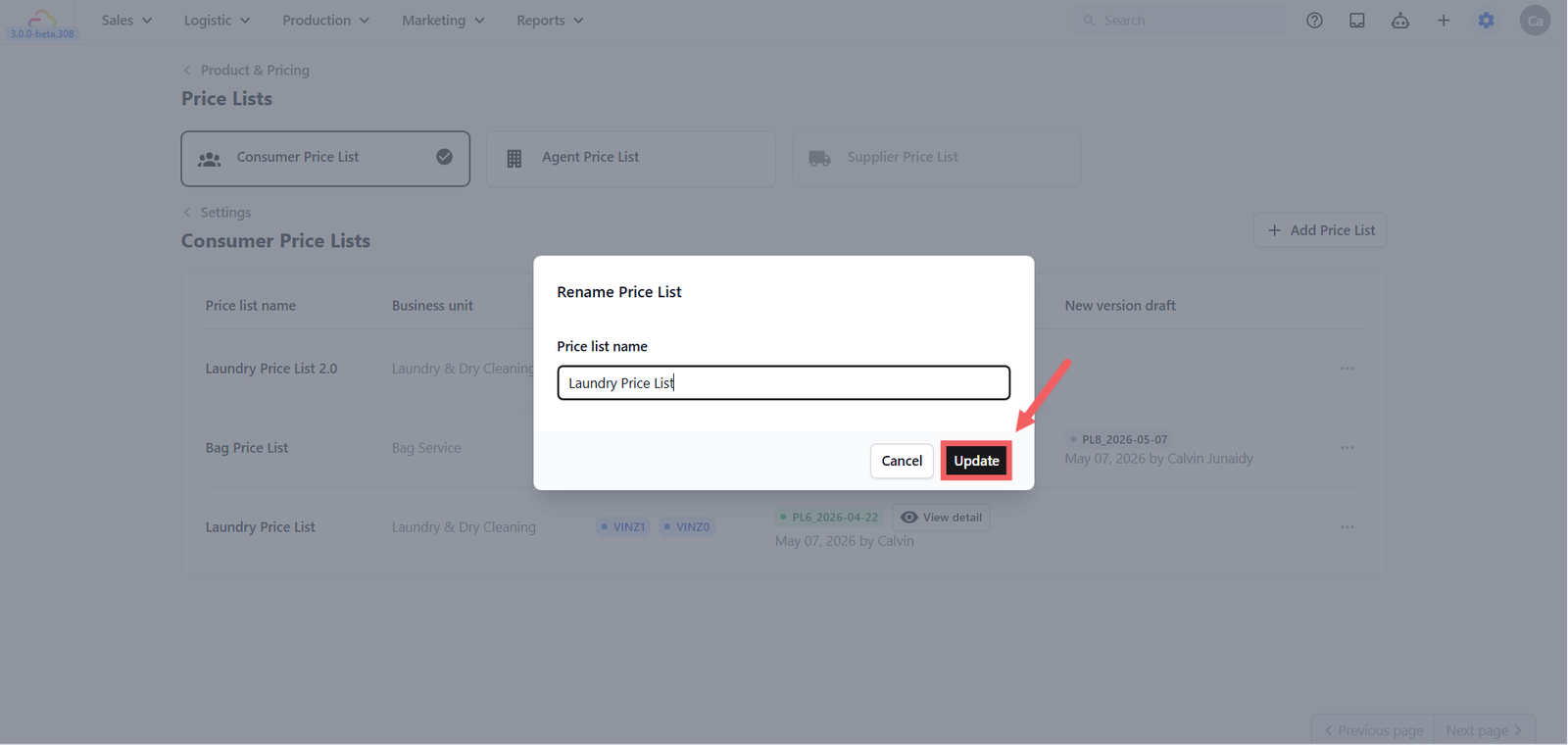
- Type the new name and Click Update.
Deleting a Price List
- Find your price list in the Consumer Price Lists table.
- Click the ••• three-dots menu on that row.
- Click Delete.
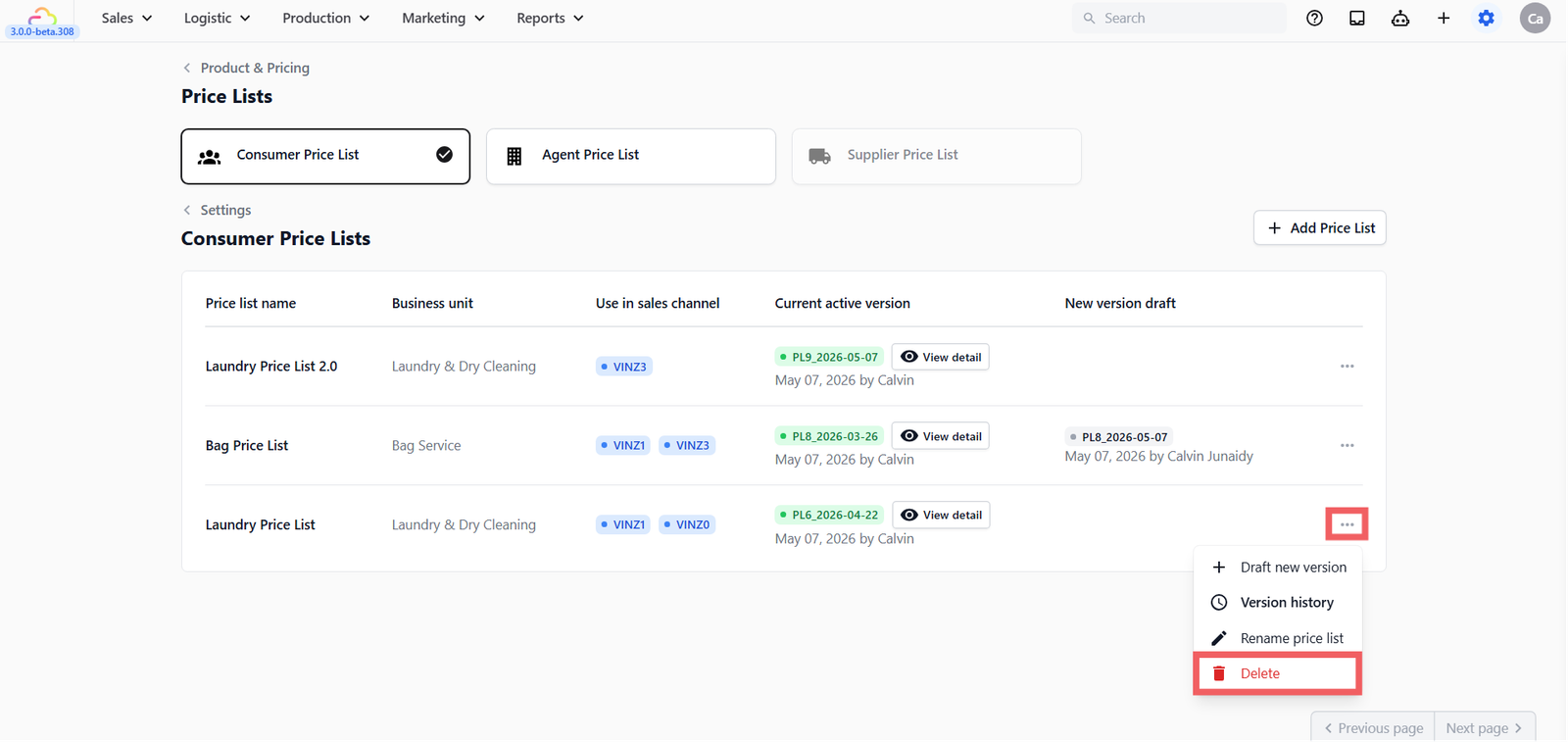
If the price list is currently linked to one or more sales channels through a Business Unit, you see a warning. If the price list is unused, you see a simple confirmation. Click confirm to delete.
FAQs
Why do I see + Draft new version on one price list and Edit draft version on another?
The first option in the three-dots menu shows + Draft new version when there is no draft yet, and changes to Edit draft version once you have started a draft. You can only have one draft per price list at a time.
Can I delete a draft without affecting the Active version?
Yes. Open the draft and discard it from the editor. The Active version is untouched.
Will old orders re-price if I publish a new version?
No. Orders snapshot pricing at the point of confirmation. New versions only affect new orders going forward.
What is the difference between Republish and + Draft new version?
Republish takes a historical version and immediately makes it the live Active version, no edits. Use this to roll back. + Draft new version makes an editable copy of the current Active version so you can change prices and publish later. Use this to evolve forward.
Does Republish notify customers or sales channels?
The price list is pushed live the same way as any normal publish. Sales channels linked to this price list pick it up immediately. There is no automatic customer notification.
Why does my Bag Price List show no draft in the table?
No draft means the Active version is the latest, and nothing is in progress. Click the three-dots menu and you will see + Draft new version as the first option to start one.
What's Next
To change which sales channels read from this price list, update your [Business Unit's Catalog section]. For the upstream catalog, return to [Setting Up Service Items] and [Setting Up Retail Products].
Give feedback
Up next
Recurring SchedulerSet up repeating orders so your shop stops remembering when the next pickup is due.
Read more