
Setting Up Service Options
In this article
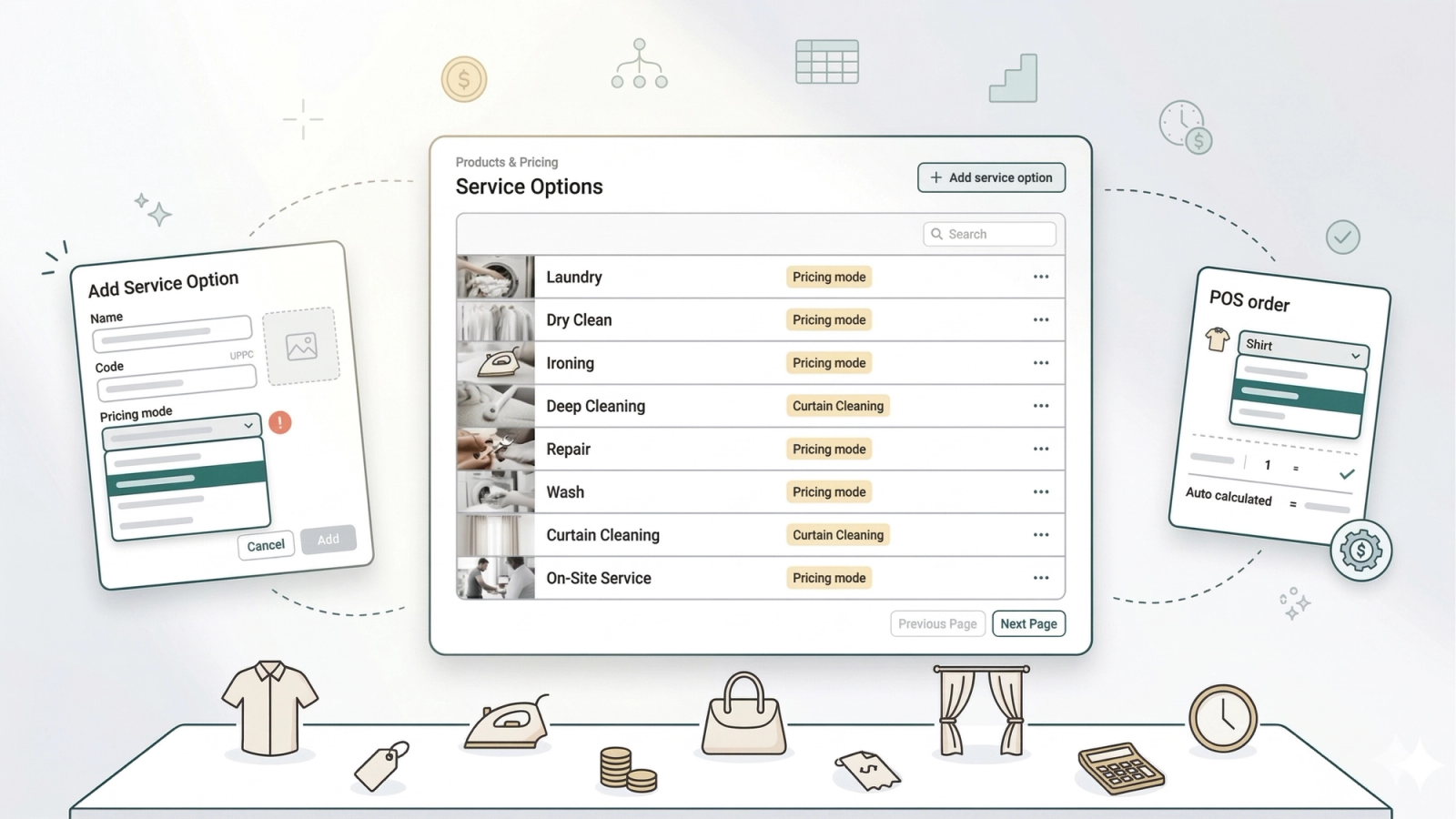
Service Options are the types of work your business offers — for example Laundry, Dry Clean, or Deep Cleaning. When your staff creates an order, they pick a service option and the system works out the price on its own. No mental math, no price chart, no mistakes. The most important decision is choosing a Pricing mode — this tells the system how to calculate the price. This guide explains all five modes with real examples so you can pick the right one for each service you offer.The most important decision when setting up a service option is choosing a Pricing mode — this tells the system how to calculate the price. There are five modes, and each one suits a different situation. This guide explains all five with real examples so you can pick the right one for each service you offer.
Contents
Contents
How to Access Service Options
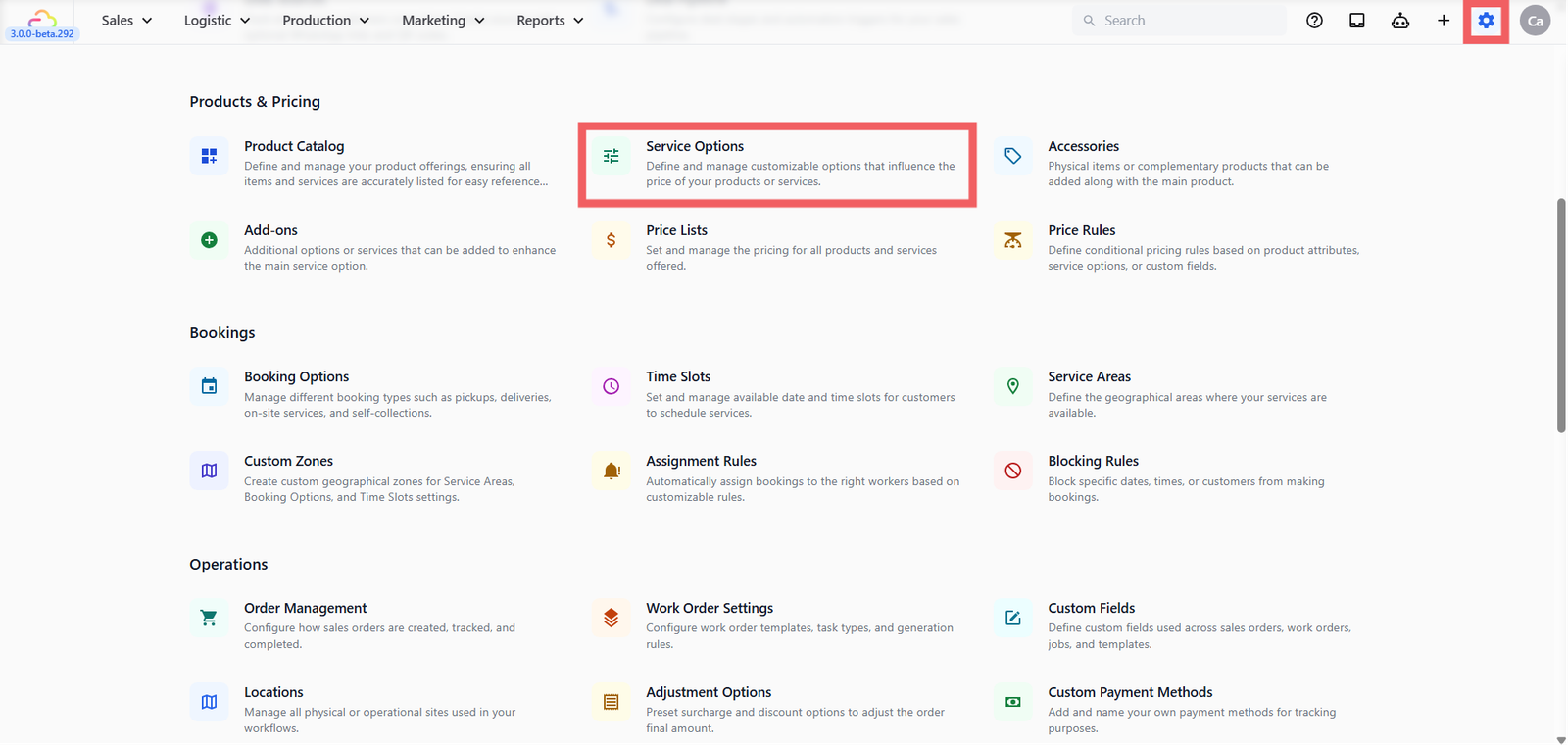
- Go to Settings from the top navigation bar
- Scroll down to the Products & Pricing section
- Click Service Options
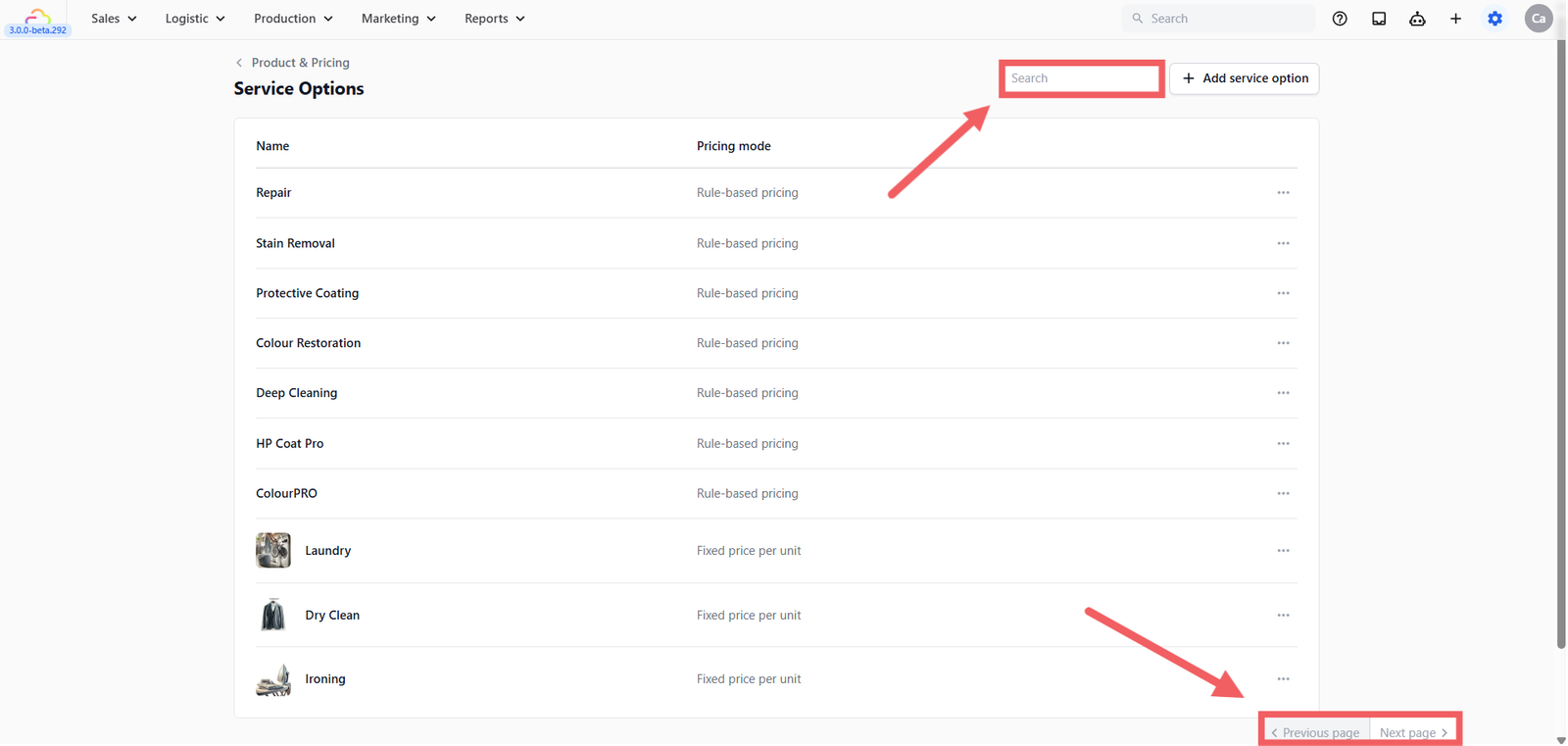
You'll see a list of all your existing service options. Each row shows the service name and its pricing mode. Use the Search bar at the top right to find a specific service. If you have many service options, use the Previous Page and Next Page buttons at the bottom right of the list to move between pages.
Before You Start — Which Pricing Mode Is Right for You?
Read through this table first. Find the row that matches how you charge for a service, then use that mode.
| My situation | Use this mode |
|---|---|
| I charge the same flat price per piece — every item, same price | Fixed price per unit |
| My service has multiple levels or types, each with its own price | Custom pricing with sub-options |
| The price depends on the item's fabric, material, or size | Rule-based pricing |
| I charge a set total price based on how many items are brought in | Tiered rate by units |
| I charge by the hour or session length | Hourly rate |
Adding a Service Option
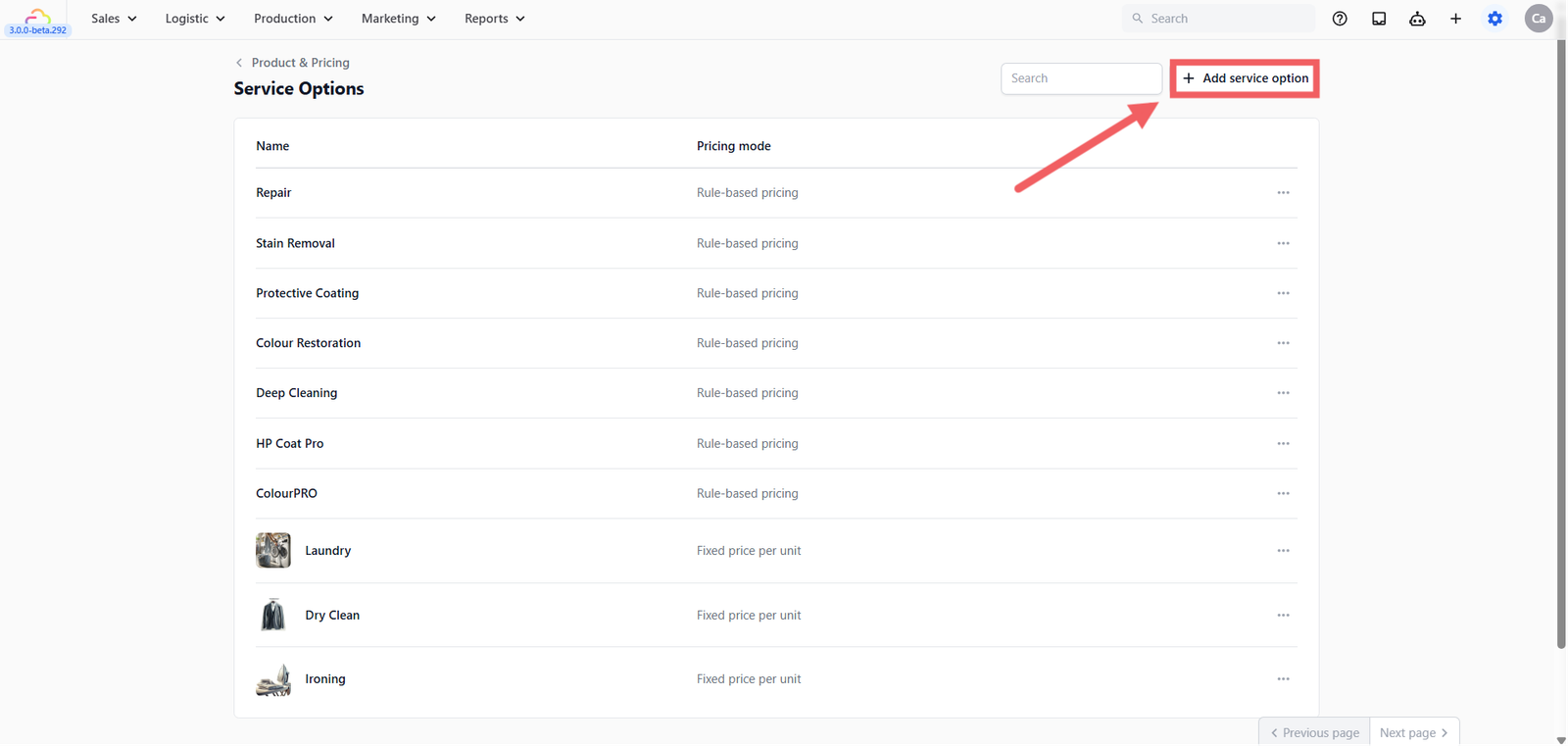
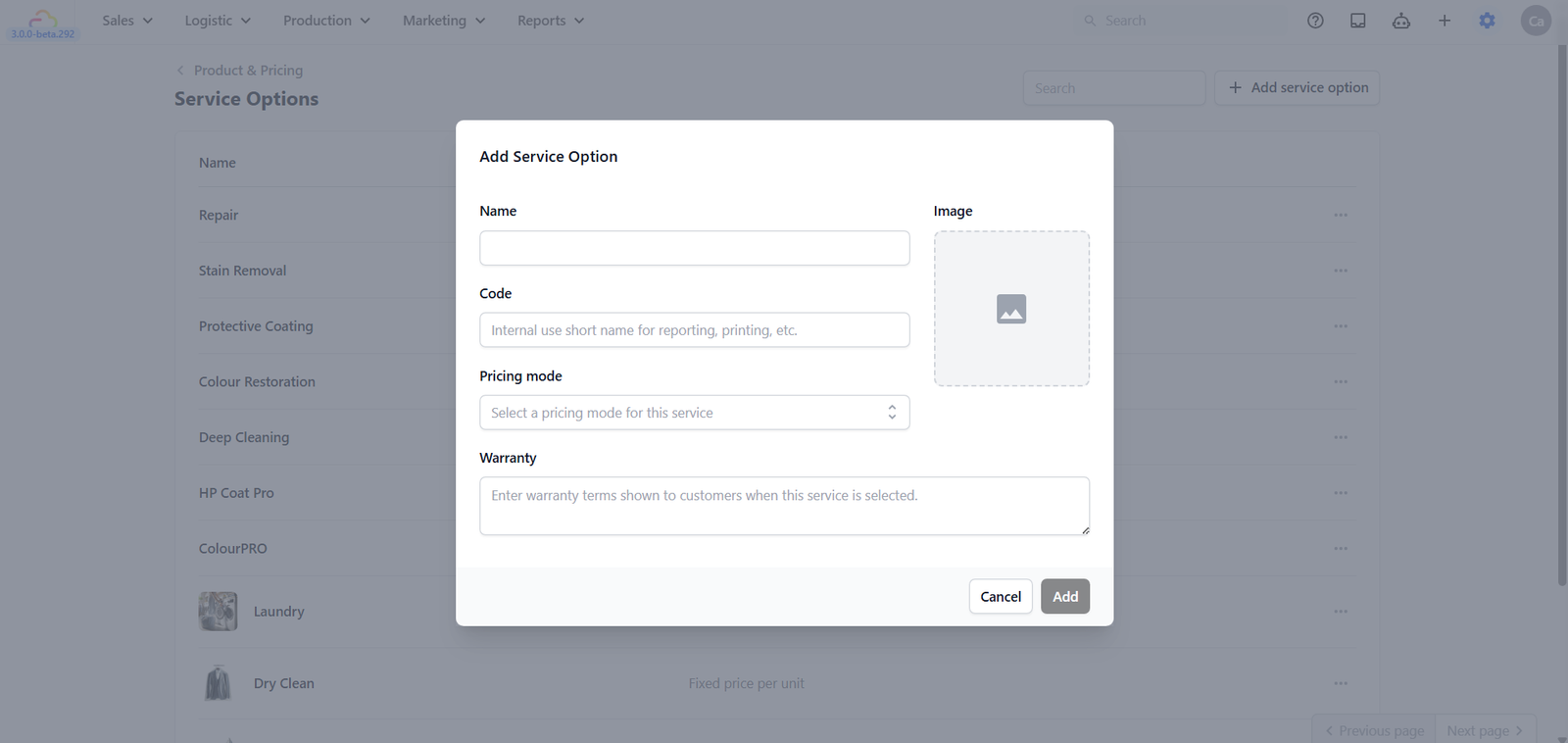
1. Click + Add service option at the top right
2. Fill in the details:
- Name: The name your staff will see on the POS. Keep it short and clear — for example: Laundry, Dry Clean, BAG - Deep Cleaning.
- Code (optional): A short internal abbreviation used for reporting, printing, and labels, for example: DRY, LAUNDRY, BAG-DC. This field automatically converts to uppercase. Not shown to customers.
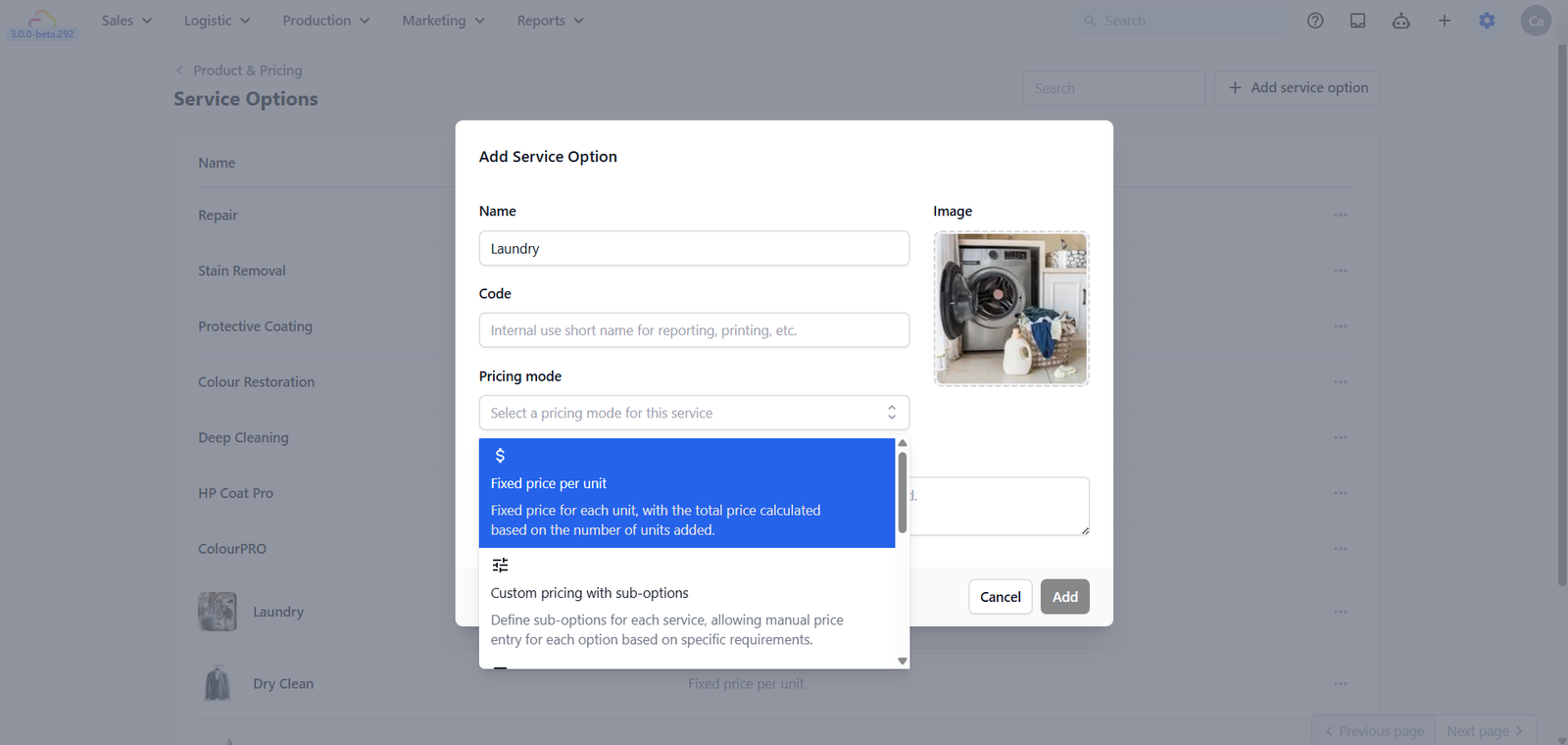
- Pricing mode: How the price is calculated. When you select a mode, a description appears below explaining how it works. See the full explanations further below, this is the most important field to get right.
- Image (optional): A photo or icon shown on the POS. Helps staff pick the right service quickly when there are many options. Click to upload
- Warranty (optional): Any warranty terms to show customers when this service is selected. Most businesses leave this blank.
3. Click Add to save
The Five Pricing Modes
Fixed Price per Unit
You set one price per unit and the system multiplies it by the quantity your staff enters.
- Laundry example: You charge SGD 3.50 per piece for regular laundry. A customer drops off 8 pieces — the system shows SGD 28.00 automatically. Your staff just confirms and moves on.
- Bag service example: You charge SGD 15 per bag for a basic exterior wipe-down. Staff selects the service, enters 2 bags — the system shows SGD 30. Done.
Best for:
- Laundry (per piece)
- Ironing (per piece)
- Basic wipe-down or conditioning (flat rate per item)
- Any service where every item costs exactly the same
Custom Pricing with Sub-Options
You create a service option with multiple levels or types underneath it — each with its own price. When your staff creates an order, they first select the item (for example, Shirt), then select this service option, and then choose which sub-option applies.
- Laundry example: You offer a Wash service with three levels — Basic Wash (SGD 5), Premium Wash (SGD 9), and Hand Wash (SGD 12). A customer brings in a silk blouse and wants a hand wash. Staff selects the blouse, then Wash, then Hand Wash — and SGD 12 is applied automatically.
- Bag service example: You offer a Cleaning service with three levels — Surface Clean (SGD 20), Deep Clean (SGD 45), and Full Restoration Clean (SGD 80). Staff selects the bag, then Cleaning, then picks the right level. The price fills in on its own.
Staff can also pick more than one sub-option for the same item. If the same customer also wants ironing, staff selects both Wash and Ironing — the system adds them together automatically.
Best for:
- Wash services with multiple grades (Basic, Premium, Hand Wash)
- Cleaning with different treatment levels (Surface, Deep, Full Restoration)
- Repair with different scopes (Minor, Major, Full Restore)
- Any service where the same job can be done at different levels
Setting up sub-options
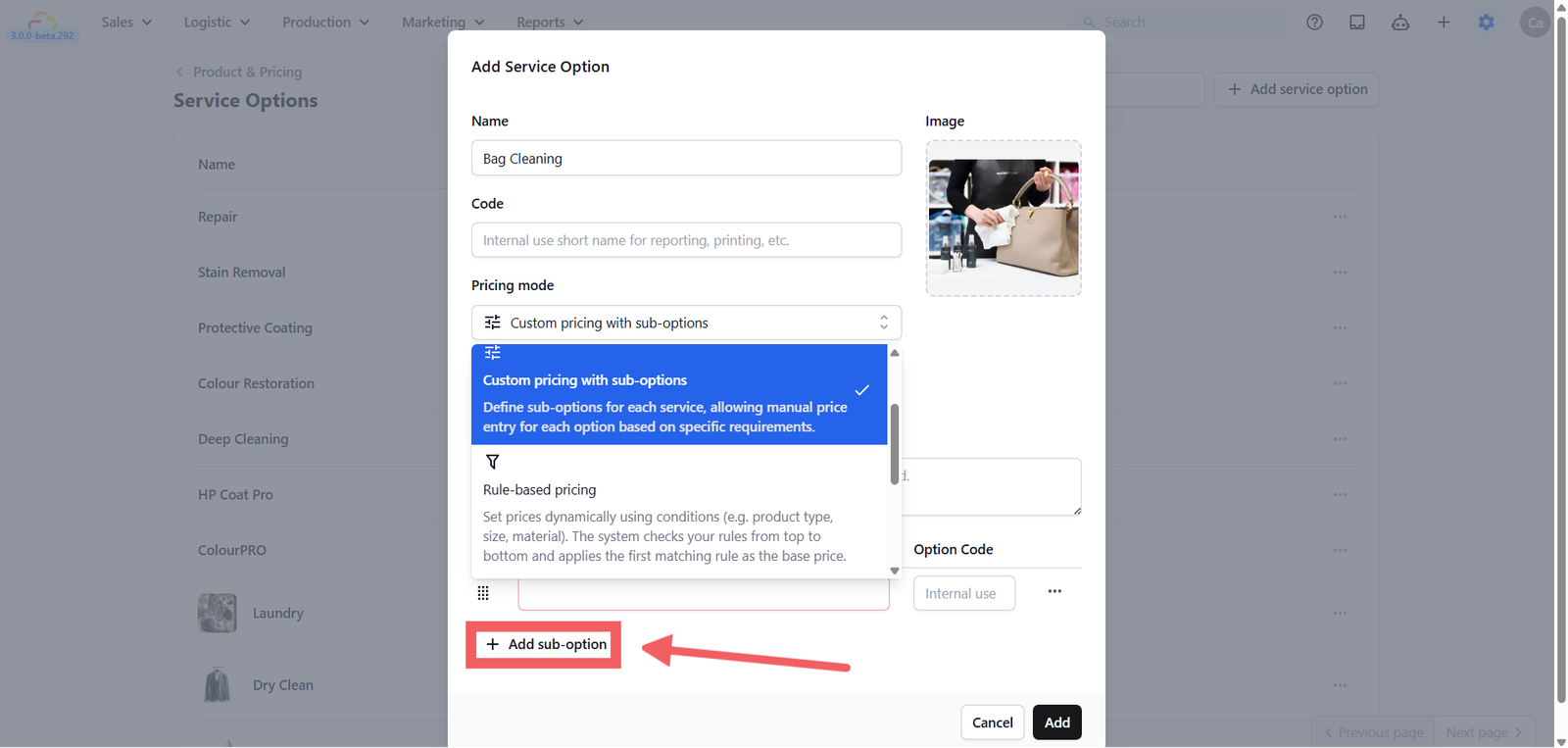
When you select this pricing mode, a sub-options panel appears at the bottom of the form:
- Enter the Sub-option name, what staff will see on the POS (e.g. Basic Wash, Premium Wash, Hand Wash)
- Enter an Option Code (optional), a short internal code for reporting (e.g. BW, PW, HW)
- Click + Add sub-option to add more
- Drag and drop to reorder
- Click the ... menu on any sub-option row to delete it if needed
Rule-Based Pricing
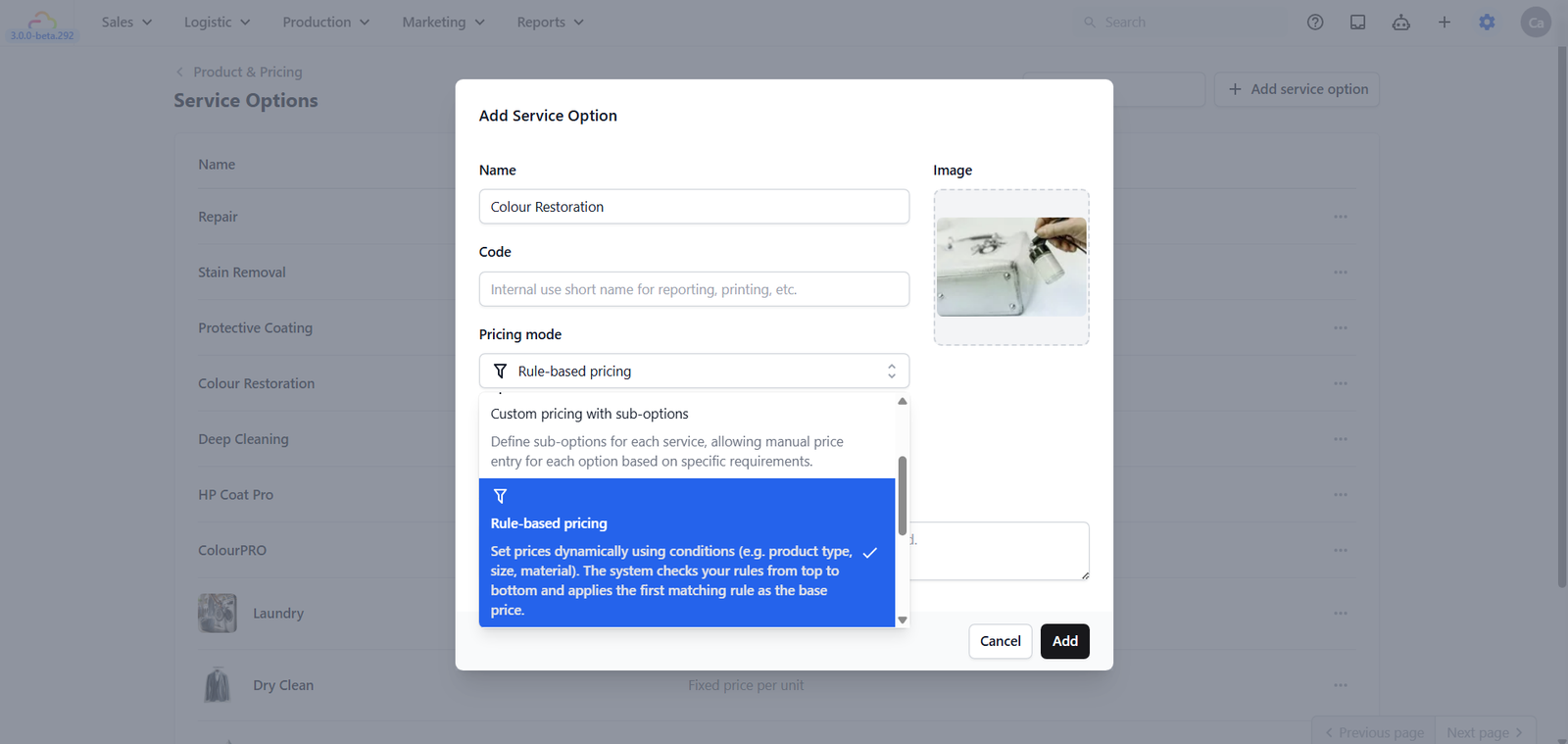
The most powerful option. You build a pricing table based on the characteristics of the item — like garment type or material. Staff select the relevant details on the POS and the system automatically looks up and applies the correct price.
- Laundry example: Your dry cleaning prices depend on the garment type and fabric. A silk blouse costs SGD 14 to dry clean, but a cotton shirt is only SGD 6. Staff selects the garment type (Blouse) and the fabric (Silk) — the system looks up SGD 14 and applies it automatically. No guessing, no chart.
- Bag service example: This is the most common pricing mode for bag service businesses. A small leather clutch costs SGD 35 to deep clean, a medium canvas tote costs SGD 50, and a large exotic leather handbag costs SGD 120. Staff selects the bag size and material — the system applies the correct price from your table. No printed chart needed.
Best for:
- Dry cleaning (price varies by garment type and fabric)
- Deep cleaning (price varies by item size and material)
- Repair (price varies by repair type and material)
- Any service where you currently use a printed price chart that staff have to look up manually
👉 [Setting Up Rule-Based Pricing] Coming Soon
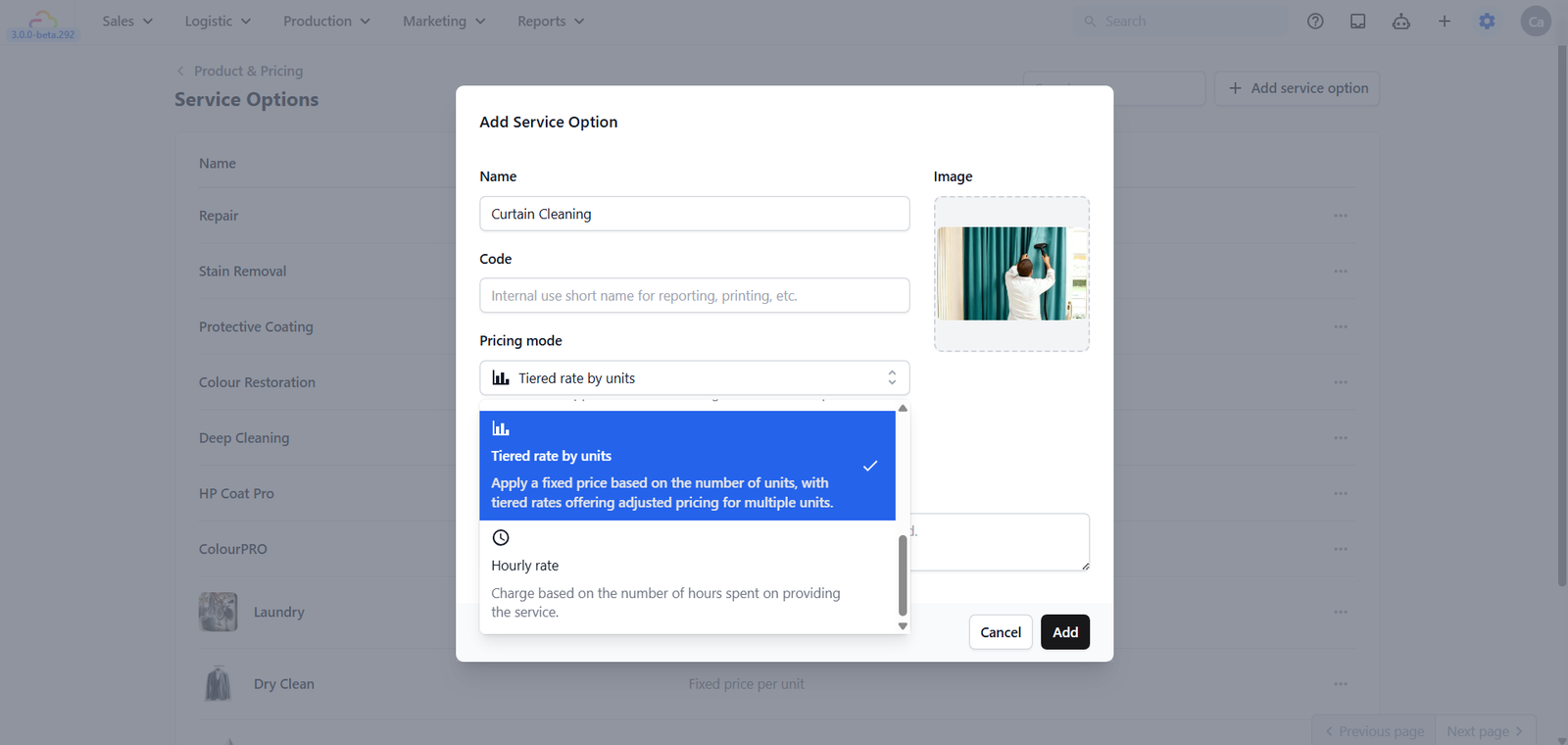
Tiered Rate by Units
You define a set total price for specific quantities — not a per-item rate, but a fixed package price for a batch. Staff look at how many items the customer brings in and select the matching tier.
- Laundry example: You offer curtain cleaning with package pricing — 1 curtain costs SGD 30, 2 curtains cost SGD 55, 3 curtains cost SGD 75, 5 curtains cost SGD 110. A customer brings in 3 curtains — staff selects the 3-unit tier and the system sets the price to SGD 75 automatically.
- Bag service example: This mode is rarely used in bag services. Bag businesses typically charge by the specific service and material, which is better handled by Rule-based pricing or Custom pricing with sub-options.
Best for:
- Curtain cleaning (package pricing by number of curtains)
- Bulk laundry packages (e.g. 10-piece bag at a set rate)
- Any service where you offer "the more you bring, the better the deal"
Hourly Rate
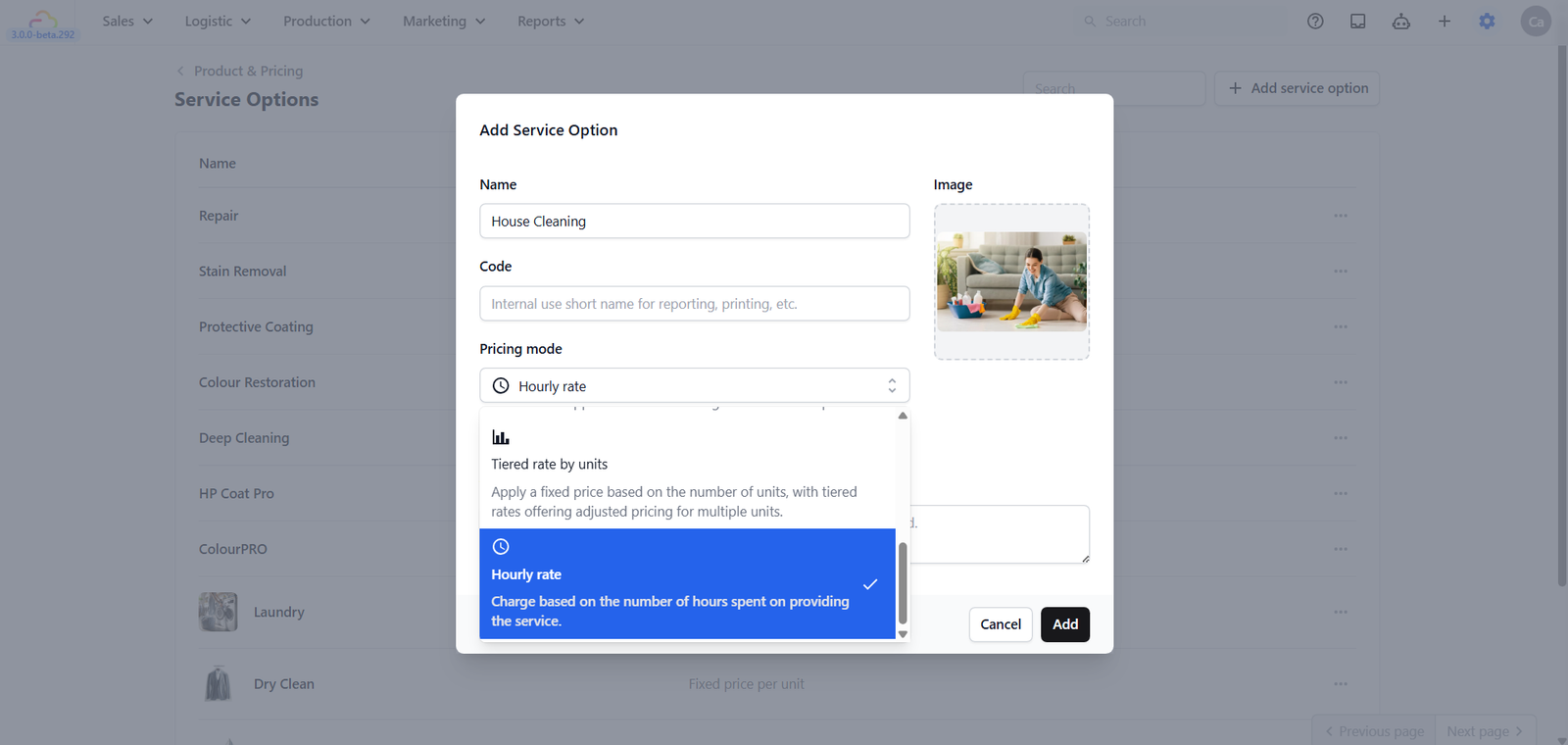
The price is based on how long the service takes. You define prices for different durations — from 0.5 hours up to 12 hours in 30-minute increments — and staff select the right duration when creating an order.
- Laundry example: You offer an on-site laundry assistant service — sending a staff member to a hotel or serviced apartment to sort, wash, and fold on location. You charge SGD 25 for 1 hour, SGD 45 for 2 hours, and SGD 80 for a half-day session.
- Bag service example: Bag service businesses do not typically use hourly rate pricing. Bag services are charged per item or per job — not per hour.
Best for:
- On-site laundry or housekeeping services charged by the hour
- Any service where you bill by time rather than by item
Editing or Deleting a Service Option
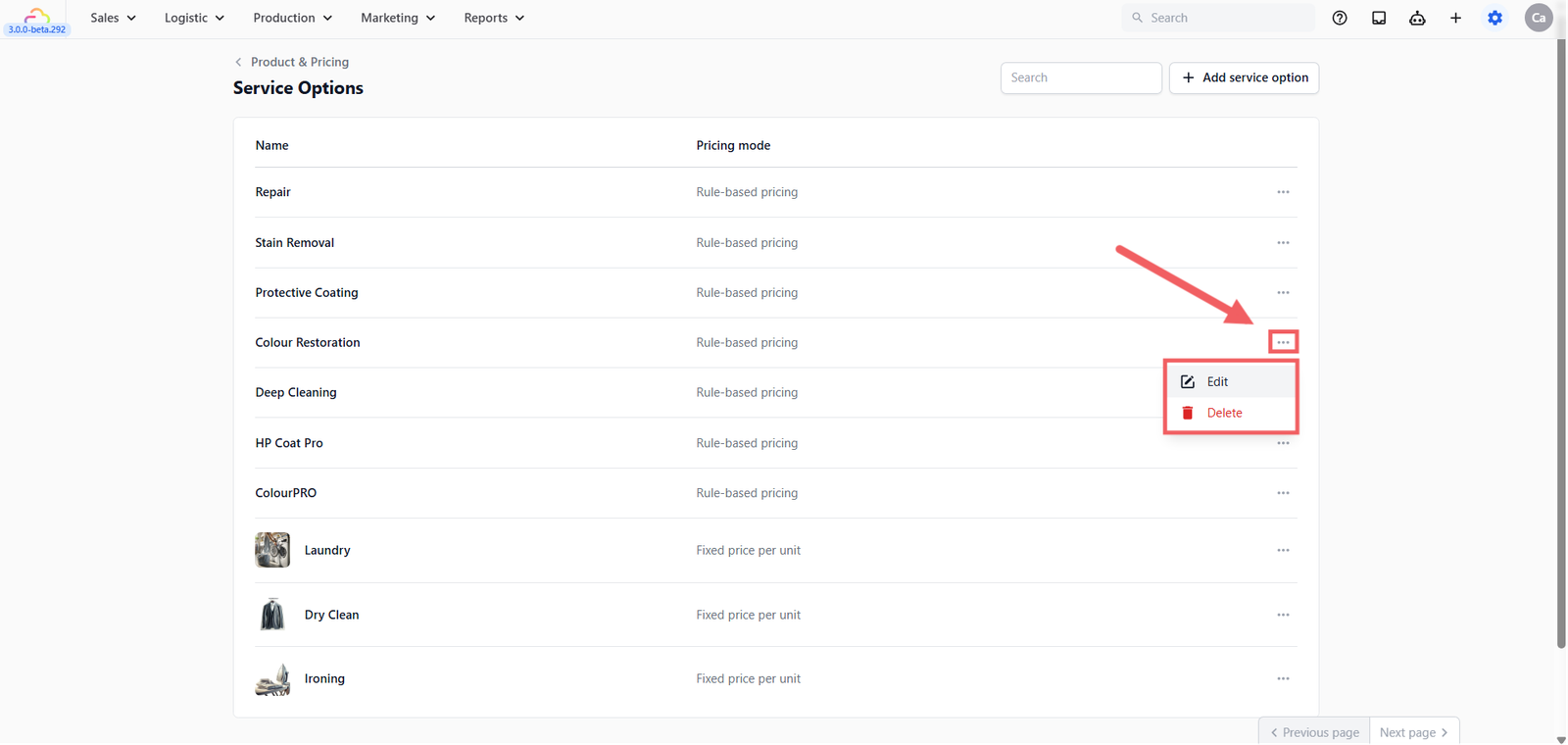
- Find the service in the list
- Click the ... (three dots) button on the right
- Select Edit to update the details, or Delete to remove it
When editing: If this service option is already used in active price lists, a confirmation dialog will appear after you click Update showing which price lists are affected. Click Confirm update to apply your changes to both the service option and all associated price lists.
When deleting: The system automatically checks whether this service option is used in any active price lists:
- If it is not in use, you will see a green confirmation: "Service option not in use, you can safely delete it."
- If it is in use, you'll see a yellow warning listing which price lists reference it. You can still delete it. Existing orders won't be affected, but the service option will no longer be available for new orders going forward.
What's Next
- Set your prices in the Price List 👉 [Setting Up Price Lists]
Give feedback
Up next
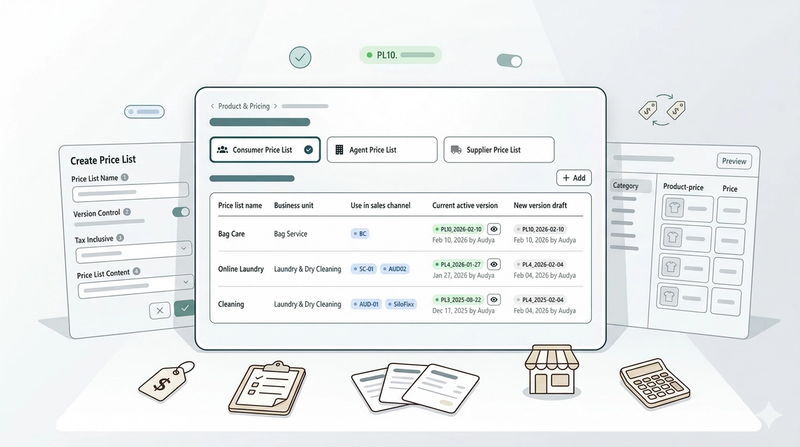
Setting up your Price ListsLearn how to configure, version, and manage custom pricing tiers for your laundry business—from standard consumer rates to specialized agent pricing.
Read more