
Introduction to Scheduling & Dispatch
In this article
Scheduling & Dispatch is where you set up how customers book you and how that work reaches the right person. It covers what customers can pick, when they can pick it, where you will go, and who does the job. This article gives you the big picture so you know what to set up first and what you can skip.
Contents
Contents
What is Scheduling & Dispatch
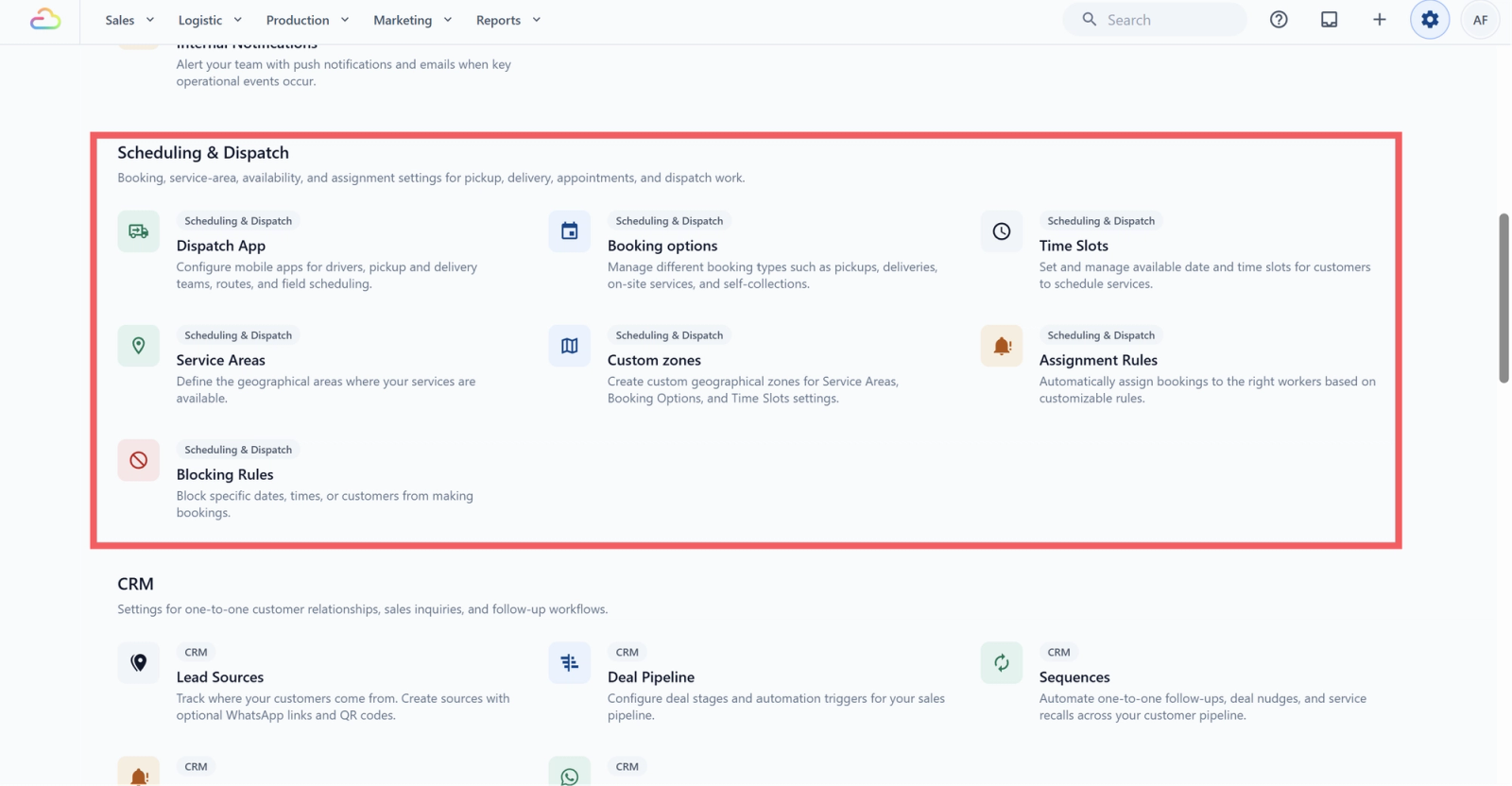
Scheduling & Dispatch is the part of EasyBiz that turns a customer's request into a booking, and a booking into someone's job for the day. It is the bridge between "I want to order" and "the driver knows where to go." It covers what the customer can pick, when they can pick it, where you will go, and who ends up doing the work. All of that lives in one area so you do not have to repeat the same rules in your online store, your POS, and your staff app.
Why You Need It
Without Scheduling & Dispatch set up, every booking has to be handled by hand. Staff have to remember which dates the shop is closed, which driver covers which area, what to charge for a pickup outside your usual area, and which corporate customer needs a Monday morning slot every week. With it, the customer only sees options that are actually open, the calendar refuses bookings on holidays, drivers get their own jobs automatically, and repeat customers reappear on the schedule without anyone retyping the order. You write the rules once. The rules run every booking from then on.
- If you take any kind of booking, then you need Scheduling & Dispatch, even in its simplest form.
- If you want less manual work as you grow, then this is the area that removes it.
- If you serve different parts of your city differently, then this is where that gets organized.
Four Things Every Booking Needs
Every setting in this area answers one of four questions about a booking.
| Question | What it controls | Where you set it |
|---|---|---|
| What can the customer book? | The pickup, delivery, store drop-off, or appointment options customers can choose. | Booking Options |
| When can they book it? | Working days, lead time, time windows, days you are closed | Time Slots, Blocking Rules, and the lead-time field on each Booking Option |
| Where will you go? | The areas you cover and the minimum order per area | Custom Zones, Service Areas |
| Who will do the work? | The driver or team that receives each booking | Assignment Rules |
If you can answer these four questions for your shop, you already know what to set up.
What to Set Up First (and Why the Order Matters)
Each piece builds on the one before it. Skip a piece and the next one still works, but with less control. The order matters because later settings point back to earlier ones. Custom Zones must exist before a Time Slot can be capped by zone. Booking Options must exist before they can be blocked on a holiday. Assignment Rules can only point to zones, days, and business units you have already set up.
| Set this up | Set it up when | What it depends on |
|---|---|---|
| Booking Options | You want to take any booking at all. This is the only required piece. | Nothing |
| Time Slots | You deliver or pick up at the customer's address, so they pick a time window, not just a date. | Booking Options |
| Custom Zones | Different parts of your city need different rules, prices, or drivers. | Nothing |
| Service Areas | You want to tie each zone to a business unit, or charge a minimum order for far-away areas. The minimum is set here, not on the Booking Option. | Custom Zones |
| Blocking Rules | Your shop closes on public holidays or company breaks, so the calendar refuses bookings on those dates. | Booking Options |
| Assignment Rules | You want each new booking to land in the right driver or team queue automatically. | Zones, days, and business units already set up |
| Recurring Scheduler | The same customer orders on a fixed rhythm, so the order appears on its own before the pickup day. | Booking Options |
A Real Setup Example
✅ Example: CleanFast Laundry runs home pickup, home delivery, and store drop-off. Here is how they set up each piece:
- Booking Options: three options, one for each service.
- Custom Zones: three zones drawn on the map, named North, Central, and South.
- Service Areas: all three zones tied to their Laundry business unit, with a higher minimum order on the South zone.
- Time Slots: a morning and an afternoon window, capped at twenty pickups in the afternoon.
- Blocking Rules: every Sunday and four public holidays closed off.
- Assignment Rules: North and Central go to Driver A, South goes to Driver B.
- Recurring Schedule: a Monday morning pickup every week for a corporate customer.
From day one onward, no staff member has to manually assign a booking, block a holiday, or recreate a repeat order.
What You Can Skip
You do not need every section to go live. Use this as a quick guide.
| If your shop is... | You need | You can skip |
|---|---|---|
| Store drop-off only | Booking Options | Custom Zones, Service Areas, most Time Slots |
| One-driver delivery, flat coverage | Booking Options, one Time Slot | Custom Zones, Service Areas, Assignment Rules |
| Multi-zone delivery with one driver | Booking Options, Custom Zones, Service Areas, Time Slots | Assignment Rules |
| Multi-driver, multi-area operation | All sections | Nothing |
What Changes After You Go Live
Changes you make in this area only affect new bookings. Orders already on the calendar keep the rules they were created under. That is true for Booking Options, Time Slots, Zones, Service Areas, Blocking Rules, and Assignment Rules. The one exception is a manual reassignment on an existing booking, which you can still do from the order itself.
FAQs
Do I need to set up every section before I start taking bookings?
No. Only Booking Options is required. If you deliver or pick up, add at least one Time Slot. Everything else is optional and can be added later.
Where do I start if I am brand new to the platform?
Start with Setting Up Booking Options. It is the only piece that everything else depends on, and you can take a booking with just that one section configured.
Will changing a setting break orders already on the calendar?
No. Rules are read at the moment a booking is created. Existing orders keep the rules they were created under.
Can I run Scheduling & Dispatch without using Custom Zones?
Yes, if every customer is covered by the same rules, the same minimum order, and the same driver. Use zones only when one area needs to behave differently from another.
How does Recurring Scheduler fit in with the rest of this category?
Recurring Scheduler creates orders on its own using the same Booking Options, Time Slots, and Service Areas you already configured. It is automation on top of the setup, not a separate booking system.
Do Assignment Rules re-run if I change an order after it is created?
No. Assignment Rules run once, at booking creation. If the order details change later, use manual reassignment on the order itself.
What's Next
Now that you understand how the Scheduling & Dispatch area fits together, continue to [Introduction to Booking Options] to build the first piece every other setting depends on.
Give feedback
Up next
Service AreasTell each business unit which custom zones it covers, set the minimum order amount per zone, and decide what message customers see when they fall outside your coverage.
Read more