
Introduction to Service Areas
In this article
A service area is a mapping between one business unit and one or more Custom Zones. EasyBiz uses it at checkout to decide whether a customer's address is covered and whether their order meets your minimum amount. If you serve everywhere your zones reach, you can leave a business unit set to "All Areas" and it will not block any address. Most shops only configure this once per business unit.
Contents
Contents
Before You Start
You need at least one Custom Zone drawn before you can limit coverage to specific areas. The zone picker on this page only shows zones you have already created. See Setting Up Custom Zones.
If your business unit will serve everywhere, you can skip this. Leave coverage on All Areas and only set a minimum order if needed.
What is a Service Area?
A service area is the coverage rule for one business unit. It controls two things:
- Where you serve — the list of Custom Zones the business unit covers. You can pick one zone or many. Addresses inside any selected zone are accepted; addresses outside all of them see your Not in service message.
- Minimum order — the lowest order amount you'll take in that area. If a customer's order is below it, the system adds a top-up charge at checkout. You can set one global minimum, or override it per zone.
Each business unit has one service area, and it starts on All Areas (no restriction, no minimum). You configure it once to match how that business unit actually operates.
How Service Areas Fit Together
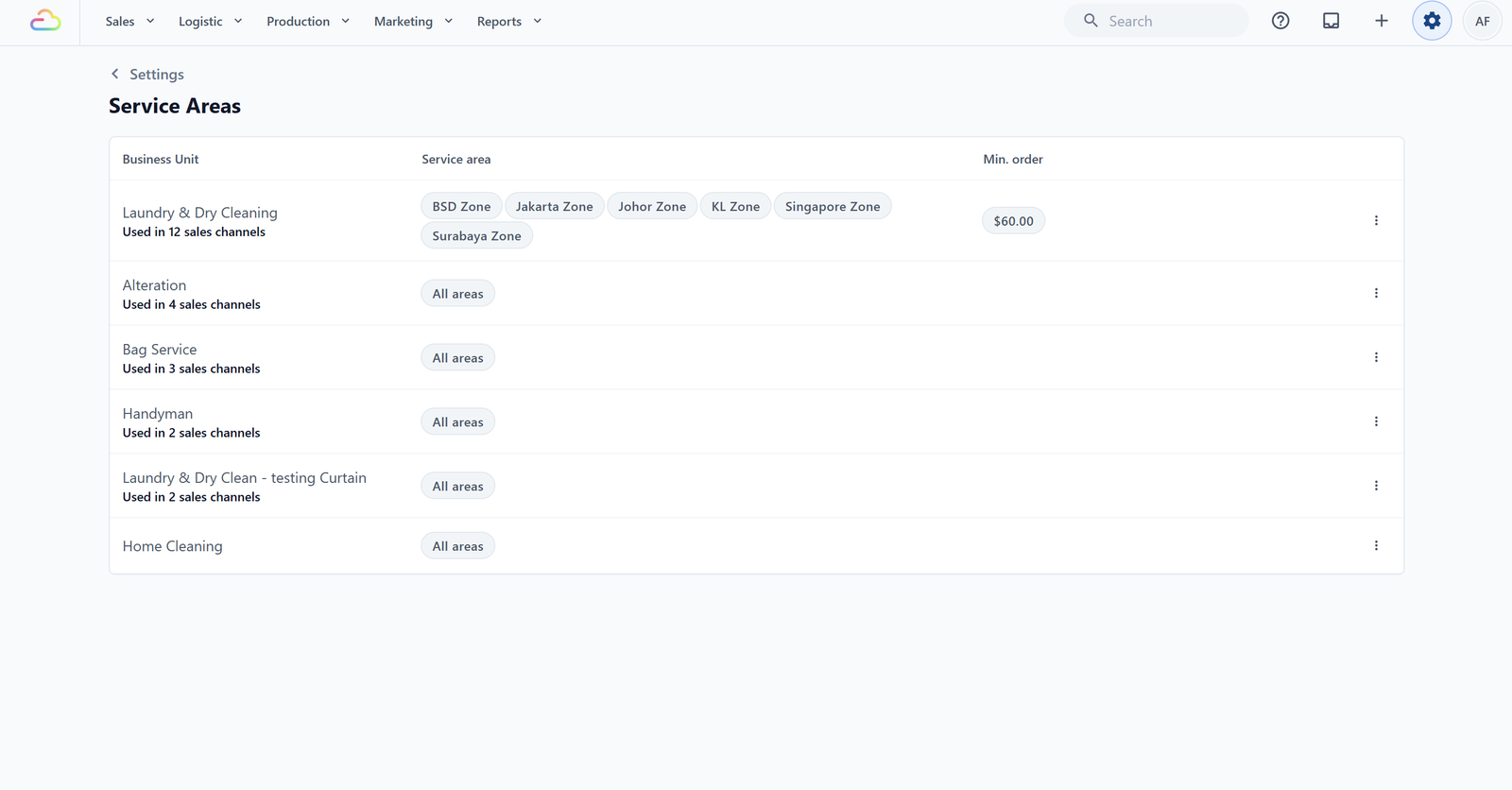
The Service Areas page lists every business unit in your account. Each row pulls together three pieces of information from elsewhere in EasyBiz.
| Column | What it shows |
|---|---|
| Business unit | A line of service in your shop, for example Laundry and Dry Cleaning or Bag Repair. This column also shows how many sales channels use that unit. |
| Service area | The covered zones, either a list of named Custom Zones or All Areas if no restriction is set. |
| Minimum order | The lowest order amount accepted in that area before the system adds a top-up charge at checkout. |
You configure a service area by editing its row. There is no Add button and no Delete option. Every business unit already has exactly one service-area record, and removing all its zones simply puts it back to All Areas.
When You Need to Set This Up
Set up a service area for a business unit when any of the following are true:
- You only do pickup or delivery in specific neighbourhoods.
- You want different minimum order amounts in different zones, for example $60 in BSD Zone but $80 in Jakarta Zone.
- You want to show customers a clear message when their address falls outside your coverage.
If a business unit serves every customer regardless of address and has no minimum order, you can leave it on All Areas and skip the setup.
FAQs
Do I need to create a service area before I can use a business unit?
No. Every business unit starts on All Areas with no minimum order. It works immediately. You only edit the service area when you want to restrict coverage or add a minimum.
Why can't I delete a service area?
Each business unit has one permanent service-area record. To remove coverage limits, open the row, clear all selected Custom Zones, and save. The row will show All Areas again.
What happens if a customer orders below the minimum?
The system automatically adds a top-up charge at checkout to bring the order up to the minimum. The customer is not blocked from ordering.
What's Next
Now that you understand how Service Areas work, continue to Setting Up Service Areas to configure your first business unit.
Give feedback
Up next
Setting Up Service AreasOpen a business unit's service area form, choose the Custom Zones it covers, set the minimum order, and save.
Read more