
Introduction to Blocking Rules
In this article
Blocking Rules are the "do not take new bookings" switch for your scheduling. They sit alongside Booking Options, which control how customers book, and Time Slots, which control daily capacity, and answer a different question: are bookings allowed at all on this date, or from this customer. You will use them for public holidays, staff training days, a renovation period, or to pause a customer account with unpaid balances or repeated no-shows. Existing orders stay exactly as they are, so this is a forward-only setting.
Contents
Contents
Before You Start
Blocking Rules are optional and work on their own. Use them when you want to close for holidays, pause certain dates, or stop a customer from booking online. You do not need anything else ready first.
Where to Find Blocking Rules
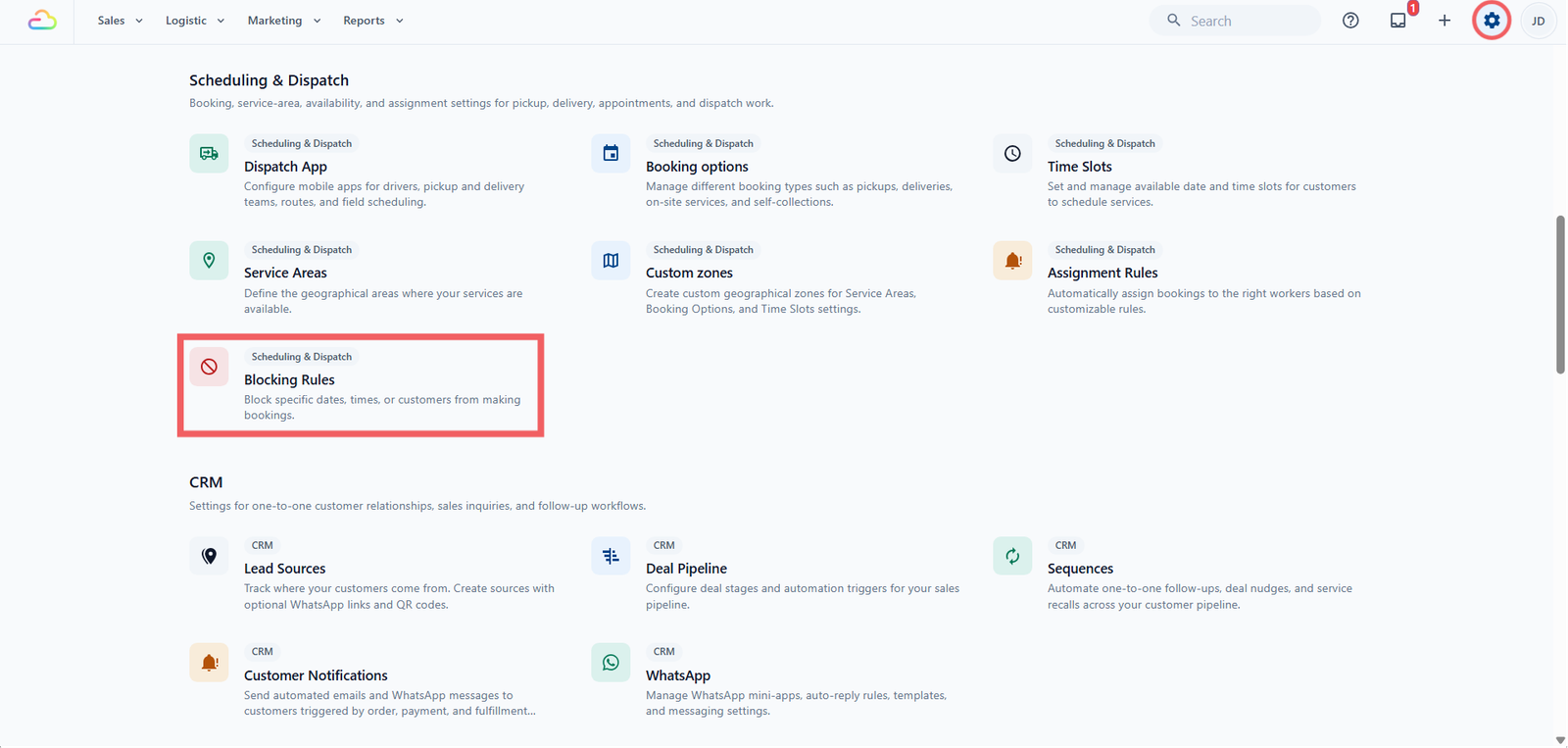
- Click the ⚙️ Settings icon in the top-right corner.
- Under the Scheduling & Dispatch section, click Blocking Rules.
Two Kinds of Rules
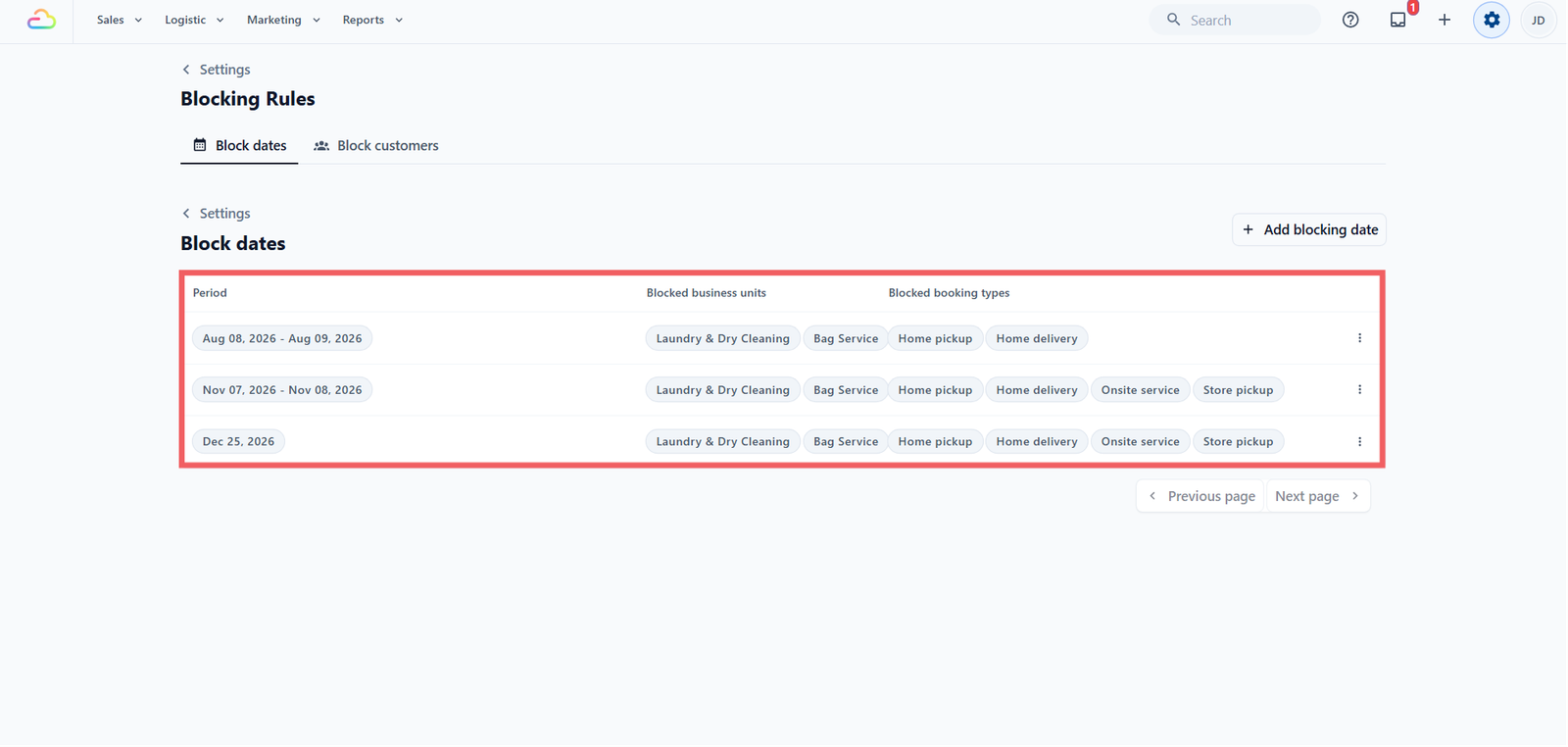
- Block dates -> Closes days for everyone, for public holidays, training days, or a renovation. The system also treats the blocked day as a non-working day by default, so it does not count toward your lead time. You can narrow a block to certain business units or booking types, for example closing only Dry Cleaning, or pausing only home delivery while store pickup runs.
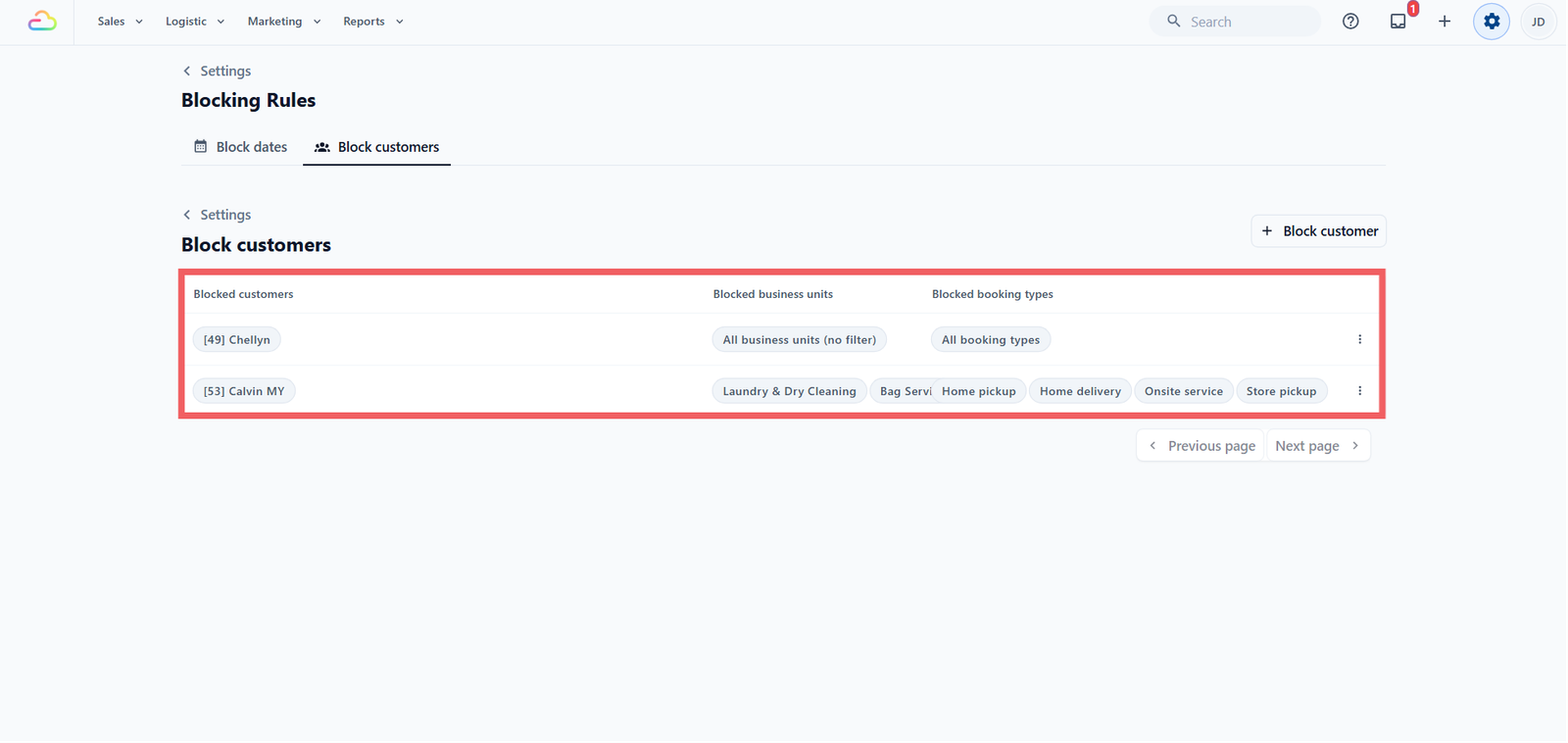
- Block customers -> Pauses one or more accounts from booking online, for unpaid balances or repeated no-shows. You can write an Alert message they see when they try to book, and narrow the block to certain business units or booking types.
When to Use Each
| If you want to... | Use |
|---|---|
| Close for a public holiday or company break | Block dates |
| Pause bookings during a renovation or stocktake | Block dates |
| Close just one service on a busy day, like home delivery | Block dates, with that booking type only |
| Stop an account with unpaid balances from booking | Block customers |
| Pause a customer after repeated no-shows | Block customers |
How Blocking Rules Fit with Scheduling & Dispatch
- Forward-only -> Only new bookings are stopped. Existing orders and a customer's open jobs are never cancelled.
- Lead time -> With "Also mark as Non-working days" on (the default), the blocked day is skipped when counting lead-time days. Off means it is unbookable but still counts.
- Recurring orders -> A date block does not stop a recurring schedule. If a recurring pickup or delivery lands on a blocked date, that occurrence shifts to the next open day and the cadence carries on. Recurrence only pauses when the customer's account itself is blocked.
FAQs
Will my customer's confirmed orders be cancelled if I block them today?
No. Their existing jobs stay on the schedule and your team still completes them. You only stop new online bookings.
Will my counter staff be stopped from booking a blocked customer or date?
No. The block applies online only, so staff at the POS or console can still create the order.
Does the blocked customer see why they are blocked?
They see your Alert message if you wrote one, otherwise a generic "booking unavailable" message. There is no reason field or "blocked" label.
What's Next
Now that you understand Blocking Rules, continue to [Setting Up Blocking Rules] to create your first one.
Give feedback
Up next
Setting Up Blocking RulesOpen Blocking Rules, pick the tab you need, fill in the rule, and your booking flow respects it from that moment.
Read more