
Introduction to Booking Options
In this article
A Booking Option is one answer on the "how would you like this handled?" question your customers see at checkout, such as home pickup or store drop-off. You decide which options to offer and the rules around each one, then assign them to a business unit so they go live. The same options appear for your staff when they take a booking at the counter. This article explains what Booking Options are and how they fit with the rest of your shop.
Contents
Contents
Before You Start
Read [Introduction to Scheduling & Dispatch] to understand how booking options fit into the full setup journey.
What a Booking Option Is
When your customer opens your online store or booking link, they see a question that means "how would you like this handled?" Each answer on that question is one Booking Option you set up here.
The same options appear for your staff too. When your team takes a booking by phone or at the counter, they choose from these exact options in the New Order flow, with the same lead times and rules. So Booking Options shape the experience on both sides, customer and staff.
A typical laundry shop might offer three:
- Home pickup, free, with two days' notice
- Express home delivery, with a small surcharge, next-day
- Store drop-off, no notice needed
Each of those is one Booking Option.
Where to Find Booking Options
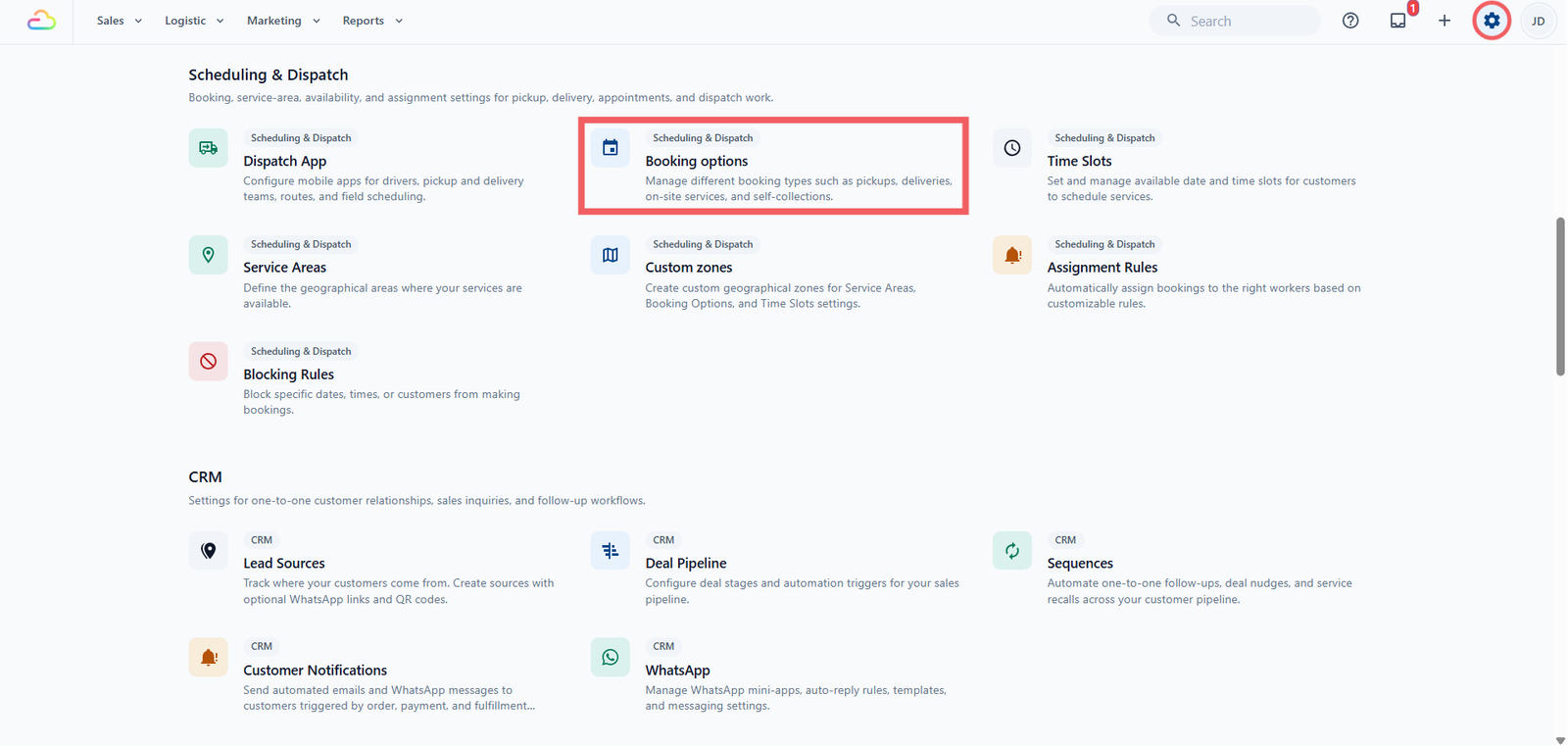
- Click the ⚙️ Settings icon in the top-right corner.
- Under the Scheduling & Dispatch section, click Booking Options.
What You Already Have
If you signed up as a laundry shop, EasyBiz starts you off with a set of ready-made options already assigned to your Laundry business unit, so you are not beginning from a blank page. These include a standard home pickup and delivery, a couple of express delivery options with a surcharge, and store pickup choices. You can use them as they are, edit them, or add your own.
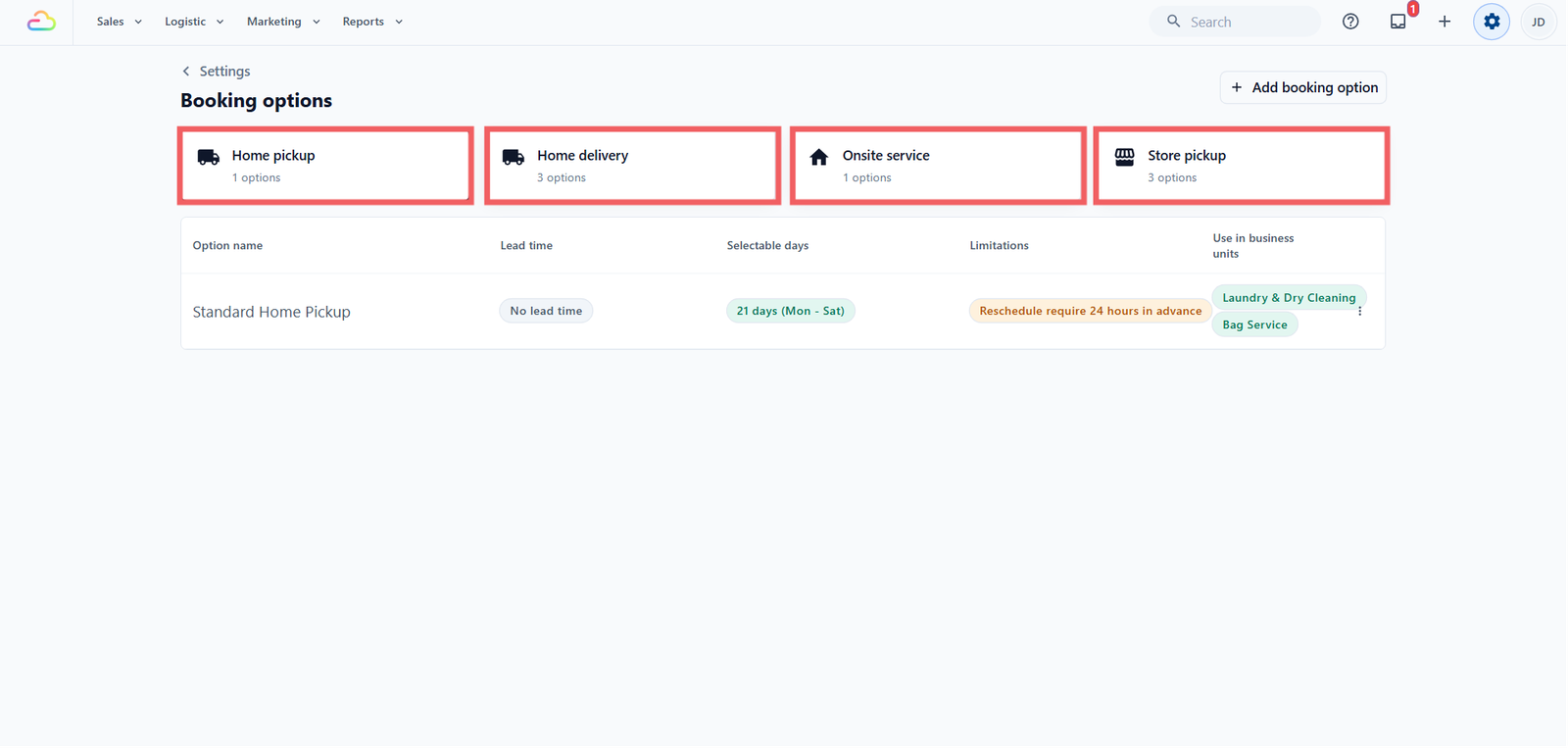
The four types
When you create a Booking Option, you first pick its type, which decides how the system handles the booking behind the scenes. The type is fixed once you save, so choose it with care.
| Type | What it does |
|---|---|
| Home pickup | Your driver collects items from the customer's home |
| Home delivery | Your driver returns finished items to the customer |
| Onsite service | Your staff performs the service at the customer's place |
| Store pickup | Customer brings items to your shop at a chosen time |
How Booking Options fit with the rest of your shop
A Booking Option connects to several other parts of EasyBiz:
- Your customer-facing surfaces -> Your website, booking widget, and any published mini-app read your Booking Options to build the "how would you like this?" step at checkout.
- Your POS and console -> Staff taking a booking by phone or at the counter pick from the same options in the New Order flow.
- Sales channels -> Each option can appear everywhere, or be limited to certain stores or online stores, so you can make one option online-only and another POS-only.
- Business units -> An option goes live once you assign it to at least one business unit, such as Laundry or Repair. Until then it is saved but not yet shown.
- Time Slots -> Booking Options decide which days are available. Time Slots attach later to set the exact hourly windows on those days.
- Rescheduling -> Each option carries its own rule for whether customers can change the date later, and how much notice they need.
FAQs
Why can a customer not pick a date I expected?
The available dates come from three settings working together: lead time, selectable days range, and selectable weekdays. For example, with a two-working-day lead time and Monday to Friday only, a customer ordering on a Friday sees the following Tuesday as their earliest date. Check all three when a date does not appear.
Can the same Booking Option serve more than one business unit?
Yes. One option can be assigned to several business units at once. A single "Standard Home Pickup" can serve your Laundry, Dry Clean, and Repair lines together, instead of creating one per line.
Do customers pay tax on a surcharge?
It follows your price list. If your price list is tax-exclusive, the surcharge is taxed along with the rest of the order. If it is tax-inclusive, the surcharge is treated as tax-inclusive too, the same as your item prices.
What's Next
Now that you know what a Booking Option is, continue to [Setting Up Booking Options] to create or adjust your options.
Give feedback
Up next
Setting Up Booking OptionsCreate a Booking Option field by field, assign it to a business unit, and preview it before your customers see it.
Read more