
Introduction to Inventory Stock
In this article
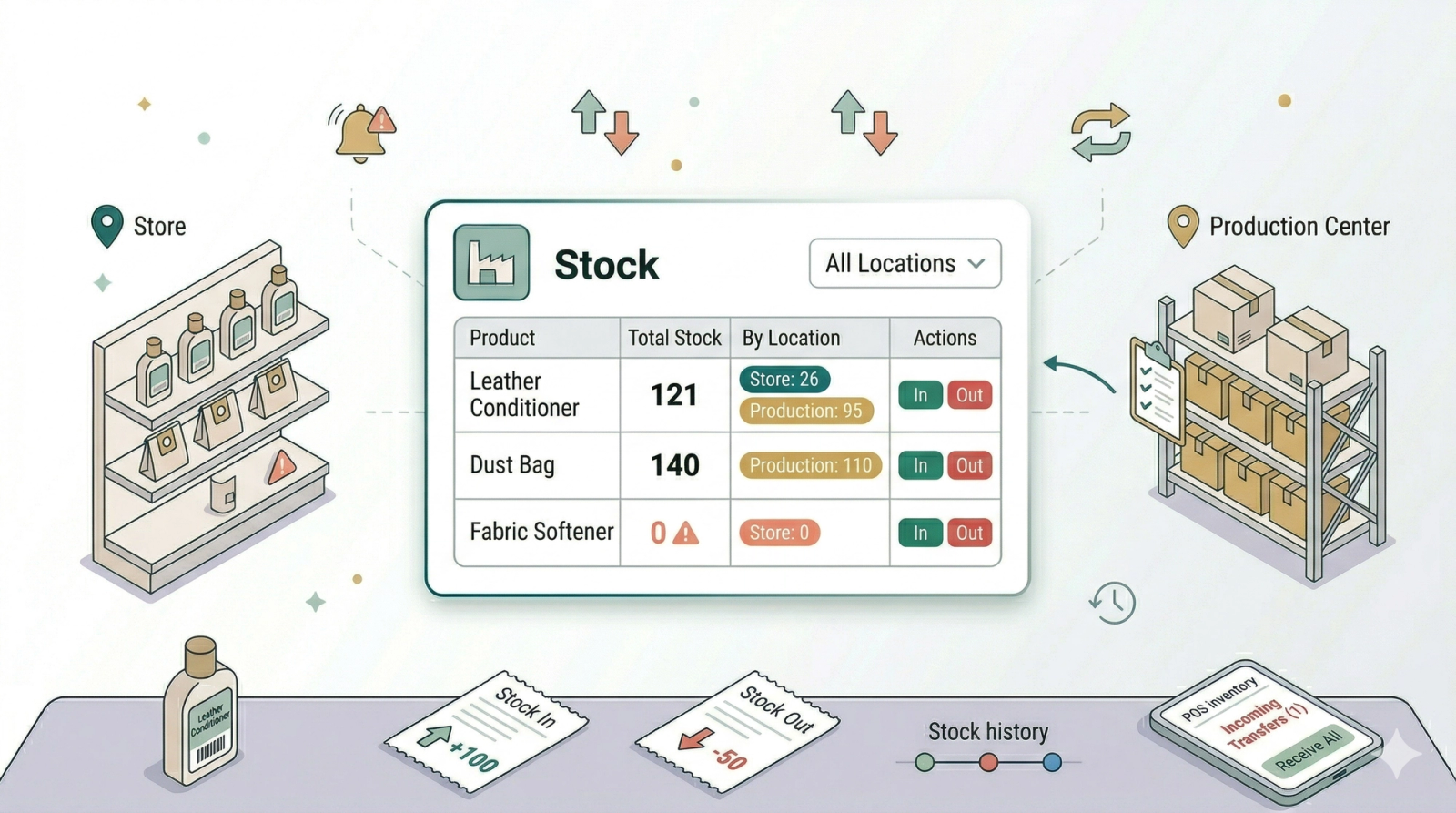
The Inventory page is where you manage stock for physical retail products. It shows how many units you have in total and how those units are split by location. Use it for items such as dust bags, leather conditioner, cleaning supplies, packaging, or retail add-ons. It is separate from Locations settings, which is where you configure storage areas and production centers.
Contents
Contents
Before You Start
Make sure your retail products are already added in Product Catalog. If a product has variants — different versions of the same product, for example the same shampoo in 100ml and 500ml sizes — stock can be tracked separately per variant. You also need at least one available stock location, such as a POS location or production center.
See guide [Adding a Retail Product in Your Product Catalog]
How to Find the Inventory Page
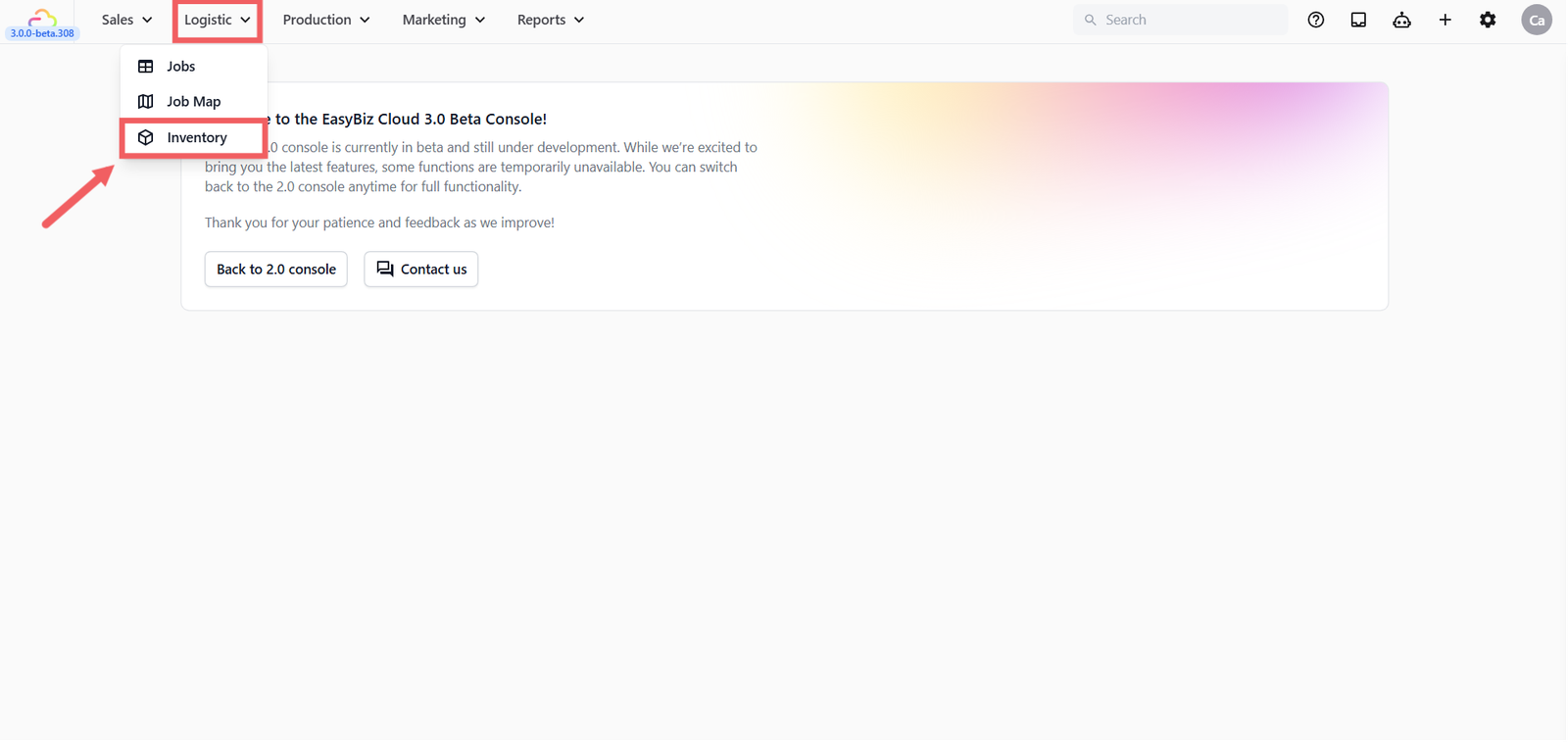
- In the main navigation header, click the Logistic dropdown.
- Click Inventory.
- The Inventory page opens with the Stock and Transfers tabs.
What Total Stock and By Location Mean
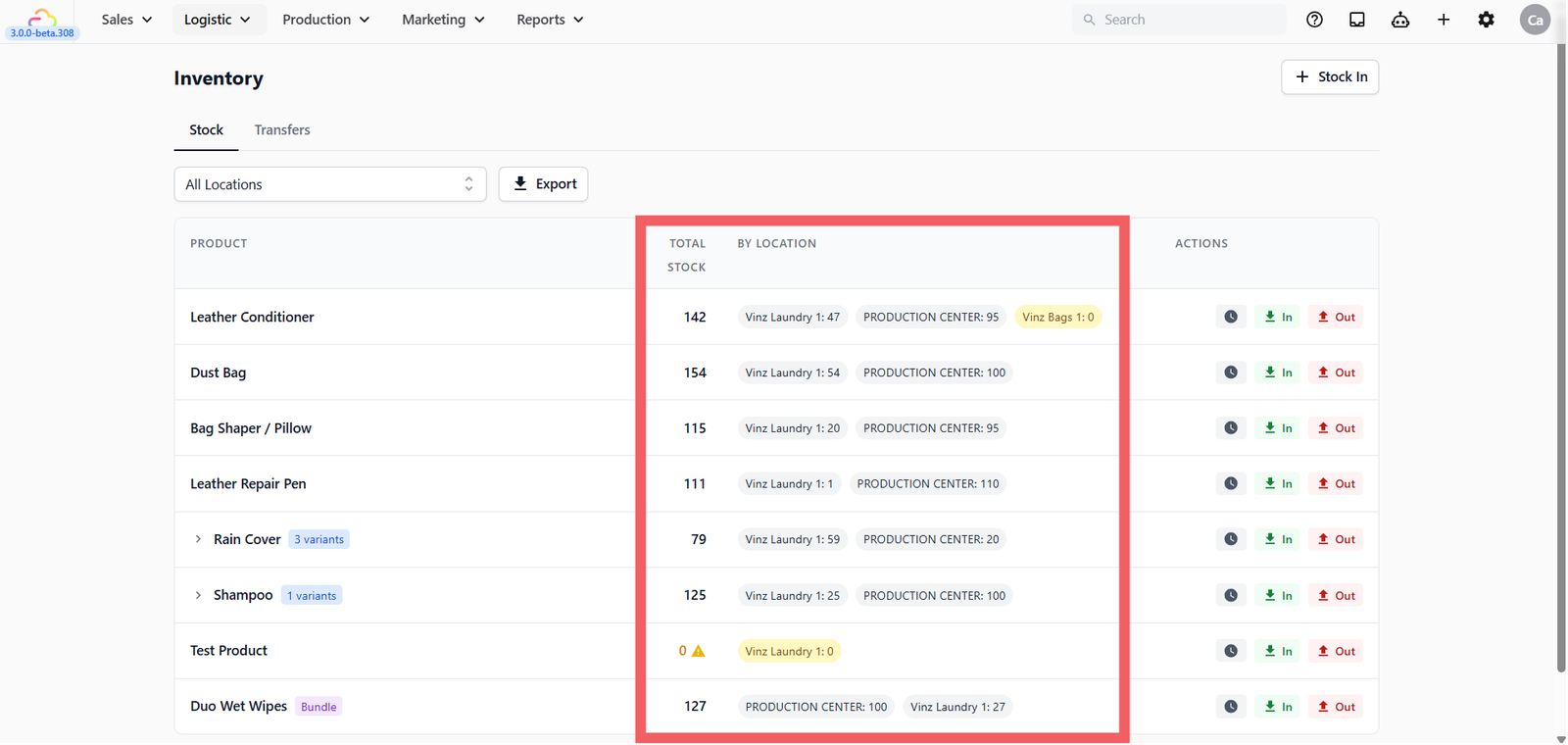
- Total Stock -> the combined quantity of a product across all your locations.
- By Location -> shows how that total is split between individual locations. For example a product may show Vinz Laundry 1: 47 and Production Center: 95, meaning 47 units are at the outlet and 95 are at the production center.
If the product has variants, the row can be expanded to show each variant and its own stock count per location.
What Zero Stock Looks Like
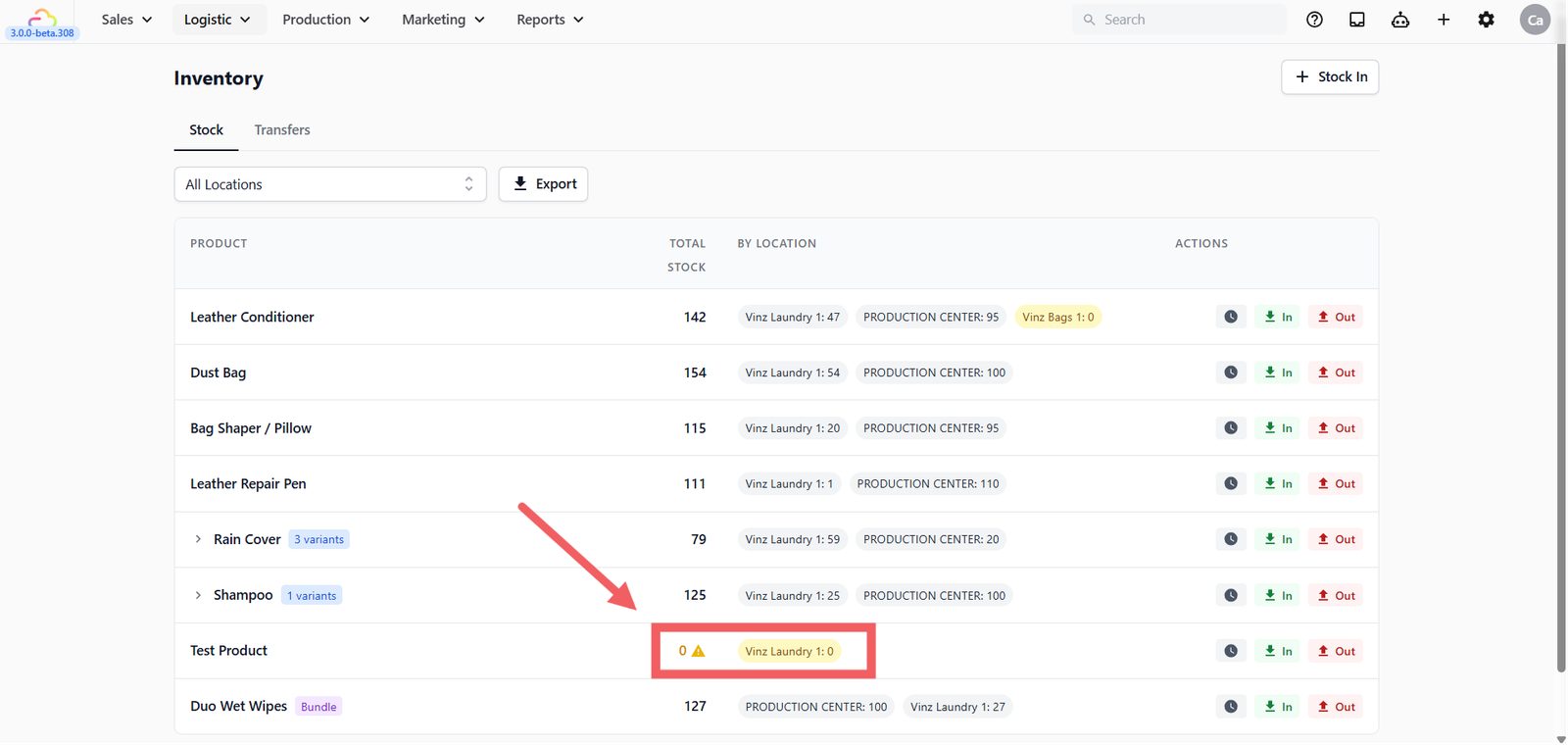
A zero-stock location is highlighted in yellow on the stock list. This helps staff notice items that are at zero before selling or using them. If stock goes below zero, the number is highlighted in red — this usually means stock was removed or sold before enough stock was recorded.
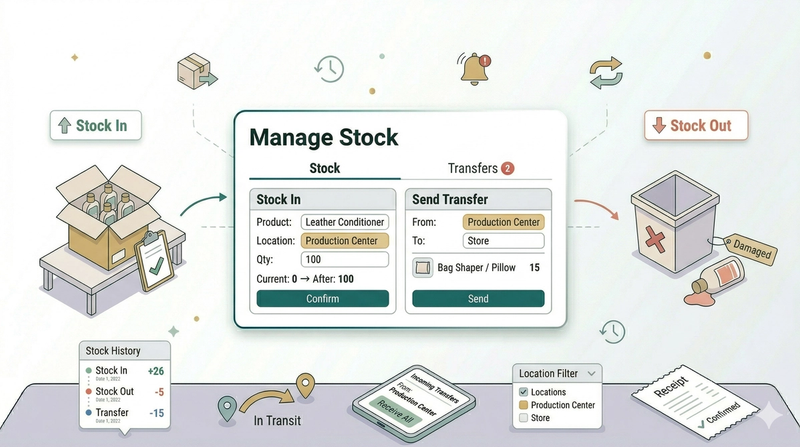
When to Use Stock In, Stock Out, or Transfer
| Action | What it means | Use it when |
|---|---|---|
| Stock In | Adding new stock to a location | Items arrive from a supplier or you are recording starting stock for the first time |
| Stock Out | Removing stock from a location | Items are damaged, expired, used internally, or written off |
| Transfer | Moving stock from one location to another within your business | You want to rebalance stock between outlets or send items from a production center to a counter |
FAQs
Is Inventory Stock for service items or retail products?
It is for physical retail products, including products with variants.
Do I need to set up stock before selling retail products?
You can sell without stock records, but your counts will not be useful until stock is added.
Why is a zero-stock location highlighted yellow?
Yellow means the count is exactly zero. It is a warning so staff can restock or check before selling.
Can I move stock between outlets?
Yes. Use Transfers when stock moves from one POS location or production center to another.
Does the Transfers tab show completed transfers?
The Transfers tab shows pending transfers. Completed movement details can be reviewed through stock history on each product row.
What's Next
Now that you know what the Inventory page shows, continue to [Managing Inventory Stock] to record your first stock movement.
Give feedback
Up next
Managing Inventory StockRecord stock in, stock out, transfers, history, filters, and exports from the Inventory page.
Read more