
Setting Up Service Areas
In this article
A Service Area ties a business unit to one or more Custom Zones. It decides whether a customer at a given address can book and whether a minimum-order top-up applies. Use this only if you deliver, pick up, or want to limit coverage by area.
Contents
Contents
How Service Areas Build on Custom Zones
Service Areas do not draw any new shapes. They pick from the zones you already created in [Setting Up Custom Zones] and tie them to each business unit.
| Business Unit | Picked zones | Result |
|---|---|---|
| Laundry | Zone A, Zone B | Customers in A or B can book. Others see the not-in-service message. |
| Bag Repair | (empty) | Any customer can book — no area restriction. |
Where to Find It
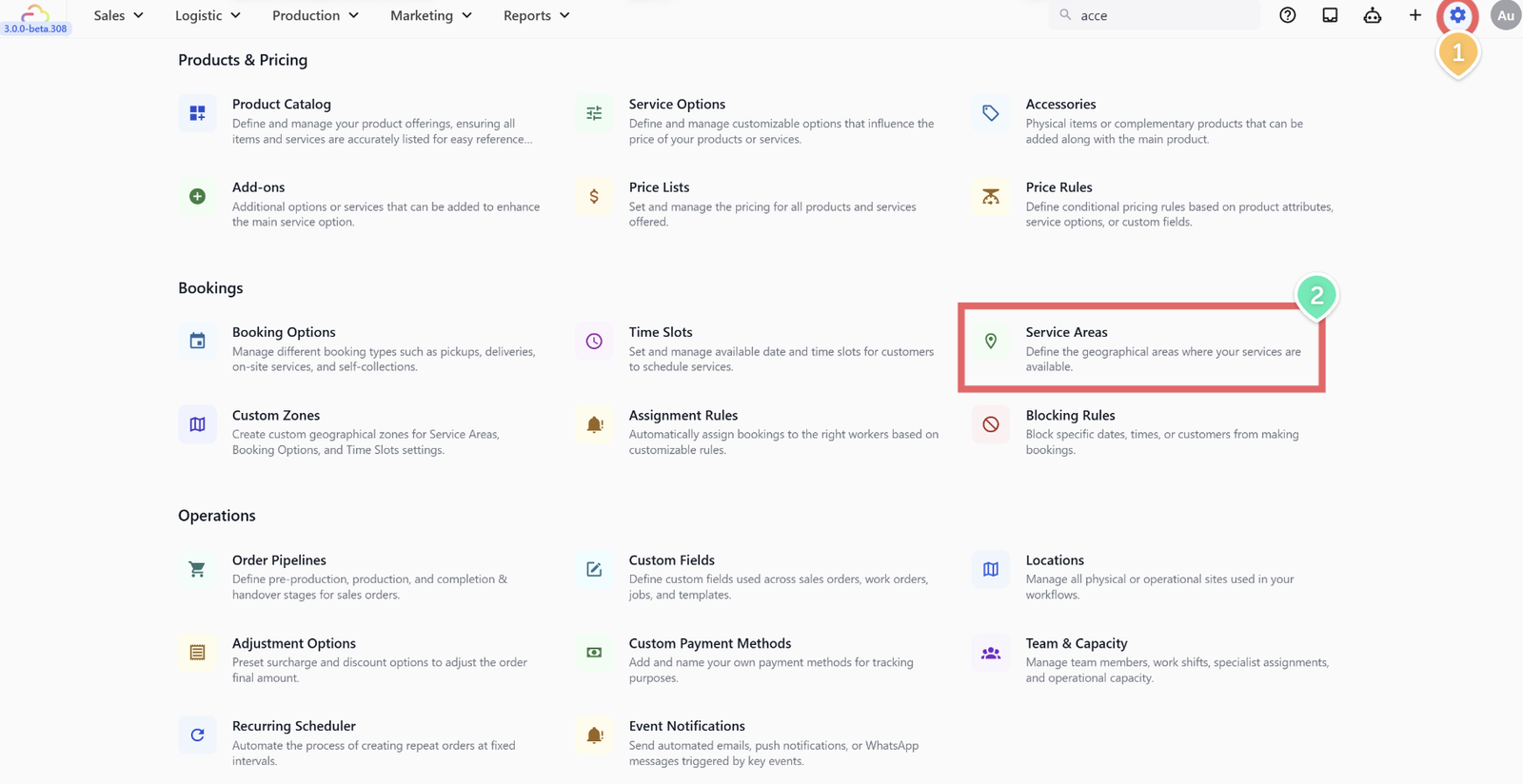
- Click the ⚙️ Settings icon in the top-right corner.
- Under the Bookings section, click Service Areas.
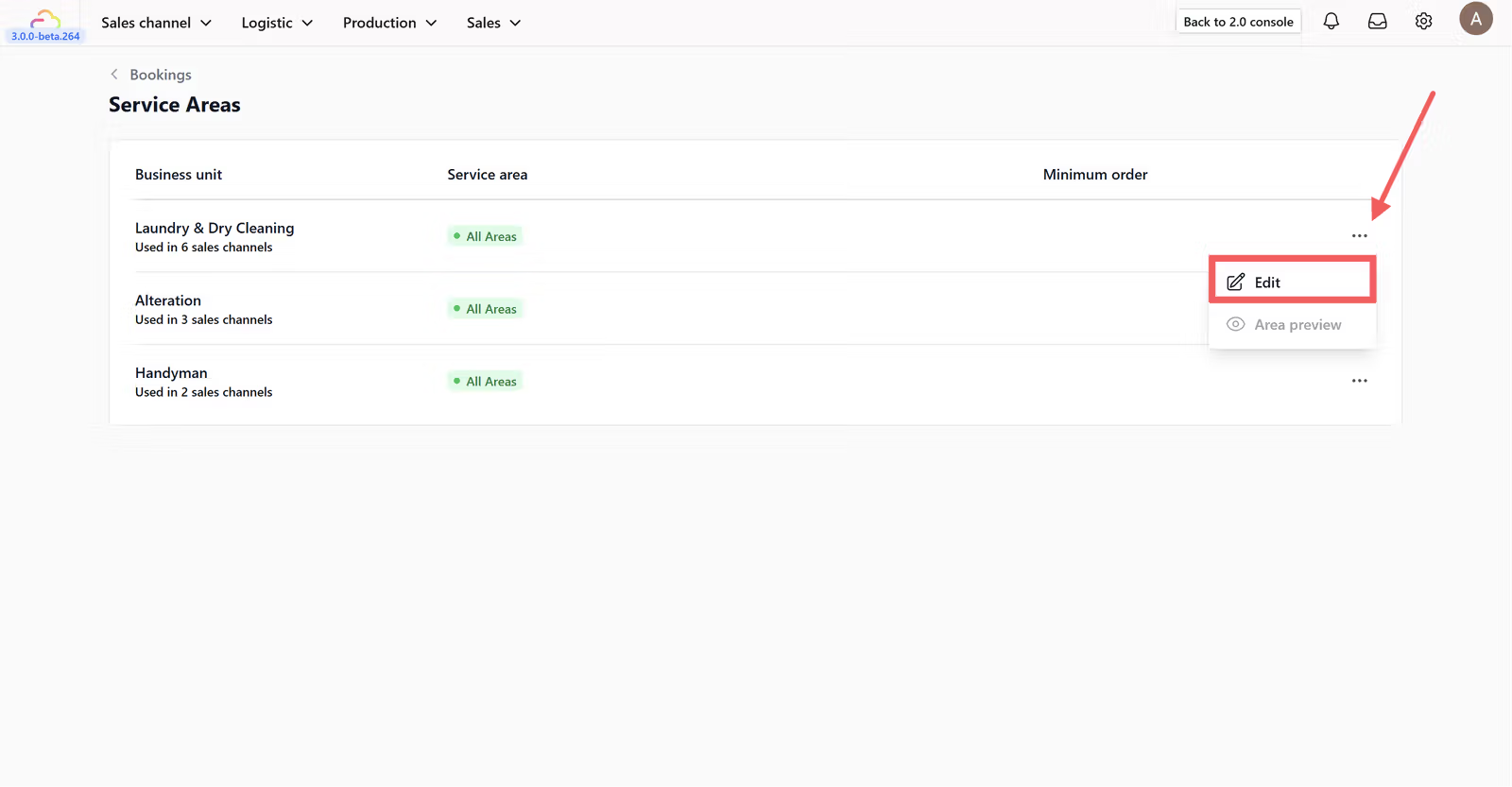
- Find the business unit row, click the ••• menu, and click Edit.
The Fields Explained
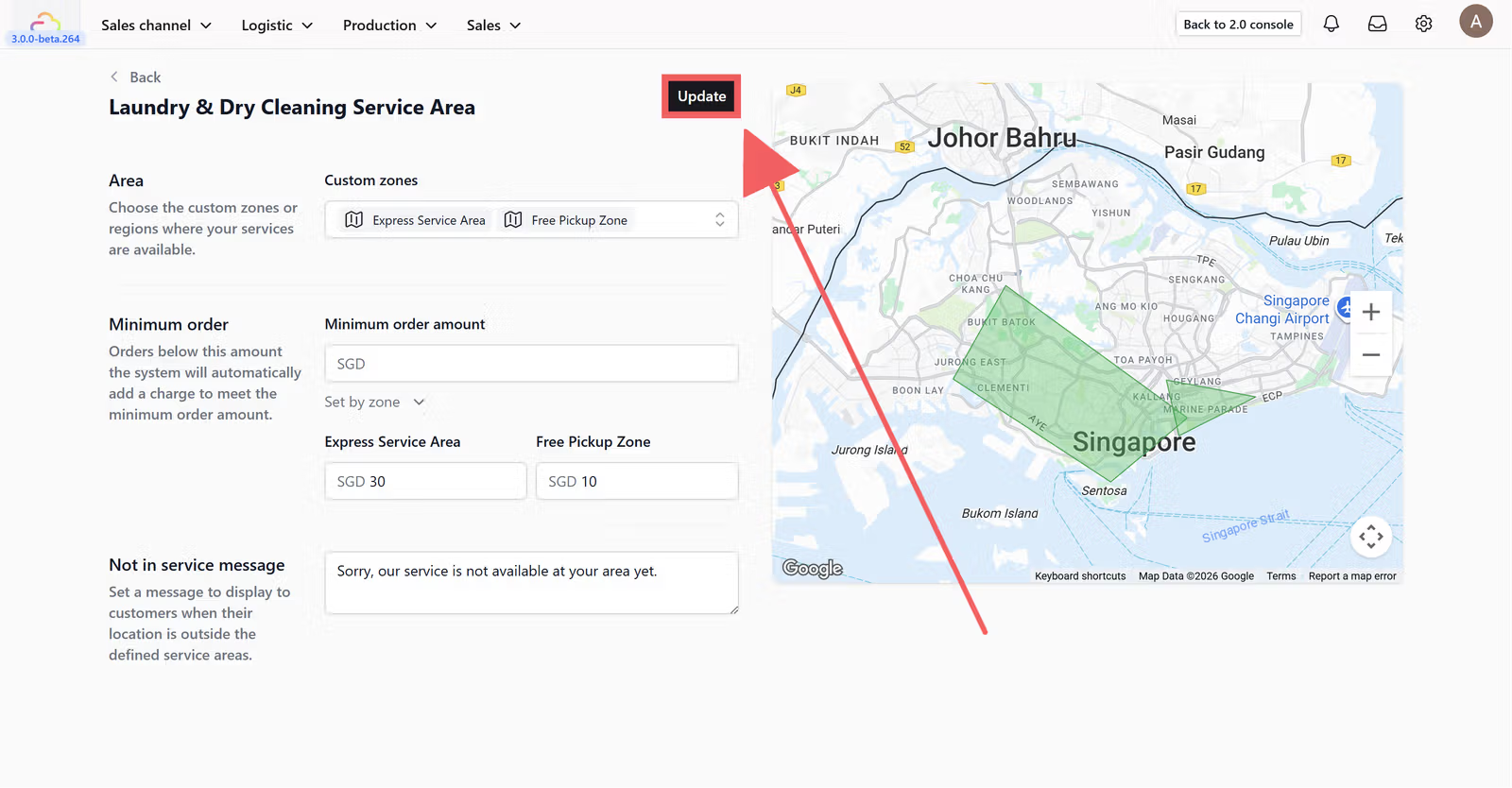
Area
| Pick this | Result |
|---|---|
| Empty | Any customer address is accepted |
| One zone | Only customers inside that zone can book |
| Multiple zones | Customers in any of the picked zones can book |
Minimum order
| Pick this | Result |
|---|---|
| 0 | No minimum, no top-up |
| $30 | Any cart below $30 gets a top-up line added to reach $30 |
Set by zone toggle
| Pick this | Result |
|---|---|
| OFF | The same minimum applies to every zone |
| ON | You enter a different minimum per zone. Zones you skip fall back to the main value. |
Not-in-service message
| Pick this | Result |
|---|---|
| Empty | Customer sees the default system message |
| Custom text | Customer sees your message when their address is outside every picked zone |
How Minimum Order Works
Minimum order does not block the customer. It adds a top-up fee so the order total reaches the minimum.
What Happens When a Customer Is Outside Your Area
If you picked specific zones and the customer's address is outside all of them, the booking cannot be completed. They see your not-in-service message and cannot proceed. If the Area field is empty, any address works.
FAQs
Do I need Service Areas before I go live?
Use this only if you deliver or pick up. Store-pickup-only businesses can leave Service Areas blank.
What if my minimum order is too high for some customers?
Customers either add more items or pay the top-up fee. The minimum is not a block — it ensures small orders still cover your delivery cost.
Why does a customer see the not-in-service message when they live nearby?
Their address is not inside any of your configured zones. Add their area to a Custom Zone and then add that zone to the Service Area.
Can different business units have different minimum orders?
Yes. Each business unit has its own Service Area with its own minimum.
What's Next
Now that each business unit knows which areas it serves and what the minimum order is, continue to [Setting Up Time Slots] to define the exact time windows customers can choose when they book.
Give feedback
Up next
Setting Up Time SlotsSet the exact time windows customers can pick at checkout, with optional daily caps and area limits.
Read more