
Setting Up Booking Options
In this article
A Booking Option is one row on your customer's "how would you like this?" menu. This article covers the type, name, lead time, and date window. Pricing, sales channels, and rescheduling are in the next article after this
Contents
Contents
The Four Booking Types
The type is locked after you save.
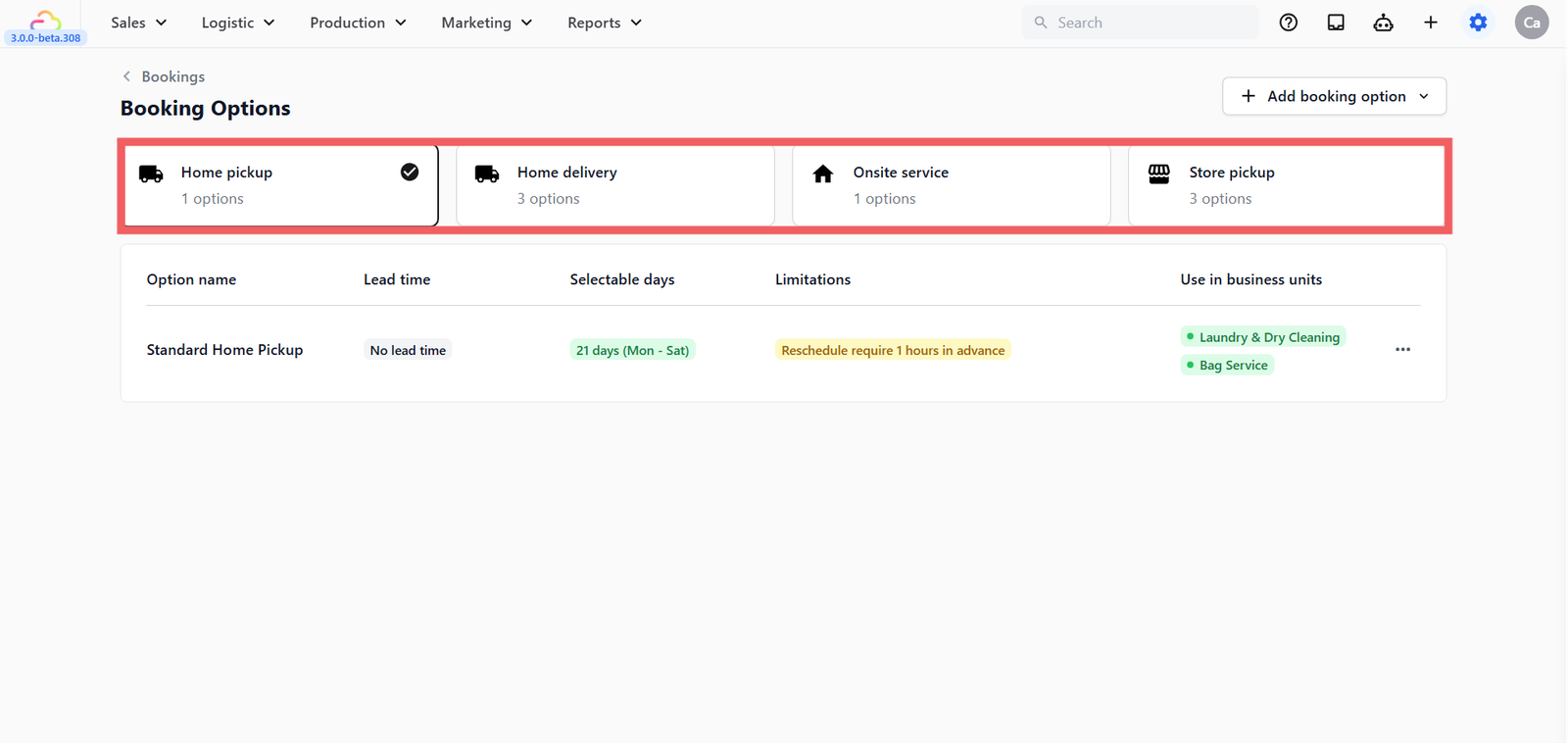
| Type | What it does | When to use |
|---|---|---|
| Pickup | Driver goes to the customer's home to collect items. Needs customer address. | You collect laundry or bags from the customer. |
| Delivery | Driver drops finished items back at the customer's home. Needs customer address. | You return finished items to the customer. |
| Onsite Service | Your staff performs the service at the customer's location. Needs customer address. | Cleaning, repair, or service done at the customer's place. |
| Store Pickup | Customer drops off at your shop at a scheduled time. No address needed. | Walk-in drop-off with a time appointment. |
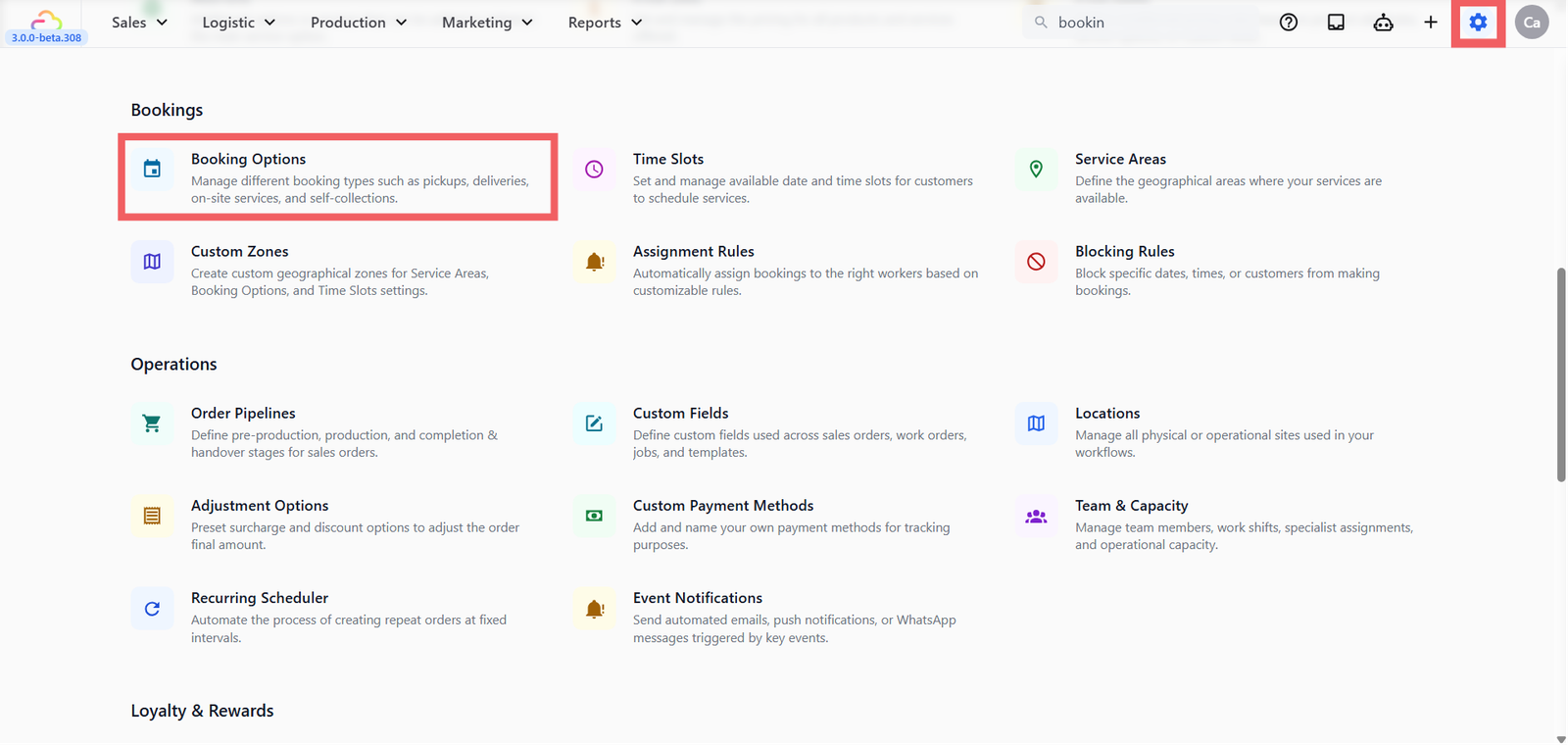
Where to Find It
- Click the ⚙️ Settings icon in the top-right corner.
- Under the Bookings section, click Booking Options.
- Click + Add Booking Option.
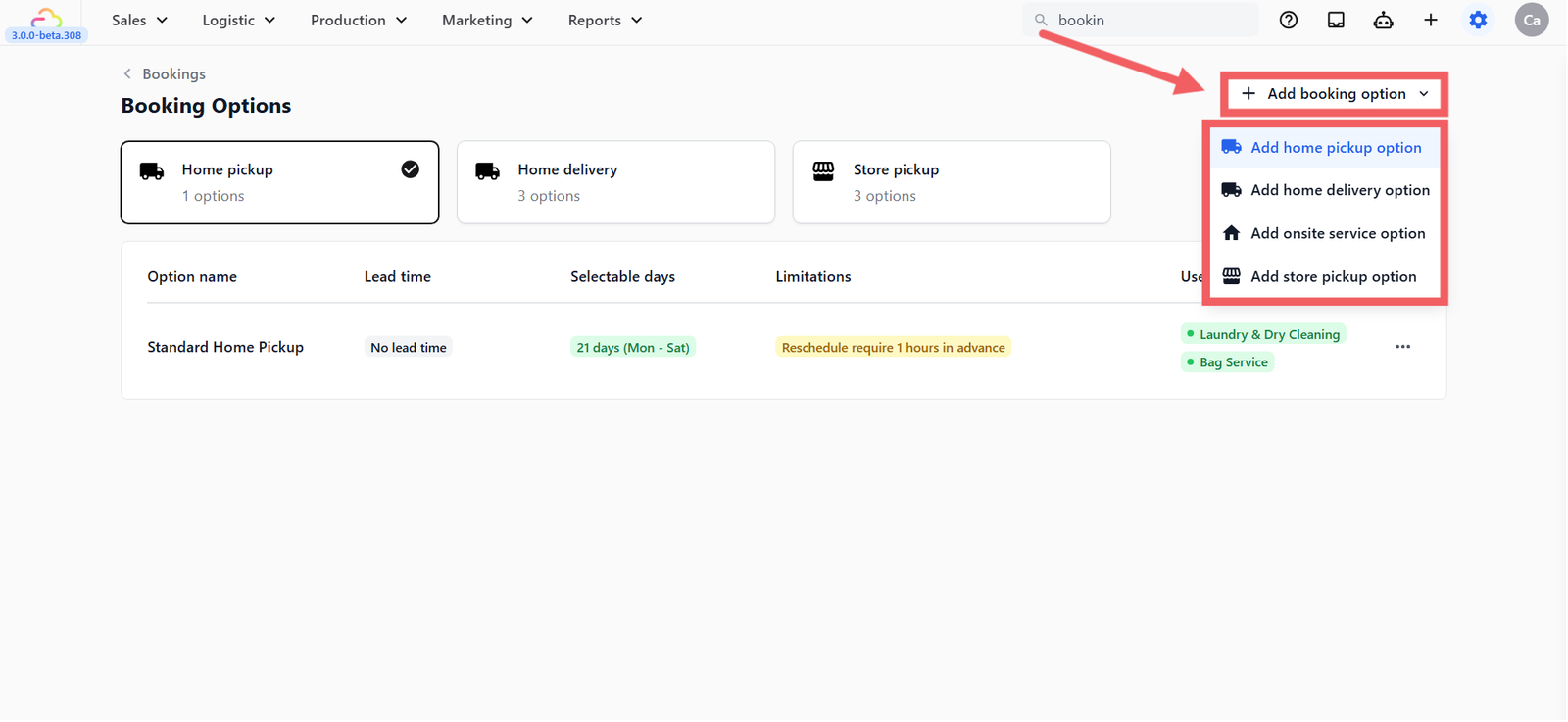
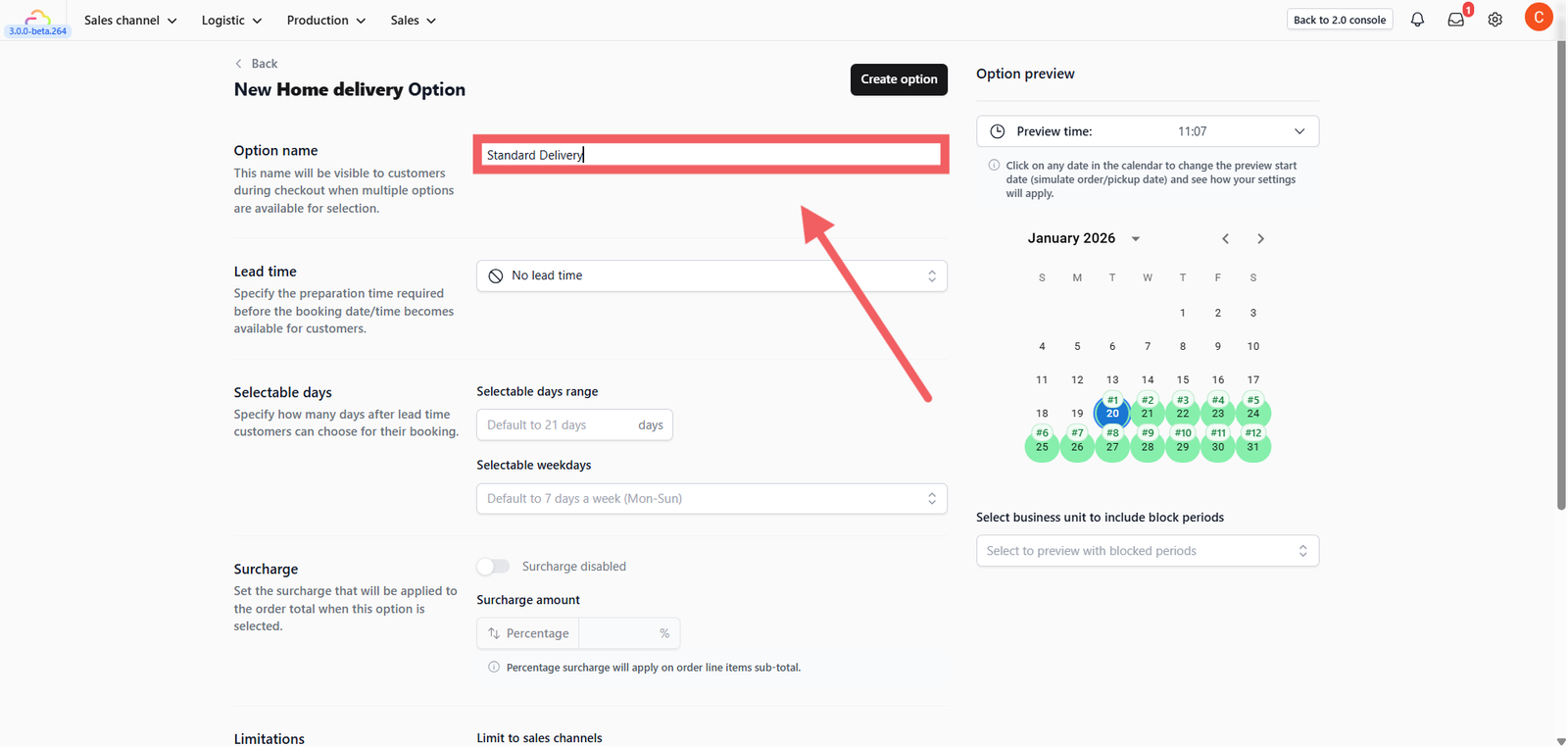
- Enter the Option Name which is visible to customers during checkout when multiple options are available for selection.
Lead Time
Lead time is the minimum notice you need before a booking can be placed. Pick one of four modes.
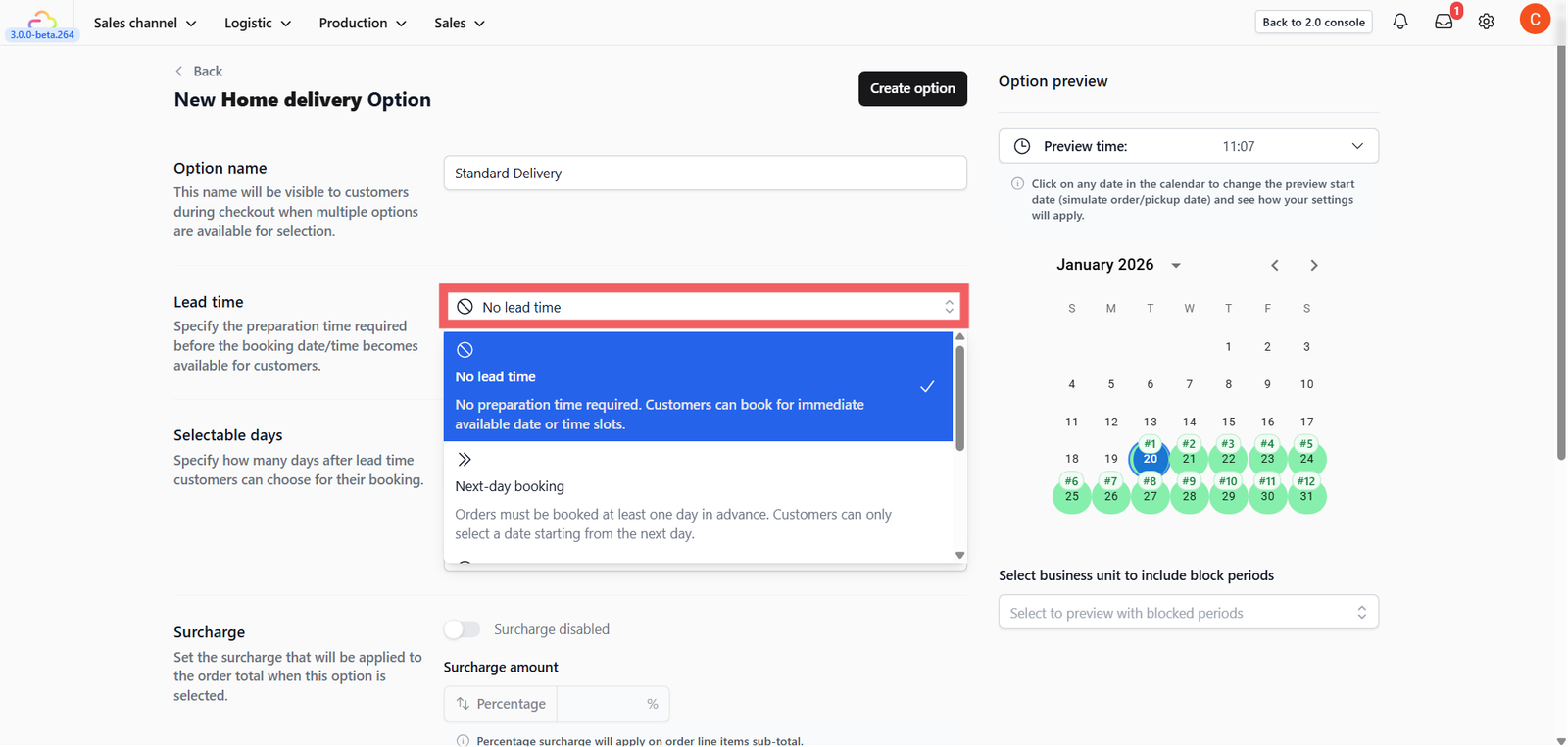
| Pick this | What the customer sees | When to use |
|---|---|---|
| No lead time | Can book any time from now | Store Pickup that accepts walk-ins any time |
| Next-day booking | Earliest slot is tomorrow | Overnight prep for simple jobs |
| Onsite Service | Must give X hours of notice | Same-day service with a prep window. Use decimals: 0.5 = 30 min |
| By days | Must give X working days of notice | Multi-day services like dry cleaning or alterations |
"By Days" Extra Controls
These two fields only appear when Lead Time is set to By days.
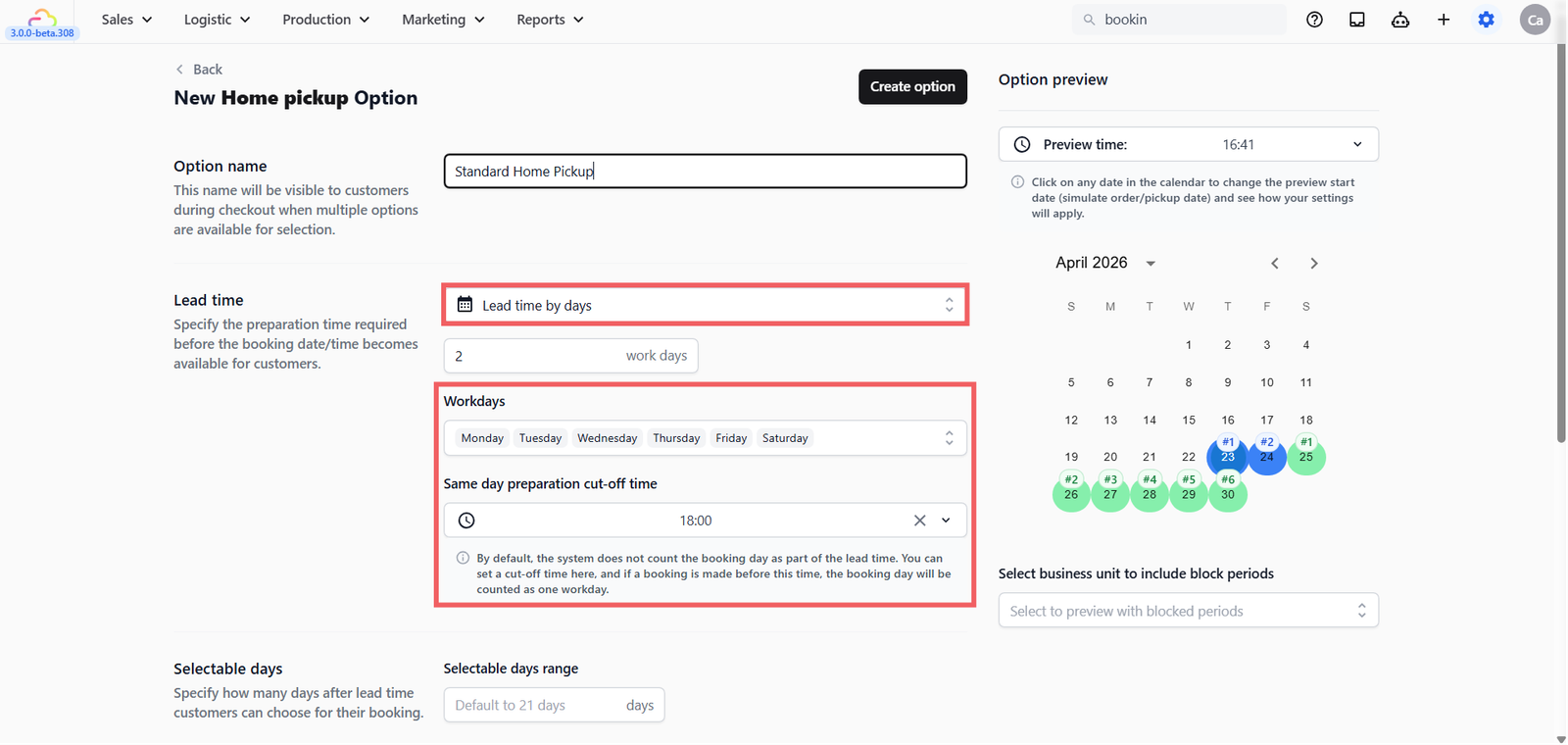
Working Days
| Pick this | Result |
|---|---|
| Leave all 7 days checked | Every day counts toward the lead time |
| Uncheck Sunday | Sundays are skipped in the count |
| Uncheck Sat and Sun | Weekends are skipped. Standard Mon-Fri business. |
Same-day cut-off time
| Pick this | Result |
|---|---|
| Leave empty | The booking day itself does not count as day 1 |
| Set to 08:00 | Bookings placed before 8 AM count today as day 1 |
| Set to 12:00 | Bookings placed before noon catch today's prep window |
Selectable Days
Selectable days controls how far ahead customers can book after lead time
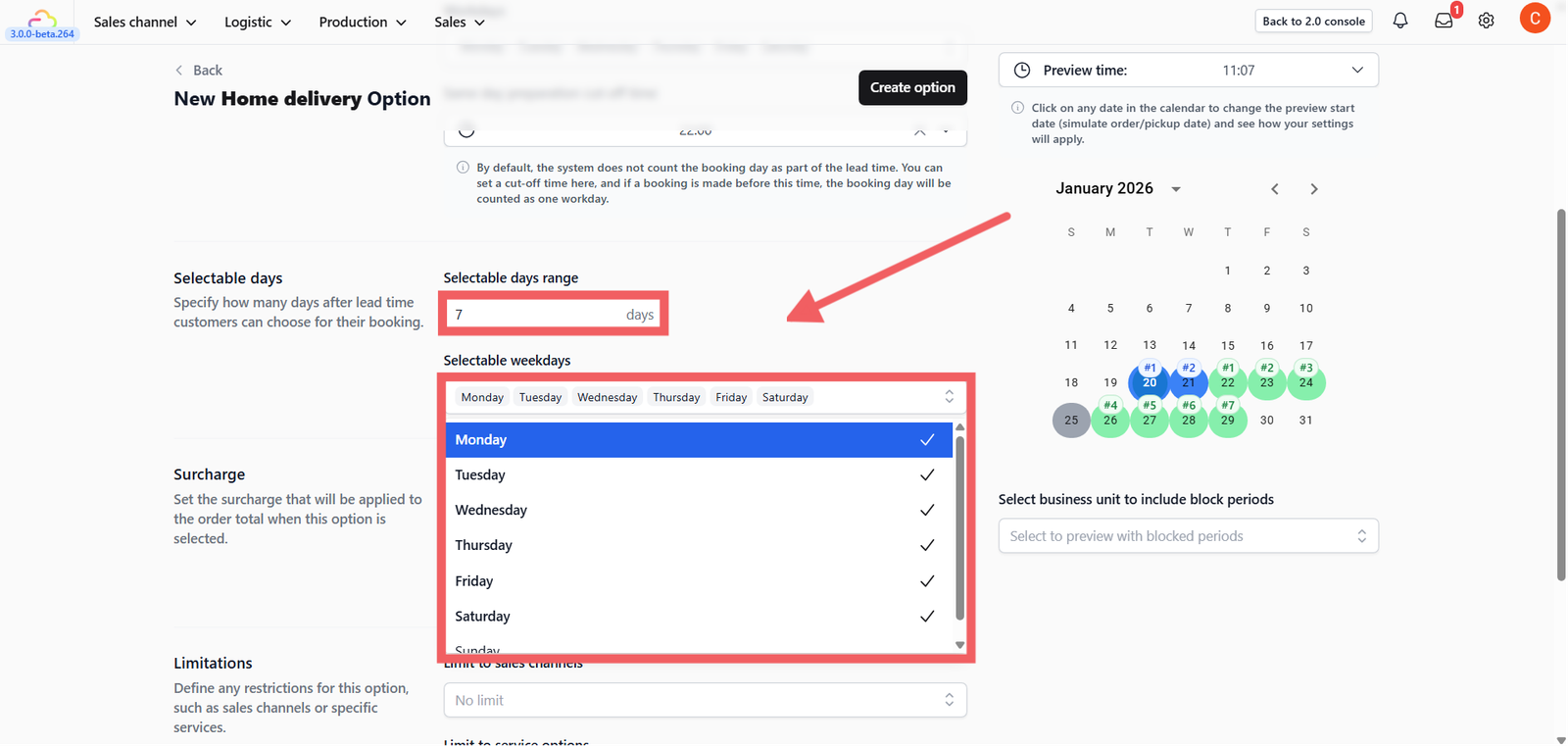
Number of selectable days
| Pick this | Result |
|---|---|
| 21 (default) | Customer can pick any date in the next 3 weeks after lead time |
| 7 | Only the coming week is bookable |
Weekdays allowed
| Pick this | Result |
|---|---|
| All 7 checked | Customer can pick any day of the week |
| Uncheck Sunday | Sundays never appear in the date picker |
This section only controls which days are available. To configure the specific hourly slots (e.g., 10 AM vs 2 PM) for these days, see this guide [Go to Time Slots Settings].
FAQs
Do I need a Booking Option before I go live?
Yes. Booking Options are the only required setting in the Bookings area. Without at least one, customers cannot schedule anything.
Can I change the type after saving?
No. The type is locked. If you picked the wrong type, delete the option and create a new one.
What is the difference between Next-day and By days = 1?
Next-day means the earliest slot is always the day after today, regardless of weekday. By days = 1 with Working days configured will skip your days off. If you work every day, both behave the same.
Can I have more than one delivery option?
Yes. For example Standard Delivery with 3-day lead and Express Delivery with 1-day lead. Each is a separate Booking Option.
What's Next
Now that your booking option type, name, and lead time are configured, continue to [Booking Options: Surcharge, Limits & Rescheduling] to add surcharges, restrict it to specific sales channels, and control whether customers can reschedule.
Give feedback

Up next
Booking Options: Surcharge, Limits & ReschedulingAdd a surcharge, limit which sales channels or services can use this option, and control whether customers can reschedule.
Read more