
Booking Options: Surcharge, Limits & Rescheduling

In this article
After you set the type, name, and lead time in the previous article, these settings decide what it costs extra, where it appears, and how customers can change their plan. All four sections here are optional.
Contents
Contents
Surcharge
Turn on the Surcharge toggle to add a percentage fee on every order that uses this option. The fee can be calculated as a percentage of the order subtotal or a fixed flat amount.
Surcharge toggle

| Pick this | What the customer pays on a $50 order | When to use |
|---|---|---|
| OFF | $50 | Standard pickup or delivery, no urgency premium |
| 50% | $75 | Weekend or after-hours delivery |
| 100% | $100 | Same-day express, very short lead time |
| 200% | $150 | VIP urgent service |
You have two fee options:
- Percentage: Surcharge = order total × percentage (e.g., 50% of $50 = $25 extra)
- Flat amount: Surcharge = fixed dollar or currency amount (e.g., SGD 5 extra, regardless of order size)
Sales Channel Limits
The Sales Channels field controls which stores, mini-apps, or online stores show this option. Leave it empty to show the option everywhere.
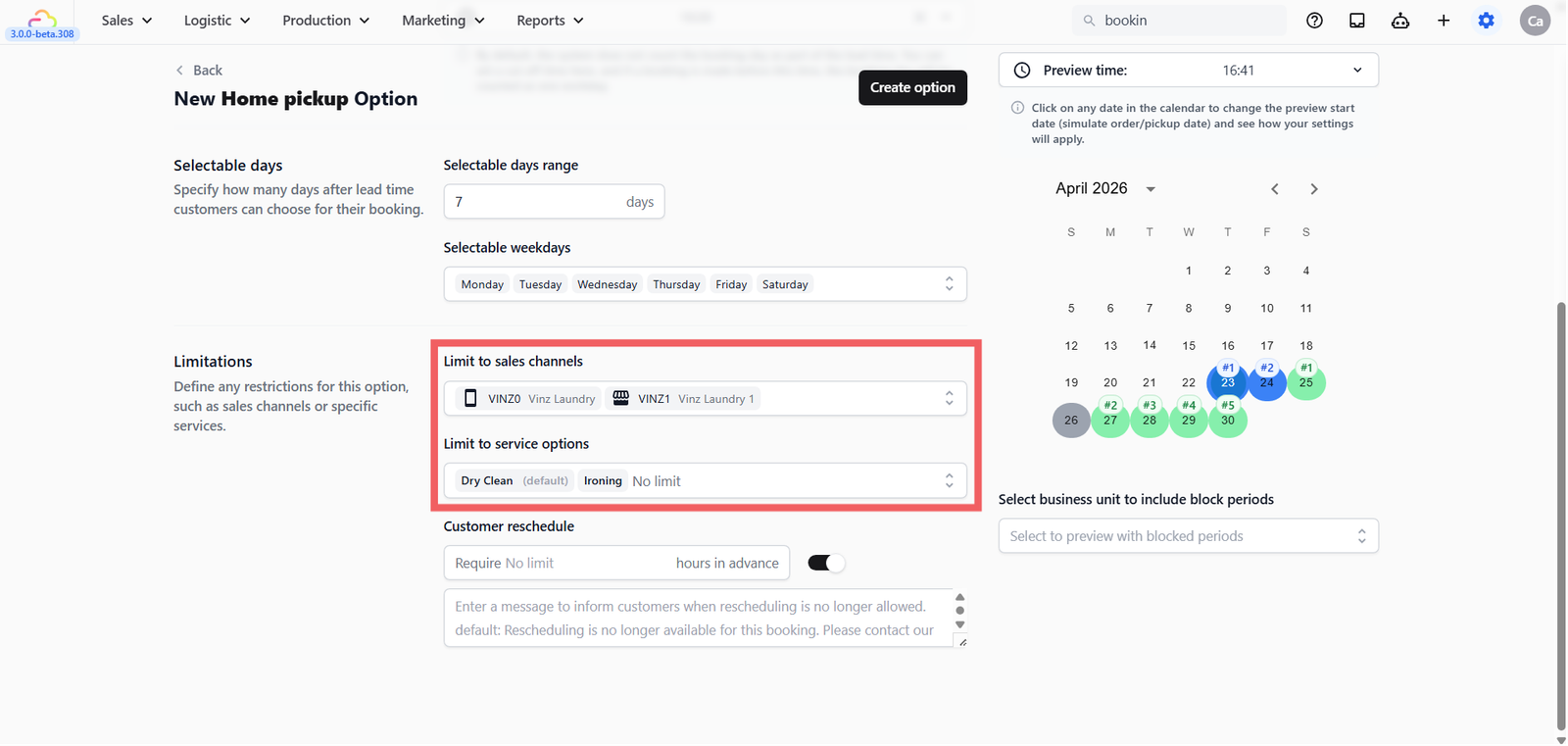
Sales Channels
| Pick this | Result |
|---|---|
| Empty | Option appears on every sales channel |
| One POS store | Option appears only at that counter |
| One Online Store | Option appears only on the web store |
| Mixed (more than one) | Option appears on the sales channel selected |
Service Option Limits
A Service Option is a sub-variant of a service — for example "Dry Clean" vs "Wash and Fold" under a Laundry business unit. Use this field to restrict a booking option to specific service variants.
Service Options
| Pick this | Result |
|---|---|
| Empty | Option applies to every service in the assigned business unit |
| One service option | Option appears only when the customer's cart includes that service |
| Multiple service options | Option appears if the cart includes any of the picked services |
Rescheduling
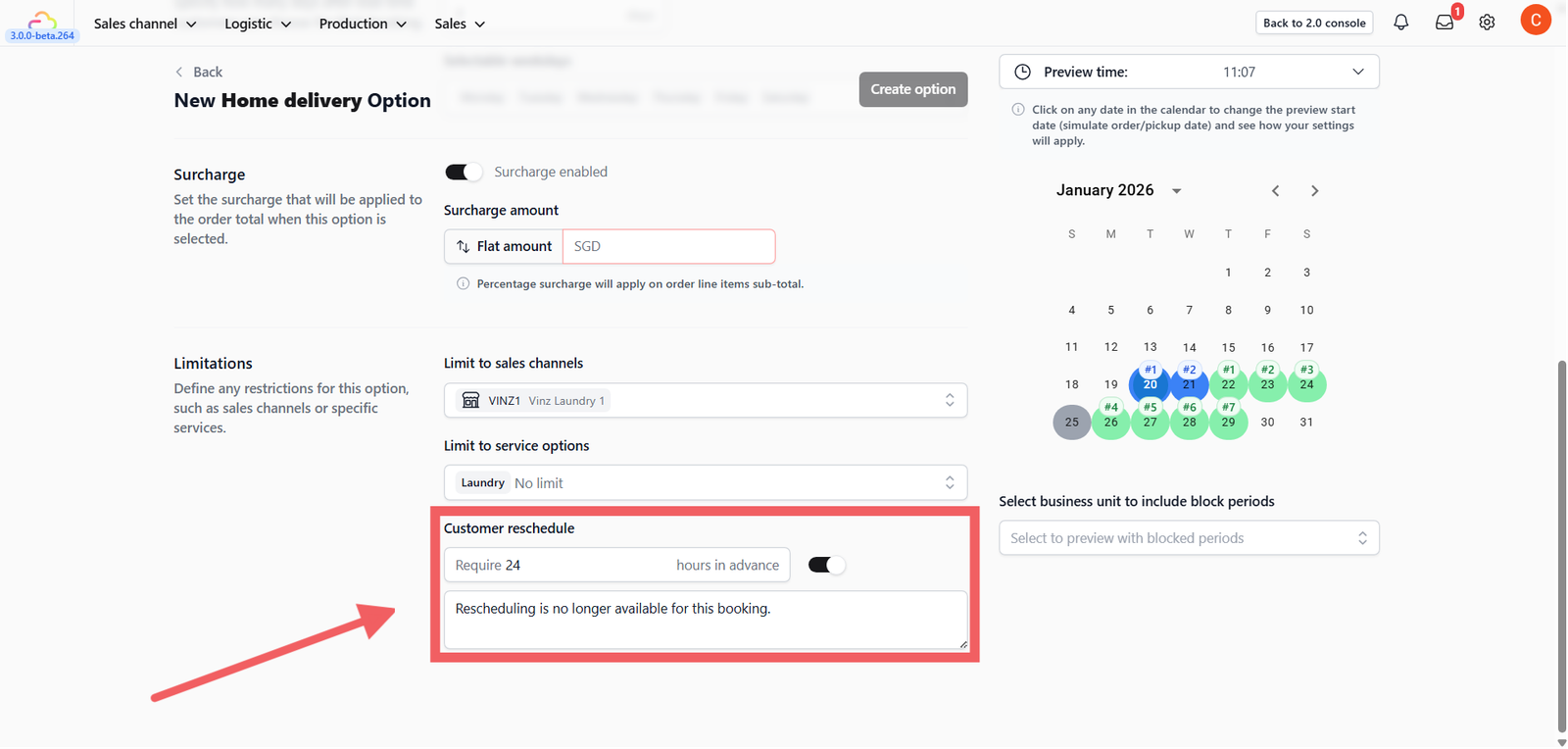
Rescheduling is ON by default.
Allow rescheduling
| Pick this | Result |
|---|---|
| ON (default) | Customer can change the date from their order page |
| OFF | Rescheduling disabled. The custom message below is shown if a customer tries. |
Hours of notice
| Pick this | Result |
|---|---|
| Empty | No minimum — customer can reschedule up to the moment of pickup |
| 24 | Must give a full day's notice |
| Custom X hours | Customer can reschedule before X hours from the pickup, no decimal allowes |
Disabled message
| Pick this | Result |
|---|---|
| Empty | Default system message shown |
| Custom text | Your own message shown when rescheduling is not allowed |
FAQs
Do I need a surcharge before I go live?
Use this only if you want to charge extra for a faster or less-common option. Most shops start with no surcharge and add one later.
Why is my customer being charged on both the pickup and the delivery?
You likely enabled surcharge on both options. Keep the surcharge on the delivery option only and set the pickup option to 0%.
Can I turn off rescheduling only for express options?
Yes. Each Booking Option has its own Rescheduling setting. Turn it off on Express and leave it on for Standard.
Do I need to fill Service Options?
Use this only if different services under the same business unit need different lead times or booking rules. Otherwise leave it empty.
What's Next
Now that your pricing, channel limits, and rescheduling rules are in place, continue to [Saving, Previewing, and Managing Booking Options] to save your option, assign it to a business unit, and verify the calendar looks right before going live.
Give feedback
Up next
Saving, Previewing, and Managing Booking OptionsOnce your booking option is configured, here is how to save it, check that the calendar looks right, and manage it after it goes live.
Read more