
Before You Start
- Do this at the Windows computer that prints, with permission to install software on it.
- Use Google Chrome or Microsoft Edge. Safari and Firefox cannot print to a USB printer.
- Switch the printer on and connect it to the computer with its USB cable.
- If the printer is not connected in the POS yet, come back to Connecting Your Printers to the POS after this.
Step 1: Install the driver with Zadig
- On the counter computer, go to zadig.akeo.ie and download Zadig.
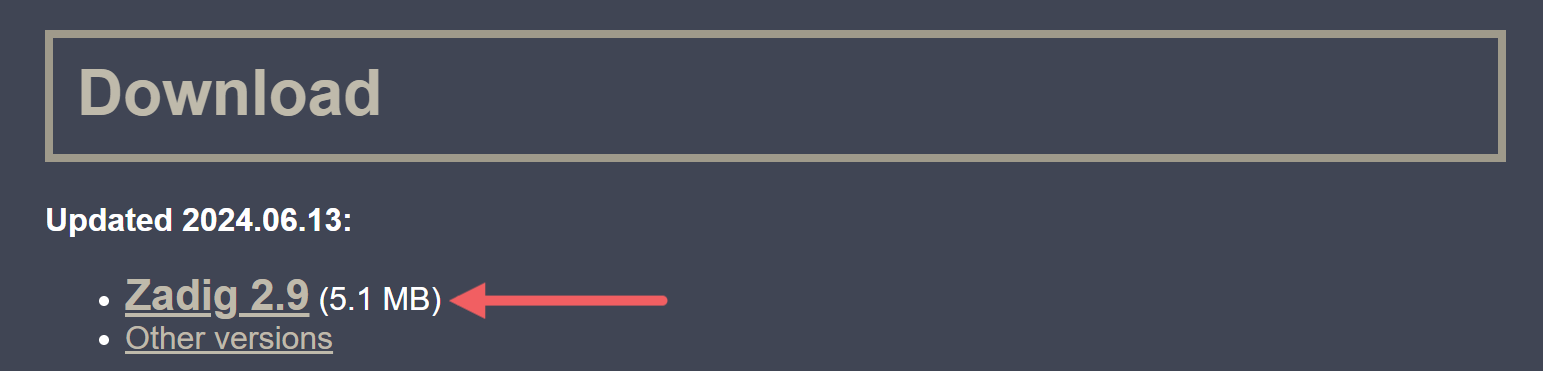
- Save the file somewhere you can find it again, such as your Desktop. Keep it in case you add another printer later.
- Open the downloaded file. When Windows asks for permission to run it, click Yes.
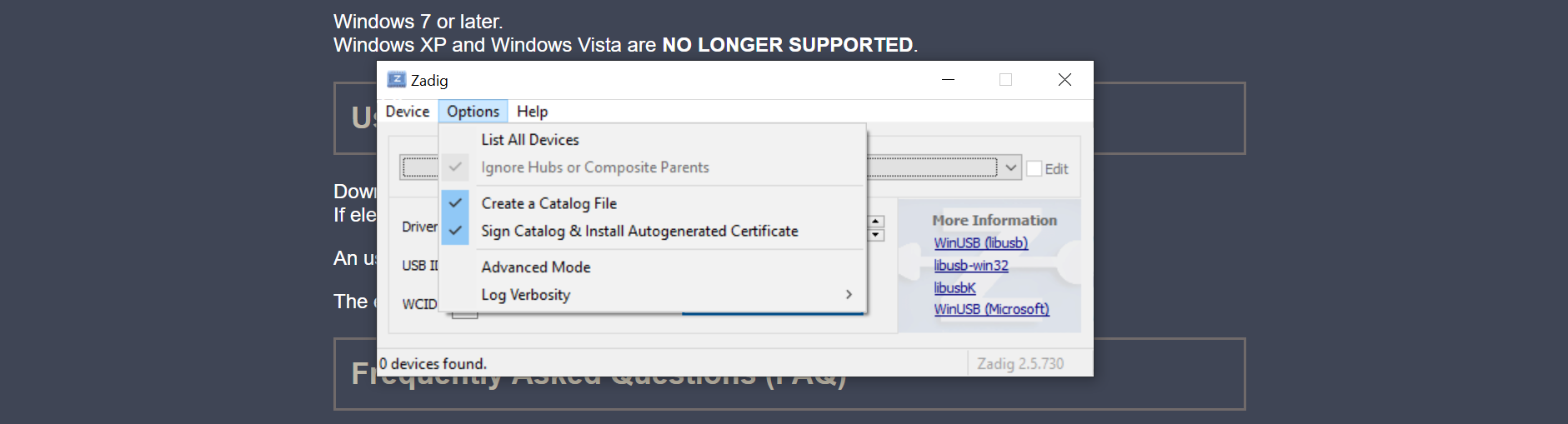
- In the Zadig menu, click Options, then click List All Devices.
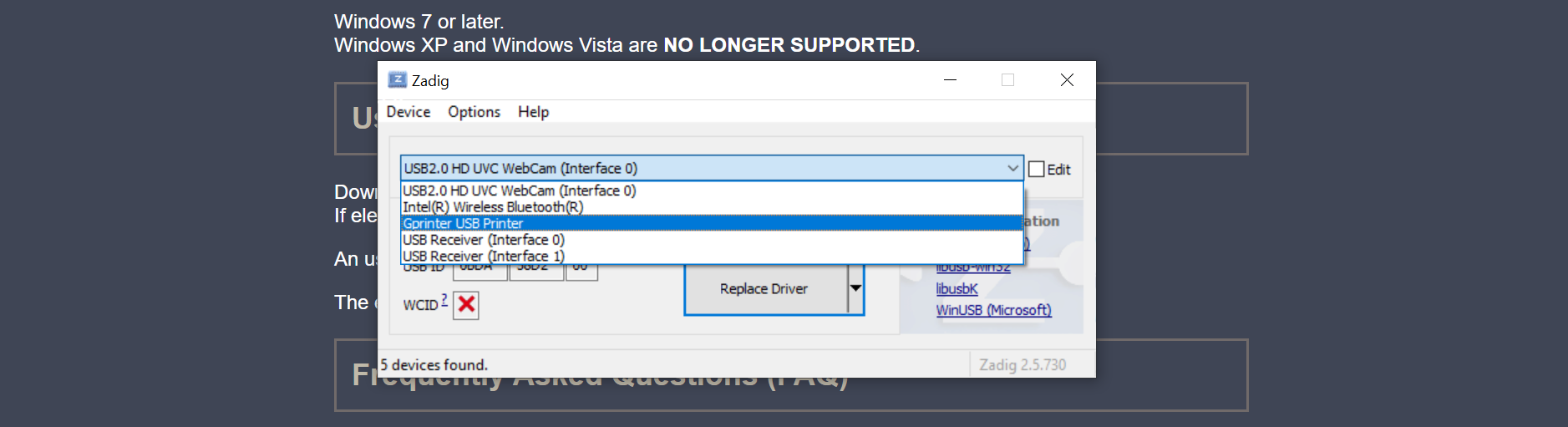
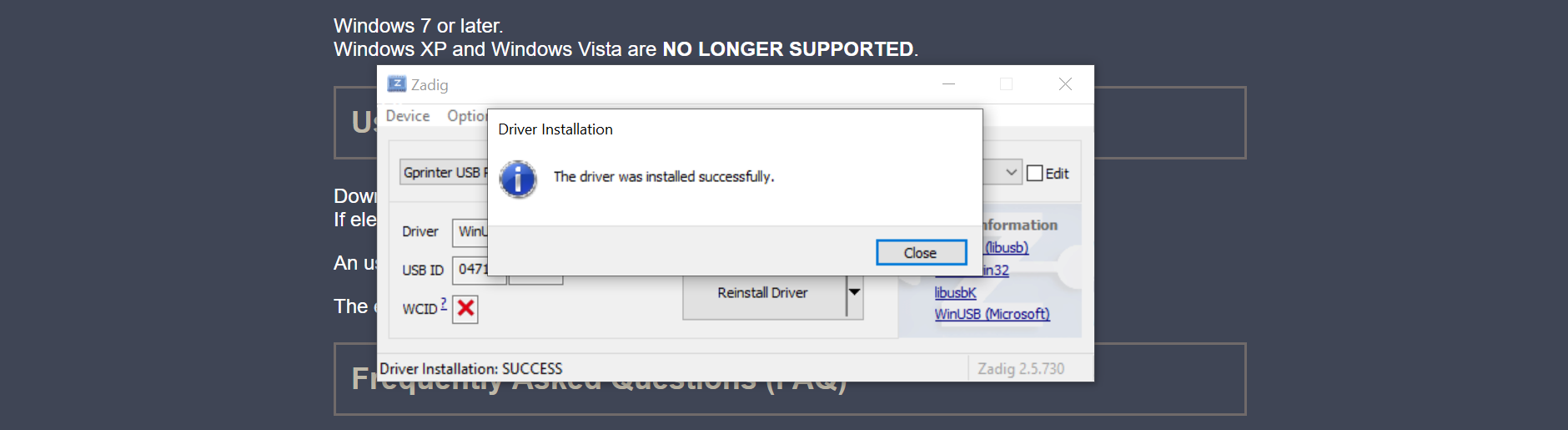
- Plug the printer's USB cable into the computer, then pick your printer from the drop-down list. A receipt printer usually shows as GP-58 and a label printer as Gprinter USB Printer.
- Select the driver button in the middle. It says Install Driver on a computer that has never had this printer, and Replace Driver or Reinstall Driver if it has.
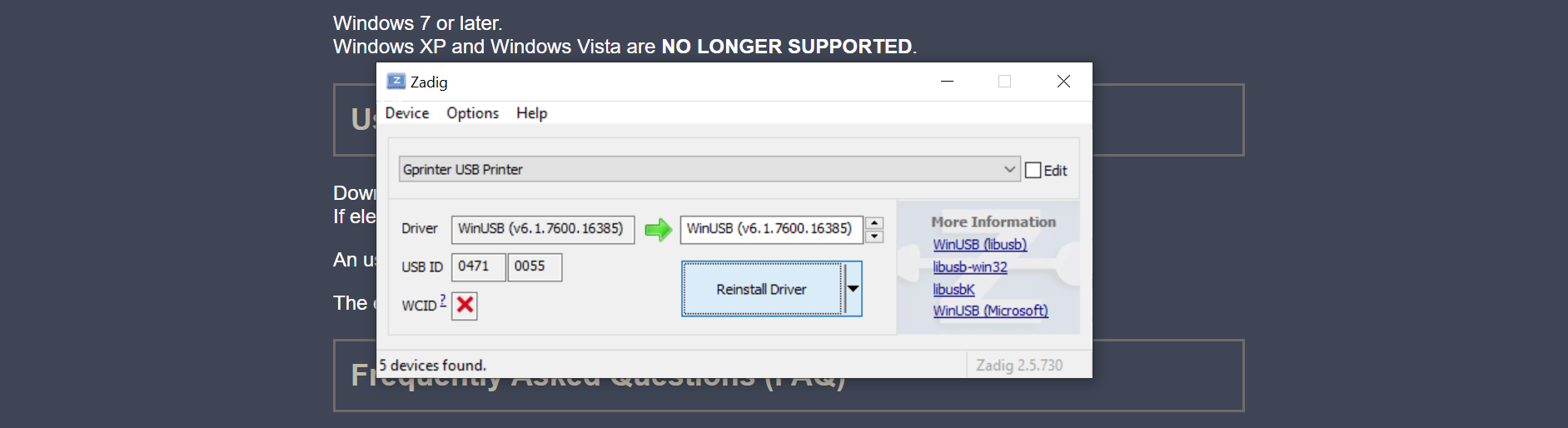
- Wait for it to finish. It can take a minute or two, and the screen may look frozen. Do not unplug the printer. Zadig tells you when the driver is installed.
Step 2: Connect the printer again in EasyBiz
The driver has changed, so the printer has to be connected once more.
Close all browser windows, then open the browser and sign in to your POS again.
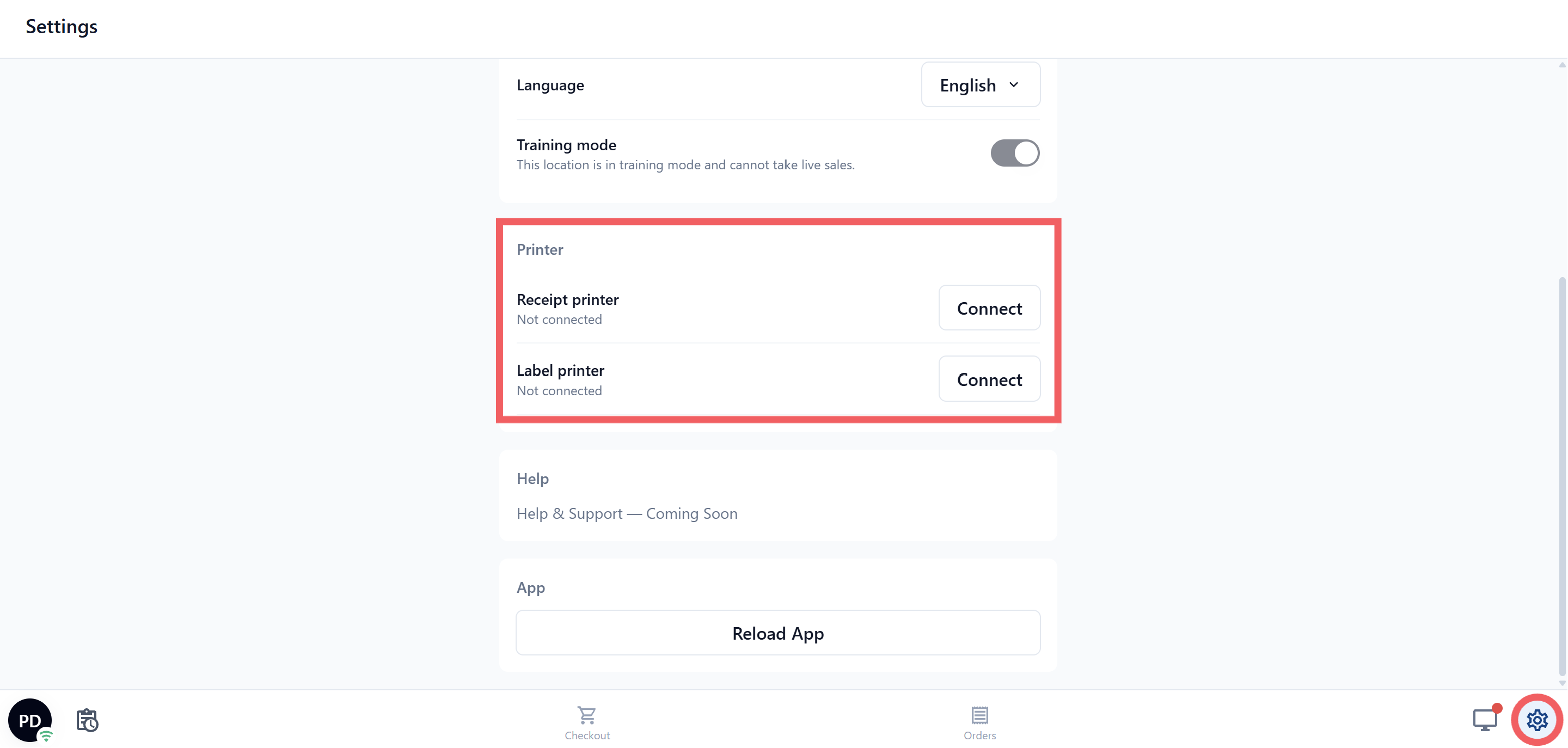
Open ⚙️ Settings, the gear icon.
Under the Printer section, next to Receipt printer or Label printer, click Connect.
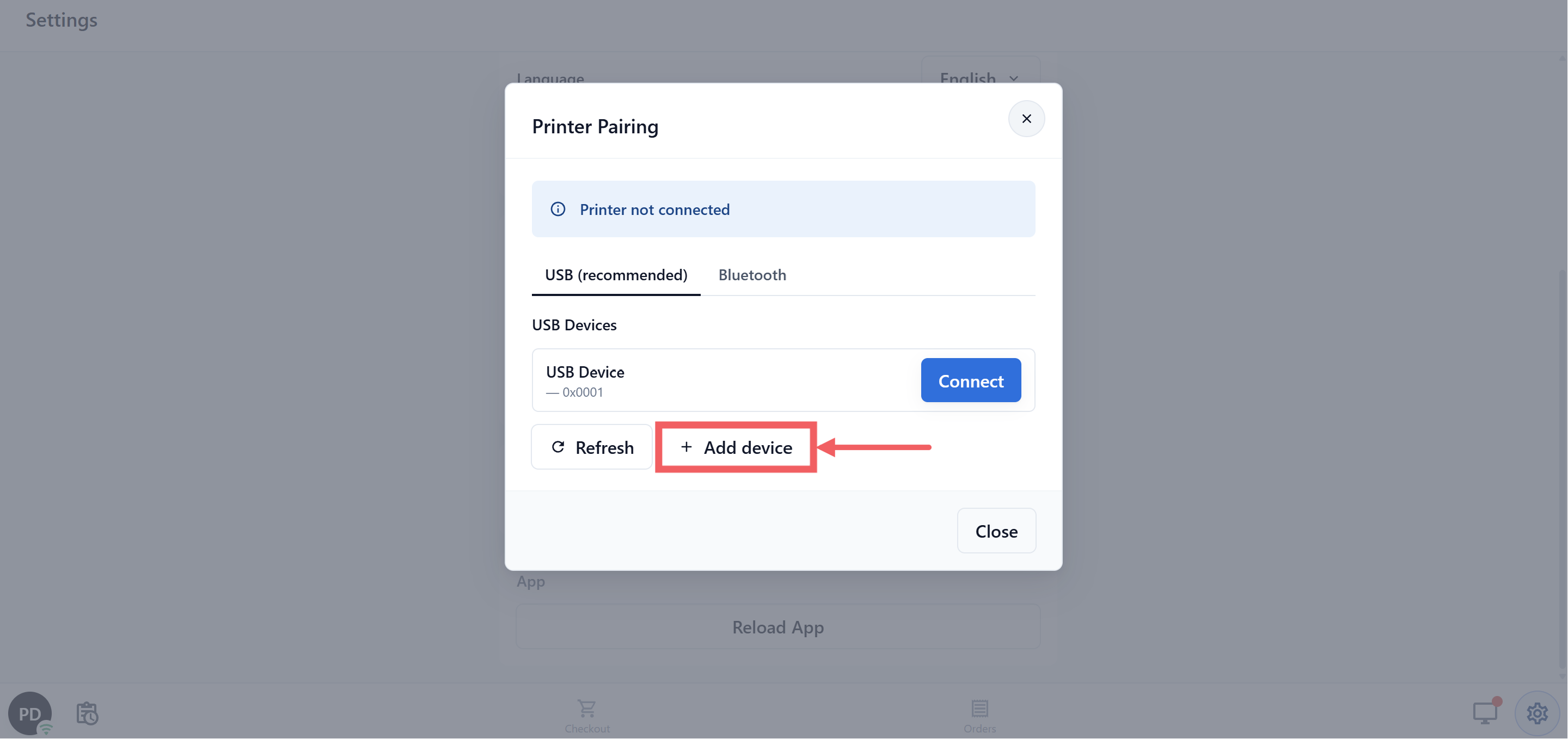
On the USB (recommended) tab, click Add device, choose your printer in the small window the browser shows, then click Connect.
The row in Settings now shows your printer's name and USB in green, for example "GP-58 — USB". Open a recent order and print a receipt to confirm it comes out.
FAQs
Can I still print to this printer from Word or other Windows programs?
No. Once the driver is changed, the printer no longer appears in your Windows printer list. To get it back, open Device Manager, right-click the printer, choose Uninstall device, tick Delete the driver software for this device, then unplug and replug the printer.
Do I have to do this on every computer?
Yes. The driver sits on the computer, so each counter computer that prints needs its own run through these steps. Pairing in EasyBiz is also per computer and per browser.
Does this affect my label printer or my cash drawer?
Receipt and label printers are separate devices, so each needs its own driver install and pairing. The cash drawer needs no driver, because it is cabled to the receipt printer, not to the computer. Once the receipt printer prints, the POS can open the drawer again. See Connecting Your Cash Drawer to the POS.
Do I need this on a Mac or an iPad?
Not on a Mac. A Mac with Chrome or Edge connects over USB with no extra driver. An iPad cannot print receipts or labels at all, so it cannot be a printing counter. Use a Windows PC, a Mac or an Android tablet of 10 inches or larger for the counter.
It still says "The POS cannot access this USB printer" after I installed the driver. What now?
Check that you picked the printer and not another USB device, close every browser window and open it again, then pair the printer once more. Close any other printing program on that computer, because it can hold the printer.
What's Next
The driver is in place, so if the counter shows a different message, look it up in Printer Error Messages on the POS.