
Before You Start
- Your receipt printer must already be connected in the POS and printing. See Connecting Your Printers to the POS.
- If the receipt printer is not printing at all, fix that first. See Receipt Printer Will Not Print.
- Recording your opening cash and counting the drawer at the end of a shift is a separate setup. See Set Cash Drawer on Your POS.
- Keep the drawer keys and the cable that came in the box close by. The cable has a small plug that looks like a telephone plug.
How the Drawer Works With the POS
Your cash drawer does not connect to the POS directly. It is cabled to your receipt printer, and the POS opens it by sending a short "open" signal through that printer. That is why the drawer can only open from the POS while the receipt printer is switched on and connected.
The POS does not know a drawer is there until you tell it. You do this with one switch in POS Settings, Cash drawer connected, which sits right under your receipt printer.
| Switch | What happens |
|---|---|
| On | The drawer pops open by itself after every cash payment, cash refund, Cash In and Cash Out |
| Off | The drawer never opens by itself. Receipts print as normal, and staff can still open it with the Open Cash Drawer button |
Turn it on only at a counter that has a drawer cabled to its receipt printer. If your counter has a receipt printer and no drawer, leave it off.
Connecting the Drawer
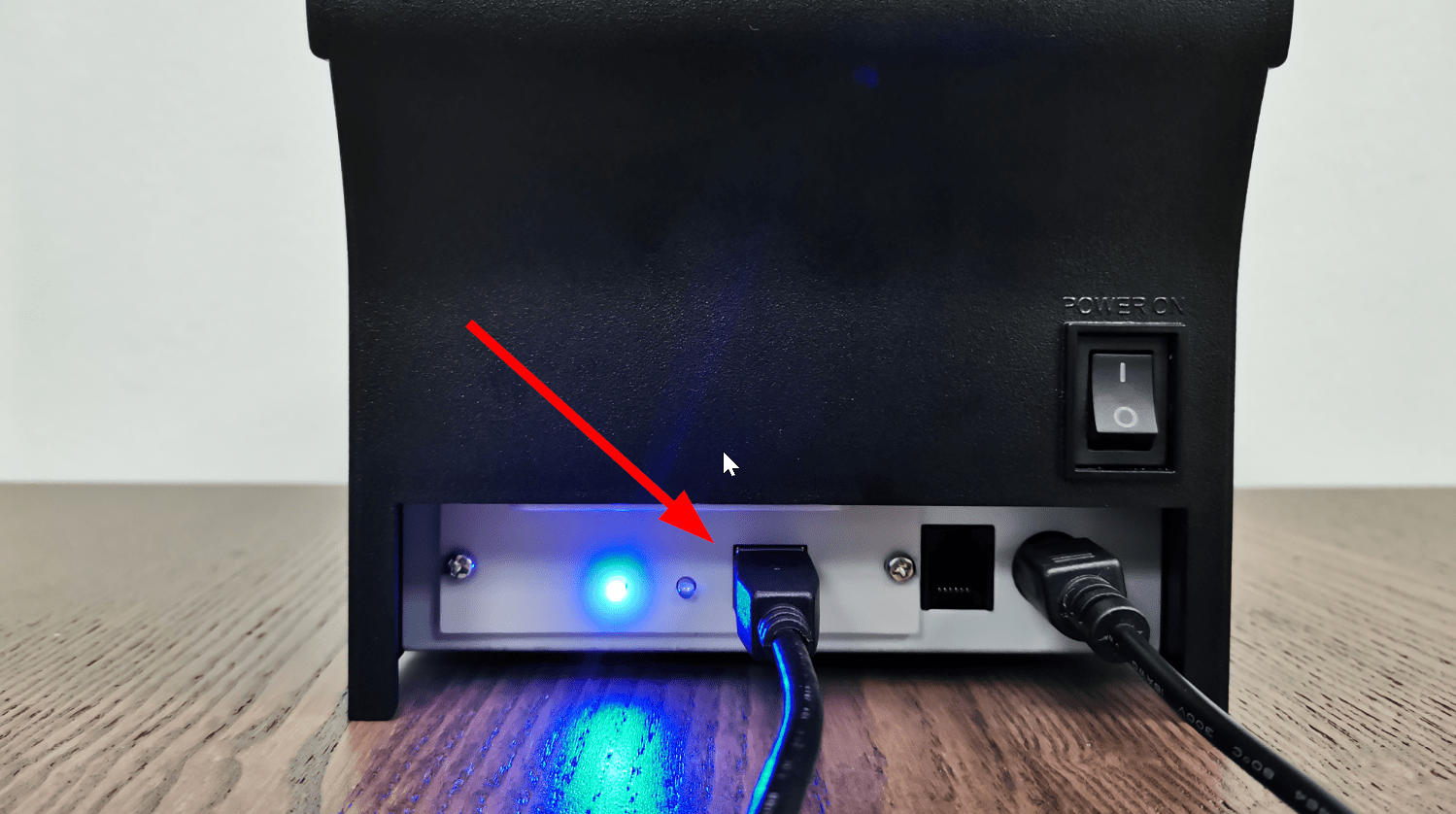
- Switch the receipt printer off. The power switch is on the back.
- Find the socket on the underside or the back of the drawer. There is usually only one.
- Push the cable in until it clicks.
- Push the other end into the drawer socket on the back of the receipt printer. It is a small square socket, like a telephone socket, next to the USB cable. Do not confuse it with the USB socket.
- Switch the printer on and print a receipt from a recent order to check the printer still works.
- In the POS, open ⚙️ Settings and find the Printer section.
- Under Receipt printer, turn on Cash drawer connected. The switch only appears once your receipt printer is connected.
- Open the Cash Drawer panel. If no session is running, enter your opening cash and tap Start Drawer, then tap Open Cash Drawer. The drawer should spring open.
Opening the Drawer
There are three ways to open the drawer.
When Staff Take Cash
Once Cash drawer connected is on, the drawer opens by itself when staff:
- Finish a cash sale at checkout
- Take a cash payment on an existing order
- Give a cash refund
- Record Cash In or Cash Out in the Cash Drawer panel
It does not open for card, PayNow or other payment methods, or for practice orders in training mode.
With the Open Cash Drawer Button
Use this to give change, swap notes or check the float without taking a payment. The button works whether Cash drawer connected is on or off.
- Open the Cash Drawer panel in the POS.
- If no session is running, start one by entering your opening cash. The button only appears while a session is open.
- Tap Open Cash Drawer.
By Hand
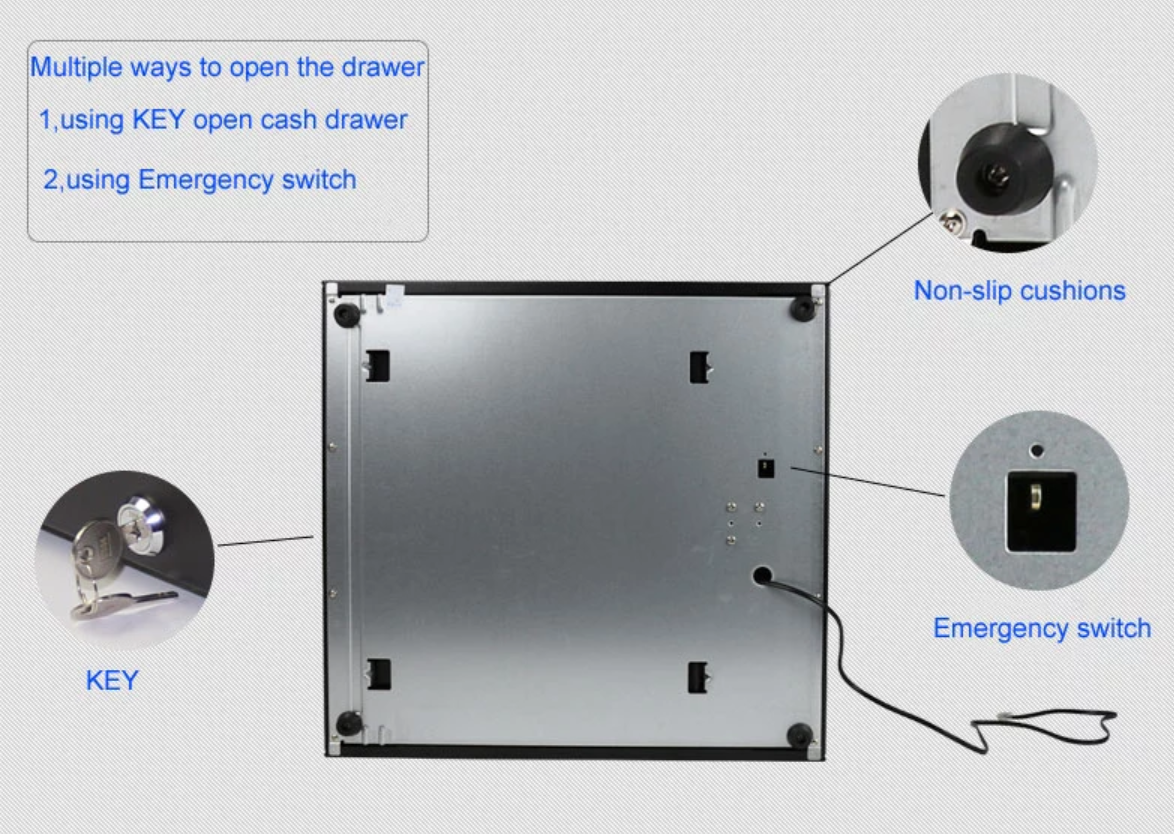
Use the key or the emergency release switch when the printer is off, the power is out or the POS is closed.
With the key
- Put the key in the lock on the front of the drawer.
- Turn it to the open position. On most drawers the tray springs out.
With the emergency release switch
- Check the key is turned to the unlocked position.
- Reach under the drawer. The switch sits in a small square opening on the underside, usually near the back where the cable comes out.
- Push the small lever across. The tray springs open.
The Drawer Does Not Open
Work through these in order and stop as soon as it opens.
- Print a receipt from a recent order. If nothing prints, the POS cannot open the drawer either. Fix the printer first with Receipt Printer Will Not Print.
- If the drawer opens with Open Cash Drawer but not after a cash payment, open ⚙️ Settings and check that Cash drawer connected is turned on under Receipt printer.
- Check the key is turned to the unlocked position. A locked drawer stays shut even when the POS sends the signal to open it.
- If the drawer moves a little and then sticks, something is jamming it. Push it closed, then tap Open Cash Drawer again while pulling gently.
- Once it is open, lift out the note tray and check that no coins, notes or receipts have slipped down the back.
- Switch the receipt printer off, push the drawer cable firmly into both sockets, and look at both plugs. A bent, loose or crushed plug means the cable needs replacing.
- If receipts print but the drawer never opens from the POS, the drawer may not match your printer. Send us the drawer model and your receipt printer model.
When the Drawer Itself Has Failed
If the drawer is unlocked, nothing is jamming it and the release switch still does not open it, the lock has failed. Take a photo of the label on the underside of the drawer and send it to the shop that sold it to you, or to us if you are unsure what to buy next.
FAQs
Do I need a physical drawer to use Cash Drawer in the POS?
No. Cash Drawer in the POS keeps track of your opening cash, your cash takings and your end-of-shift count. It works just as well with a lockable box under the counter.
We open the drawer by hand all day. Are my cash figures wrong?
No. Your cash figures come from the payments staff record in the POS, not from the drawer. Opening it by hand, or never opening it, does not change the expected total at the end of the day.
I took money out of the drawer to buy supplies. Do I need to record it?
Yes. Record it as a Cash Out in the Cash Drawer panel of the POS. If you don't, the drawer will look short when you count it at the end of the shift. Use Cash In when you add change to the drawer.
Does ending the drawer session lock the drawer?
No. Ending the session only closes off the cash figures for that shift. The drawer is still locked and unlocked with its key, so lock it before you leave for the night.
Can EasyBiz unlock the drawer if we lose the key?
No. The key lock is part of the drawer itself, so we cannot open it from the system. The shop that sold you the drawer can supply a replacement key.
Do I have to buy the drawer from EasyBiz?
No. You can buy it from any supplier. Just send us the drawer and receipt printer models before you buy, so we can confirm they work together.
Why does the drawer not open when a customer pays by PayNow or card?
The POS only opens the drawer for cash payments, because there is no cash to put away. If you need to give change for another reason, tap Open Cash Drawer in the Cash Drawer panel.
We added our own payment method called "Cash". Why does the drawer not open for it?
The POS only opens the drawer for the built-in Cash payment method. It does not go by the name, so a method you created yourself will not open the drawer, even if it is called Cash. Ask staff to pick the built-in Cash method for cash sales.
Staff opened the drawer with the button. Does it change my cash count?
No. Opening the drawer with the button does not add or remove any cash in the POS. If money goes in or out, record it as Cash In or Cash Out so your end-of-shift count stays correct.
What's Next
To set your opening cash and do your end of-shift-count, see Set Cash Drawer on Your POS. If the receipt printer has stopped printing, start with Receipt Printer Will Not Print.