
Hardware
Works with the counter hardware you already own.
You do not need to buy special hardware from us. EasyBiz POS runs in a browser and works with standard receipt and label printers, so most of what is already on your counter can be used.
Jump to a device
01
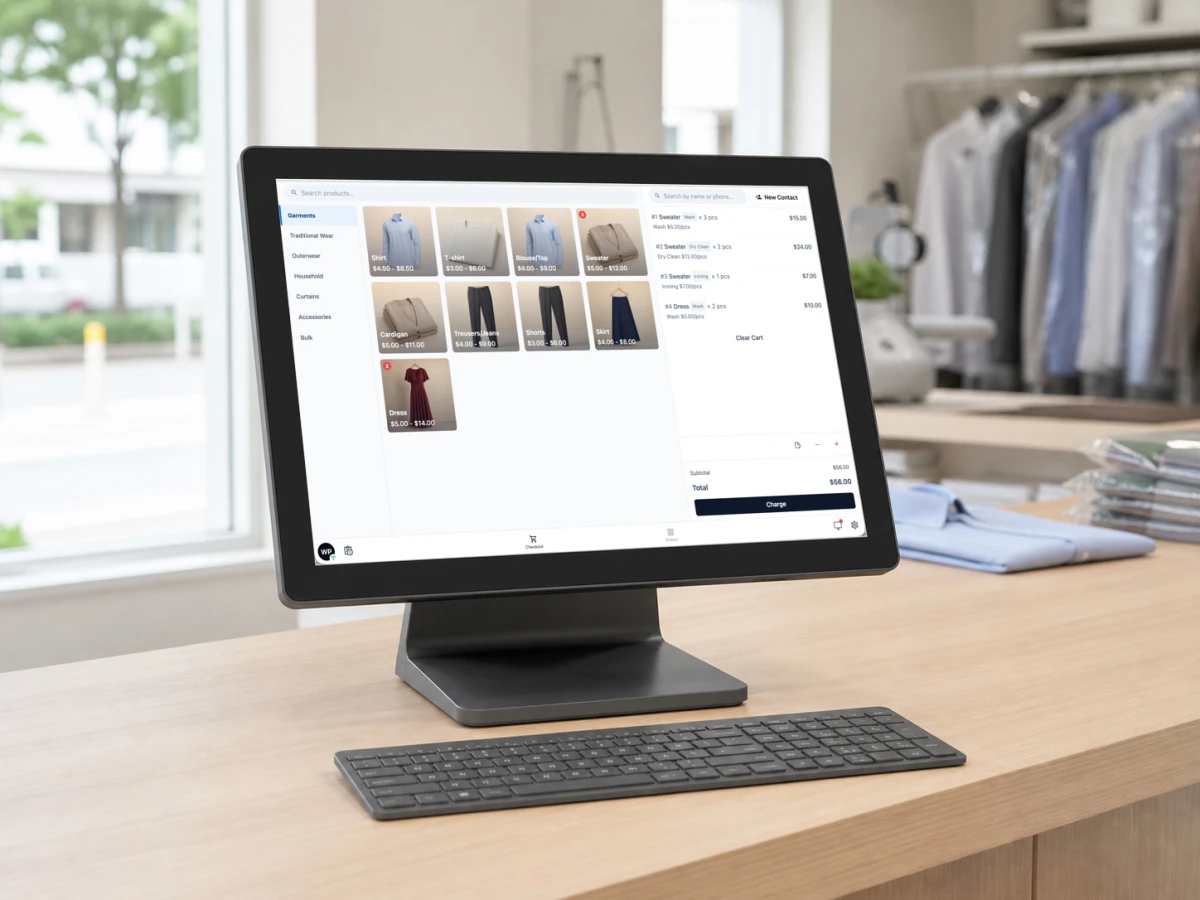
The POS
The screen your staff use to take orders. EasyBiz POS runs in a browser, so a computer or tablet you already own will usually do. The one thing to check before you buy is how it will connect to your printer.
- Device
- A Windows PC or Mac running Chrome or Edge, or an Android tablet with a screen of 10 inches or larger. A phone or iPad is not a supported POS counter. Both can pair to a counter for scanning or photos instead.
- Printing on iPad and Safari
- EasyBiz POS cannot connect to USB or Bluetooth printers in Safari or any browser on an iPad. The EasyBiz POS app works as a counter only on Android tablets with a screen of 10 inches or larger. An iPad cannot print EasyBiz receipts or labels, but you can use it as a paired device or customer display.
- Network
- An always-on connection. Every transaction is processed and synced live, and there is no offline mode.
02 Optional
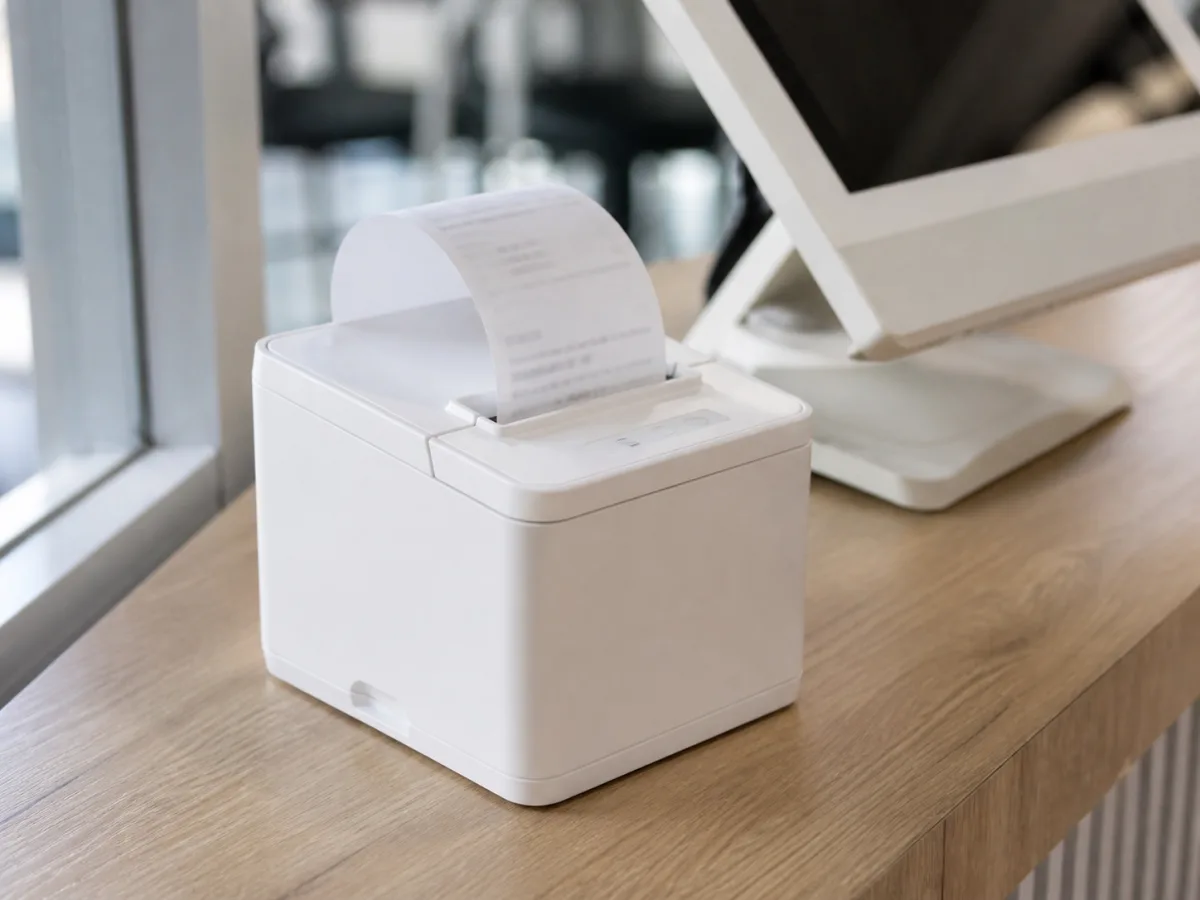
The receipt printer
Prints the customer receipt at the counter. Any thermal receipt printer that supports ESC/POS will work, bought from any supplier. We do not sell printers.
- Command language
- ESC/POS, the receipt language the POS prints in. Any thermal receipt printer that supports it can be paired.
- Connects by
- USB through WebUSB in a Chromium browser, USB directly in the Android POS app, or Bluetooth Low Energy. Bluetooth Classic and SPP-only printers cannot pair through the browser flow.
- What it prints
- The customer receipt — automatically after payment when auto-print is on, or on demand from the order.
03 Optional
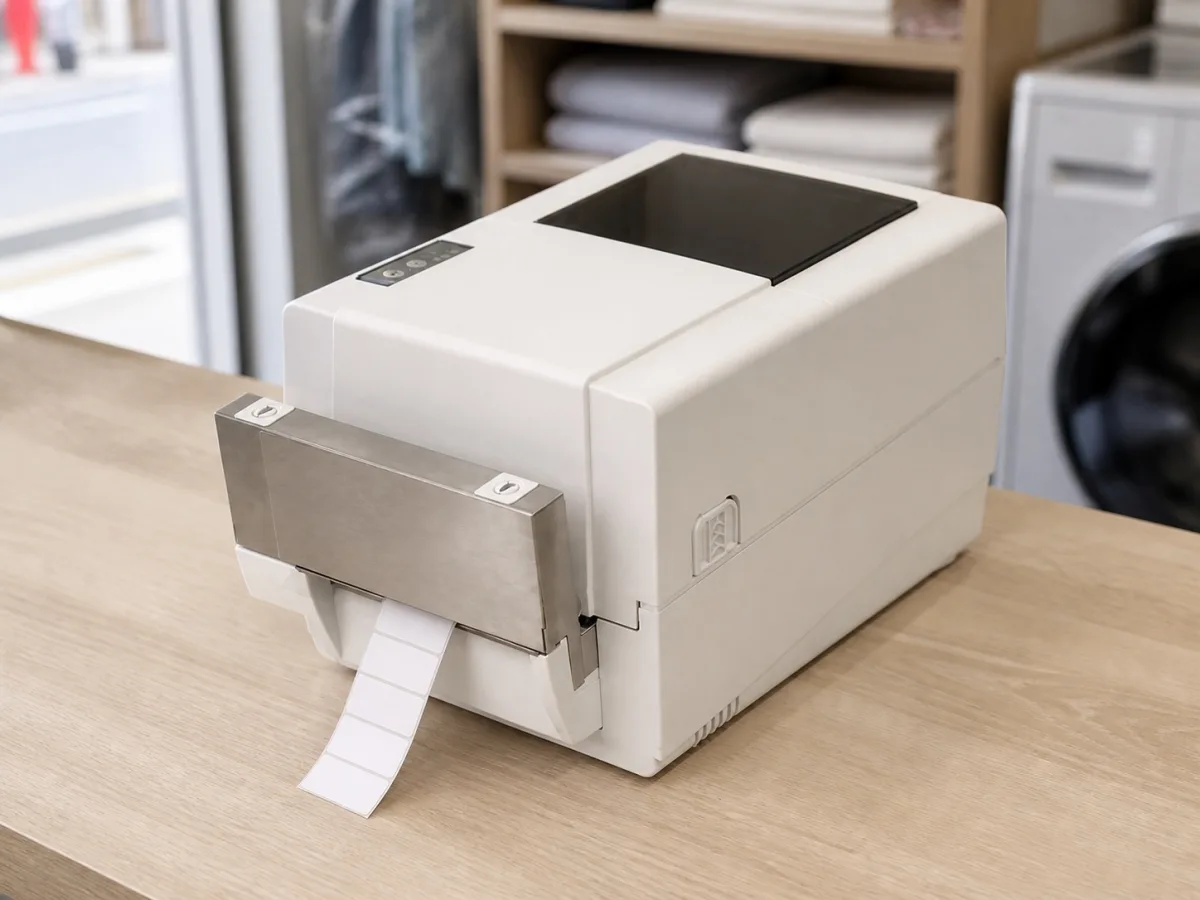
The label printer
Prints the tags that stay with each item through the shop. It works alongside your receipt printer, so the counter can use both at the same time.
- Command language
- TSPL, the label language the POS prints in. Check that the printer's specification sheet lists TSPL before you buy it.
- Connects by
- The same USB and Bluetooth Low Energy paths as the receipt printer.
- What it prints
- Item labels and package stickers, from the label templates you lay out in the console.
04 Optional
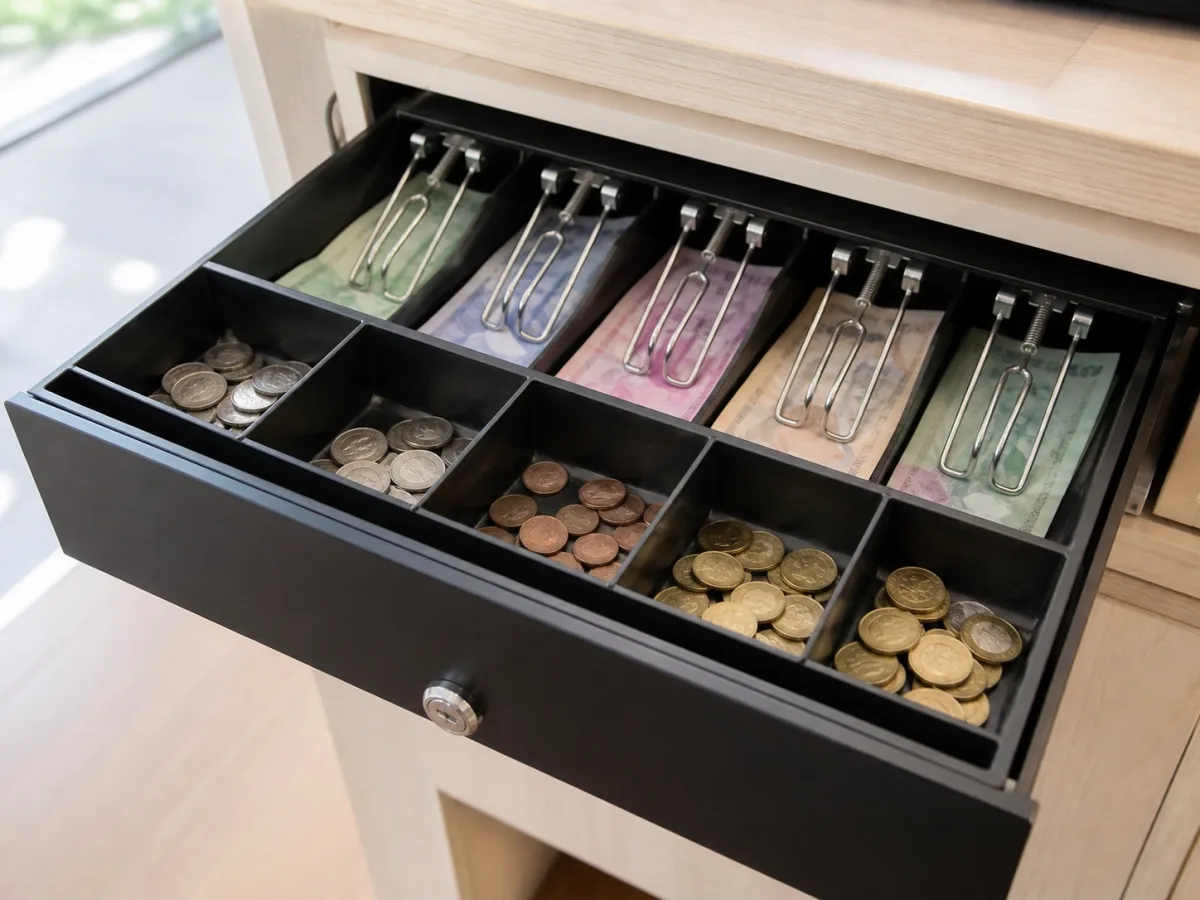
The cash drawer
Holds the cash at the counter. The drawer plugs into the receipt printer, not into the POS device, so if your receipt printer works the drawer usually does too. Plug it in and open it once from the POS to confirm.
- Command language
- ESC/POS. The POS sends the open pulse to the receipt printer, and the printer fires the drawer.
- Connects by
- The DK port on a compatible receipt printer. A drawer never connects to the POS device directly.
05 Optional
The card terminal
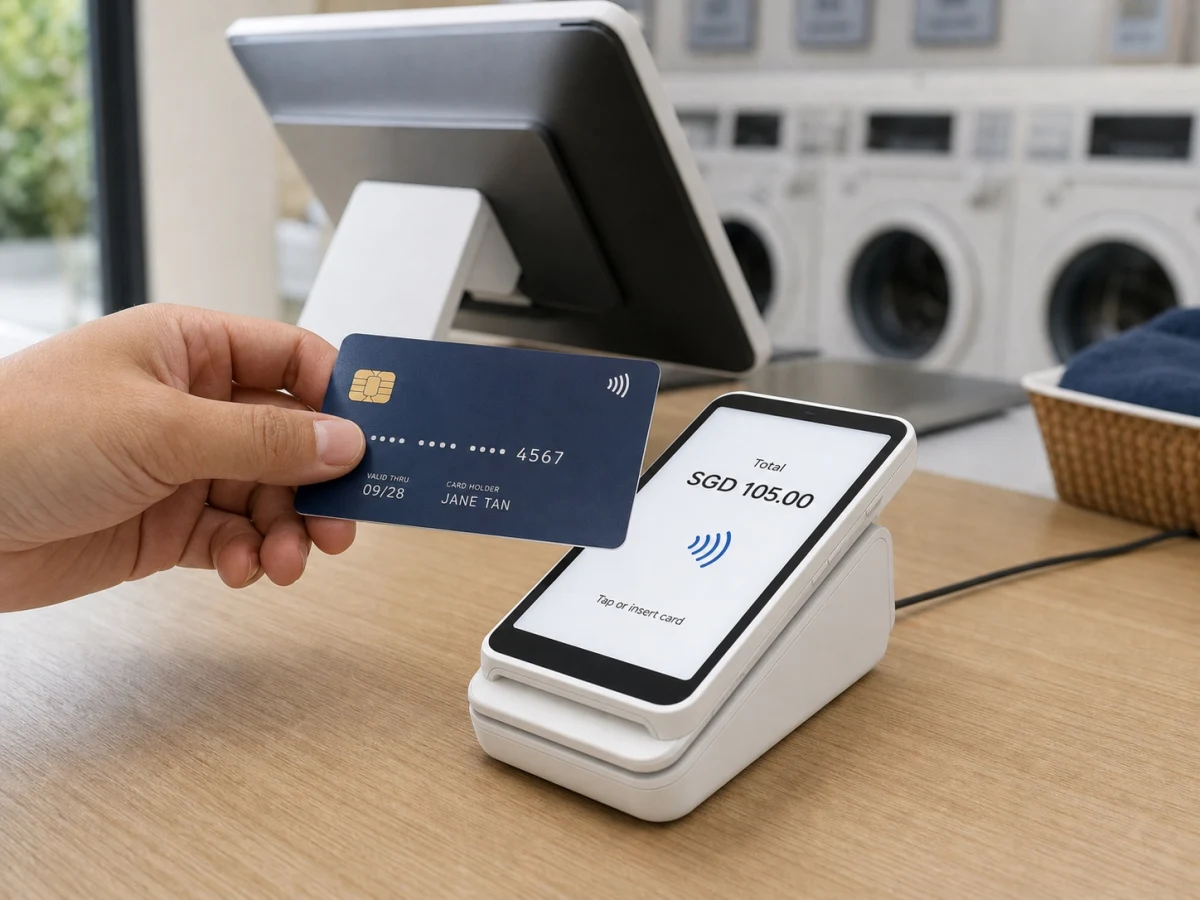
Takes card and contactless payments at the counter. The terminal comes from your payment provider rather than from us — EasyBiz supports Stripe and HitPay. The card is charged on the terminal, and the POS completes the order the moment the payment clears.
 Stripe
  HitPay
 - Device
- A payment terminal supplied by Stripe or HitPay. It takes tapped and inserted cards, and sits beside the POS rather than plugging into it.
- Connects by
- Wi-Fi, to your payment provider. It does not connect to the POS device, the receipt printer or the cash drawer.
- When the card is tapped
- Stripe or HitPay confirms the result straight to EasyBiz, and the POS picks it up and completes the order by itself. Nobody has to key in an approval code or mark the order as paid.
06 Optional
The customer screen
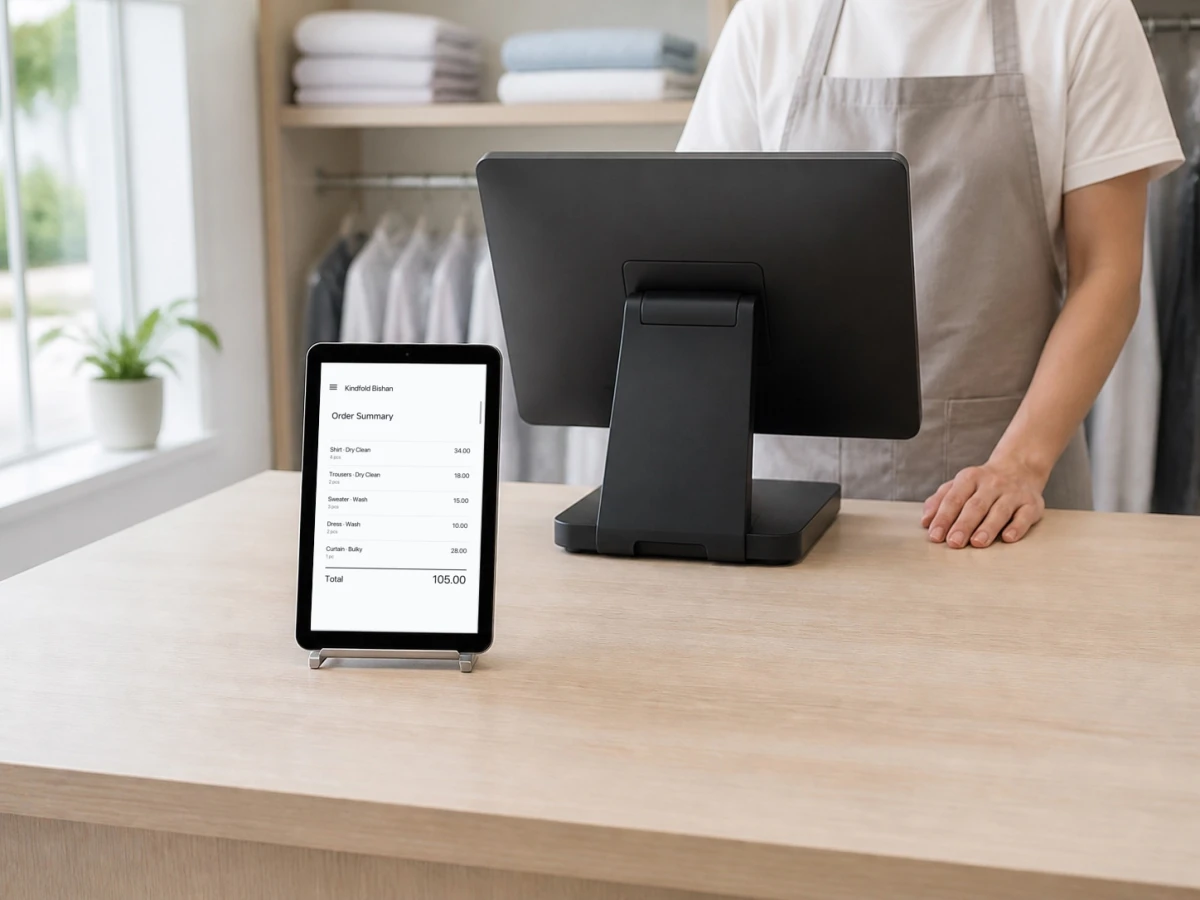
A tablet that faces the customer, paired to your POS. Customers check their order, fill in their own details, scan the payment QR with their phone, and sign on the screen. A spare tablet is usually enough.
- Device
- Any spare iPad or Android tablet. It pairs to your POS rather than replacing it, so there is no dedicated display to buy.
- App
- EasyBiz POS, from the App Store or Google Play, opened on the tablet in Paired Device mode.
- Pairs by
- A 6-digit code shown on the POS, which expires after 30 minutes if it goes unused.
- Shows
- The order preview and total, the payment QR, and your own poster while the counter is idle. The customer checks the order, fills in their details, and signs on the screen.
07 Optional
Staff phones
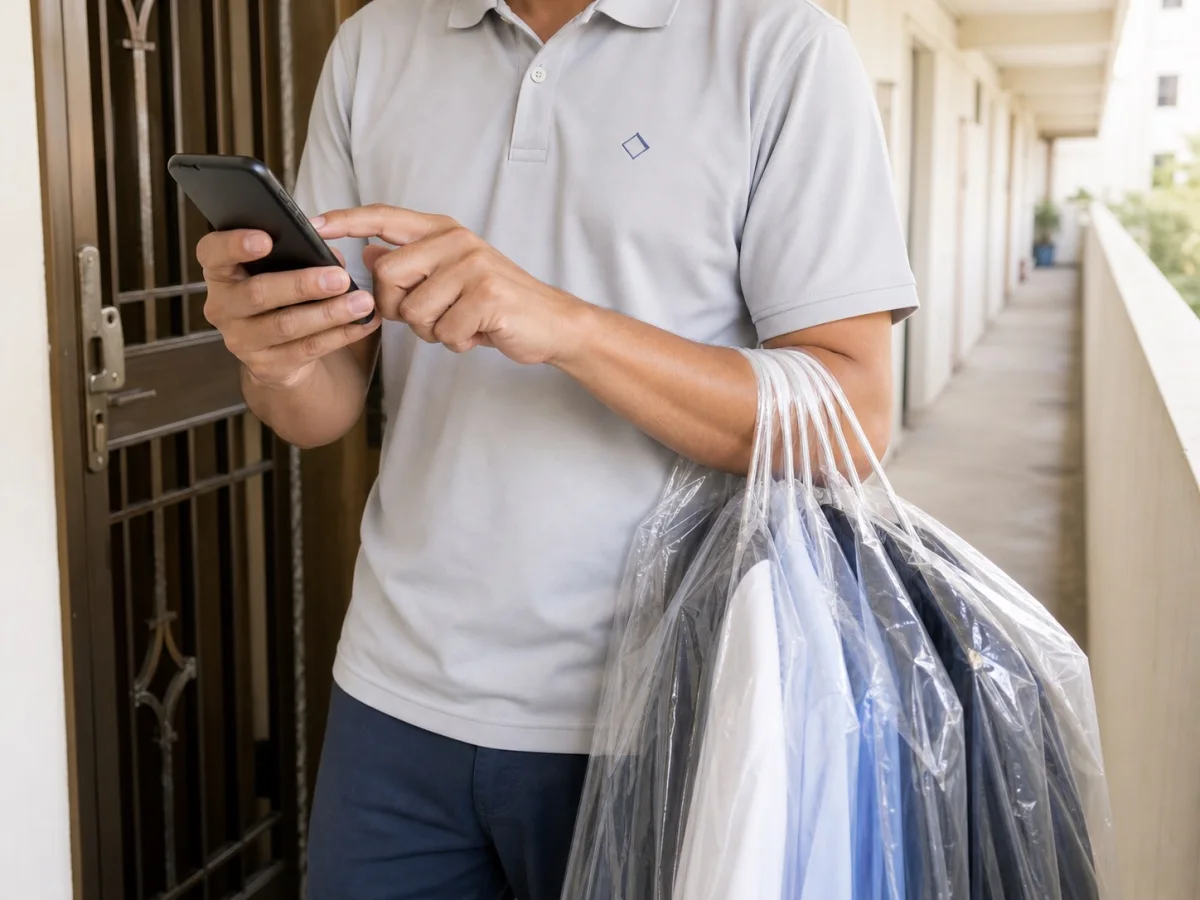
The app your whole team carries. Drivers, counter and service staff, production, admin, sales, accounts and the owner all install the same EasyBiz Workflow app, and each person sees only the pages their role needs.
- Device
- Staff iPhones and Android phones — the ones your team already carries.
- App
- EasyBiz Workflow, from the App Store or Google Play.
- Access
- Each teammate sees only the pages you grant them, so a driver opens to their jobs and a production staffer opens to packing.
Check your model before you buy
The same printer model is often sold in different versions that connect in different ways, and not all of them work. Send us the exact model, how it connects, and the device and browser at your counter. We will confirm it before you buy.
Ask us about a printer or read the full POS setup checklist in the Help Center.
FAQ
Common questions about hardware
Do I have to buy hardware from EasyBiz?
No. We do not sell hardware and nothing is brand-locked. You buy from whichever supplier you prefer, and we tell you whether the model you picked will work.
Will the printer I already have work?
If it speaks ESC/POS for receipts or TSPL for labels, and connects over USB or Bluetooth Low Energy, it usually will. Send us the exact model and connection type to confirm.
Which POS device should I buy?
For a fixed counter with USB printers, use a Windows PC or Mac running Chrome or Edge. For a tablet counter, use an Android tablet with a screen of 10 inches or larger, which works over both USB and Bluetooth. An iPad cannot print EasyBiz receipts or labels, so use it as a paired device or customer display, not as a counter.
Does the POS work offline?
No. EasyBiz POS processes and syncs every transaction in real time, so the counter needs a stable connection while it is open.
Can one counter run a receipt printer and a label printer at once?
Yes. Receipt, item label, and package sticker are separate printer slots, so a counter can pair a different printer to each and each keeps its own calibration.
What can I use as the customer-facing display?
Any spare tablet, phone, or screen with a browser. It pairs to the counter with a 6-digit code, so there is no dedicated display to buy.
Looking at the counter itself? See Point of Sale for what it does and what it costs.
Start with EasyBiz Cloud
Start with the workflow that needs attention now.
Try the products you need first, then add connected workflows as your business grows.