
Before You Start
- Your POS shop must already be set up and signed in. See Setting Up a New POS Shop.
- The printer must be switched on, with paper or labels loaded, and plugged in or discoverable.
- On a Windows counter computer, install the printer driver first, or the connection fails with "The POS cannot access this USB printer". See Installing the Windows Printer Driver.
- Use Google Chrome or Microsoft Edge as your browser (the app you open websites with). Safari, Firefox and every browser on an iPad cannot talk to a printer.
What to Buy
- Receipt printer: any thermal receipt printer (it prints with heat, no ink) that lists ESC/POS on its box or product page. ESC/POS is the language almost every shop receipt printer uses.
- Label printer: any label printer that lists TSPL on its box or product page. TSPL is the language used by Gprinter and many other label printers.
- Cash drawer: plugs into the receipt printer, not into the POS device. See Connecting Your Cash Drawer to the POS.
The Three Printer Types
The POS can connect three printers, one for each job. Each counter connects its own, and each keeps its own settings.
| Printer | What it prints | Where you connect it |
|---|---|---|
| Receipt printer | The customer receipt | POS, Printer section |
| Label printer | The item tag that follows each garment or bag | POS, Printer section |
| Pack sticker printer | The sticker on a packed delivery bag | Workflow app, Printer settings |
USB or Bluetooth
| Connection | Use it when | What to expect |
|---|---|---|
| USB cable (recommended) | The printer sits at a fixed counter | Stays connected after you close and reopen the POS |
| Bluetooth (wireless) | The printer has no USB port | You must tap Connect again each time you reopen the POS |
Connect from a Browser
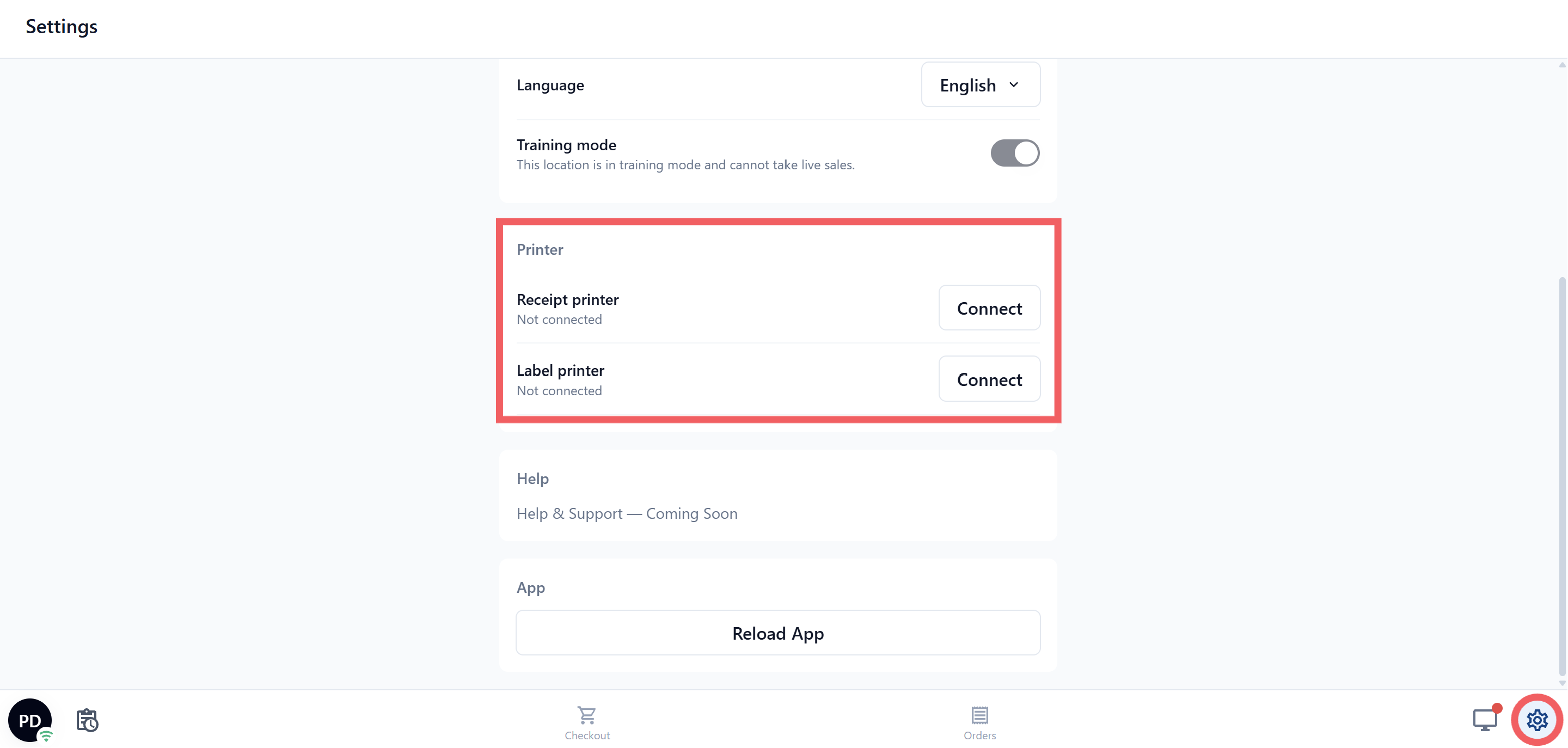
- In your POS, click the Settings ⚙️ gear icon.
- Find the Printer section.
- Next to Receipt printer or Label printer, click Connect. The Printer Pairing window opens.
- Stay on the USB (recommended) tab. If your printer is already listed, click Connect on its row and stop here.
- If it is not listed, click Add device, pick your printer in the small window your browser shows, then click Connect in that window.
The row now shows Connected. Back in ⚙️ Settings, the Receipt printer row shows your printer's name and USB in green, for example "GP-58 — USB". Take a paid order and print a receipt to confirm.
Connect from the POS App
The EasyBiz POS app works as a counter only on an Android tablet with a screen of 10 inches or larger. When you open the app, choose POS Terminal. On an Android tablet, USB printers need no driver.
- Open Settings in the POS app.
- In the Printer section, tap Connect next to the slot you want.
- On the USB tab, tap your printer and allow the permission Android asks for. For Bluetooth, use the Bluetooth tab instead.
Two Worked Examples
GP-58, the receipt printer. Install the Windows driver and pick GP-58 in the device list. Plug the printer in, then connect it to the Receipt printer slot with the browser steps above.
GP1824TC, the label printer. Install the Windows driver and pick Gprinter USB Printer in the device list. Load the label roll and the carbon ribbon, close the cover until it clicks, then connect it to the Label printer slot.
FAQs
I connected the printer on the counter PC. Why does the tablet still say Not connected?
Printers are paired per device and per browser, not per shop. Every computer or tablet that prints is paired once, and a second browser on the same computer counts as another pairing.
Do I pay more to add a second printer?
No. Printer slots are part of your POS subscription, and connecting a printer is not a paid add-on. You only pay the supplier for the hardware.
My receipt does not print by itself after payment.
Automatic printing is a separate setting. In the Console, open POS, then Advanced settings, and turn on Auto-print receipt when payment completes. Without it, receipts print when staff ask for one.
Can I use my old EasyBus printer?
Yes, if it speaks ESC/POS or TSPL and connects by USB or Bluetooth Low Energy. The GP-58 and GP1824TC sold with the old system still work.
Why does my cash drawer not open?
The POS opens the drawer through the receipt printer, so it cannot open while the receipt printer is off or not printing. If receipts print but the drawer stays shut after cash payments, check that Cash drawer connected is turned on under Receipt printer in :gear: Settings. See Connecting Your Cash Drawer to the POS. If you need the cash now, open the drawer with its key or the release switch underneath.
Can two POS windows use the same USB printer at the same time?
Use the printer from one POS window at a time. Another POS window or printing application can prevent the POS from accessing the printer or claiming its USB interface. Close the other window or application, then reconnect the printer.
I only have an iPad. Can I use it as my counter?
Not for printing. Every browser on an iPad is built on Safari, which cannot talk to a printer, and the POS app only runs as a counter on an Android tablet of 10 inches or larger. Your iPad is still useful as a paired device next to the counter, for example as the customer screen. For the counter itself, use a Windows PC or Mac with Chrome or Edge, or an Android tablet of 10 inches or larger.
What's Next
Your printers are connected, so move on to Printer Error Messages on the POS if the POS shows a message instead of printing.