
Manual Sync
In this article
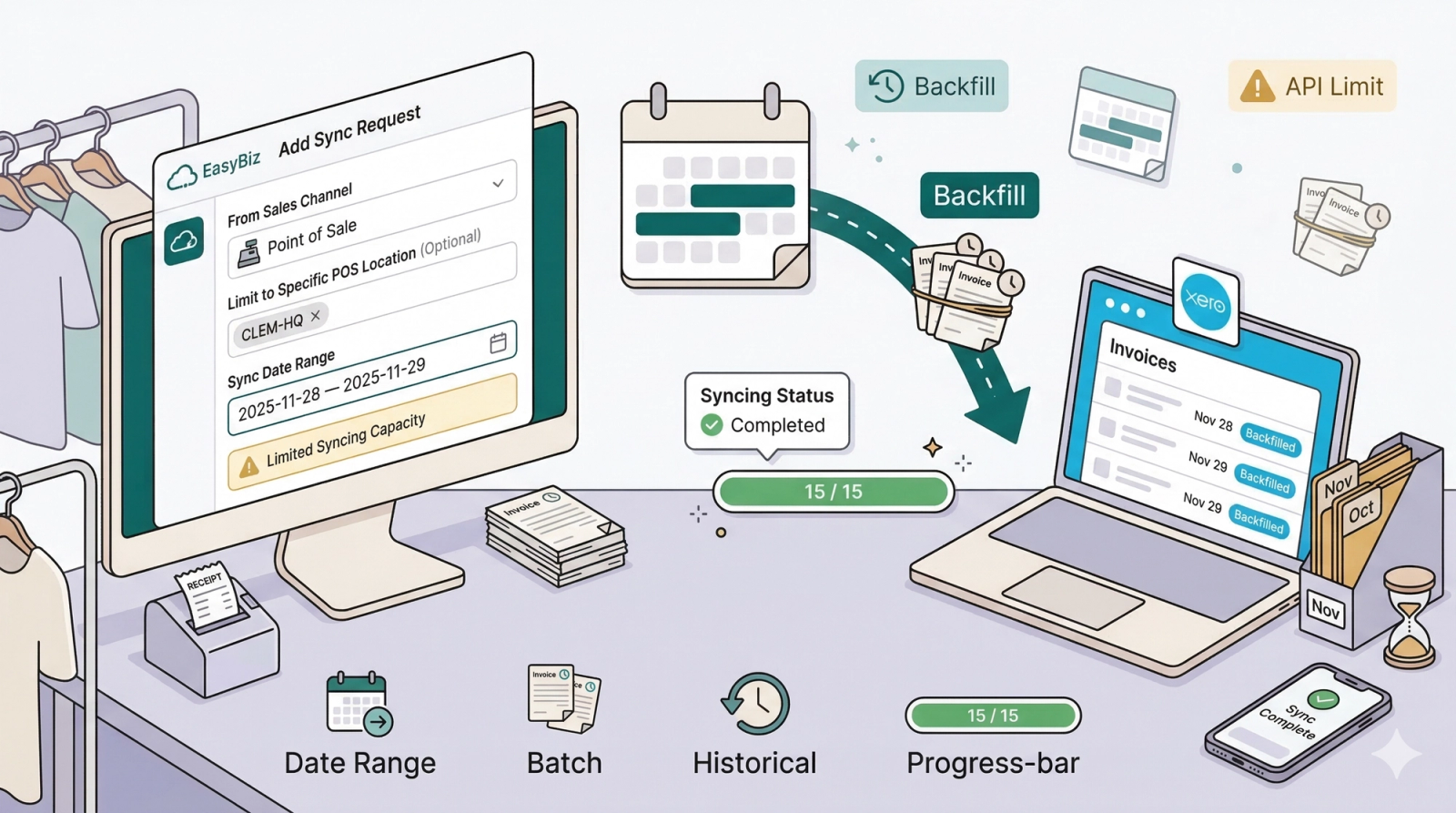
Manual Sync acts as a backup tool. It allows you to force-push orders from a specific date range into Xero.
Contents
Contents
What is Manual Sync?
Manual Sync acts like a time machine. It is the only way to move historical data into Xero.
When to use Manual Sync?
- 🗓️ Onboarding: You just connected Xero today, but you want all your sales from last month to appear in your accounts.
- 🛠️ Disaster Recovery: Your internet went down during a busy Saturday. Auto-sync failed because there was no connection. Once you are back online, use Manual Sync to "force push" that specific Saturday's data.
- Do not try to sync a whole year at once. It will take too long. * Best Practice: Sync in small batches (e.g., one week or one month at a time) to ensure everything goes through smoothly.
Where to find this setting?
Go to Settings > Business Portfolios. Click your business > Click the three dots for Xero > Settings. Scroll down to the Manual Syncingsection.
Understanding Contact Mapping
When setting this up, you have two choices for how these invoices appear in Xero:
1. Auto-Match (Dynamic)
The system looks for a contact in Xero with the exact same name.
- For Online Stores/B2B: It looks for the Customer's Name (e.g., "John Doe"). If "John Doe" doesn't exist, it creates him.
- For POS: It looks for the Location Name: (e.g., "Clementi Branch"). This groups all sales from that store under one Xero contact.
- Auto match by Customer Phone Number.:A separate Xero contact will be created for each customer using their phone number as a unique identifier. This means two customers with the same name but different phone numbers will become separate contacts in Xero. This is useful if your customers share common names and you need a reliable way to tell them apart.
- Auto match by Customer ID: A separate Xero contact will be created for each customer using their customer ID (e.g., 1001) as a unique identifier. This is best for B2C businesses that use a customer index system.
2. Manual Select (Generic Contact)
This acts as a "Catch-All." You force all sales from a specific channel to go into a single, generic Xero contact of your choice.
- Why use this? Perfect for "Walk-in" POS customers. Instead of creating thousands of contacts, you can map everything to a single Xero contact named "Walk-in Customer" to keep your accounting clean.
When should I use Manual Sync?
- Historical Data: You just installed Xero today, but you want to sync your sales from last month.
- Error Recovery: If your internet connection failed during a sale and an order didn't auto-sync, you can use Manual Sync to push it through later.
How to use Manual Sync

1. Go to the Manual Syncing tab.

2. Click Add Sync Request.

3. Select the Sales Channel and Location you want to sync.
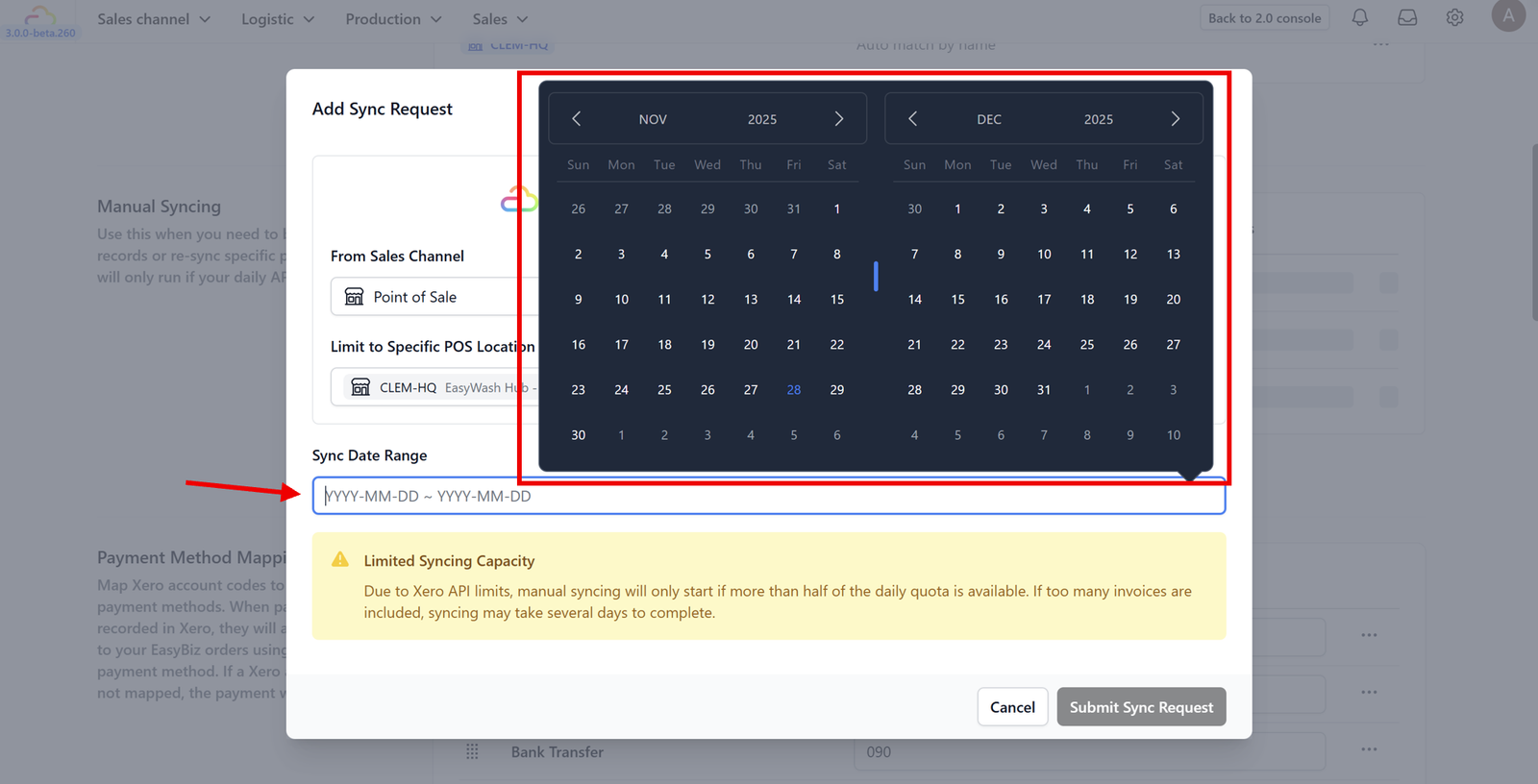
4. Select the Date Range (Start Date and End Date).
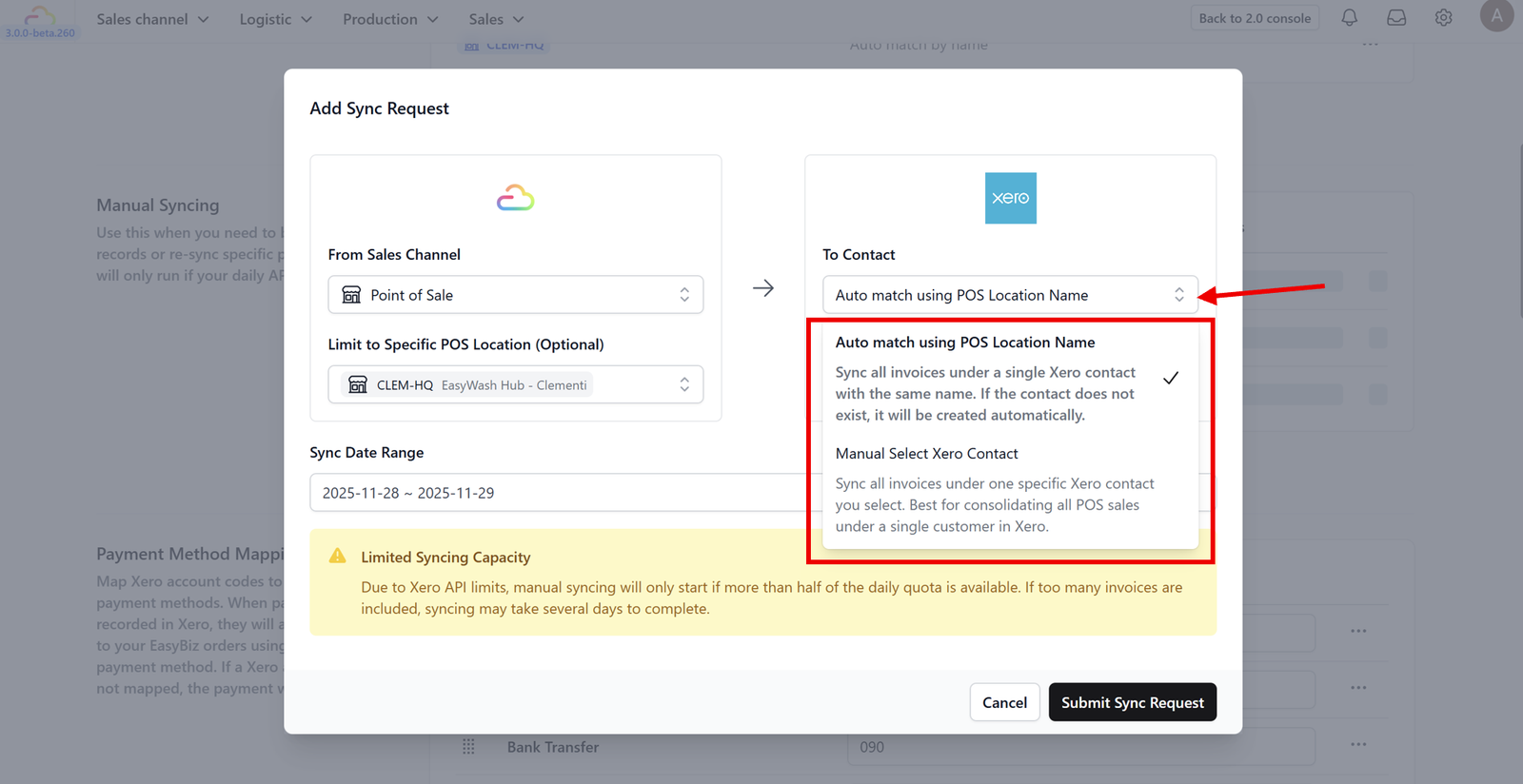
5. Contact Mapping: Option A: Choose "Auto-match by name". This tells Xero to look for an existing customer with the same name. If none is found, it will create a new contact automatically. Option B: Choose "Manual Select Xero Contact" if you prefer to group all sales from this channel under a single generic contact (e.g., "Walk-in Customer") to keep your Xero contact list organized.

6. Click Submit Sync Request.

7. You will receive a notification that the sync request has been submitted.

8. Once processed, the status bar will show that the sync is complete.
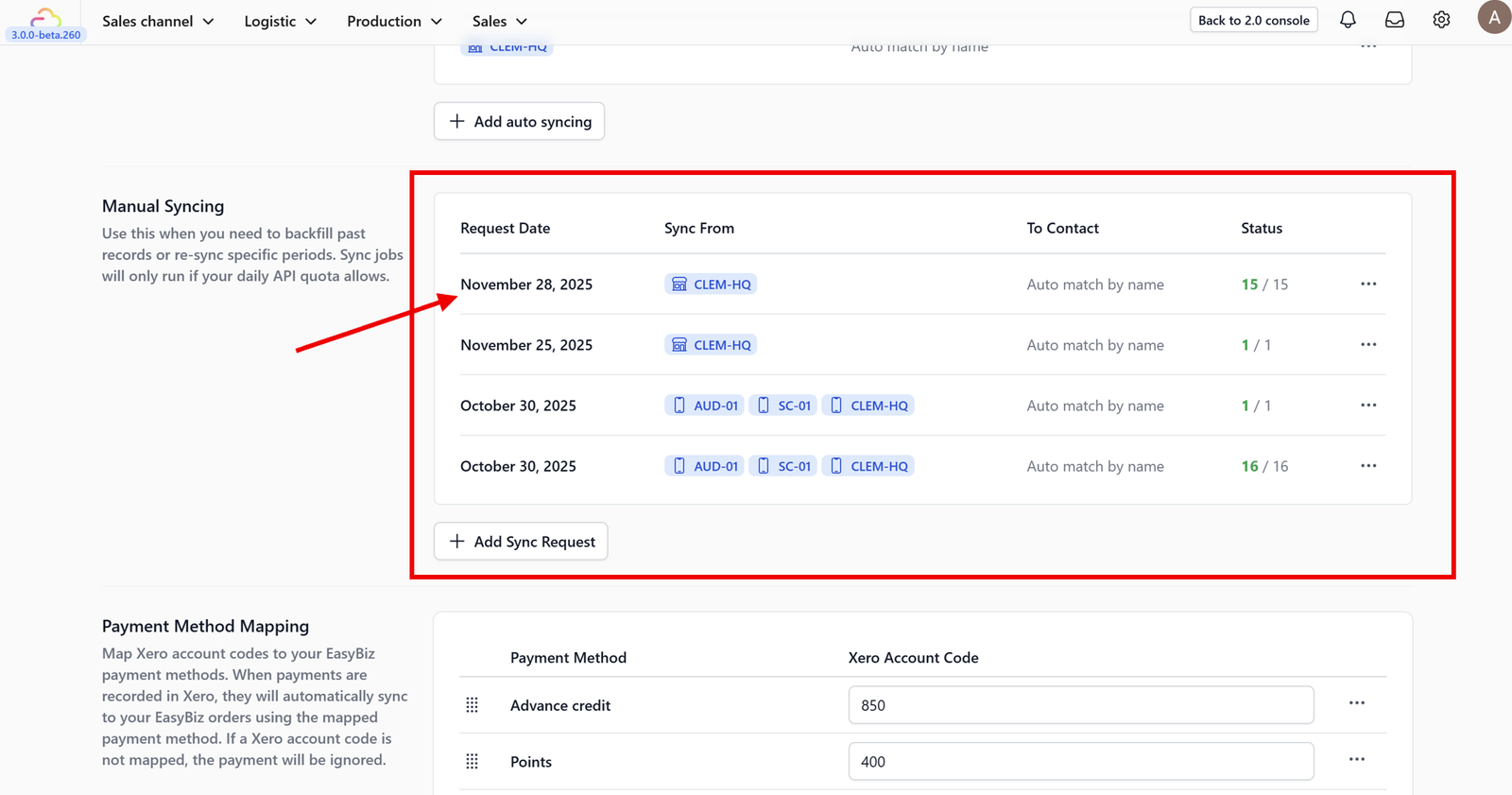
9. You can now see your synced data.
The Workflow
Once active, the process is seamless:
- Create an order on your sales channel. (In the video guide above, we demonstrated this using the POS).
- Add a manual sync request for the specific sales channel and select the date range.
- You can check the status in the history log. Once it says "Completed," your data is in Xero.
What's Next?
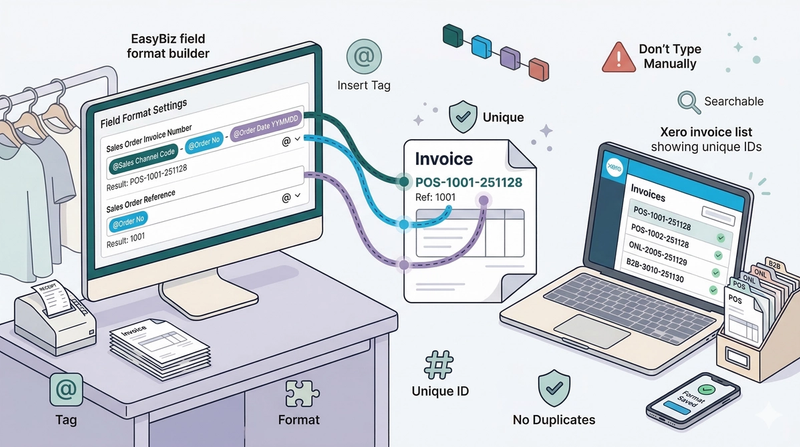
Now that you have both auto and manual sync covered, continue to [Customizing Invoice Numbers] to control how invoice numbers are generated so they match your accounting conventions.
Give feedback
Up next
Customizing Invoice Numbers🔢 Prevent duplicate errors. Customize your invoice numbering format to keep your Xero data organized and avoid conflicts with other systems.
Read more