
Mapping Payment Methods
In this article
Mapping payment methods ensures Xero knows when an invoice is paid and where the money goes—so your accounts stay accurate without manual reconciliation.
Contents
Contents
Why Is It Important to Map Payment Methods?
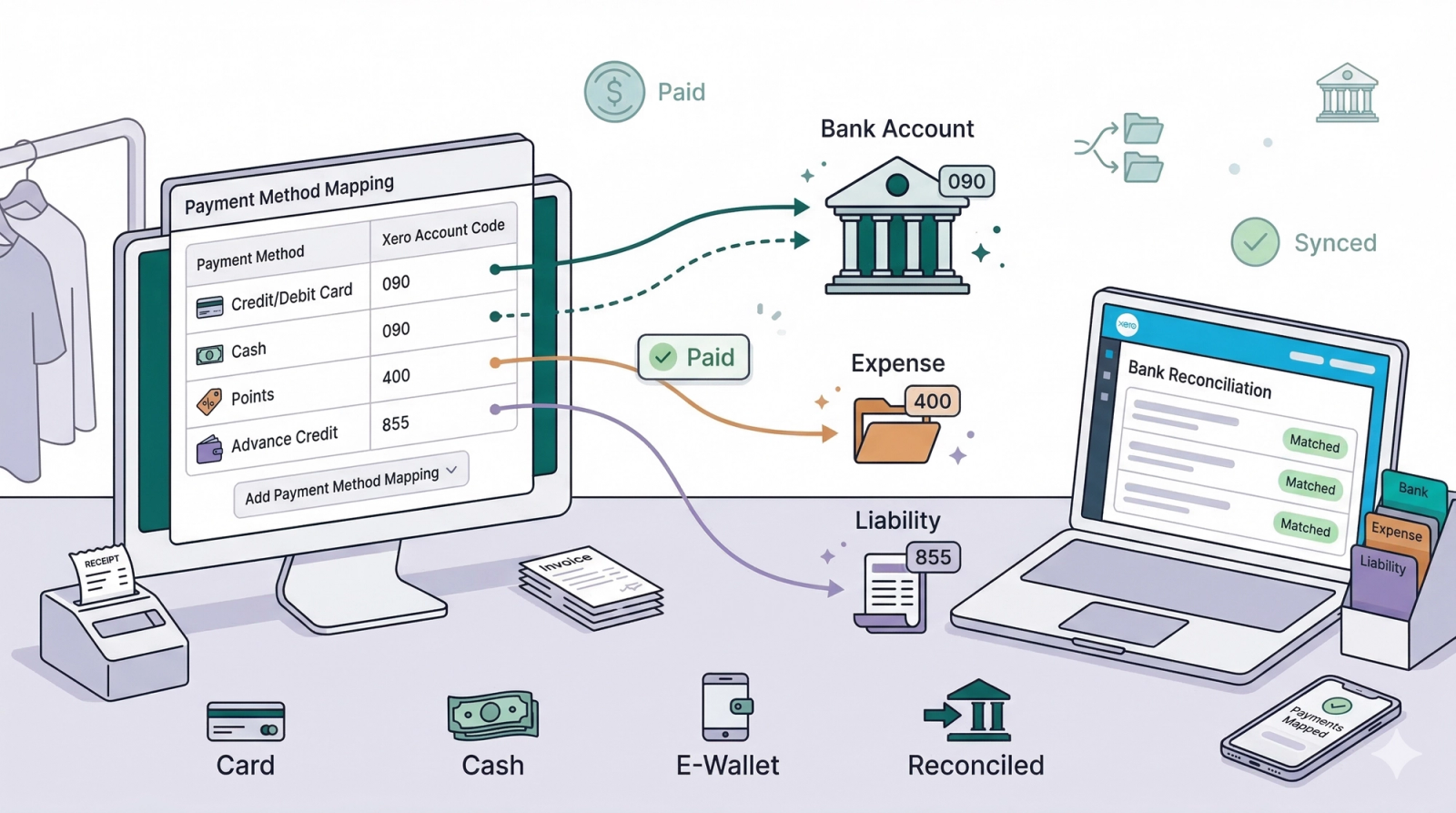
When a customer pays for an order in EasyBiz, the system records how they paid — whether it was by cash, credit card, QR code, or advance credit. But Xero does not automatically know where to record that payment. Without payment method mapping, Xero will not know which bank account or liability account the money belongs to, and your invoices may get stuck in the Awaiting Payment tab even though the customer has already paid.
By mapping your payment methods, you are telling EasyBiz where each type of payment should go in Xero. For example, "When a customer pays by VISA, record it in my bank account in Xero. When a customer pays by advance credit, record it in my Customer Advance Credit account." This ensures that every payment syncs to the correct account in Xero, your invoices move to the Paid tab automatically, and your bank reconciliation stays clean.
Where to find this setting?
Go to Settings > Business Portfolios. Click your business > Click the three dots for Xero > Settings. Scroll down to the Payment Method Mapping section.
Where Can I Find the Chart of Accounts in Xero?
- Log in to your Xero account.
- Click Accounting in the top navigation bar.
- Select Chart of Accounts from the dropdown menu.
You will see the full list of your account codes, names, types, and tax rates. This is where you can check your existing codes or add new ones if needed.
Common Mapping Examples
- Bank / Credit Cards / Cash: These methods represent real money entering your business.
- Map to: Your Business Bank Account (e.g., Code 090).
- Points / Vouchers: These are non-monetary payments. You are "paying" for the service by giving value away, which is a marketing cost.
- Map to: An Expense Account like Advertising (e.g., Code 400).
- Advance Credit: This represents money the customer gave you previously (Liability) that you are now using.
- Map to: An Expense Account like Advertising (e.g., Code 400).
How to Map Your Payment Methods with Xero

Scroll down to the Payment Method Mapping section. Click on the dropdown and select the payment methods your business uses to map them to Xero.
helo

For Advance Credit, use account code 855 (Customer Advance Credit). This is a Current Liability account because the money was already received when the customer topped up their credit. When they spend it, no new money enters your bank — the system simply moves the amount from the liability to revenue.

For Points, use account code 400 (Advertising). This is an Expense account because when a customer redeems points, your business absorbs the cost as a promotional expense rather than receiving actual payment.

For Credit/Debit Card, use account code 090. This is a Bank account type in Xero that is linked to your actual bank account number. By mapping card payments here, every credit or debit card transaction will be recorded in this account, making it easier to reconcile with your bank statement.

Once you have mapped all your payment methods, do not forget to click Save to apply your changes.
Watch: How to Map Your Payment Methods in Xero
Prefer to follow along visually? Watch the full walkthrough below.
What's Next?
Now that payments flow to the right accounts, continue to [Choosing the Right Contact Matching Method for Your Business] to decide how EasyBiz should pair customers with their Xero contact records.
Give feedback
Up next
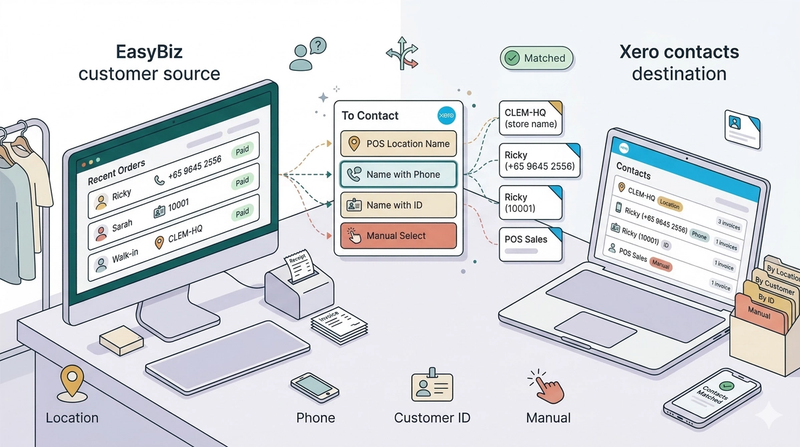
Choosing the Right Contact Matching Method for Your BusinessLearn how each contact matching method works and find the one that best fits how your business manages customers in Xero.
Read more