
Auto Sync
In this article
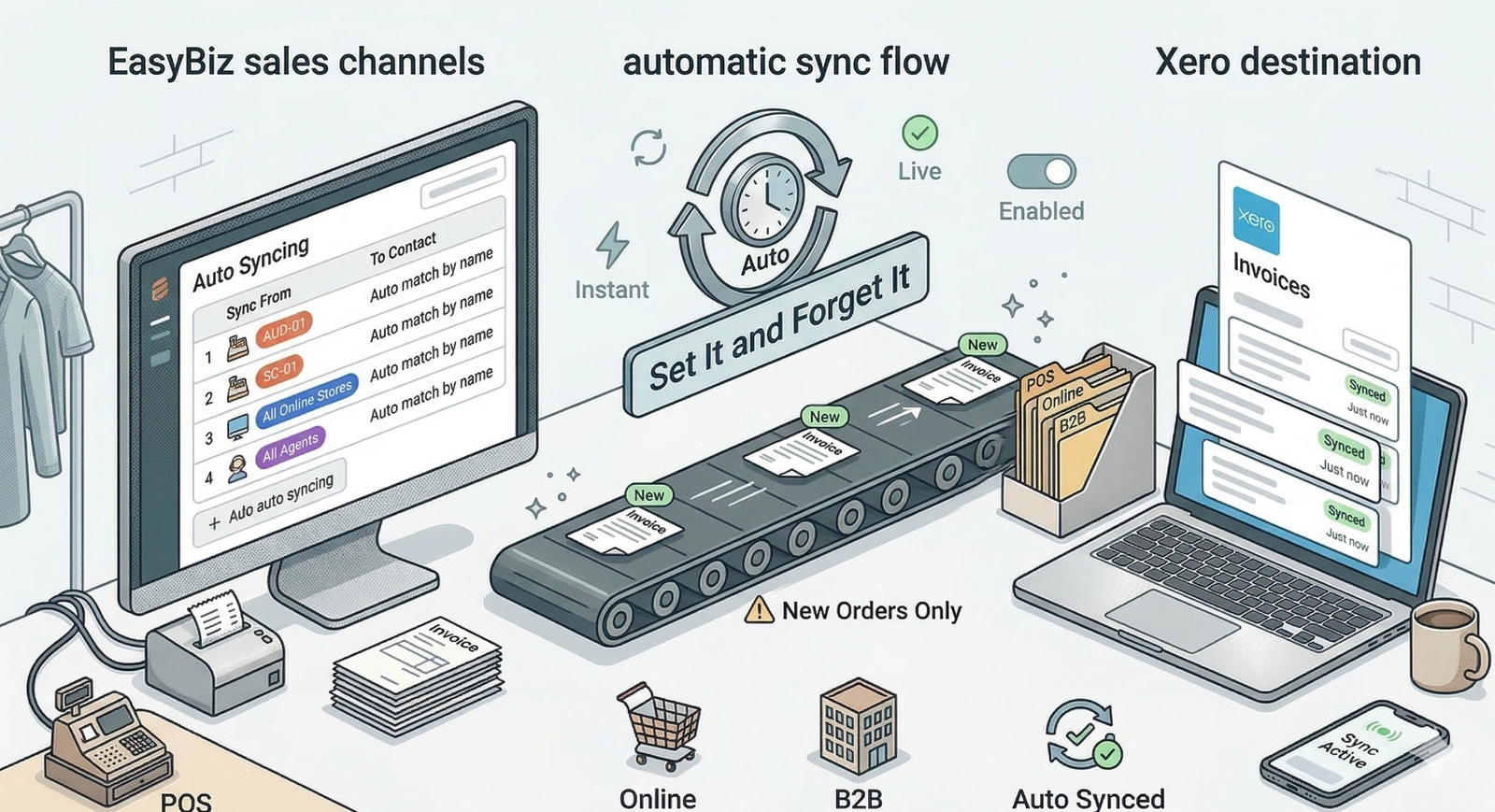
Auto Sync is the "set it and forget it" feature. Once enabled, EasyBiz will automatically push orders to Xero the moment they are created or updated. You do not need to click any buttons.
Contents
Contents
What is Auto Sync
Auto Sync is designed to run in the background without you touching it. Once you enable it, every new sale you make is instantly pushed to Xero.
Where to find this setting?
Go to Settings > Business Portfolios. Click your business > Click the three dots for Xero > Settings. Scroll down to the Auto Syncingsection.
Understanding Contact Mapping
When setting this up, you have two choices for how these invoices appear in Xero:
1. Auto-Match (Dynamic)
The system looks for a contact in Xero with the exact same name.
- For Online Stores/B2B: It looks for the Customer's Name (e.g., "John Doe"). If "John Doe" doesn't exist, it creates him.
- For POS: It looks for the Location Name: (e.g., "Clementi Branch"). This groups all sales from that store under one Xero contact.
- Auto match by Customer Phone Number.:A separate Xero contact will be created for each customer using their phone number as a unique identifier. This means two customers with the same name but different phone numbers will become separate contacts in Xero. This is useful if your customers share common names and you need a reliable way to tell them apart.
- Auto match by Customer ID: A separate Xero contact will be created for each customer using their customer ID (e.g., 1001) as a unique identifier. This is best for B2C businesses that use a customer index system.
2. Manual Select (Generic Contact)
This acts as a "Catch-All." You force all sales from a specific channel to go into a single, generic Xero contact of your choice.
How to set up Auto Sync
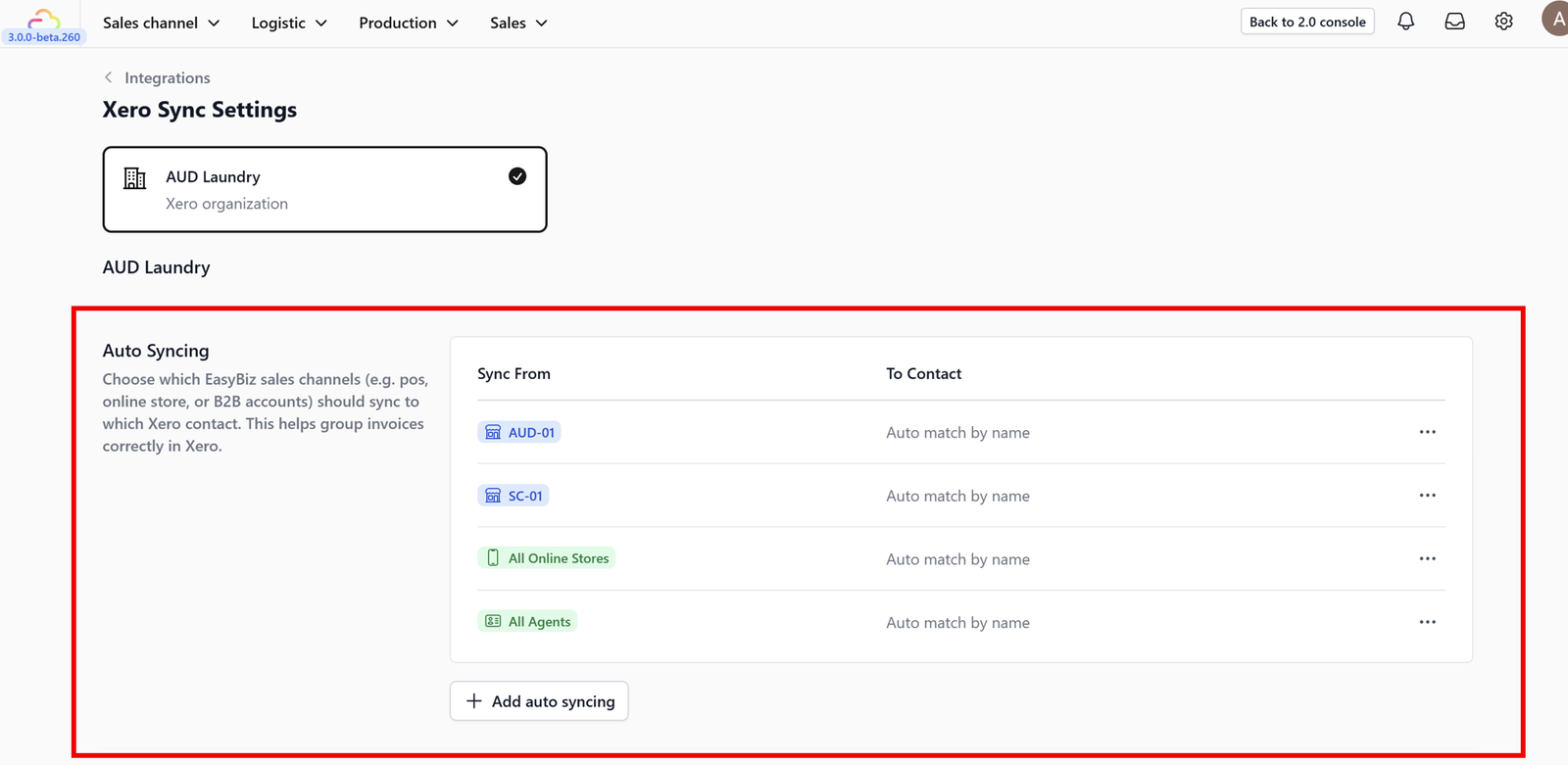
1. Go to the Auto Syncing tab in the Xero Integration settings.

2. Click Add Auto Syncing.

3. Select Sales Channel: Choose where the orders are coming from (e.g., "POS" or "Online Store").

4. Select Location: Choose which branch this applies to (e.g., "Clementi Branch").
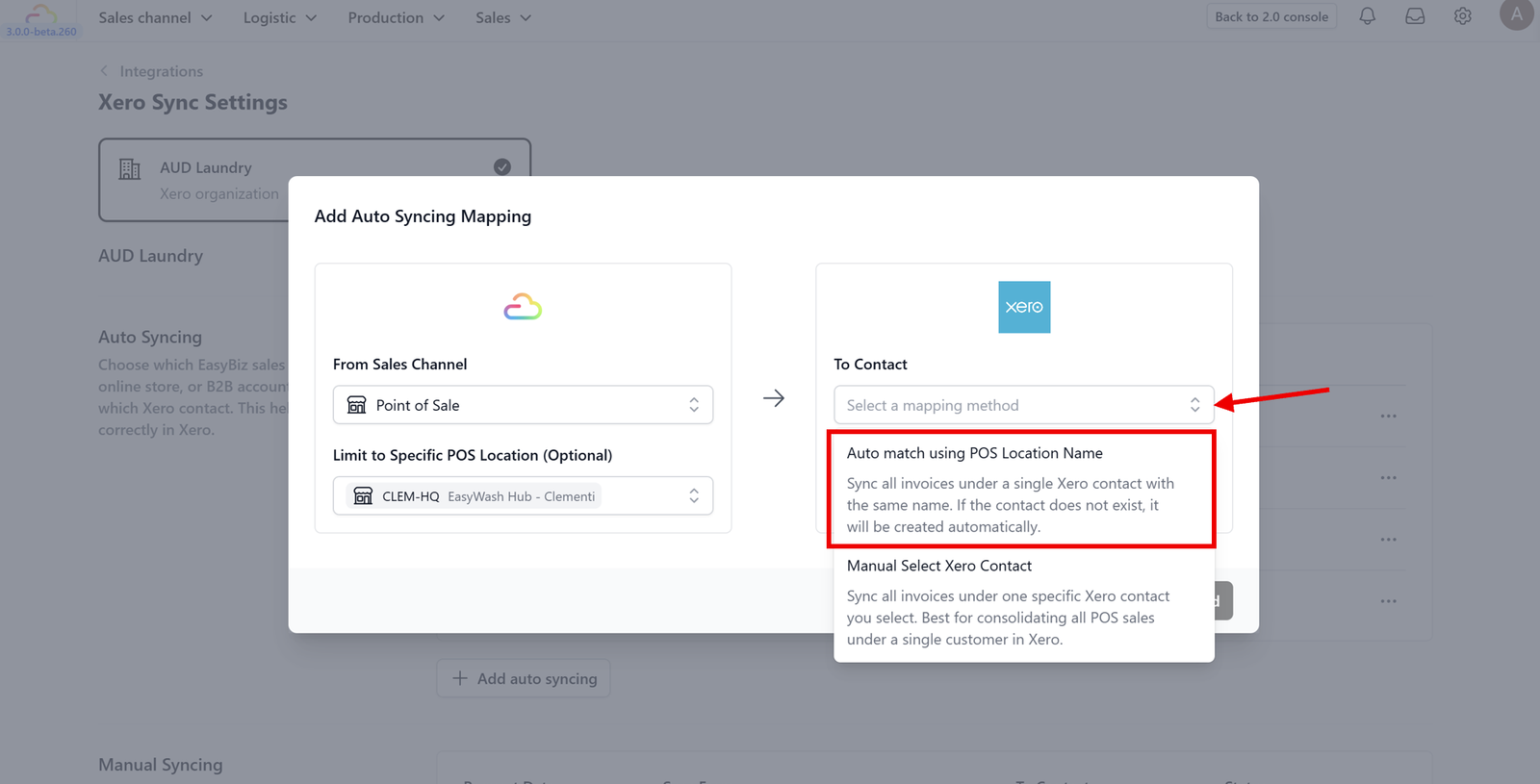
5. Contact Mapping: Option A: Choose "Auto-match by name". This tells Xero to look for an existing customer with the same name. If none is found, it will create a new contact automatically. Option B: Choose "Manual Select Xero Contact" if you prefer to group all sales from this channel under a single generic contact (e.g., "Walk-in Customer") to keep your Xero contact list organized.

6. Click Add.

7. Once added, your specific sales channel configuration will appear in this list, confirming that auto-sync is successfully active.
The Workflow
Once active, the process is seamless:
- Create an order on your sales channel. (In the video guide above, we demonstrated this using the POS).
- Wait a few seconds.
- The order appears in Xero automatically.
What's Next?
Now that auto sync is running, continue to [Manual Sync] to learn the manual fallback for re-pushing or correcting individual records when needed.
Give feedback
Up next
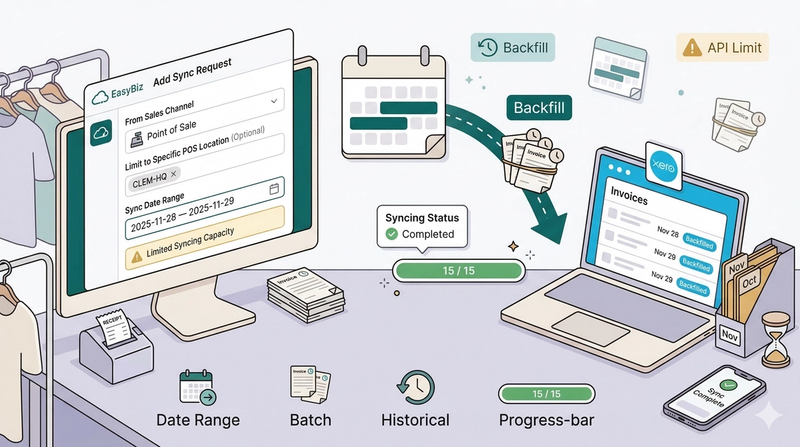
Manual Sync📅 Sync historical data. Use the manual sync tool to backfill past orders or recover data if an internet outage interrupts your auto-sync.
Read more