
Connect Your Account
In this article
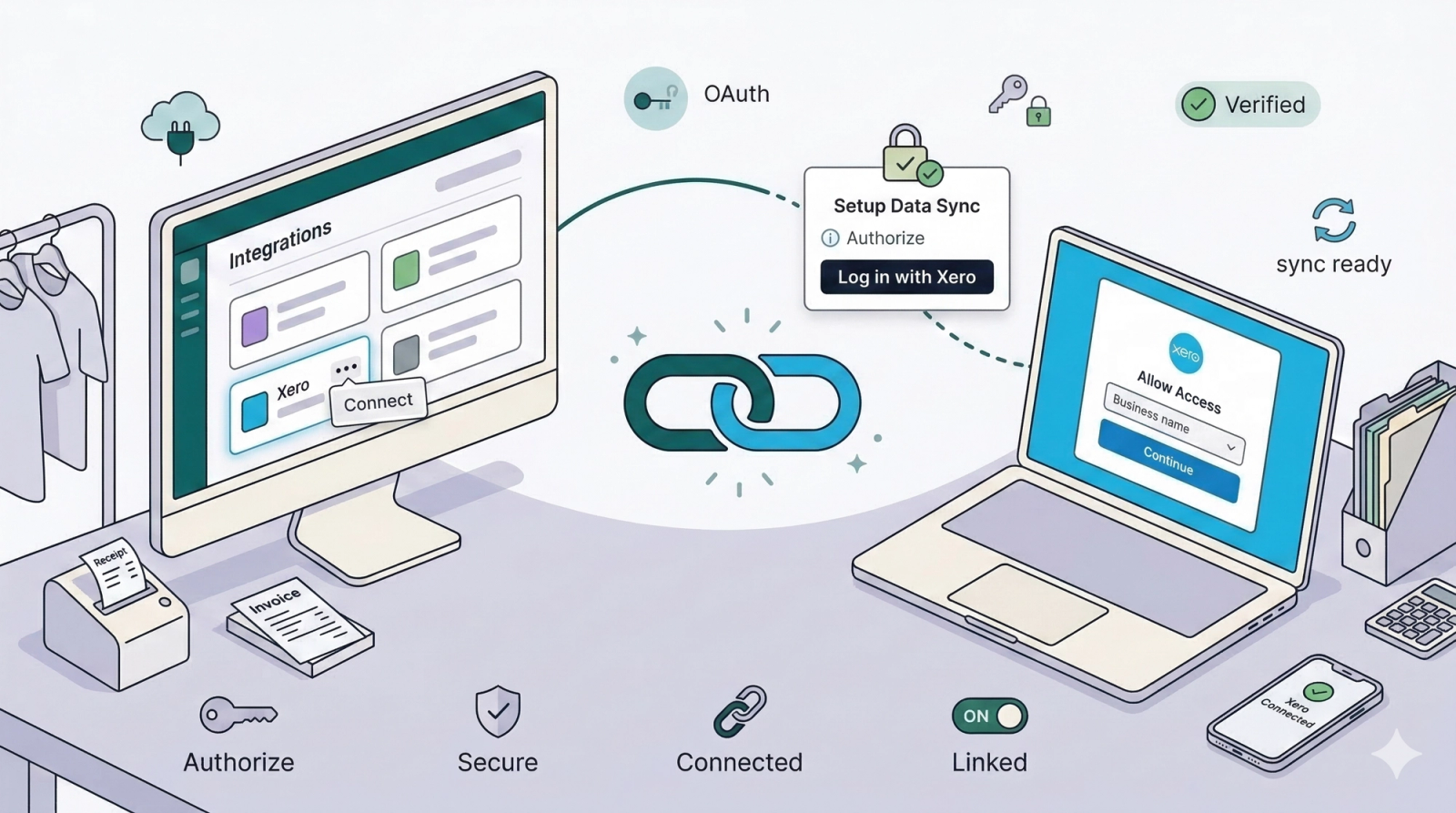
Overview: The first step to automating your accounting is to authorize a connection between EasyBiz and your Xero organization. This is a one-time setup process.
Contents
Contents
Prerequisites
Before you begin, ensure you have:
- Admin Access to your EasyBiz account.
- An active Xero account (login credentials ready).
Step-by-Step Guide
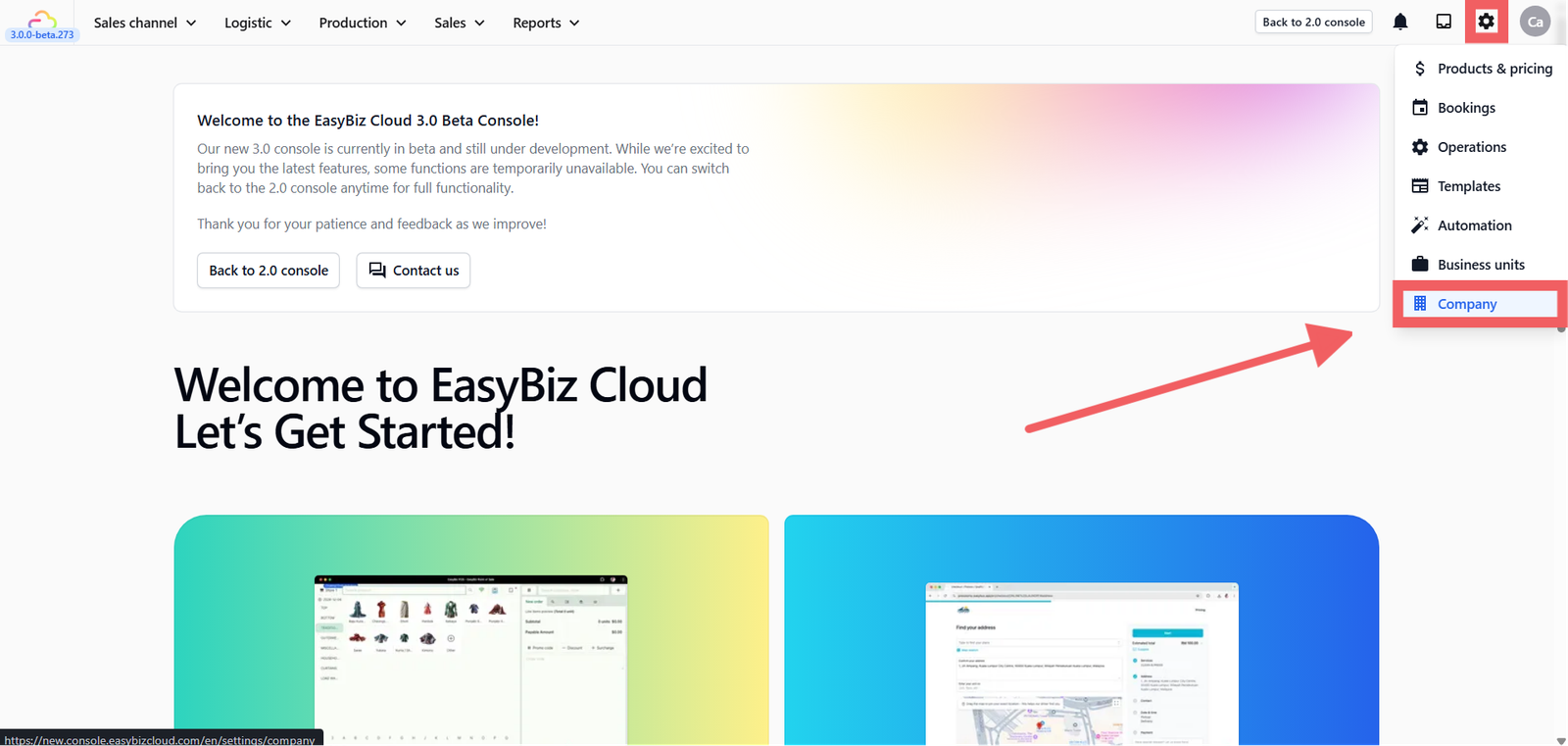
1. Navigate to Company: Log in to your EasyBiz 3.0 Console. On the side menu, go to Settings and select Company.
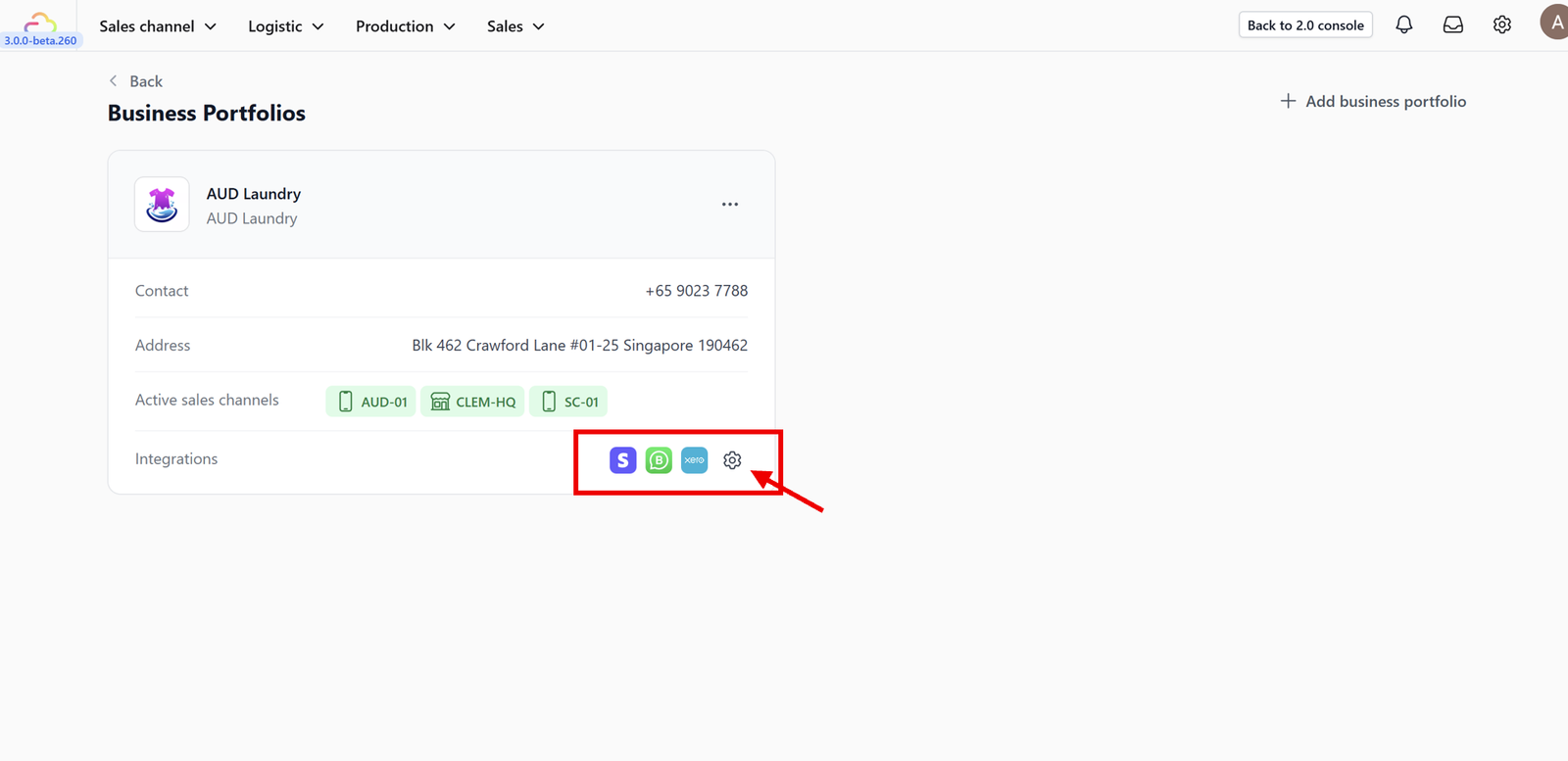
2. Select Integration Settings: Click on the specific company you want to connect, then click on the Integrations settings button.
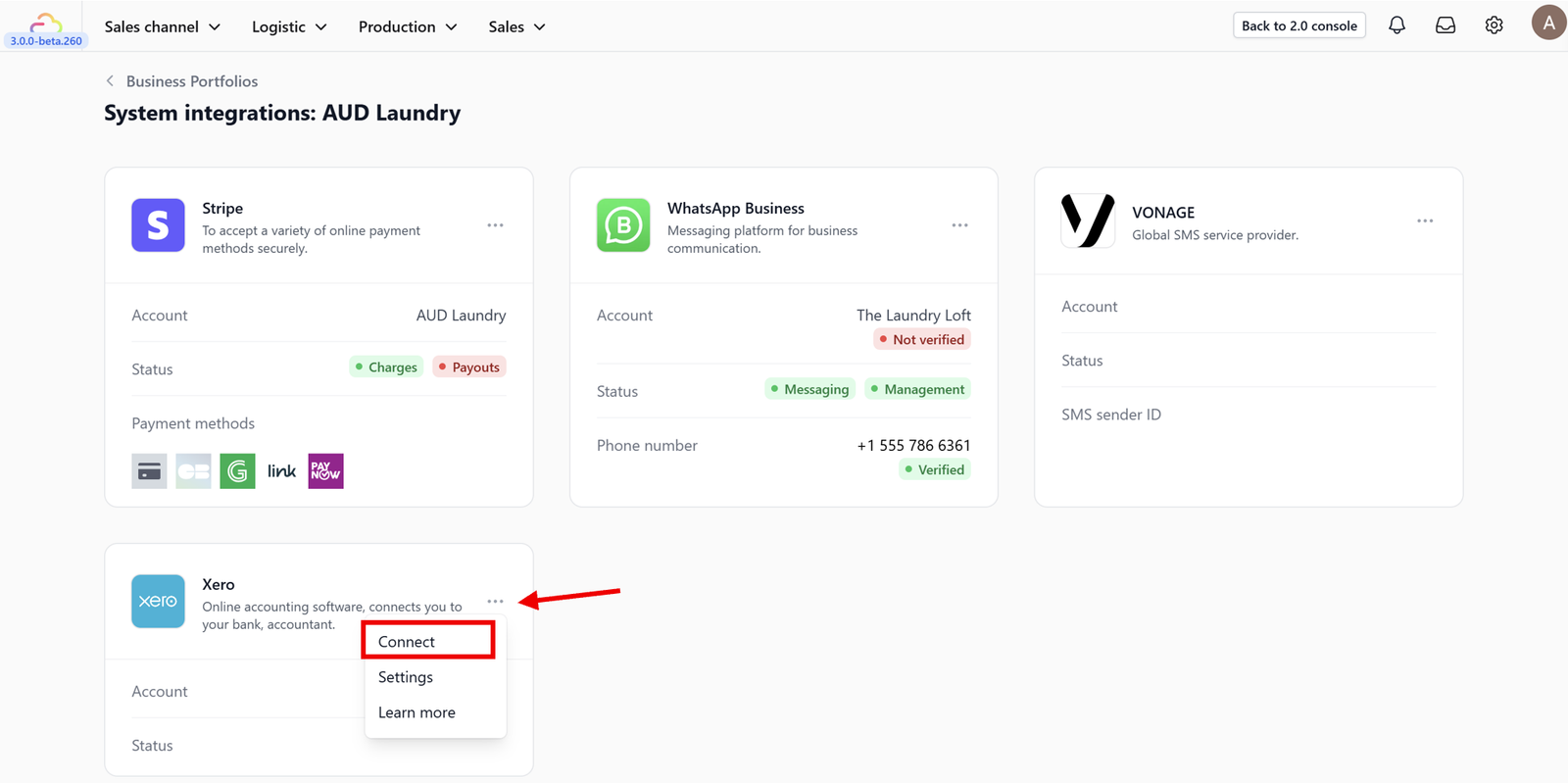
3. Connect Xero: Locate the Xero card in the list of available integrations. Click the three dots icon on the card and select Connect.
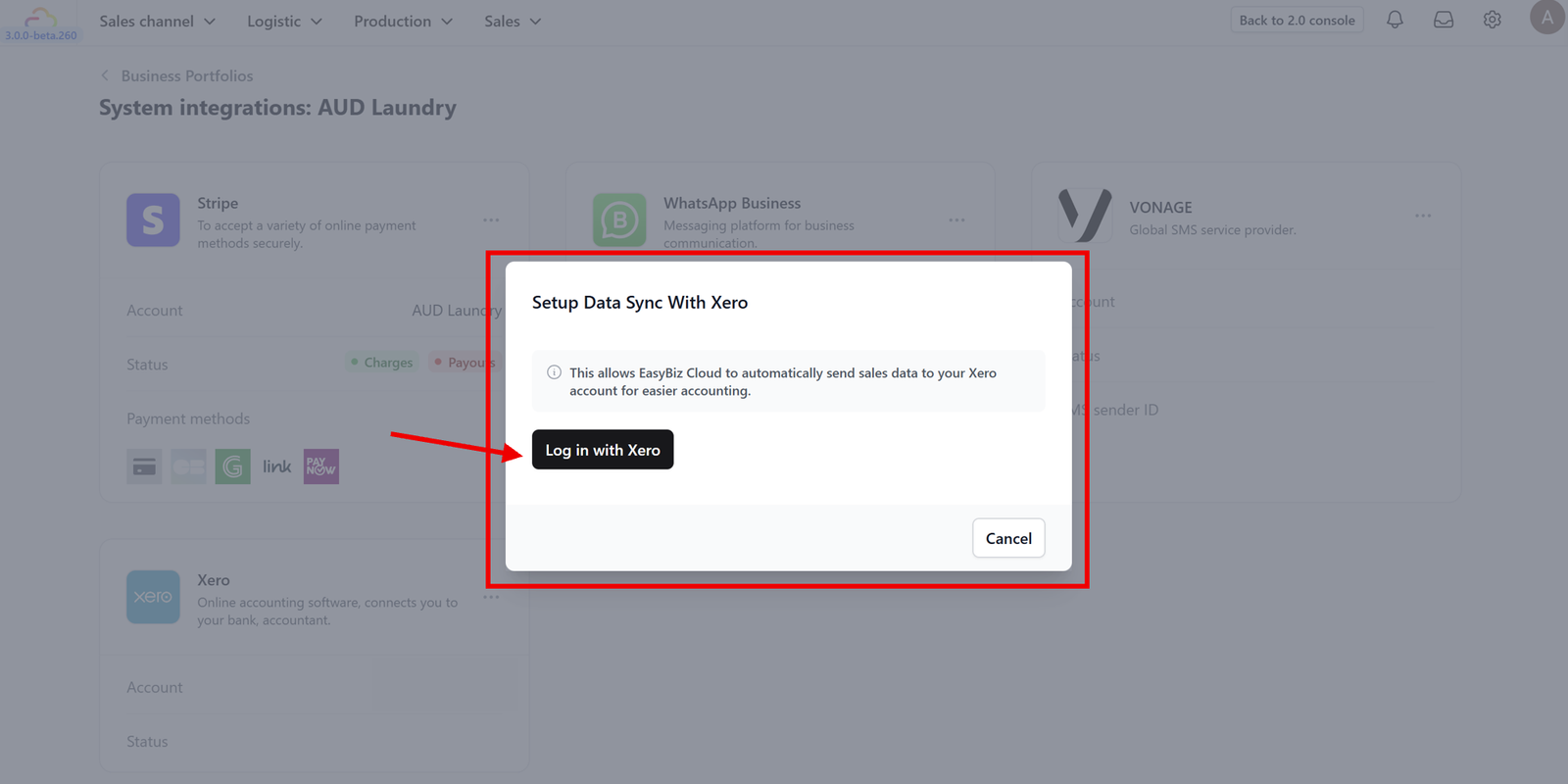
4. Authorize: A popup window will appear asking you to log in to Xero. Enter your Xero email and password.
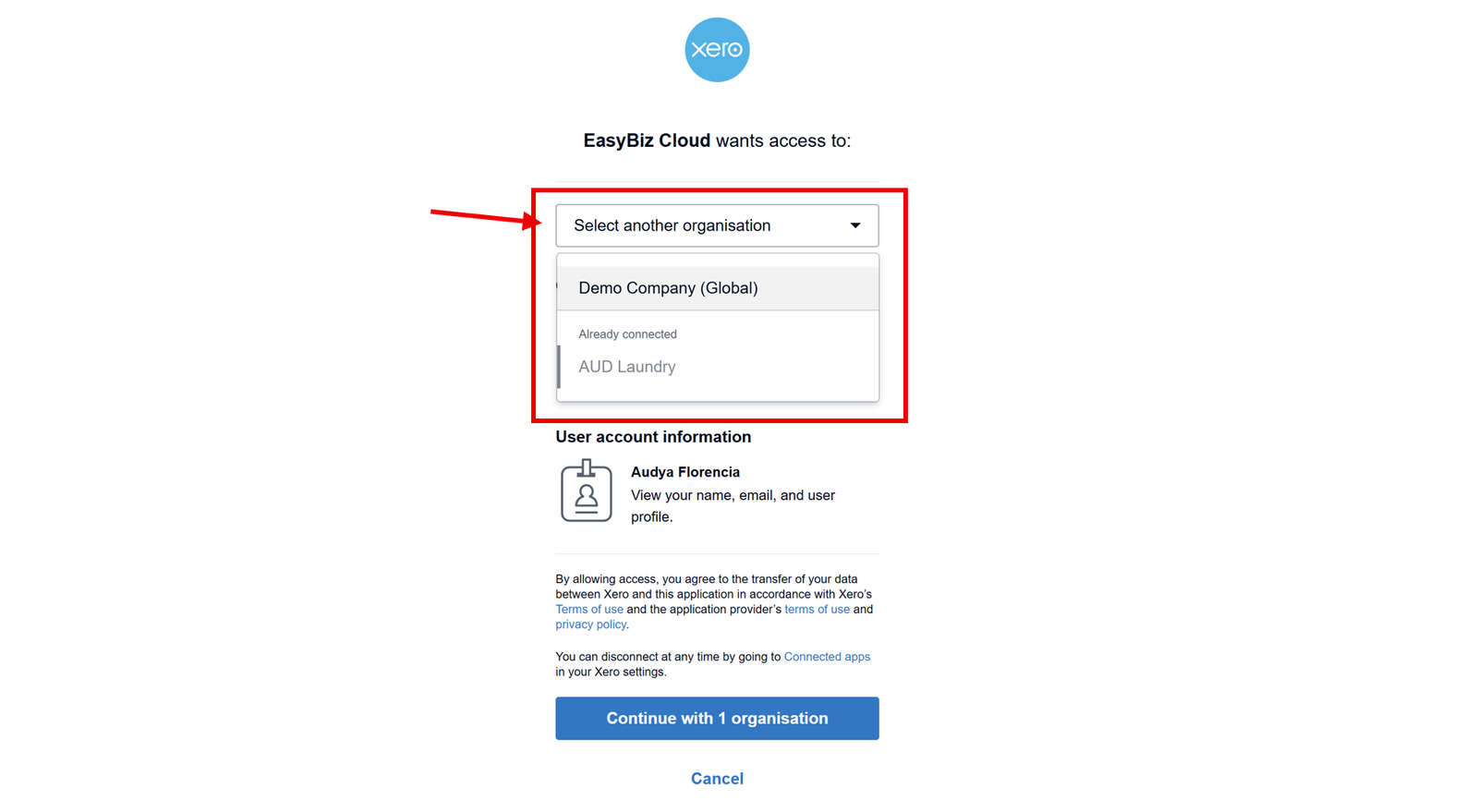
5. Select Organization: If you manage multiple businesses in Xero, you will be asked to select which organization you want to link. Choose the correct business and click Allow Access.
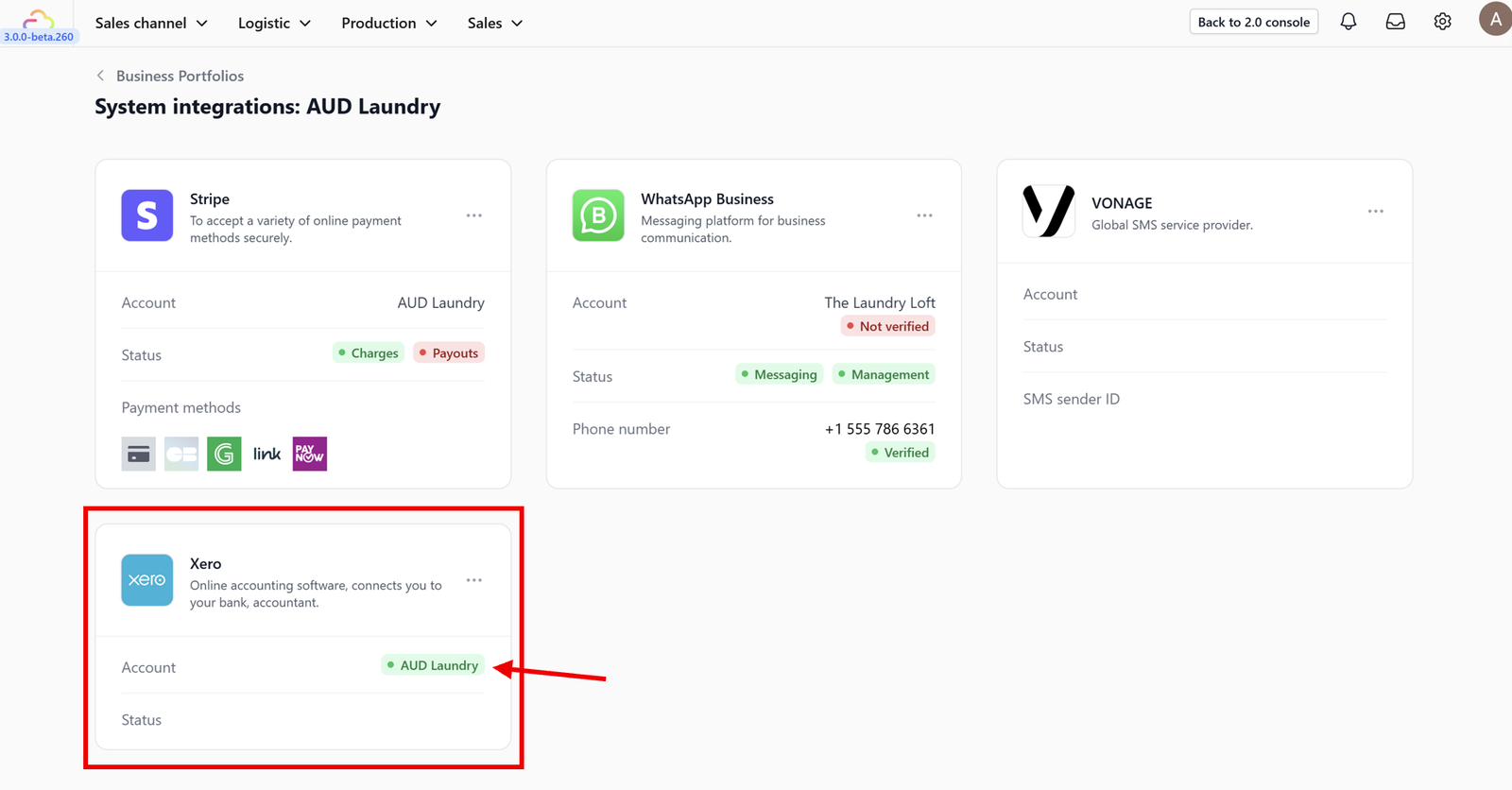
6. Verify: Once the window closes, you will be redirected back to EasyBiz. You should now see a green "Connected" badge on the Xero card.
Watch: How to Connect your Easybiz account to Xero
Prefer to follow along visually? Watch the full walkthrough below.
What's Next?
Now that Xero is connected, continue to [Configuring Account Codes] to map each EasyBiz revenue stream to the right Xero account.
Give feedback
Up next
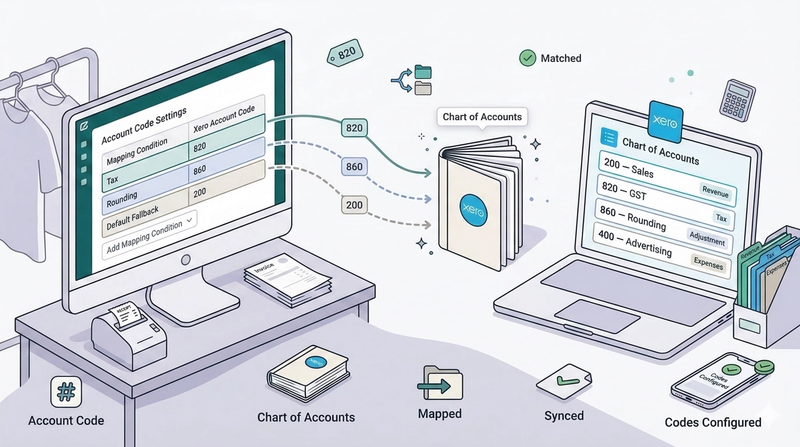
Configuring Account Codes🏷️ Categorize your revenue correctly. Learn how to map your sales, taxes, and expenses to the right Xero accounts so your financial reports are always accurate.
Read more