
Managing Conversations Inbox
In this article
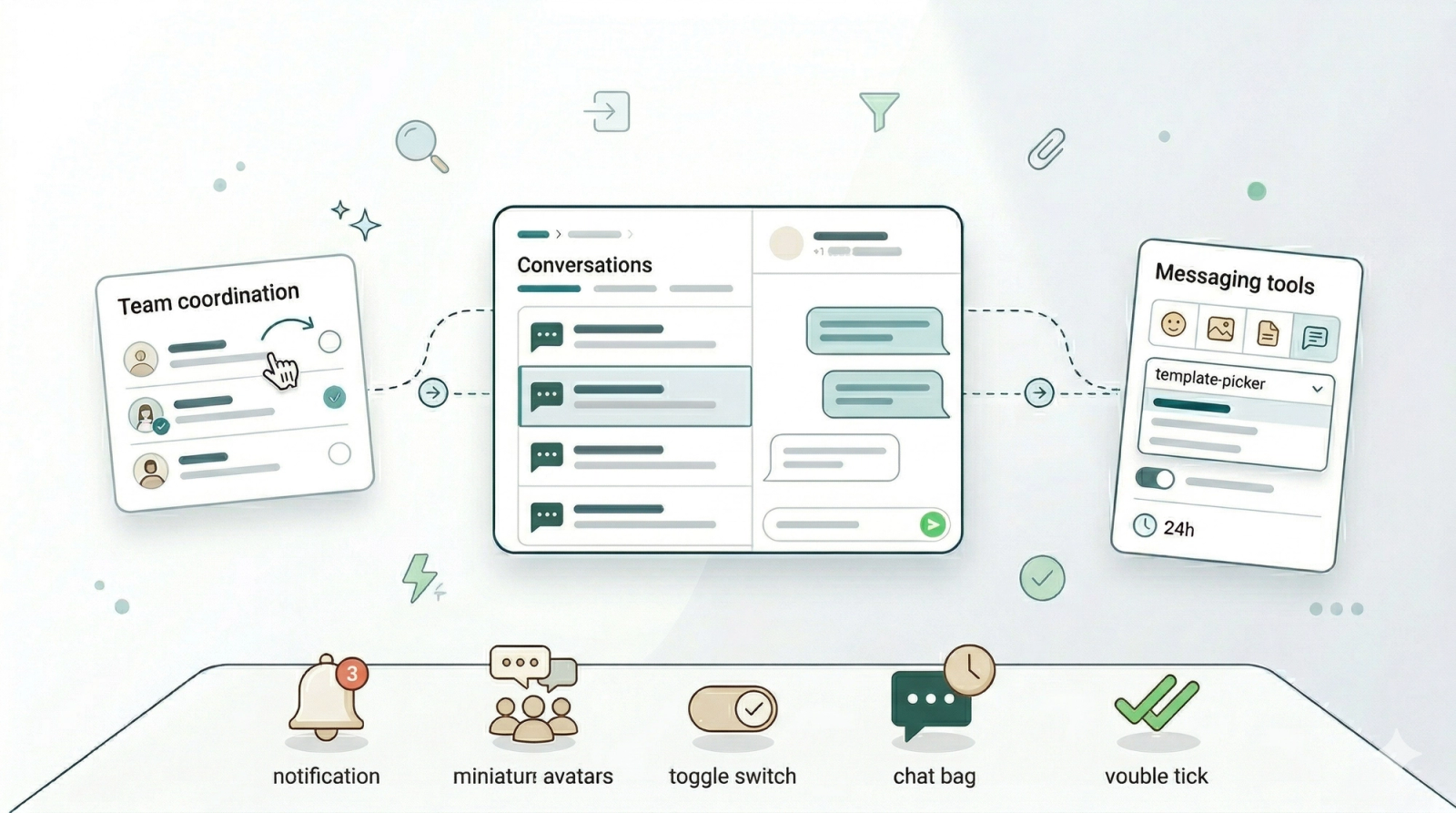
The Conversations Inbox is where your team handles all customer WhatsApp messages. Unlike a personal phone, this is a shared workspace — your whole team can see incoming chats, pick them up, and reply without stepping on each other.
Contents
Contents
Why use the Shared Inbox?
- No more missed messages — All incoming chats appear in one place, visible to your whole team
- Clear ownership — Staff can assign chats to themselves so everyone knows who is handling what
- Stay organised — Filter by Pending, Unassigned, or All to see exactly what needs attention
Handle unassigned chats
When a customer messages you for the first time, the chat appears in the Unassigned tab.
- Click the Unassigned tab in your Inbox.
- Select a chat to preview the message.
- Click Attend (or Assign to me) to move it to your active list and start replying.
Start a new conversation
You can reach out to customers in two ways:
- Existing Customer: Search for their name or phone number in the sidebar.
- New Customer: Click Start conversation, enter the country code and phone number, then click Start WhatsApp
Understand the 24-hour rule
WhatsApp only allows free-form messages within 24 hours of a customer's last reply. Here's what that means in practice:
- Window open — The customer replied to you recently. You can type and send freely.
- Window closed — The customer hasn't replied in over 24 hours. The text box will be locked and you'll need to send an approved template to re-open the conversation.
Send a Template

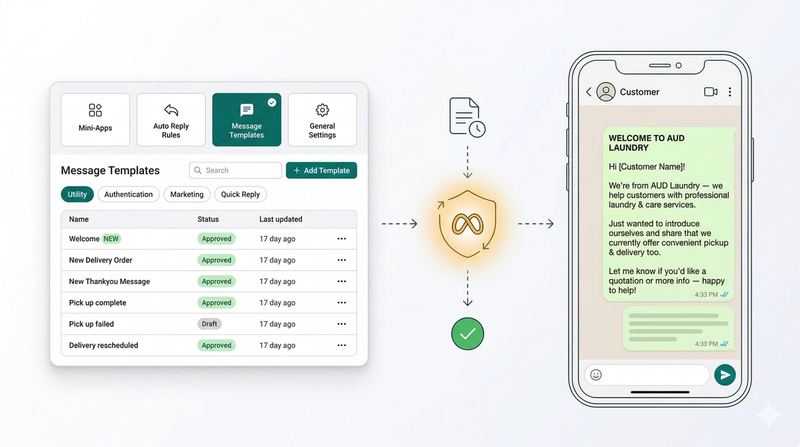
Use templates to start a conversation, send an order update, or re-open the 24-hour window.
- Click the Template icon (the message bubble) in the toolbar.
- Choose an approved template (e.g., Welcome).
- If required, select the context (e.g., the specific Customer) to auto-fill the variables.
- Click Send.
Send free-form messages & Quick Replies
Standard Free-form & Attachments

Type your message in the input box and hit Enter. Use the toolbar icons below the text box to quickly share attachments or use system features:
- Emoji, Image, Video, Document: Standard media sharing.
- Template (Message bubble): Send pre-approved WhatsApp templates.
- Mini Apps (Pointing finger): Send interactive Mini Apps forms to the customer. See [What is a Mini App] to learn more.
- Plus (+): Click this to send order-related documents. Selecting this will prompt you to choose an order first, allowing you to send: Order PayNow QR, Order Invoice, Order Receipt, and Order Photos.
Quick Replies

If the 24-hour window is open, you can quickly send pre-made standard replies (FAQs) to save time.
- Simply type
/in the text box. - A popup of your created Quick Reply templates will appear for you to choose from.
The 'Replied' Toggle & Pending Chats

Next to the Send button, you'll see a Replied toggle. This helps your team track which conversations still need follow-up.
- Replied (on) — The conversation is marked as done for now
- Pending (off) — The conversation stays in your Pending list as a reminder that the customer still needs a final response
Use the Pending tab at the top of your sidebar to filter and find customers who are still waiting.
Closing & Reopening Chats

When a customer's issue is resolved, close the chat to keep your inbox tidy.
- Click the three dots (•••) at the top of the chat
- Select Close conversation
- You can also choose to Block contact from this menu if necessary.
To reopen a closed chat:
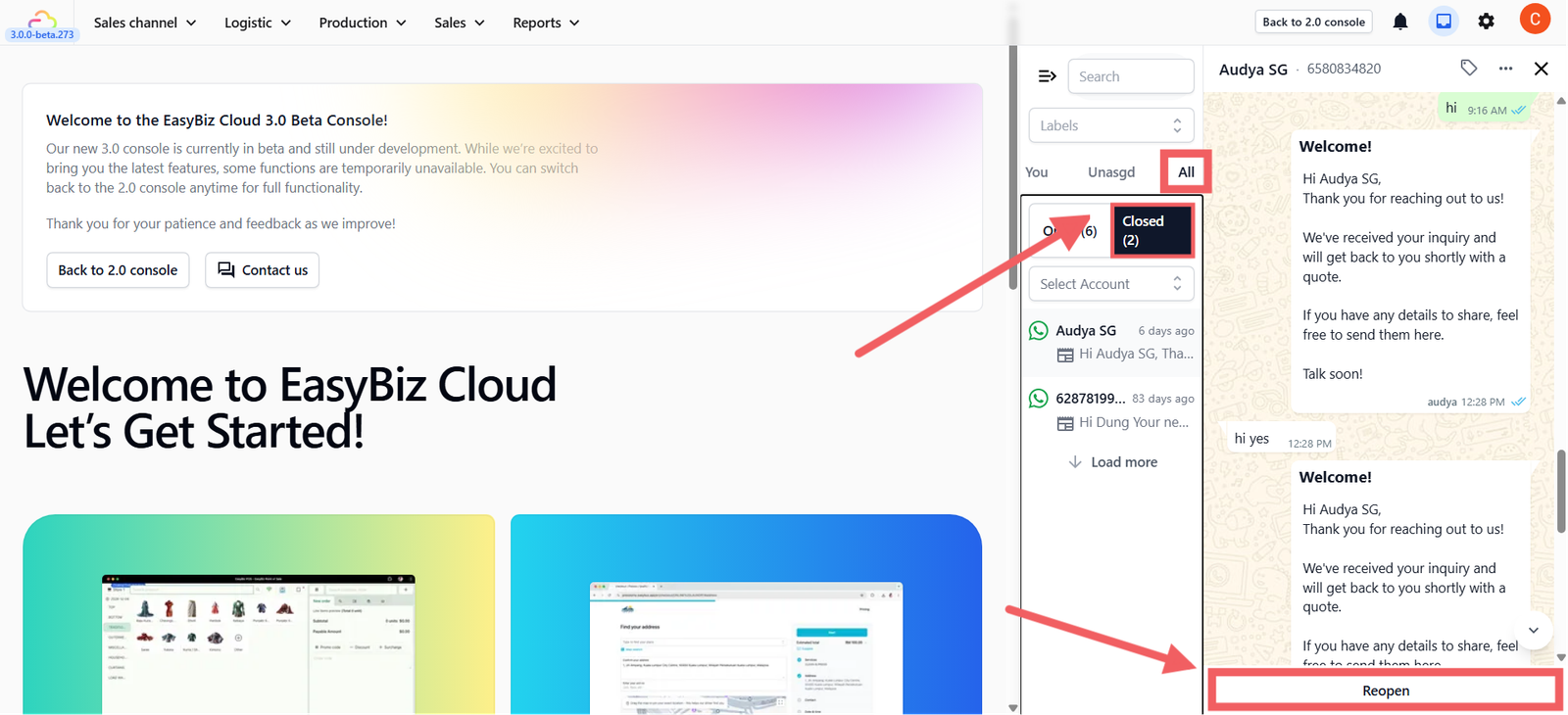
- Click the All tab in the sidebar
- Select the closed conversation
- Click Reopen at the bottom.
Give feedback
Up next
WhatsApp TemplatesPre-written messages for every stage of your customer journey — from first hello to final receipt.
Read more