
Setting Up a Market
In this article
Adding a market in EasyBiz takes one click. You pick a country preset and the system fills in the currency, locale, dial code, and numbering for you. This article walks you through opening the Markets & Locations page, adding a new market from the available presets, and understanding what each setting means once the market is live.
Contents
Contents
Before you start
You only need to add a market if you are going to take orders in a new country. Do not add markets for countries you do not operate in yet. Pick the country preset that matches the legal entity that will run that operation. The market sets the currency and numbering for every receipt and invoice from outlets in that country.
How to open Markets & Locations
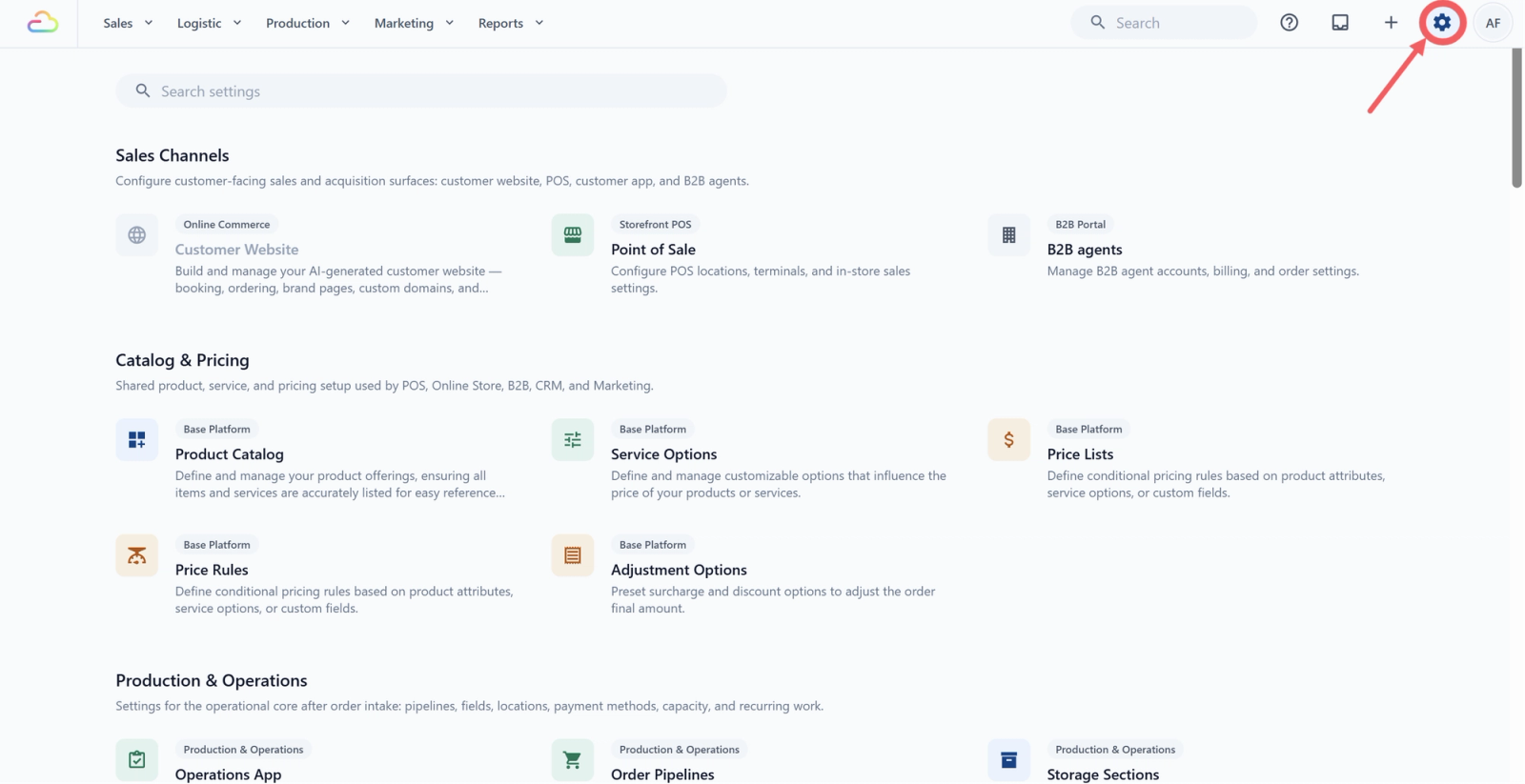
- Click the ⚙️Settings icon in the top-right corner.
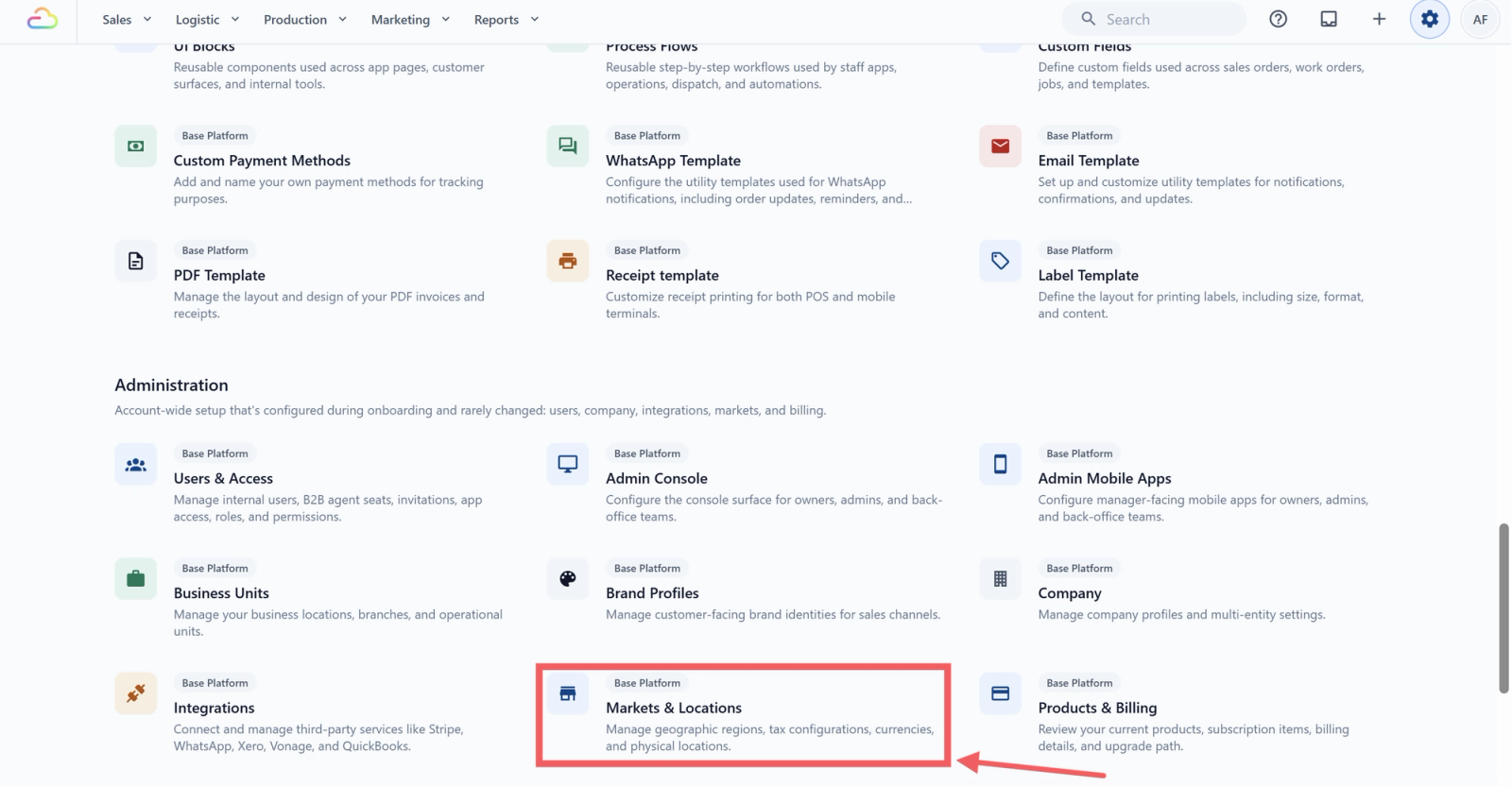
- Scroll down to the Administration section, then click Markets & Locations.
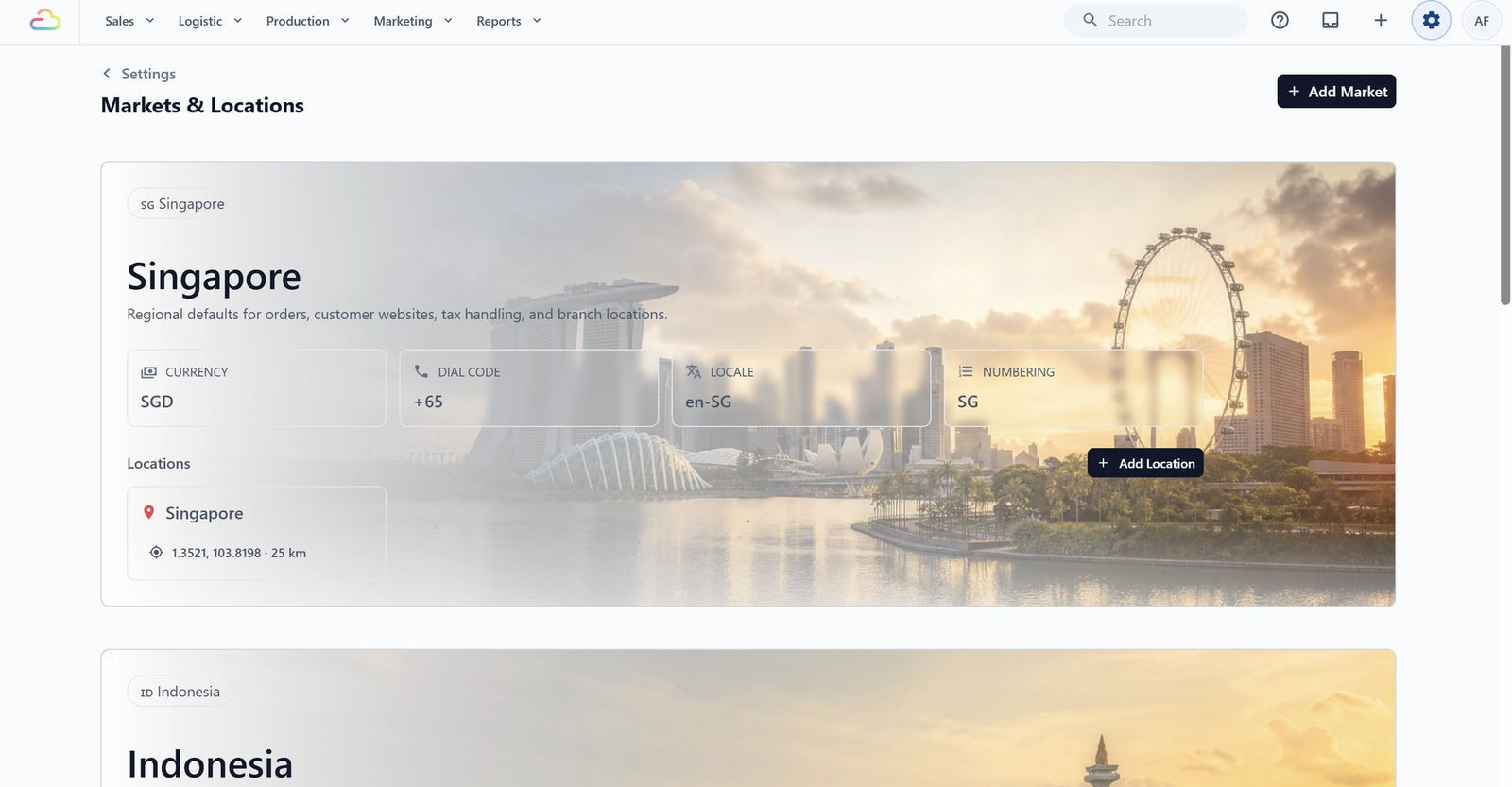
You will land on the Markets & Locations page, which shows one card for each market already set up on your account.
Adding a new market
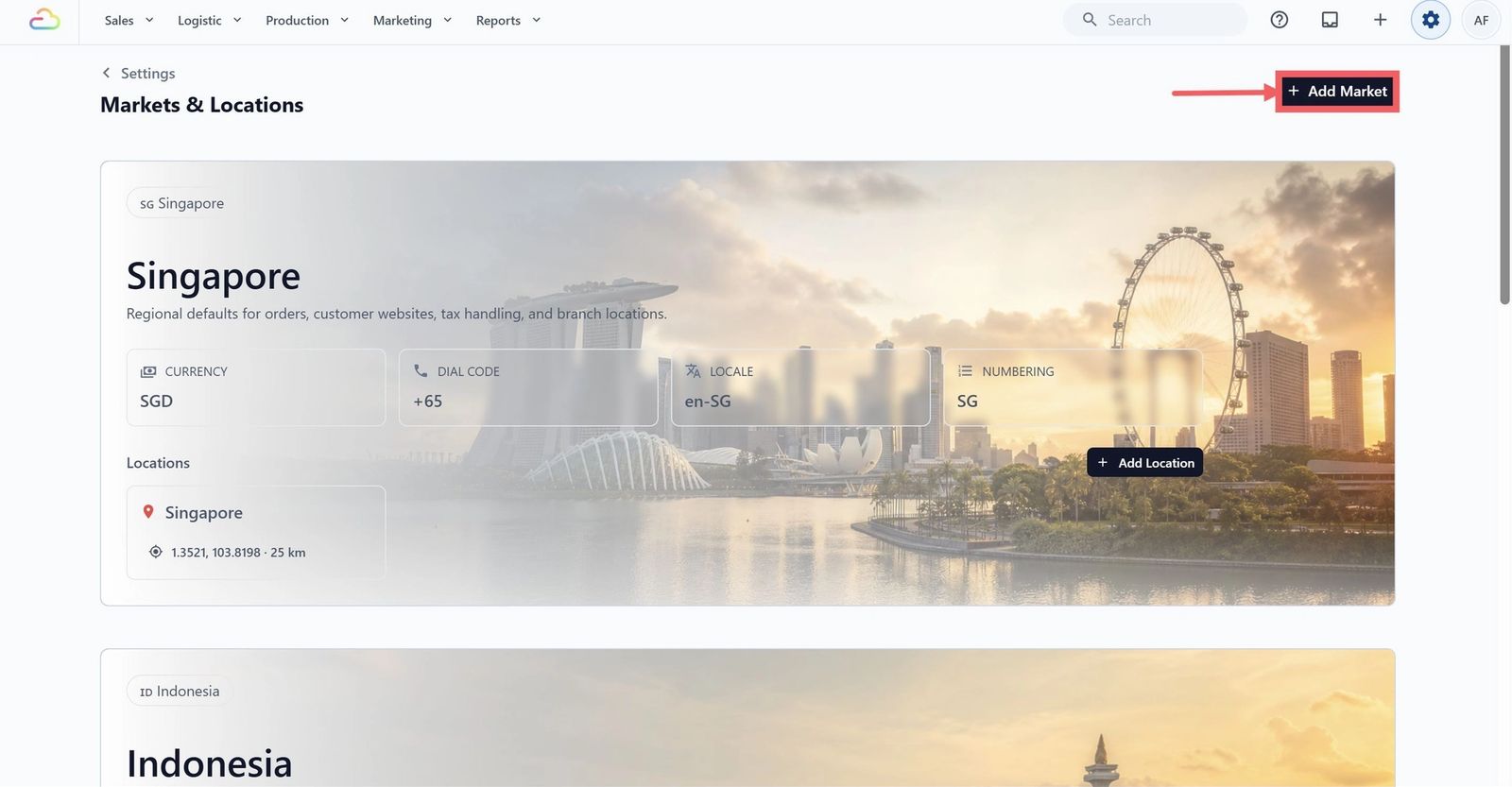
- Click Add Market at the top right of the page.
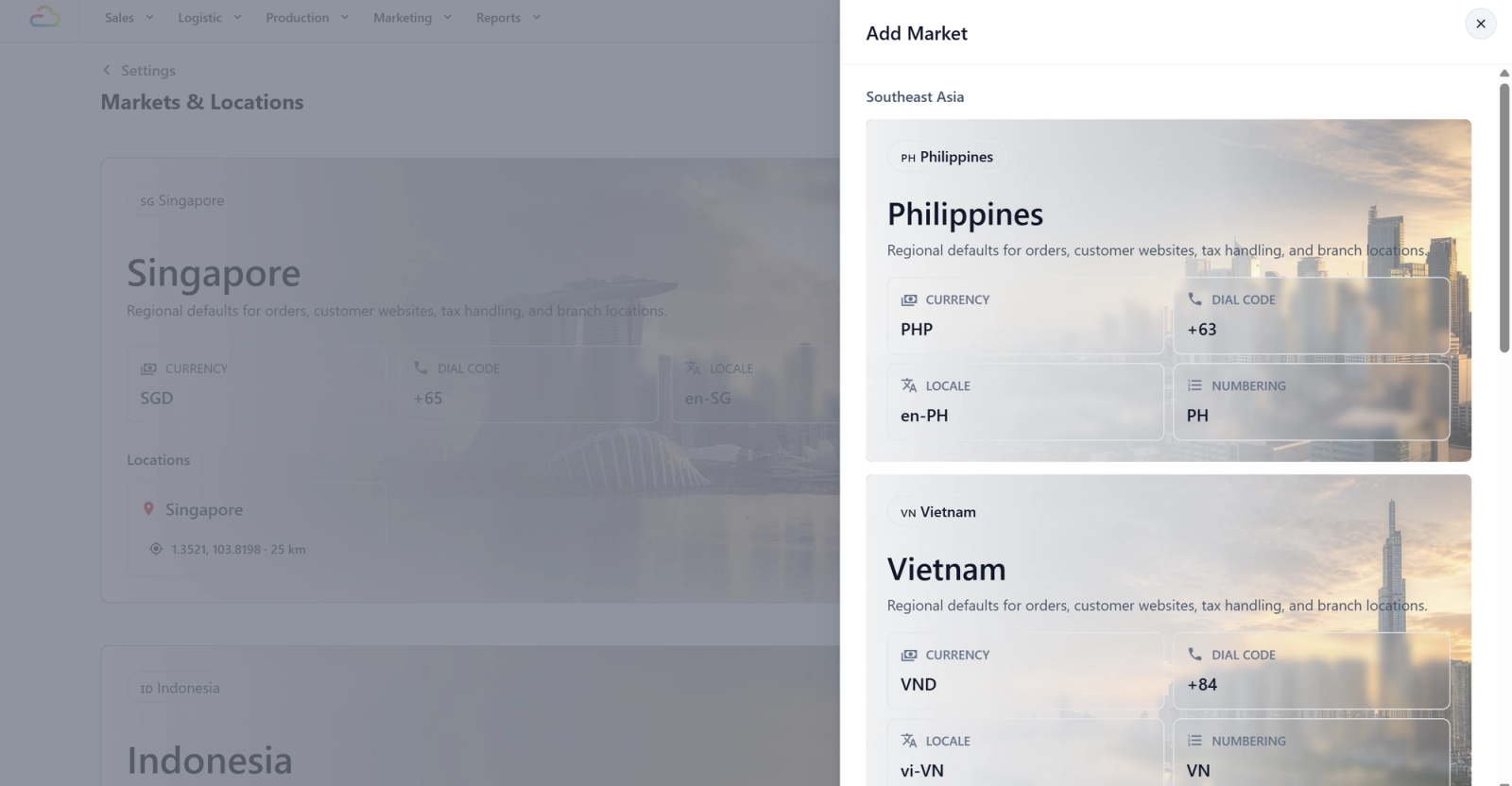
- A side panel opens titled Add Market, listing the available country presets grouped by region. Markets already on your account do not appear here.
- Each preset card shows what will be applied: currency, dial code, locale, and numbering prefix. For example, the Philippines preset shows PHP, +63, en-PH, and PH.
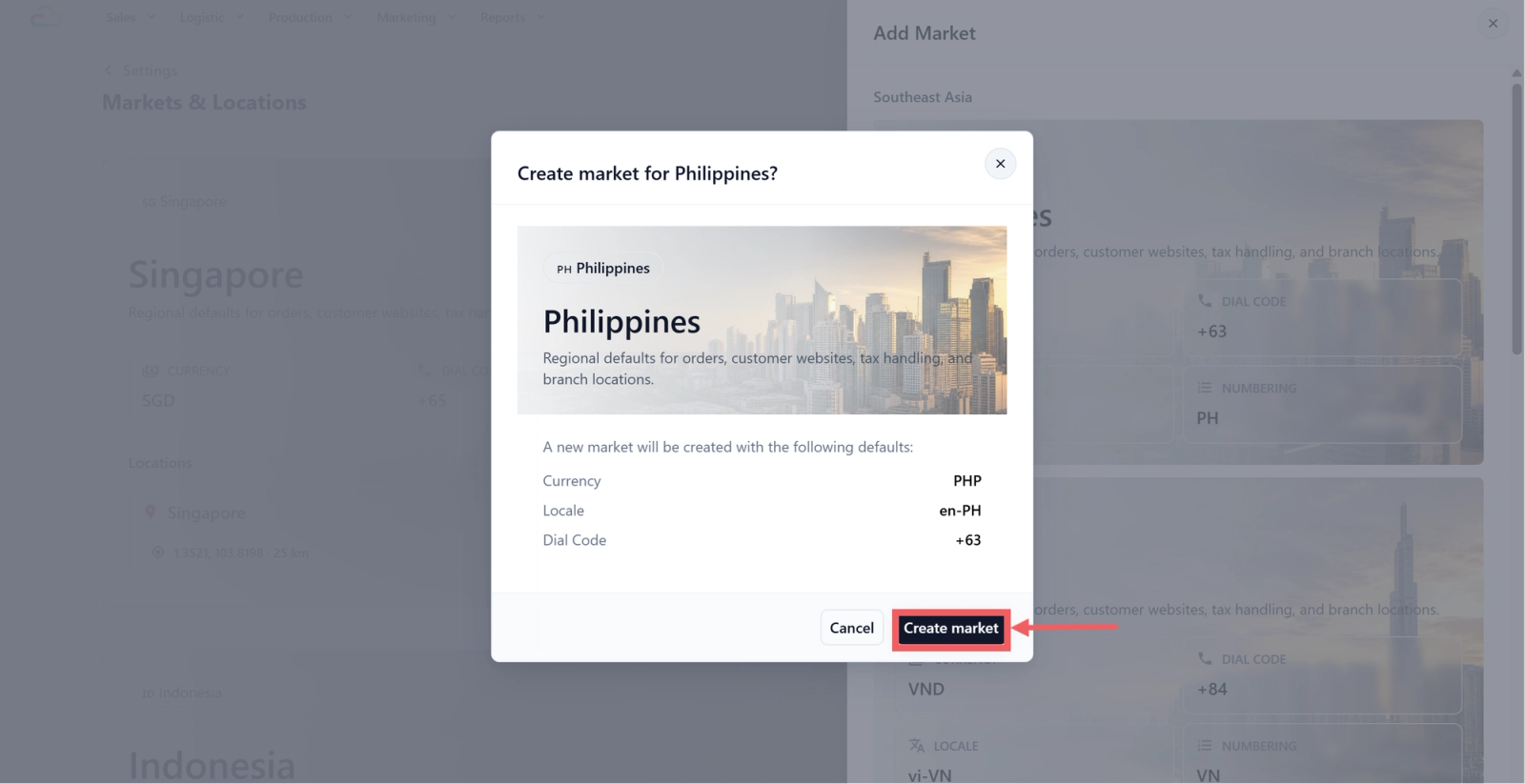
- Choose the preset card for the country you want and click Create Market. The market is created right away and the panel closes.
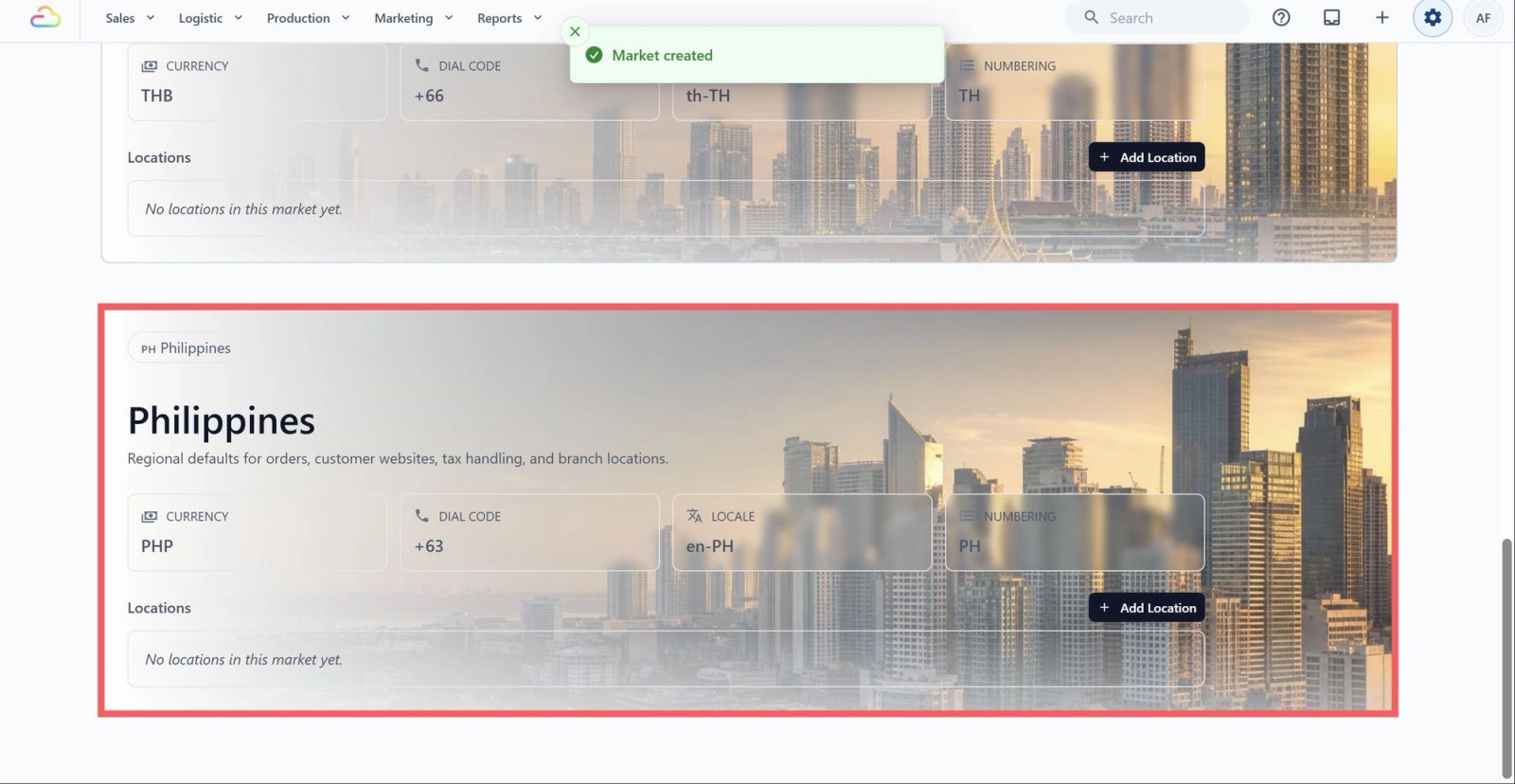
- Your new market card appears at the bottom of the page. It starts with no locations, so add at least one before going live in that country.
What each market setting means
Each market card shows four settings that reflect the regional defaults applied.
Currency
The currency code used for orders, pricing, and totals in that market, like SGD for Singapore Dollar or MYR for Malaysian Ringgit. This affects how prices show and charge on your website, POS, and B2B portal.
Dial Code
The international phone prefix, like +65 for Singapore. Used when collecting and displaying customer phone numbers in that market.
Locale
The language and region setting, like en-SG for English in Singapore or id-ID for Indonesian. Controls date format, number format, and default language across customer-facing surfaces.
Numbering
The country code prefix added to your reference numbers, like SG or MY. This lets you tell a Singapore invoice from a Malaysia invoice at a glance.
Link a company to this market
After you create a market, choose that market when setting up the company that operates in that country. The company needs to be linked to a market.
This lets EasyBiz use the correct country, currency, tax setup, receipt details, invoice details, and reporting rules for that company.
To choose the market for a company, follow [Creating and Configuring a Company].
FAQs
Can I rename a market or change its currency later?
No. Currency, dial code, locale, and numbering are locked to the country preset when the market is created. To change them, add the correct market and move your operations across.
What if I need a second market for the same country, for a separate brand?
You can add the same country again. The system automatically adds a suffix to the numbering prefix, so a second Singapore market gets SG2, and your receipts and invoices stay easy to tell apart.
Can I delete a market I added by mistake?
Not from the Markets & Locations page. Markets are tied to companies, orders, and invoices, so deleting one is not offered in the interface. If you added one in error before any orders were placed under it, contact our support team.
Does adding a market change anything else in my account right away?
No. A new market has no locations, companies, or outlets until you add them. Your existing operations stay unchanged.
What's Next
Now that your market is added, continue to Setting Up a Location to add a city inside it and set its coverage area.
Give feedback
Up next
Setting Up a LocationAdd a city to your market, then drag the map and adjust the radius to match the area you actually serve.
Read more