
Setting Up a Location
In this article
A location is a city inside a market. It sets the city center and coverage radius used for the map view, delivery filtering, and dispatch range. This article walks you through adding a location from the city list, then editing the map pin and radius to match the area you actually serve.
Contents
Contents
Before you start
- Make sure the market for this country already exists. See Setting Up a Market if it does not.
- Know which city this location will cover. If you serve two cities under the same market, like Kuala Lumpur and Johor Bahru, add one location per city.
- Know roughly how far you deliver from that city center. The radius is what your booking system uses to accept or reject orders by address.
Adding a location
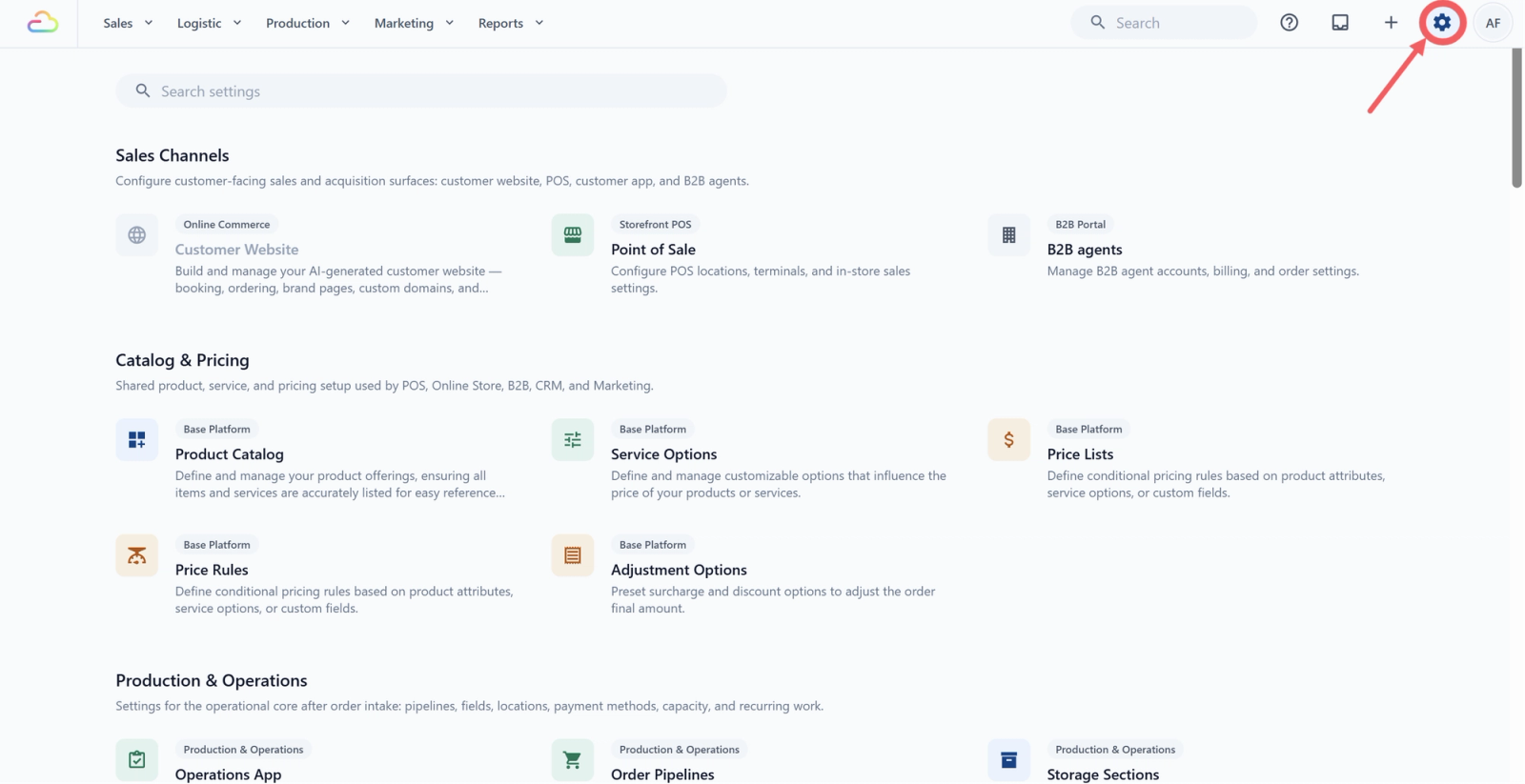
- Click the ⚙️Settings icon in the top-right corner.
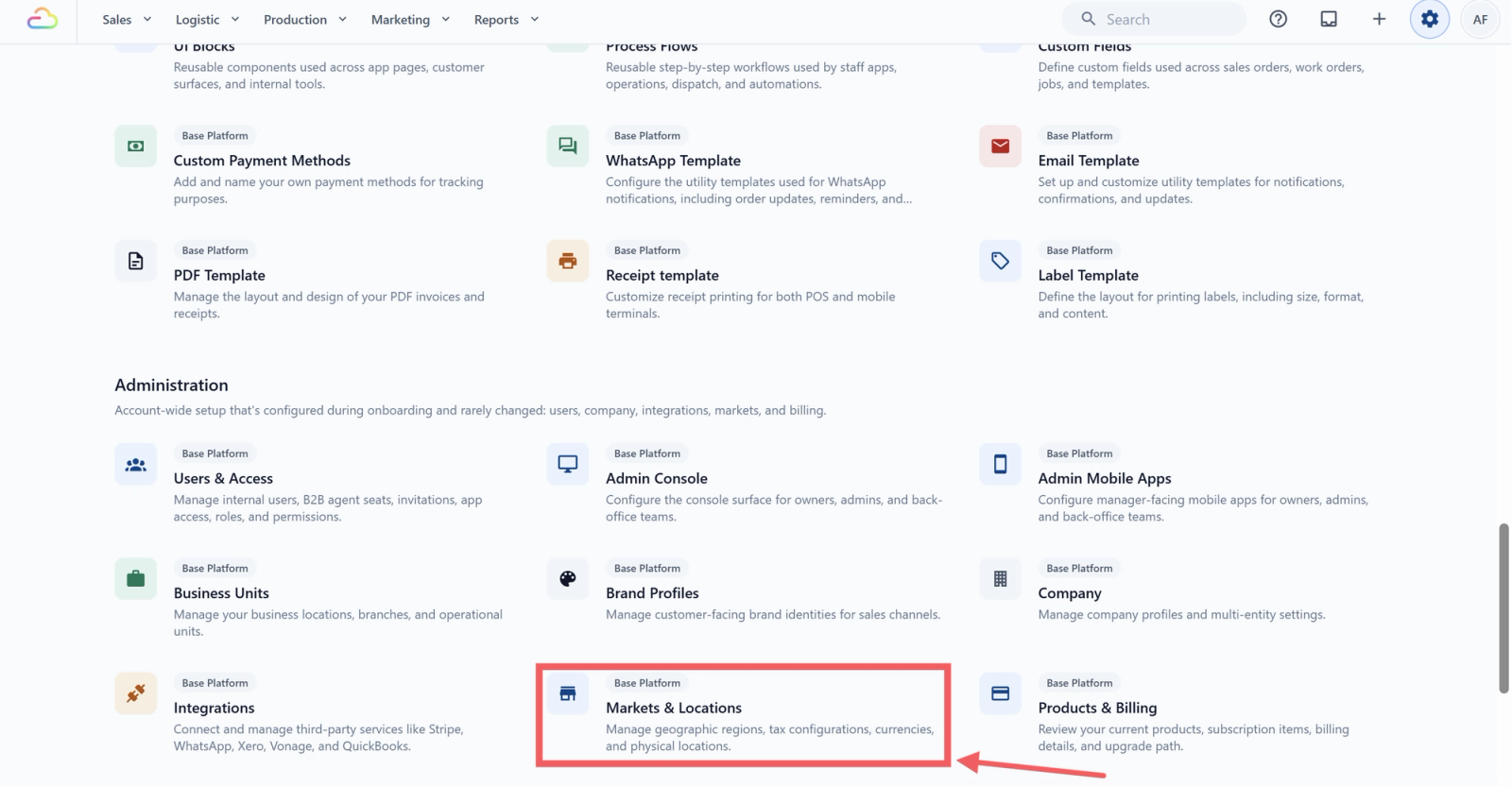
- Scroll down to the Administration section, then click Markets & Locations.
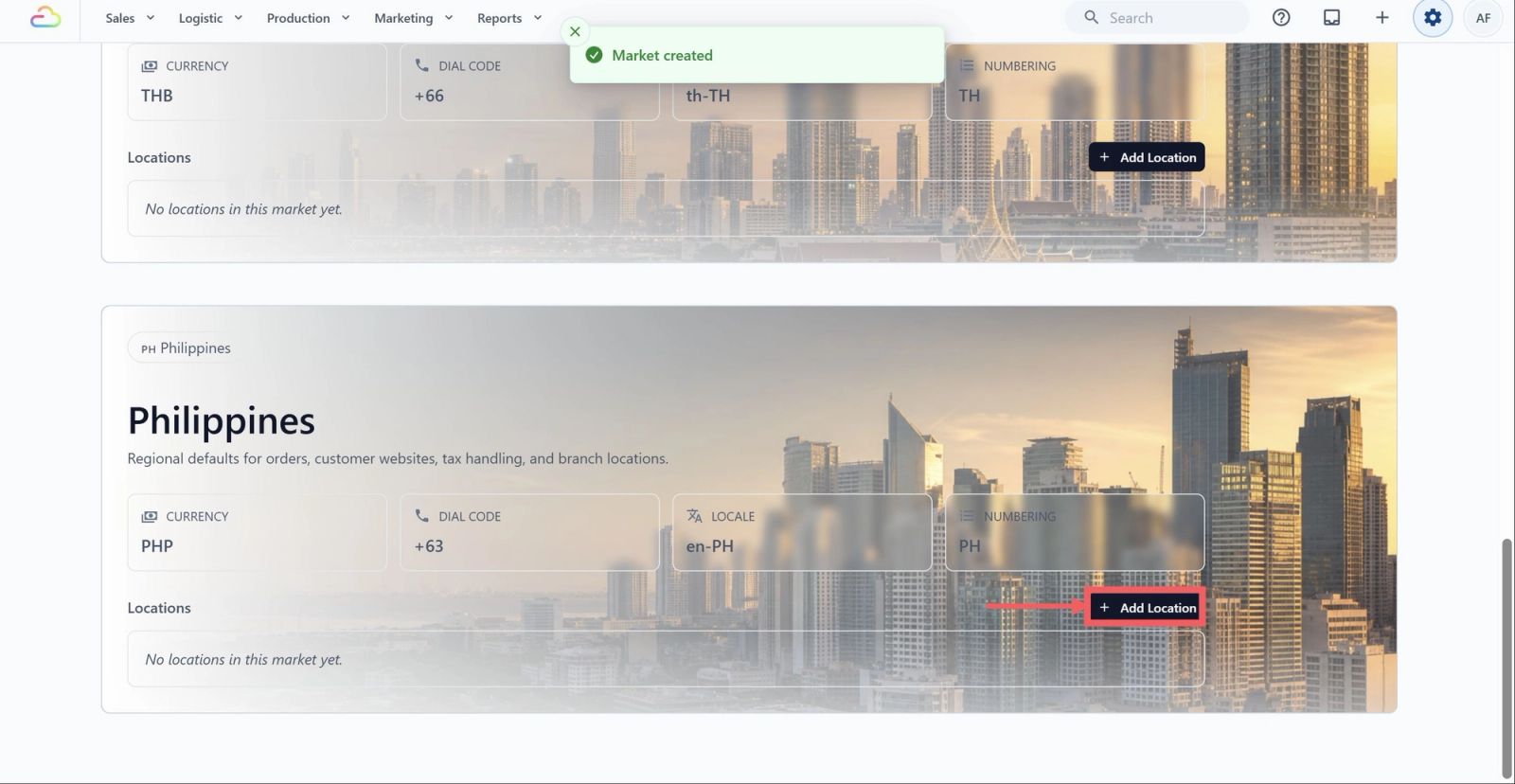
- Find the market card for the country, and click Add Location in its Locations section.
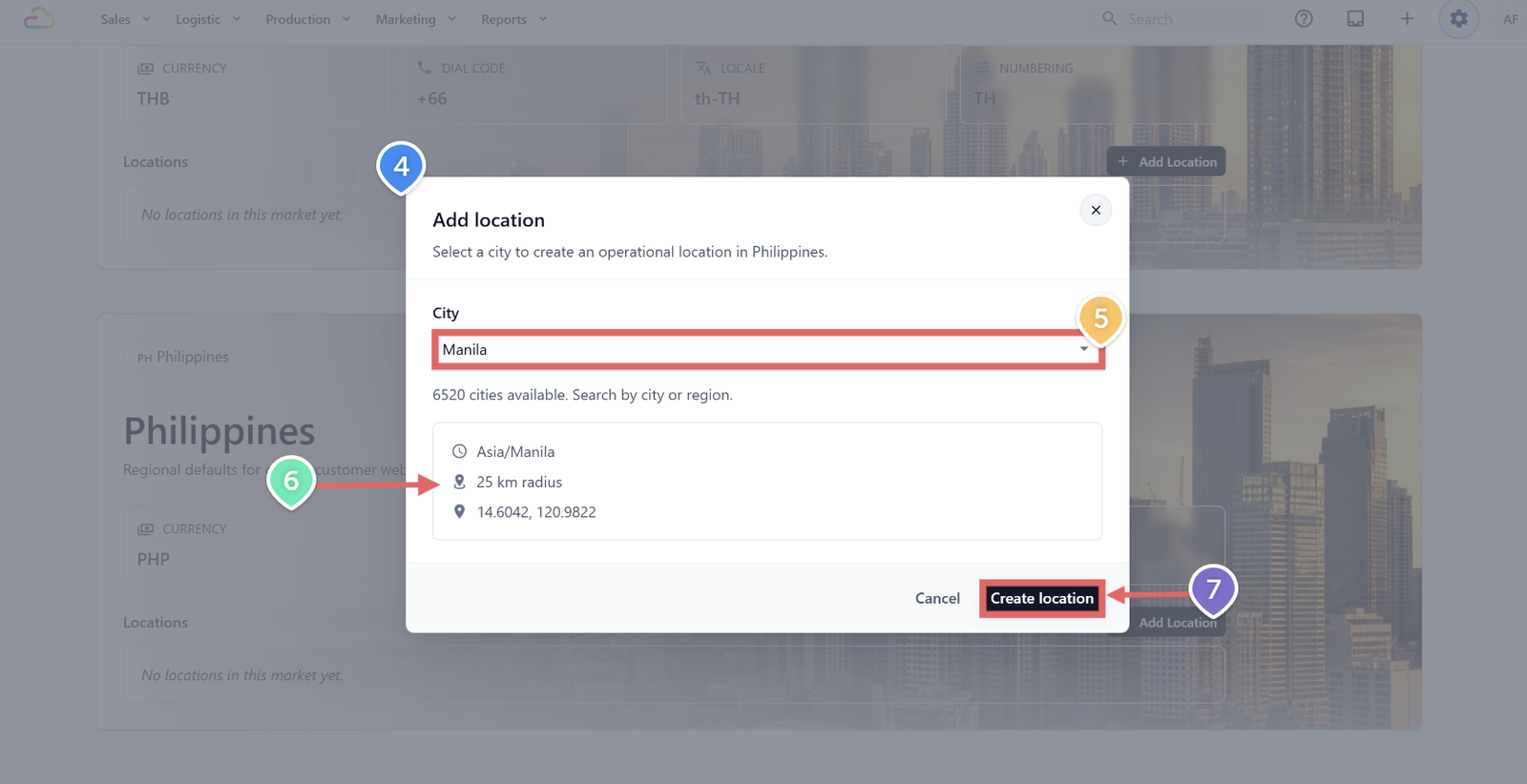
- A dialog opens titled Add location, with a note to select a city to create an operational location in that country.
- Click the City dropdown. Cities are grouped by region or province, like Bangkok, Chiang Mai, and Phuket for Thailand. Use the search box at the top to filter by city or region name.
- Pick a city. A preview appears showing the timezone, a default radius of 25 km, and the coordinates for that city. These come from the city and cannot be changed in this dialog. You will edit the map pin and radius next.
- Click Create location. The dialog closes and the new location appears as a small card inside the market's Locations section.
Editing a location's city center and radius
The defaults from the city are a starting point. Adjust them to match the area you actually serve.
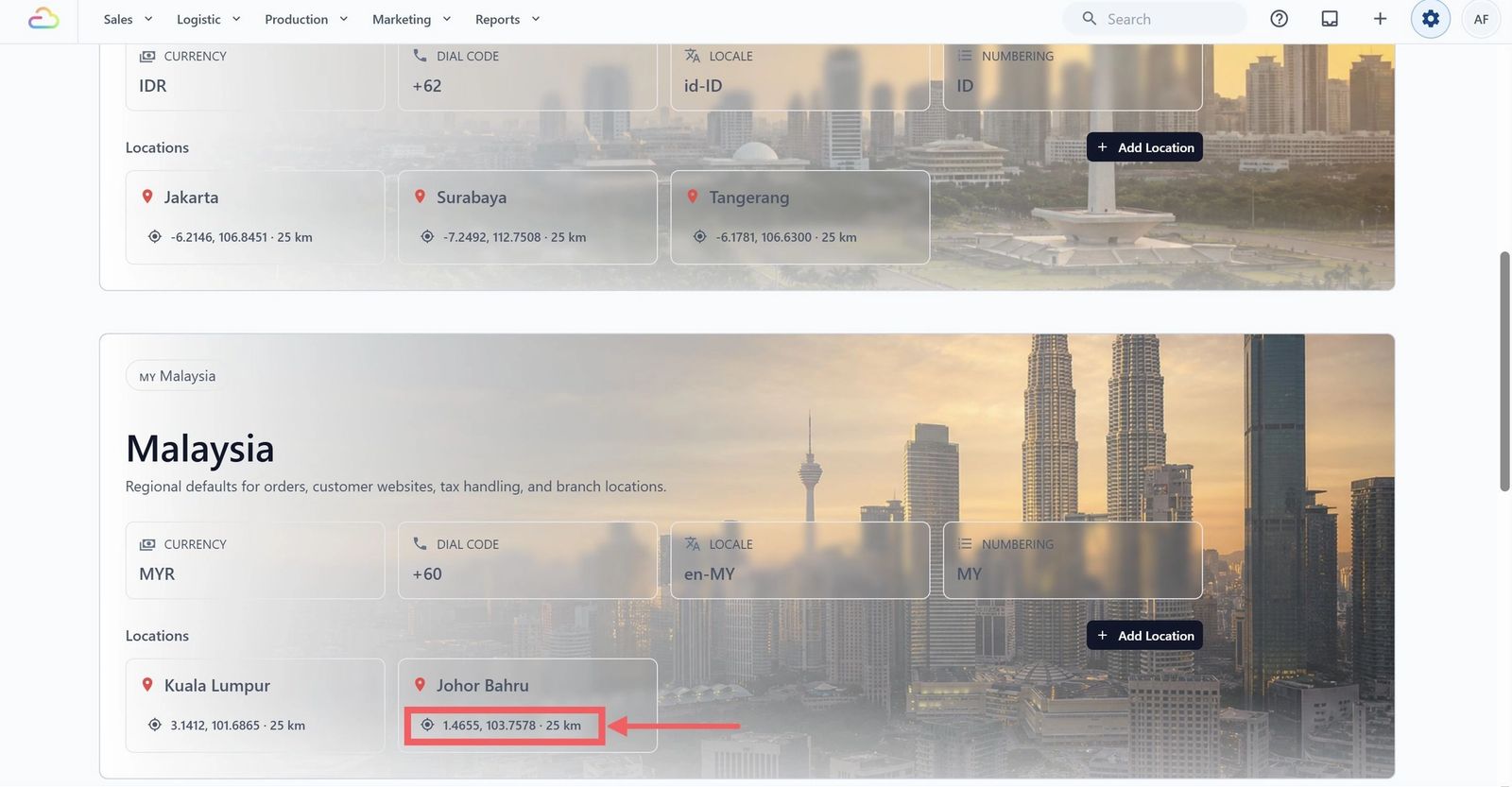
- On the Markets & Locations page, click the location card you want to edit, the small card with the red map pin and coordinates.
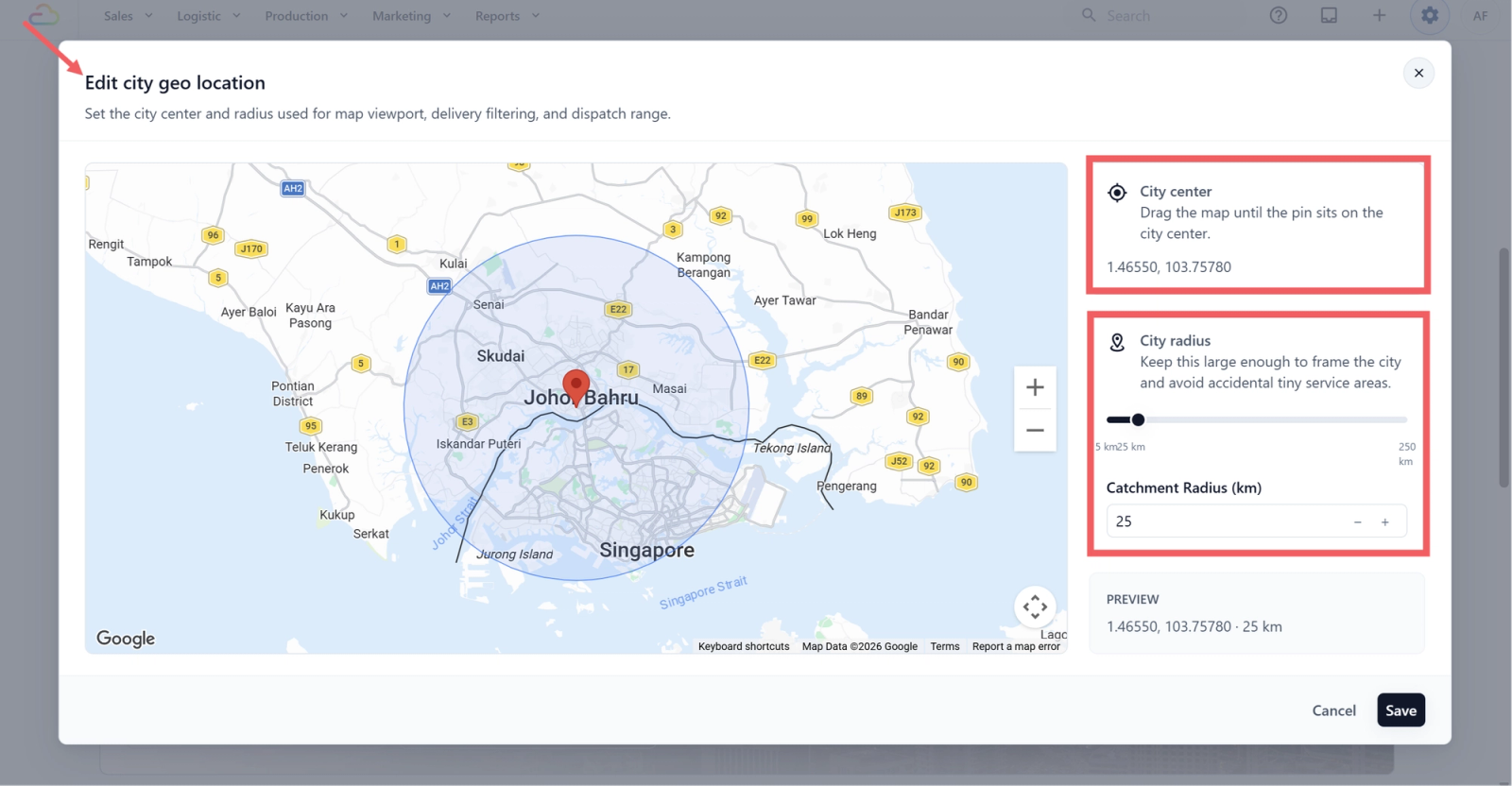
- The Edit city geo location dialog opens.
Adjusting the city center
- Drag the map until the pin sits over the spot you want as your city center. The pin stays fixed while the map moves under it.
- Use the plus and minus buttons or the arrow keys to zoom and pan.
- The coordinates in the right panel update as you drag.
Adjusting the coverage radius
- Drag the slider, type into the Catchment Radius (km) box, or use the minus and plus stepper buttons. Pick a value that frames the actual area you serve from that city.
- The blue circle on the map updates as you change it, so you can see what is in and what is out.
The Preview at the bottom right shows the final value in the same format that appears on the location card, like 1.35210, 103.81980 and 25 km. Click Save when you are done.
Use this location for a POS shop
After you create a location, you can link a POS outlet, branch, or shop counter to it when setting up a POS shop.
A POS shop is a sales channel. During shop setup, choose the correct Country and City so the shop is connected to the right market and location. See [Setting Up a New POS Shop].
FAQs
Can I remove a location?
Not from the Markets & Locations page. Locations are used by orders, bookings, and dispatch rules, so removing one is not offered in the interface. Contact our support team if you added one in error and it has no orders.
Can I add a custom city that is not in the list?
No. The city list is fixed for each country. If your city is not listed, pick the nearest one and adjust the city center and radius to cover your actual area.
What happens if my radius covers another location's city?
Overlapping areas are allowed. Bookings in the overlap are handled by your dispatch rules, so set those up to decide which location takes them if it matters for your shop.
Does changing the radius affect orders that were already placed?
No. The radius affects new bookings going forward. Existing orders keep their original location.
What's Next
Now that your markets and locations are set up, continue to Introduction to Company(Coming Soon) to assign a company to each market, then to Setting Up a New POS Location to add outlets under that city.