
Setting Up the Job Map
In this article
See your jobs on a calendar or a real map, drag them to a new time or driver, and watch where your drivers are right now.
Contents
Contents
What the Job Map is for
The Job Map is a visual planner. The Job Table shows your jobs as a list, but the Job Map shows them on a calendar or as pins on a real street map. Use it to spot gaps in a driver's day, see how close two jobs are to each other, or move a job to a different time without typing in dates. It is the screen your dispatcher will live in.
Open the Job Map
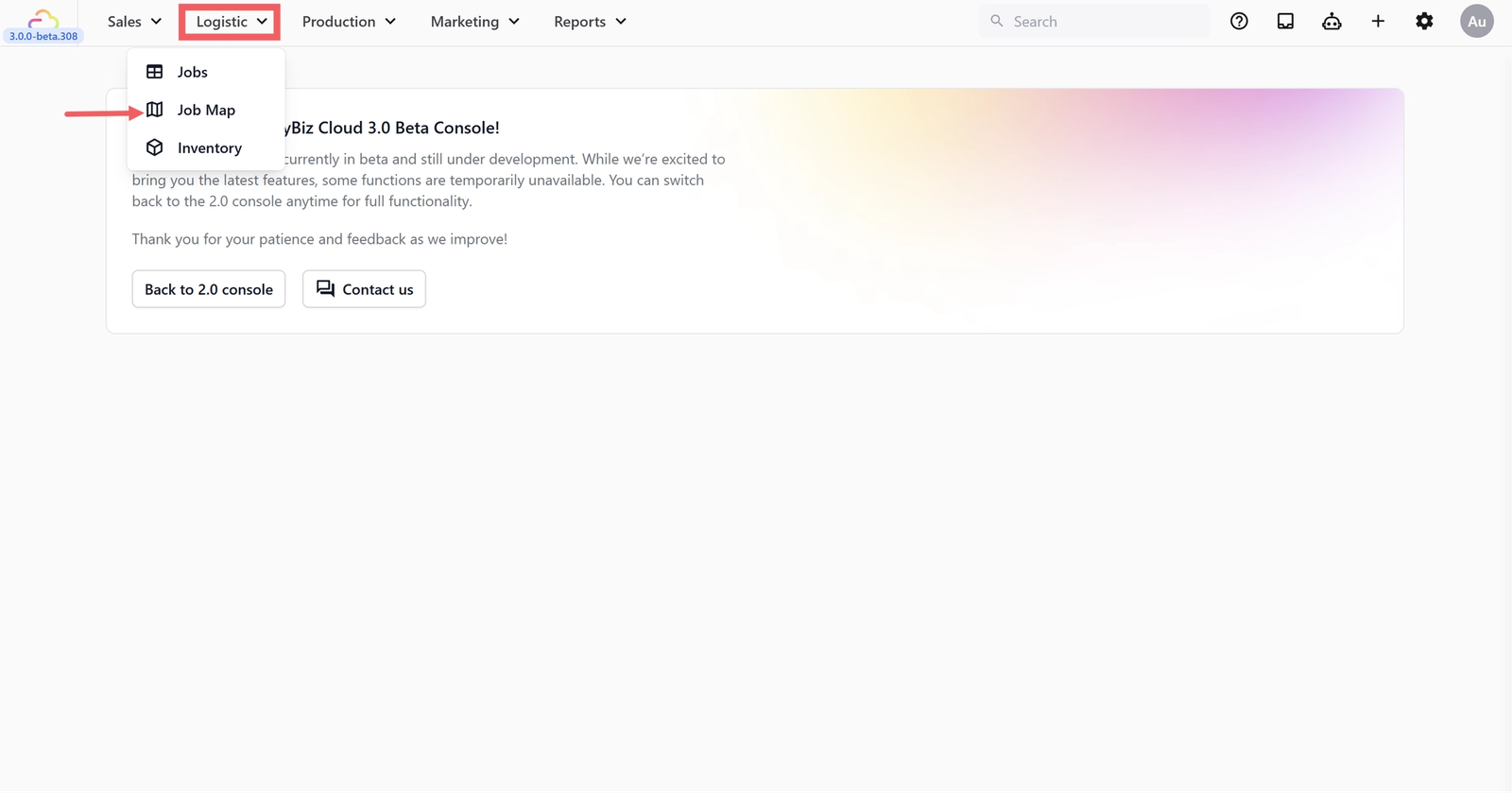
- In the top navigation bar, click the Logistic dropdown.
- Click Job Map.
The five views
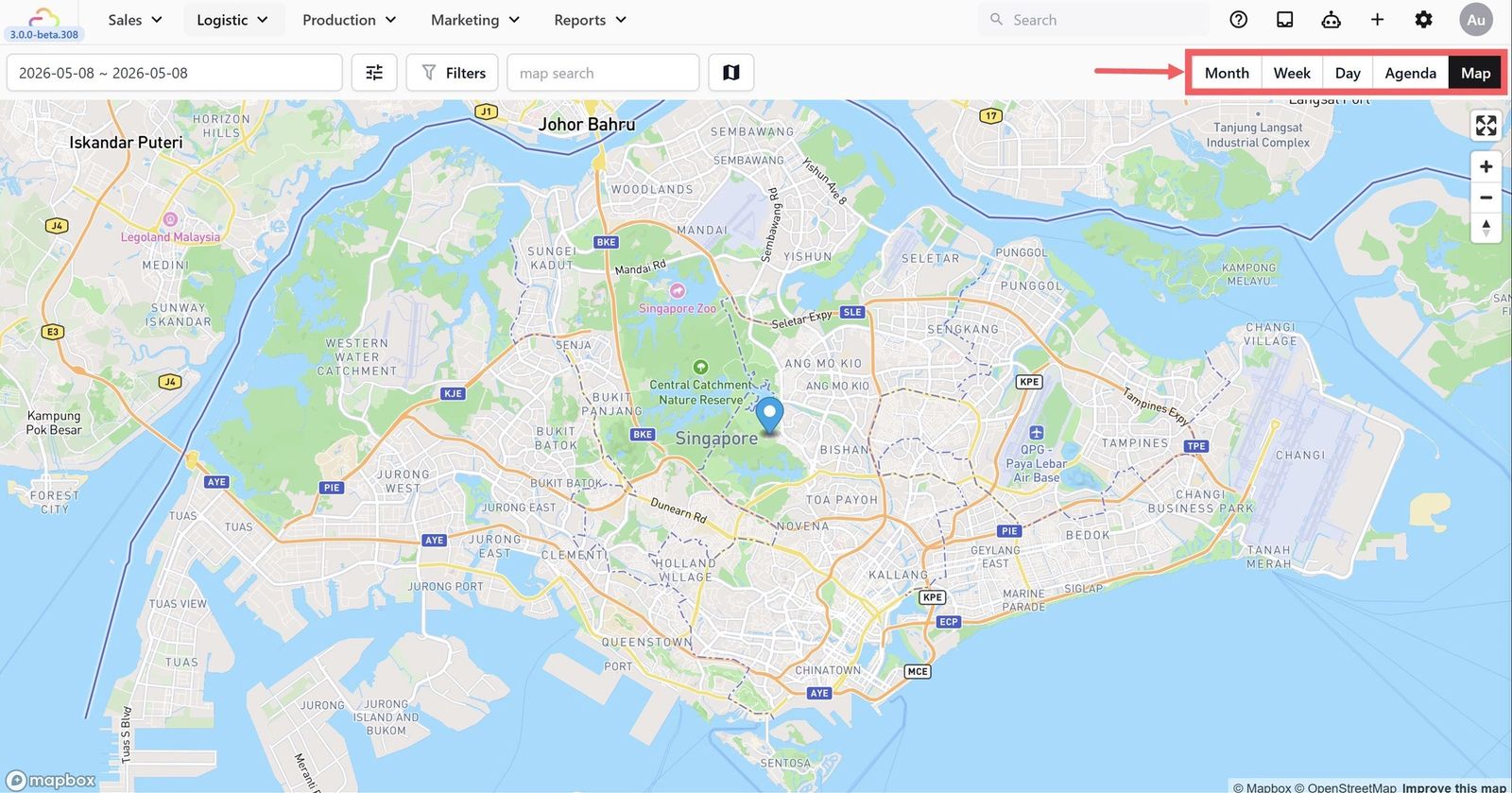
Pick the view that matches how you plan your day. Switch between them at any time using the buttons at the top of the page.
| View | Use it when |
|---|---|
| Map | You want to see where every job is on a real street map and spot jobs close to each other. |
| Day | You are planning today in detail and need every job hour by hour. |
| Week | You want the whole week at a glance to catch busy days or empty slots. |
| Month | You want a high-level view of how full your month looks. |
| Agenda | You want a simple top-to-bottom list of upcoming jobs, sorted by time. |
Filter what you see
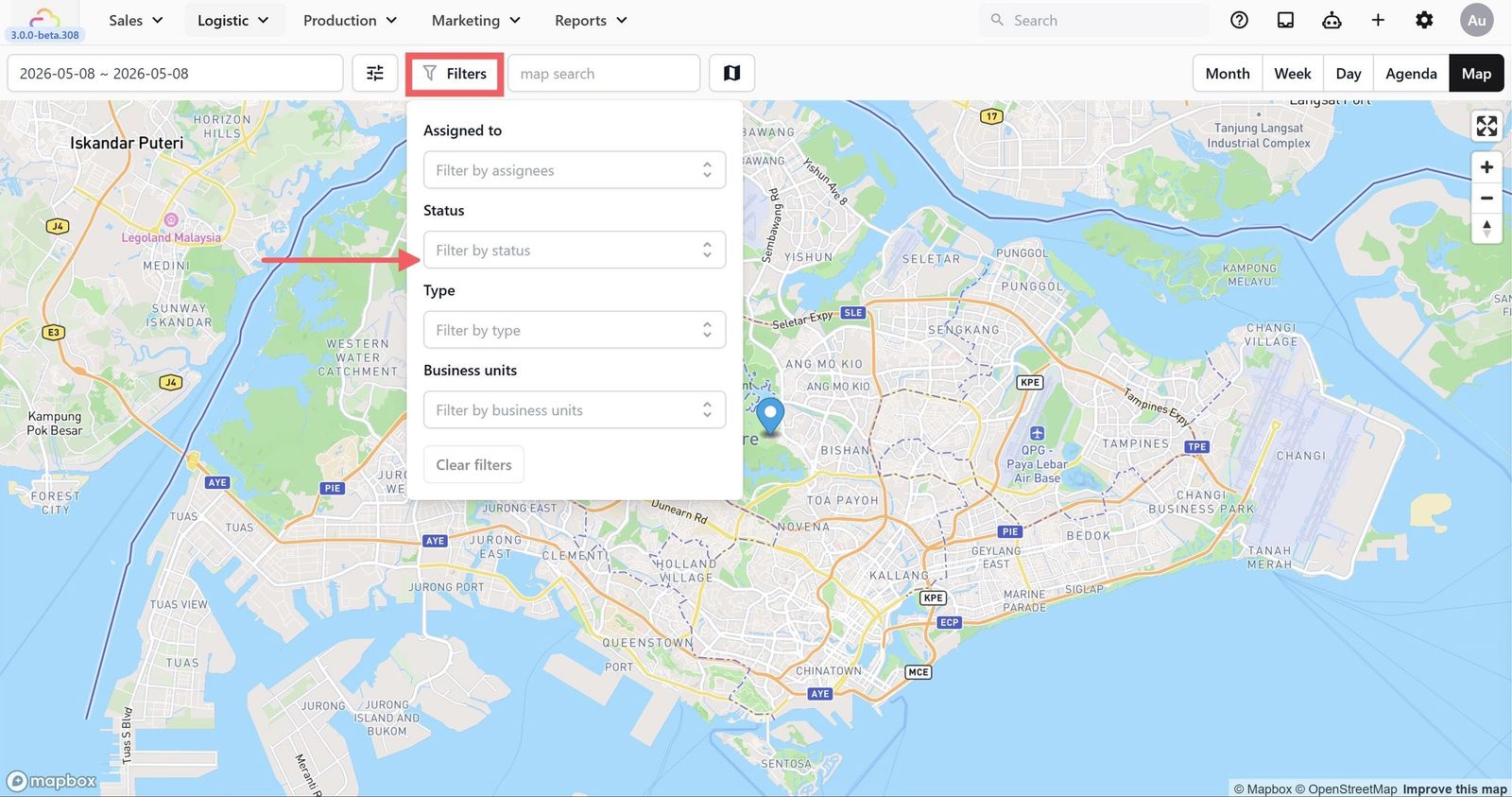
All five views share the same filters. Set them once and they stay until you change them.
- Assigned to: show jobs for one driver, or all.
- Status: show only pending, scheduled, completed, and so on.
- Type: show only pickups, only deliveries, or only on-site service jobs.
- Business Unit: show only jobs for one line of service, like Laundry & Dry Cleaning.
Map and Job Pins
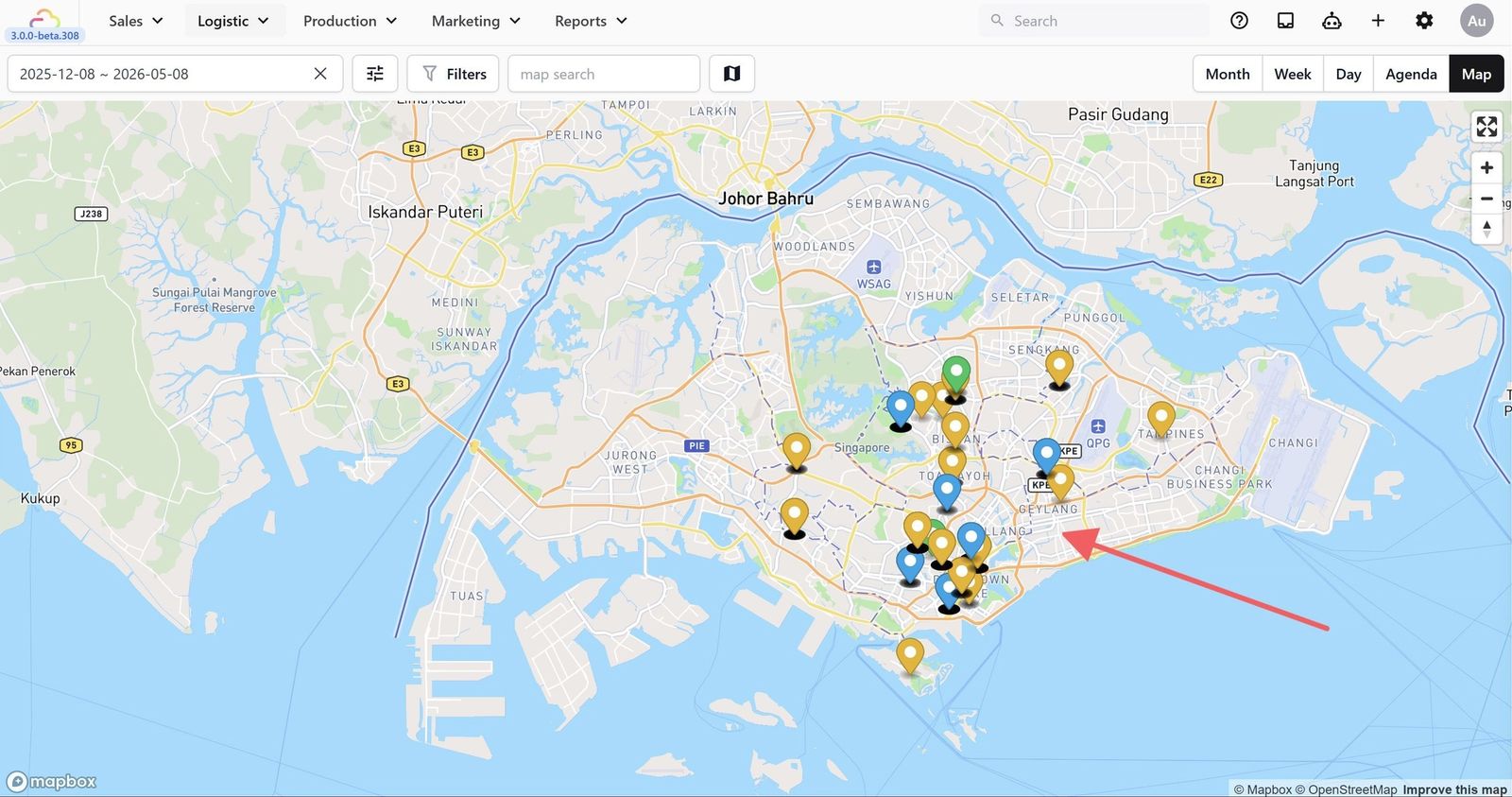
On Map view, every job becomes a coloured pin at its address. The colour matches the job status, so you can see at a glance what is still outstanding.
Your drivers also appear on the map as dots, drawn from the location their phone reported in the last 72 hours.
Job Pins
| Dot | Meaning |
|---|---|
| Active | The driver's phone reported its location within the last hour. They are working right now. |
| Recent | Reported a location in the last 72 hours but not the last hour. May be on break or off duty. |
Calendar preferences
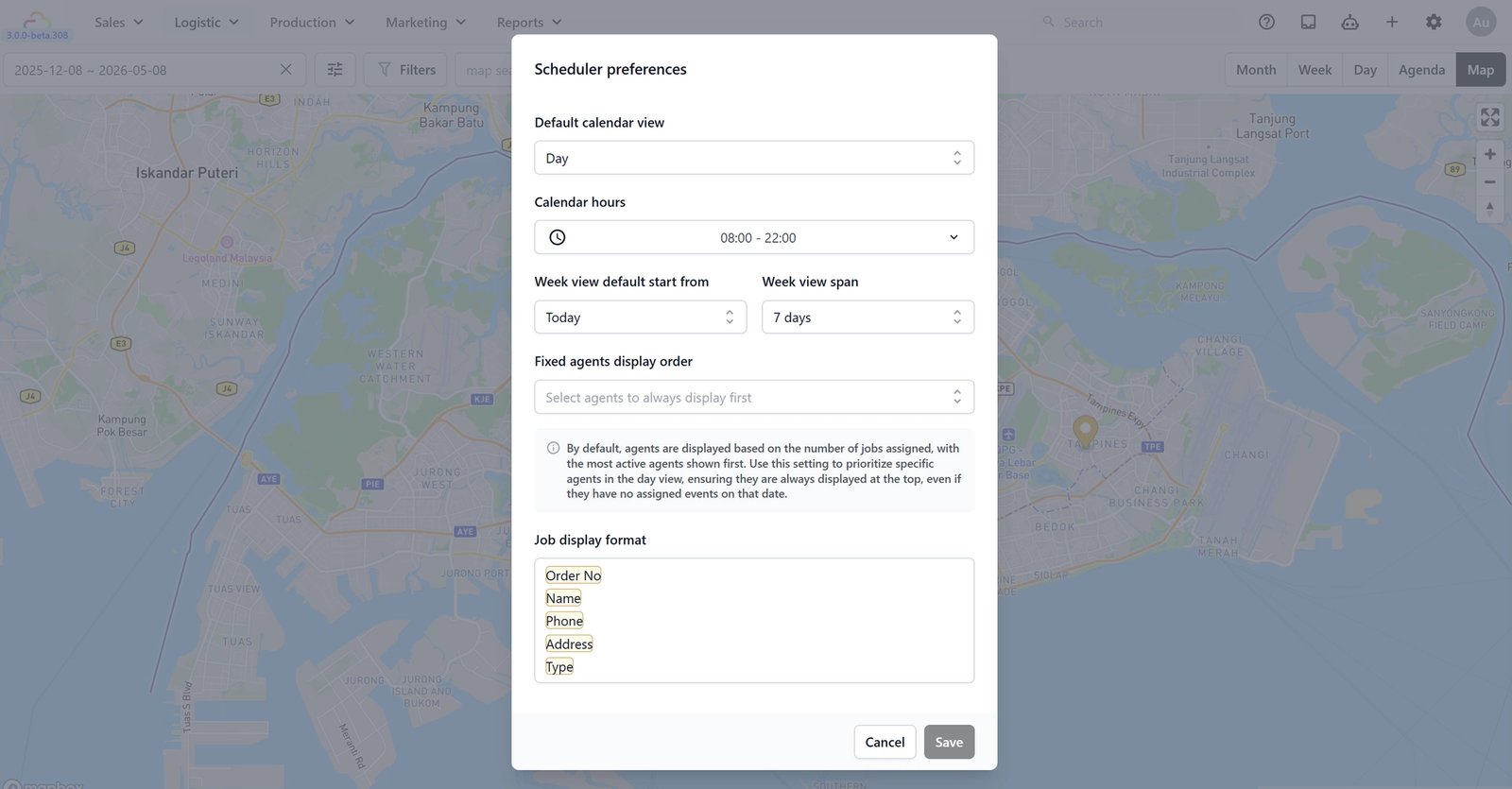
Set how the Job Map opens for your team so you do not have to change settings every morning. The most common preferences are below.
Calendar Hours
| Range | What happens |
|---|---|
| 8:00 to 18:00 | Day and Week views show only working hours. Jobs outside these hours are hidden until you scroll. |
| 00:00 to 23:59 | Day and Week views show every hour. Useful for shops that take very early or very late jobs. |
Week start day
| Day | What happens |
|---|---|
| Monday | Week view starts on Monday and ends on Sunday. Standard for most shops. |
| Sunday | Week view starts on Sunday. |
Week span
| Span | What happens |
|---|---|
| 7 days | Week view shows the full week including weekends. |
| 5 days | Week view shows only Monday to Friday. Good for shops closed on weekends. |
Driver display order is a free-text setting where you fix the order drivers appear in their columns. Type the names in the order you want, top to bottom.
Event title format controls what is shown on each calendar block. The most common format is customer name first, then job type.
Drag and drop to reschedule
On Day, Week, or Agenda view, you can move a job to a new time or driver without typing.
- Click and hold the job block.
- Drag it to the new time slot, or to another driver's column.
- Repeat for any other jobs you need to move.
- Click the confirm button at the top of the page to save all your changes at once.
FAQs
Why can't I see my driver on the map?
Three things must be true: the EasyBiz mobile app is installed, the driver is logged in, and they have allowed the app to use location. Job Pins also disappear after 72 hours of no activity.
What is the difference between the Job Table and the Job Map?
They show the same jobs in different ways. Both pull from the same data, so a change in one shows up in the other. Use the table for bulk edits and exports. Use the map for visual planning and drag-and-drop.
Does dragging a job to a new driver send the new driver a notification?
The job appears on the new driver's mobile app as soon as you confirm the change. Whether they get a separate push notification depends on your Event Notification setup. If you want drivers to be alerted on every reassignment, set up an Event Notification for that trigger.
My drag-and-drop changes did not save. Why?
Drag-and-drop changes only save after you click the confirm button at the top of the page. If you closed the page or moved away first, the changes were dropped.
Do I need both the Job Table and the Job Map?
No. They show the same jobs in different ways. Many small shops only use one. Try both for a week and pick the one your dispatcher prefers.
What's next
Now that your jobs are visible on the map, set up your drivers so they can take those jobs on their phone. Continue to [Setting Up Your Driver Account] (Coming Soon).
Give feedback
Up next
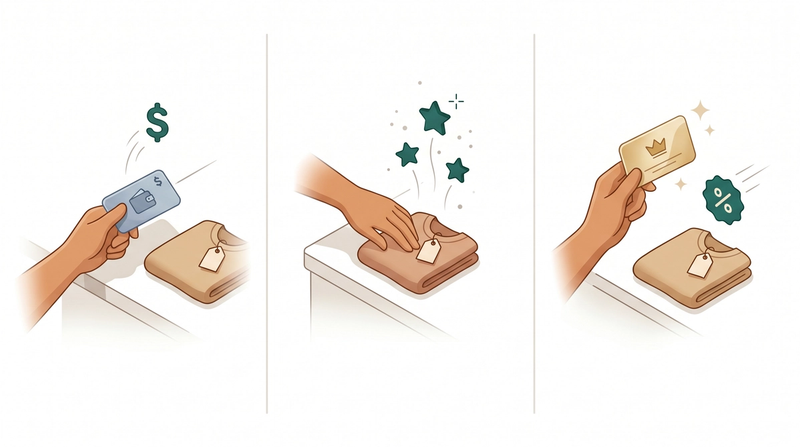
Loyalty & RewardsA quick tour of EasyBiz's three loyalty tools so you can pick the right one and get started today.
Read more