
Setting Up Assignment Rules
In this article
Assignment Rules let you decide who on your team gets each new pickup or delivery, based on the business unit, weekday, time, and area. You create as many rules as you need, and EasyBiz checks them whenever a customer books. The key to a reliable setup is making sure each booking can only match one rule, which this article shows you how to do.
Contents
Contents
Where to Find It
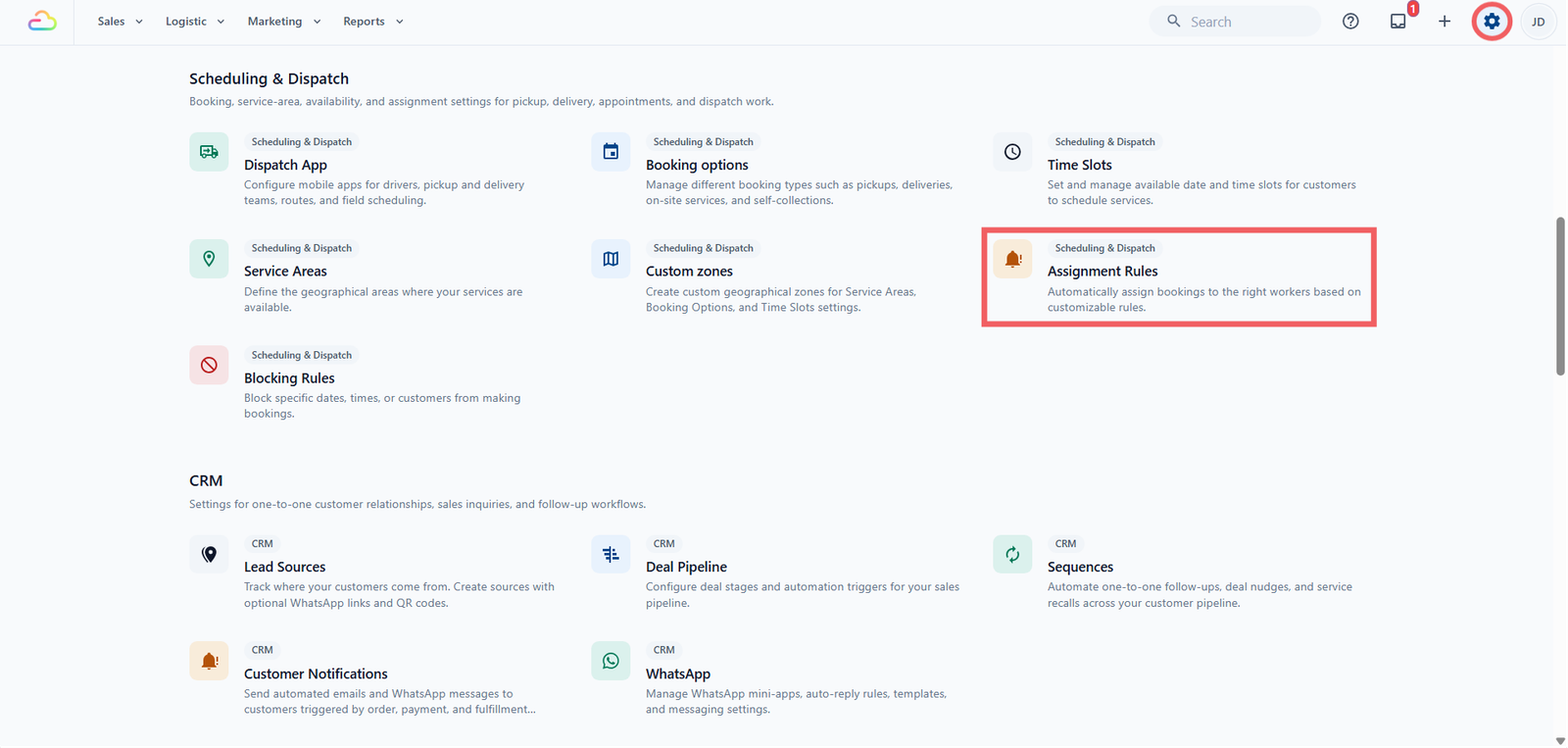
- Click the ⚙️ Settings icon in the top-right corner.
- Under the Scheduling & Dispatch section, click Assignment Rules.
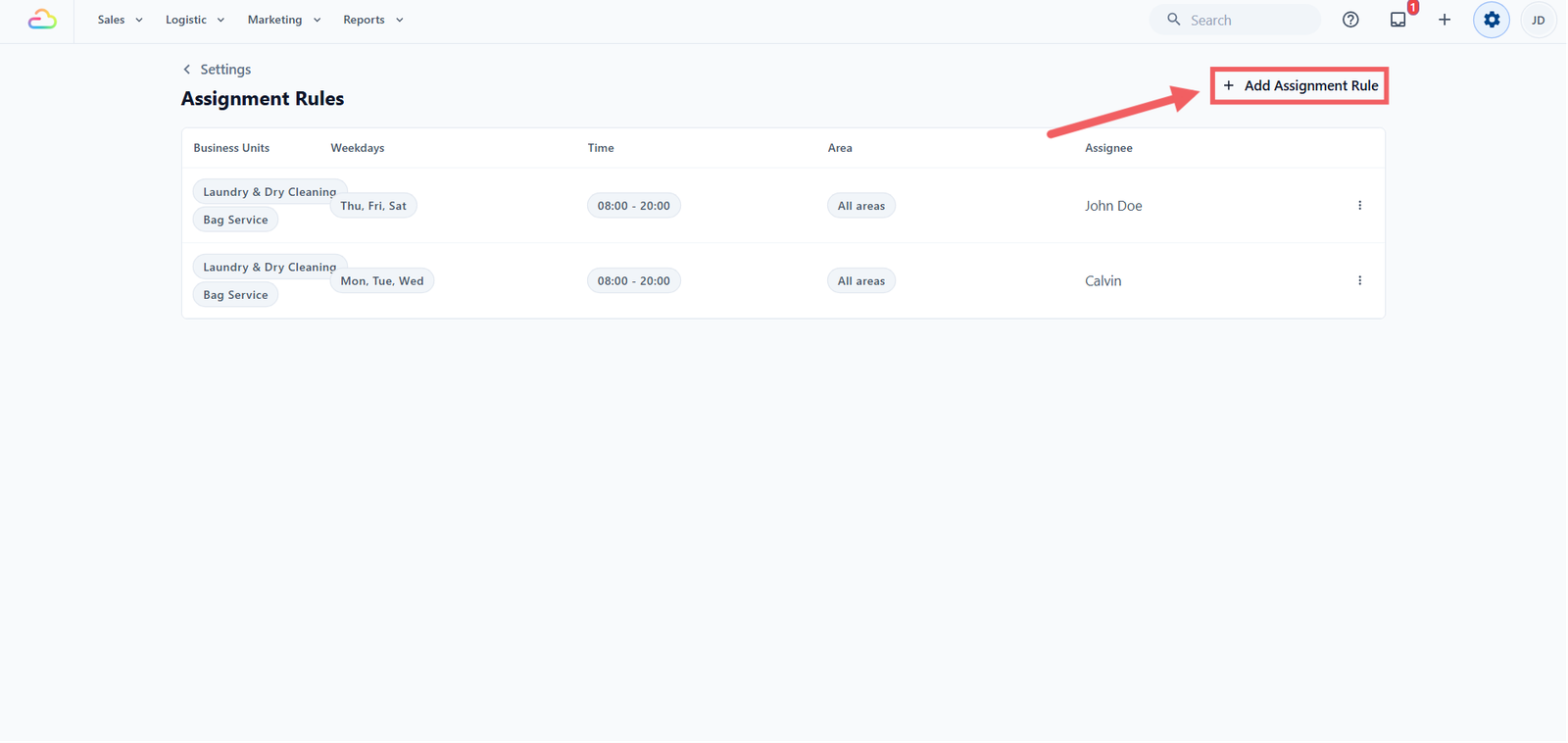
- Click + Add Assignment Rule to create one.
This opens the Add Assignment Rule dialog, where you fill in the fields explained below.
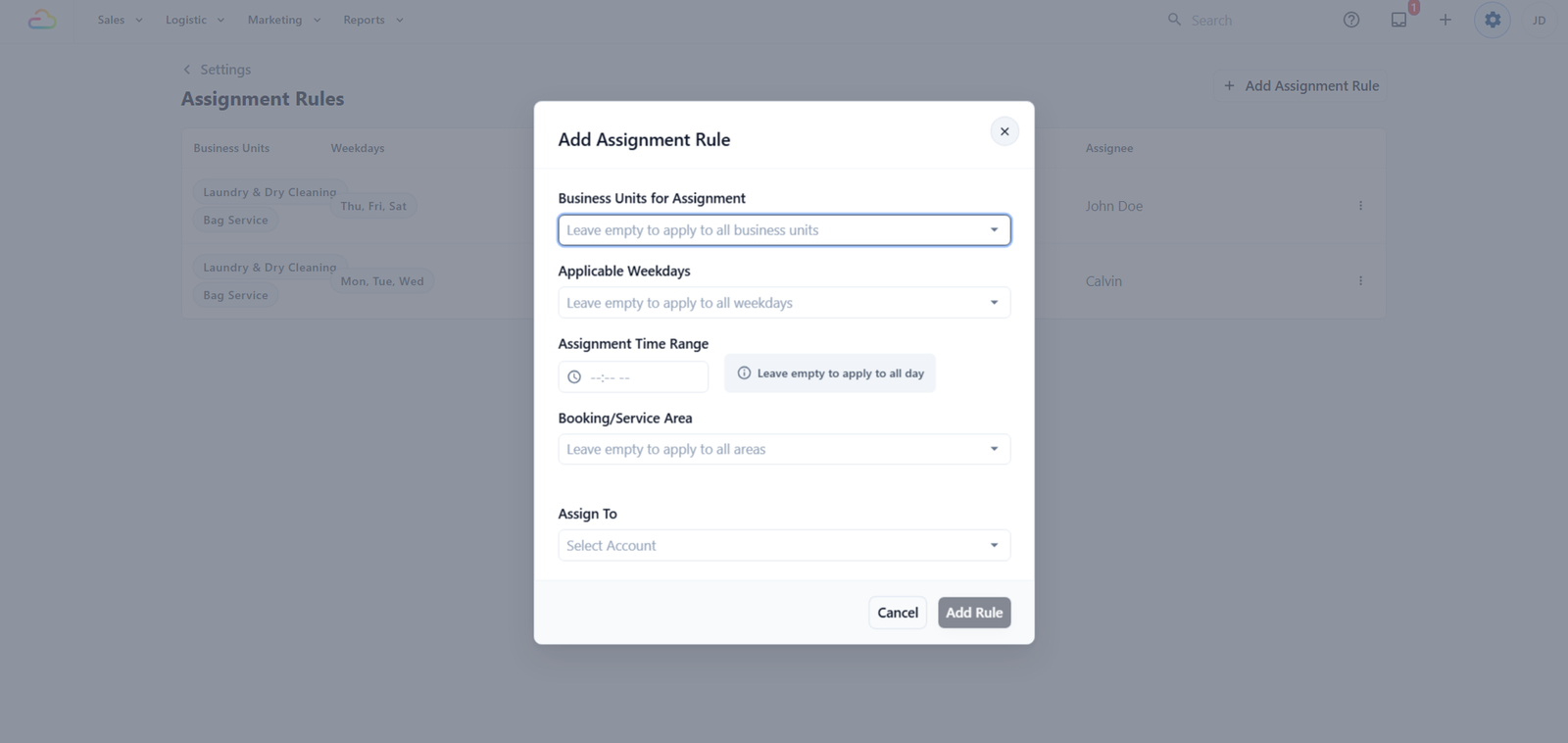
The Fields in the Dialog
The fields appear in this order, and only Assign to is required.
Business Units for Assignment
| Pick this | Result |
|---|---|
| Leave empty | The rule applies to bookings in every business unit |
| Pick one or more | Only bookings in those business units can match |
Applicable Weekdays
| Pick this | Result |
|---|---|
| Leave empty | The rule applies every day |
| Pick one or more days | The rule only applies on the chosen days |
Assignment Time Range
Pick a start and end time (hours 1 to 12, minutes 00, 15, 30, 45, AM or PM). The booking's own time window must sit fully inside this range to match. Leave both empty to apply all day.
Booking/Service Area
| Pick this | Result |
|---|---|
| Leave empty | The rule applies regardless of address |
| Pick one or more zones | Only bookings whose address lands in those zones can match |
This field matches a booking to the zone its delivery address falls in, using the areas you set up for your shop. If you have not set those up yet, see [Custom Zones] and [Service Areas] first. If you do not need to route by area, you can leave this empty.
Assign to
Pick the one team member who receives the pickup or delivery. To create a driver or back-office account first, go to Users & Access. See [Introduction to Users & Access] (Coming Soon).
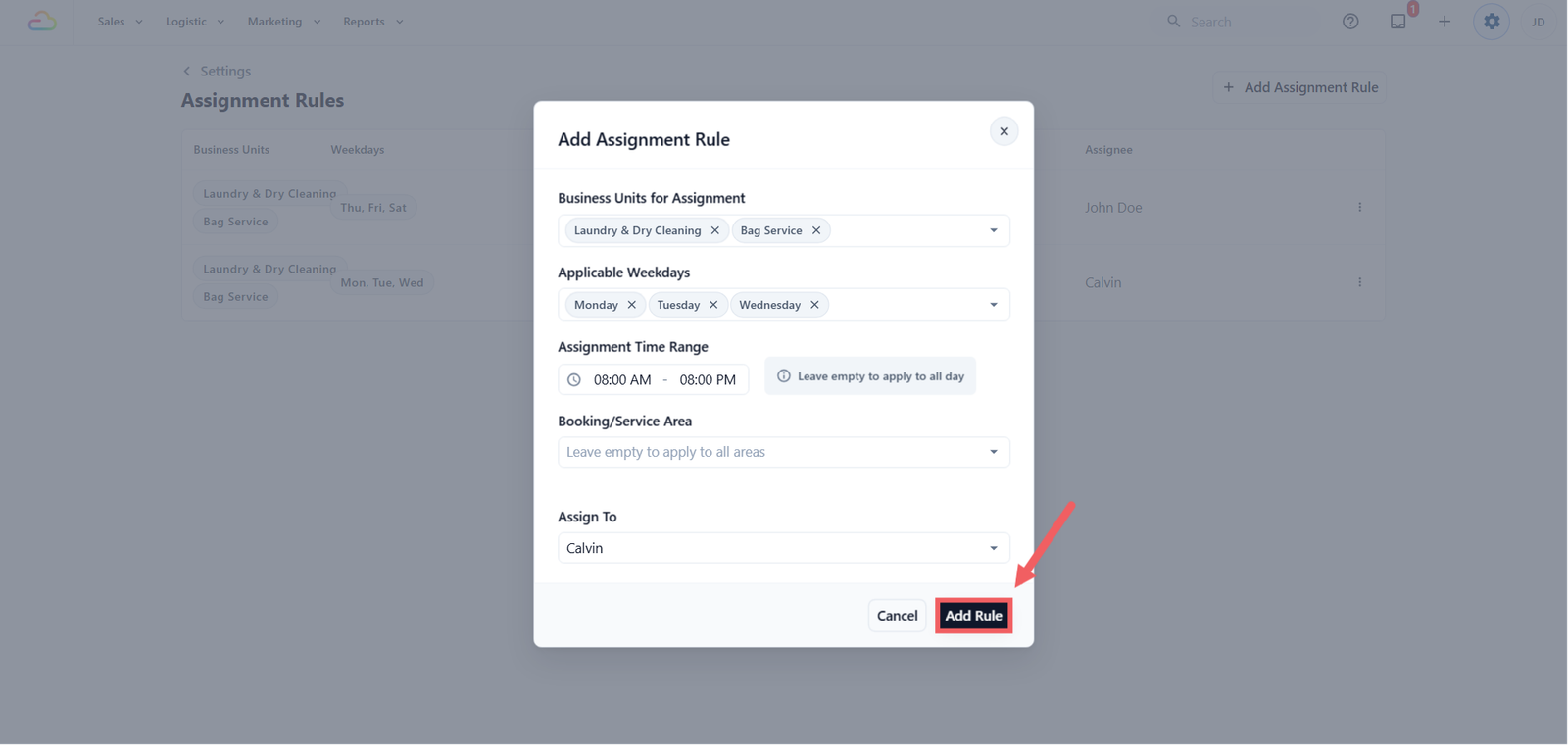
Click Add rule to save.
How Matching Works
When a customer books, EasyBiz looks for a rule whose filters all match that booking.
- All filters inside a single rule are combined together. A rule with Business Unit "Laundry", Weekday "Saturday", and Area "East Coast" only matches a Laundry booking on a Saturday in the East Coast zone.
- The system follows one rule per booking. If the filters do not match any rule, the booking is created without an assignee and waits in the Job Table for you to assign by hand.
- Editing or deleting a rule does not reassign bookings already created. Only future bookings are affected.
For example, a shop with two drivers can cover the whole day by splitting it by time, with both rules set to all areas:
- Rule 1 -> Laundry, all days, 8:00 AM to 1:00 PM, all areas, assigned to Ali
- Rule 2 -> Laundry, all days, 1:00 PM to 8:00 PM, all areas, assigned to Sunita
From then on, the moment a customer books a morning pickup or delivery it is auto-assigned to Ali, and an afternoon one goes to Sunita, with no one assigning by hand.
The Rule Table
After you save, every rule appears in a table with a three-dot ⠇ menu on each row for Edit and Delete.
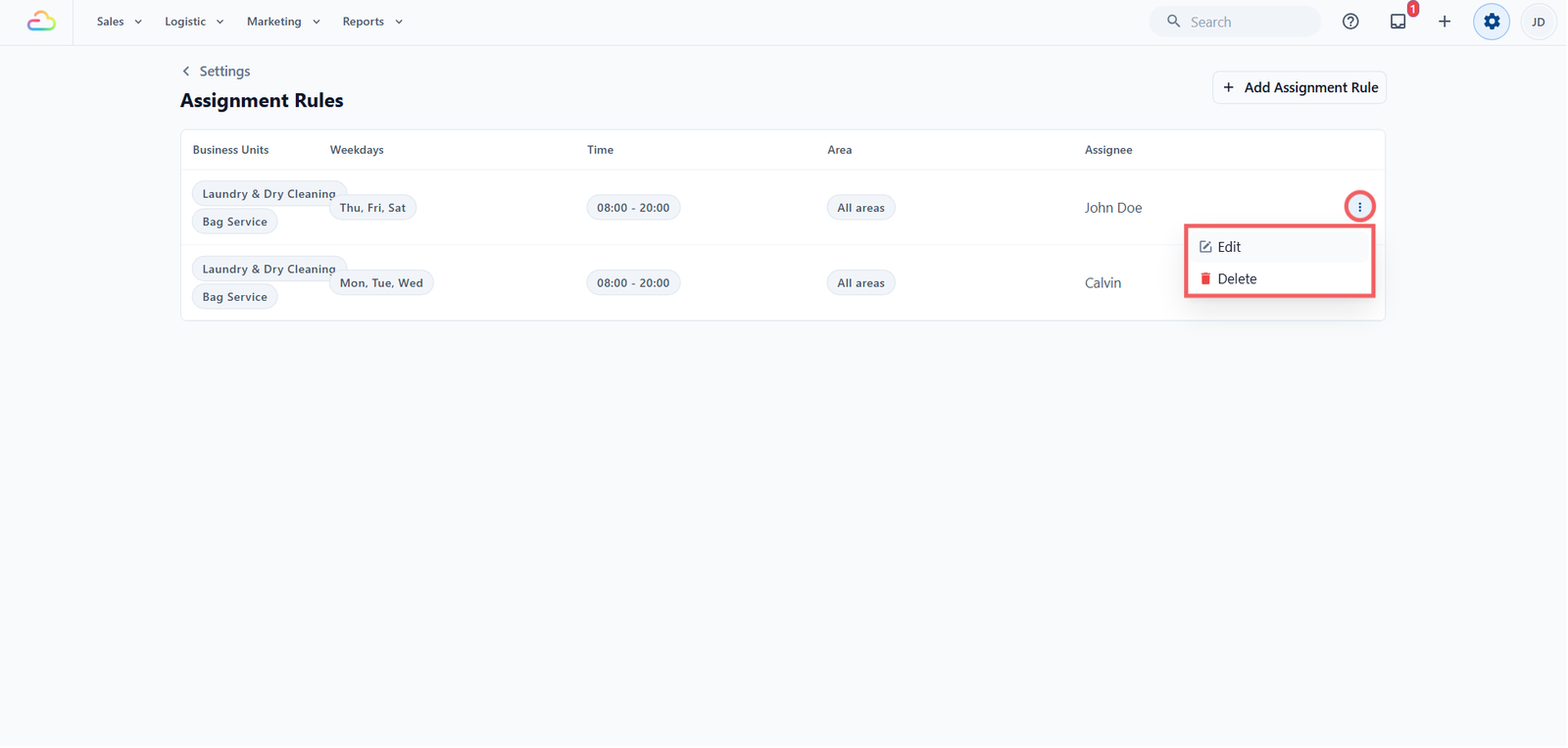
| Column | What it shows |
|---|---|
| Business Units | The business units this rule applies to, or "All business units" if empty |
| Weekdays | The days, or "All days" if empty |
| Time | The time range, or "All day" if empty |
| Area | The zones, or "All areas" if empty |
| Assignee | The driver who receives the pickup or delivery job |
FAQs
Two of my rules could match the same booking. Which one wins?
EasyBiz does not guarantee which one wins. Rather than rely on an order, make one of the rules more specific so only one can ever match a given booking. Non-overlapping rules are the only reliable setup.
What happens if no rule matches a new booking?
The booking is created without an assignee and appears in the Job Table, ready for you to assign by hand. This is the normal way to handle bookings that fall outside your rules.
Do my recurring bookings keep the same assignee?
Each new instance of a recurring booking is routed by your rules at the moment it is created. If you change the rules, future instances follow the new ones, while instances already in the Job Table keep their original assignee.
If I edit a rule, does it change bookings already in my system?
No. Rules only run when a booking is first created. Editing, deleting, or adding a rule affects future bookings only.
What if the assigned team member is on leave or their account is disabled?
The booking still goes to that person, since the system does not check whether they are active. Spot it in the Job Table and reassign it by hand, or temporarily change the rule's assignee while they are away.
Give feedback
Up next
Auto Reply RulesAutomatically respond to your customers on WhatsApp the moment they message — even when your team is busy or the shop is closed.
Read more