
Setting up Data Access
In this article
Data Access controls what kinds of information a teammate can read inside the apps they can sign in to. You add one row per data type and pick a level that says how much the teammate can see. Without any custom rows the teammate sees the data the assigned app defaults to. Data Access does not give them the right to change anything — only to view or export. Pair it with Action Control for write actions and Admin Access for settings.
Contents
Contents
Add a Data Access Rule
- Click the 👤 Profile icon in the top-right corner.
- Click Teammates.
- On the Teammates page, find the teammate you want to edit.
- Click the ⋯ (three dots) button on the right side of their row.
- Click Edit.
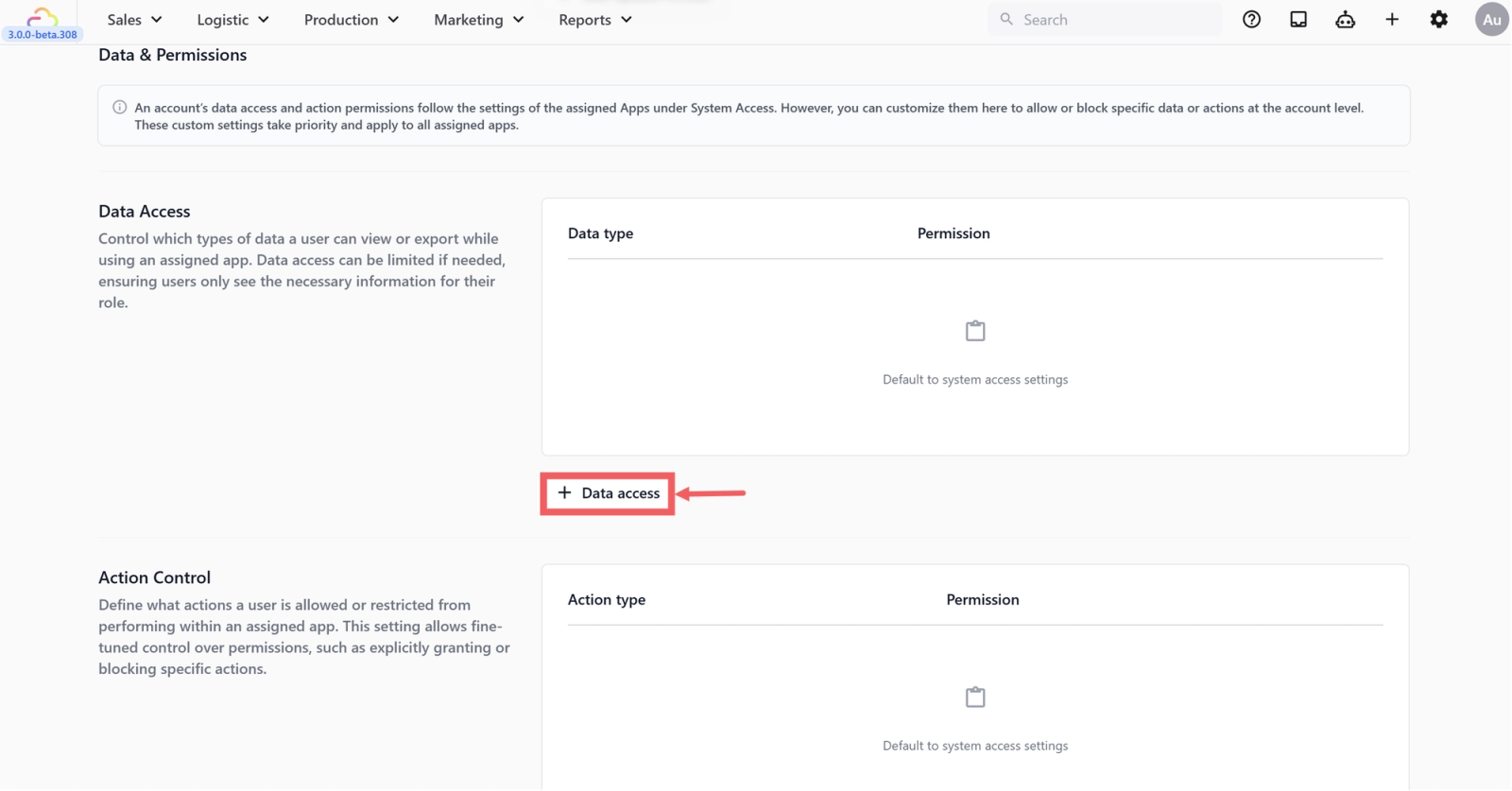
- In the Data Access row, click + Data access.
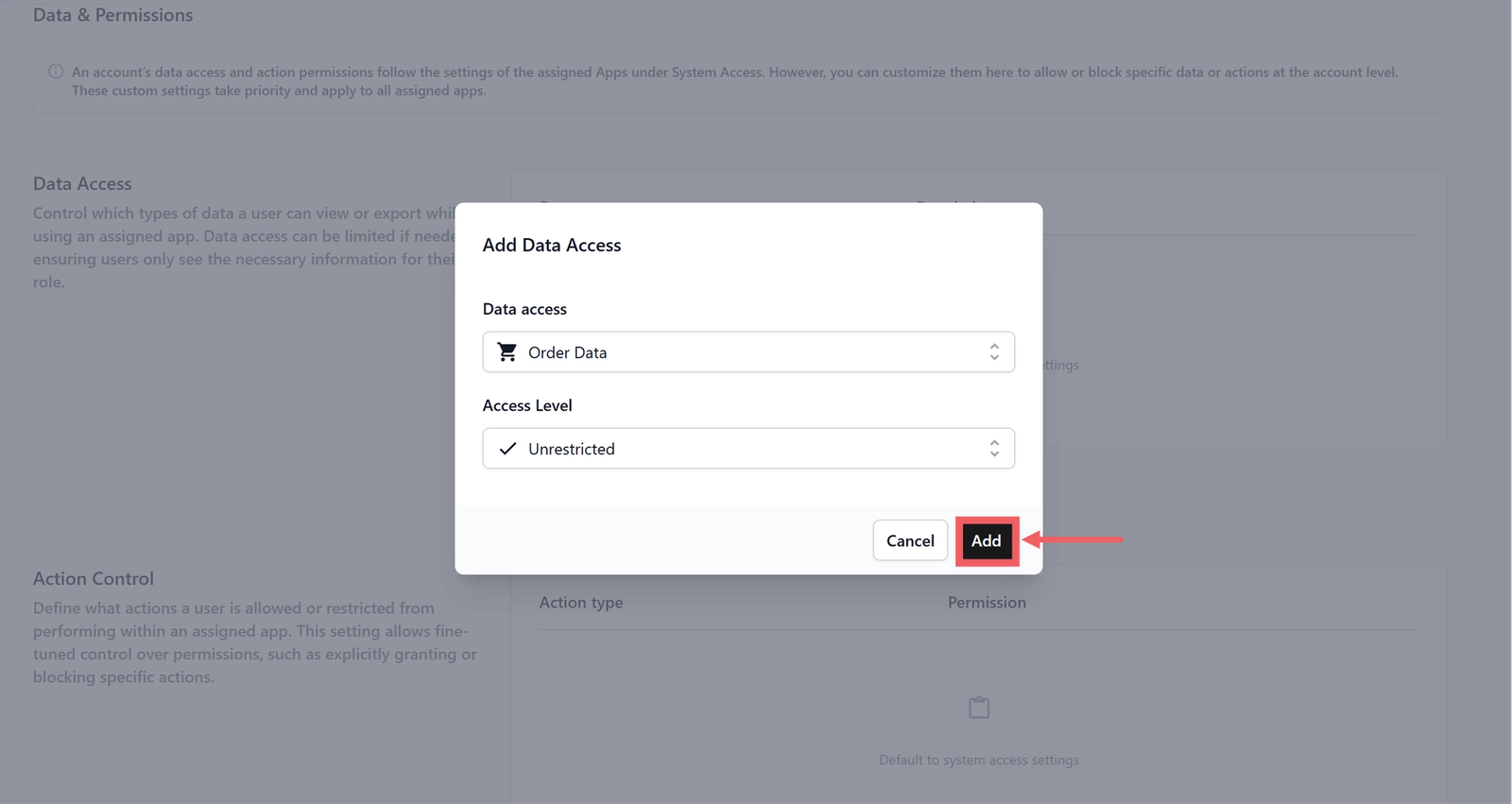
- Pick the data type and the access level, then click Add.
Data Types You Can Control
There are seven data types in the dropdown today.
Sales Channels
| Pick this | Result |
|---|---|
| Unrestricted | Teammate sees every sales channel in the shop |
| Limited to specific sales channels | Teammate sees only the sales channels you tick |
| No access | Teammate cannot see any sales channel data |
| Mix and match | Tick more than one sales channel to give access to a small group |
Customer Data
| Pick this | Result |
|---|---|
| Unrestricted | Teammate can view every customer record |
| Amount based access | Teammate can only view up to a maximum number of records you set |
| No access | Teammate cannot view any customer record |
Order Data
| Pick this | Result |
|---|---|
| Unrestricted | Teammate sees every order |
| Limited to specific sales channels | Teammate sees only orders from the sales channels you tick (web and mobile only) |
| Time based access | Teammate sees only orders inside a time window you set |
| No access | Teammate cannot view any order |
For Time based access you choose Same day only or Limit to Past X Days. For POS apps a separate toggle, Allow access to orders from other stores under the same company, lets the teammate see orders from sister stores.
Sales Data
| Pick this | Result |
|---|---|
| Unrestricted | Teammate sees every sales record |
| Time based access | Teammate sees only sales inside a time window you set |
| No access | Teammate cannot view any sales record |
Logistics Data
| Pick this | Result |
|---|---|
| Unrestricted | Teammate sees every pickup, delivery, and route |
| No access | Teammate cannot view any logistic record |
Production Data
| Pick this | Result |
|---|---|
| Unrestricted | Teammate sees every production task and work order |
| No access | Teammate cannot view any production record |
Marketing Data
| Pick this | Result |
|---|---|
| Unrestricted | Teammate sees campaigns, sequences, and customer marketing lists |
| No access | Teammate cannot view any marketing record |
Dependencies Between Permissions
- Time based access on Order Data also limits Sales Data lookups that depend on those orders.
- Sales Channel limits on Sales Channels also restrict Order Data and Sales Data to the same channels.
- App Access drives the starting set of data permissions. A teammate without an assigned app sees nothing regardless of these rules.
Recommended Starting Configuration: Counter Staff
A typical laundry counter cashier needs to take orders and look up customers but not see sales numbers. Set them up with:
- Customer Data: Unrestricted
- Order Data: Time based access, Same day only
- Sales Channels: Limited to specific sales channels (their store only)
- Sales Data: No access
- Logistic Data: No access
- Production Data: No access
- Marketing Data: No access
FAQs
A teammate sees no orders even though I gave them Order Data. Why?
Check Sales Channels. If you also restricted Sales Channels and the teammate is not in any of the ticked channels, they see nothing.
Does Customer Data Amount based access count repeat views?
No. The limit is a maximum number of unique records they can pull up over time, not a per-session counter.
Can I grant export but not view?
No. Export rights are tied to view rights for the same data type. If you do not grant a data type, exports for it are blocked too.
Does removing a Data Access row block access?
No. Removing a custom row falls the teammate back to the assigned app's default. Use the No access level if you want to block completely.
A POS cashier needs to see orders from other stores in the same company. How?
Inside the Order Data rule, switch on Allow access to orders from other stores under the same company.
What's Next
Now that data is locked down, continue to [Setting Up Action Control] to decide which write actions the teammate can perform on that data.
Give feedback
Up next
Setting Up Action ControlPick which write operations a teammate is allowed to perform, with optional limits like time windows and approval gates.
Read more