
Setting up App Access
In this article
App Access is the gate that decides whether a teammate can sign in at all. You build apps in your shop's settings — for example a counter POS, a driver mobile app, or your web console — and then assign one or more of those apps to each teammate. Without an assigned app the teammate cannot open EasyBiz on any device. App Access also sets the starting Data Access and Action Control for the teammate, which you can then override at the teammate level. This is usually the first thing you configure on a new account.
Contents
Contents
What App Access Controls
Every app you have built lives under one of four platforms: Web Console, Mobile, POS terminal, or Online Store. App Access is the list of those built apps a specific teammate is allowed to open with their login. A teammate with zero assigned apps will see a sign in not allowed error.
Each app brings its own default Data Access and Action Control, set by you when the app was created. Those defaults apply to every teammate of that app unless you customise their permissions on the teammate profile.
Add App Access
- Click the 👤 Profile icon in the top-right corner.
- Click Teammates.
- On the Teammates page, find the teammate you want to edit.
- Click the ⋯ (three dots) button on the right side of their row.
- Click Edit.
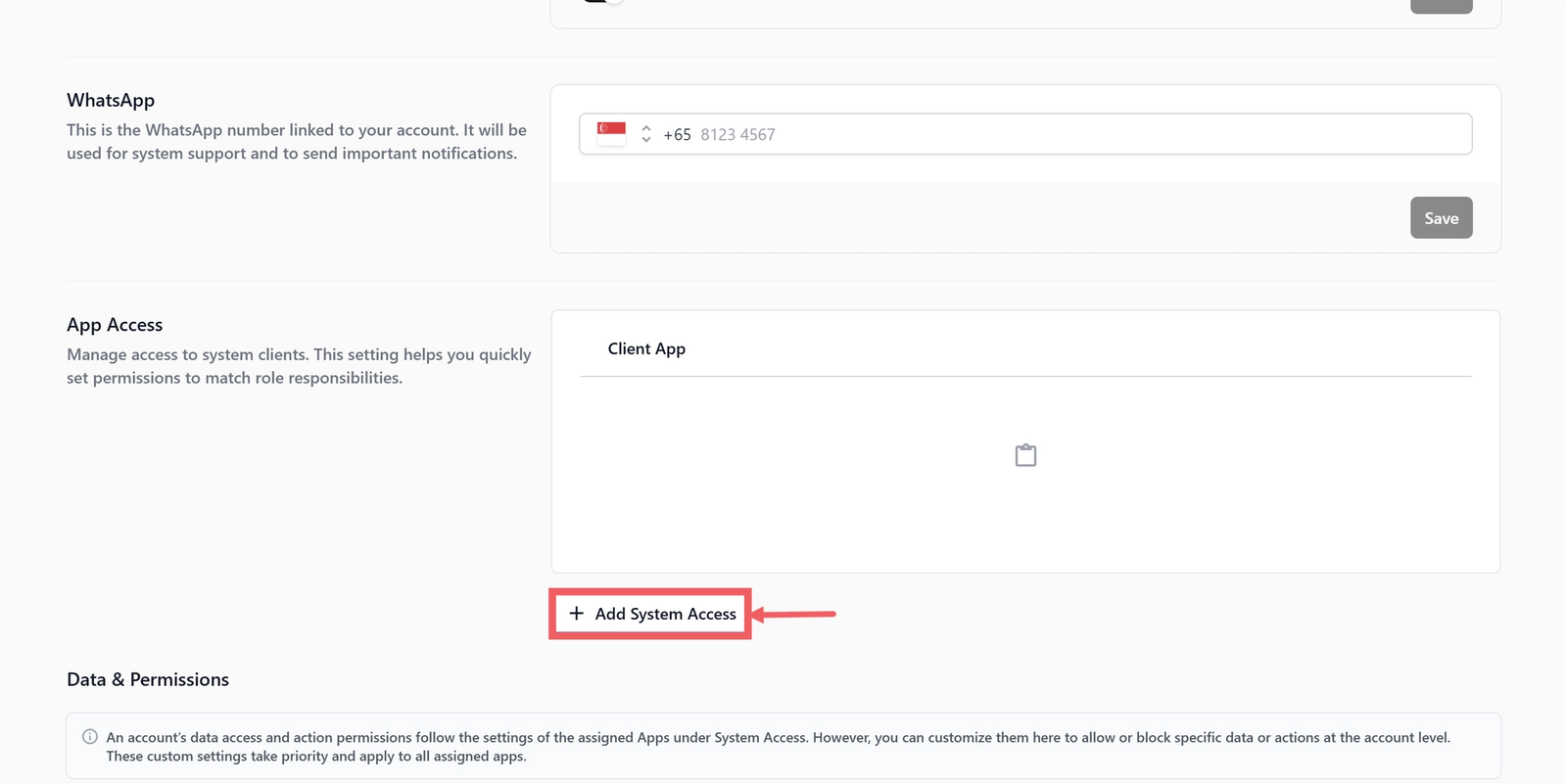
- Scroll to the App Access row and click Add System Access.
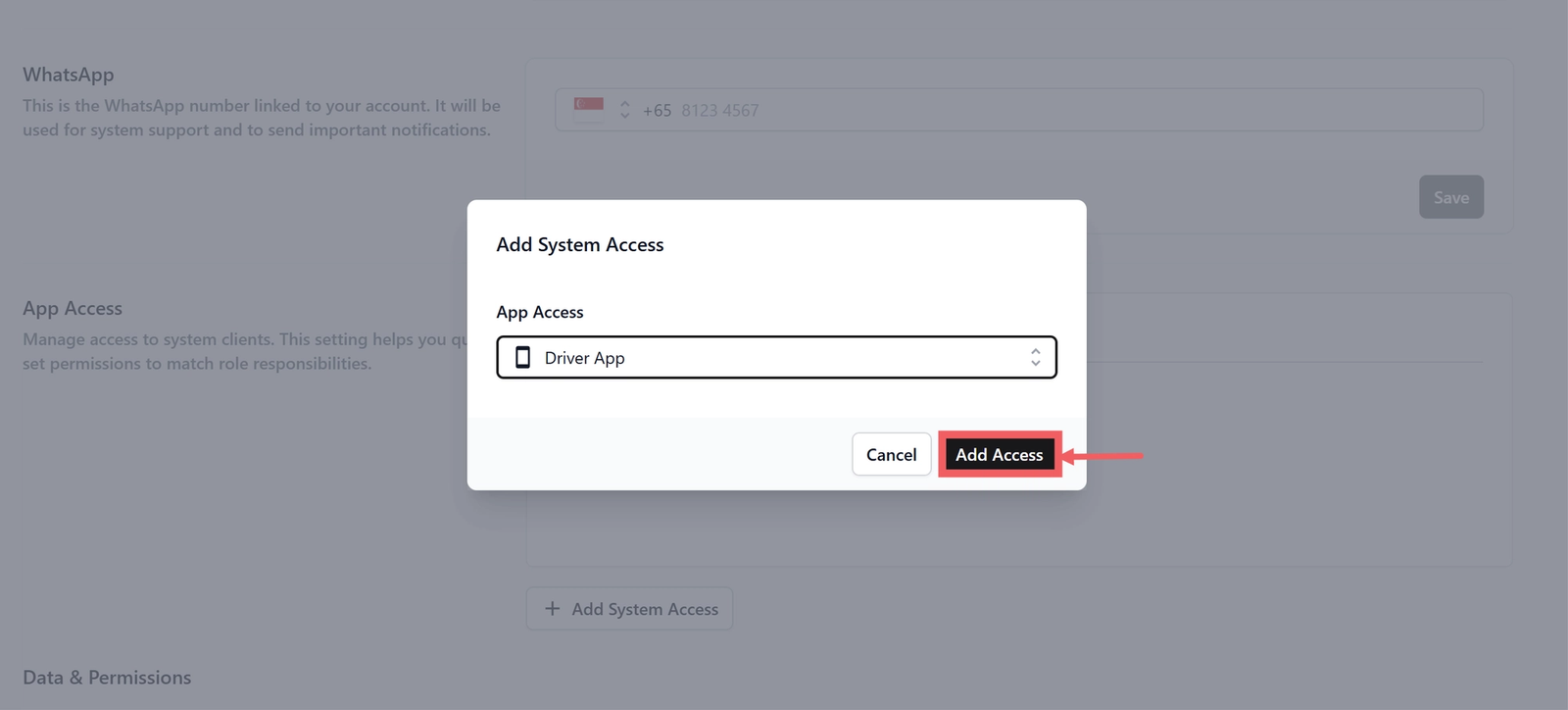
- Select the app from the dropdown and click Add Access
The first app you add for each platform becomes the Default for that platform, shown by a green Default badge. The default is what the teammate opens first when there are several apps on the same platform.
App selection
| Pick this | Result |
|---|---|
| One Console app | Teammate can sign in to your web console |
| One Mobile app | Teammate can open your mobile app on their phone |
| One POS app | Teammate can sign in to a POS terminal |
| One Online Store app | Teammate can sign in to your online storefront admin |
| Mix and match | Select more than one app to give a teammate access on several platforms at once |
Reorder Apps
Drag a row up or down on the App Access table to change the order. The first app on each platform is the Default.
Remove App Access
- Open the teammate's profile.
- In the App Access table, click the three dots on the row.
- Click Remove access and confirm.
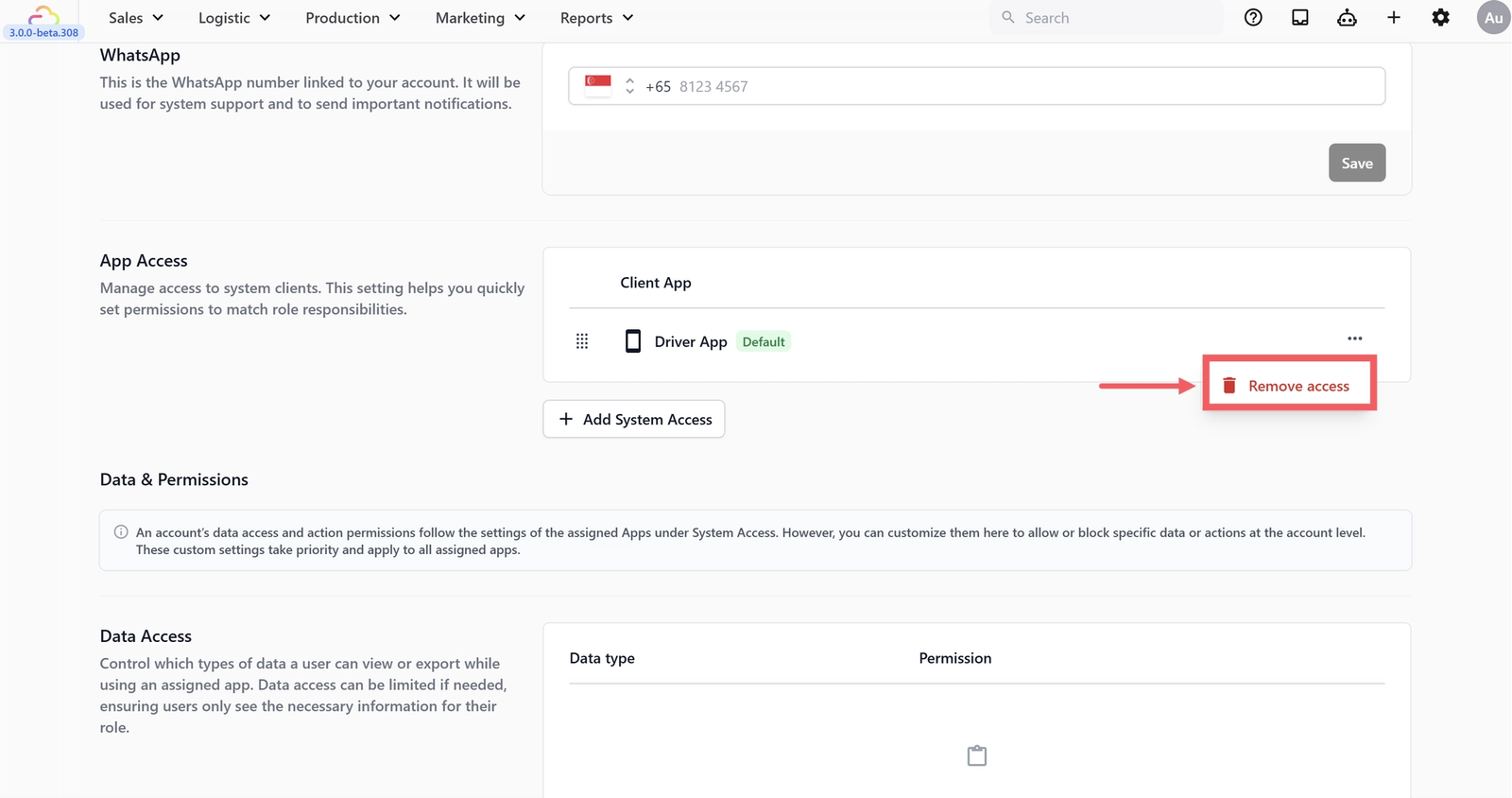
The teammate immediately loses access to that app. If it was the only POS app, they cannot sign in to any POS terminal until you assign another.
How App Access Interacts With Other Permissions
| If you do this | What happens |
|---|---|
| Assign an app, leave Data Access empty | The teammate uses the data permissions defined on the app itself |
| Assign an app, set custom Data Access on the teammate | Your custom setting overrides the app default for this teammate |
| Remove all App Access | The teammate cannot sign in anywhere, regardless of any other setting |
FAQs
A teammate sees several apps in the dropdown. Can they sign in to all of them?
No. The dropdown lists every app in your shop. Until you click Add Access on a row, the teammate cannot open it.
Why do I see the same app type listed several times?
You have built more than one app on that platform — for example two POS apps for two stores. Each is independent and you can assign different teammates to each.
Can I limit a teammate to one specific store?
Assign only the app for that store under App Access. Combined with sales channel limits in Data Access, you keep them inside that one location.
A teammate has access to the Console app but cannot see Reports. Why?
App Access opens the front door but each section inside still respects Data Access and Admin Access. Grant the relevant Data Access for them to see Reports.
Can a teammate be a default user of two POS apps at once?
No. The first app of each platform is the default. To swap, drag a different app to the top of the App Access table for that platform.
What's Next
Now that the teammate can sign in to the right apps, continue to [Setting Up Data Access] to control what data they can see inside those apps.
Give feedback
Up next
Setting up Data AccessDecide which types of data each teammate can view inside their assigned apps, and how much of it.
Read more