
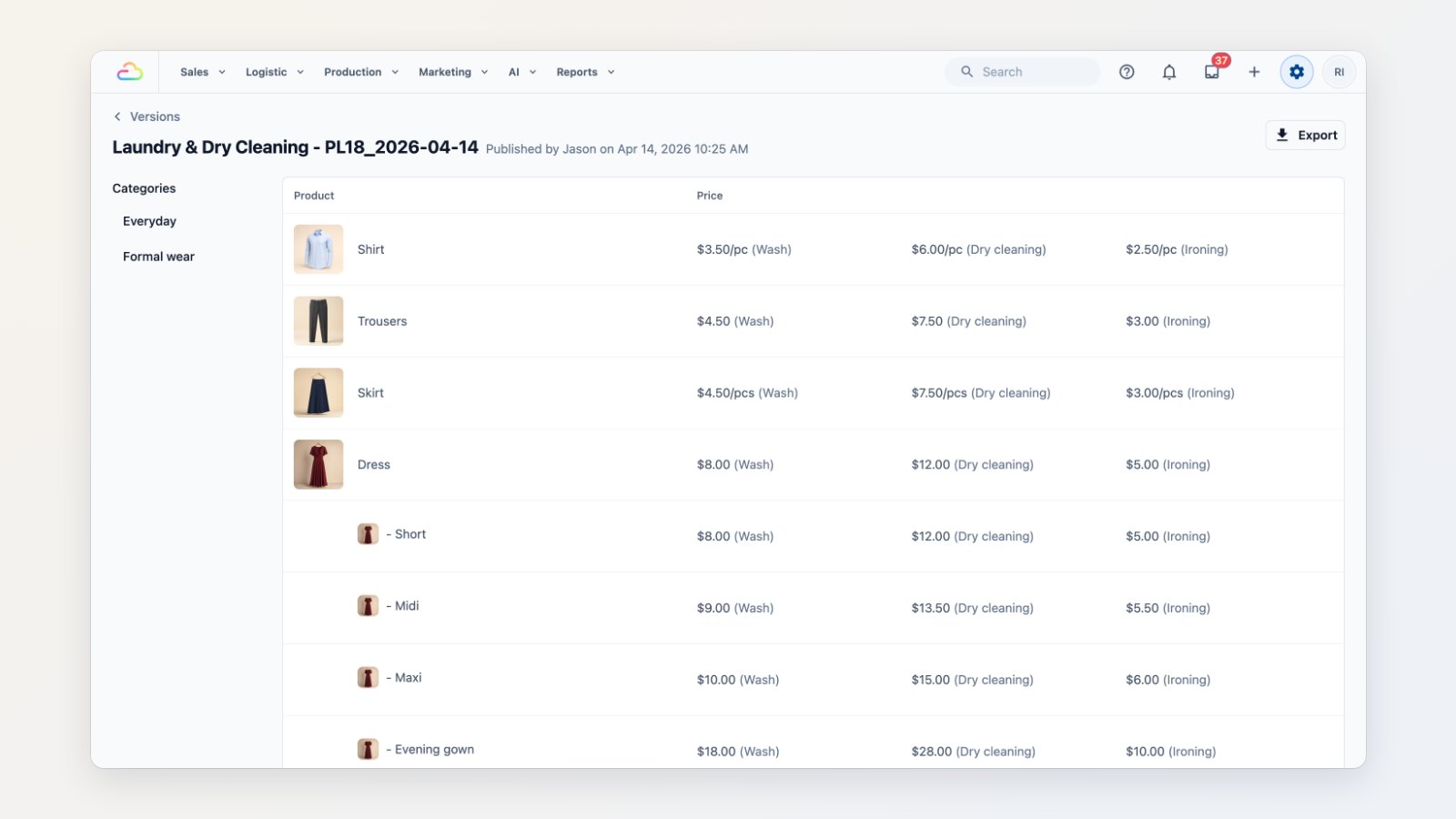
Prices used to live in several places, and changing them meant hoping every counter and booking page picked up the new numbers. You can now keep all your items and prices in one price list. Your POS counters, your online booking and your apps all read from it.
Every item, every service, one table
Group items into categories, add a photo, and set a price for each way you serve it. A shirt can have one price for wash, another for dry cleaning and another for ironing, and you can price by the piece, bundle, kilogram, pair, square foot and more. Variants such as Short, Midi and Maxi sit under the item they belong to.
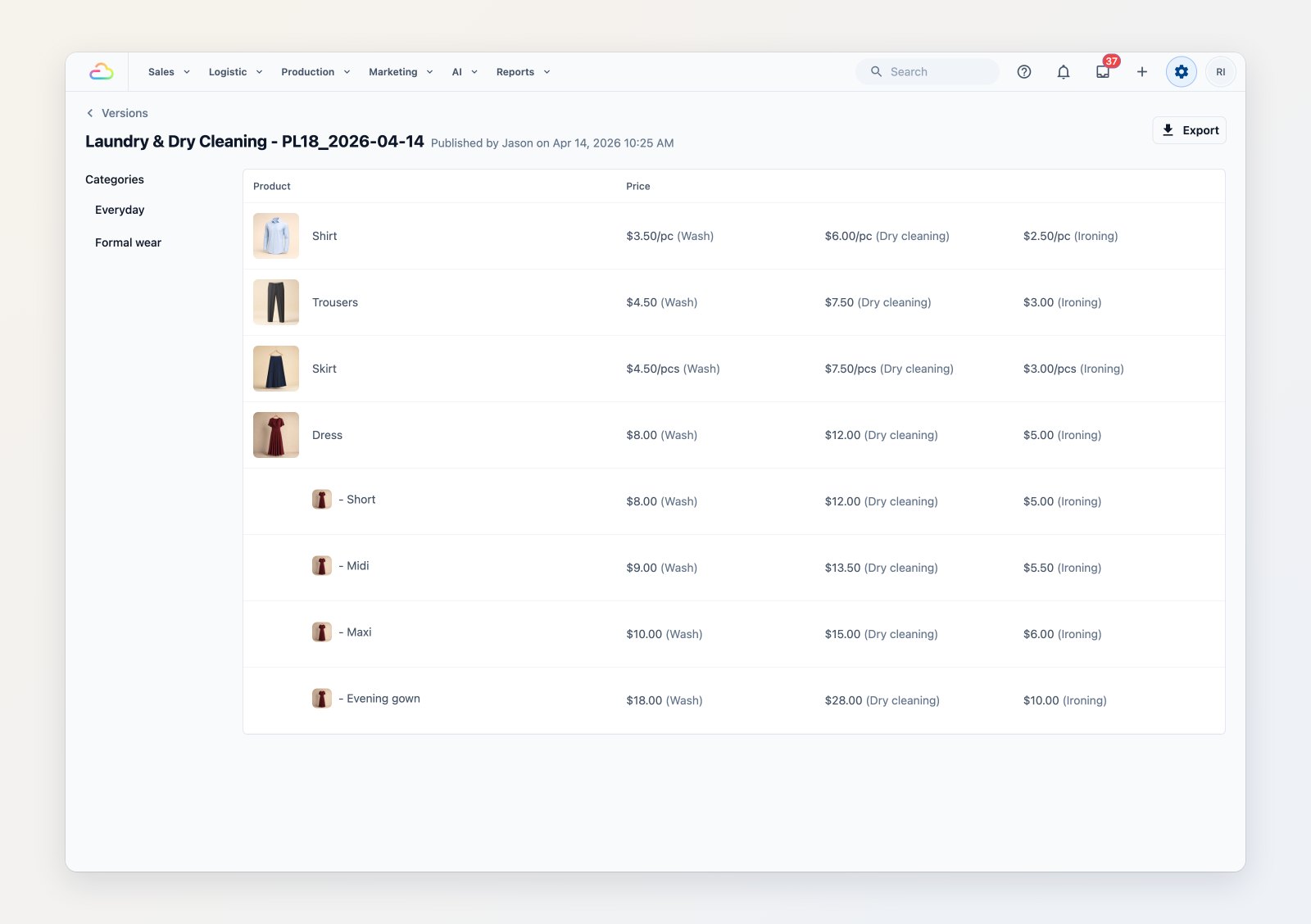
Every item with its photo and a price for each way you serve it.
Change prices without surprises
Price changes happen in a draft. Nothing reaches your counters until you publish, so you can prepare next month's prices today. Each publish creates a new version with the date and the person who published it.
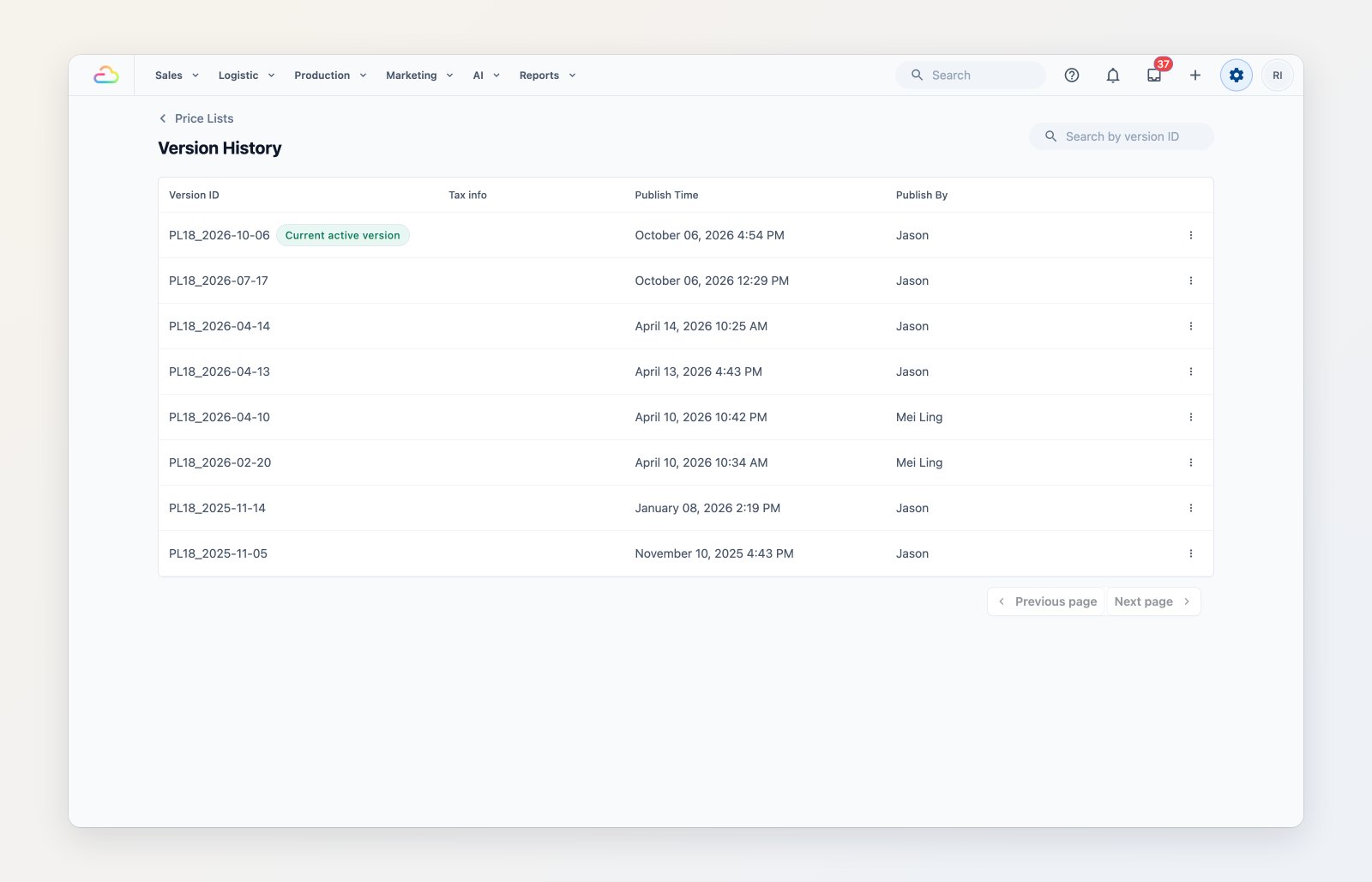
Every published version is kept, so you can see what changed and when.
See exactly what was live
Open any version to see the prices that were in force at the time. That helps when a customer asks why last month's order cost what it did. You can also export a version to Excel.
Where to find it
Go to Settings → Price Lists. See Introduction to price lists and Manage price list versions.