
Setting Up Line Item Flows for Measurement-Based Items
In this article
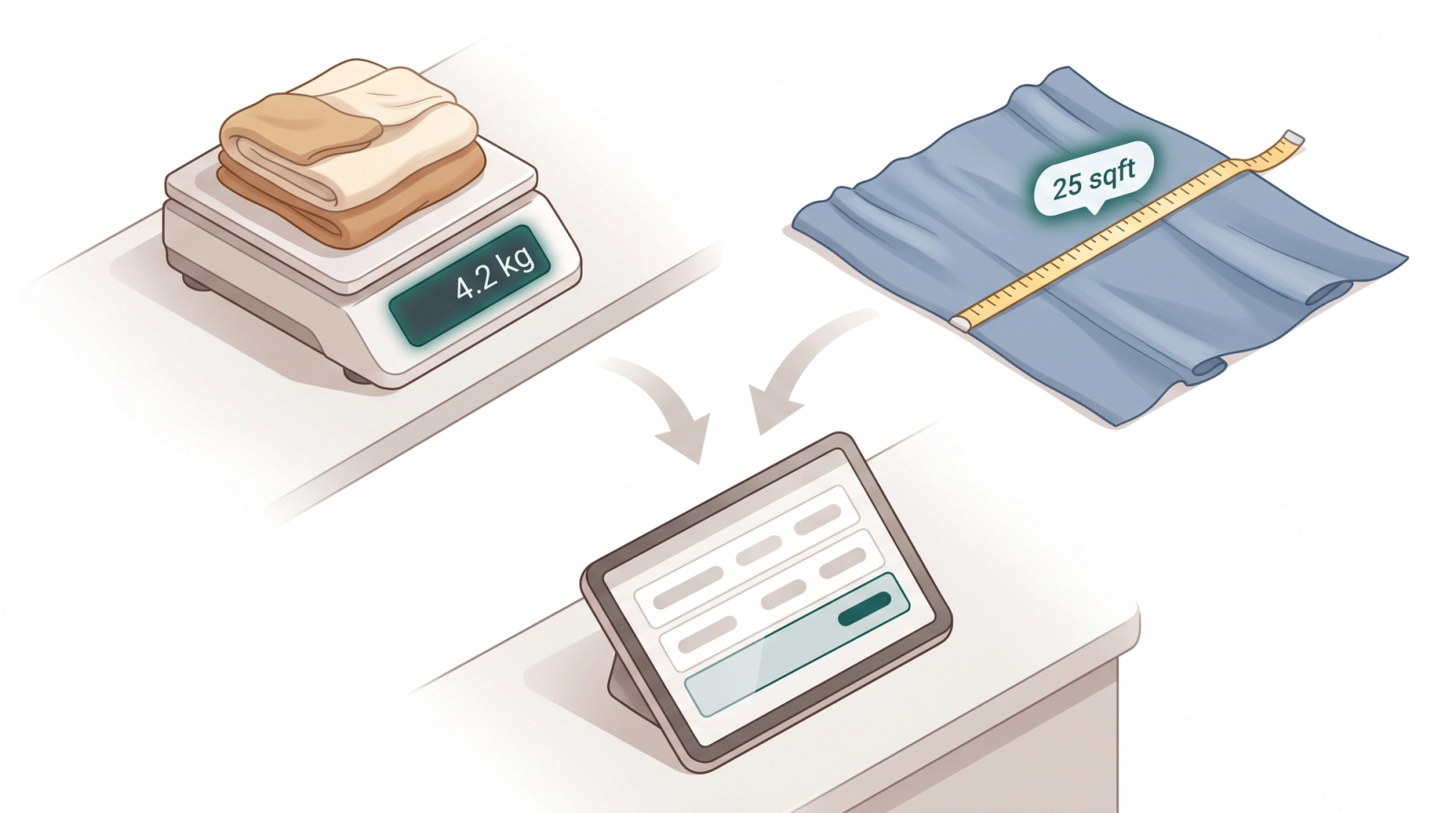
Not every item is priced per piece. Laundry is sometimes charged by weight, curtains by square footage, rugs by length. Each of these needs staff to capture a measurement at the counter before a price can be calculated. A Line Item Flow handles this consistently, whatever the unit — and it also tells the system how many labels to generate for that order line.
Contents
Contents
What Is a Measurement-Based Line Item Flow?
When staff tap a measurement-based item, instead of the item going straight into the cart, a short form appears. Staff enter two things:
- Quantity -> the measurement that drives the price. For example 4.2 for 4.2 kg, or 25 for 25 sqft. The system multiplies this by the item's per-unit price to calculate the line total.
- Pieces -> the count of physical items. For example 3 curtain panels, or 2 rugs. This tells the system how many labels to generate for this order line. One label per piece.
These are separate because one job can have multiple physical items with a single combined measurement. Three curtain panels might together weigh 4.2 kg the price comes from 4.2, but you need 3 labels.
When to Use This
Use this only if your shop has items where the price depends on a physical measurement:
- Laundry charged per kilogram (bulk wash, comforters)
- Curtains charged per square foot or per hook
- Rugs charged per square meter or per foot
- Blinds or alterations charged per inch
If every item has a fixed price per piece, skip this article.
Before You Start
Two things need to be in place before you create the flow.
Check your items in the Product Catalog
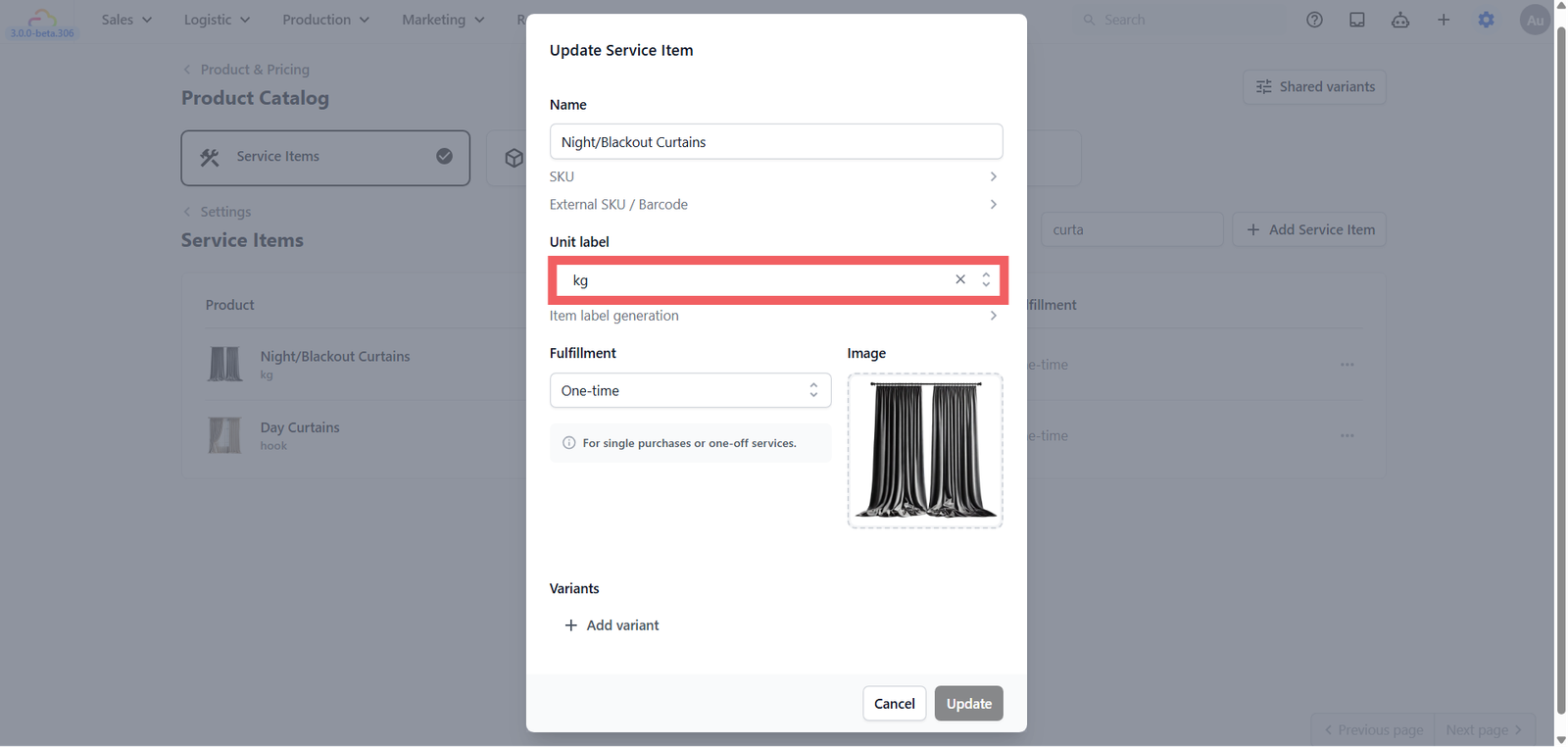
Open your product catalog and find the items you want this flow to apply to. For example Curtain, Carpet, or Bulk Wash. Make sure each one has the correct unit set, such as kg, sqft, ft, inch, or hook. This is what tells the system which items should trigger the flow. See [Setting Up Your Product Catalog].
Check your Published Price List
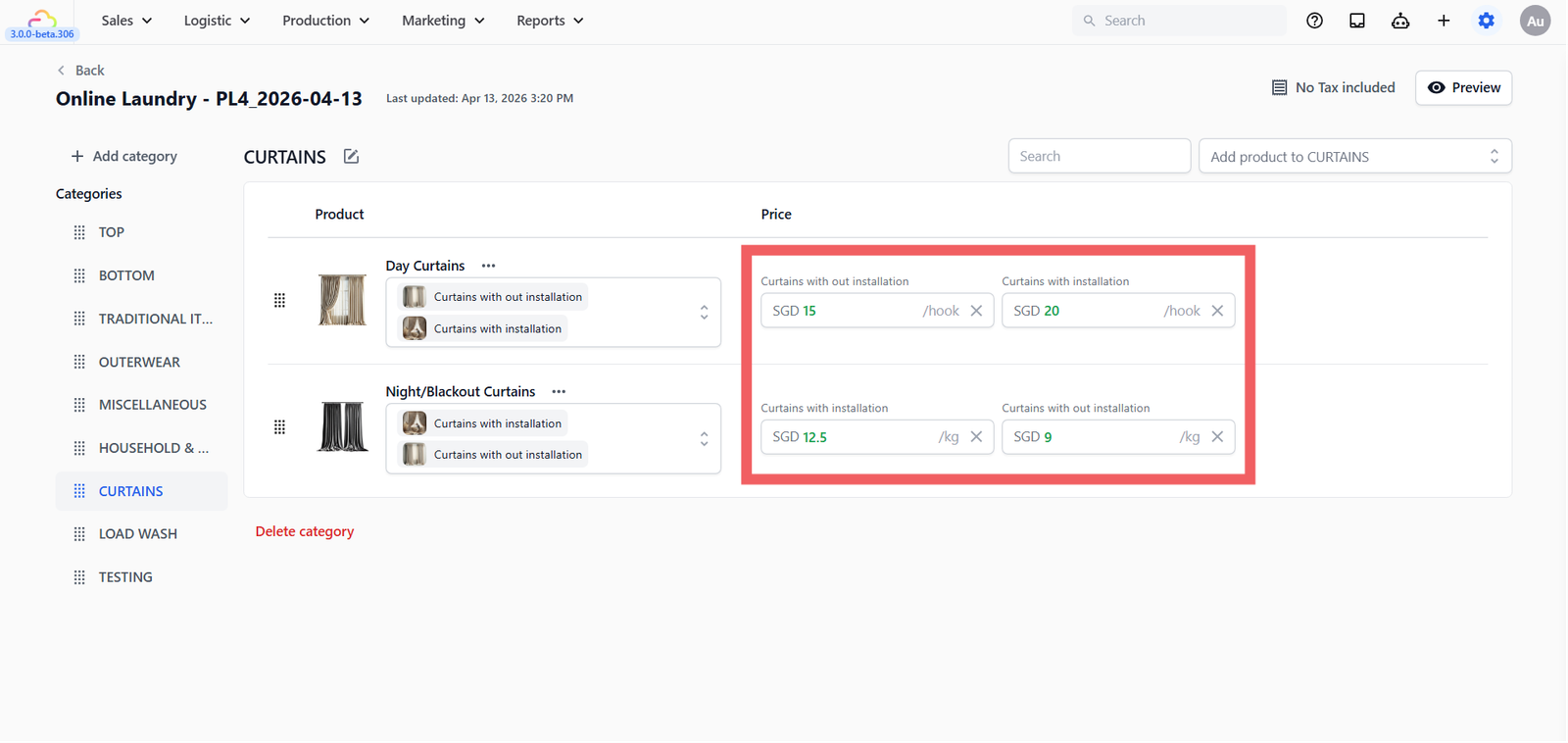
Open the price list linked to your Laundry Business Unit and confirm that the same items are priced per unit. For example Curtain at $3.50 per sqft, or Bulk Wash at $4.50 per kg. When staff enter the measurement in the flow, the POS multiplies it by this per-unit price to calculate the total automatically. See [Setting Up Your Price Lists].
Step 1: Create the Flow
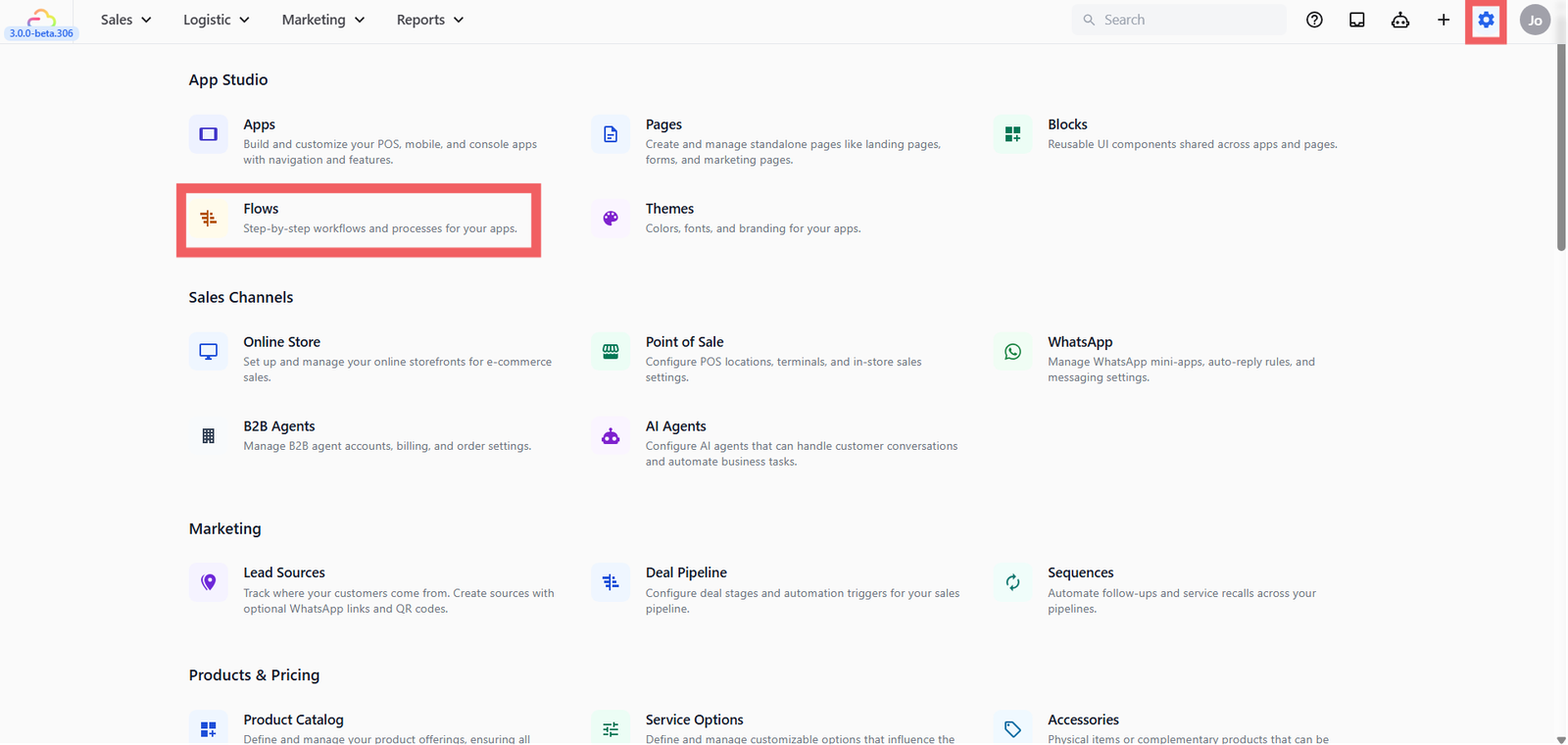
- Click the ⚙️ Settings icon in the top-right corner of your screen
- In the App Studio section and click Flows
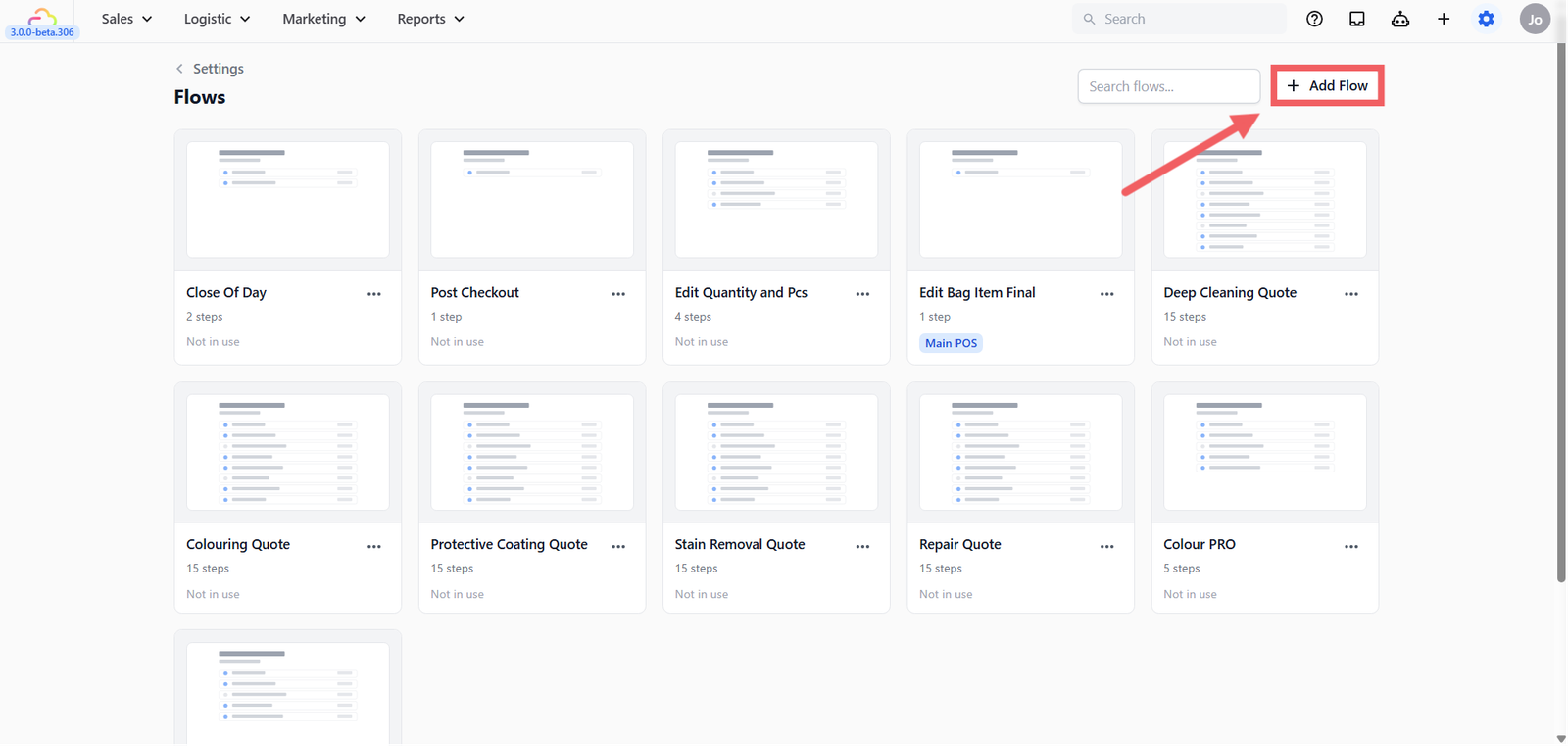
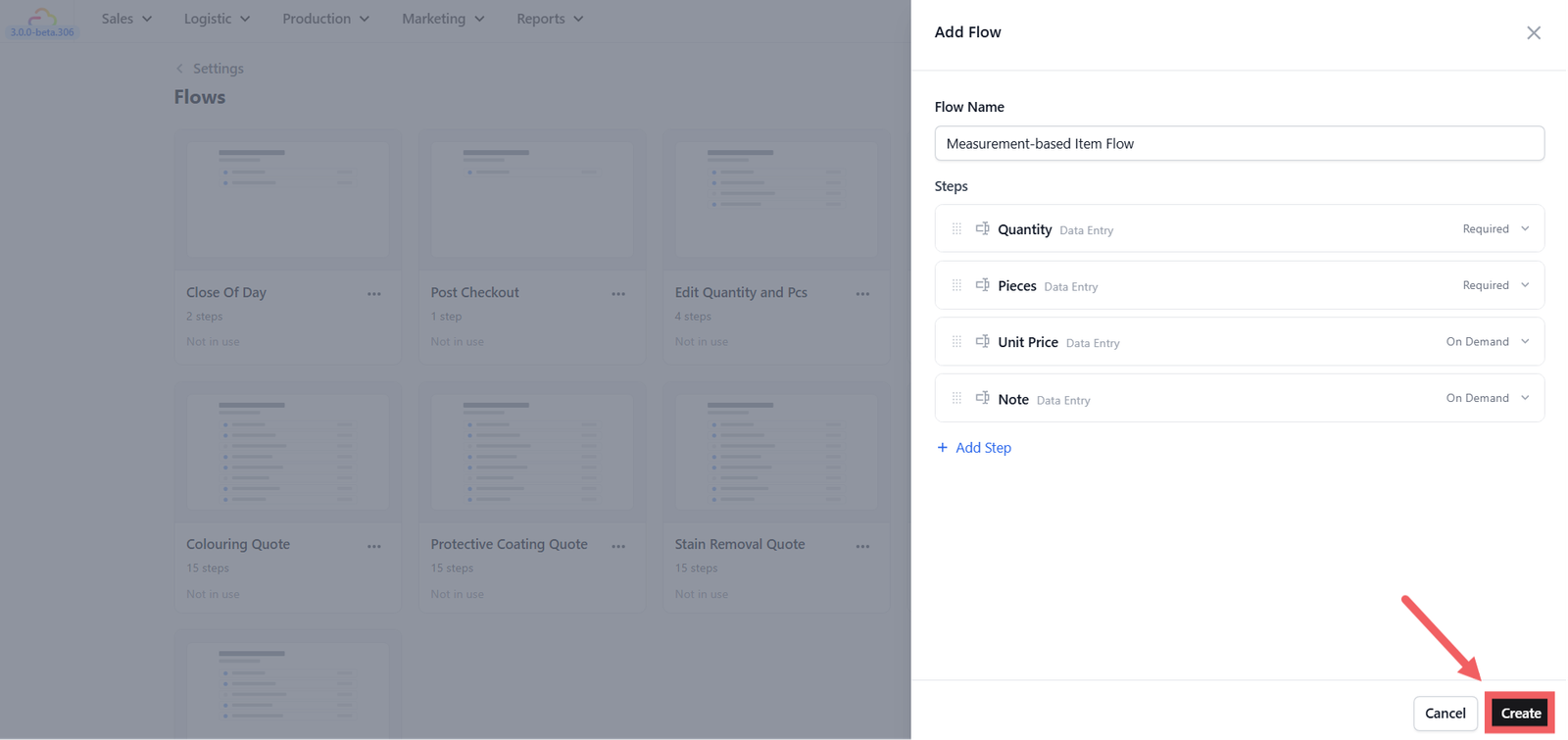
- Click + Add Flow
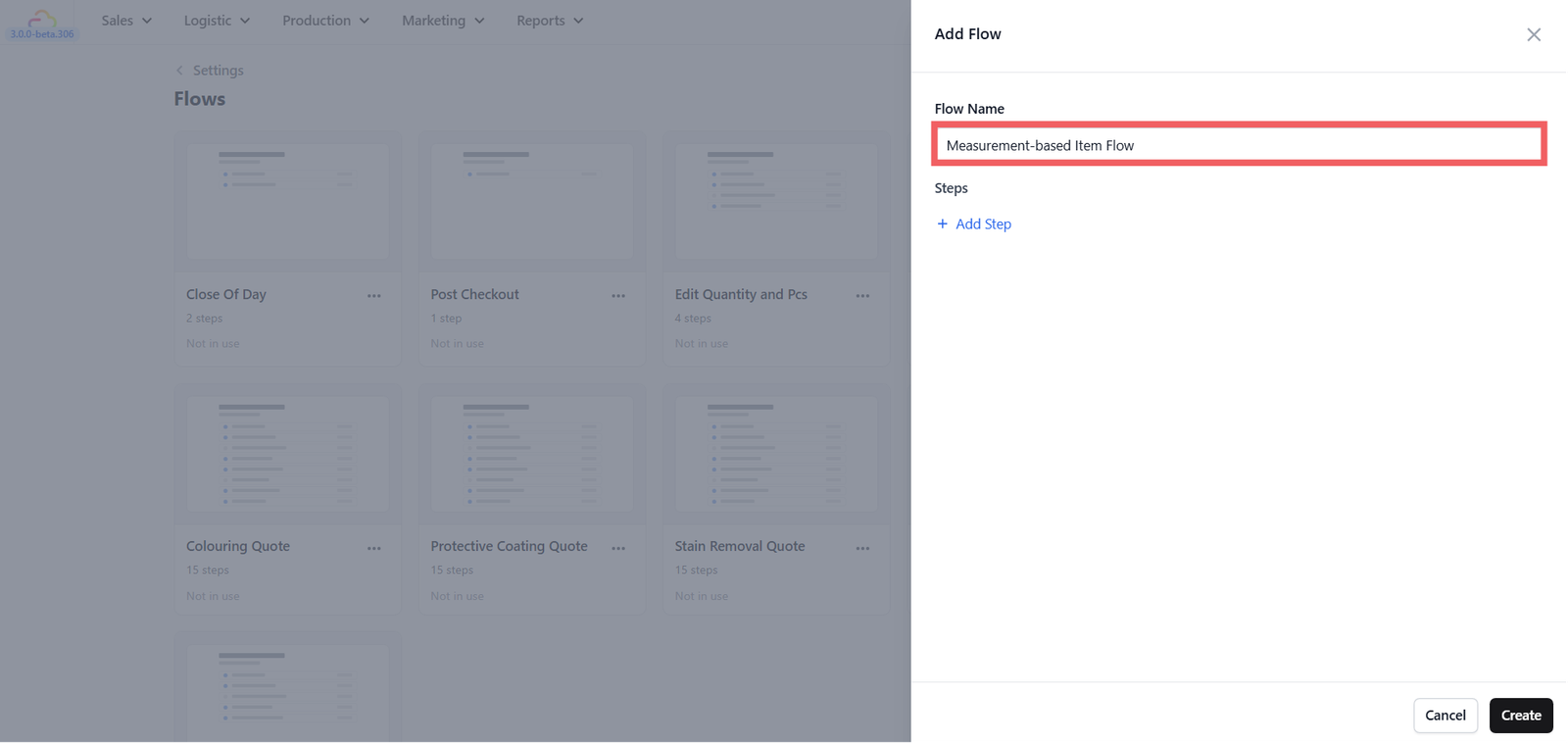
- Give the flow a clear name. A general name like 'Measurement Flow' works well if you plan to use it for many items.
Step 2: Edit the Flow
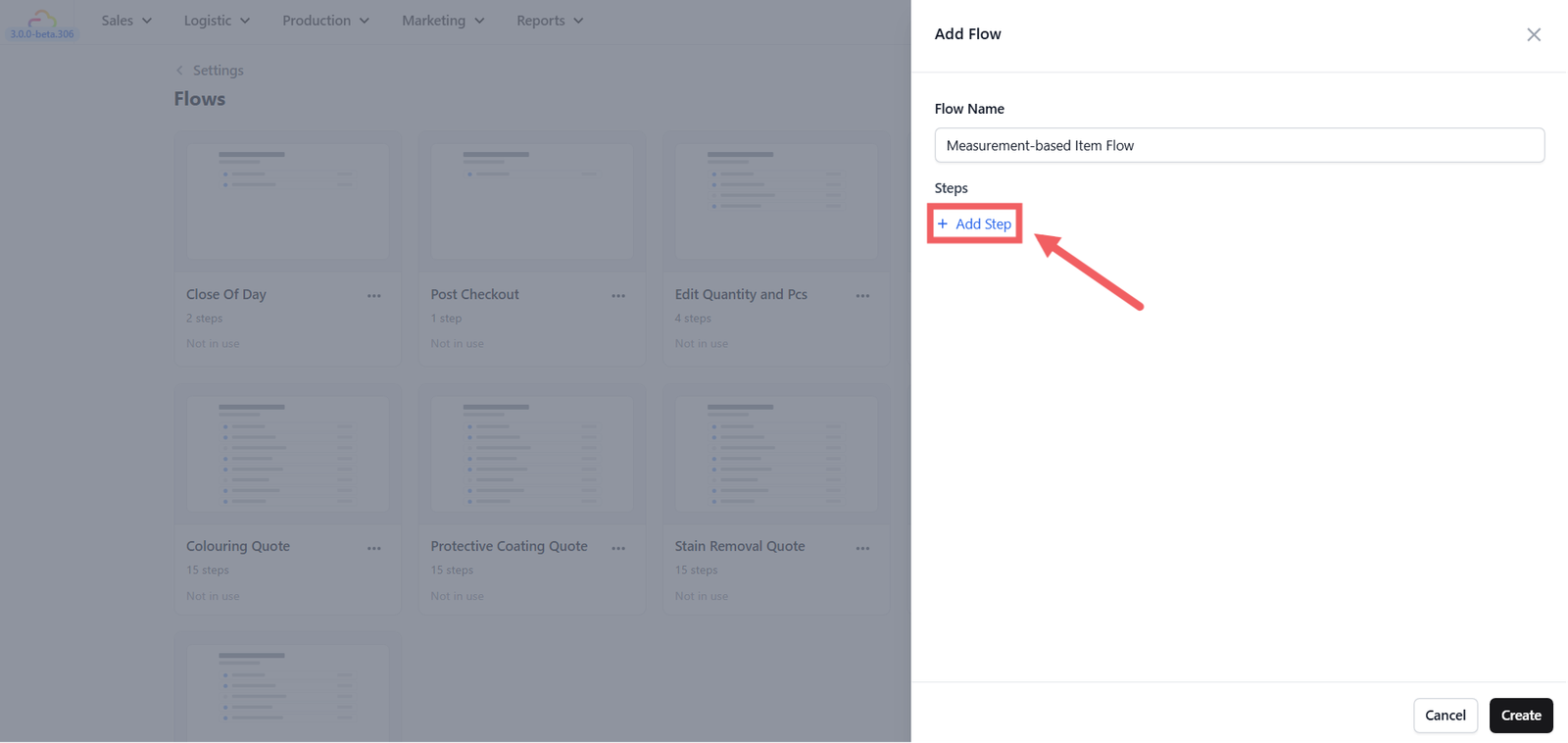
A flow is made of steps. When you click + Add Step, two options appear:
- Data Entry -> collects a value from staff, like a number, text, or date.
- Function Block -> attaches a pre-built component. Not needed for measurement flows.
For measurement flows, always choose Data Entry for each step.
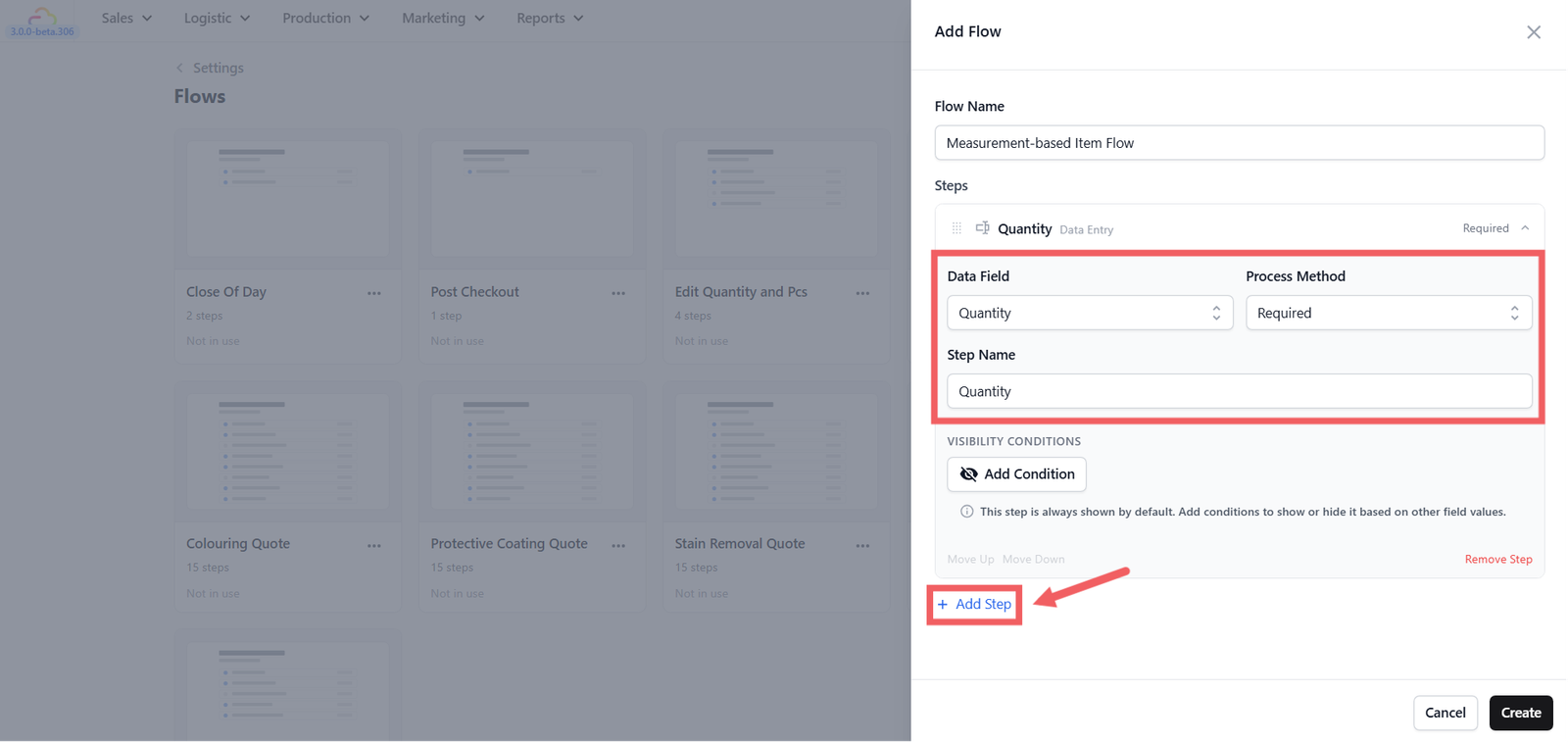
Add these four steps in order:
| Step | Data Field | When It Shows | What it does |
|---|---|---|---|
| 1 | Quantity | Required | The measurement staff enter — 4.2 for 4.2 kg, or 25 for 25 sqft. The system multiplies this by the unit price to calculate the total. Without it the price cannot be calculated. |
| 2 | Pieces | Required | The count of physical items. Determines how many labels the system generates for this order line. Three curtain panels = 3 labels, even if their combined weight is entered as one Quantity value. |
| 3 | Unit Price | On Demand | The per-unit price from the price list. On Demand means it is available if staff need it but does not appear by default. Useful when a customer negotiates a rate or staff want to check the price before confirming. |
| 4 | Note | On Demand | A free-text field for extra remarks — fabric type, stains, special care. Staff open it only when they have something to record. |
Click Create when done.
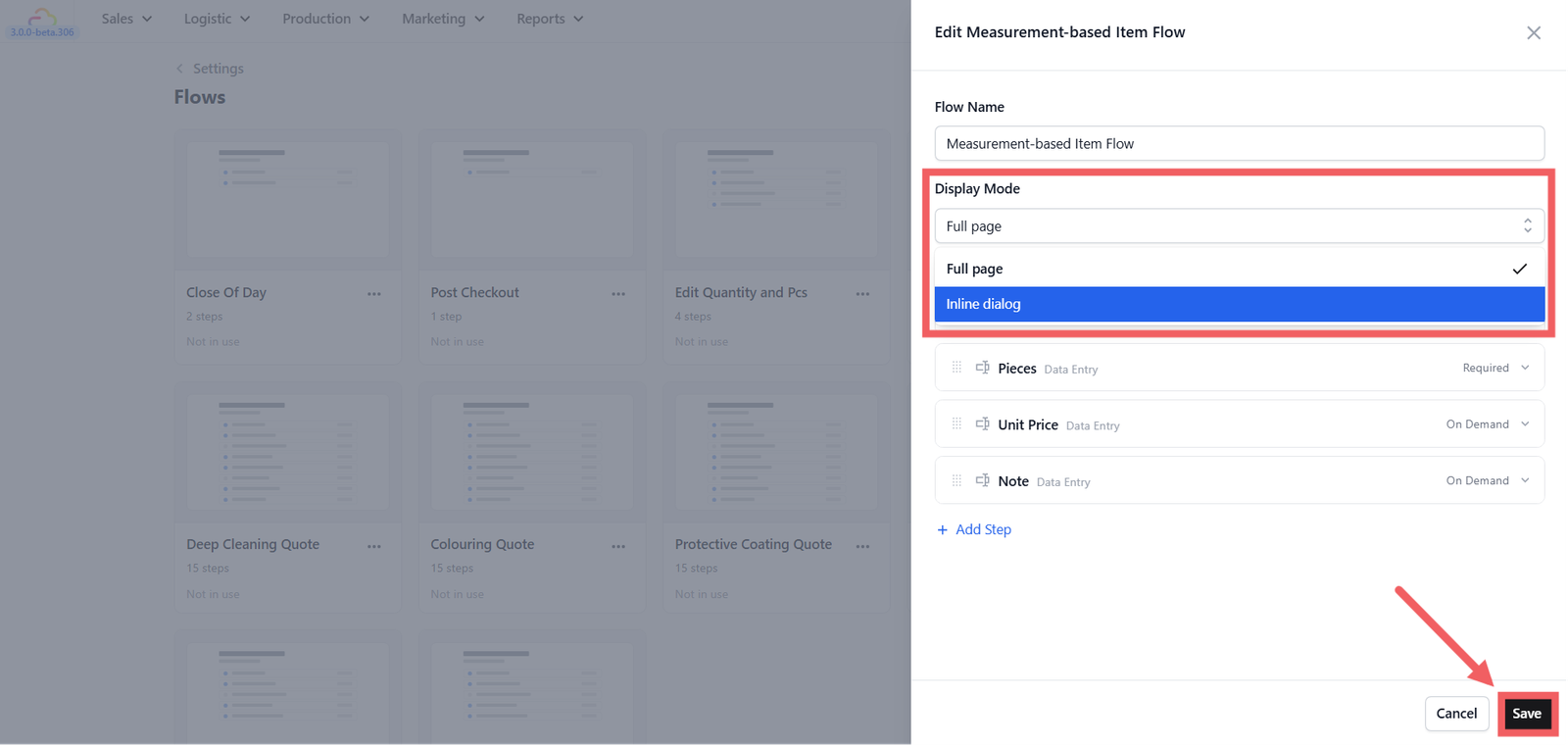
After saving, reopen the flow and check the Display Mode setting. It defaults to Full page. If you want the form to appear directly below the cart item instead of opening a separate screen, change it to Inline dialog and save again.
- Full page -> opens the flow in its own dedicated panel/screen, so the product list is replaced while the user completes the steps.
- Inline dialog ->keeps the product list visible and opens the flow as a smaller dialog anchored in the catalog area, directly under/over the selected item.
Click Save when done.
Step 3: Assign the Flow in Your Business Unit
- Click ⚙️ Settings icon in the top-right corner
- Scroll down to Administration section and click Business Units
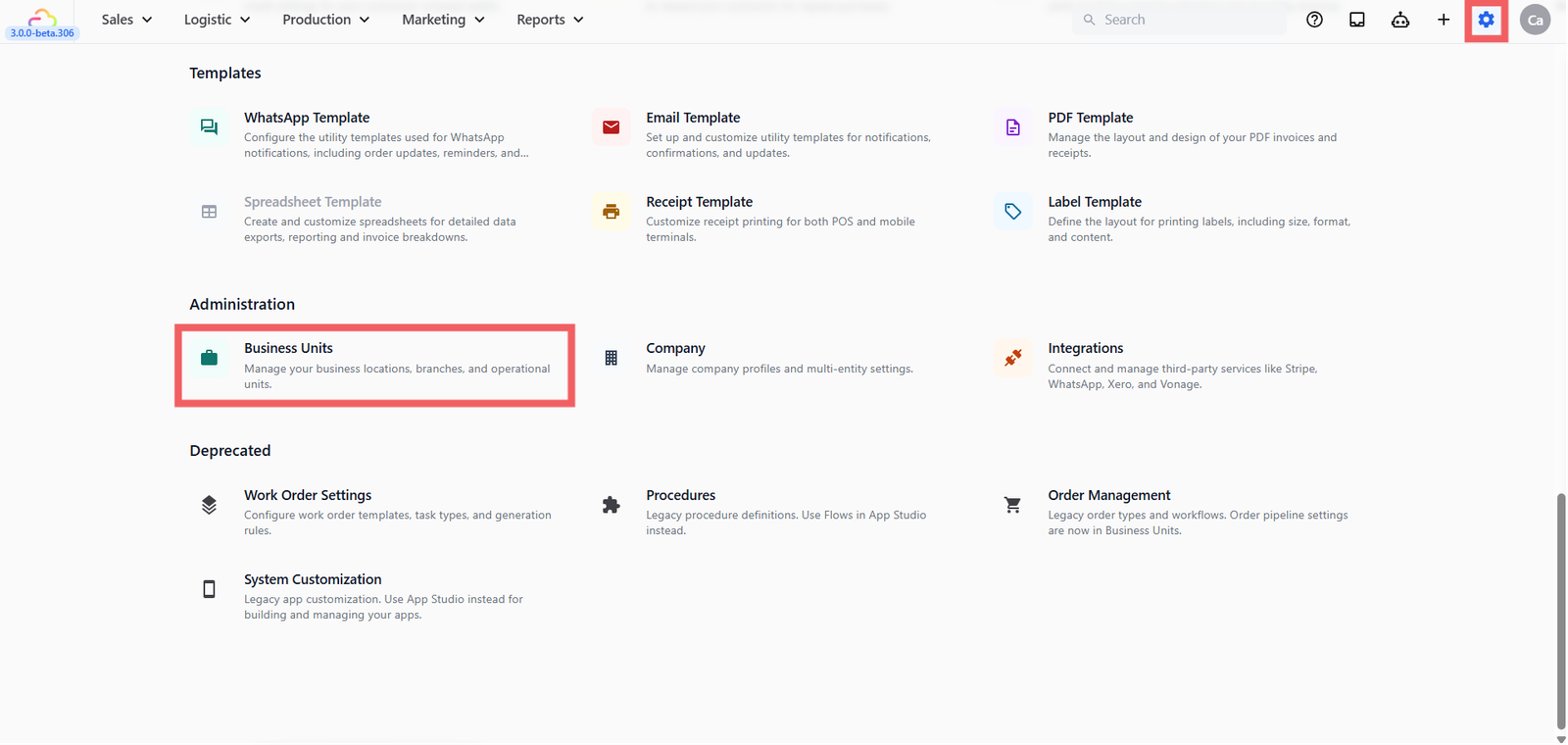
- Open your Laundry Business Unit and Scroll to the Line Item Flows section
- Click Add Line Item Flow at the bottom of the table and select the flow you just created
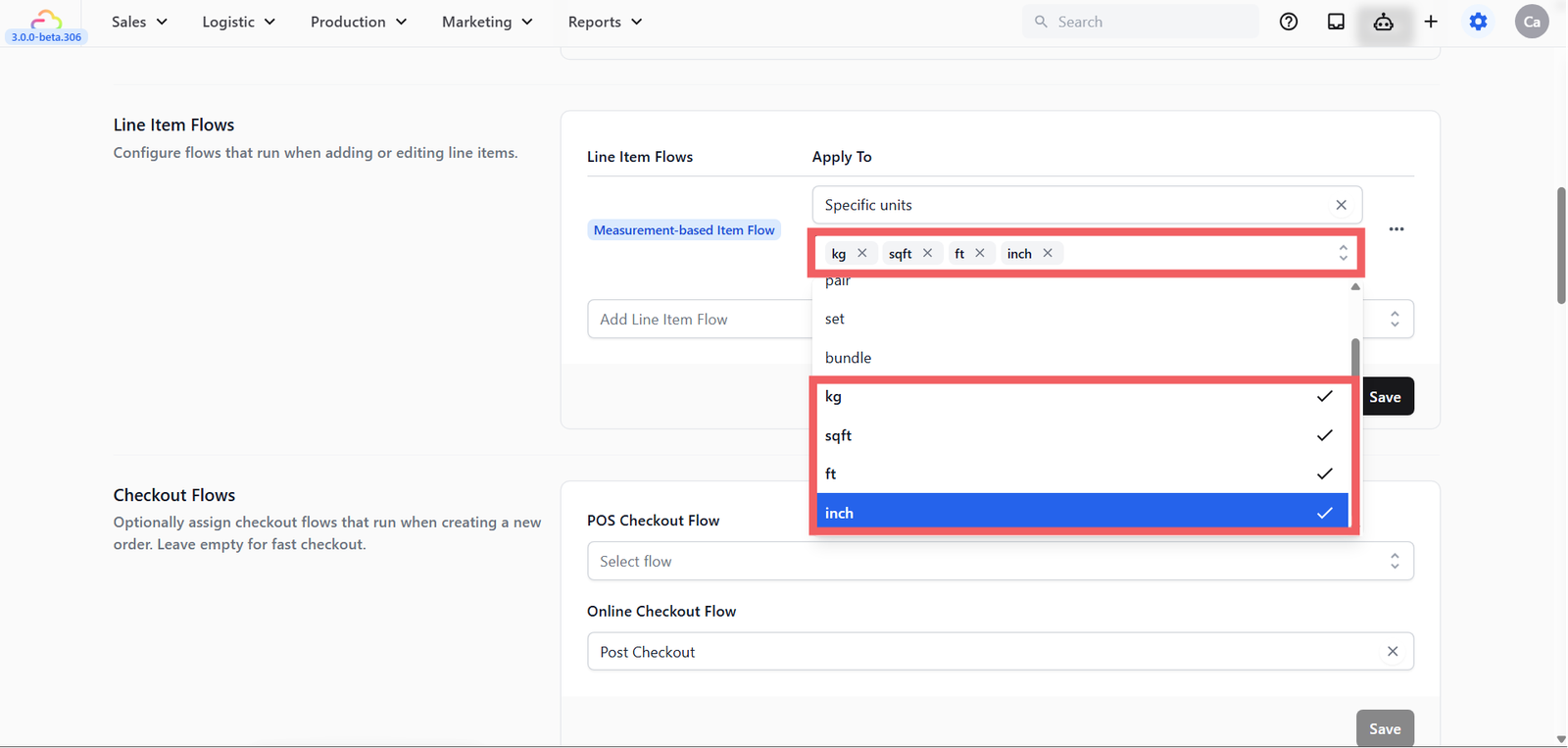
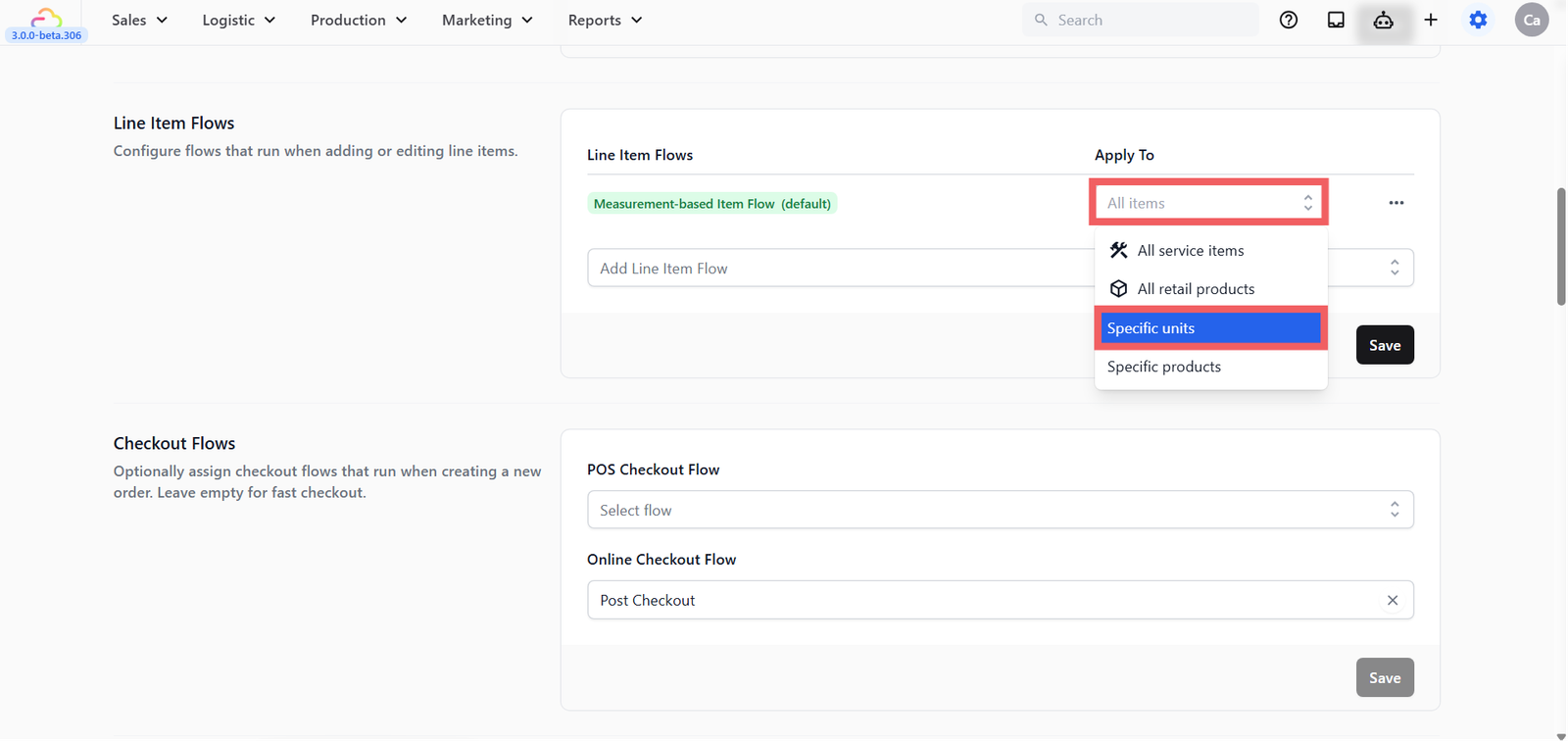
- Under Apply To, choose Specific units.
| Option | What it means |
|---|---|
| All items | Every item in your catalog triggers this flow |
| All service items | Only service items trigger this flow |
| All retail products | Only retail products trigger this flow |
| Specific units | Only items with specific unit labels trigger this flow (e.g. sqft, kg, hook) |
| Specific products | Only specific products you select trigger this flow |
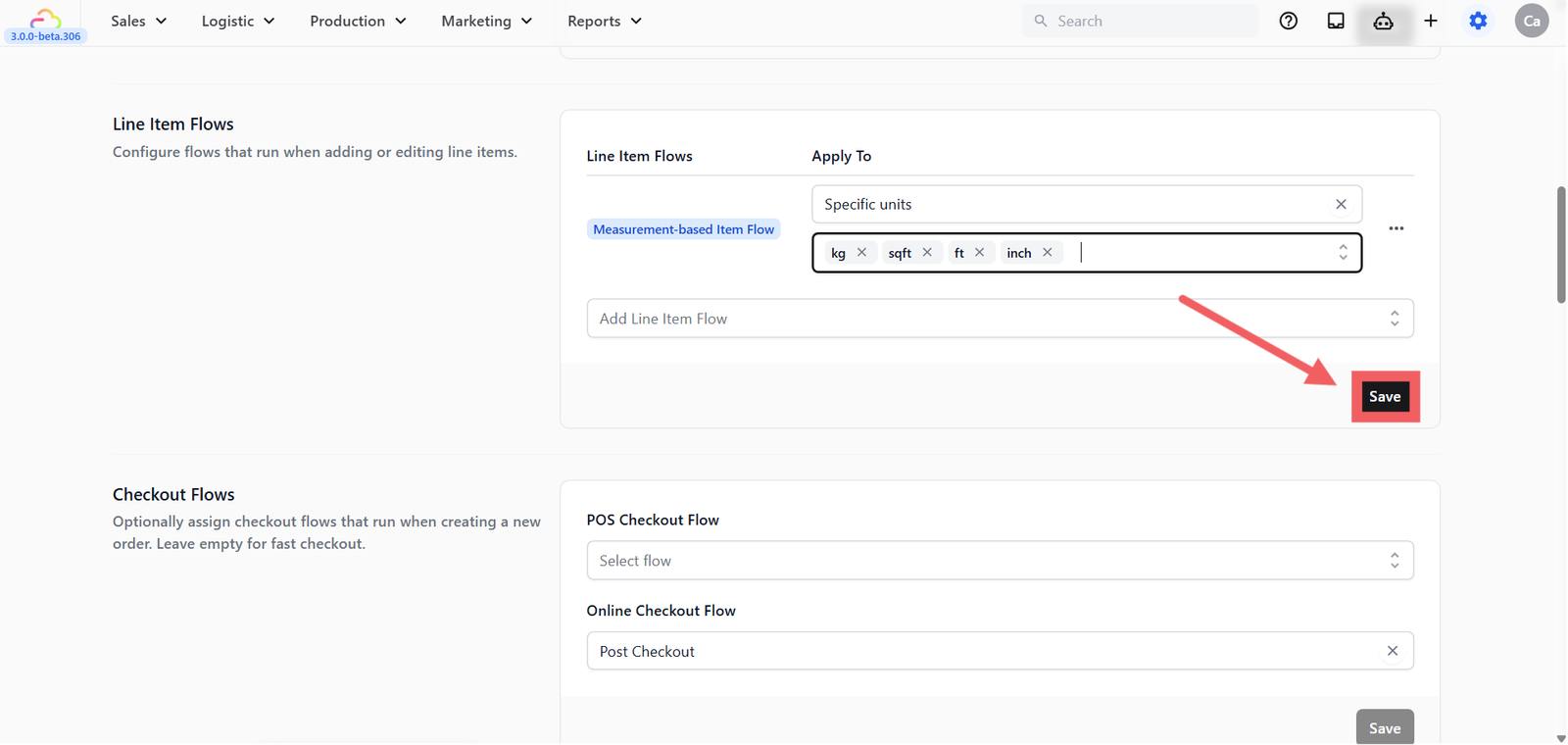
- You can select multiple units at once for example kg, sqft, ft, inch, and hook together. Any item tagged with one of these units will trigger this flow automatically.
- Click Save
What Staff See at the Counter
Example 👉 Curtain by hook/weight:
- Customer drops off 3 curtain panels.
- Staff taps Curtain on the POS.
- Flow appears: staff enter Quantity 4 kg/hook and Pieces 3.
- POS calculates: 4 × $15 = $60.00. System queues 3 labels — one per panel.
- Item added to cart with price and label count set.
FAQs
Can I use decimals for Quantity?
Yes. Quantity accepts decimals, so 3.5 kg or 2.75 m work fine.
What is the difference between Quantity and Pieces?
Quantity is the combined measurement that drives the price. Pieces is the physical item count that drives labelling. Three curtain panels at 4.2 kg total: Quantity is 4.2, Pieces is 3.
Can one flow cover all my measurement-based items?
Yes. Set Apply To to Specific units and select all the relevant units — kg, sqft, ft, inch, hook — in one rule. The same flow activates for every item tagged with any of those units.
What if an item is sometimes charged by kg and sometimes per piece?
Create two separate price list entries — for example "Curtain per kg" and "Curtain per pcs" — and tag each with its unit. Staff tap the right one at drop-off.
Can staff override the calculated price?
Yes, if Allow Edit Unit Price is enabled on the item in your price list. Otherwise the calculated total is locked.
Does the measurement show on receipts?
Yes. Receipts display the measurement and unit alongside the unit price — for example "4 kg × $15 = $60.00".
What if the measurement changes after checkout?
Staff can edit the line item from the order detail page and update the measurement. The total recalculates automatically.
Give feedback
Up next
Logistics ManagementCoordinate all your business movements, including pickups, deliveries, and on-site services, using customizable flows adapted to your specific operations.
Read more