
Why You Need This
Most shop owners find this setting the first time something goes wrong. A staff member reopens an old order to "fix" a price, and next month the figures no longer match the return you already filed. Your accountant asks why June moved. Nobody can say when it changed, or who changed it.
Closing a sales period stops that happening. It connects to the rest of EasyBiz in four ways:
Your tax return. Once you have filed a month, the numbers behind it must stay exactly as filed. Closing the period is what guarantees that.
Your reports. A closed month cannot drift. When you reopen Understanding Your Sales Report six months later, it shows the same total it showed the day you filed.
Your accounting software. Refunds and corrections on a closed month are sent to QuickBooks or Xero as fresh credit notes in the current month, which is the way your accountant expects to receive them — not as a change to a period they have already reconciled.
Your staff. Nobody has to remember which months are off limits. EasyBiz simply stops the edit and shows them the right way to make the correction instead.
Where to Find It
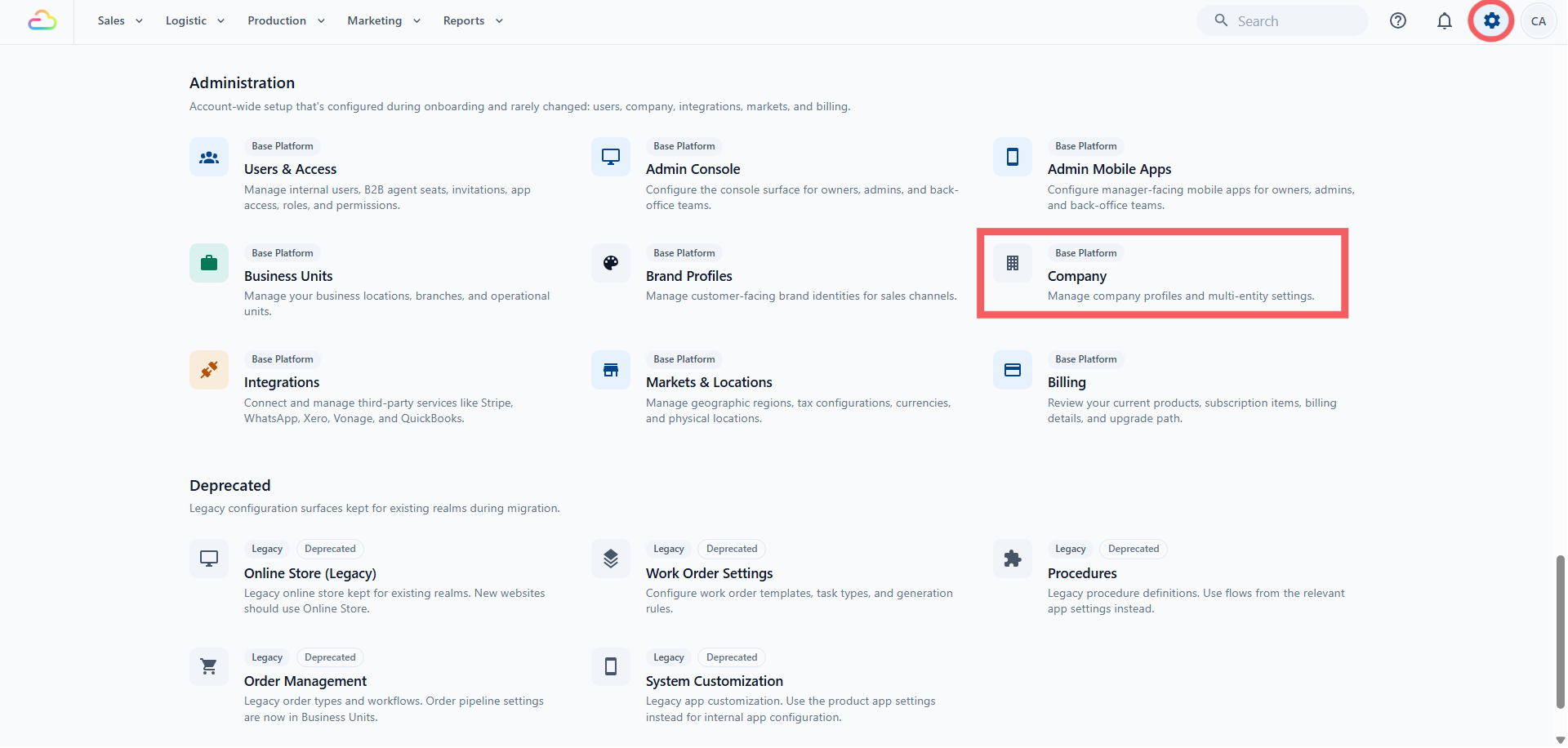
Click the ⚙️ Settings icon in the top-right corner.
Under the Administration section, click Company.
Open the Company you want to work on.
Scroll down to Sales period management.
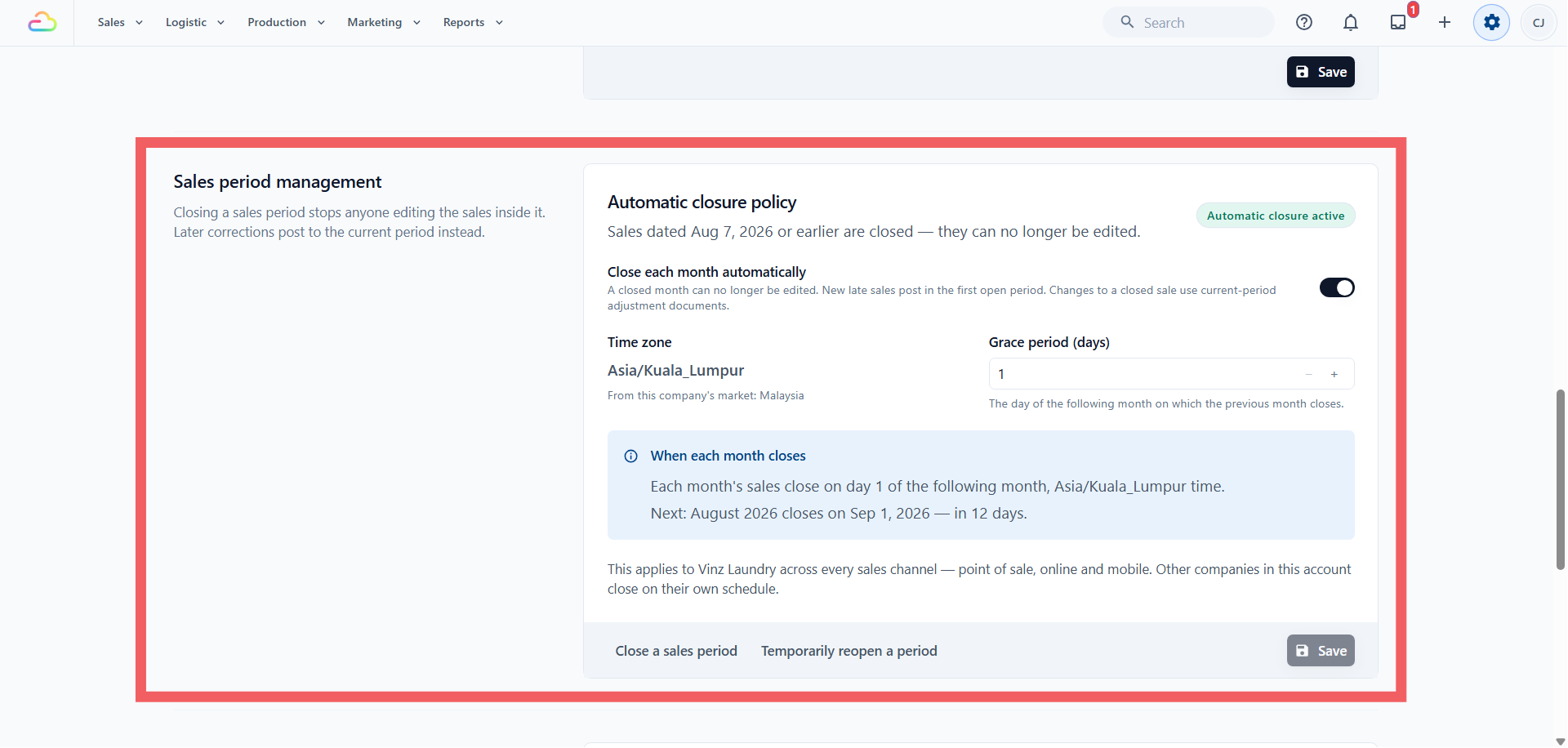
The panel is near the bottom of the Company page, after Tax Settings. If you run two Companies, each one has its own panel and closes on its own schedule — see Creating and Configuring a Company.
At the top of the panel you will see one of two lines:
"Sales dated 7 Aug 2026 or earlier are closed — they can no longer be edited", which means everything up to and including 7 August is protected.
"No period is closed yet — every sale is still editable", which means nothing is protected yet.
Next to it is a badge reading Automatic closure active or Automatic closure disabled.
What "Closed" Really Means
Closing a sales period protects the sales figures already shown in your reports. It does not lock the whole order.
Your team can still open an old order and make changes. When they click Save, EasyBiz works out the order again and checks:
- The final sales amount reported for the order
- The amount already returned or credited
- The discount, promotion or voucher recorded in the sales report
If these stay the same, the change can be saved. If any of them changes, EasyBiz stops the edit and leaves the old order unchanged.
EasyBiz checks the final result, not simply whether an item was added, removed or changed.
| What your team does | What happens |
|---|---|
| Change notes, photos, work instructions or descriptions | Allowed because the reported sale does not change. |
| Replace an item with another item at the same price | Usually allowed when the reported sale and discount details stay the same. |
| Add, remove or change the quantity of an item | Allowed only when the reported sale and discount details stay the same after EasyBiz works out the order again. |
| Change an item’s price | Stopped when it changes the reported sale. |
| Add, remove or change a discount, promotion or voucher | Stopped when the amount or the discount recorded in the report changes. |
| Add, remove or change a delivery, express or other charge | Allowed only when the reported sale and discount details still stay the same. Otherwise, it is stopped. |
| Change tax information | Stopped when it changes the reported sale. |
| Collect payment for an old unpaid order | Allowed. Collecting payment does not normally change what was sold. |
| Print or send the receipt again | Allowed. |
| Process a return, refund or cancellation | Allowed. The correction is recorded in the current open period instead of changing the closed period. |
A change may still be stopped by another order rule. For example, an item that has already been returned or completed may have its own editing restriction. That is separate from sales-period closing.
Closing a period applies to the whole Company. It covers every counter, online store and mobile app under that Company. Another Company in the same EasyBiz account is not affected.
What Each Setting Means
| Setting | What it does |
|---|---|
| Sales dated ... or earlier are closed | The last protected date. If it reads 7 Aug 2026, every sale dated 7 August or earlier is locked. |
| Close each month automatically | Switches on the monthly schedule. It starts off. Turning it off later stops any future automatic closing, but months already closed stay closed. |
| Time zone | Decides when your business day and business month end. It comes from the Company's Market and cannot be typed here — the panel shows where it came from, for example "From this company's market: Malaysia". A Company with no Market uses Singapore time. |
| Grace period (days) | The day of the following month on which the previous month closes. 1 means July closes on 1 August. 15 means July closes on 15 August. Any day from 1 to 31. It only does anything while automatic closing is on. |
| When each month closes | A plain summary of your rule and the next month due, for example "Each month's sales close on day 1 of the following month, Asia/Kuala_Lumpur time. Next: August 2026 closes on 1 Sep 2026 — in 13 days." |
Close a Month by Hand
Use this when you have finished checking a month and want it protected right now.
In Sales period management, click Close a sales period.
In Last date to close, pick the final date you have checked. You cannot pick a date in the future.
Type a short note in Reason (optional), for example "July accounts submitted".
Read the confirmation line, then click Close period.
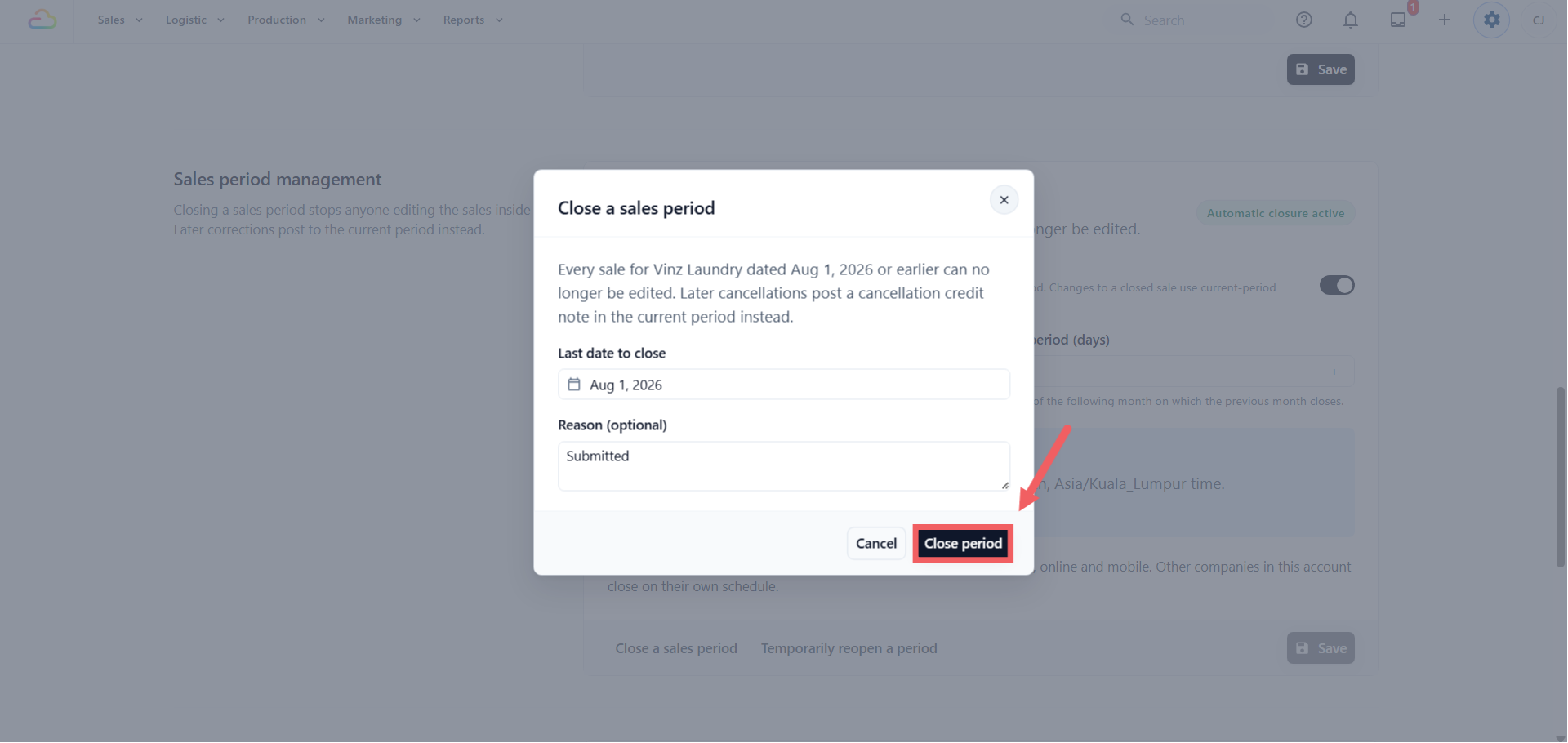
Picking 7 August protects every sale dated 7 August or earlier for this Company.
Where Refunds and Cancellations Go After You Close
Closing a period does not stop refunds or cancellations. EasyBiz records the correction in the current open period, so the closed report stays exactly as it was.
A normal order edit may also be saved when the reported sale, credited amount and discount details stay unchanged. If one of them would change, EasyBiz stops the edit and shows the correct next step.
| What happens | Where it is recorded |
|---|---|
| A customer returns something bought in a closed period | A credit note in the current open period |
| An edit leaves all protected sales figures unchanged | The edit is saved; the closed period’s total does not move |
| An edit would make the old sale smaller | The edit is stopped; use a correction credit note in the current open period |
| An edit would make the old sale bigger | The edit is stopped; raise a separate charge in the current open period |
| A late sale is entered with a date inside a closed period | The original date stays on the order, but the sale is reported on the first open date |
| A delivery or collection change adds a new operating charge | The new charge can be recorded as an adjustment in the open period without rewriting the closed sale |
| A note, photo, work instruction or description is changed | Allowed; the sales figures do not move |
When an edit is stopped
EasyBiz leaves the old order unchanged and shows "This reported sale is closed".
It then explains what to do:
- Issue a correction credit note → use this when the customer should pay less. The credit note is recorded in the current open period. The person doing this needs permission to process sales returns.
- Raise a separate charge → use this when the customer should pay more. Create the extra charge through the normal order process in the current open period.
Do not reopen a closed period for a normal refund, price difference or extra charge. Reopen it only when your accountant says the original filed period itself must be corrected.
Where to See These Adjustments
Anything that was moved into a later month is listed for you, so you never have to guess.
Open Reports in the header menu.
Click Sales.
Scroll to Prior-period adjustments and pick a Posting month.
The table shows the order number, the adjustment type (credit note, amendment, void), the kind (Return, Cancellation or Correction), the posting date, the original sale date, the sales channel and the amount. Both dates are there, so you can always trace an August credit note back to the July sale it belongs to.
This is also the first place to look when two reports disagree, see Why Report Totals Can Differ.
Temporarily Reopen a Month
Use this only when your accountant must genuinely restate a month you have already filed. For an ordinary refund or cancellation, let the credit note post in the current month as described above.
Click Temporarily reopen a period.
In Reopen from this date, pick the first date that should become editable again. If you closed through 7 August and reopen from 7 August, only 7 August opens — 6 August and earlier stay protected.
Type a reason in Reason (required), for example "Correcting the July return we filed". This one cannot be left blank.
Click Reopen period.
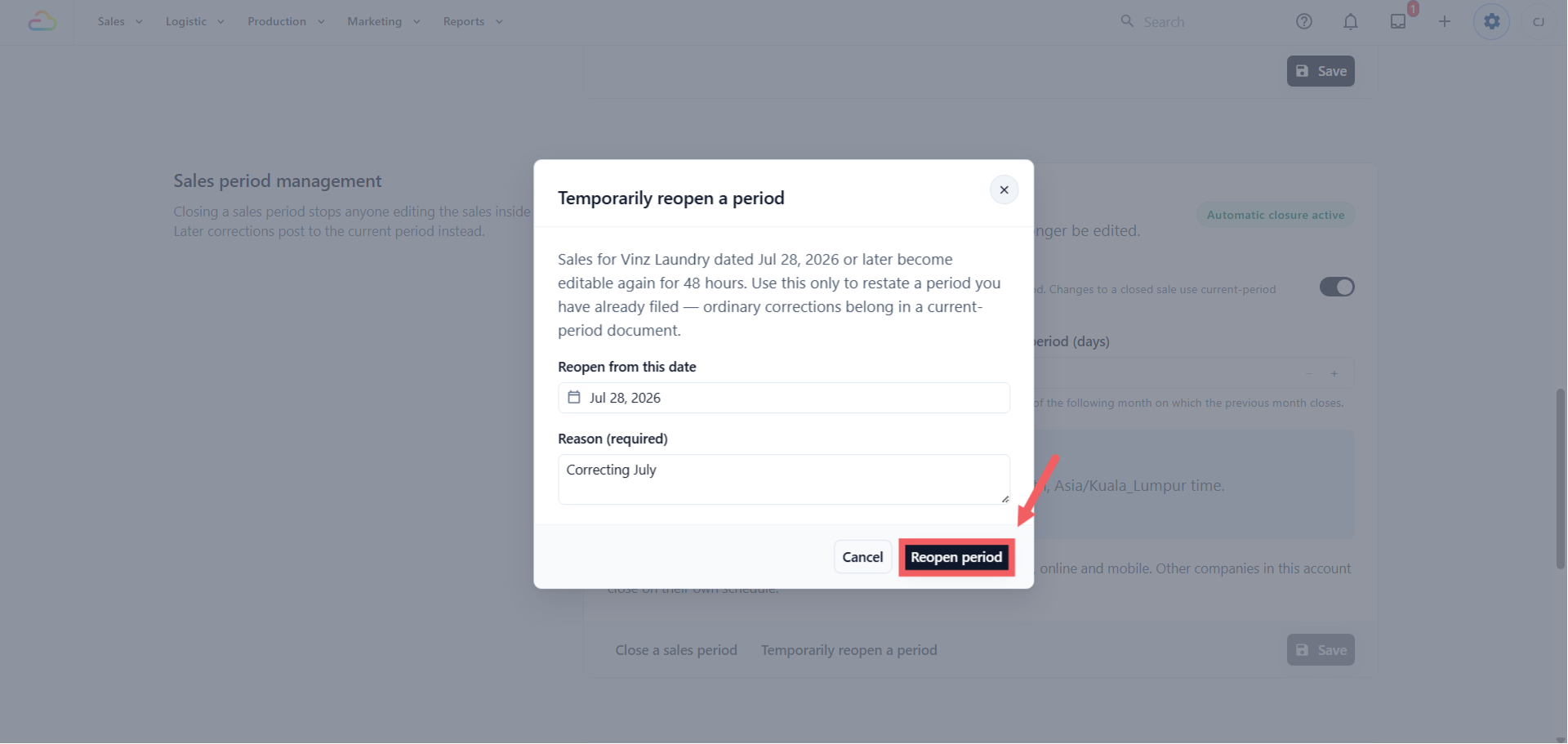
The window lasts 48 hours and then closes by itself. You do not need to remember to close it again. While it is open, the panel shows an "Active reopen window" banner with the exact expiry time.
FAQs
Does closing a month stop my shop taking orders?
No. Your team keeps selling, refunding and cancelling exactly as before. The only thing refused is an edit that would change what an old sale was worth.
A customer wants a refund on a sale from a closed month. What do I do?
Nothing different. Process the return as usual. The refund goes through, and the credit note posts on today's date in the current month, so your filed month stays as reported. This is the correct accounting treatment, not a workaround.
Does closing a month for one Company close it for my other Company?
No. Each Company closes on its own schedule, even when both sell in the same country. Inside one Company, closing covers every sales channel at once — counter, online and mobile.
I turned automatic closing off. Did last month reopen?
No. Switching it off only stops future months closing on their own. Months already closed stay closed until someone reopens them on purpose, with a reason.
Why does my late sale show a different date in the report?
A sale dated inside a closed month posts on the first open date instead, so it cannot change a month you have filed. The original date is kept on the order, and both dates appear in Reports → Sales → Prior-period adjustments.
Can I change the time zone?
Not here. It follows the Company's Market, and a Company's Market cannot be changed after the Company is created.
Will my accountant see these corrections in QuickBooks or Xero?
Yes. A correction on a closed month is sent across as a credit note in the current month, dated the day it was made, so it reconciles against the period your accountant is currently working on rather than one they have already closed.
Can I undo a period close?
Not directly, and that is the point. Use Temporarily reopen a period. It needs a reason, lasts 48 hours and is recorded against your name.
What's Next
Continue to Setting Up Tax and Rounding Rules to check the tax rate and rounding applied to every sale under this Company, or read Understanding Your Sales Report to see where these numbers end up.