
Customers want to know where their order is, and staff should not have to type the same update fifty times a day. You can now connect your own WhatsApp Business number to EasyBiz, and EasyBiz sends customers the right message at each step of an order, by WhatsApp, by email, or both.
Your own WhatsApp number
Connect the WhatsApp Business number your customers already know in Settings → Integrations. Messages go out under your business name, and replies come back to your number, not to a shared EasyBiz line.
A ready-made message for every step
EasyBiz comes with templates for the moments customers care about:
- Orders: new order confirmed, pickup done or failed, ready for collection, delivered or failed, collected.
- Payments: invoice with the PDF attached, receipt, top-up and membership receipts.
- Sign-up: welcome message and one-time passcode.
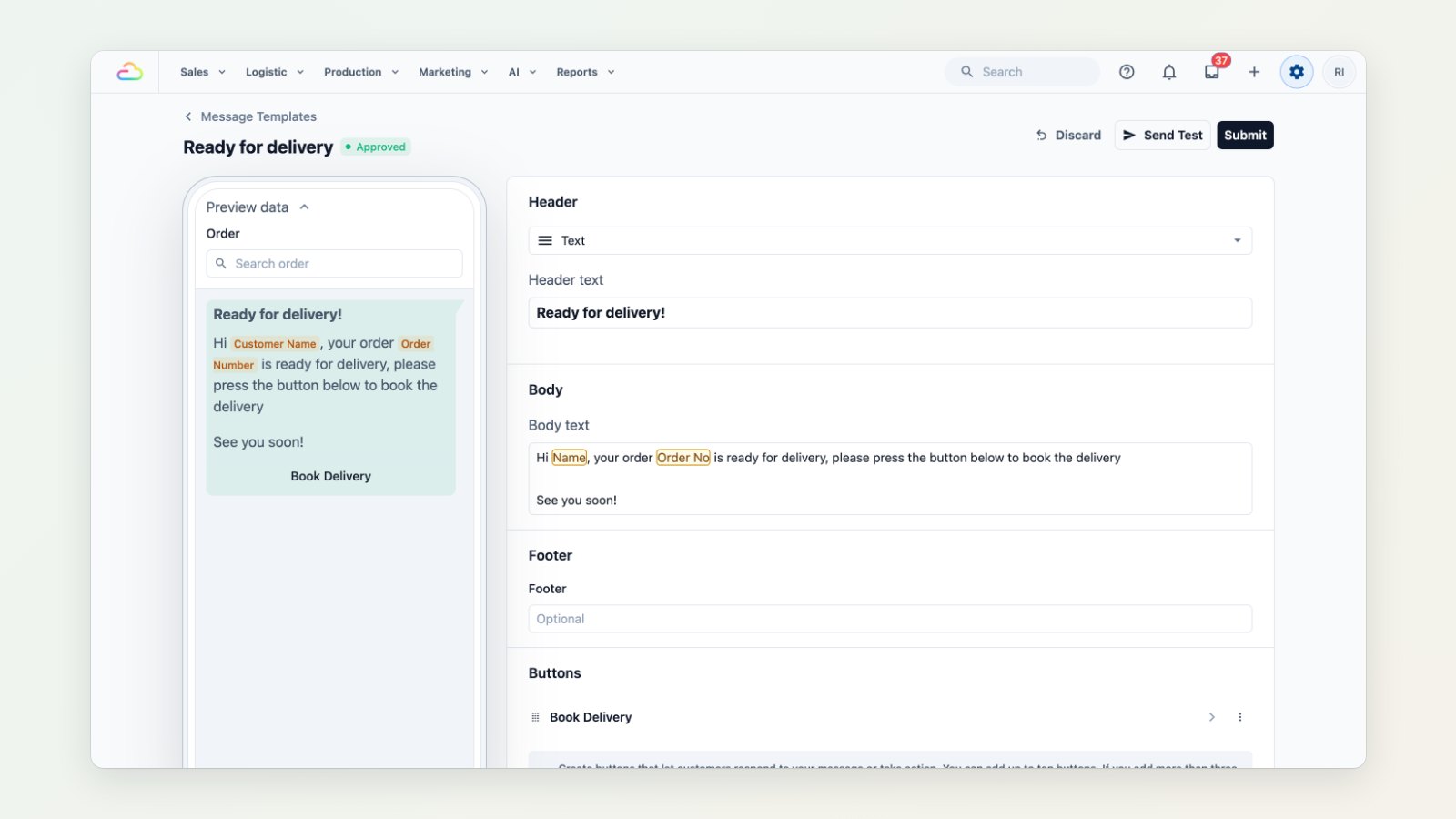
Edit the wording, add buttons such as Book Delivery, and watch the phone preview update as you type. When you are happy, submit the template to Meta for approval from inside EasyBiz and send yourself a test.
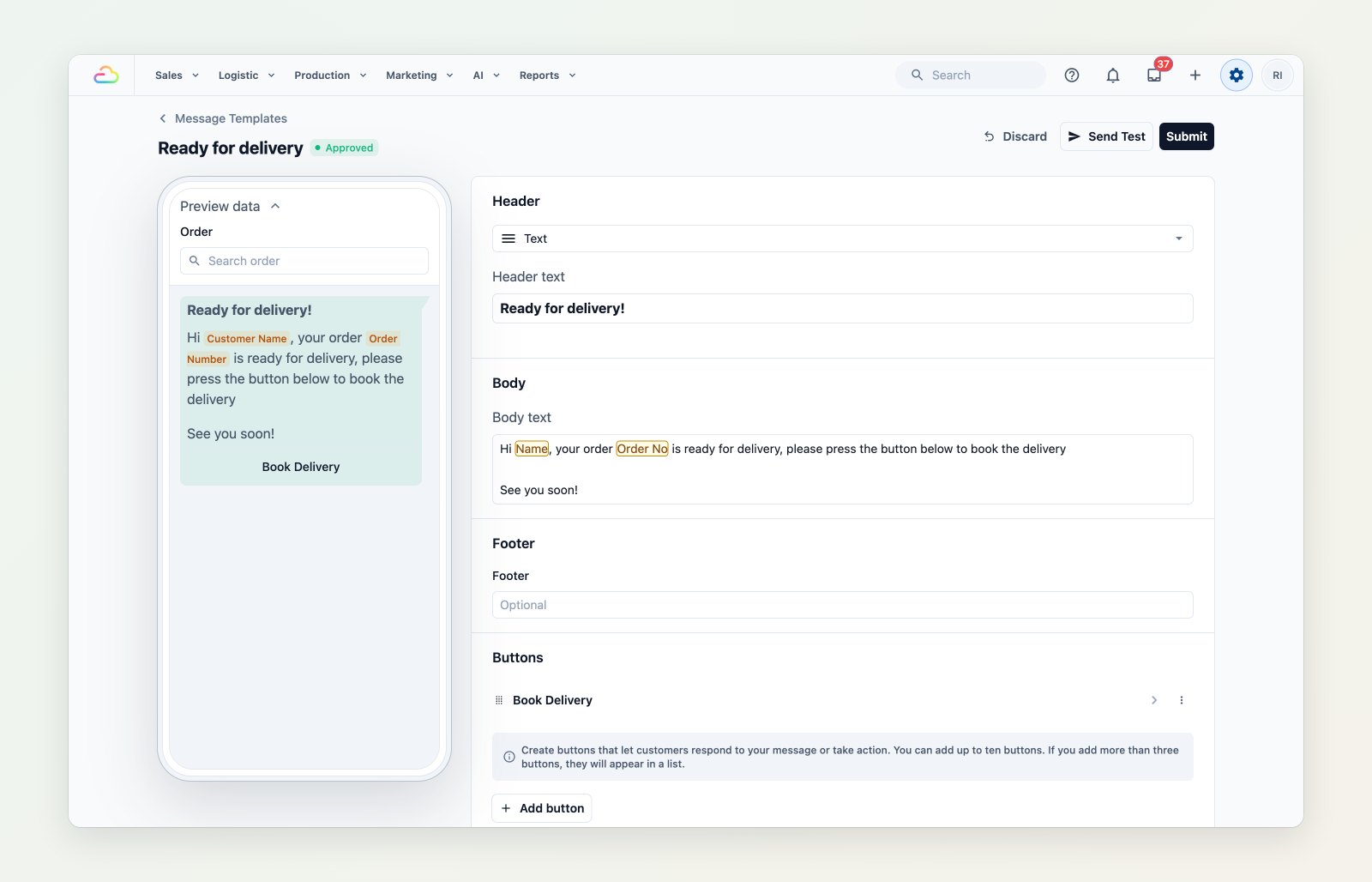
Edit a template and see exactly how it will look on the customer's phone.
Emails that look like your business
The email designer lets you lay out each email yourself, with order and customer details filled in automatically: order number, amount due, collection point, item status. Every email carries an unsubscribe footer, and you can send a test to yourself before you publish.
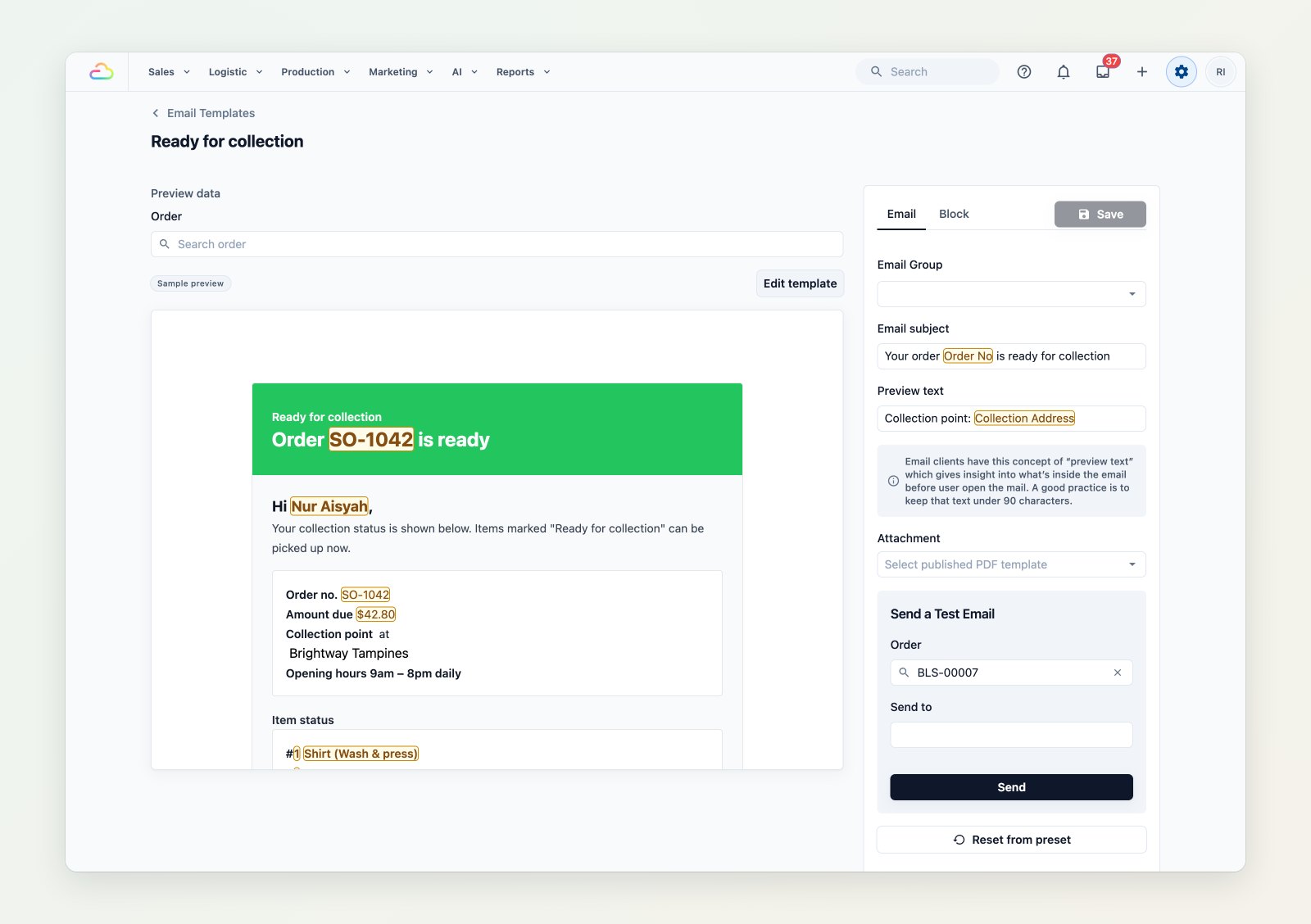
Preview an email with a real order before customers see it.
Choose what goes out, and when
In Customer Notifications, pick the trigger (order created, pickup completed, payment received, ready for collection and more) and choose the email and WhatsApp message for each one. You can send different messages from different sales channels.
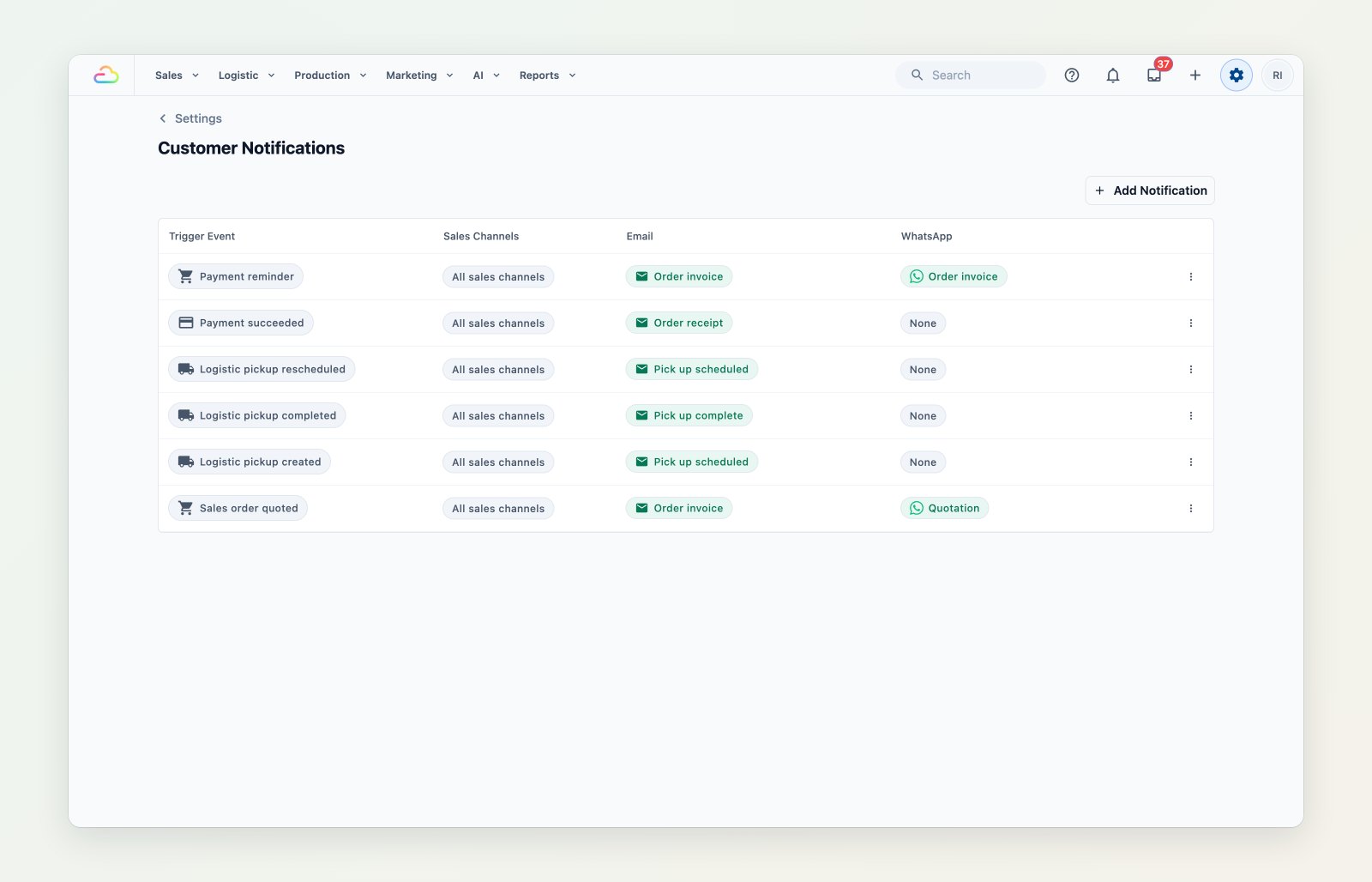
Each order event, with the email and WhatsApp message it sends.
Set it up
- Connect WhatsApp in Settings → Integrations. See Connect and configure WhatsApp.
- Review your templates in Settings → WhatsApp → Message Templates and Settings → Templates → Email. See Setting up utility templates.
- Turn on the events you want in Settings → Customer Notifications. See Automatic order notifications explained.