
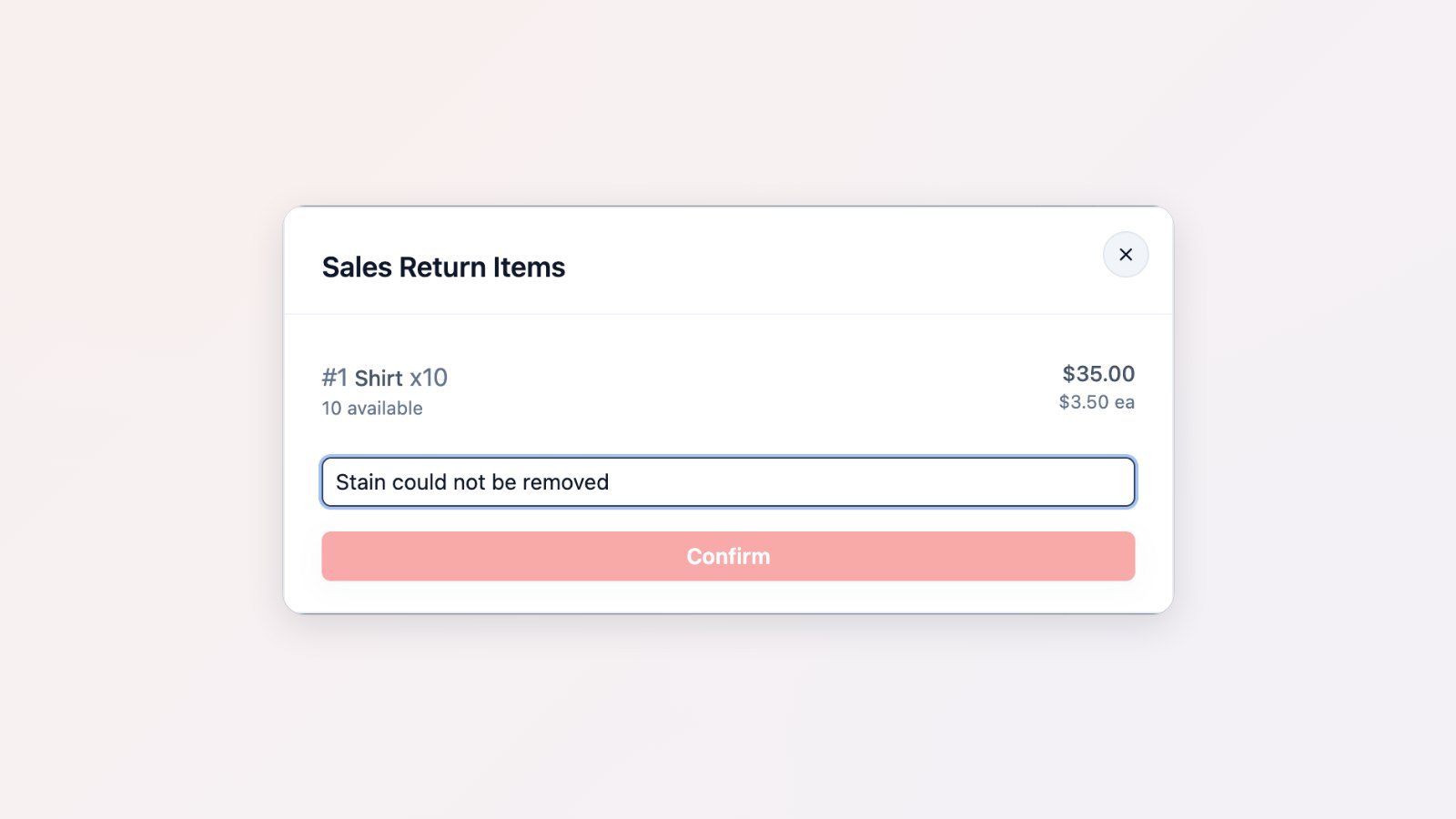
Things go wrong: a shirt is damaged, a stain won't come out, a customer paid twice. Fixing it used to mean editing the order and hoping the numbers still added up. You can now record it properly.
Return by item or by amount
From the order, choose Sales Return and pick the items being returned, or enter an amount to give back, such as compensation for a damaged item. EasyBiz works out the tax, whether your prices include it or not, and spreads any discount fairly across the items.
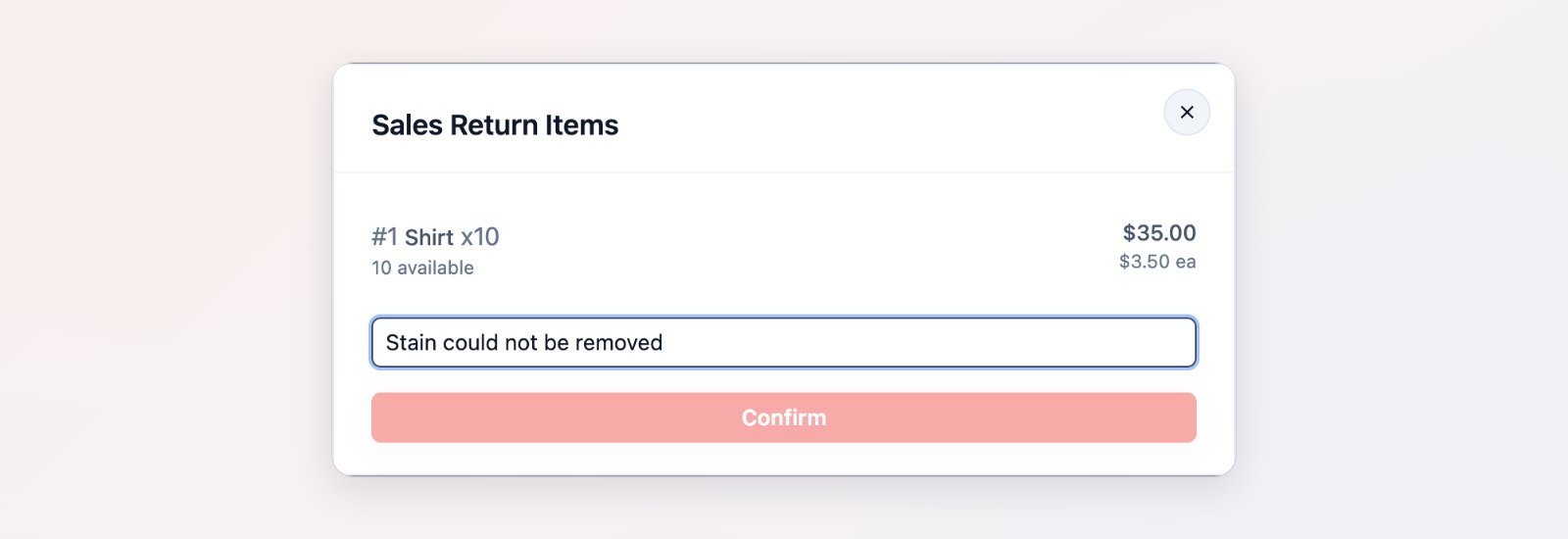
Return specific items, or a set amount, straight from the order.
A credit note for every return
Each return produces a credit note, so your records show what was returned and why. If a return was recorded by mistake, void the credit note. Once a credit note exists, the order's line items are locked so the history can't be changed quietly.
Give the money back the right way
Refund the payment from the order's payment section, at the POS or in the Console. If a customer overpaid, refund the difference, or put it on their store credit for next time.
Figures you can trust
Returns appear in your Sales report as returns, so net sales and tax stay right.
Where to find it
Open an order and use Sales Return above the line items. If you don't see it, turn on Enable Sales Return in the order page settings. See Processing refunds and returns.