
"Ready in two weeks" is easy to say and hard to keep when the workshop is already full. Capacity planning makes the date you promise come from how much work your team can really do.
Tell EasyBiz what your team can handle
For each kind of work, such as repair, colouring or deep cleaning, set a limit per day or per week, or the hours available, and the usual turnaround.
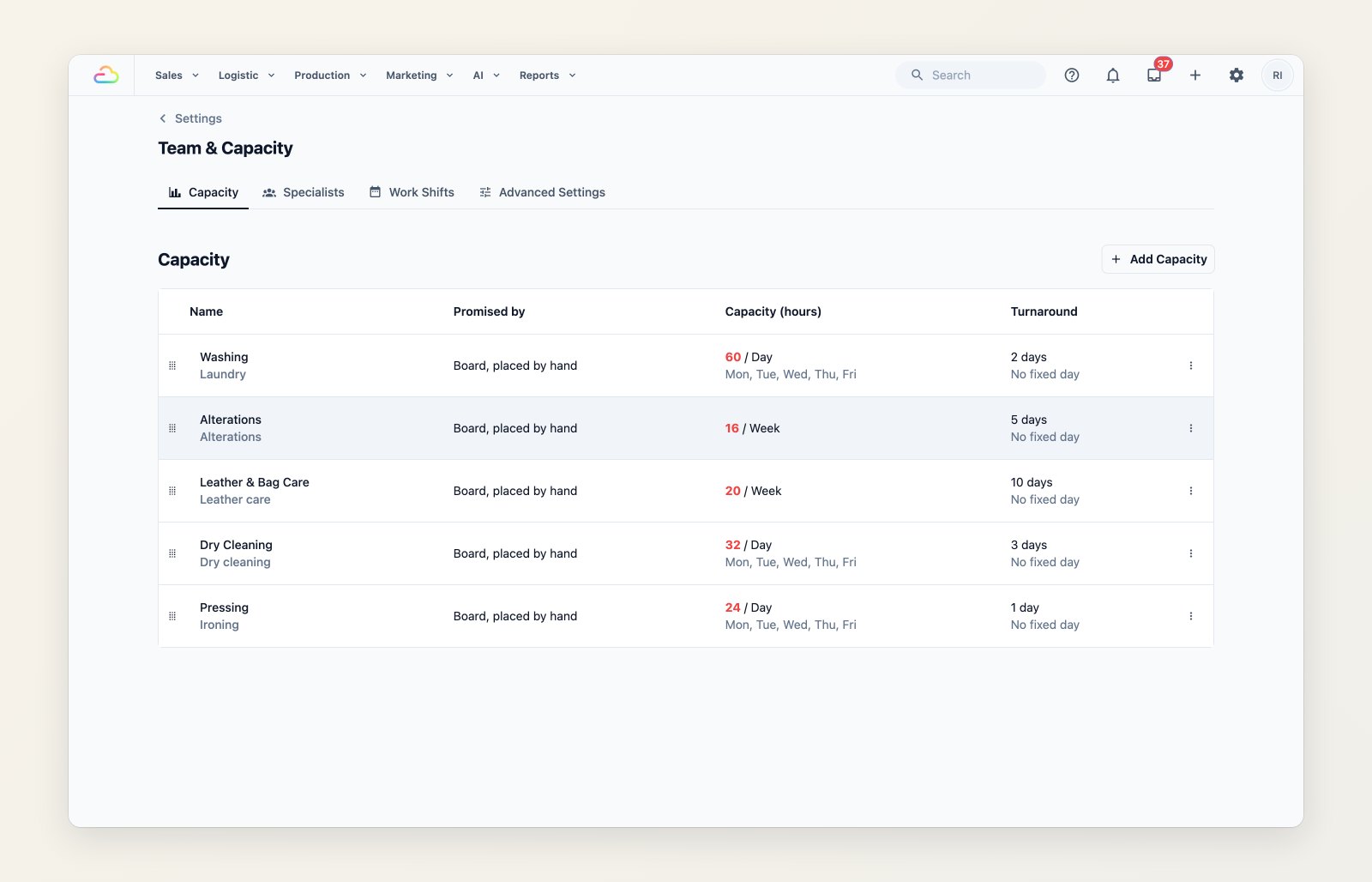
Set how much of each kind of work your team can take, and the usual turnaround.
Dates that come from real capacity
When an order is confirmed, its promised date comes from the first day with room for that work. A quoted date holds its slot while the customer decides. If you prefer, the lead time can start when the customer pays rather than when the order is taken.
Plan the floor on a calendar
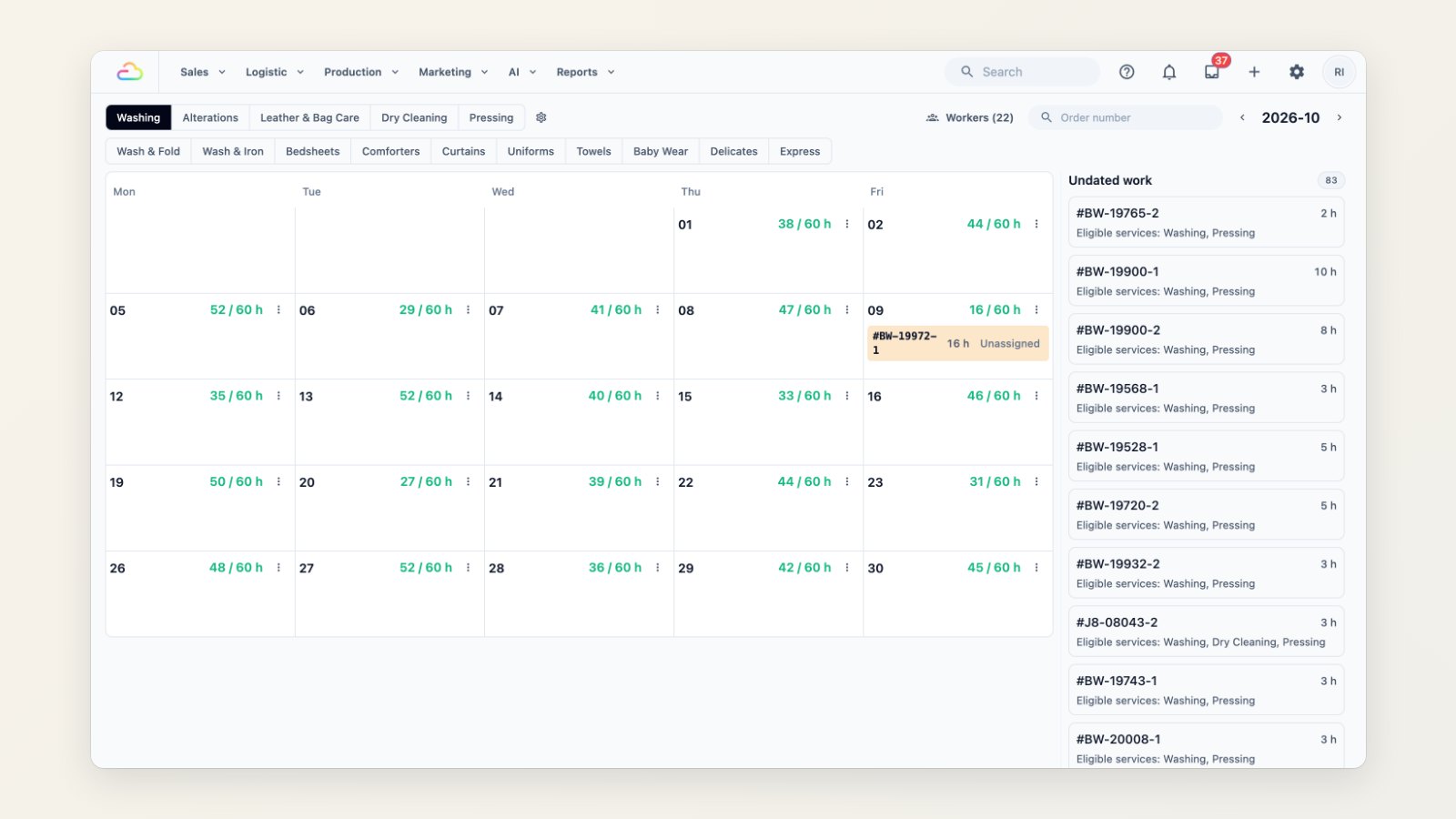
The Capacity Calendar shows each day's booked hours against capacity, by month or week, with work that has no date yet listed alongside. Filter by kind of work or worker, find an item by order number and open the full order. Drag a job to another day. A full day asks before it takes more. Assign each item to a worker and adjust its hours, and unpaid work is marked so nothing is released before it's paid.
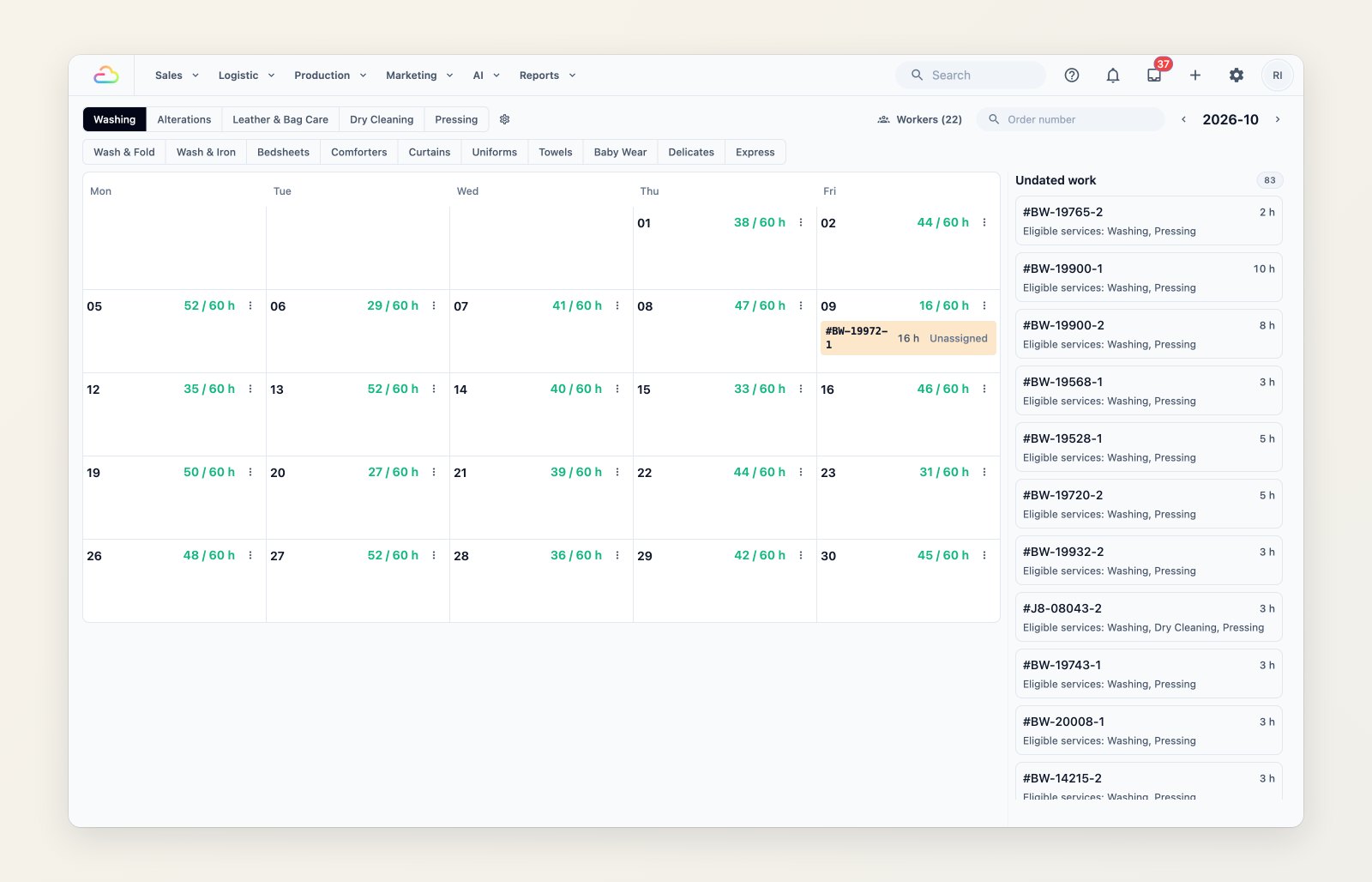
Each day's booked hours against capacity, with undated work ready to schedule.
Where to find it
Open Production → Capacity Calendar. Set capacities in Production → Team & Capacity → Capacity.