
Configuring Service Options

In this article
The Service Options page allows you to define and manage customizable options that influence the price of your products or services.
Contents
Contents
What is this Service Options for?
This feature is designed to organize the different types of work you perform and control how each one is priced. It ensures that your sales team selects the correct service type for every order, automatically applying the right calculation method—whether it's a simple per-item fee or a complex rule-based price.
How to Create Service Options
Follow these steps to add a new service to your system:
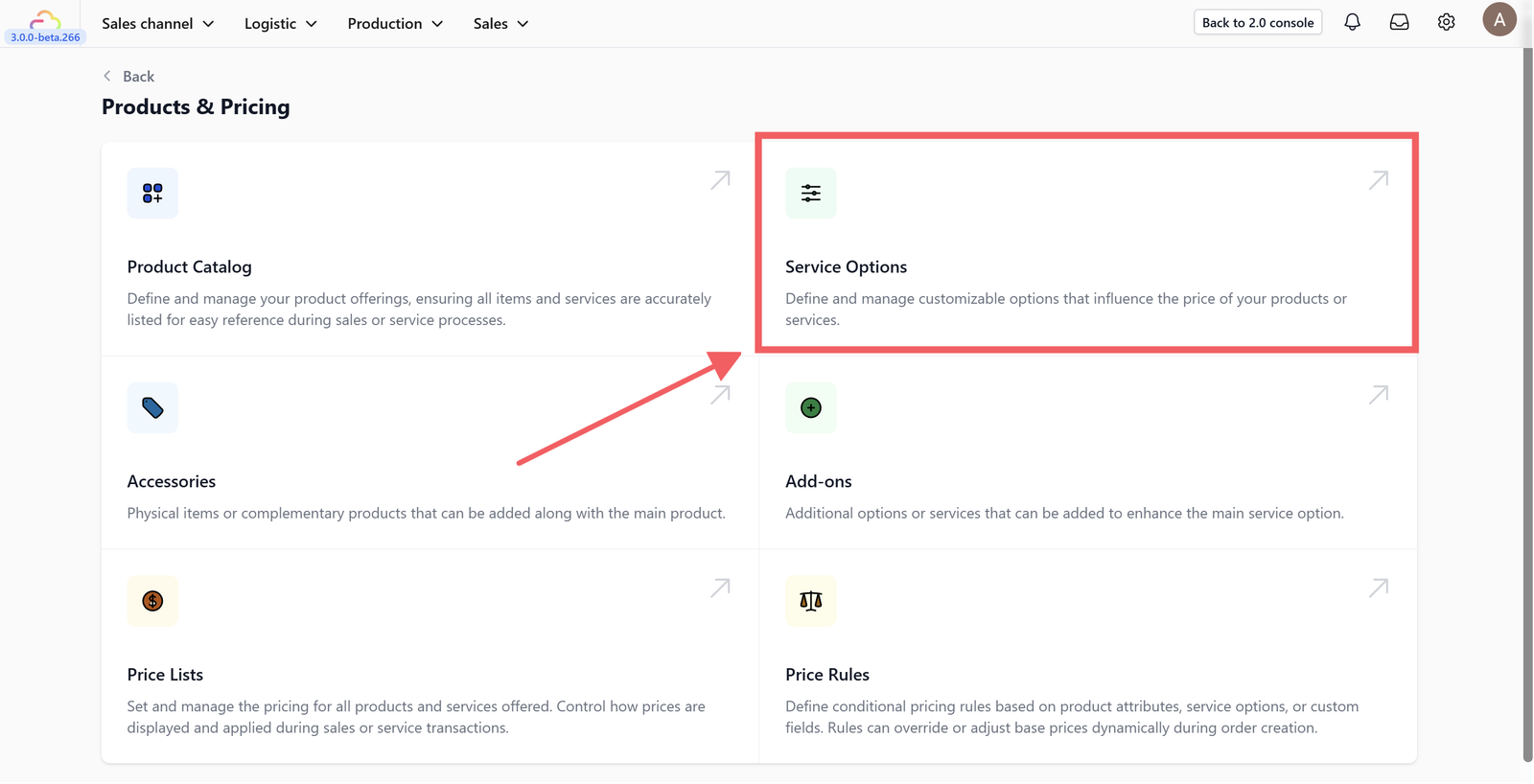
Click on the Service Options card within the Products & Pricing page.
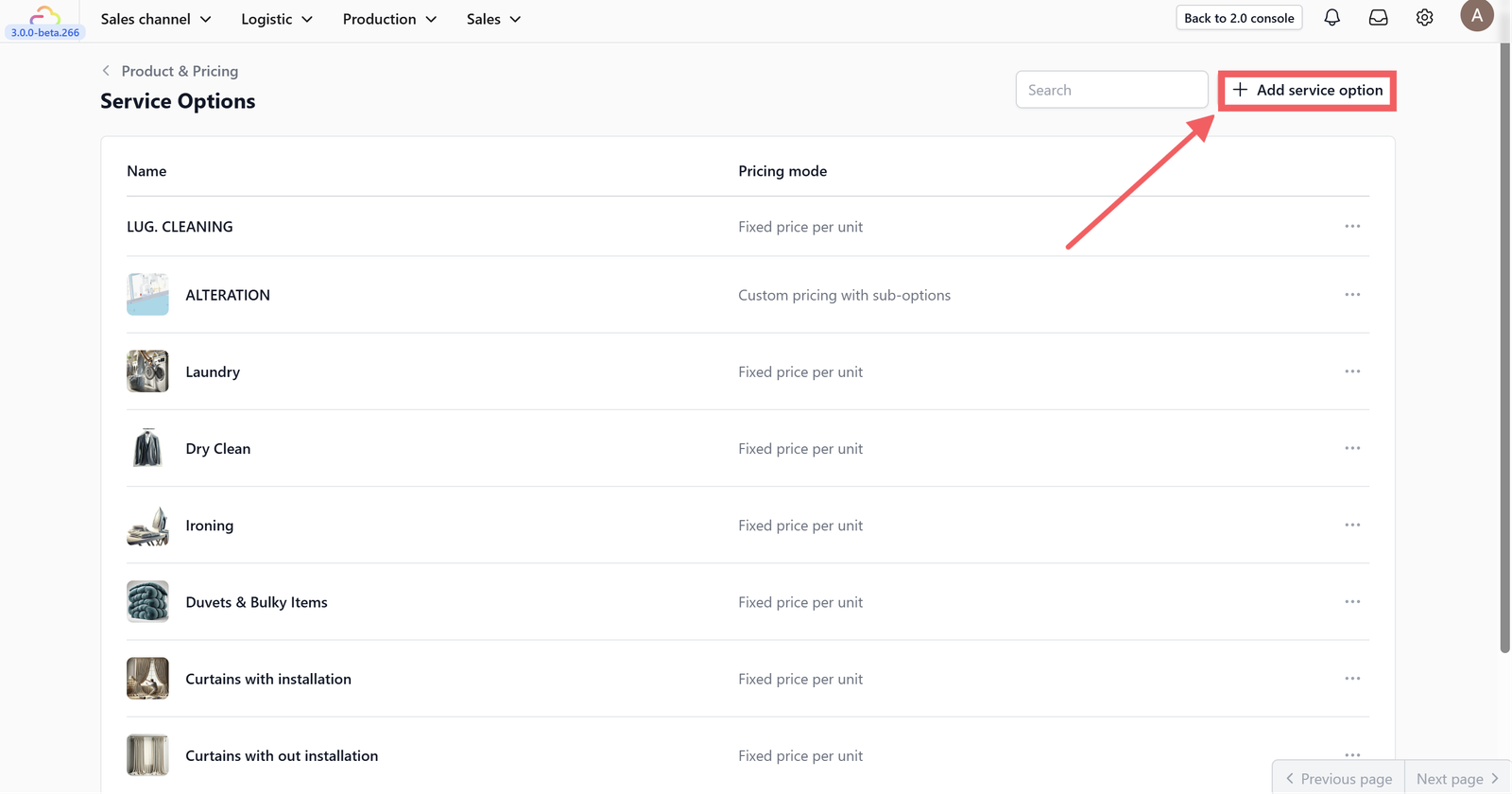
Click on the +Add service option button located at the top right of the screen.
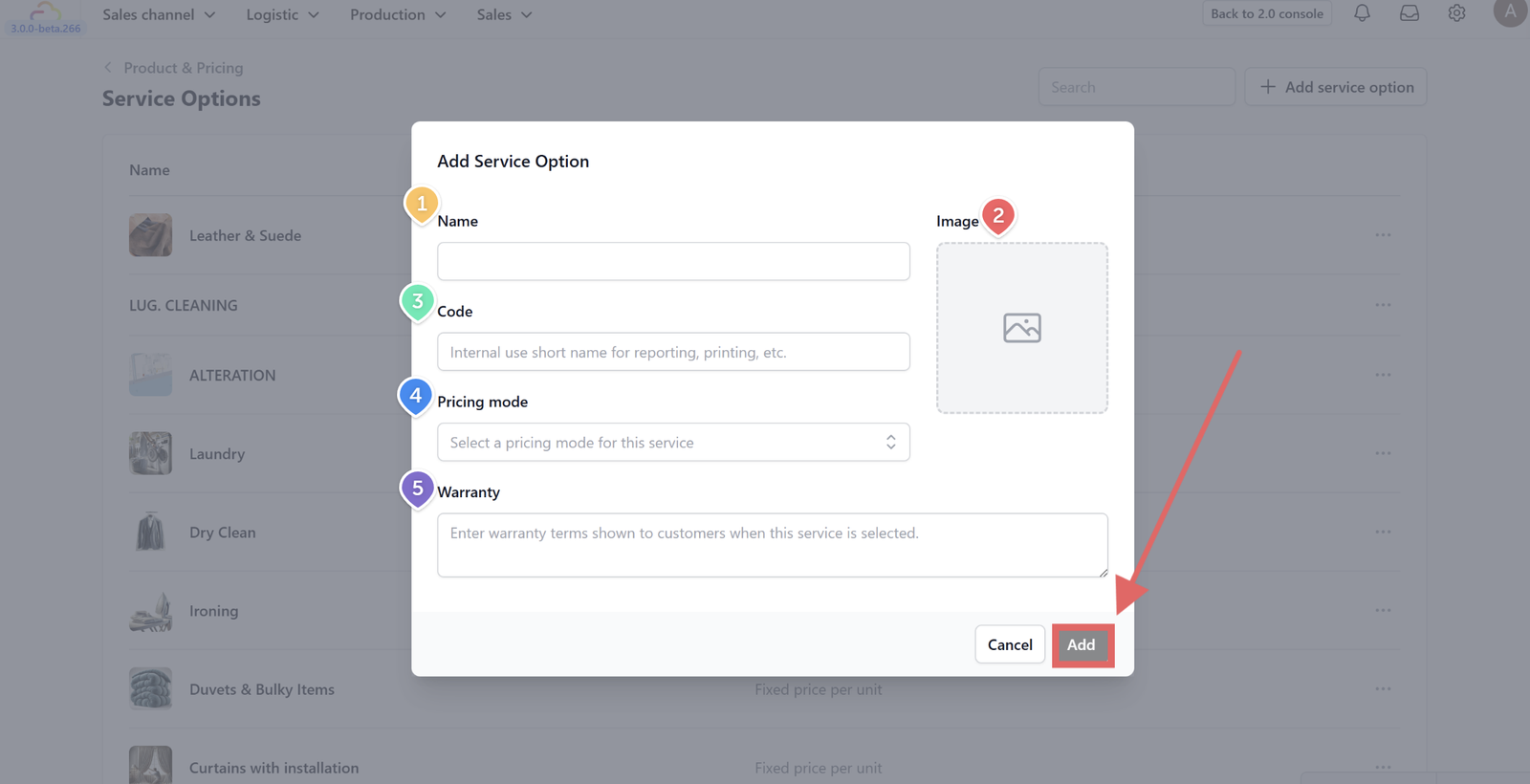
Fill in the service option details based on your business needs:
- Name: Fill in the display name of your service (e.g., Leather & Suede).
- Image: Upload a representative image or icon that will appear on the POS to help staff identify the service quickly.
- Code: Fill in a short internal name or abbreviation used for reporting and printing tags.
- Pricing Mode: Select how the price for this service should be calculated:
- Fixed price per unit: A set price for each unit, where the total is calculated simply by the number of units added.
- Custom pricing with sub-options: Define specific sub-types (e.g., Jacket, Gloves) for the service, allowing you to enter different manual prices for each variation.
- Rule-based pricing: Set prices dynamically using conditions (like material or size). The system checks your rules and applies the first one that matches.
- Tiered rate by units: Apply a fixed price that changes based on quantity, offering adjusted rates for bulk orders.
- Hourly rate: Charge based on the number of hours spent providing the service.
- Warranty: Enter any specific warranty terms or disclaimers that should be shown to customers when this service is selected.
Finally, click Add to save your new service.

Once added, you will see your new service on the table. You can click on the three dots (...) on the right side of the row to Edit or Delete the specific service option.
Give feedback
Up next
Configuring AccessoriesLearn how to add and organize complementary items to help increase your sales value.
Read more