
Set Up Payment Methods & Rounding
In this article
The checkout moment should be fast and error-free. This module allows you to define exactly how your customers pay whether it is Cash, Card, Bank Transfer, or E-Wallets. Beyond just buttons, this feature controls your money. You can set up "Cash Drawer" tracking for physical cash handling and define "Rounding Rules" to avoid dealing with annoying 1-cent coins.
Contents
Contents
Why Configure Payment Methods?
- Faster Checkout: One tap on a button is faster than manually typing "External Payment" every time.
- Automated Reconciliation: At the end of the day, the system tells you exactly how much Cash vs. Card you should have, making closing shifts effortless.
- Smart Rounding: Automatically round grand totals (e.g., $10.03 becomes $10.00) to keep your cash handling simple and customer-friendly.
Add Custom Payment Methods
Define non-integrated payment options like Cash, Bank Transfer, or External Terminals.
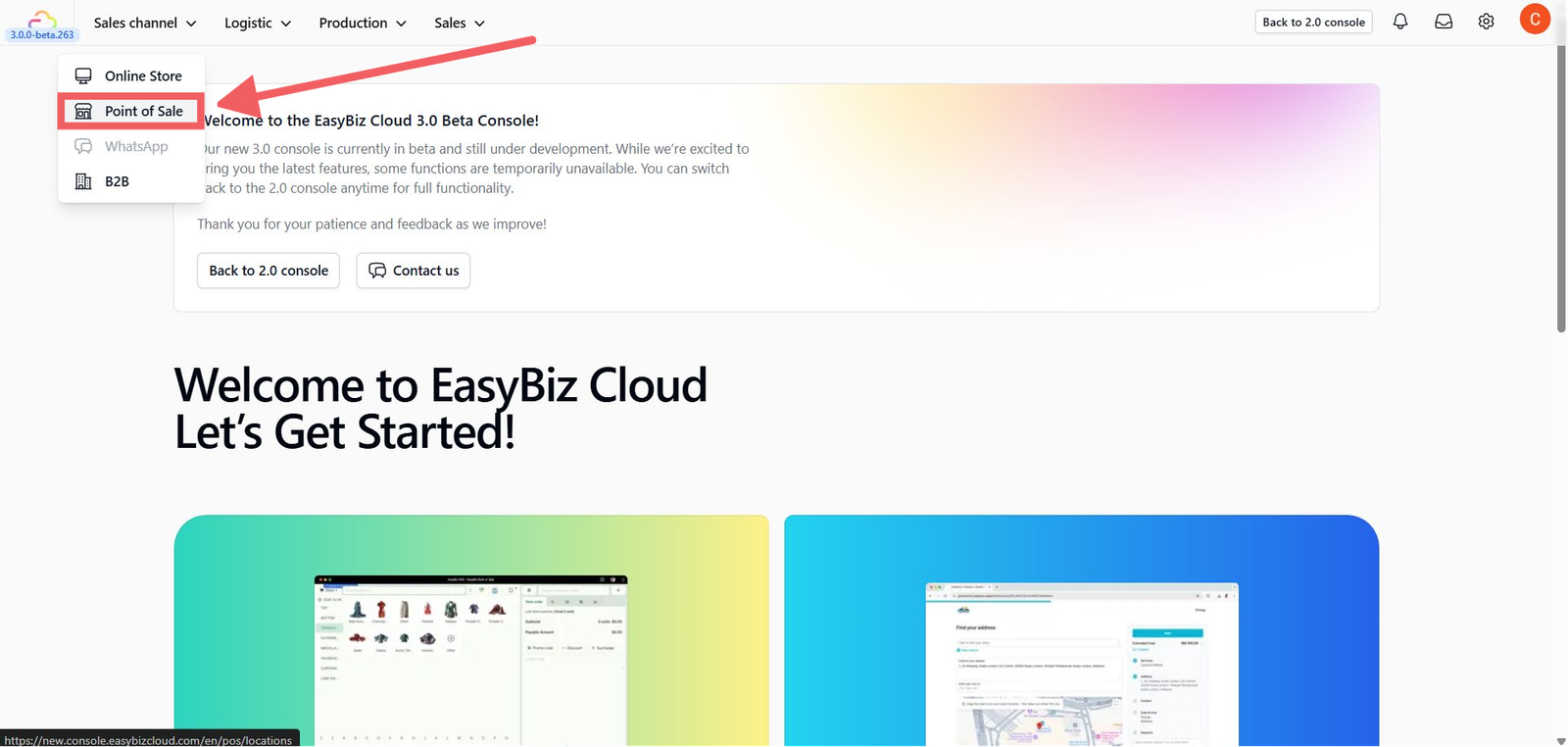
- Go to Sales Channel > Point of Sale.
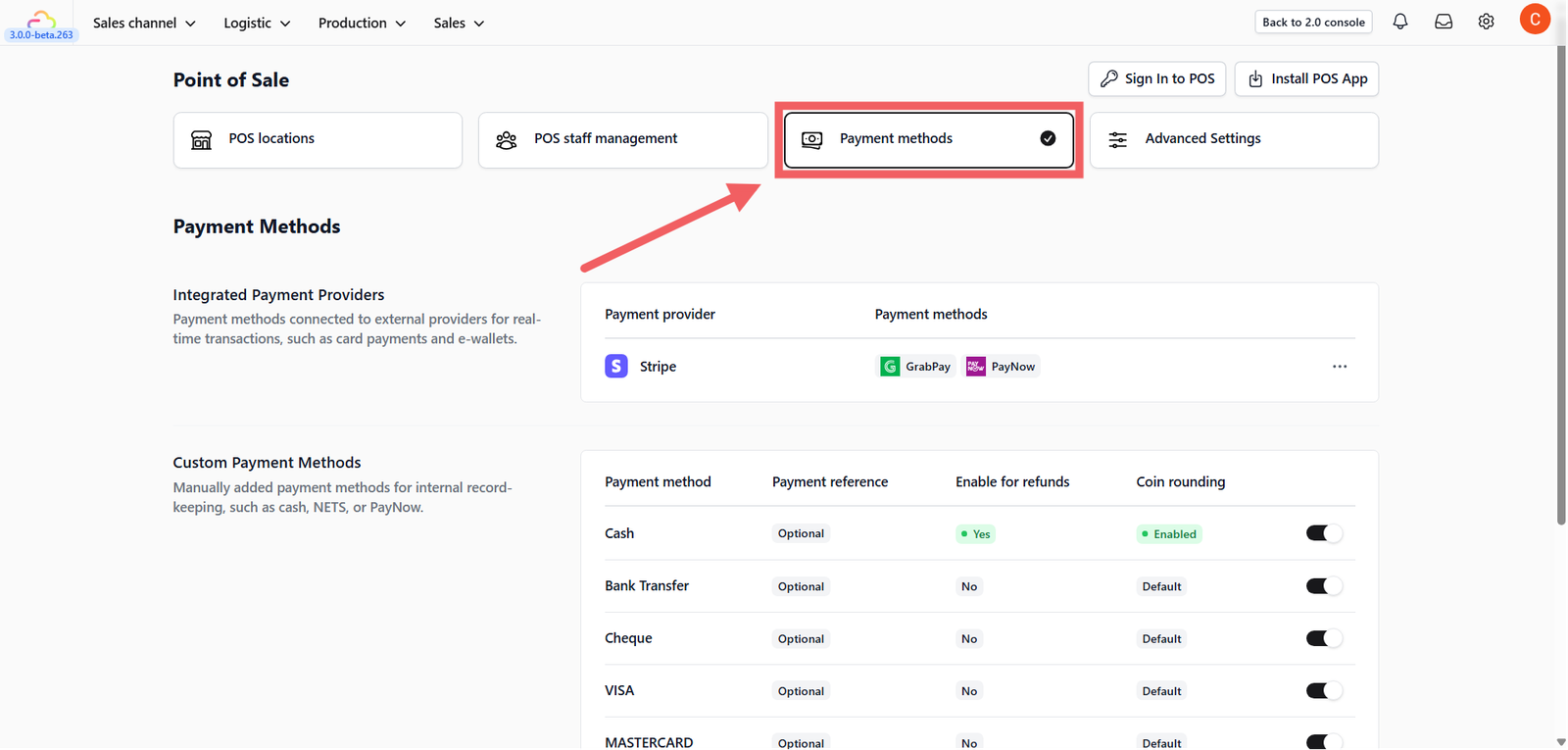
2. Click the Payment Methods card.
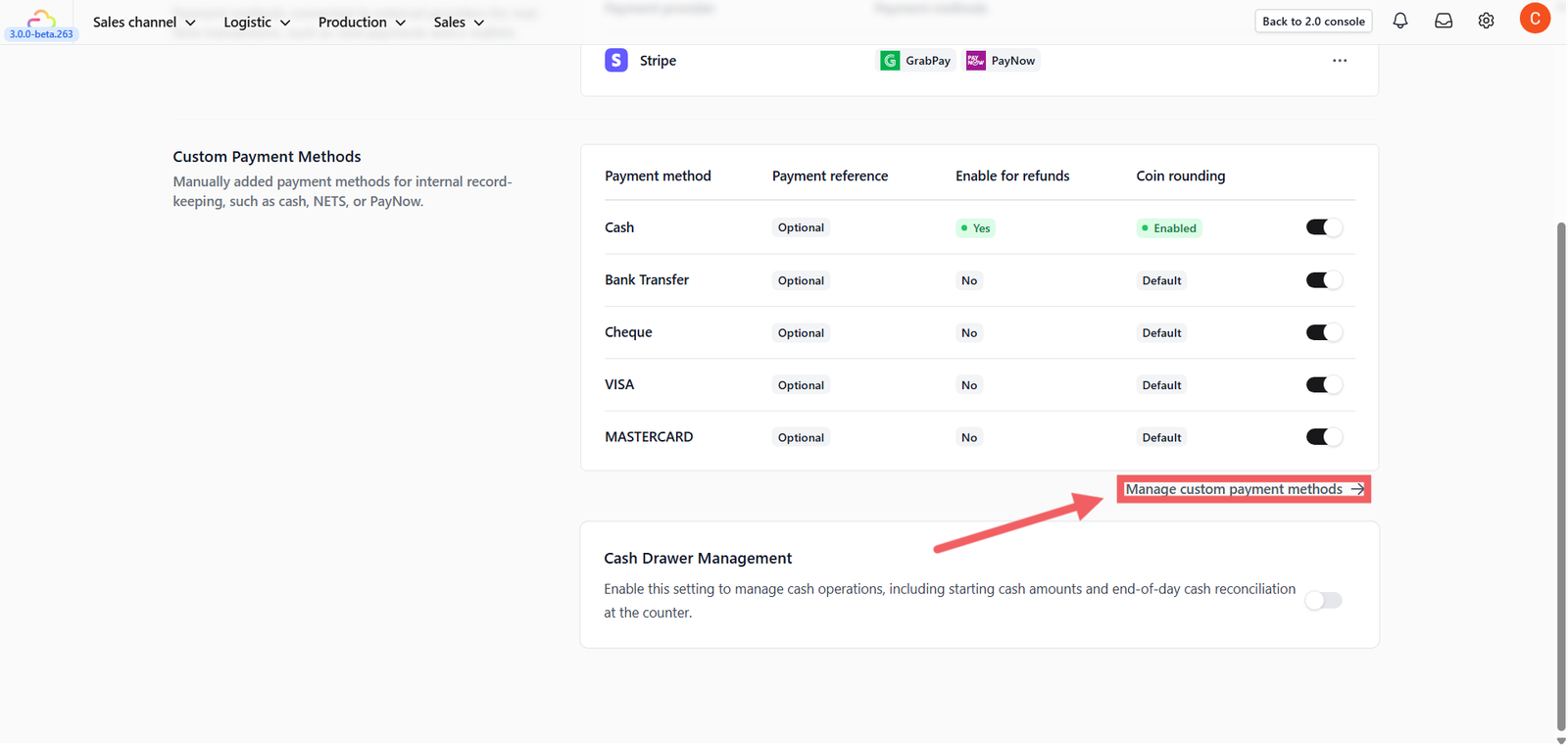
3. Under "Custom Payment Methods", click Manage custom payment methods.
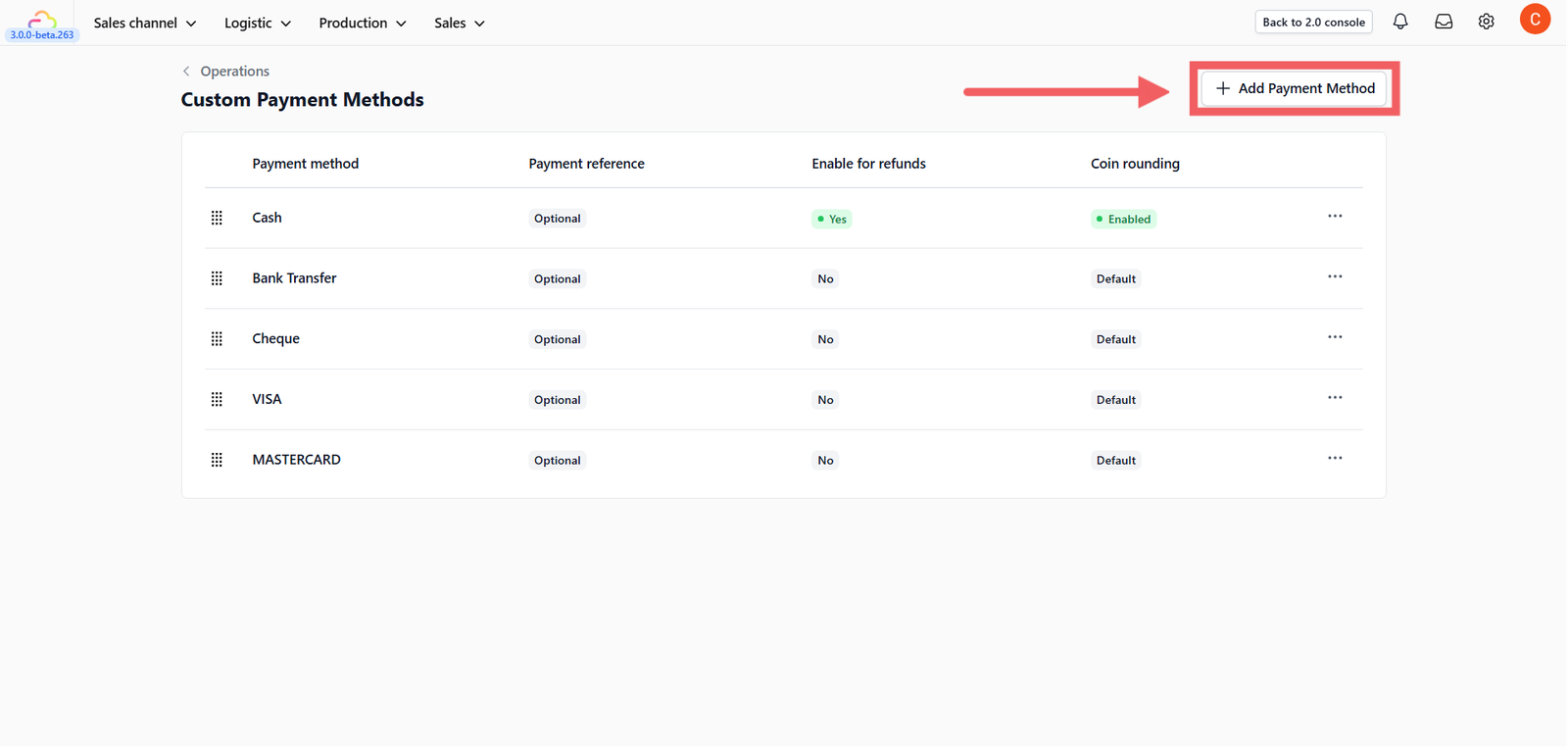
4. Click + Add Payment Method.
5. Configure the details in the popup:
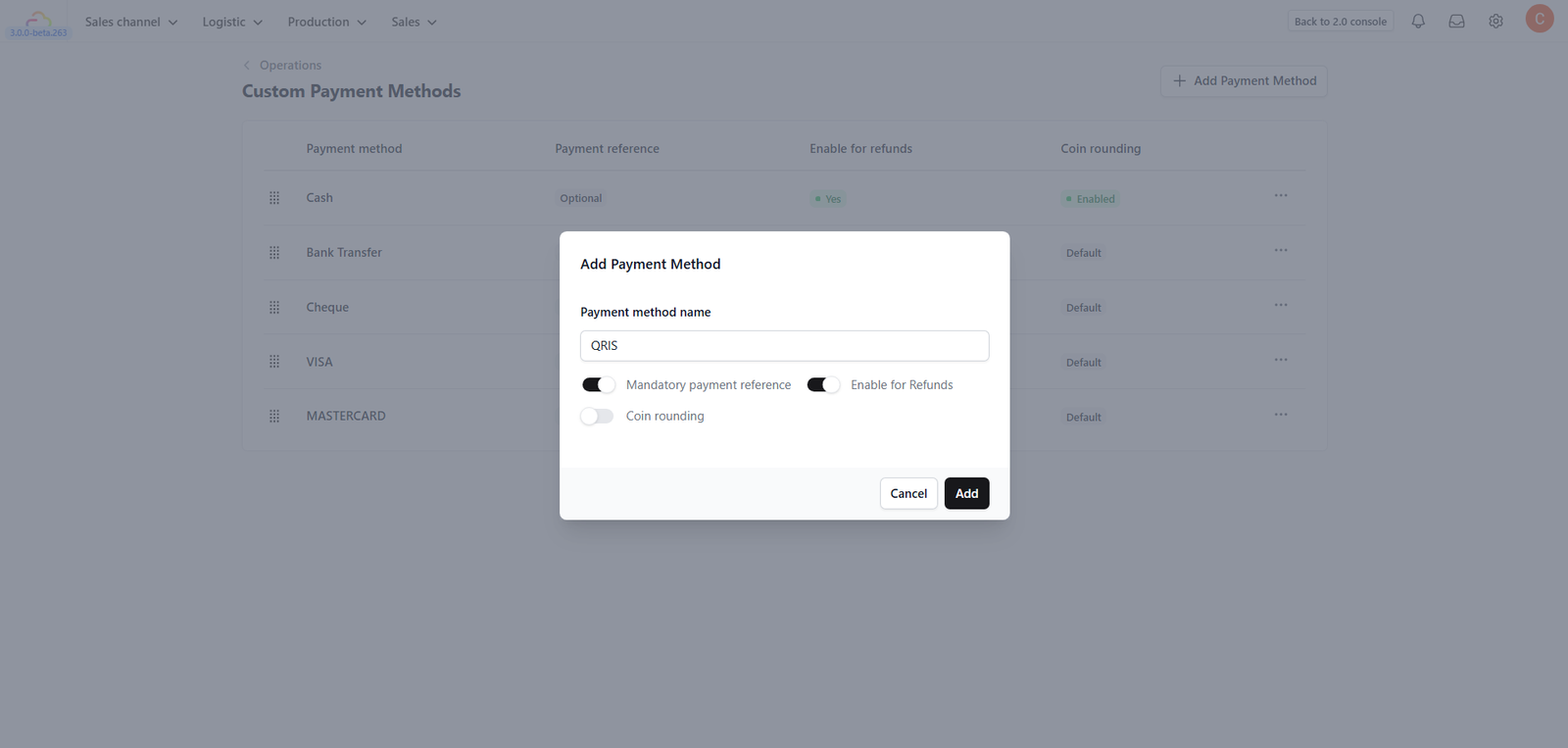
- Payment method name: Enter the name (e.g., "Cash", "QRIS").
- Mandatory payment reference: Toggle ON if you require staff to enter a transaction ID (useful for Bank Transfers).
- Enable for Refunds: Toggle ON if this method can be used to return money to customers.
- Coin Rounding: Toggle ON specifically for Cash payments if your country stops using small coins.
6. Configure Rounding Rules:
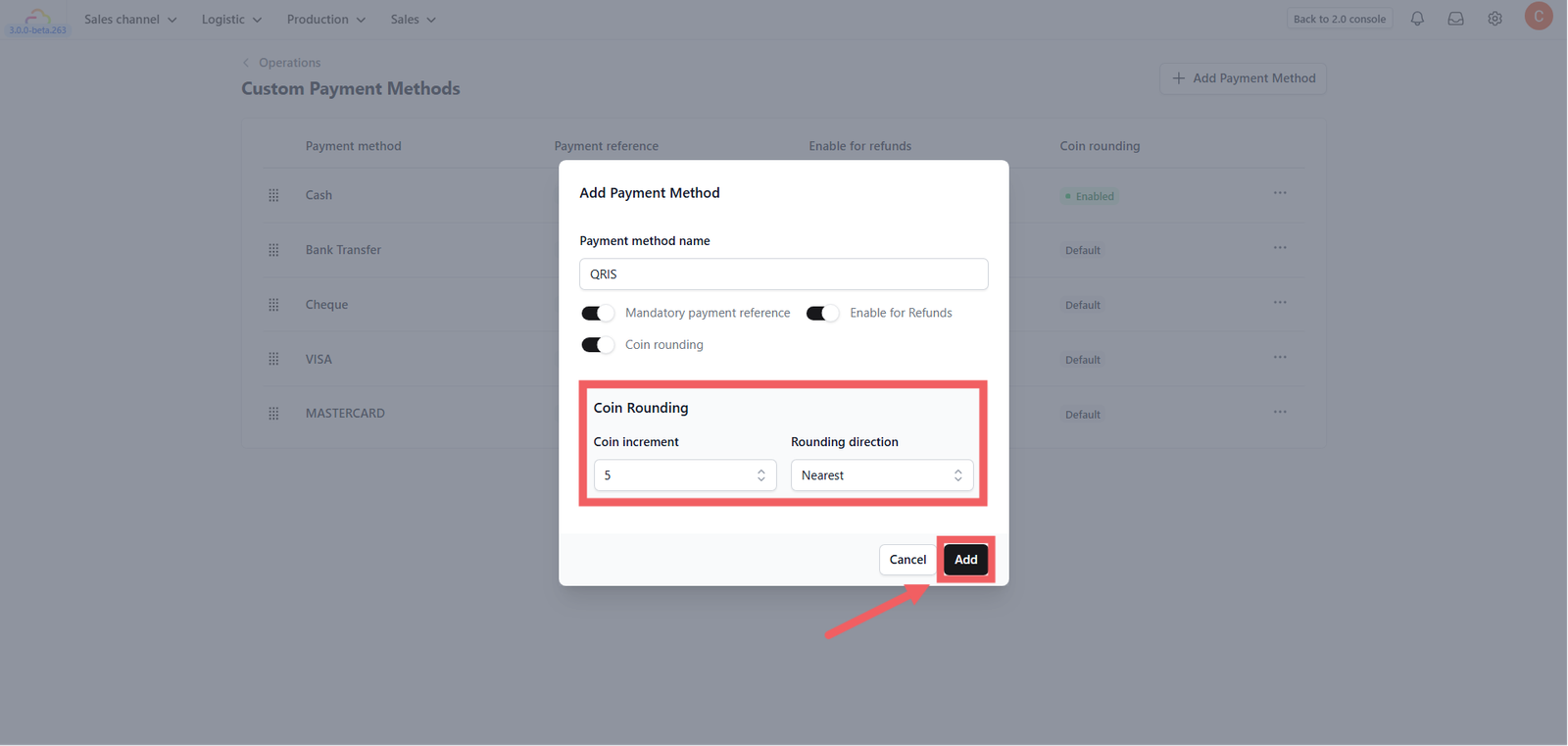
- Coin increment: Select the smallest currency unit (e.g., 5 or 10).
- Rounding direction: Choose Nearest, Up, or Down.
7. Click Add (or Update).
Enable Cash Drawer Management
Track the cash flow (opening amount vs. closing amount) for each shift.
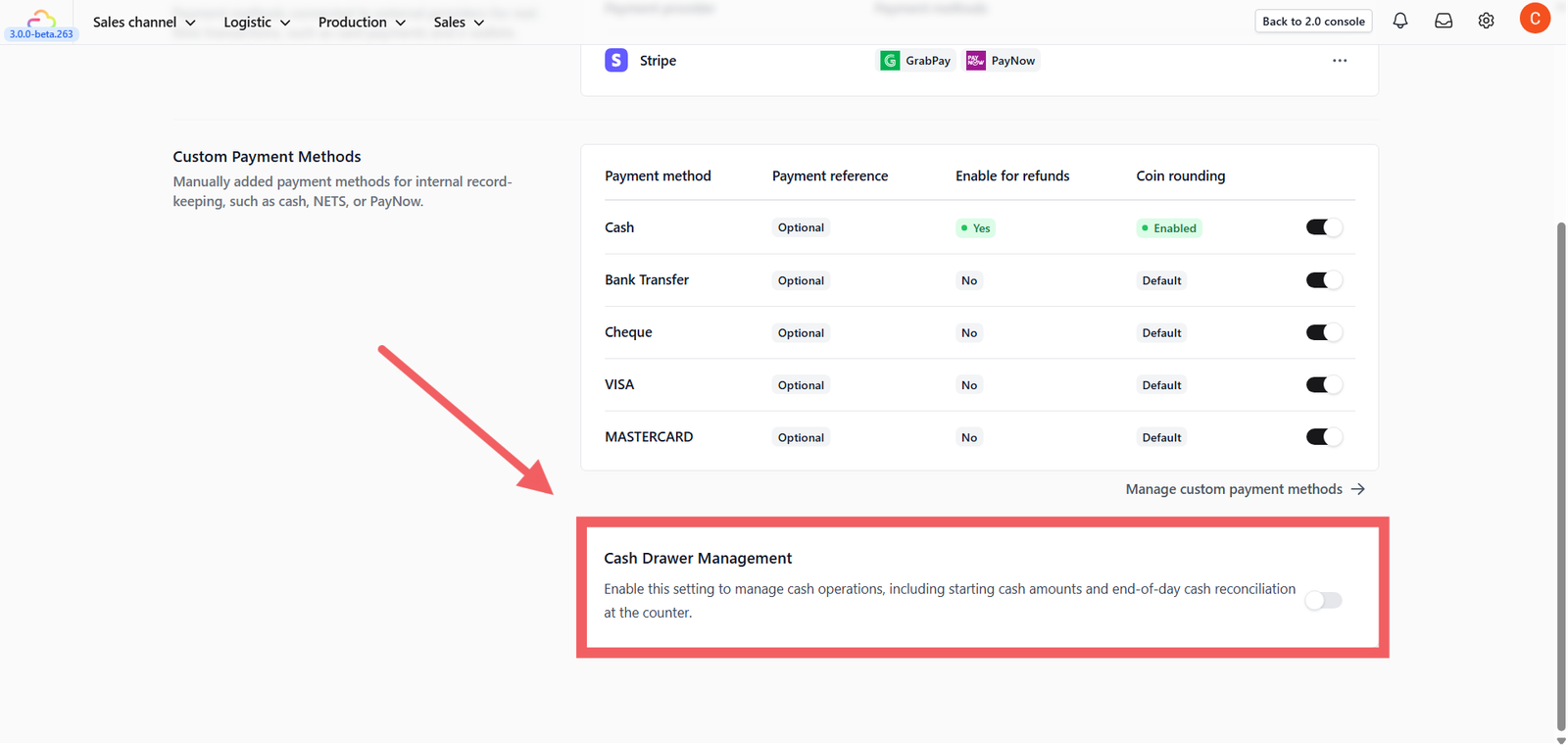
- Scroll to the bottom section "Cash Drawer Management".
- Toggle the switch to Enabled.
- A confirmation popup will appear with an optional setting:
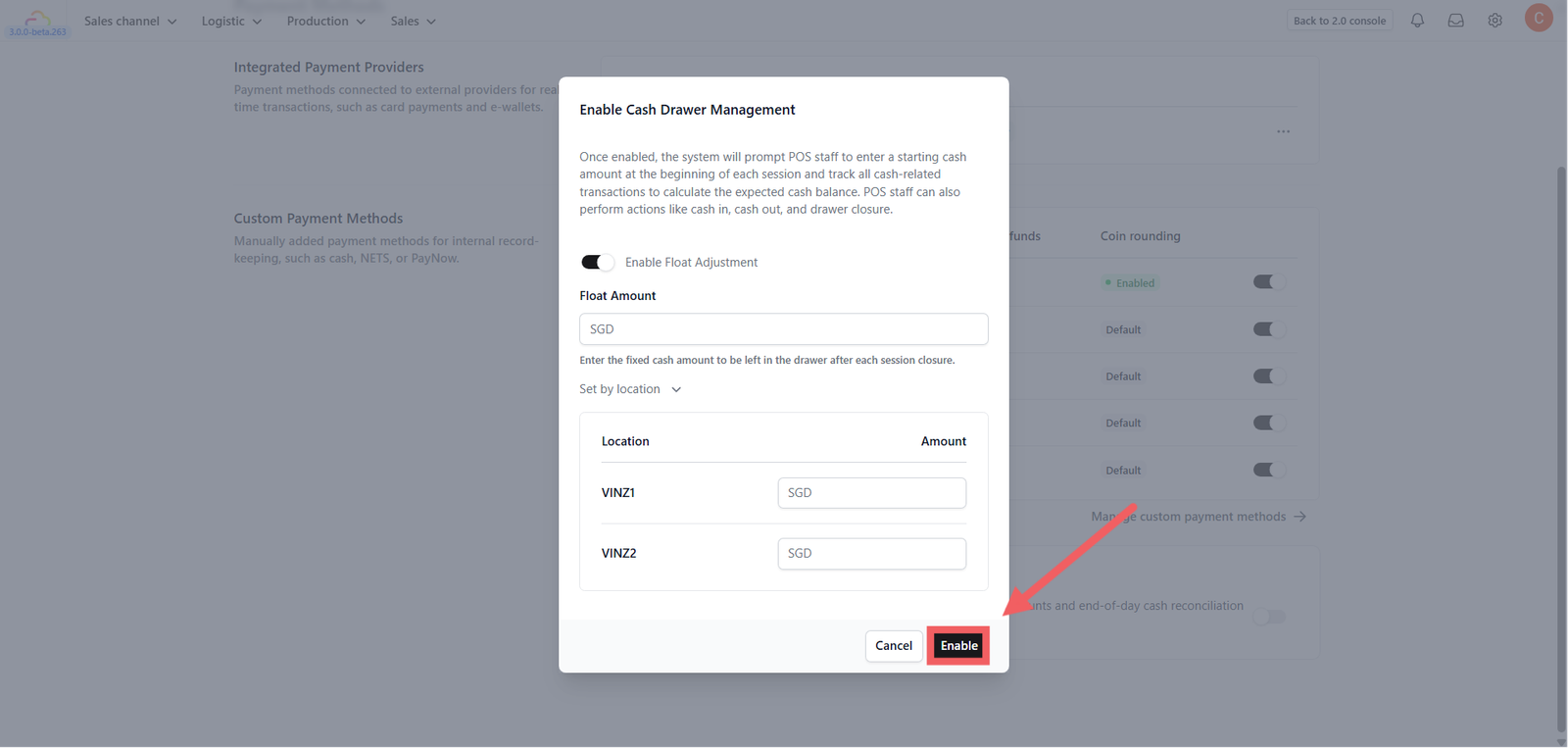
- Enable Float Adjustment: Toggle this ON if you want the system to automatically reset the cash balance to a fixed deposit amount whenever the drawer is closed.
- Float Amount: If enabled, enter the default fixed cash amount to be left in the drawer.
- Set by location: You can also define specific float amounts for different store locations (e.g., VINZ1 vs VINZ2) by expanding this section.
4. Click Enable to finish setup.
Give feedback
Up next
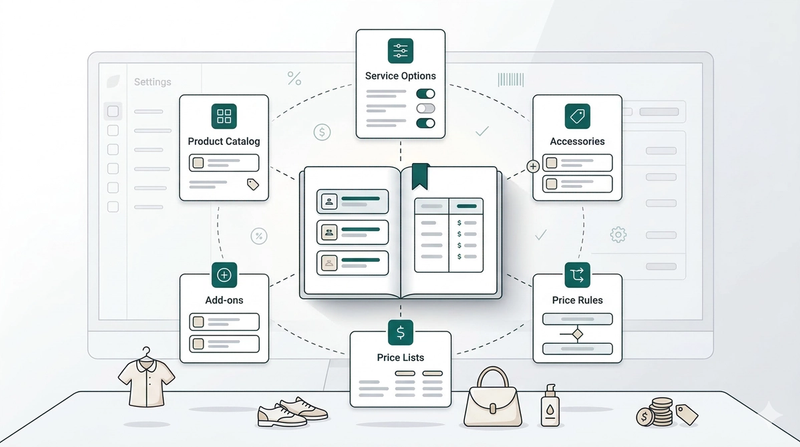
Products & PricingLearn how to organize your items, manage service options, and apply dynamic pricing rules to streamline your sales process.
Read more