
POS Setup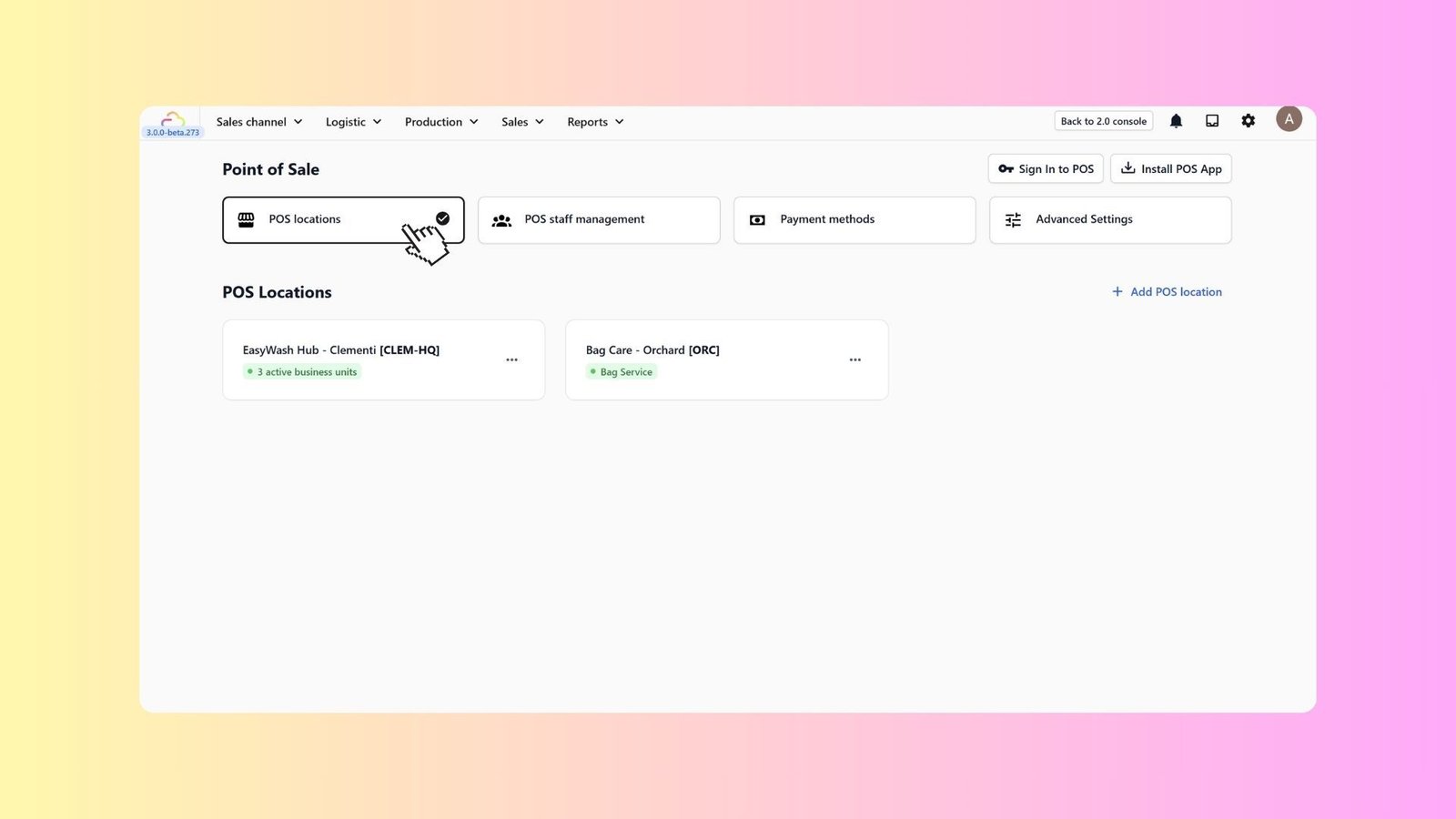
Add Your POS Location
In this article
Before you can start taking orders, you need to tell the system where the orders are coming from. Setting up a "POS Location" creates a dedicated workspace for that specific branch.
Contents
Contents
Create a New Location
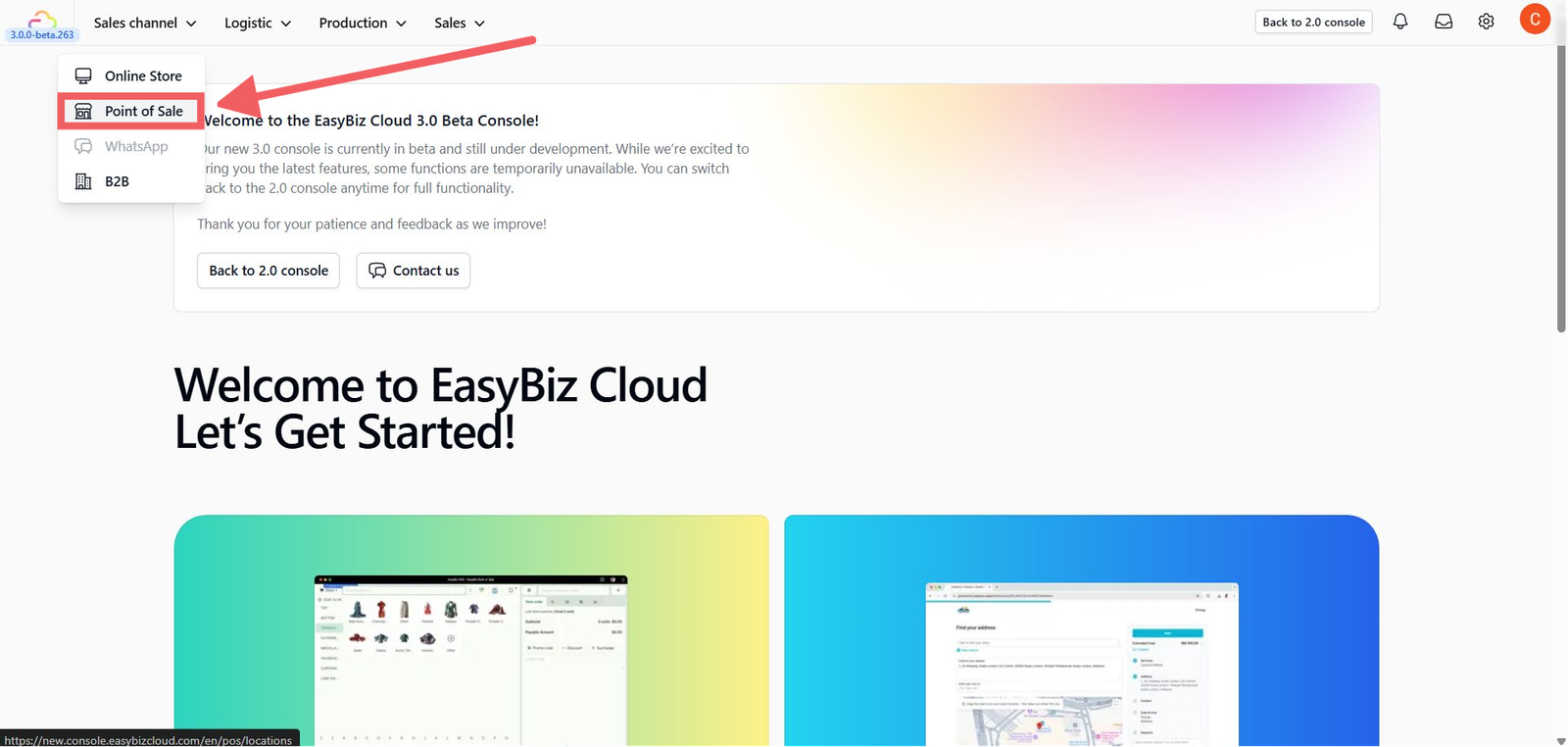
- Go to Sales Channel > Point of Sale.
- Click the POS Locations card.
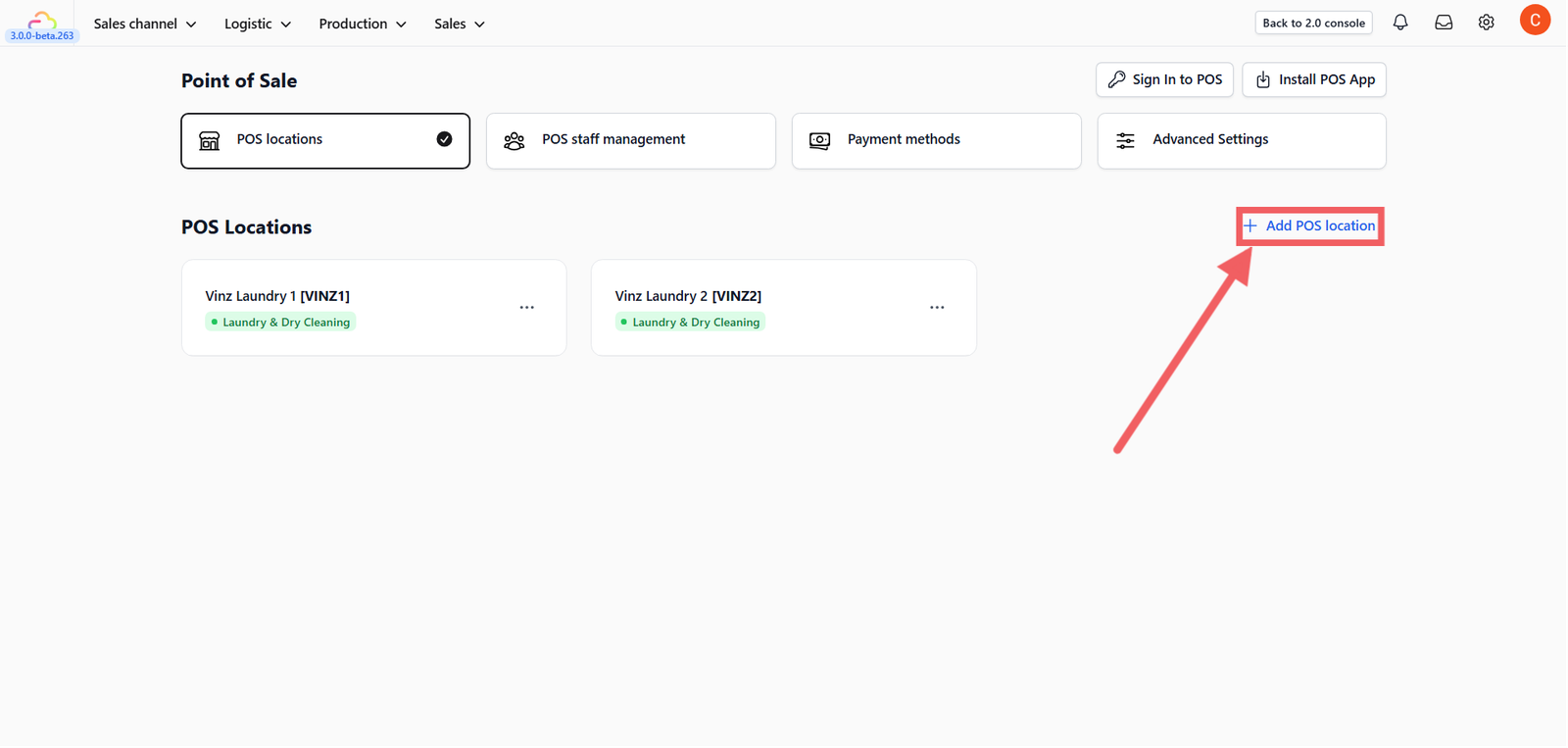
3. Click the + Add POS Location button.
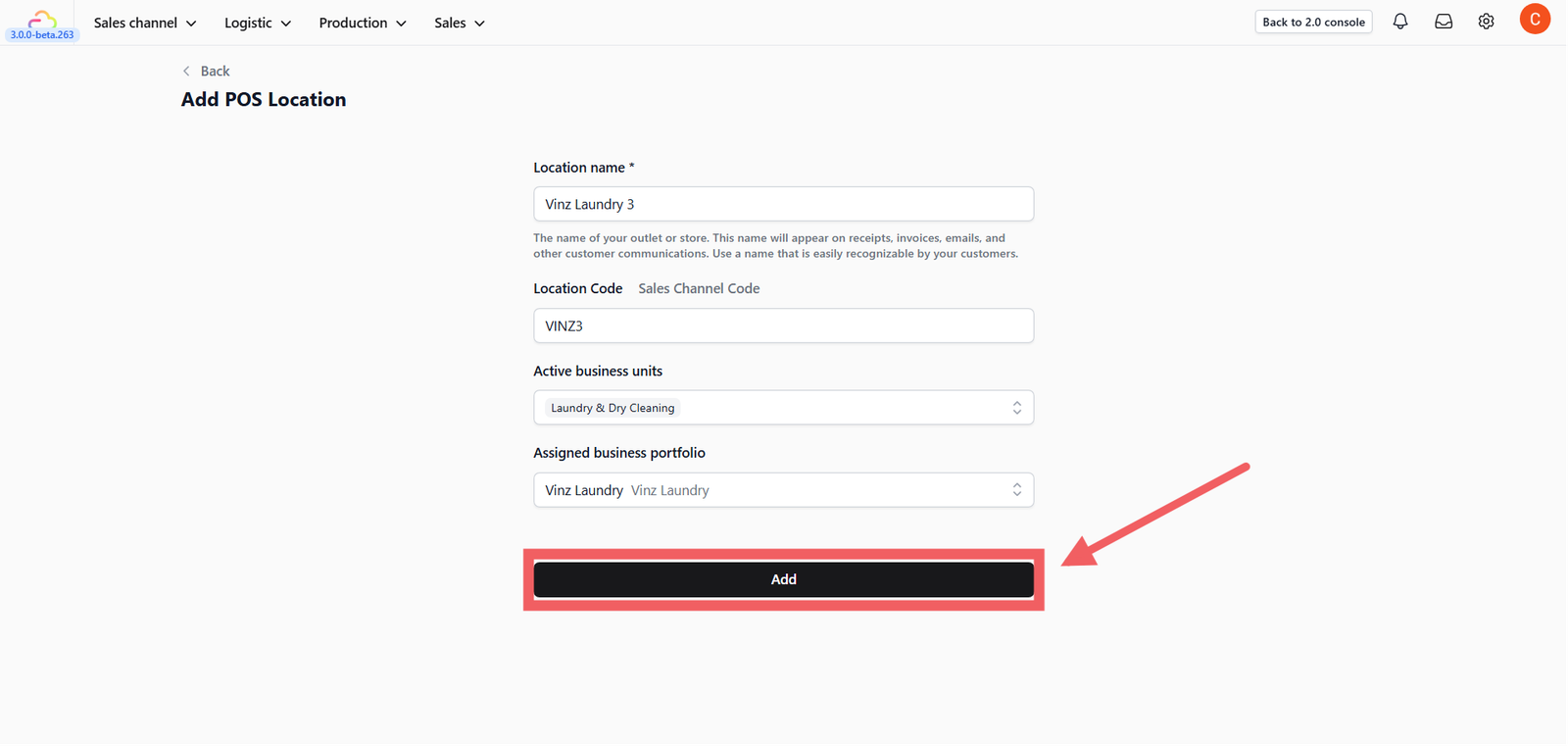
4. Fill in the mandatory details:
- Location Name: Enter a recognizable name (e.g., "Downtown Branch").
- Location Code: Create a unique short code (e.g., "DT-01") for internal reporting.
- Active Business Units: Select the relevant service unit (e.g., "Laundry & Dry Cleaning").
- Assigned Business Portfolio: Link this location to the correct business entity (e.g., "Vinz Laundry"). This determines which product lists and pricing tiers are available at this store.
5. Click Add.
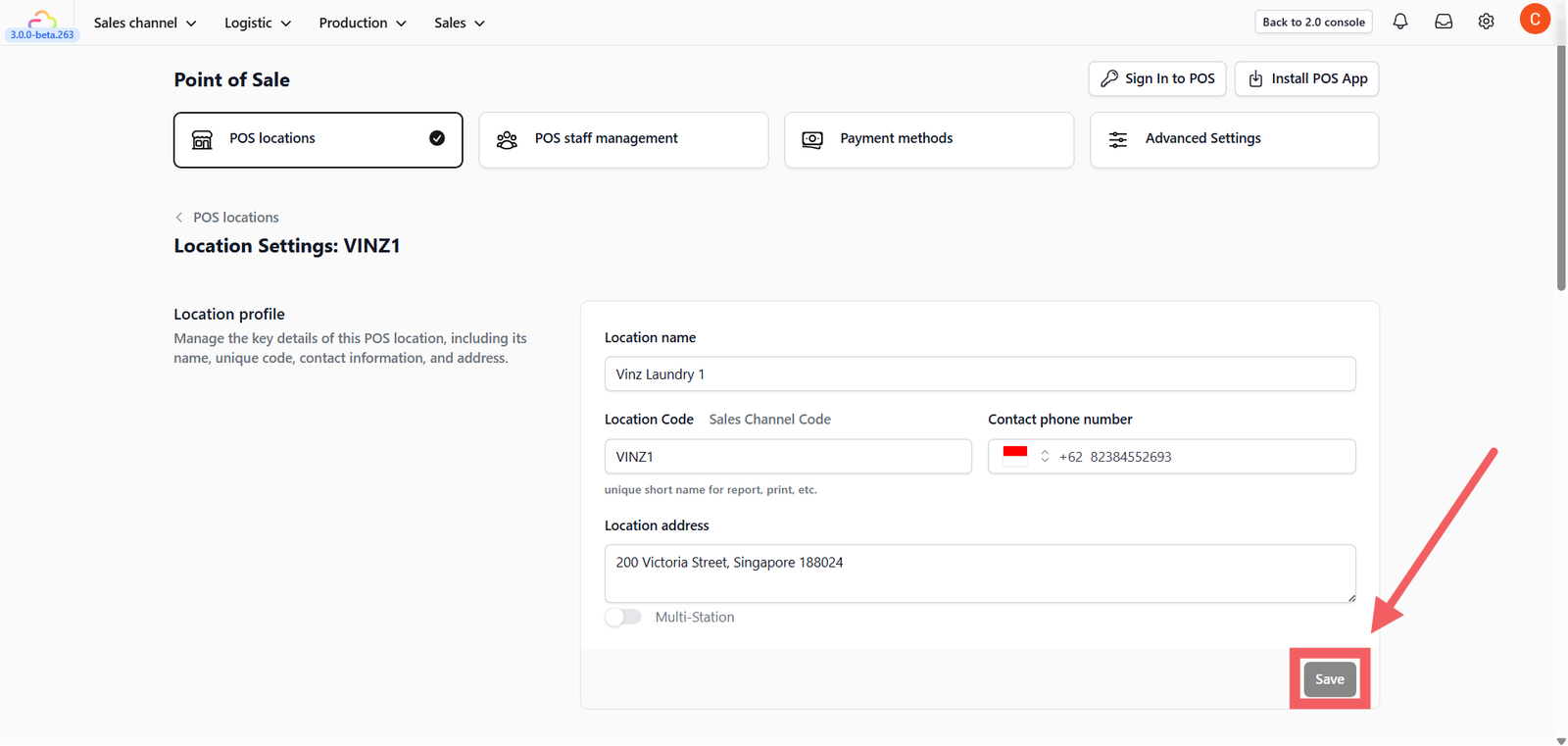
Configure Location Profile
Once added, you will be redirected to the Location Settings page.
- Location Address: Enter the full physical address (e.g., "200 Victoria Street"). This may appear on customer receipts.
- Contact Phone Number: Add the store's direct line.
- Multi-Station Mode:
- Toggle ON if you plan to use multiple iPad/POS terminals in this single shop.
- Caution: Enabling this requires granting browser/device location permissions to verify all devices are physically at the store
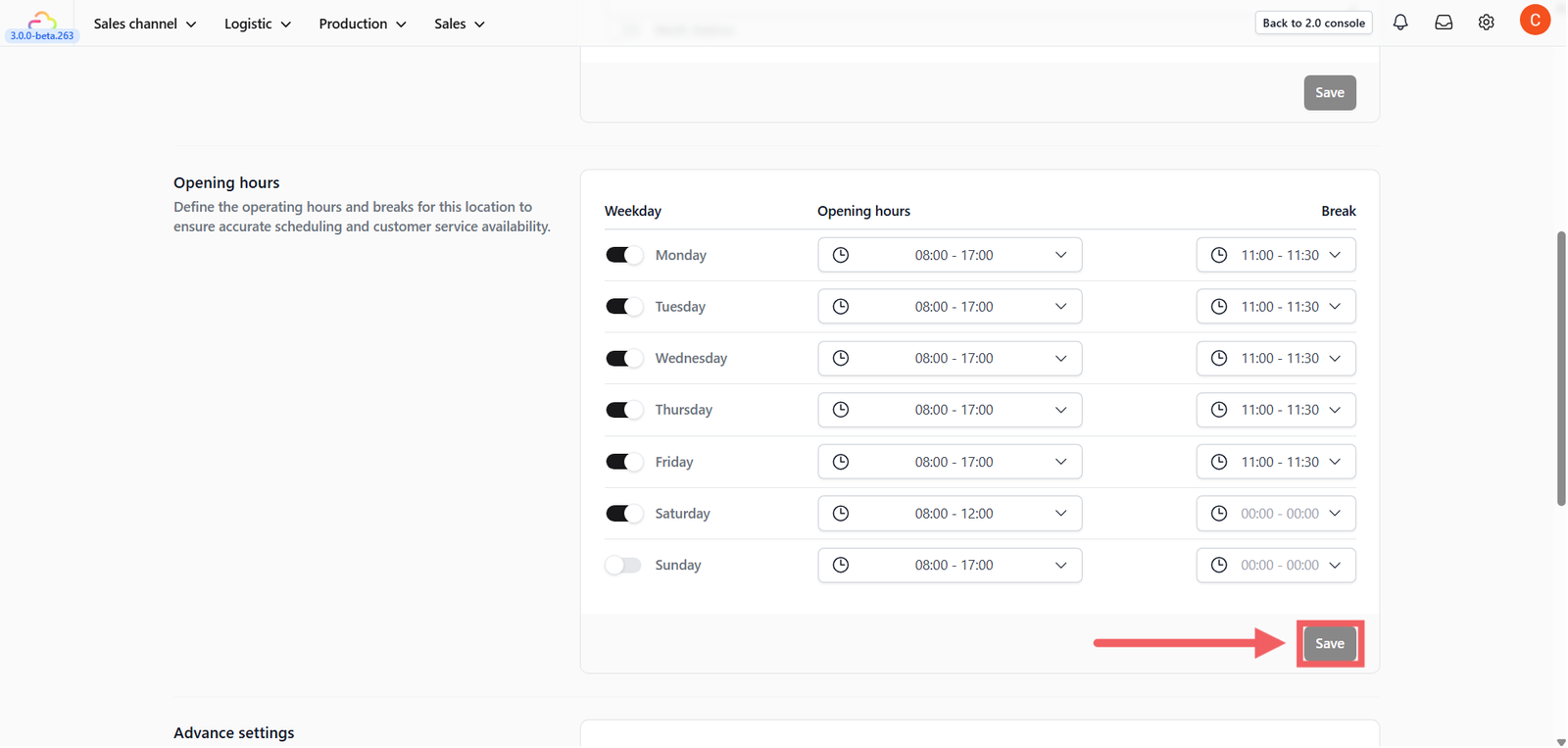
Set Opening Hours
Scroll down to the Opening Hours section.
- Enable Days: Toggle the switch for each day your store is open.
- Set Hours: Define the
StartandEndtime (e.g., 08:00 - 17:00). - Add Breaks: If your store closes for lunch, set the
Breakduration (e.g., 12:00 - 13:00).
Note: This ensures the system doesn't flag staff as "Late" or "Absent" during official break times.
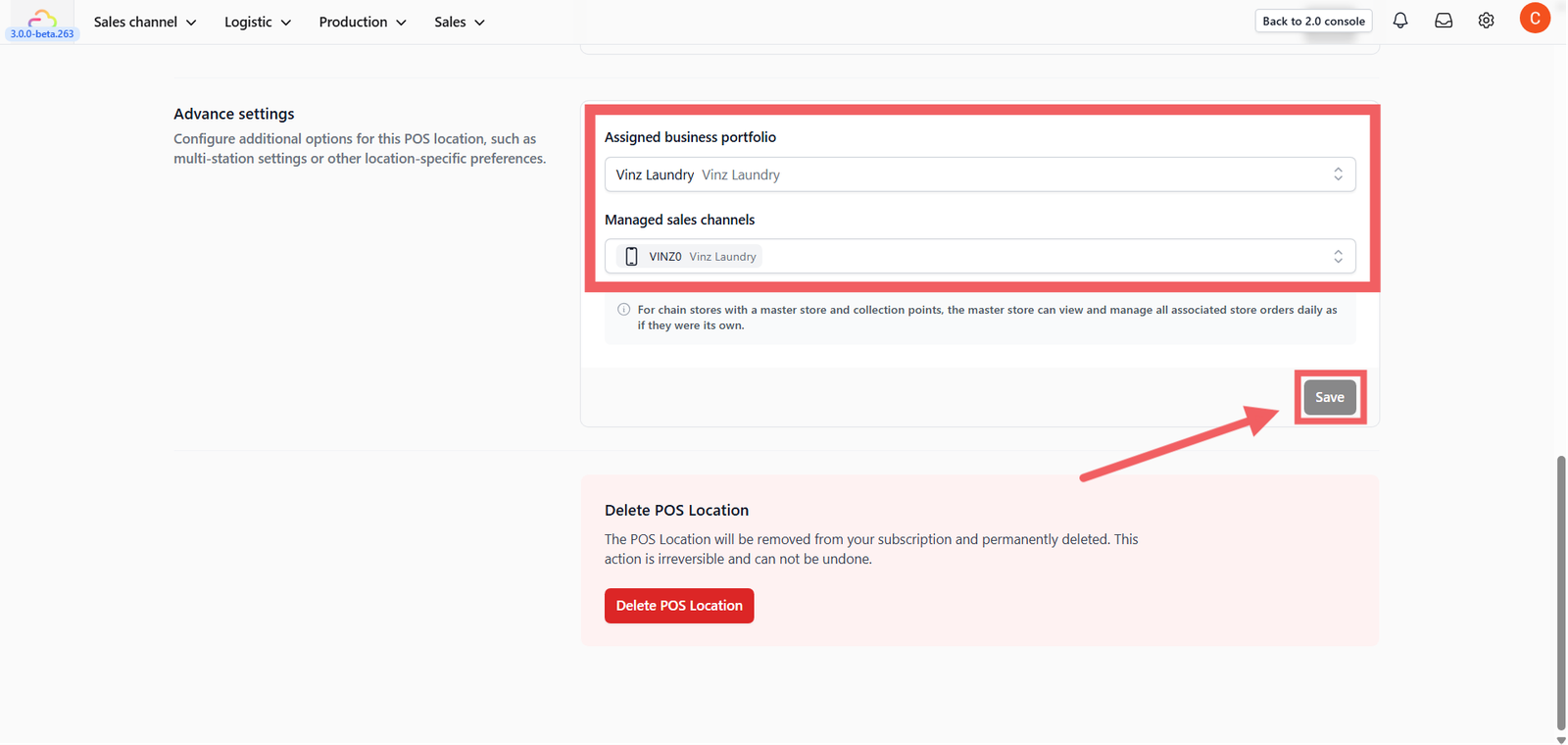
Advanced Settings
- Scroll to Advanced Settings.
- Managed Sales Channels: Select which Sales Channel ID (e.g., "VINZ0") is linked to this location.
Note: For chain stores with a Master Store and Collection Points, this setting allows the Master Store to view and manage orders from associated outlets.
3. Click Save to finalize your setup.
Give feedback
Up next
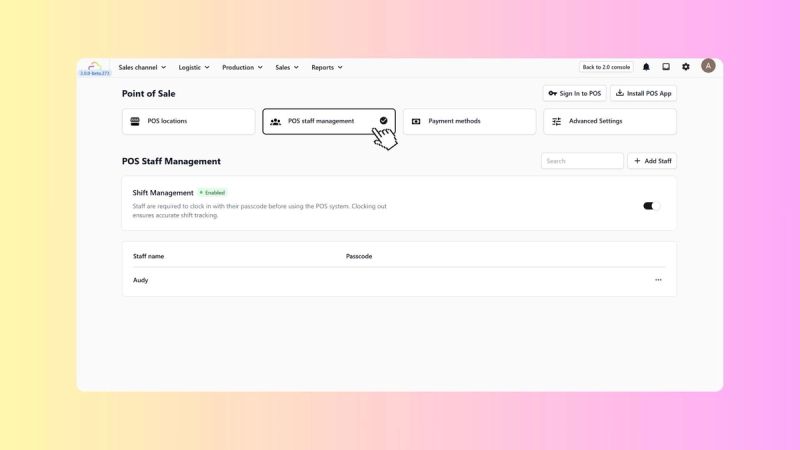
Manage POS StaffTrust, but verify. secure your register by assigning unique 4-digit PINs to every employee, ensuring total accountability for every refund, discount, and cash movement.
Read more