Setting Up Points Program
In this article
The Points Program is the simplest way to say "Thank You." It turns a transactional relationship into a rewarding journey. By letting customers earn points for every dollar spent or every item recycled, you give them a goal to work towards. Whether they are saving up for a free service or a discount voucher, the pursuit of points encourages them to visit more often and spend just a little bit more to reach the next milestone.
Contents
Contents
Why Use Points Program?
- Encourage Habitual Visits: "I just need 50 more points" is a powerful motivator for a customer to return sooner than planned.
- Encourage Eco-Friendly Behavior: You can award points for returning hangers or bags, saving you operational costs while rewarding the customer.
- Flexible Rewards: You decide the exchange rate. It’s a low-cost way to give value without drastically hurting your margins.
Accessing Points Settings
To configure these rules, you must be in the 2.0 Console.
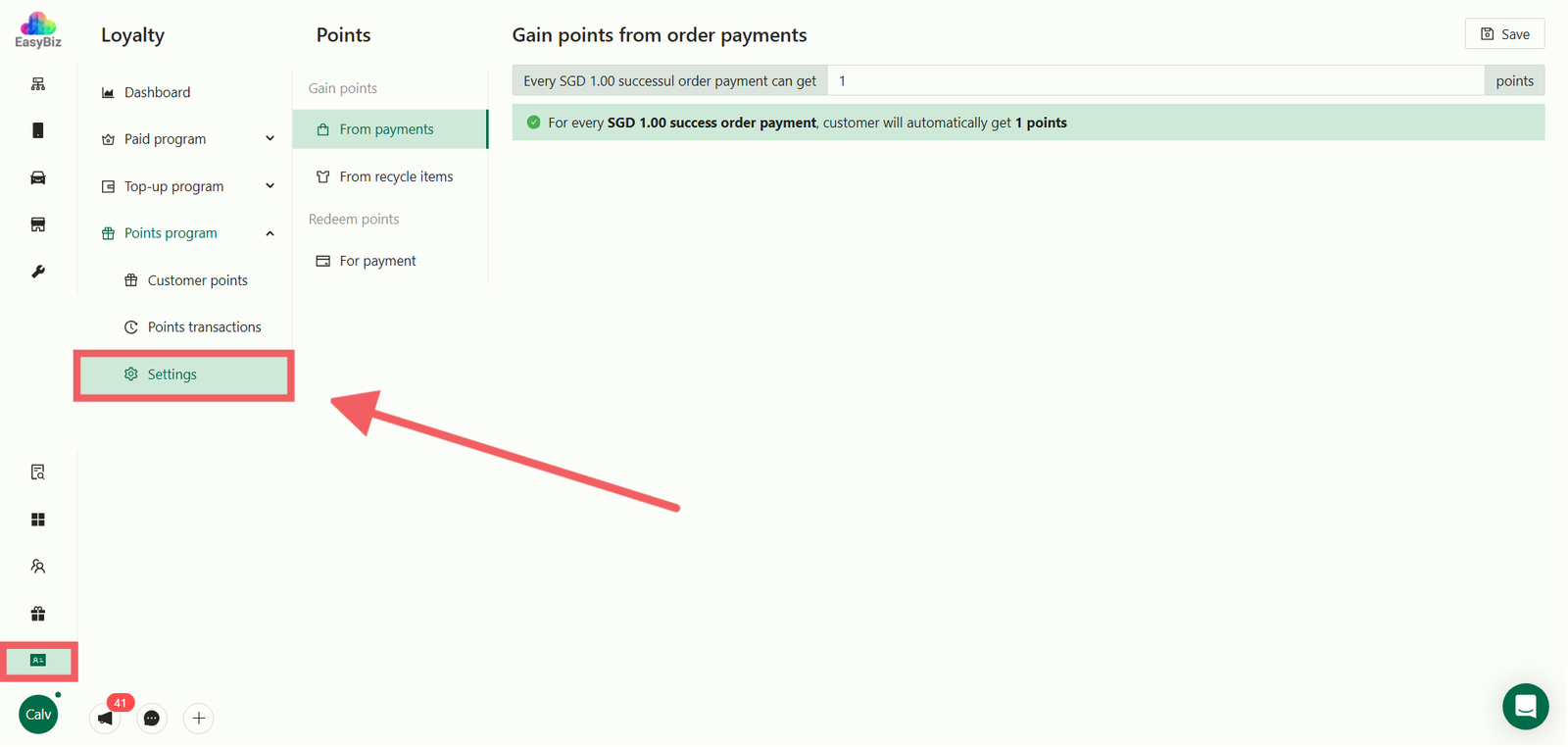
- Navigate to Loyalty > Points Program on the left sidebar.
- Select Settings.
Configure Earning Rules
On the Settings page, look for the specific configuration blocks:
A. Gain Points from Payments (Spending)
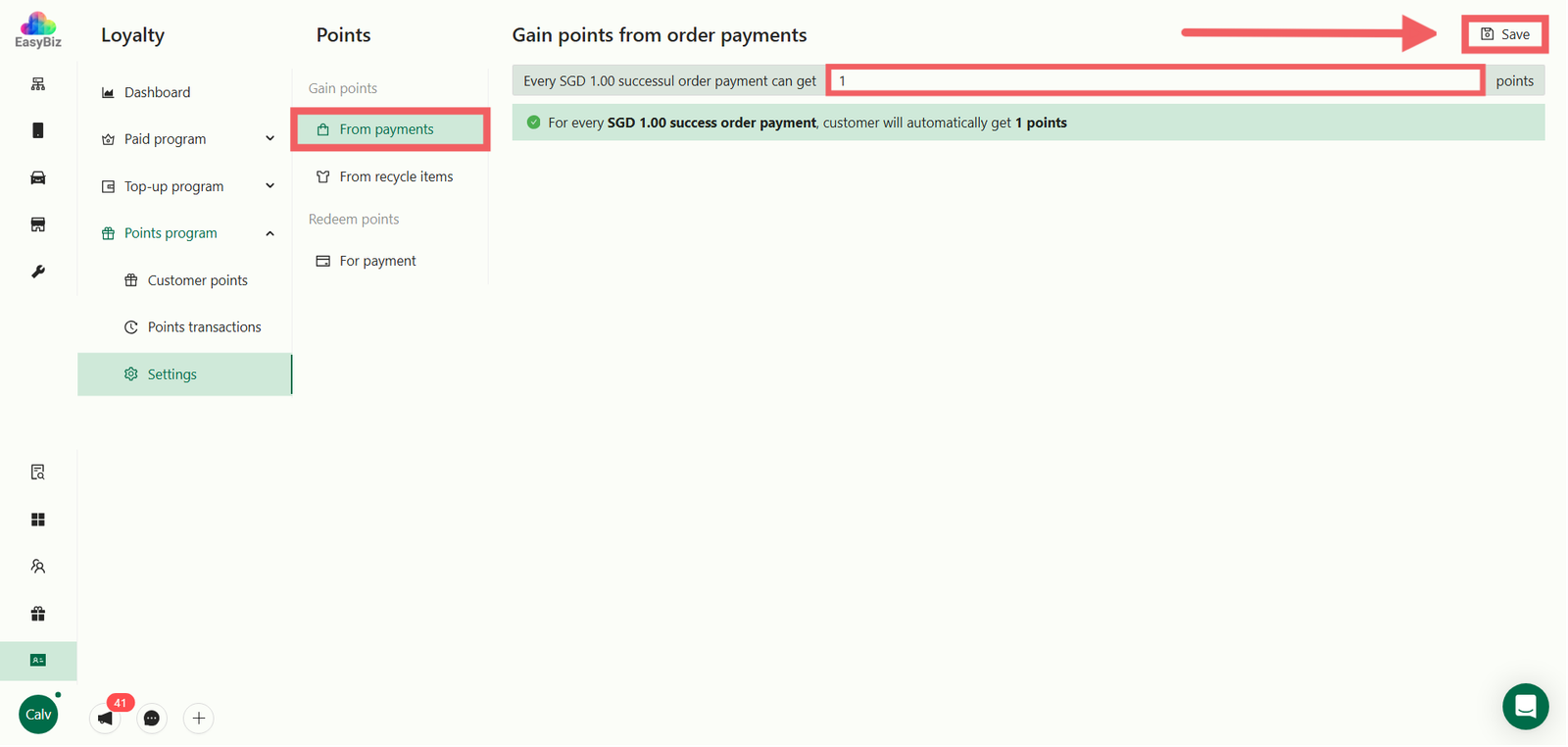
Locate the block labeled Gain points and find the From payments setting. This defines the base exchange rate for regular transactions.
- Action: Enter the ratio in the text fields.
- Rule: "Every SGD [X] successful order payment can get [Y] points."
- Example: Every SGD 1.00 gets 1 Point.
- Click Save.
B. Gain Points from Recycle Items (Eco-Rewards)
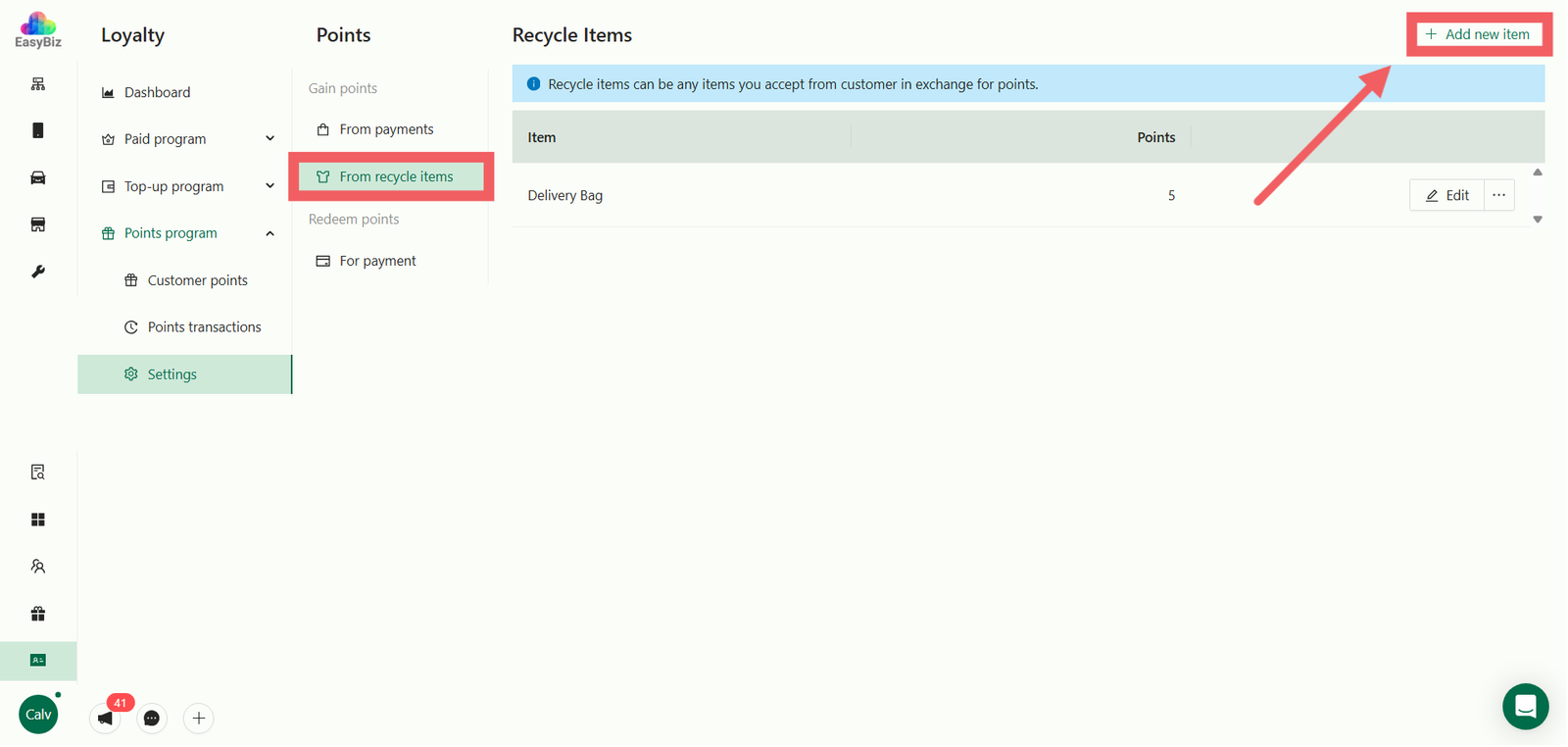
Locate the block labeled Gain points and find the From recycle items setting. This allows you to reward customers for returning reusable items (like hangers or bags).
- Click the + Add Item button in this section.
- In the pop-up window:
- Item Name: Enter the item name (e.g., "Delivery Bag").
- Exchange Points: Set how many points one unit is worth (e.g., 1 unit = 5 Points).
- Click OK
Configure Redemption Rules (Redeem Points)
Scroll down to the section titled Redeem points. Look for the header "For payments". This determines the monetary value of your points when a customer wants to use them to pay for an order.
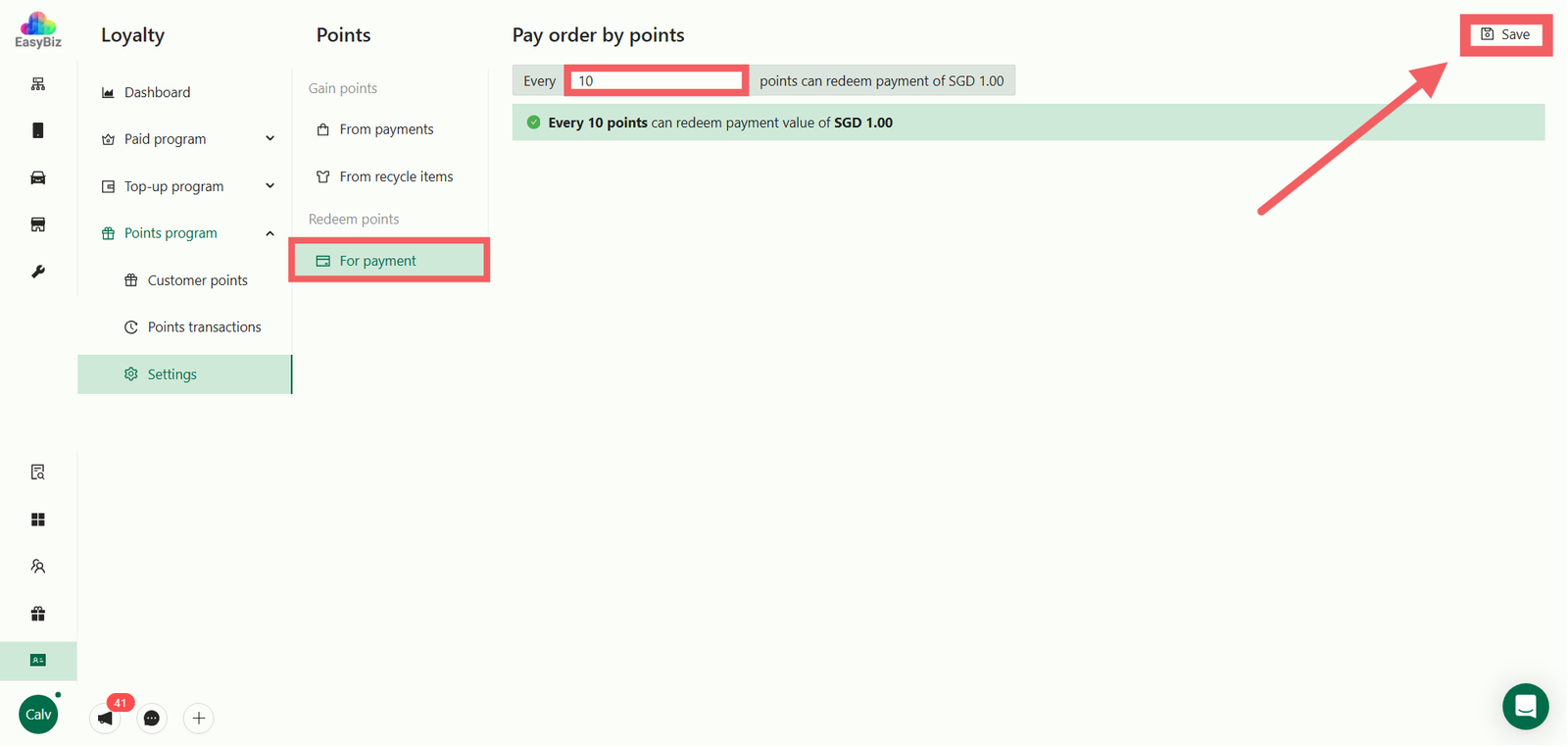
- Enter the redemption value.
- Rule: "Every [X] points can redeem payment of SGD 1.00."
- Example: Every 100 points = SGD 1.00.
- This means if a customer has 500 points, they can get a $5 discount.
2. Click Save
Monitoring Customer Points
To view current point balances:
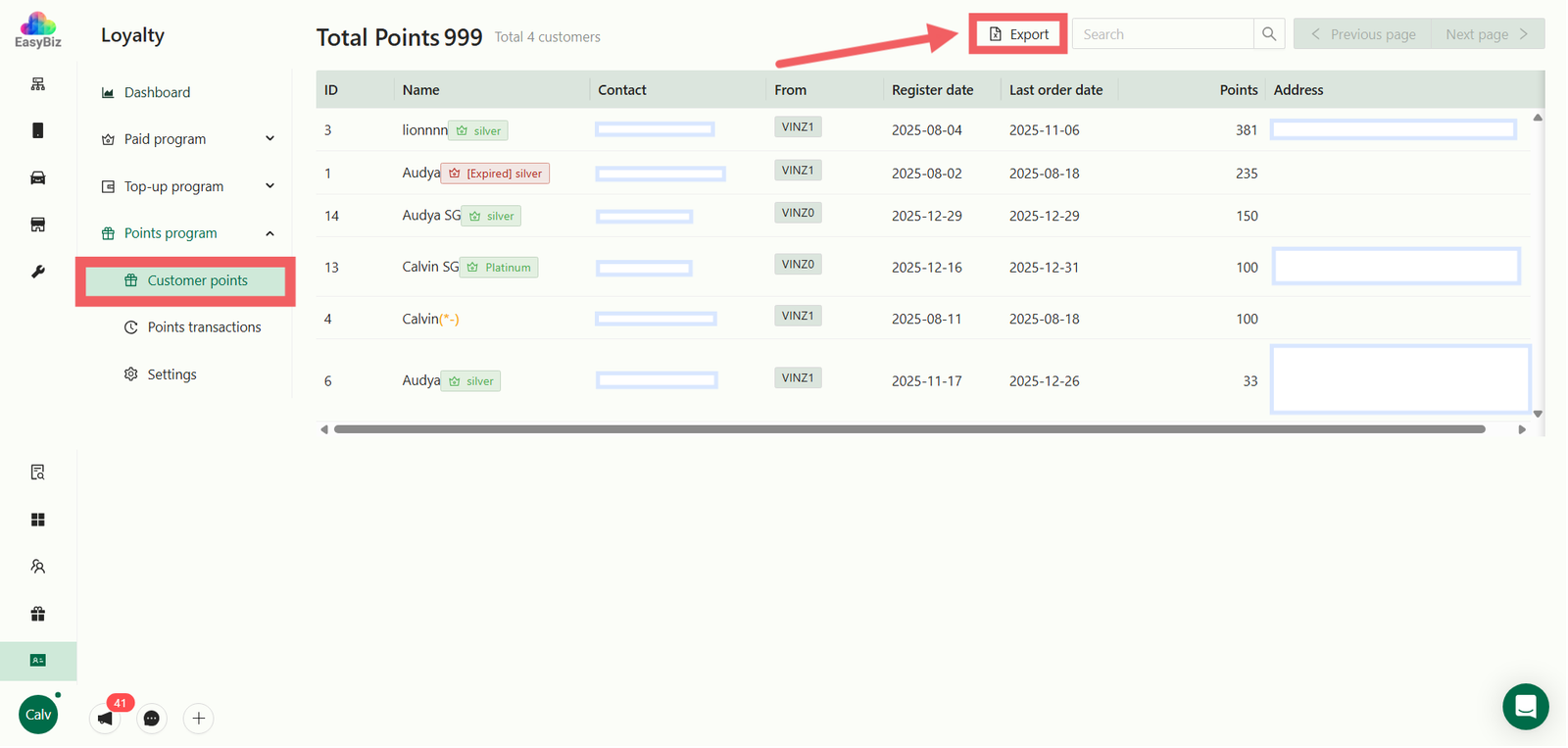
- Click on Customer Points in the left sidebar.
- The table displays key details including:
- Points: The customer's current available balance.
- Last Order Date: Useful to identify inactive customers with high point balances.
- Export: Click Export to download the data. You can filter by Store, Register Date, or Last Order Date.
Tracking Point Transactions
To audit how points are being earned or spent:
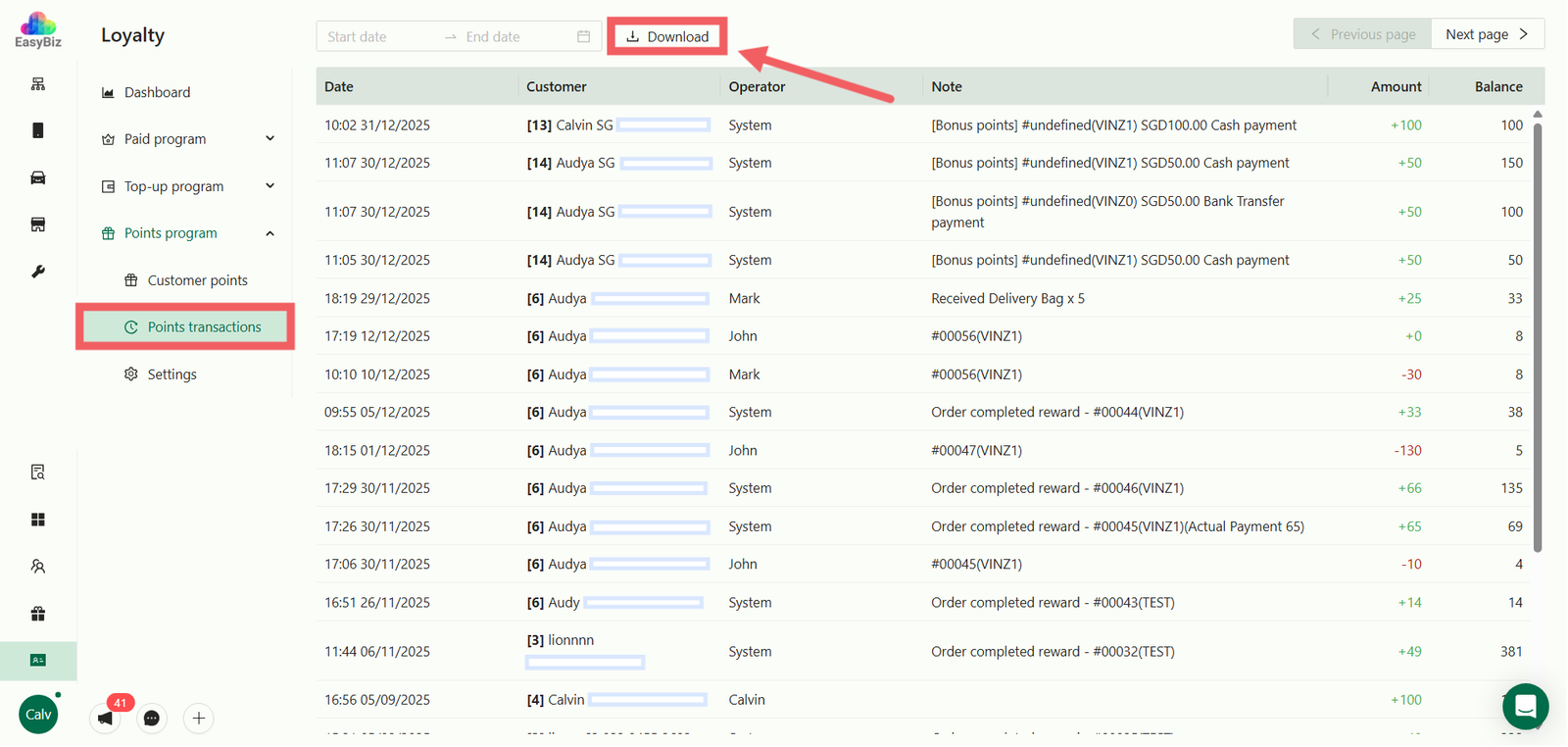
- Click on Point Transactions in the left sidebar.
- This log tracks every change, showing:
- Amount: The number of points added (+) or deducted (-).
- Balance: The remaining points after the transaction.
- Note: Context for the transaction (e.g., "Order #12345" or "Recycled Bag").
- Click Download to generate a full report.
Managing Points & Recycling on POS
Your staff can manage points directly from the POS interface without accessing the backend console.
A. Checking Points History
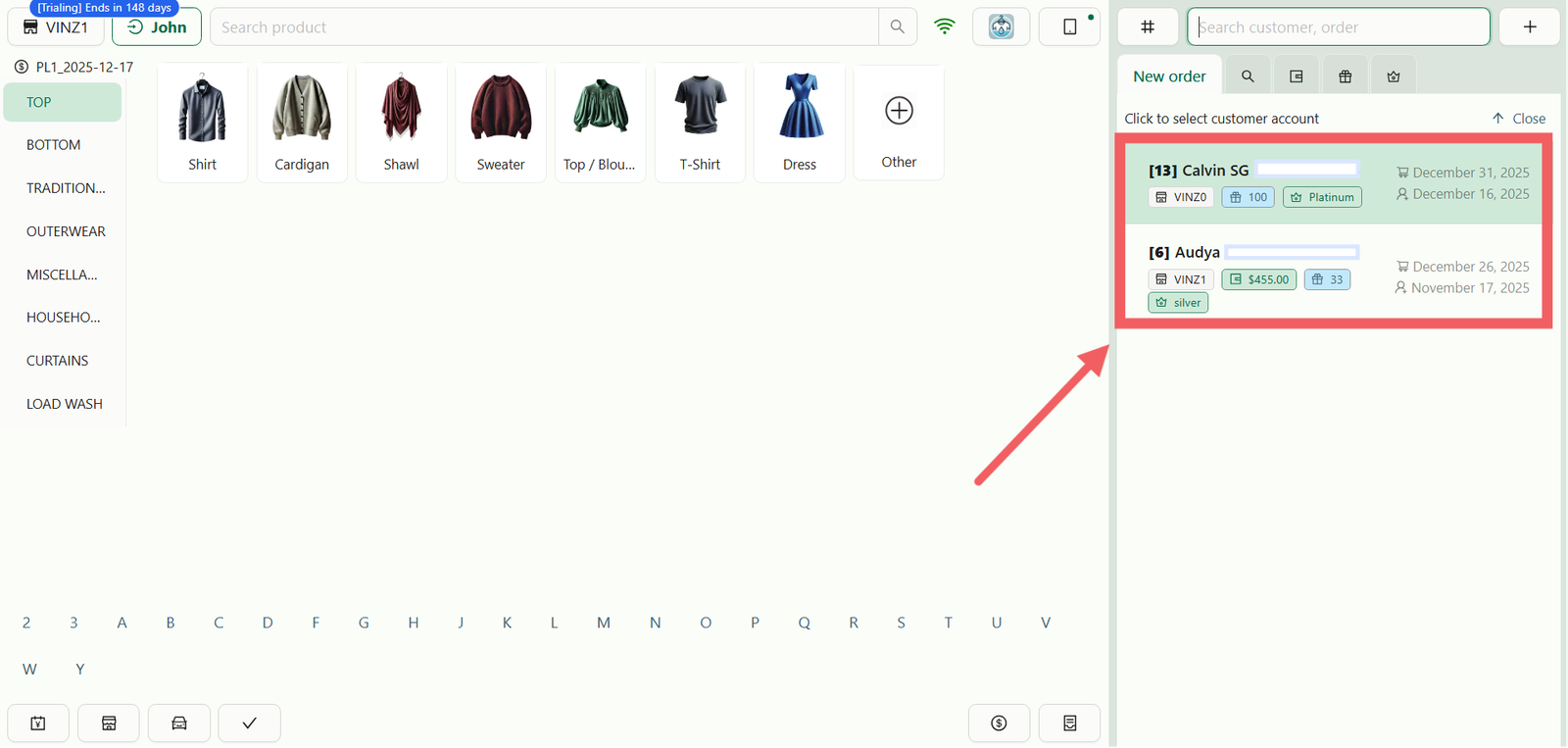
- Add a customer to the order.
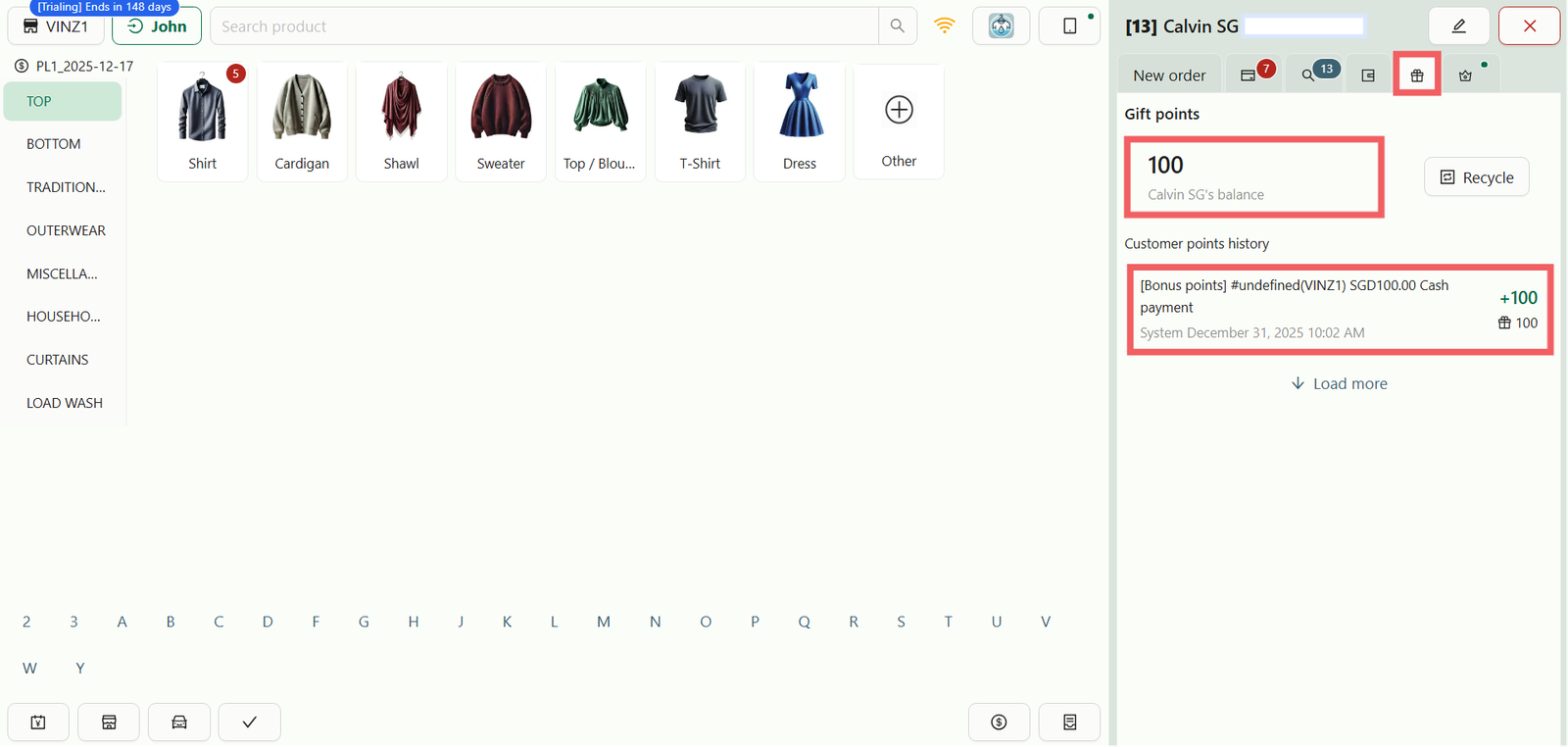
2. Click the Gift Icon (Rewards) located next to the Wallet icon.
3. From here, you can view the customer's total points past transactions.
B. Processing Recycle Items (Eco-Rewards)
If a customer brings back reusable items (like hangers or bags) to exchange for points:
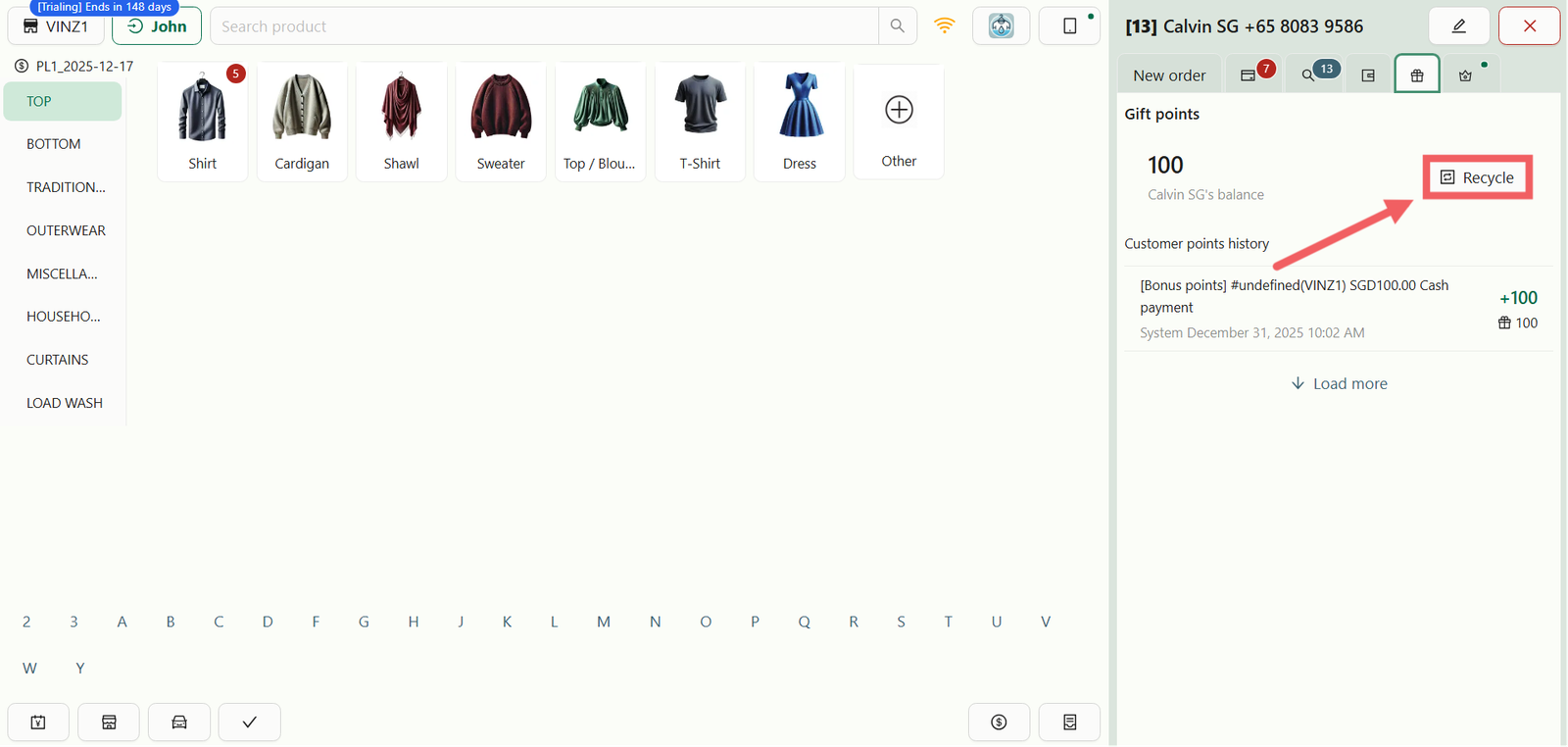
- Inside the Gift menu, click the Recycle button.
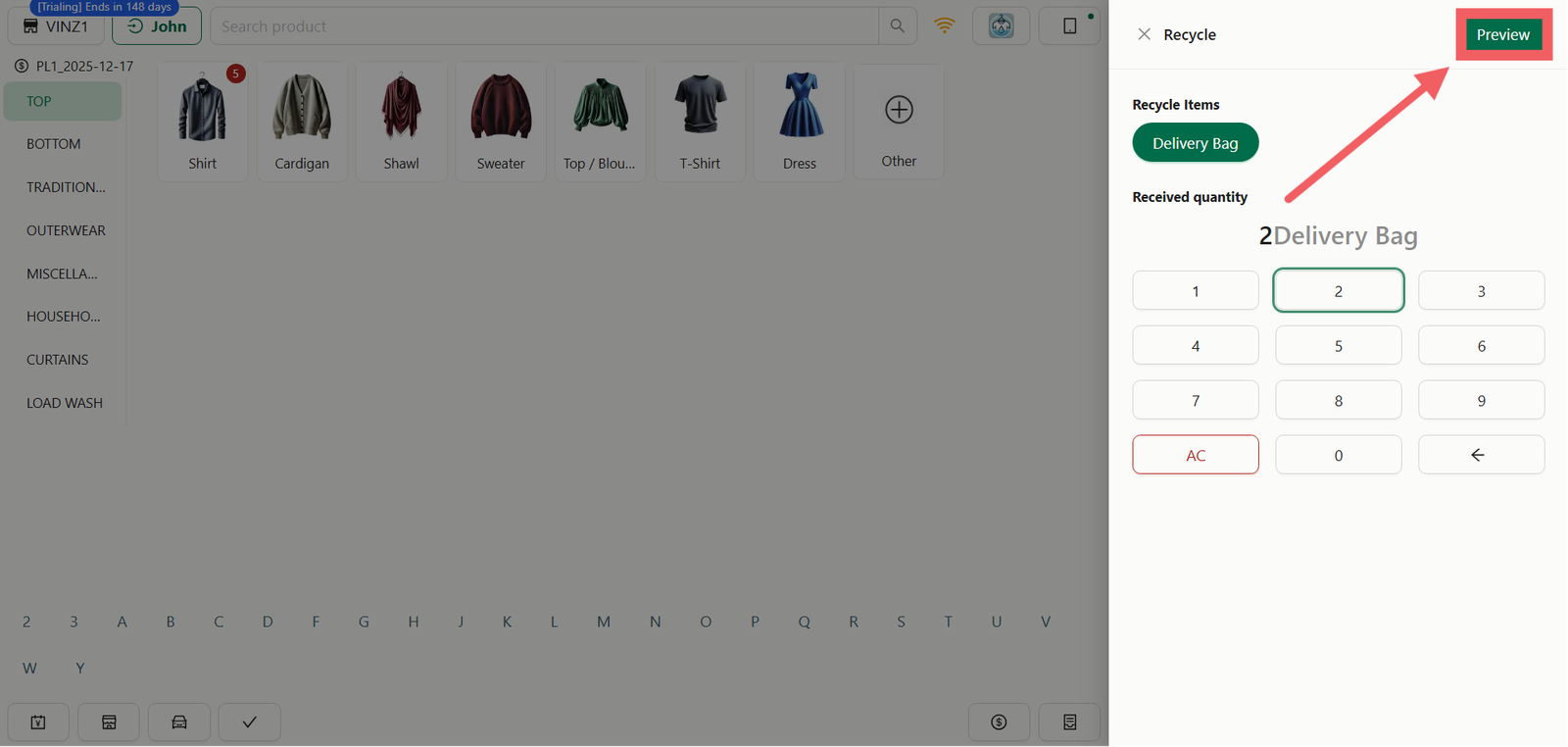
2. Select Item: Choose the item type (e.g., Delivery Bag) and enter the Quantity.
3. Click Preview to see the total points to be awarded.
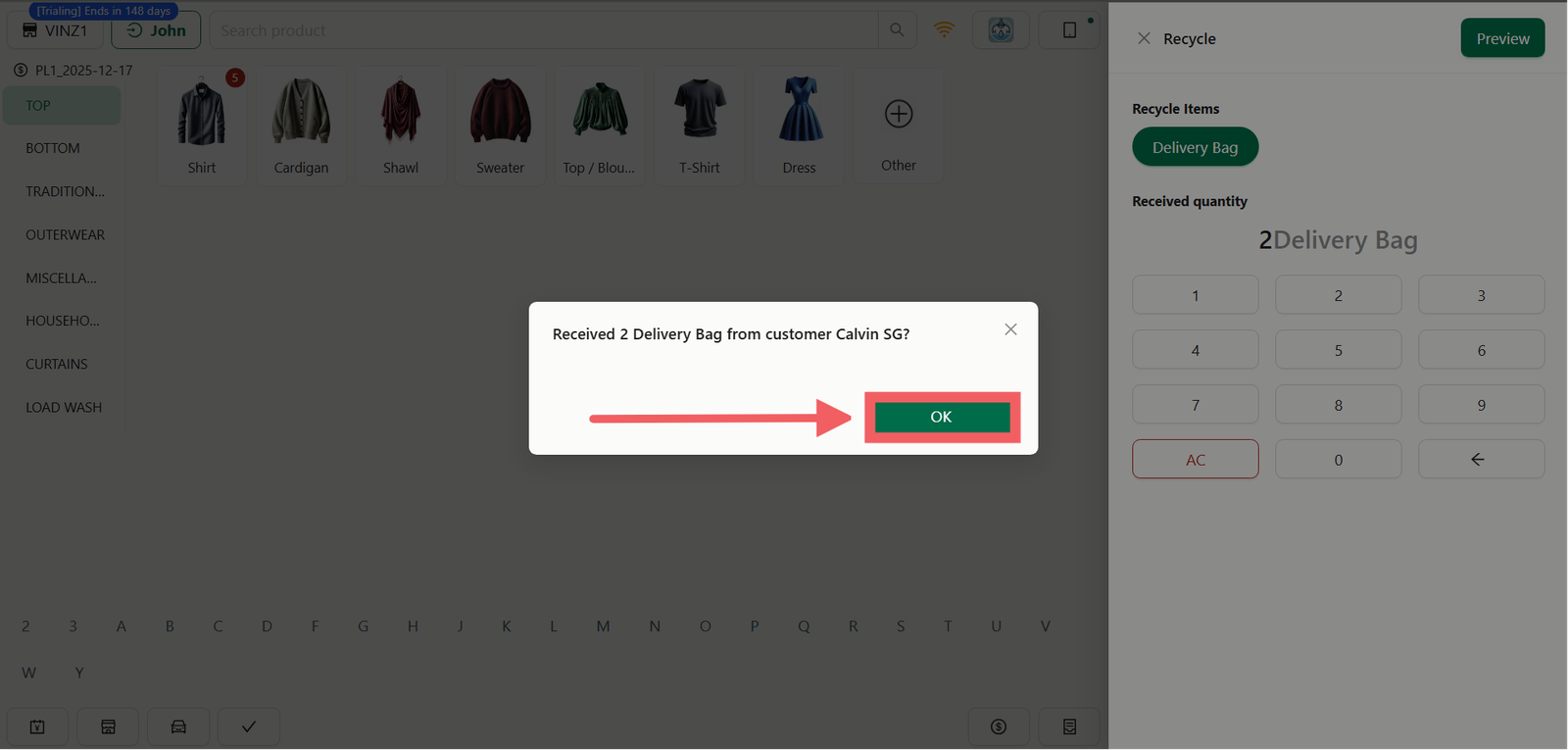
4. A confirmation pop-up will appear showing the summary. Click OK to proceed.
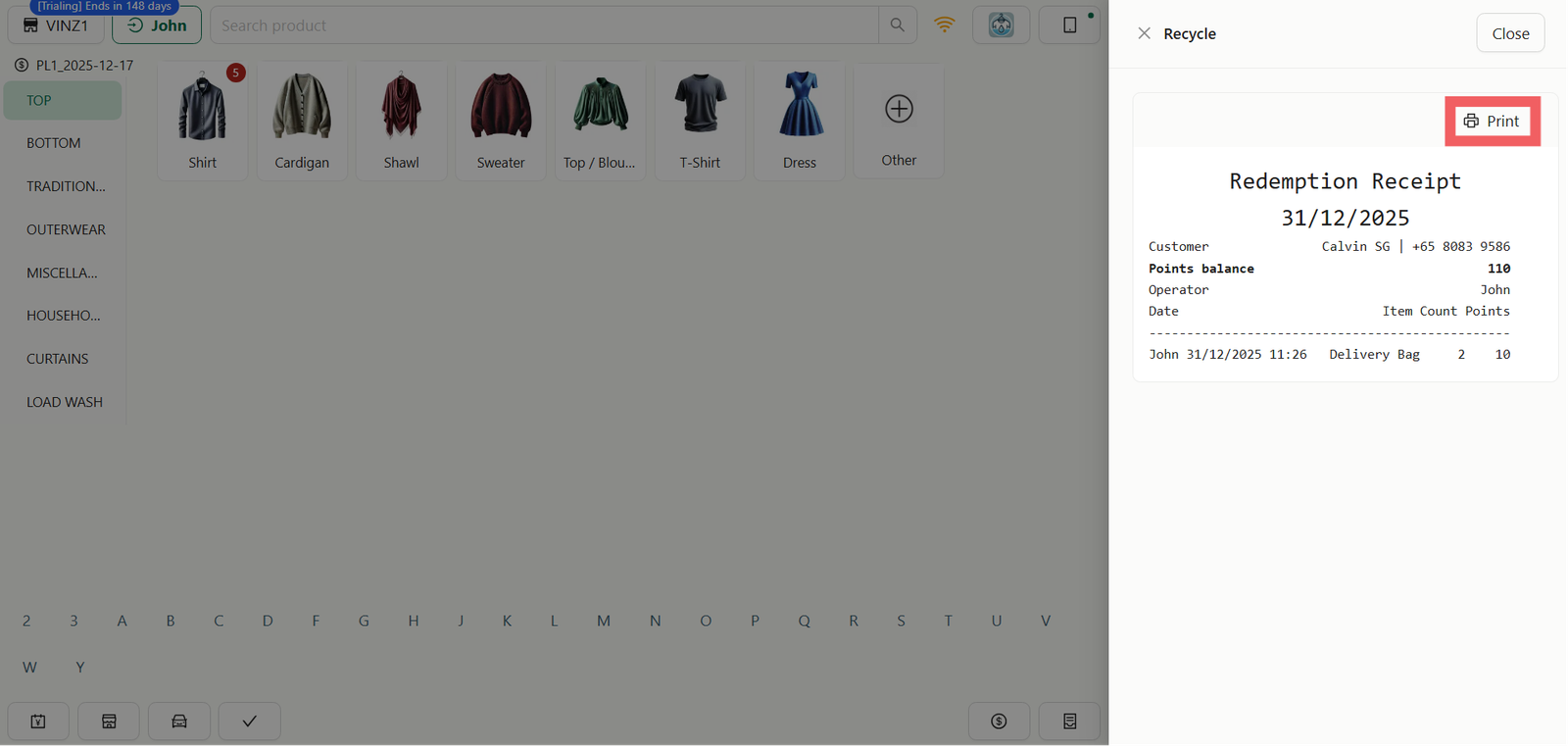
5. Redemption Report: The system will generate a Redemption Report (Receipt) which can be printed for the customer as proof of the transaction.