
Setup Job Map
In this article
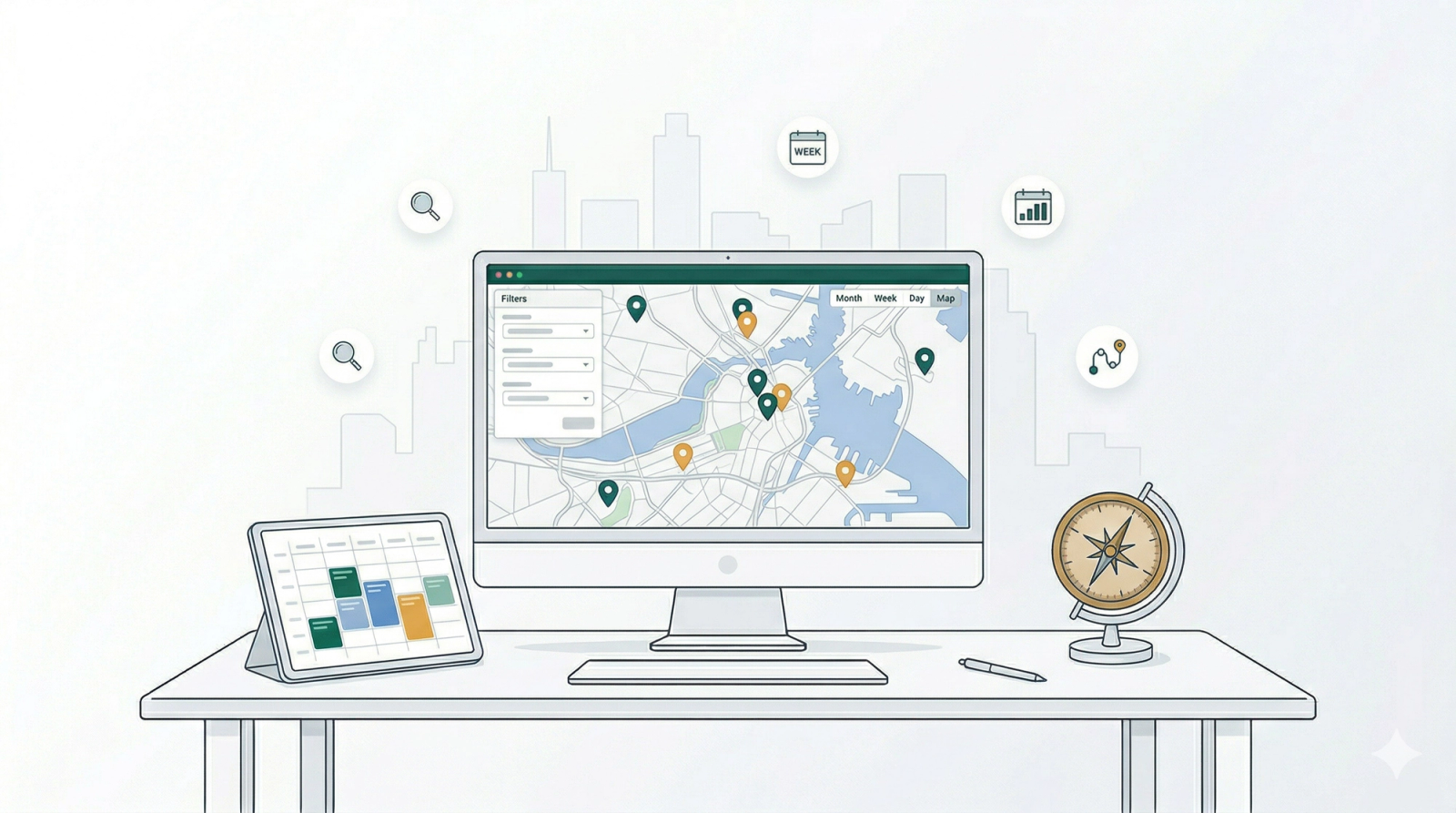
While the "Job Table" gives you a list, the Job Map gives you perspective. This feature plots every scheduled task onto a geographic map, allowing you to see exactly where your team needs to go.
Contents
Contents
Why is configuring the Job Map useful?
- Smart Routing: Instantly spot if two jobs are close together so you can assign them to the same driver.
- Visual Scheduling: Use the "Month" or "Week" views to see if a specific day is overloaded with pickups in a certain area.
- Real-Time Tracking: Pinpoint exactly where your "Pending" vs. "Completed" jobs are located across the city.
Navigating the Map Interface
Here is a breakdown of the tools available on your command bar:
Calendar & Views
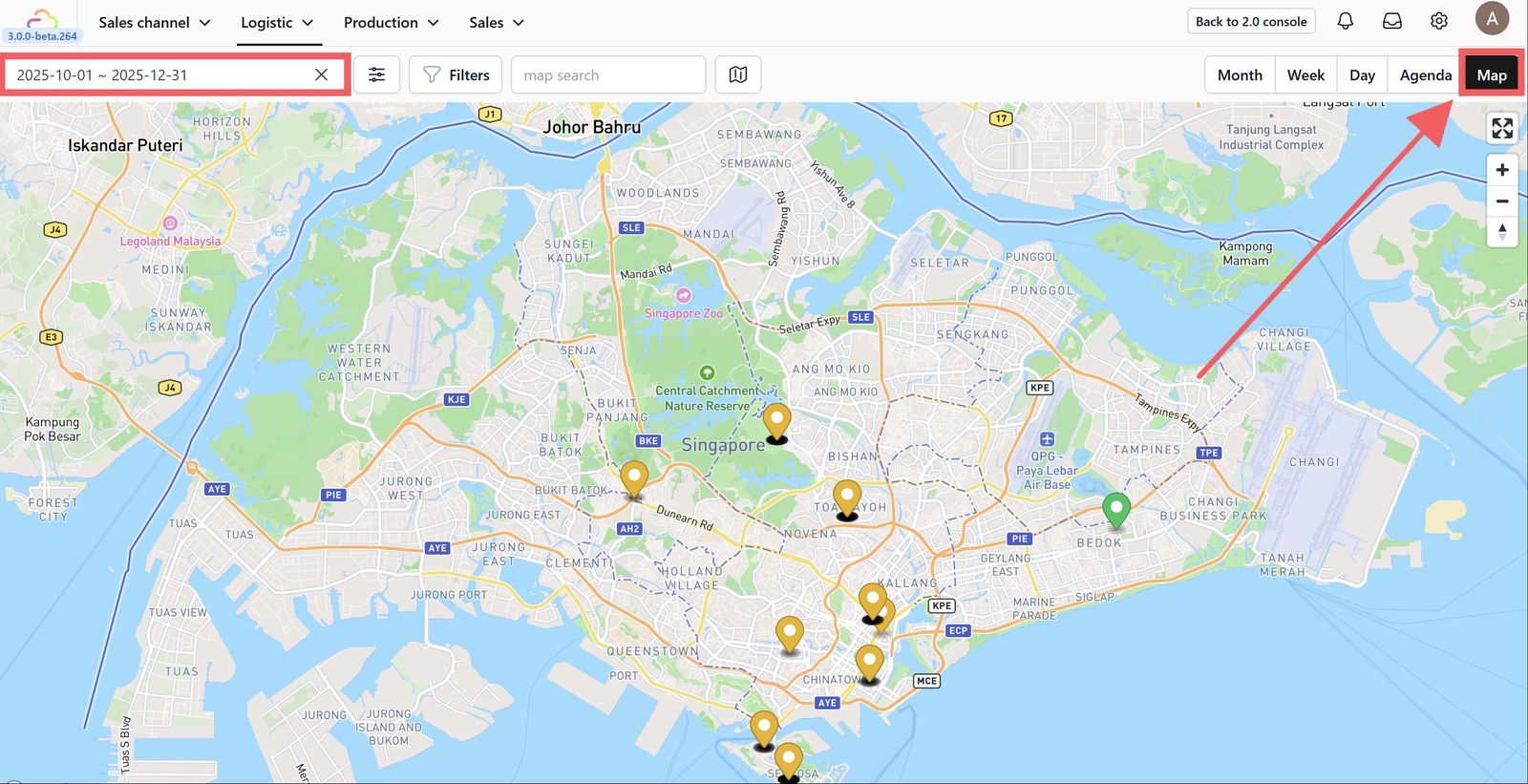
- Map View: Plots your orders geographically as pins on the map. This allows you to see the physical location of every job relative to your drivers.

- Month View: Highlights all orders scheduled within the entire selected month, giving you a broad overview of your busy days.
Interacting with the Calendar: Click on any date in the calendar to see the order details for that specific day.

- Week View: Focuses on a specific 7-day period, showing you the spread of jobs for the upcoming week.
Interacting with the Calendar: Click on any date in the calendar to see the order details for that specific day.

- Day View: Zooms in to show only the orders scheduled for a single date, helping you manage daily capacity.
Interacting with the Calendar: Click on any date in the calendar to see the order details for that specific day.
Filter Button

Don't let the map get cluttered. Use this button to narrow down exactly what you see on the map and on your agenda list.
- By Assignee: Select a specific driver (e.g., "Driver John") to visualize their personal route for the day.
- By Status: Filter to see specific stages of work: Pending assign, Scheduled, or Completed. This lets you hide finished jobs to focus only on what's left.
- By Type: Toggle between Delivery or Pickup tasks. Useful if you want to see only your morning pickups or afternoon drop-offs.
- By Business Unit: Isolate tasks linked to your specific business unit.
Scheduler Preferences
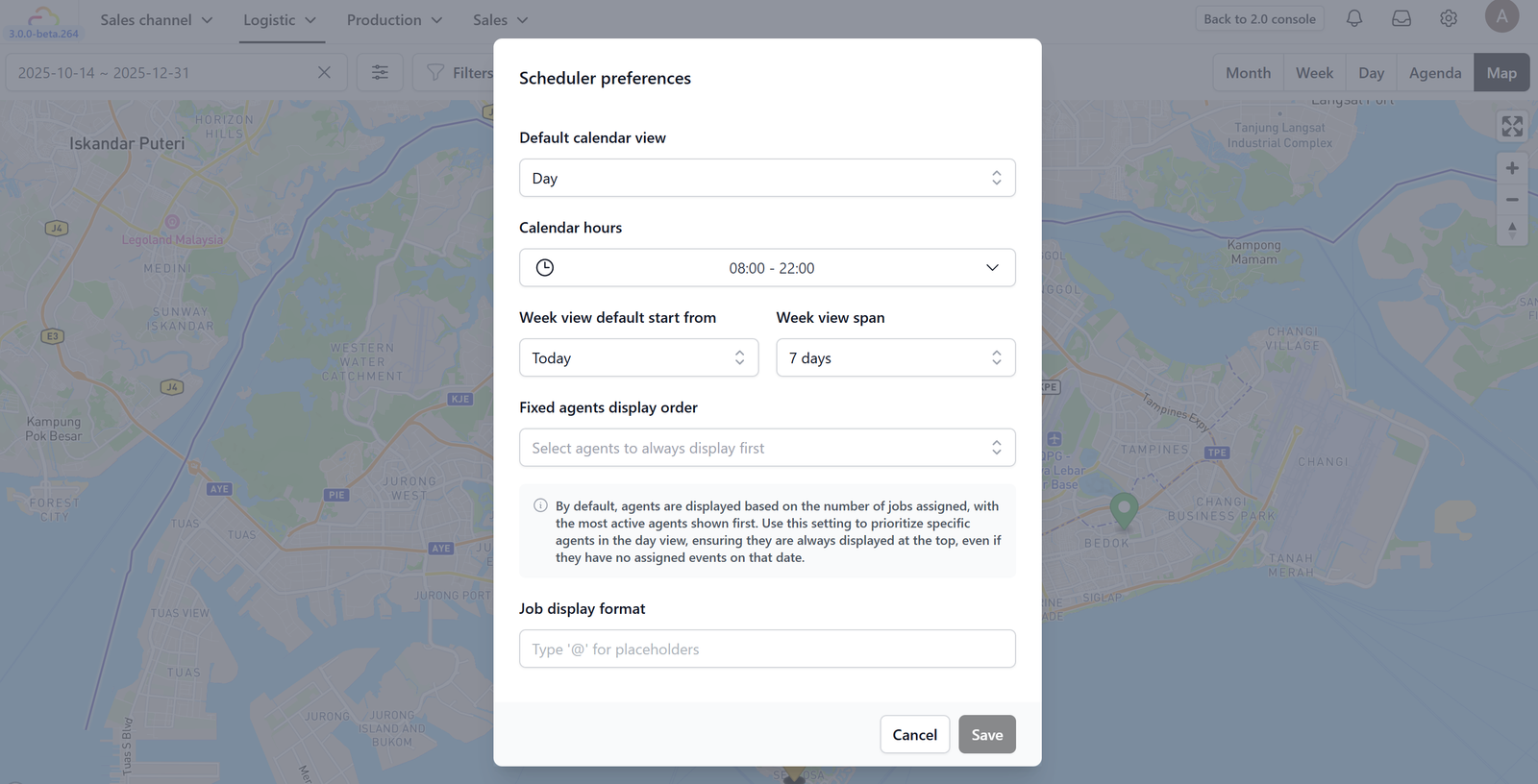
This section allows you to customize how your Job Map and Calendar appear by default. Instead of adjusting the view every time you log in, you can set your preferred working hours, view span, and display formats here.
Calendar Configuration
Control the default look of your scheduling dashboard:
- Default Calendar View: Choose whether the system opens to a Week, Month, or Day view automatically.
- Calendar Hours: Define your business's operating window (e.g., 08:00 - 22:00). This hides non-working hours to keep your view clean.
- Week View Settings:
- Start From: Decide if the week starts on "Today" or a specific day (like Monday or Sunday).
- Span: Adjust how many days are visible at once (e.g., 7 days).
Agent Display
- Fixed Agents Display Order: By default, agents might be sorted by who is busiest. Use this field to "pin" specific key drivers or staff to the top of the list so they are always visible, even if they don't have jobs assigned for that day.
Job Display Format
This is a powerful customization tool. It controls exactly what information appears on the "job card" or "pin" when looking at the calendar.
Instead of generic text, you can choose exactly what details your dispatcher needs to see at a glance.
- How to use it: Type
@inside the box to reveal a list of available placeholders (like@Customer Name,@Customer Phone Number, or@Job type). - Why customize this? If your team relies on calling customers, put Customer Phone Number first. If they need to know the location type, put Job Formatted Address first.
Map Toggle
- Zoom & Pan: Move around the city to see different service zones.
- Job Pins: Each pin represents a specific order. Clicking a pin will usually reveal a quick summary (like Customer Name and Address) so you can make decisions without leaving the map.
How It Works: Feature Walkthrough
Give feedback
Up next
Setup your StockTake control of your internal supplies. Track inventory levels across all your business locations to ensure you never run out of essential materials.
Read more