
Before You Start
Make sure every country where you intend to sell the product has already been added under Markets & Locations. Each Market supplies its own currency, and EasyBiz does not convert prices automatically. See Introduction to Markets & Locations.
If you plan to track stock, create the Retail Product before recording inventory. Stock is tracked by location, while the product itself is shared across all markets and locations in your account.
For products with sizes, colours, or pack sizes, plan the variants first. Every variant can have a separate price in every market, and stock can be tracked separately per variant.
What Is a Retail Product?
A Retail Product is a physical item your shop sells directly to customers. It is not something the customer brings in for cleaning, repair, or alteration.
You create the product once in Product Catalog and use that same product across all markets. Its name, unit, image, variants, and inventory setup are shared, while its selling price can be different in each market’s local currency.
For example, the same garment cover can be priced at SGD 5.00 in Singapore and MYR 15.00 in Malaysia. EasyBiz stores these as separate prices and does not calculate one from the other.
How to Add a Retail Product
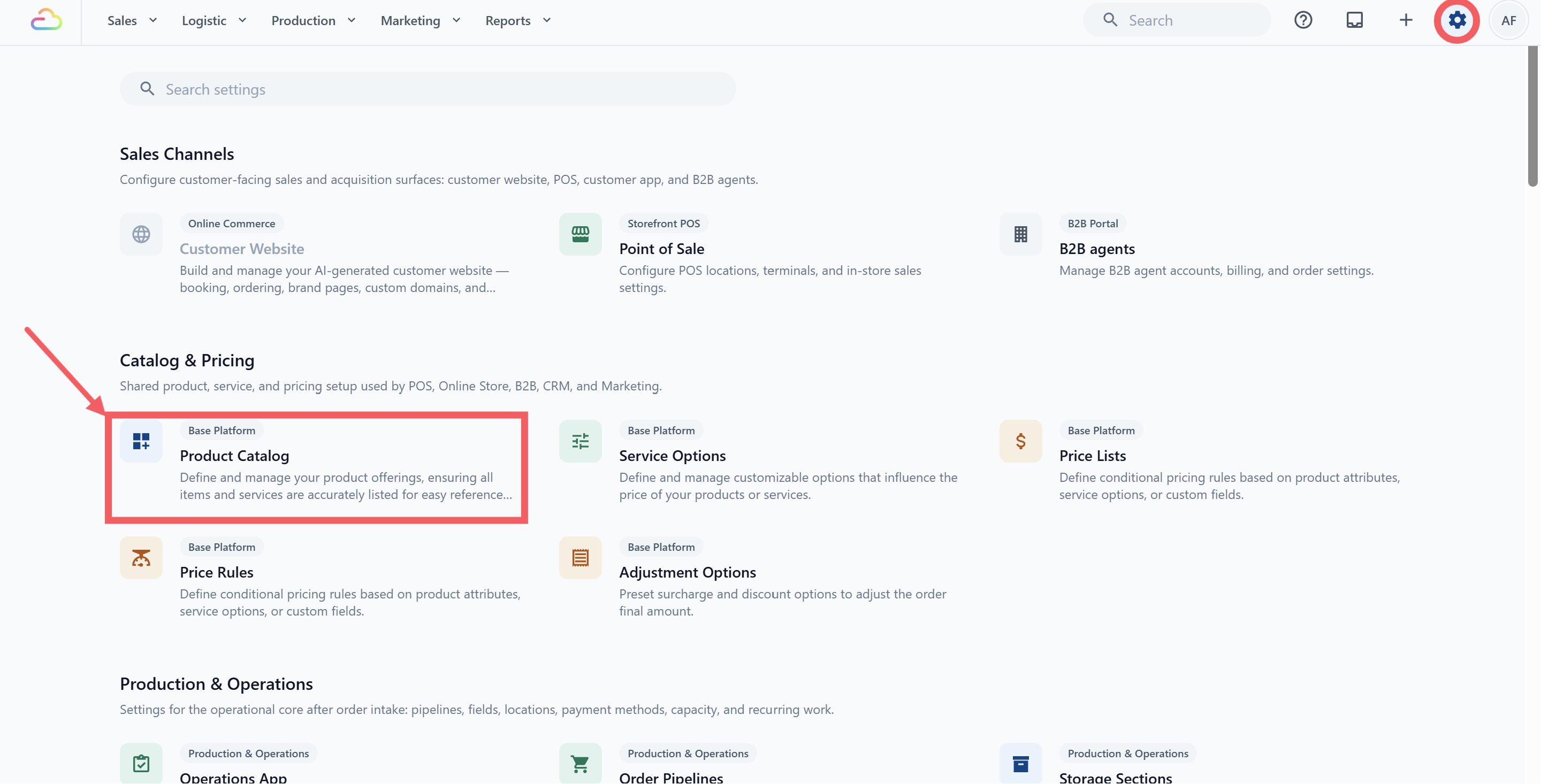
Click the ⚙️ Settings icon in the top-right corner.
Under the Catalog & Pricing section, click Product Catalog.
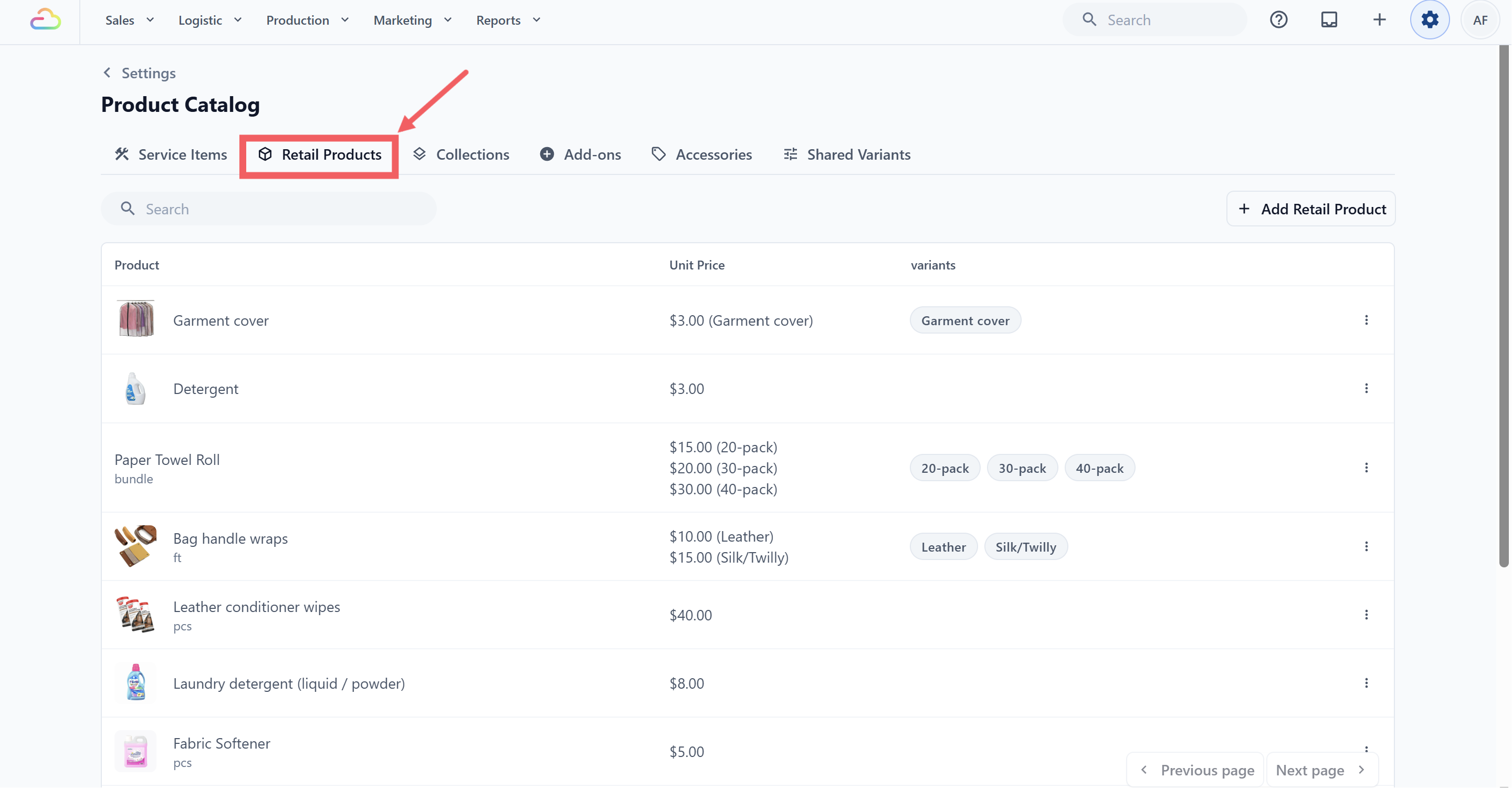
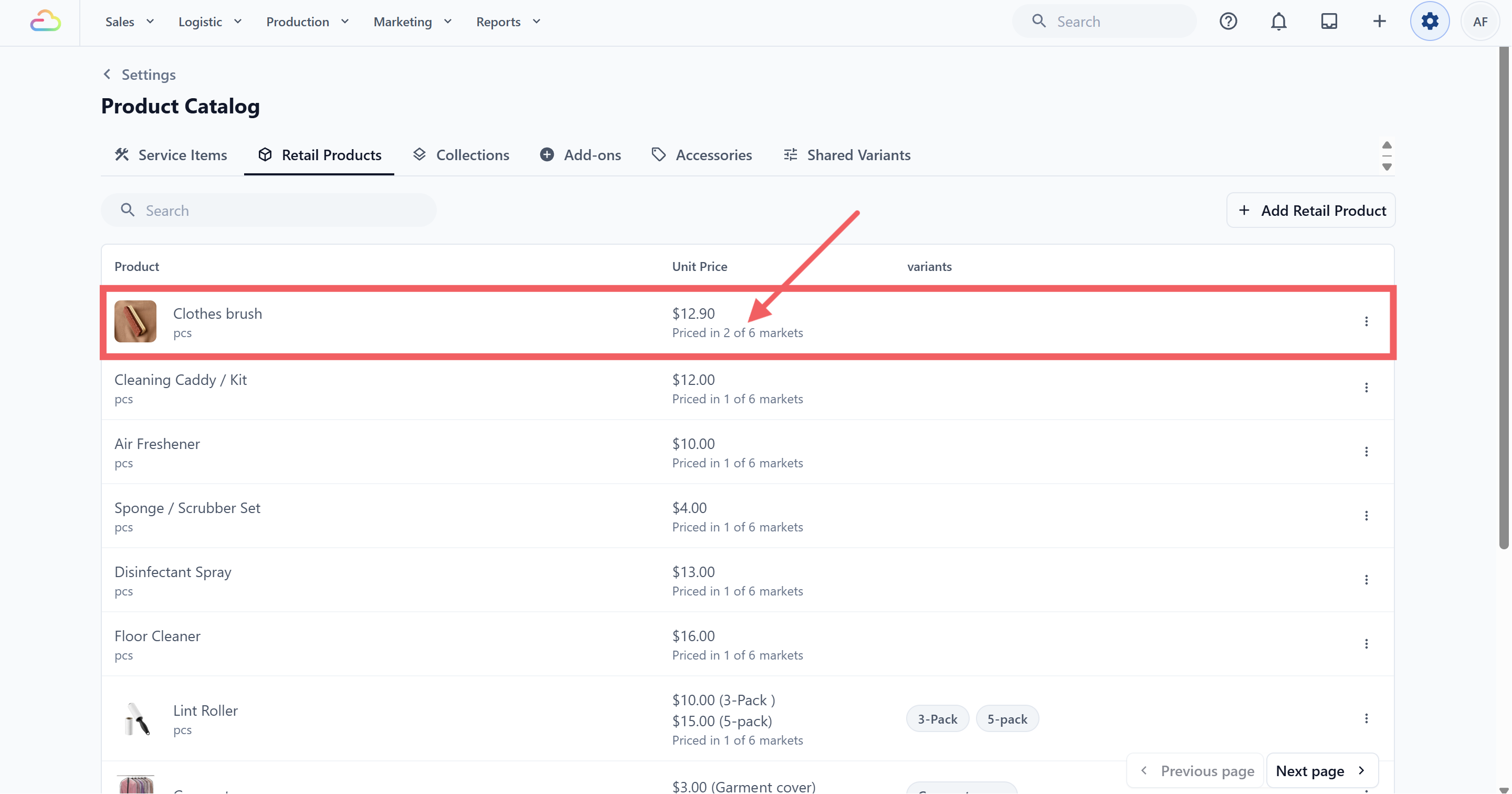
- Click the Retail Products tab.
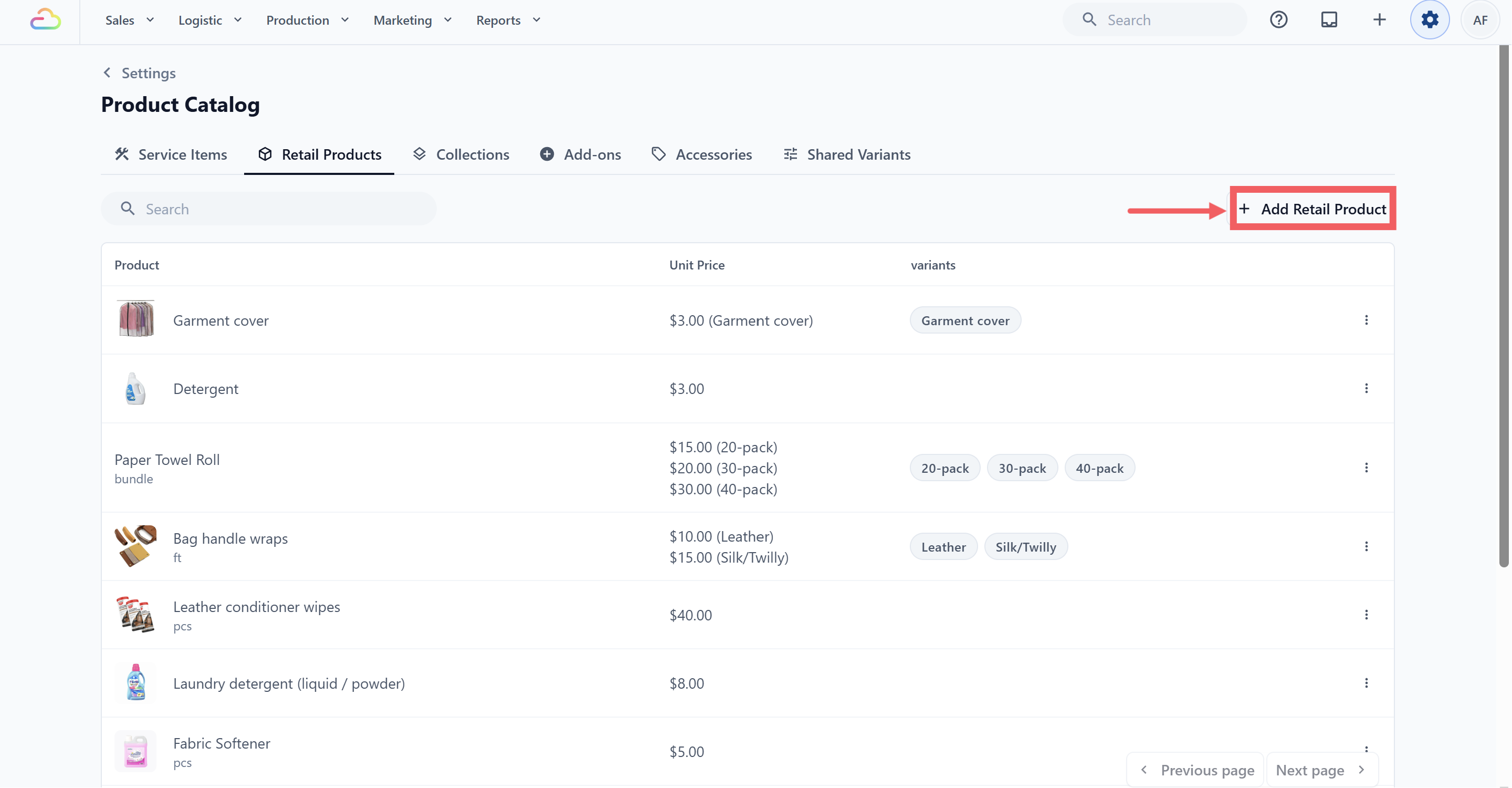
- Click Add Retail Product in the top-right corner.
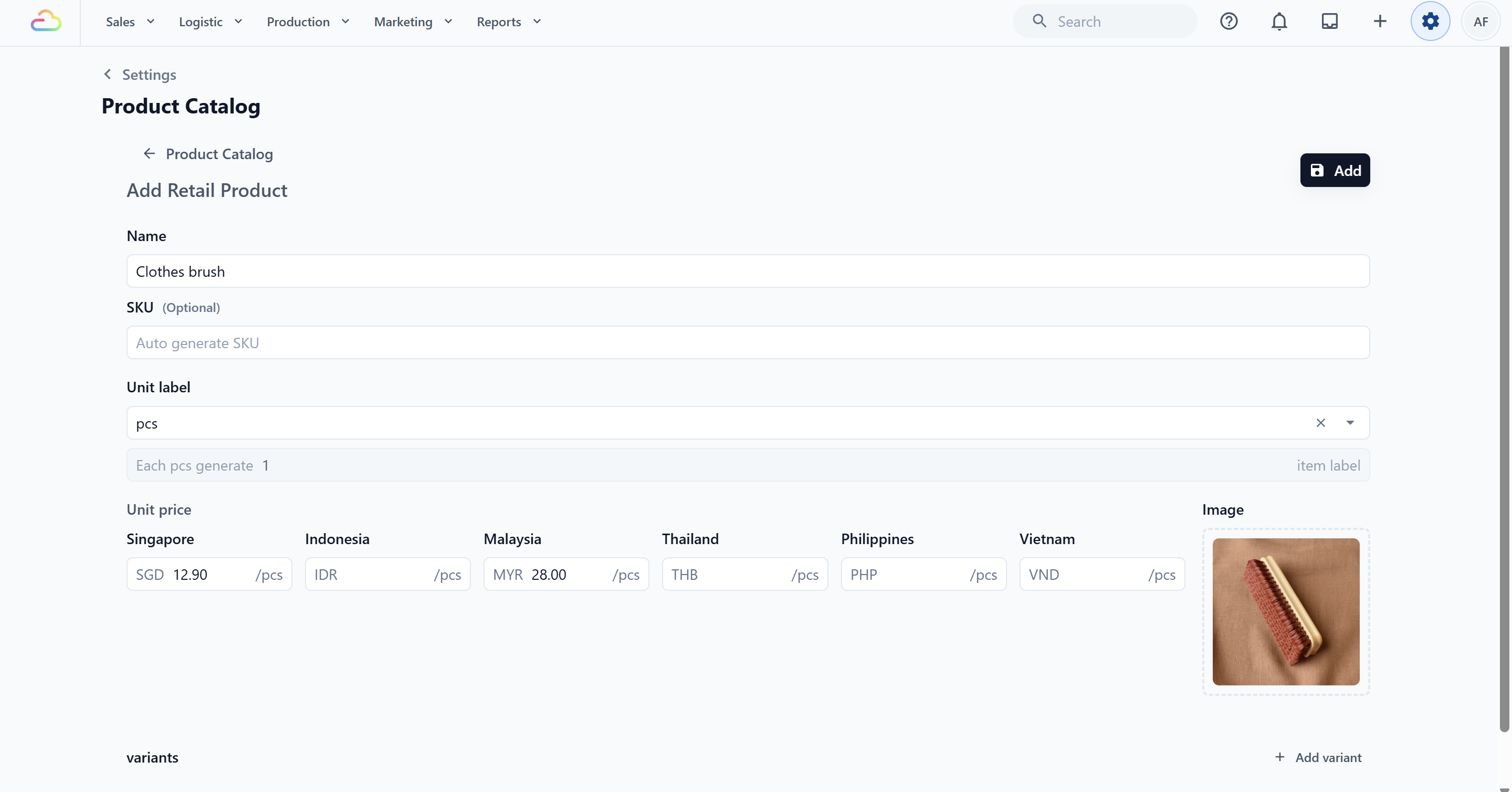
Enter the product Name. Optionally enter your own SKU; otherwise EasyBiz generates one automatically.
Choose the Unit Label and configure Item Label Generation if needed.
If the product has no variants, enter its Unit Price for every Market where it will be sold. Each field is labelled with the Market name and uses that Market’s currency.
For a single-market account, EasyBiz shows one normal Unit Price field. For a multi-market account, it shows one field per Market.
If the product has variants, add the variants first. EasyBiz then shows separate Market price fields for every variant. See the Variants section below.
Optionally add an image.
Click Add to save. The product returns to the shared Retail Products list.
Choosing a Unit
Most retail products are sold by piece, or as bundles for multi-packs. You can also type your own unit if you need one. The full list of ready-made units is the same as for service items. For the full unit list, see Choosing a Unit in Adding Service Items.
Item Labels
Labels are the tracking tags your shop prints to follow an item through the workshop. Most shops leave this at the default for retail, since shelf goods rarely need a workshop tag.
For countable units (pcs, pair, set, bundle, or a custom unit like hook), you set the number directly. For example, a pair of shoes defaults to 2 labels so each shoe gets its own tag, and a curtain set with two panels can be set to 2.
Variants
Variants are different versions of the same product, such as different sizes, colours, or pack sizes. Each variant can have its own selling price in every Market.
To add a variant:
- In the Retail Product editor, click Add variant.
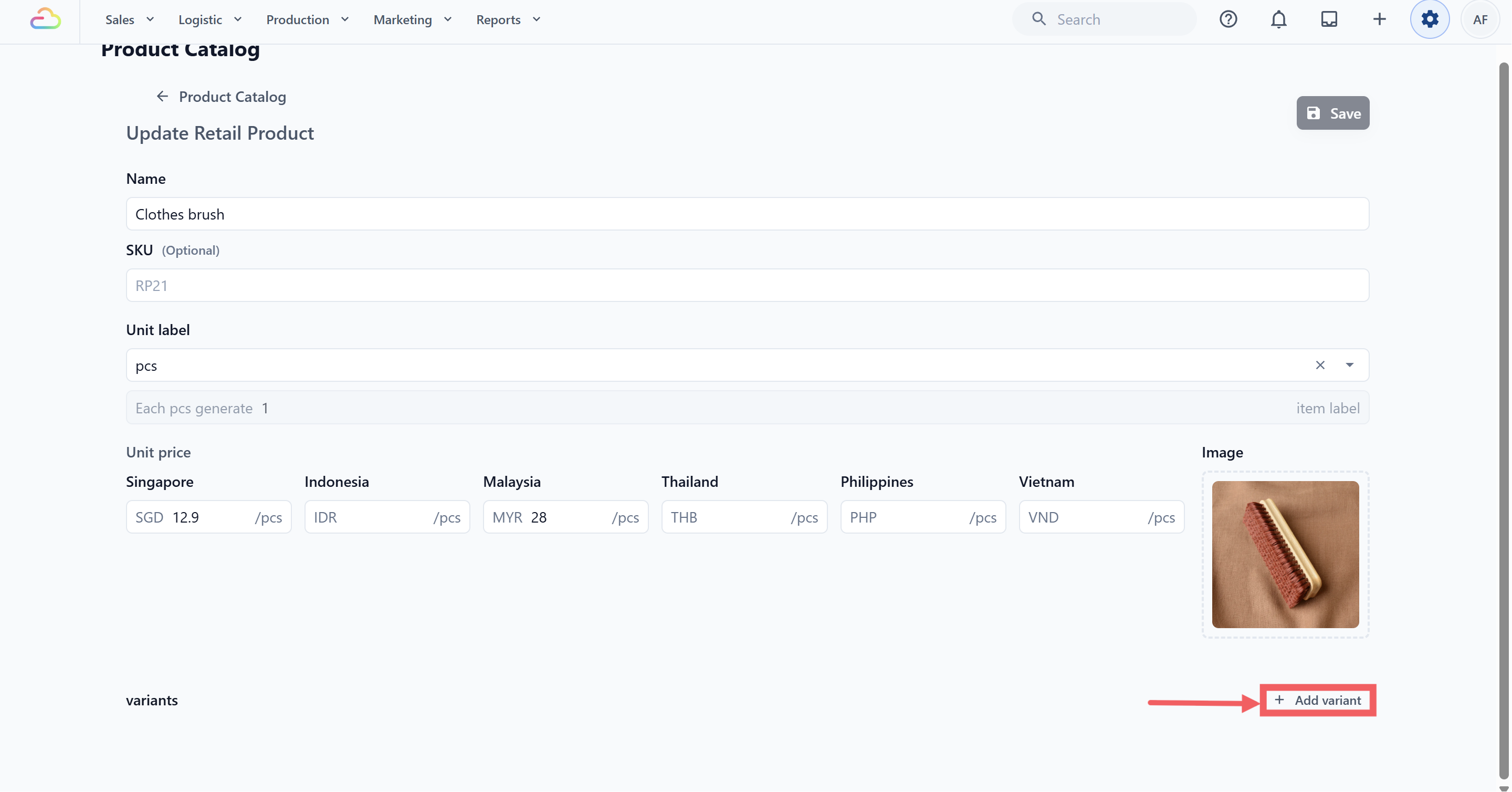
- Choose Add custom variant to type a new variant name, or Select from shared variants to reuse an existing Shared Variant.
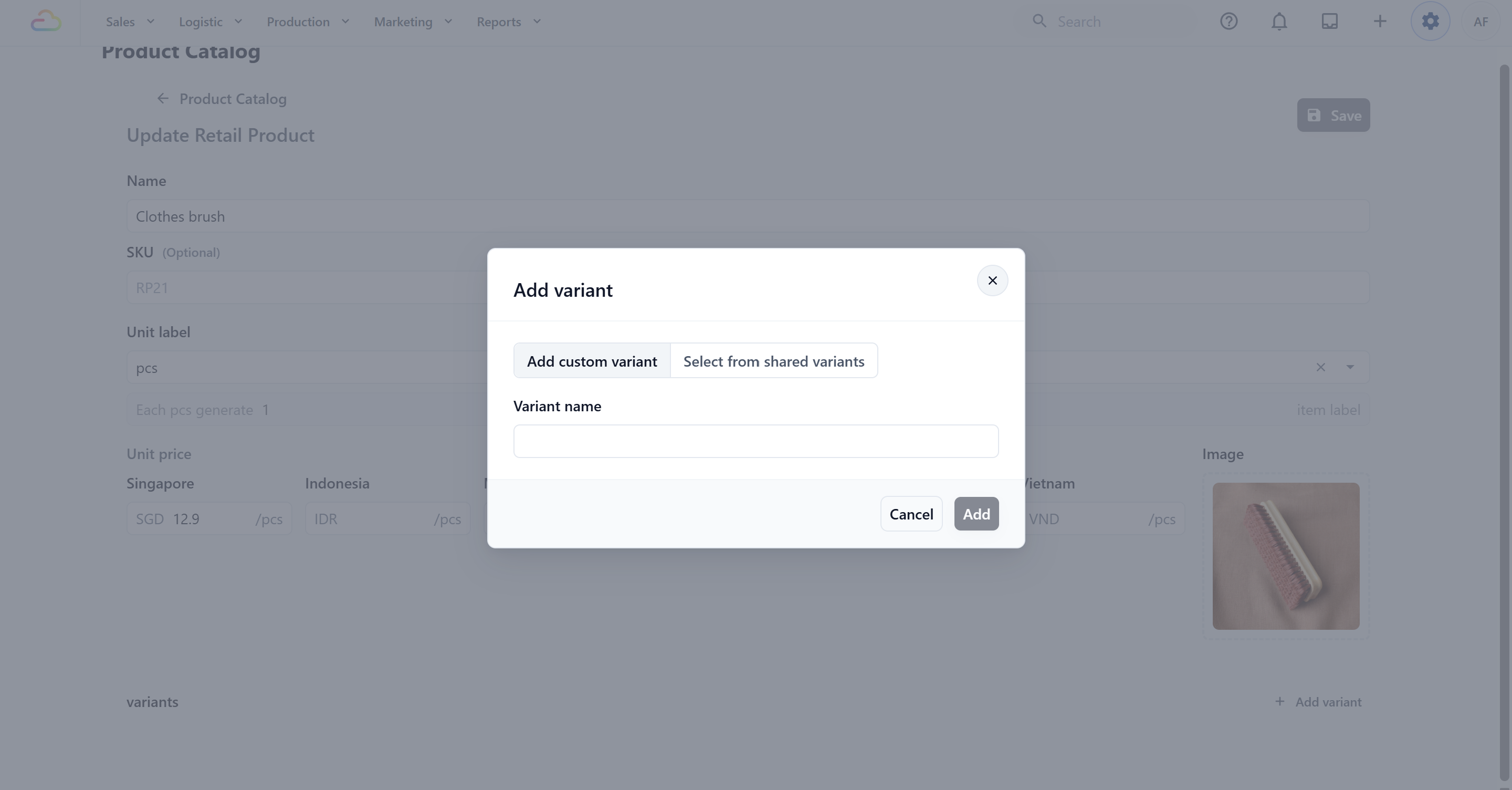
Enter or select the variant, then click Add.
After the variant appears in the product editor, enter a price for that variant in every Market where it will be sold. Each price field shows the Market name and currency.
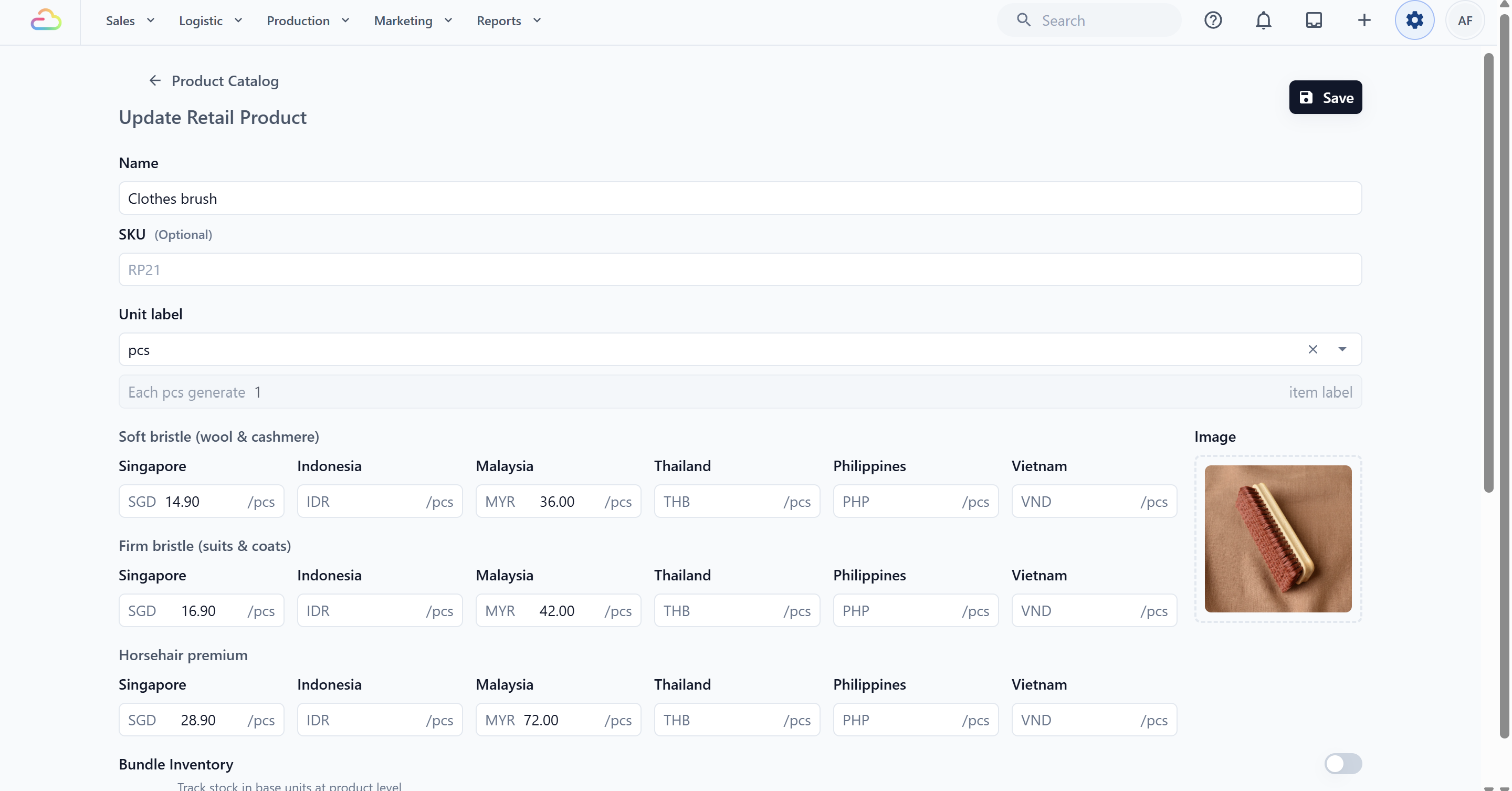
Repeat these steps for the remaining variants.
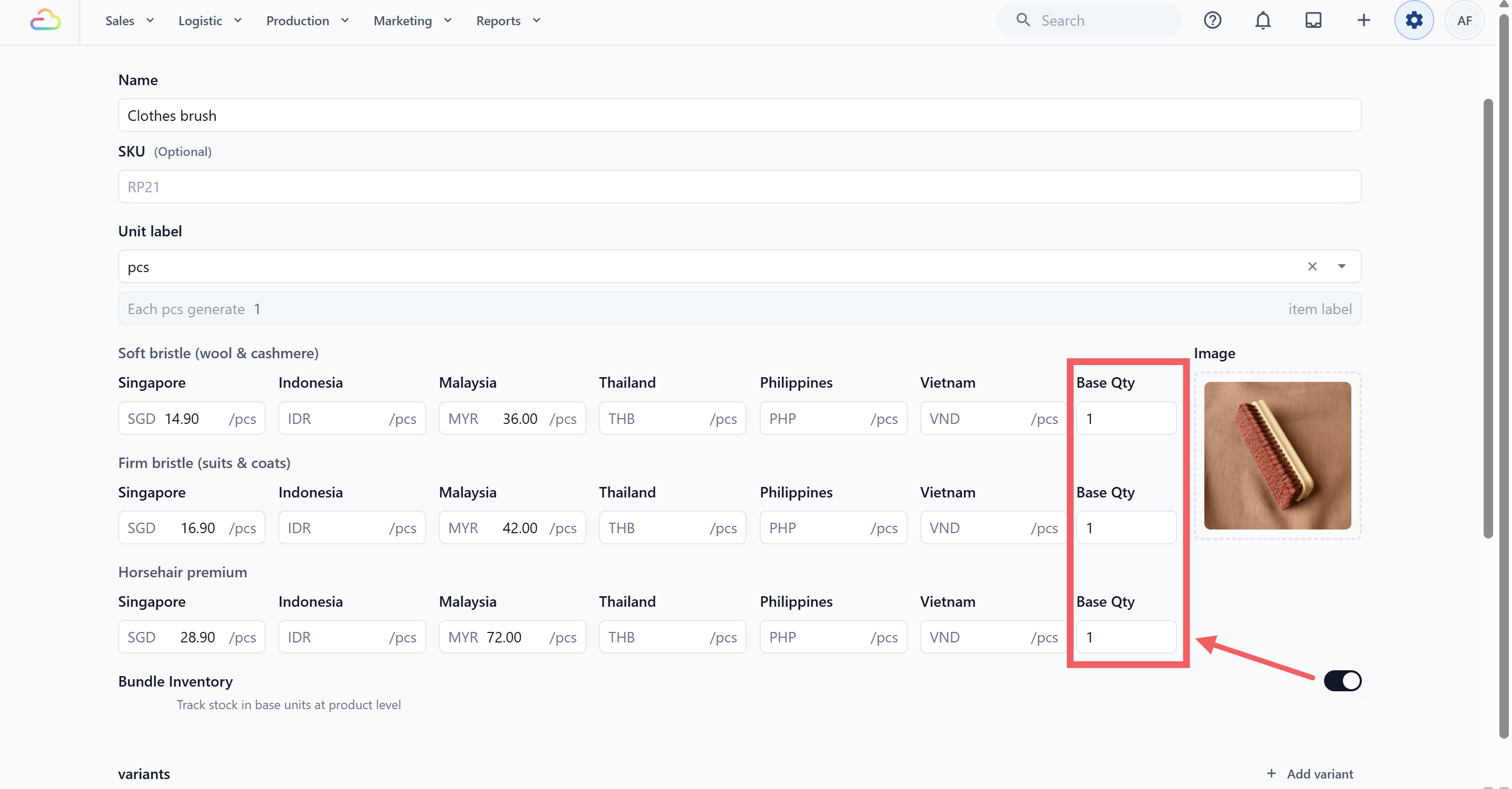
Optionally turn on Bundle Inventory if the variants deduct from one shared base stock pool.
Click Add when creating the product, or Save when editing it.
Bundle Inventory
Bundle Inventory appears when a Retail Product has variants. Use it when different variants are sold from the same stock pool. Bundle Inventory controls stock deduction only; each variant can still have a different price in every Market.
| Bundle Inventory Toggle | What it does |
|---|---|
| Off | Each variant tracks its own stock separately. |
| On | All variants deduct from one shared stock count. Each variant needs a Base Qty so EasyBiz knows how much stock to deduct. |
What Retail Products Connect To
A Retail Product is created once and shared across the account. Its connected settings determine where it appears, which price is used, and where its stock is held.
| Connection | What it controls |
|---|---|
| Markets | Store a separate base price in each Market's local currency |
| Price Lists | Apply the published selling price for a specific Market and sales channel |
| Collections | Group Retail Products into POS or Online Store browsing sections |
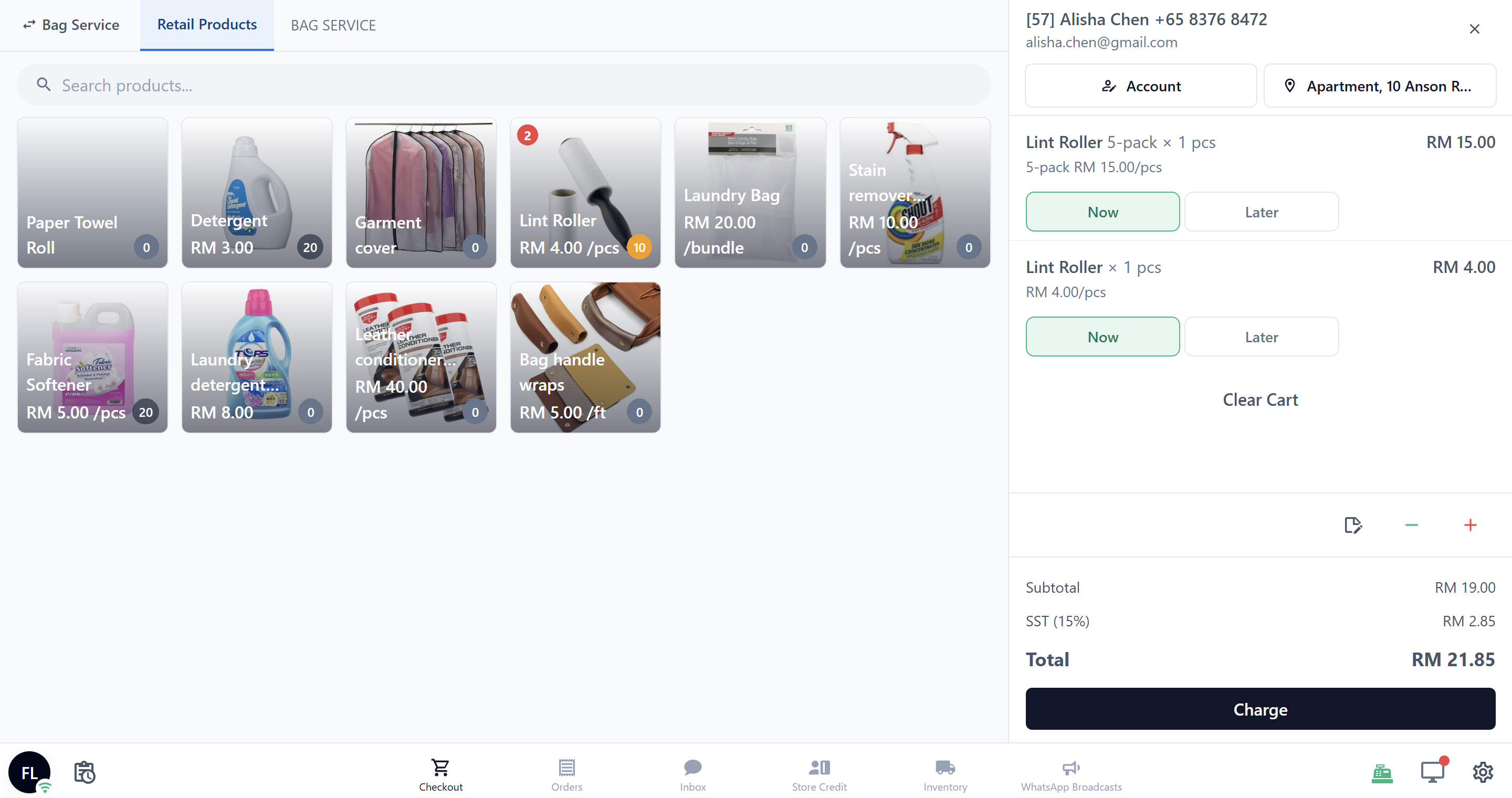
| POS | Use the price for the POS session's Market; an unpriced item is marked No price set |
| Customer-facing channels | Hide a product or variant when it has no price for that Market |
| Inventory Stock | Track available quantity by Location; every Location belongs to a Market |
FAQs
Do I need to create the same Retail Product again for each Market?
No. Product Catalog is shared across the account. Create the product once, then enter a separate price for each Market.
Does EasyBiz convert a price from one currency to another?
No. Enter each Market's price manually in that Market's currency.
What happens if I leave one Market's price blank?
The Retail Products list reports incomplete coverage, such as Priced in 1 of 2 markets. POS marks the item as No price set for that Market, and customer-facing channels do not show the unpriced product or variant there.
What is the difference between the Product Catalog price and a Price List price?
The Product Catalog stores the Retail Product's base price for each Market. A published Price List for the same Market and sales channel can supply the checkout price used by staff or customers.
Can each variant have different prices in each Market?
Yes. Every variant has its own price field for every Market.
Can I use a Retail Product for something my shop repairs or cleans?
No. Use a Service Item for anything the customer brings in for work, and a Retail Product for goods your shop sells directly.
I sold a pack but my stock did not go down correctly. Why?
Check that Bundle Inventory is on and that the variant has the correct Base Qty. Market prices do not control stock deduction.
Can EasyBiz print a consumer barcode label for Retail Products?
No. Item Label Generation prints internal tracking labels, not consumer barcode labels.
What's Next
Now that your Retail Products are set up, continue to Adding Collections to organize what your staff sees at POS.