
Before You Start
You need at least one Service Item set up before accessories become useful, because accessories only appear after staff add a Service Item to an order. See Adding Service Items.
If your business operates in multiple markets, set up those markets first so you can choose where each accessory is available. Shops with only one market will not see the Available in setting; the accessory is automatically available in that market.
Where to Find Accessories
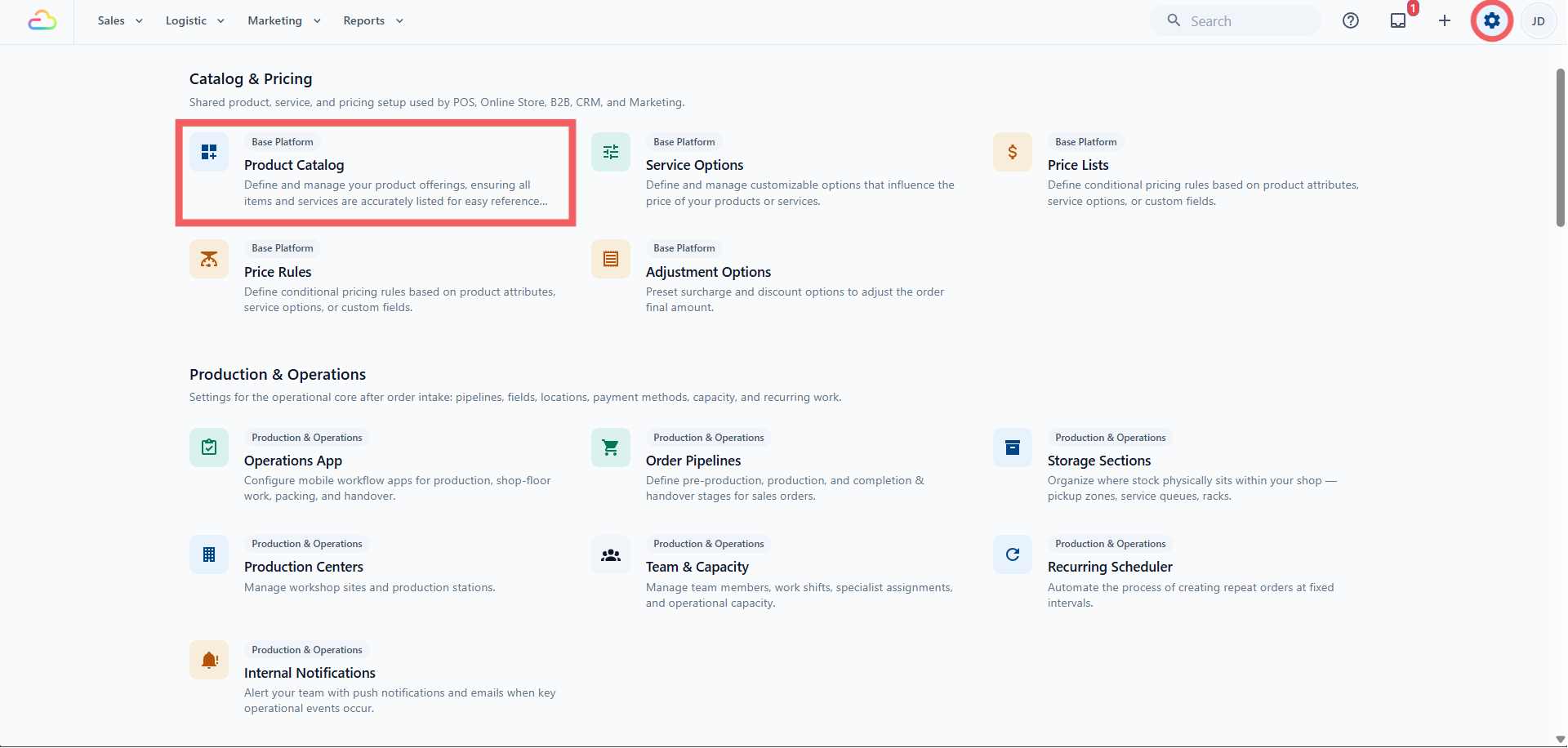
Click the ⚙️ Settings icon in the top-right corner.
Under the Catalog & Pricing section, click Product Catalog.
- In the Product Catalog tab bar, click Accessories.
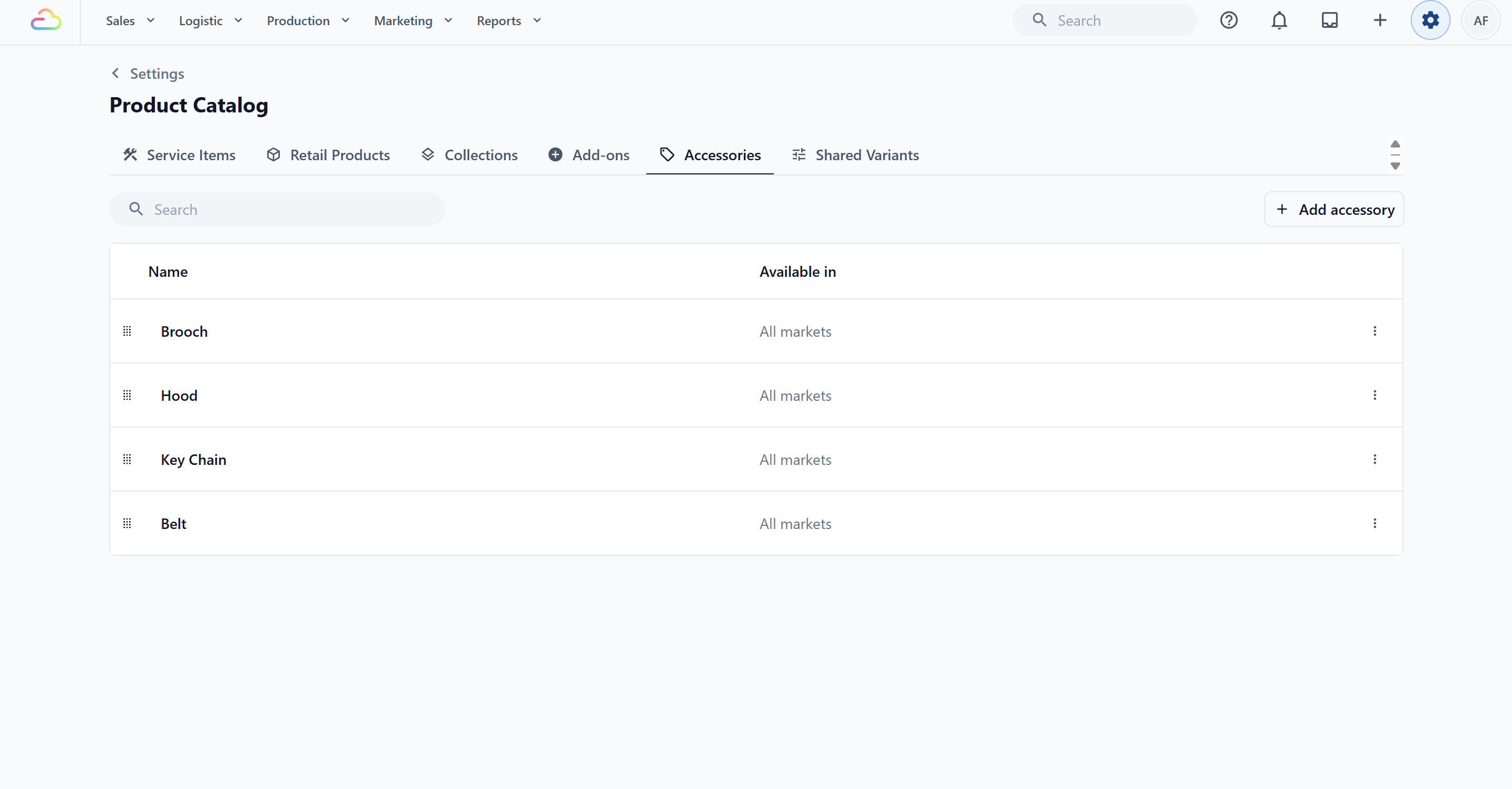
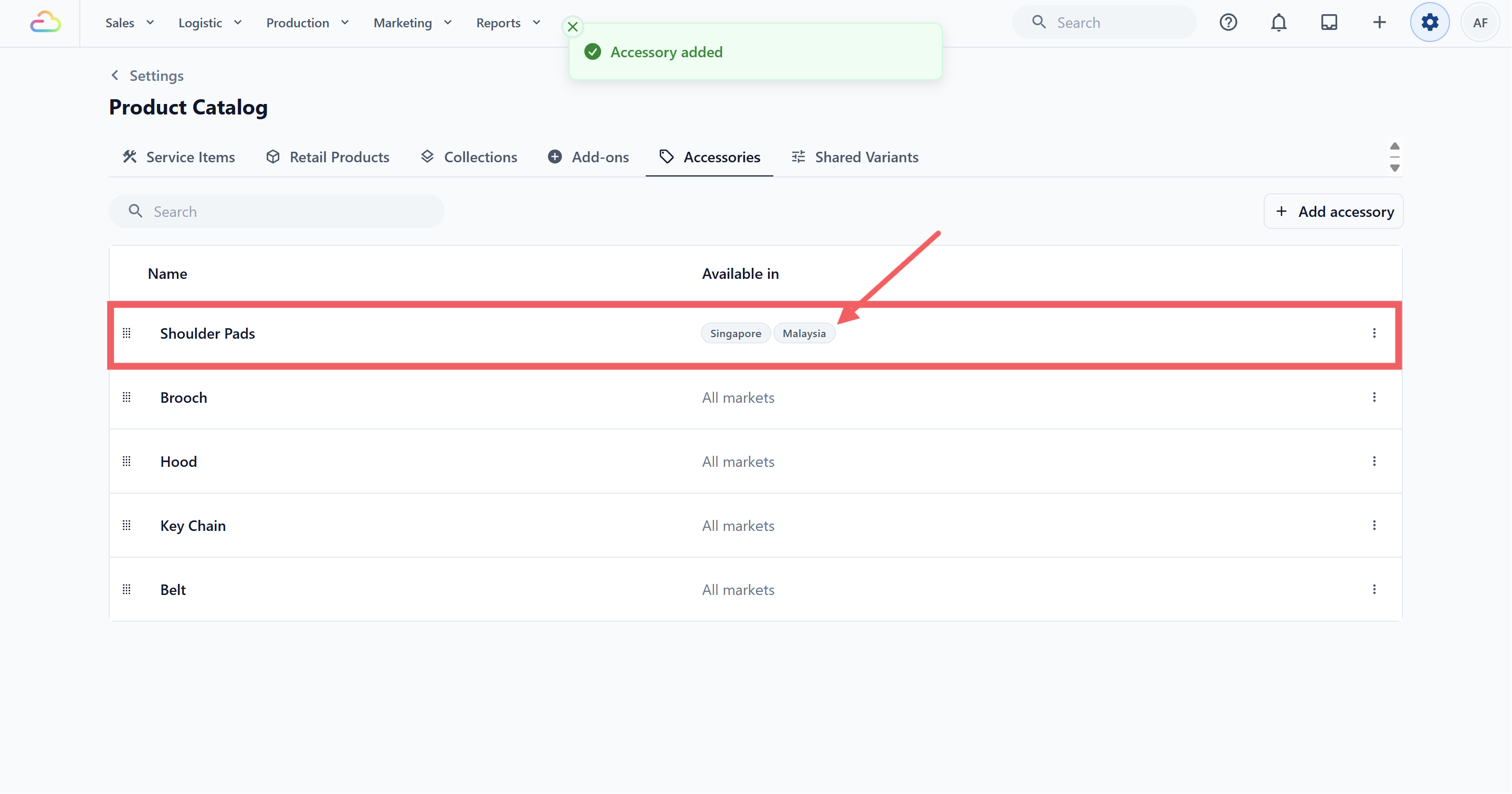
You land on the Accessories list. In a multi-market shop, the Available in column shows either All markets or the specific market names selected for each accessory. The list contains accessories from all markets; it is not filtered to one market.
Adding a New Accessory
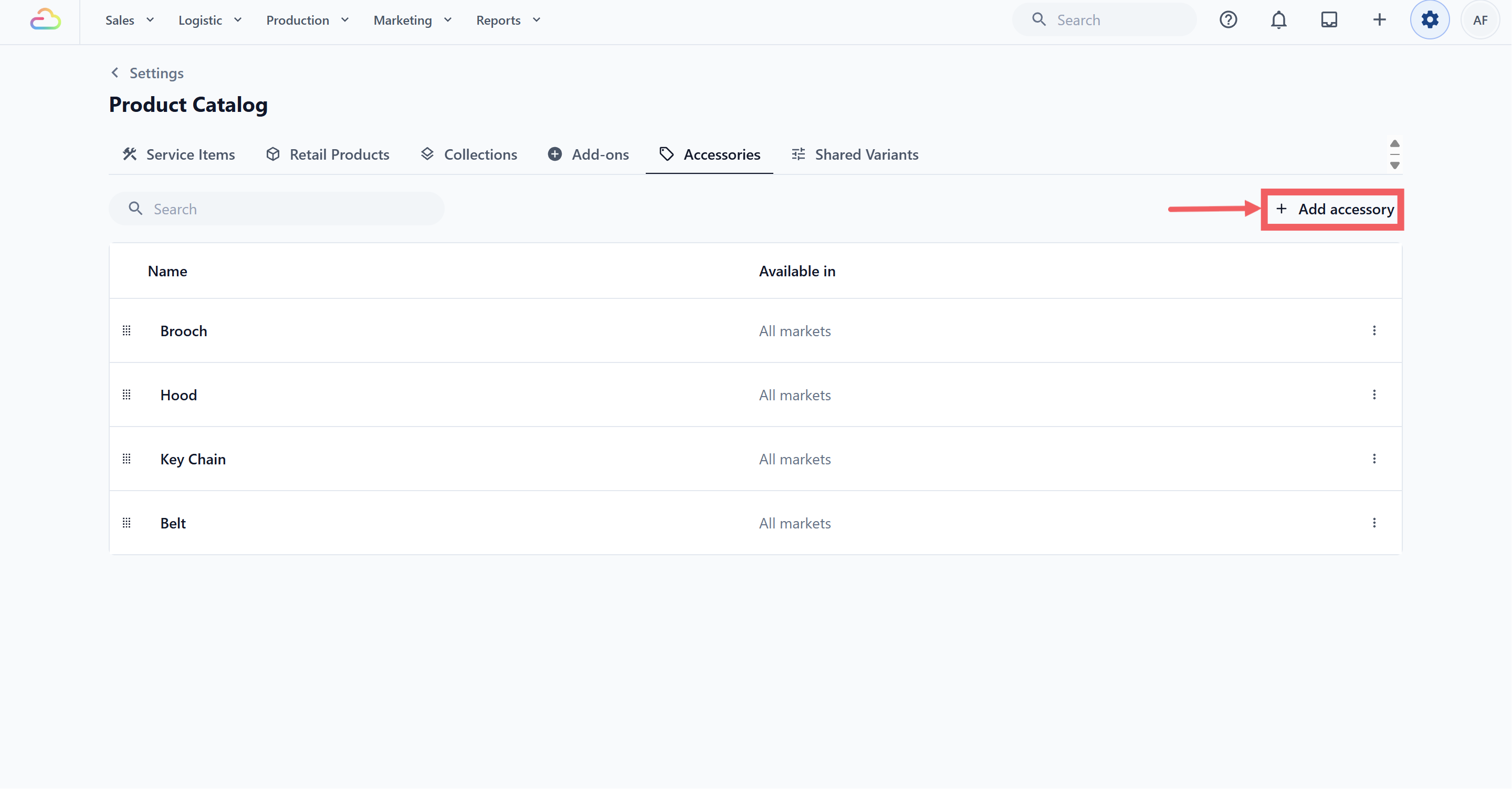
- Click the + Add accessory button at the top-right of the toolbar.
In the Add Accessory dialog, fill in the Accessory name (required) with the short name your staff would say out loud, for example Dust Bag or Belt.
In the Add Accessory dialog, enter the Accessory name (required). Use the short name your staff would say, for example Dust Bag or Belt.
Optionally enter the SKU, a short code that identifies the accessory in your records. If you leave it blank, EasyBiz generates one for you, such as ACCY-1.
If your shop has multiple markets, choose the accessory’s Available in setting.
| Setting | What it means |
|---|---|
| All markets | The accessory is available in every current market and any markets added later. |
| Selected markets | The accessory is available only in the markets you select. |
- When using Selected markets, tick each market where staff and customers should be able to select the accessory.
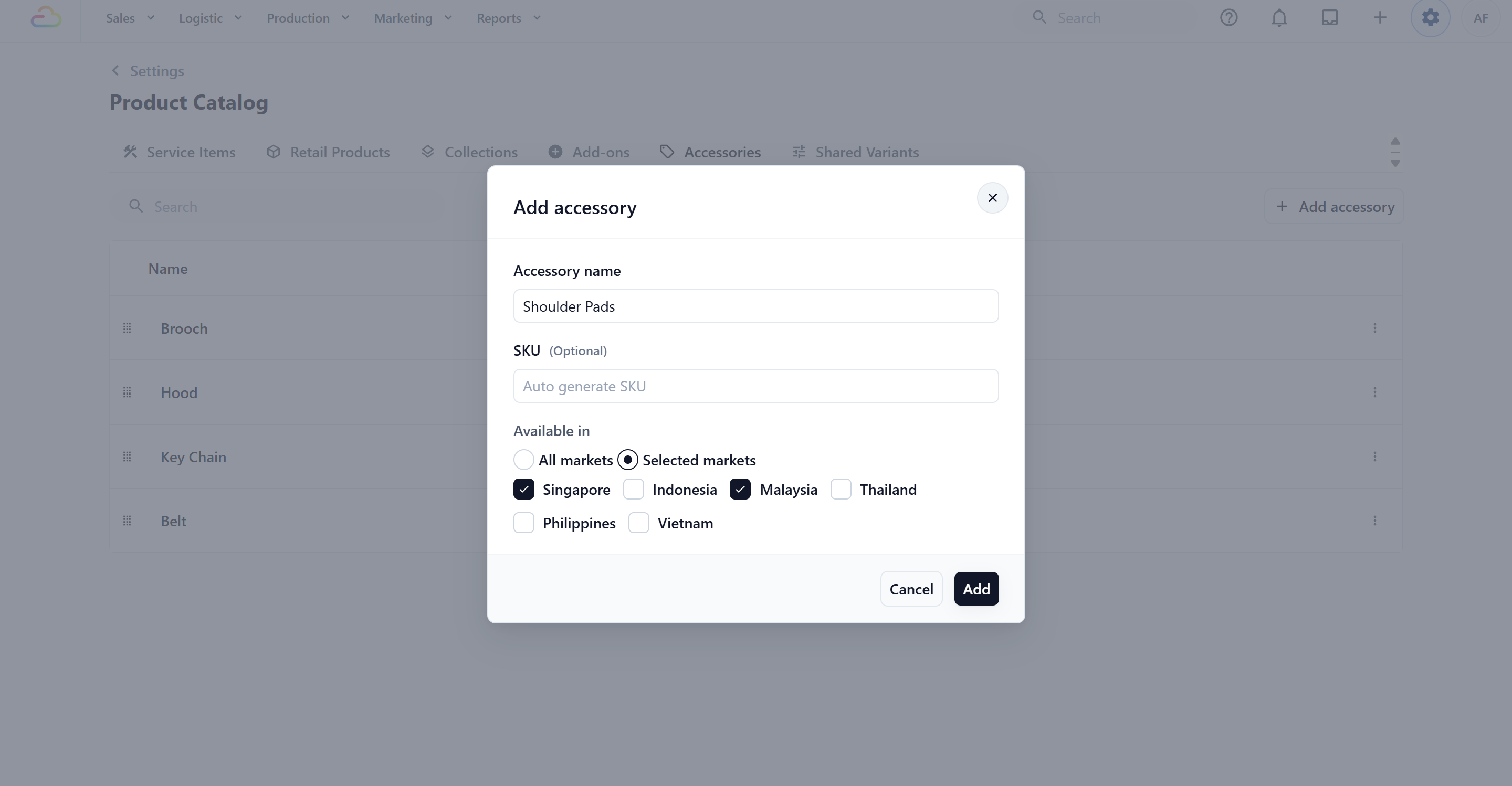
- Click Add.
Editing or Reordering an Accessory
- To edit: click anywhere on the specific row. An Update Accessory dialog opens with the current name and SKU pre-filled. Change either field, then click Update.
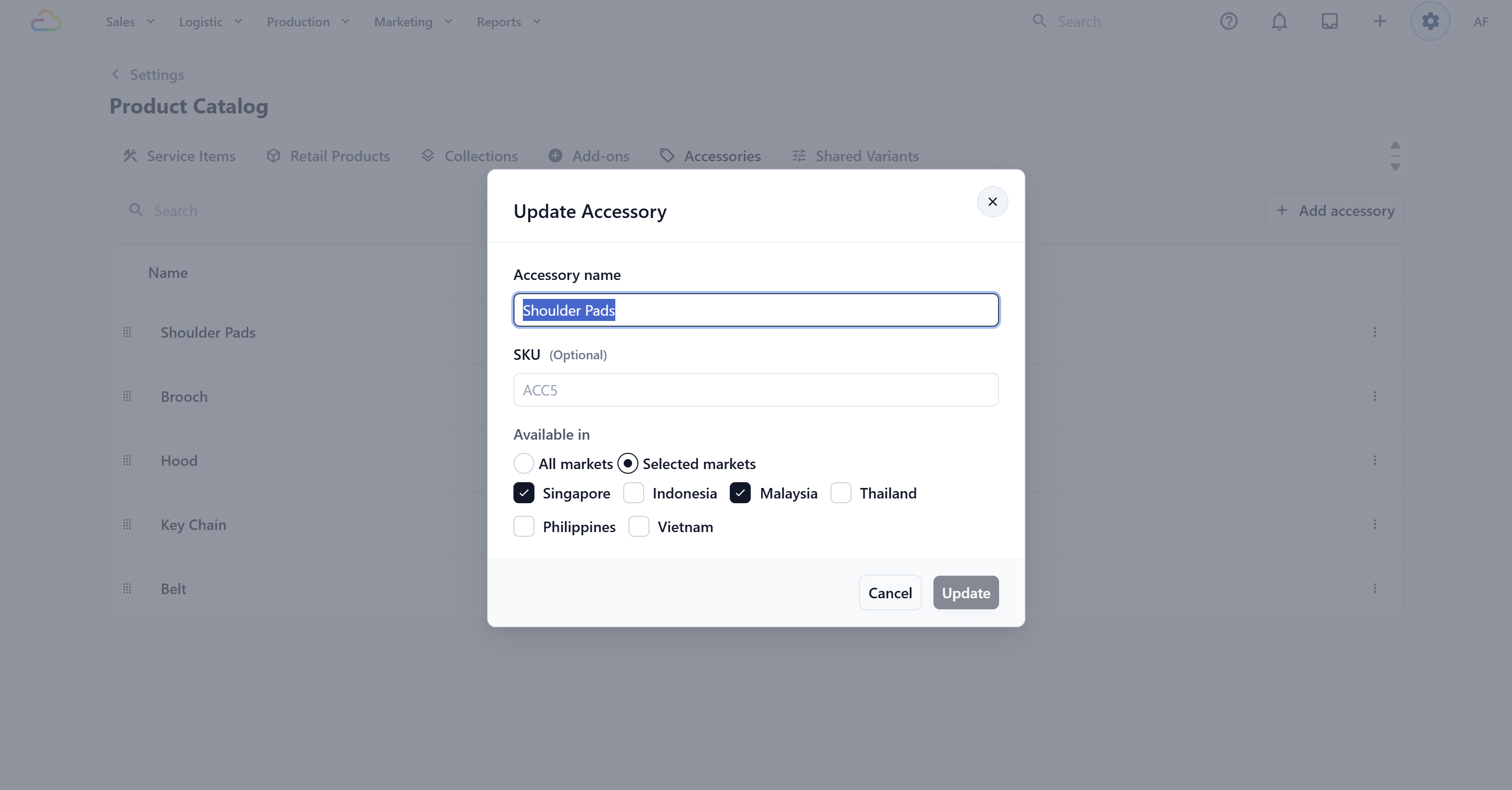 Changing an accessory from All markets to Selected markets removes it from the picker in markets you do not select. Changing it back to All markets makes it available everywhere again. Existing orders keep the accessory information already recorded on them.
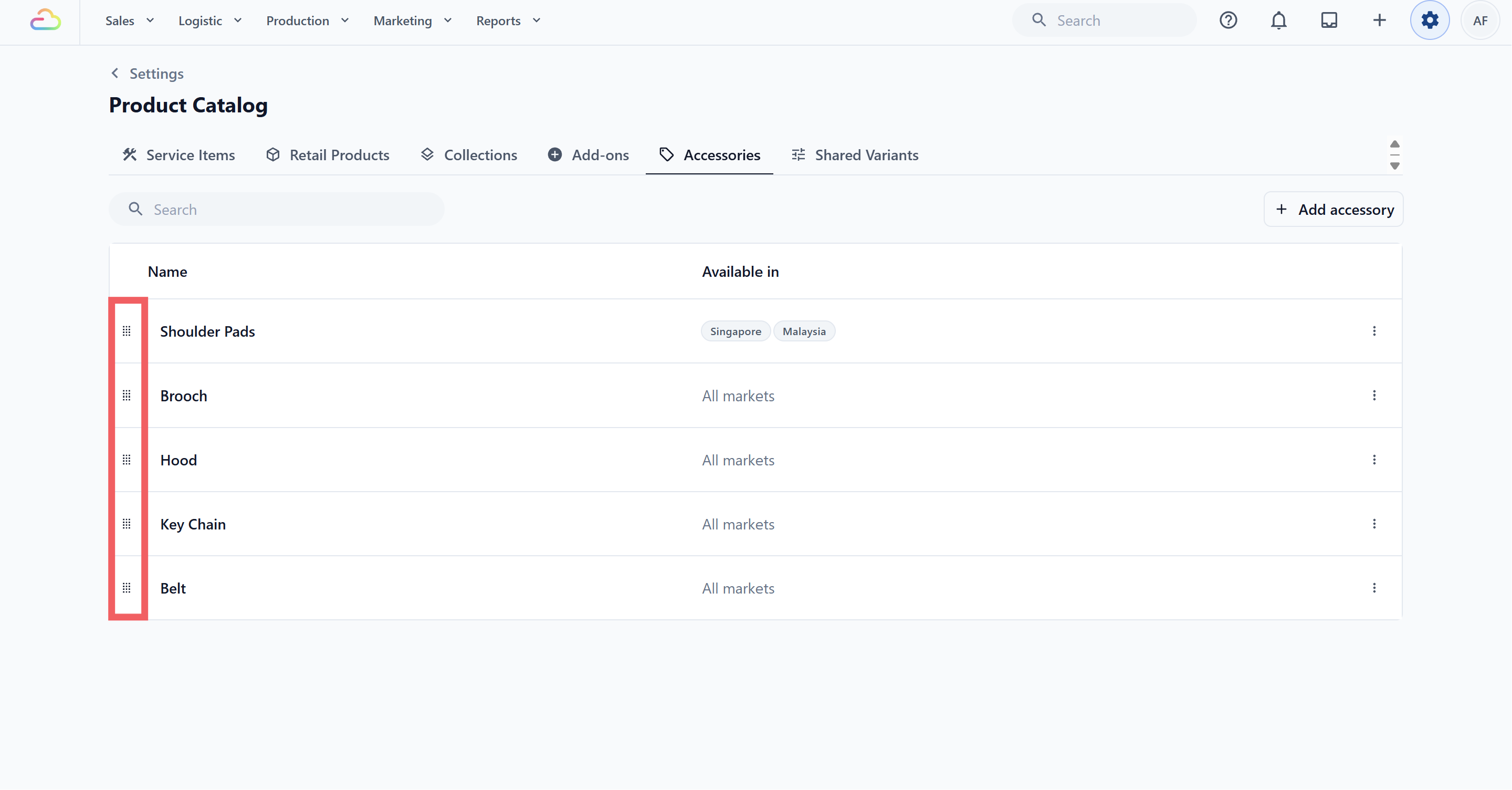
- To reorder: grab the dotted drag handle on the far left of a row and drag it up or down. The new order saves automatically and is the order staff see at the POS.
Deleting an Accessory
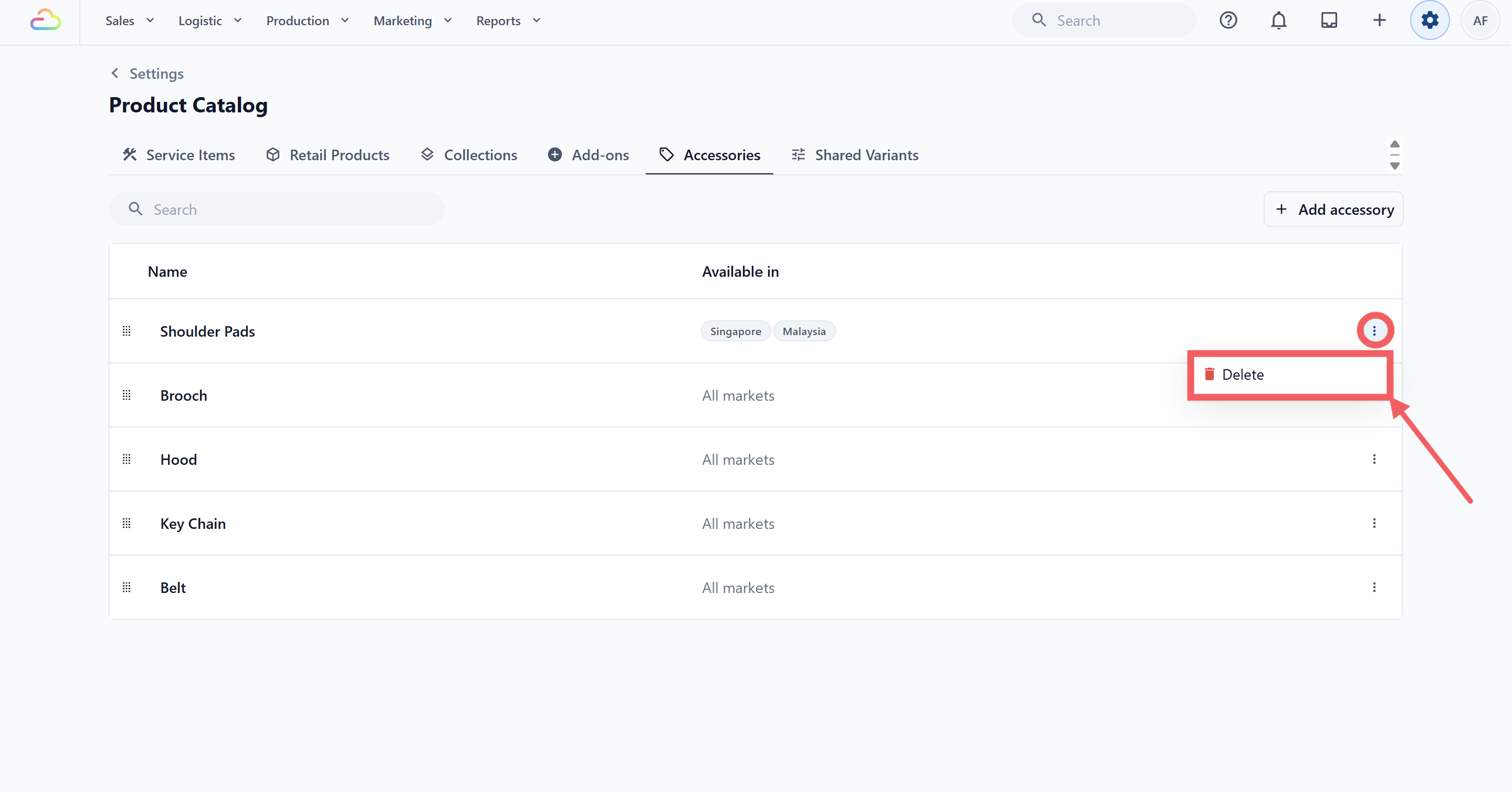
Click the ••• three-dots button at the far right of the row.
Click Delete.
- Confirm in the popup that appears.
Delete is the only option in that menu. To edit, click the row instead.
Where Accessories Appear at the POS / Console
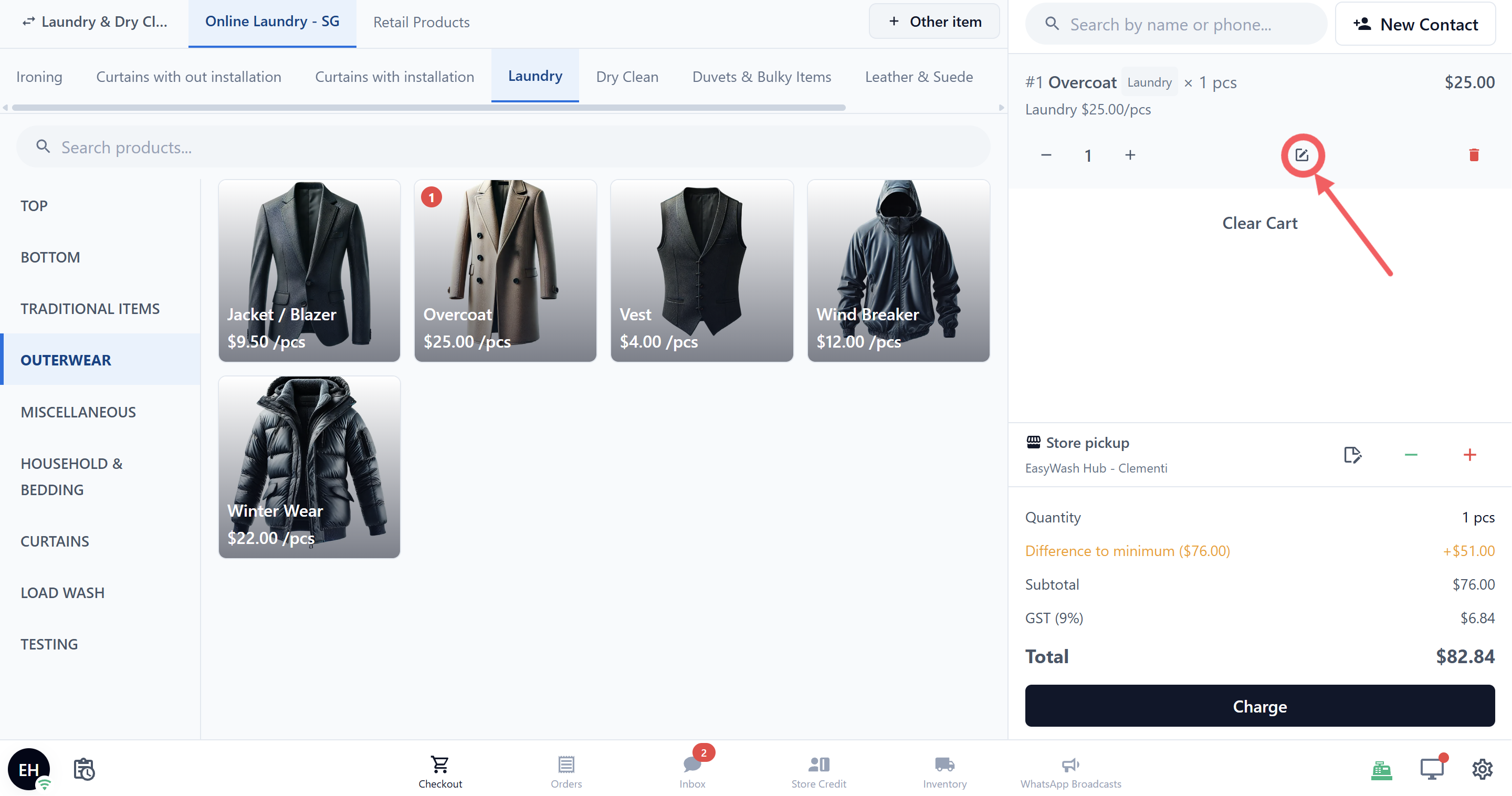
Accessories do not appear on the initial intake screen. They appear in the Edit Panel, which opens when staff click Edit on a line in the cart after adding a Service Item to the order.
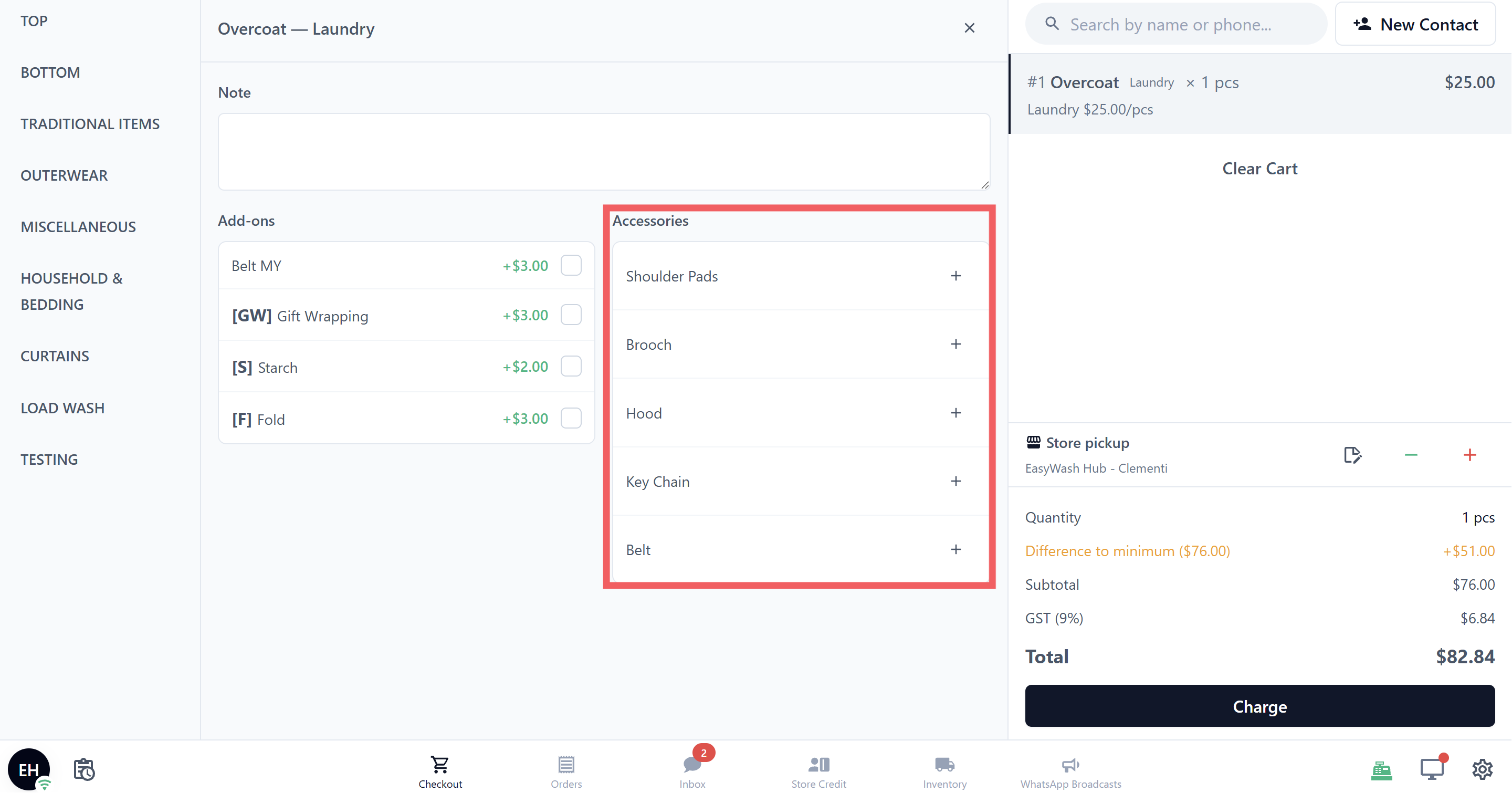
The Accessories picker sits next to the Add-ons picker. It shows only accessories available in the order’s market. The order’s market is determined by the sales channel and location used for that order.
Staff use the + and − buttons to record how many of each accessory the customer brought, for example 1 Dust Bag and 1 Charm. Because the count is attached to a specific line item, the workshop can see exactly which accessories belong to each item.
FAQs
Do I have to set up accessories before going live?
No. Accessories are optional. You can go live without any, then add them later when you notice items your staff keep writing in the order notes.
Is the SKU code required?
No. Leave the SKU field blank and EasyBiz generates a code for you, like ACCY-1. Only fill it in if you already use your own coding system.
What is the difference between All markets and Selected markets?
All markets makes the accessory available in every current market and any market added later. Selected markets limits it to the markets you tick. If you select every current market manually, a newly added market is still excluded until you update the accessory.
Why don't I see the Available in setting?
EasyBiz only shows this setting when your shop has two or more markets. In a single-market shop, accessories are automatically available in that market.
Can I charge the customer for an accessory?
No. Accessories record what the customer brought, not what they are charged. Use an Add-on if you want a price, for example "Reattach Strap +$5".
If I rename an accessory or change its market availability, do past orders update too?
No. Past orders keep the accessory information recorded at the time. The changes apply only when accessories are selected for new orders.
Why don't I see the Accessories picker at the POS/Console?
The picker appears after at least one Service Item is added and you click Edit on that line. It is hidden if no accessories are available in the order's market. Check that an accessory exists and that its Available in setting includes the order's market.
Are accessories tied to a specific service, like only Laundry?
No. Accessories are shared across business units, but they can be limited by market. An accessory available in Singapore can be used by any business unit operating there, while remaining hidden from orders in markets that were not selected.