
Setting Up Your Business Unit
In this article
Your Business Unit is where you configure what services and products your business sells, and how orders are handled from start to finish. You have several sections to configure here. You don't need to set everything up at once — this guide walks you through each section so you know what to do now and what can wait.
Contents
Contents
What is Business Unit?
Your Business Unit is the heart of your operation in EasyBiz. It defines what type of business you run. For example, Laundry or Dry Cleaning. It controls everything your POS needs from what services and products are available, how orders are priced, what your receipts look like, and how orders flow from drop-off to collection.
How to Open Your Business Unit
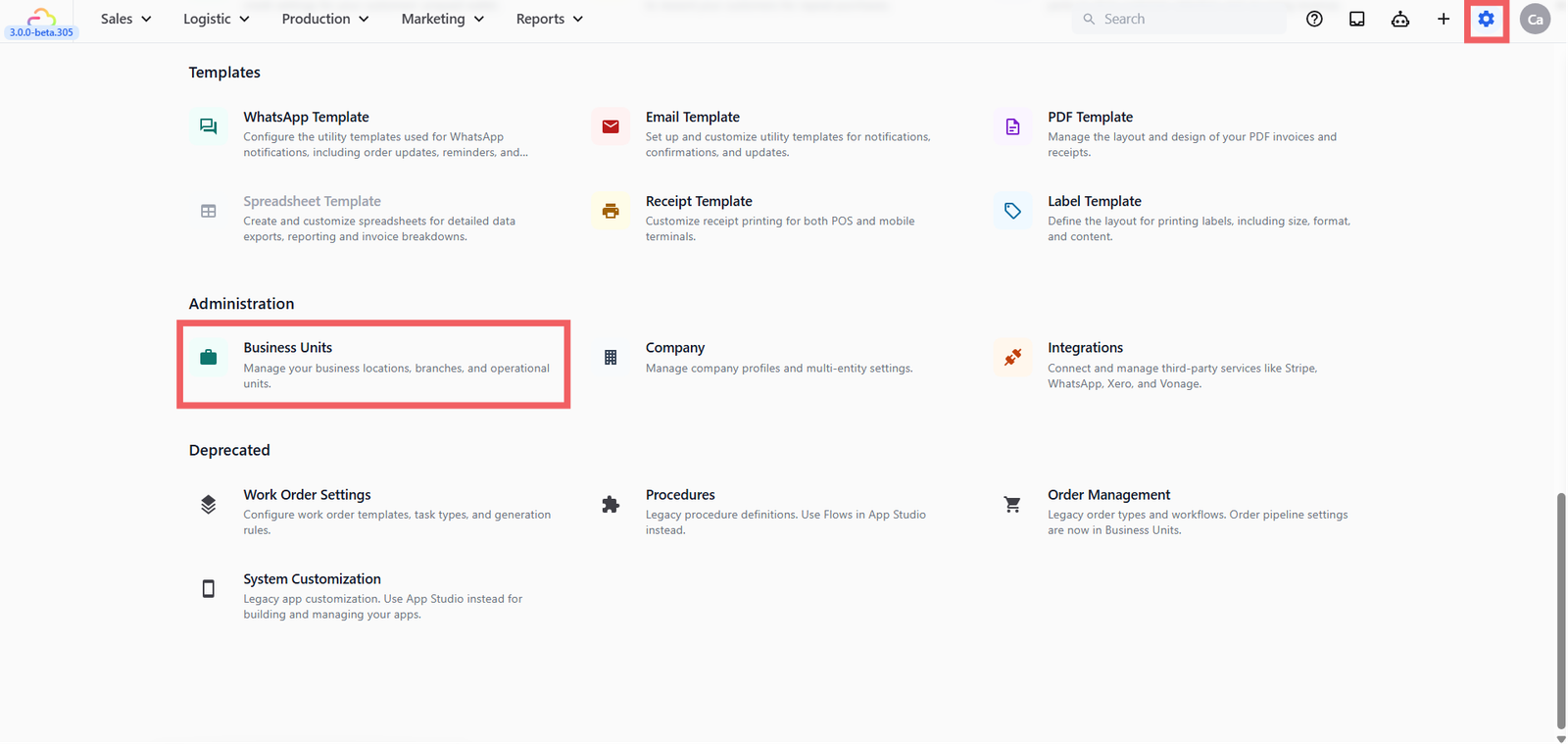
- Go to Settings from the top navigation bar
- Scroll down to the Administration section and click Business Units
- Select the business unit you want to configure
Catalog
The Catalog section controls what items appear on screen when staff create an order.
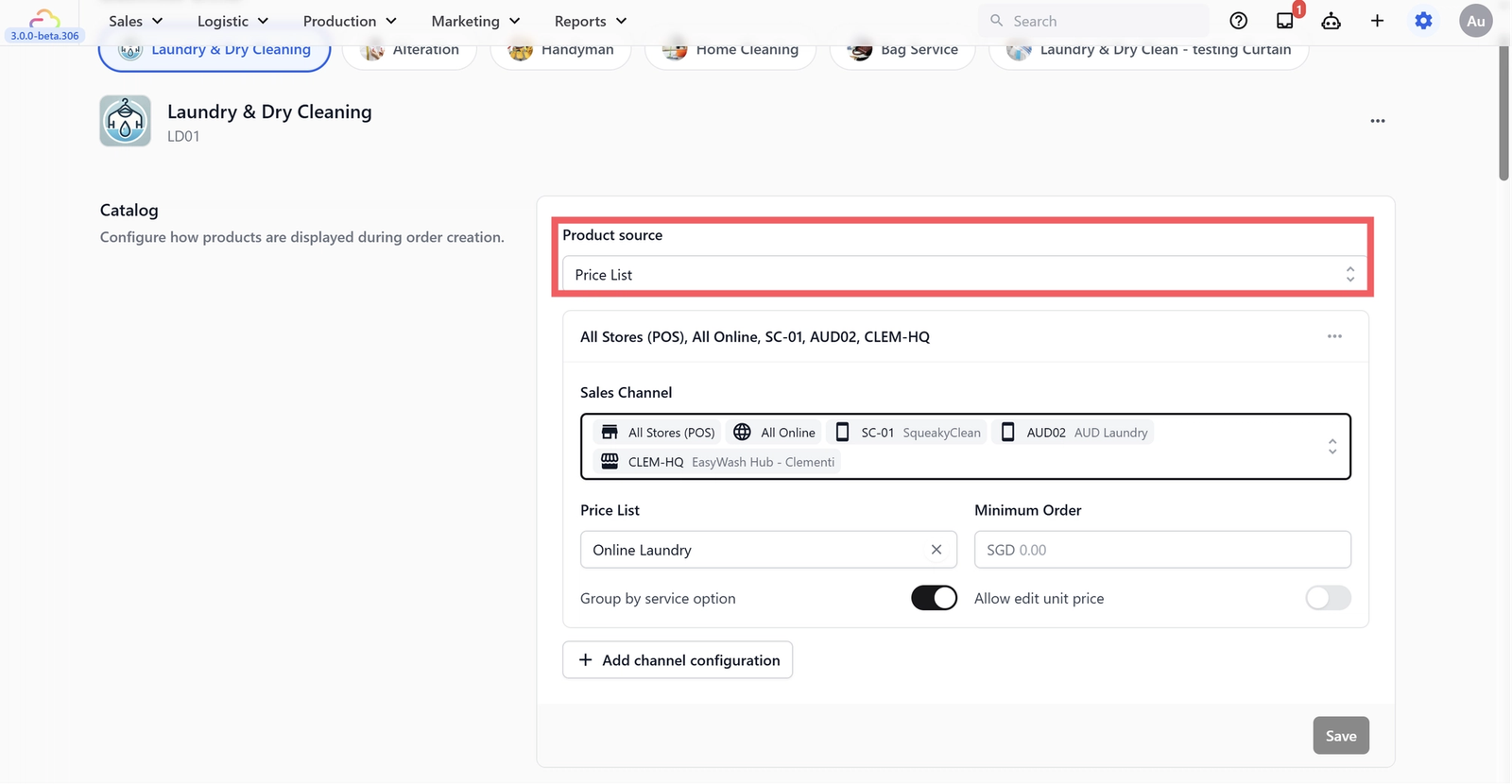
This is where you choose what appears when staff tap "New Order." You start by picking a Product Source — this decides how your catalog is organised at checkout:
Product Source
Decides how your catalog is organised at checkout. Choose:
- Price List (fixed prices per item — best for laundry).
- Products (individual items with attached services — best for bag repair).
- Service Options (broad service types with options underneath).
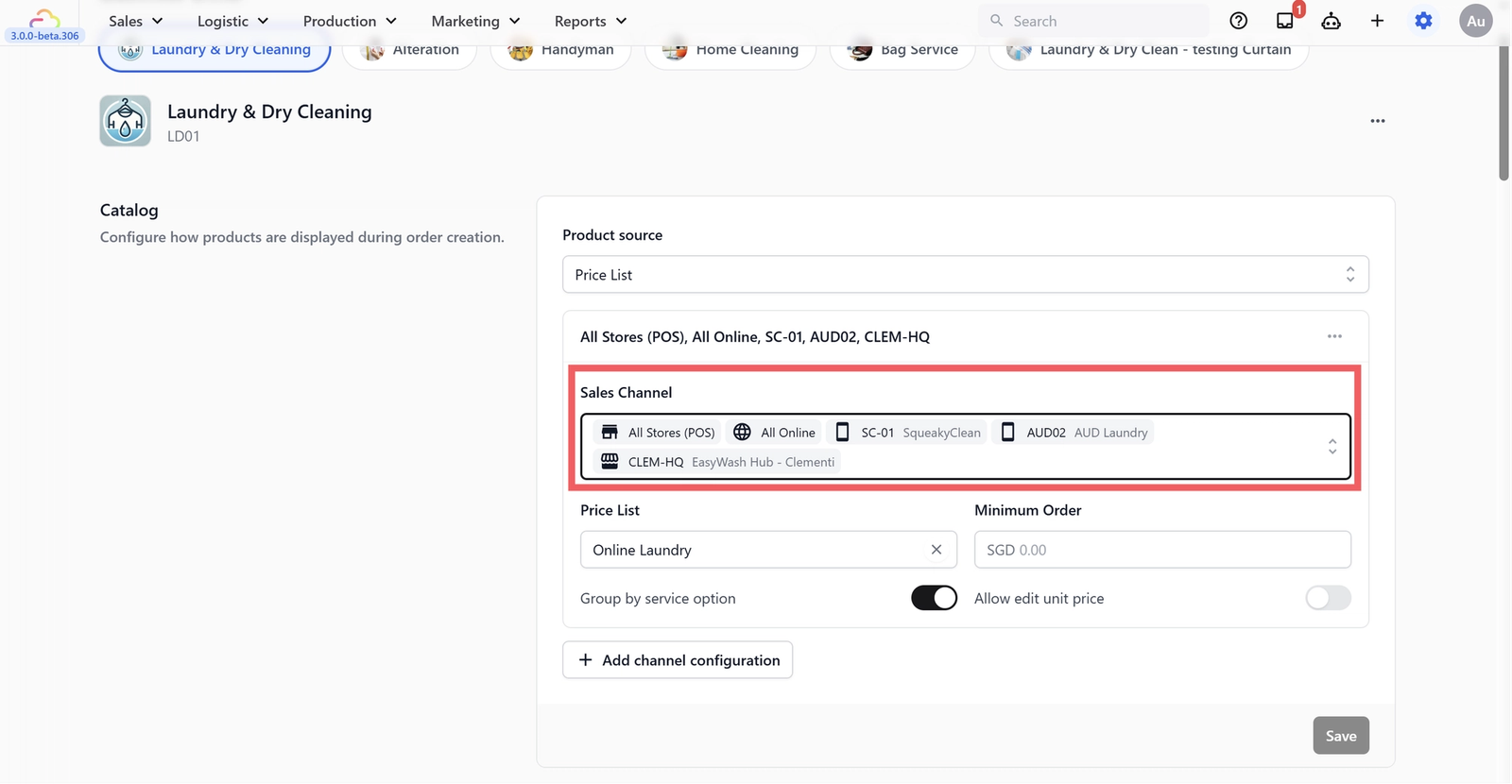
Sales Channel
Which counters or online stores this configuration applies to. Choose:
- All Stores (POS) for all your physical counters.
- All Online for all your online storefronts, or a specific location.
Price List
The published price list to use for the selected channels.
Turn on Group by service option to group items by service type on the catalog screen.
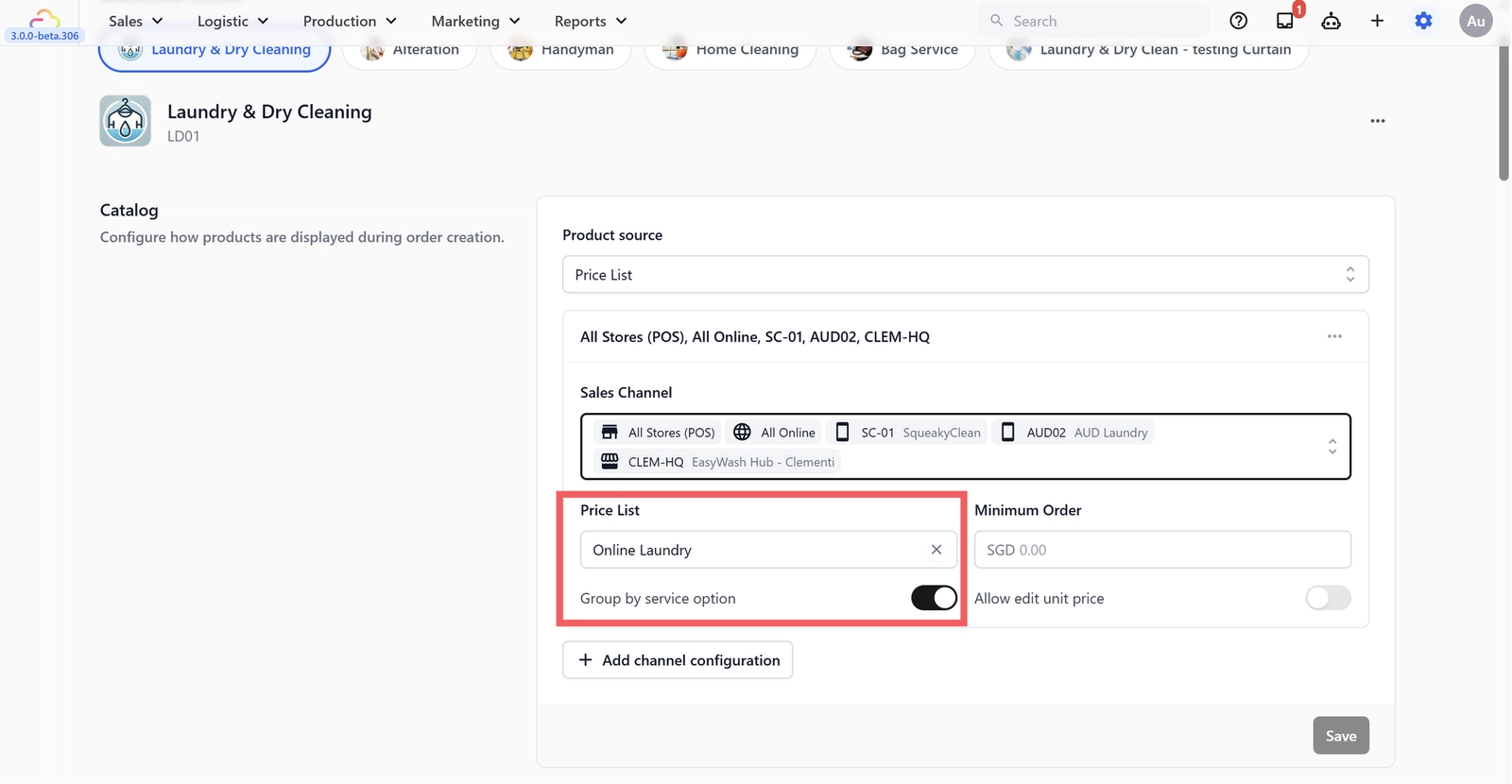
If you haven't created a price list yet, see Setting Up Your Price Lists.
Minimum Order
Set a minimum order value for this channel (leave at 0.00 if you don't want one).
Turn on Allow edit unit price if staff sometimes need to change an item's price when adding it to an order.
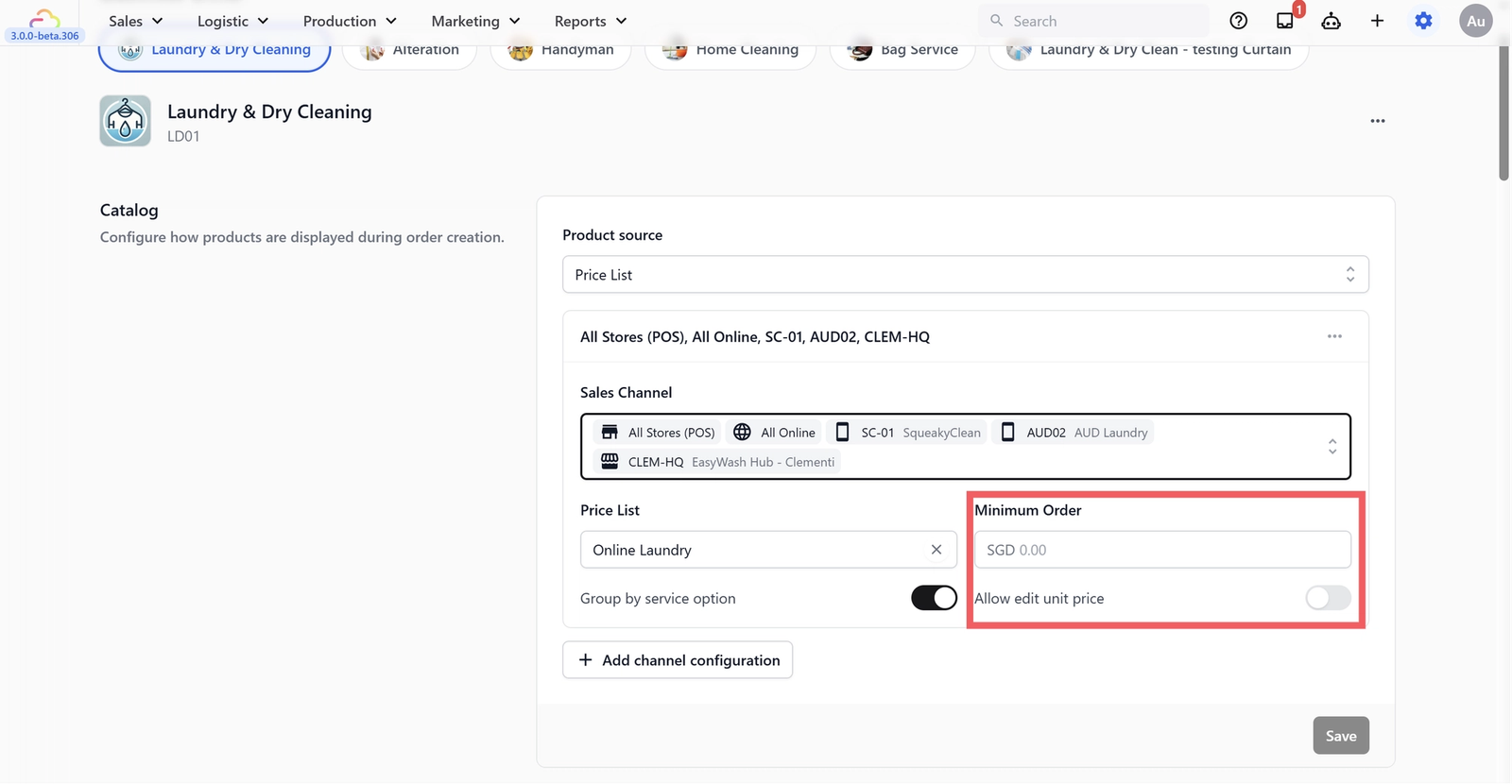
Click + Add channel configuration to add another row if you need different settings for different channels (e.g., a different price list for your online store vs your counter).
💡For the full setup guide, see [Setting Up Your Catalog] (coming soon).
Line Item Flows
Extra steps when adding an item to the cart.
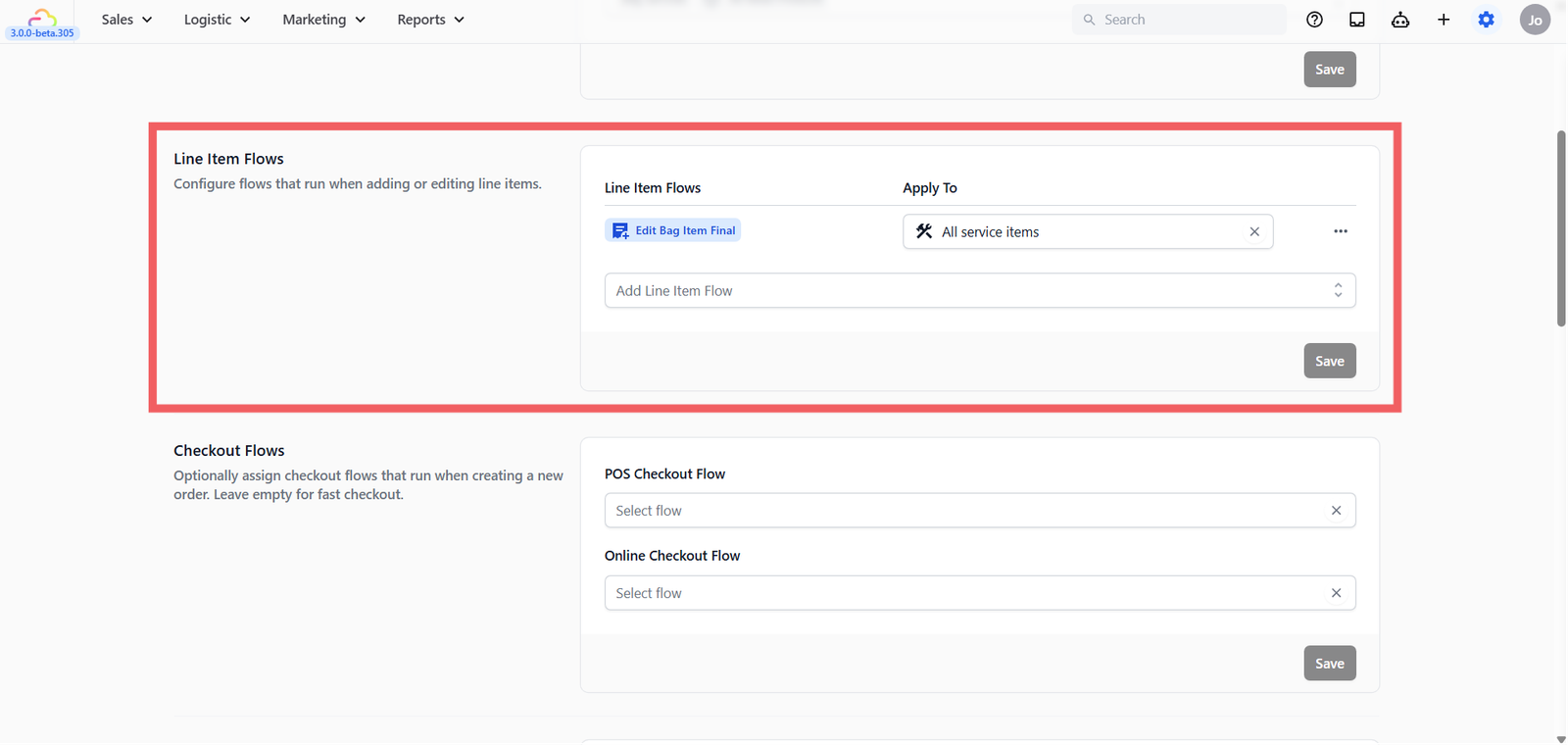
A Line Item Flow is a small checklist that pops up every time staff add an item to the order — for example, "Take a photo of the bag", "Record the fabric weight", or "Note the item condition." You decide what steps are included and whether each one is required or optional.
Most laundry shops don't need this — staff just tap to add and the price is already set. For bag repair and specialist service businesses, this is where Line Item Flows become essential, since prices vary per item and staff often need to capture extra details.
💡 For more use cases and detailed setup instructions, see [Setting Up Line Item Flows] (Coming Soon)
Checkout Flows
Extra steps before the order is confirmed.
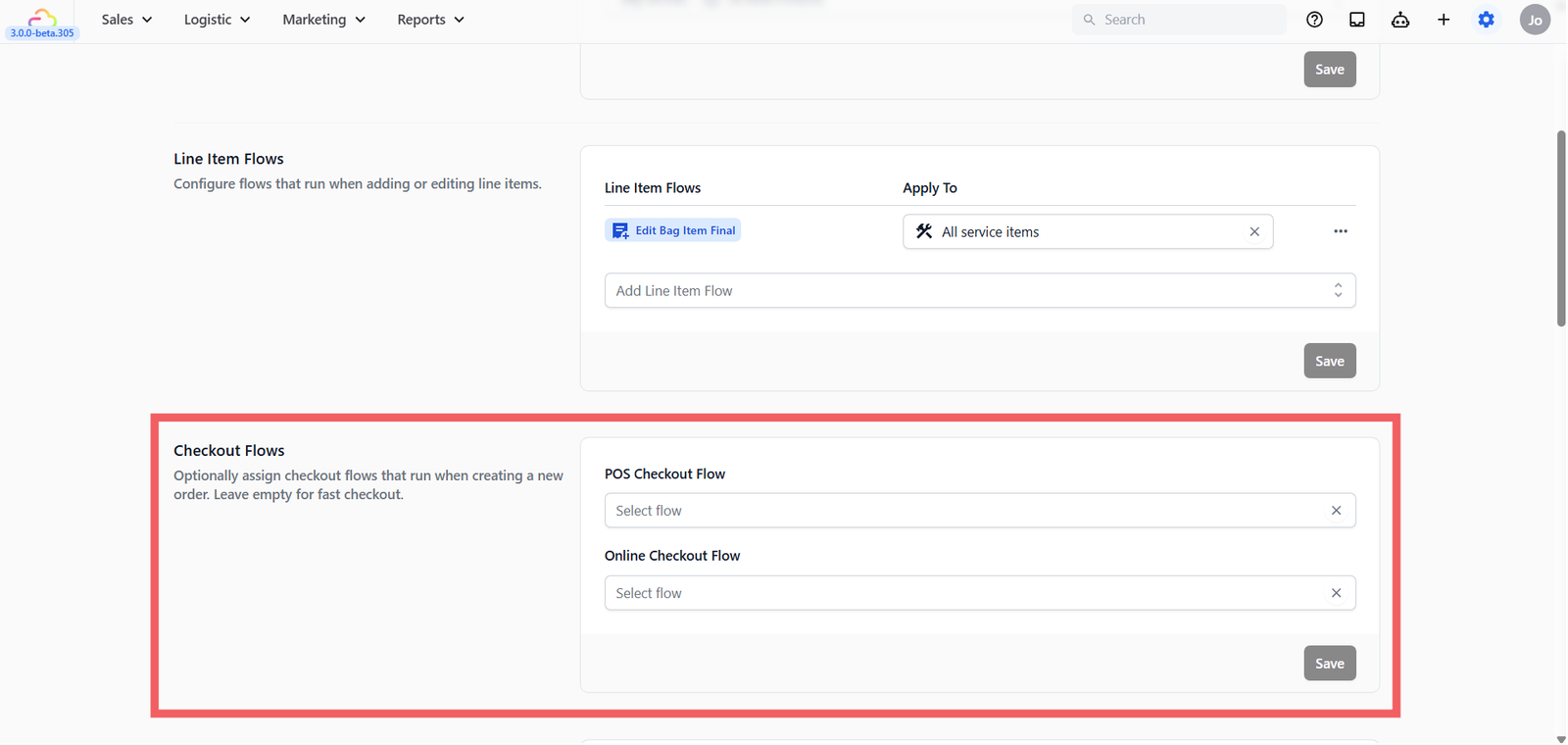
A Checkout Flow adds steps that run after your staff finishes adding items to the cart — right before the order is officially created. Think of it as a short checklist your staff follows every time, built into the screen so nothing gets missed.
For example, if your shop offers home delivery, a checkout flow can prompt staff to collect the customer's delivery address and preferred time slot. For online orders, customers can be asked to select a pickup date and time.
There are two types:
- POS Checkout Flow — runs when staff create a new order from the counter.
- Online Checkout Flow — runs when a customer places an order online.
Leave these empty if all your customers walk in and collect at the counter — you don't need this for a simple drop-off and collect setup.
💡 For more examples and setup instructions, see [Setting Up Checkout Flows (Coming Soon)
Order Pipeline
The stages every order moves through.
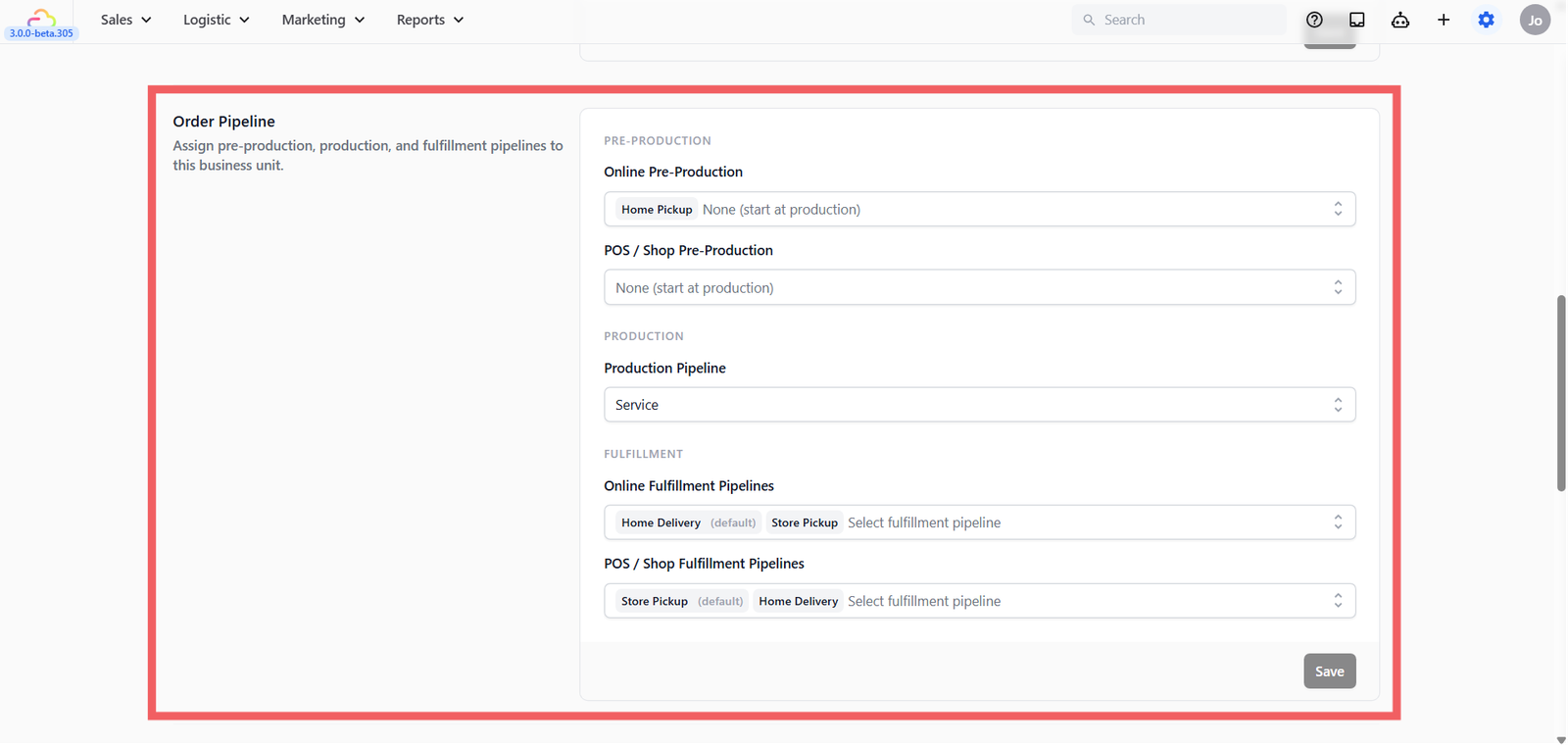
Your Order Pipeline defines the journey of an order from the moment it's created until it's collected.
This lets you and your staff see at a glance where every order is right now. It's optional, but very useful once your order volume grows — especially when multiple staff are handling different stages.
Without a pipeline, orders are still created and paid normally — but there are no status stages. Everything shows as an open order until it's closed. You can skip this for now and add it later at any time.
💡 To learn how to build and configure your pipeline, see [Setting Up Order Pipelines] (Coming Soon)
Fulfillment Flows
What happens at pickup, delivery, and cancellation.
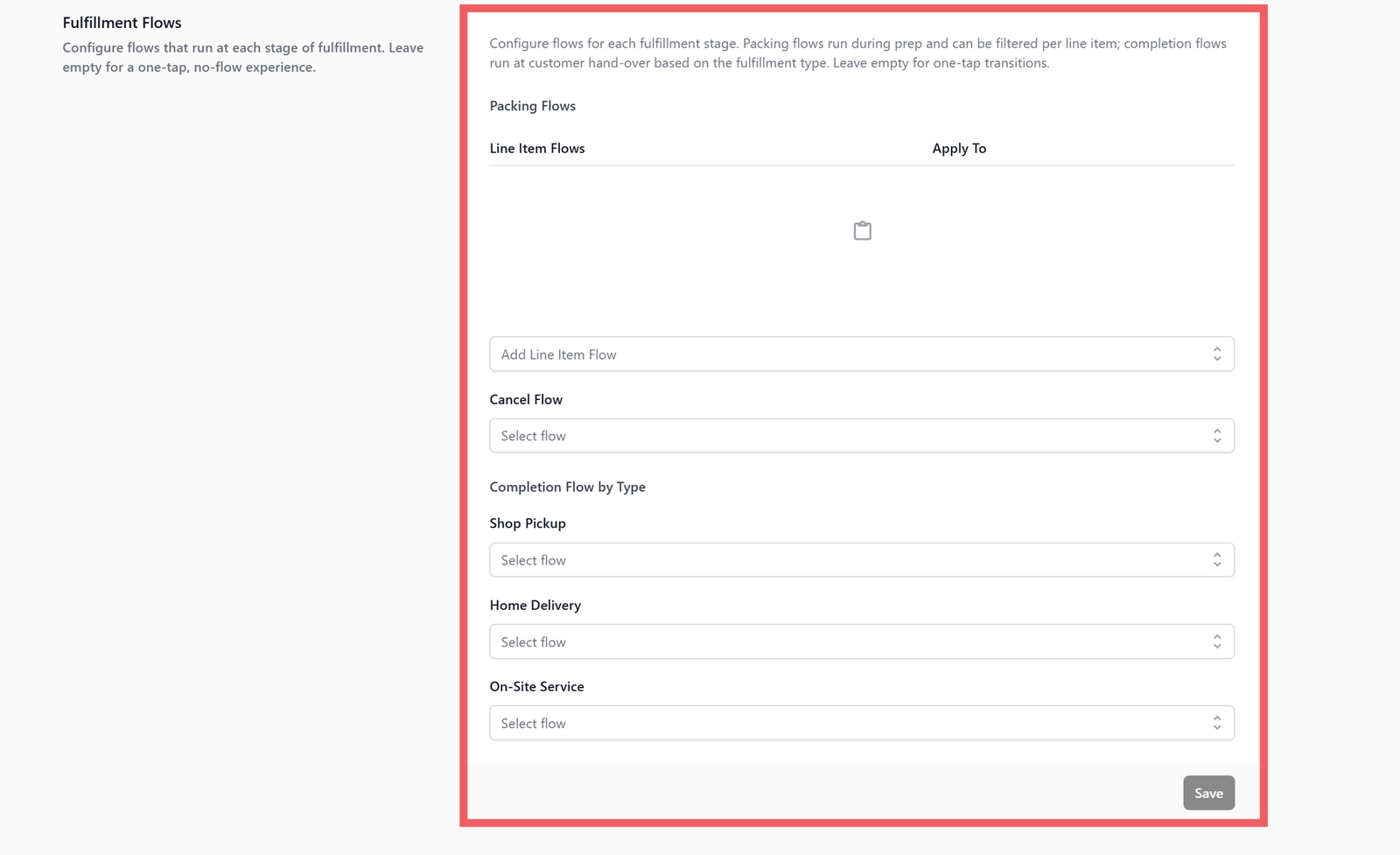
Fulfillment Flows control the steps your staff follow when completing an order — for example, confirming a customer's identity at counter pickup, capturing a signature for home delivery, or recording a reason when cancelling an order.
You can set up separate flows for different fulfillment types:
- Store Pickup — steps for when the customer collects at the counter.
- Home Delivery — steps for when your driver delivers to the customer.
Skip this if your shop only does counter drop-off and collection with no special steps required.
💡For the full setup guide, see [Setting Up Fulfillment Flows] (coming soon).
Work Orders
Printed job sheets for your back-of-house.
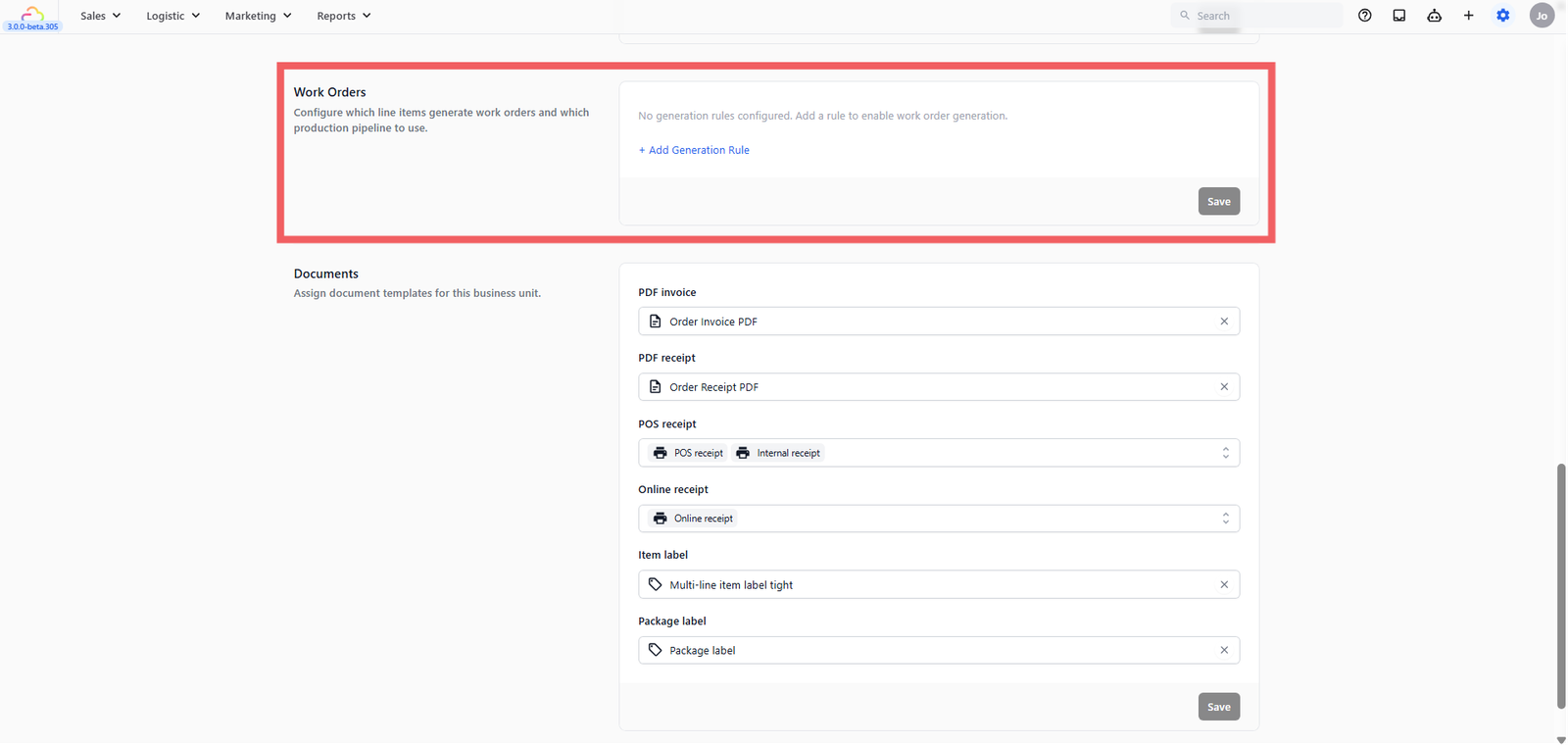
A Work Order is a printed sheet or digital record that your processing team works from. When a customer drops off clothes, the staff creates the order at the counter. Later, the garments are sent to your processing plant — and the Work Order tells them exactly what's in each batch, what services are needed, and any special instructions.
When to use it:
- You have a central plant or workshop that processes orders from your counter.
- You want a printed production sheet for plant staff to follow through each stage.
When to skip it:
- If all work is done at the same counter by the same staff, leave this empty for now.
💡 For full setup instructions, see [Setting Up Work Orders] (Coming Soon)
Documents
Receipts, invoices, and labels.
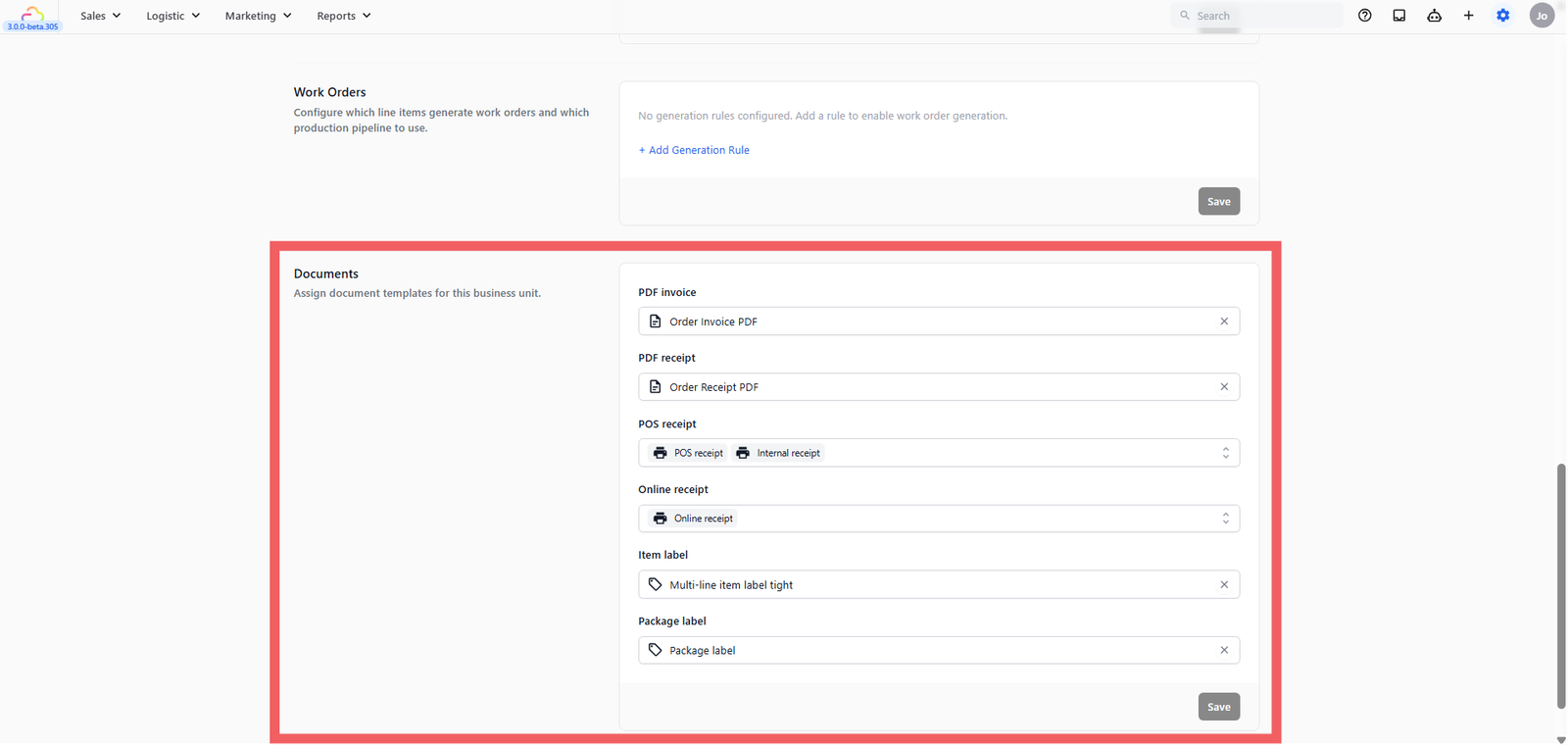
The Documents section is where you link your Business Unit to its print and digital templates. Without this, orders can still be created, but no receipts or labels will be generated.
Here are the document types you can assign:
| Document | What it does |
|---|---|
| POS Receipt | Prints or appears when an order is created at the counter |
| Online Receipt | Sent to customers who order online |
| PDF Receipt | A printable receipt in PDF format, for record-keeping or emailing |
| PDF Invoice | A professional invoice for corporate or bulk orders |
| Item Label | A small label for individual items (e.g., a tag attached to a garment at drop-off) |
| Package Label | A label for the entire order package |
Each document type needs a published template before it can be assigned here. To create and publish your templates, see these guides:
FAQs
What's the difference between the three product source options?
Think of it like choosing how your menu is set up. Price List works like a printed price menu where every item already has a fixed price, and staff just tap to add it. Best for laundry shops. Products works like a product catalogue where you list individual items (like a leather bag or canvas tote) and can attach different services to each one. Best for bag repair or specialist services. Service Options is for businesses where you charge by service type first (e.g. "Dry Clean" or "Express Wash") rather than by individual item. If you're not sure, laundry shops almost always use Price List.
What if I sell both laundry and bag repair at the same counter?
You can set up two separate Business Units — one for Laundry, one for Bag Service — each with its own catalog and settings. When staff create an order, they choose the business unit at the start.
What if I skip the pipeline — will orders still be created?
Yes, absolutely. Orders are still created, paid, and completed normally without a pipeline. You can set it up later at any time.
Do I need to set up Documents before going live?
Not required to take orders, but strongly recommended. At minimum, set up a POS Receipt before opening. Everything else can be added as you need it.
Give feedback
Up next
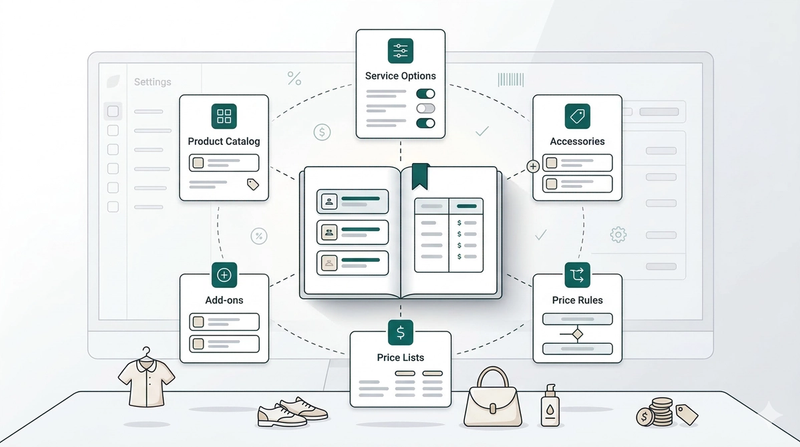
Products & PricingLearn how to organize your items, manage service options, and apply dynamic pricing rules to streamline your sales process.
Read more