
Bookings


Setting Up Custom Zones
In this article
Overview: Custom Zones give you full flexibility to define your business boundaries. Instead of relying on broad city settings, this tool allows you to map out specific areas for your drivers and customers.
Contents
Contents
You can define a zone in three ways:
- Draw on Map: Manually draw a specific shape to cover a neighborhood or custom route.
- Administrative Districts: Quickly select standard government-defined regions (e.g., Ang Mo Kio, Tampines).
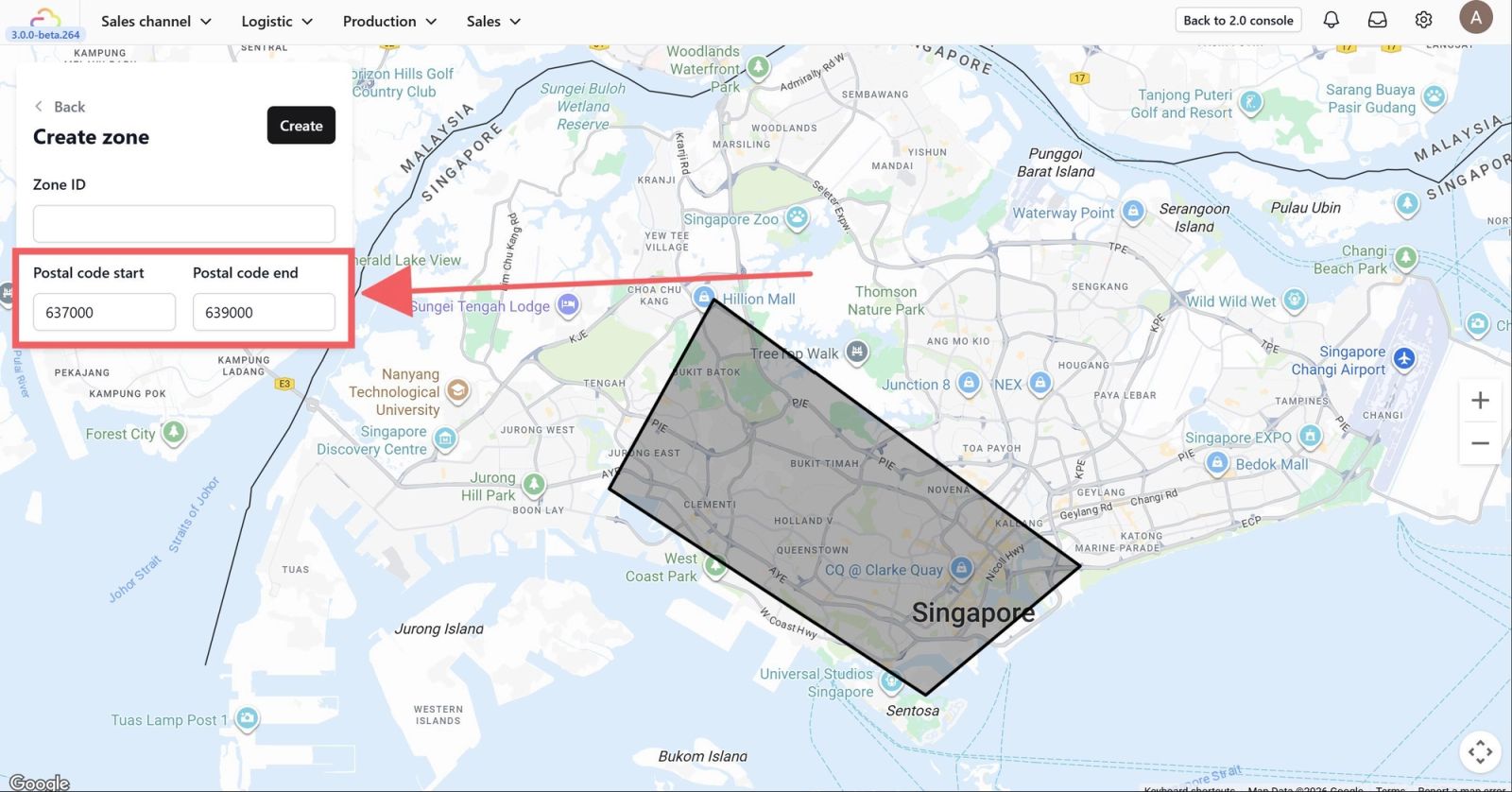
- Postal Code Range: Enter a starting and ending postal code to target a specific block of streets.
Why use Custom Zones?
- Precision Targeting Using Postal Codes is perfect for high-density areas. You can target specific residential blocks or streets without accidentally including neighboring areas that are difficult to access.
- Flexible Service Fees Draw a "Surcharge Zone" around remote or far locations. This allows you to automatically apply a higher delivery fee for those specific areas, while keeping standard rates for your main operating districts.
- Driver Efficiency Group nearby areas using Administrative Districts or custom drawings. This helps you assign drivers to specific zones, ensuring they focus on one region and don't waste fuel traveling across the entire map.
How to set up Custom Zones:
Add by Select Administrative Districts
This is the fastest method. Select from a list of pre-defined government regions.
- Go to your Custom Zones page under Booking
2. Click Add Zone
3. Select Add by selecting administrative districts
4. Select the required district(s) for the zone
5. Enter a Zone ID and click Create
Add by Draw on Map
This gives you total freedom. Create any shape you want by "connecting the dots" on the map.
- Go to your Custom Zones page under Booking
- Click Add Zone
- Select Add by drawing on map
- Draw the area according to your requirements
- Enter a Zone ID and click Create
Note: Video Disclaimer-Everything in this video is for example purposes only.
Add by Enter Starting and Ending Postal Code
This offers the highest precision. define a range of street addresses.
- Go to your Custom Zones page under Booking
2. Click Add Zone
3. Select Add by entering starting and ending postal codes
4. Enter the starting and ending postal codes
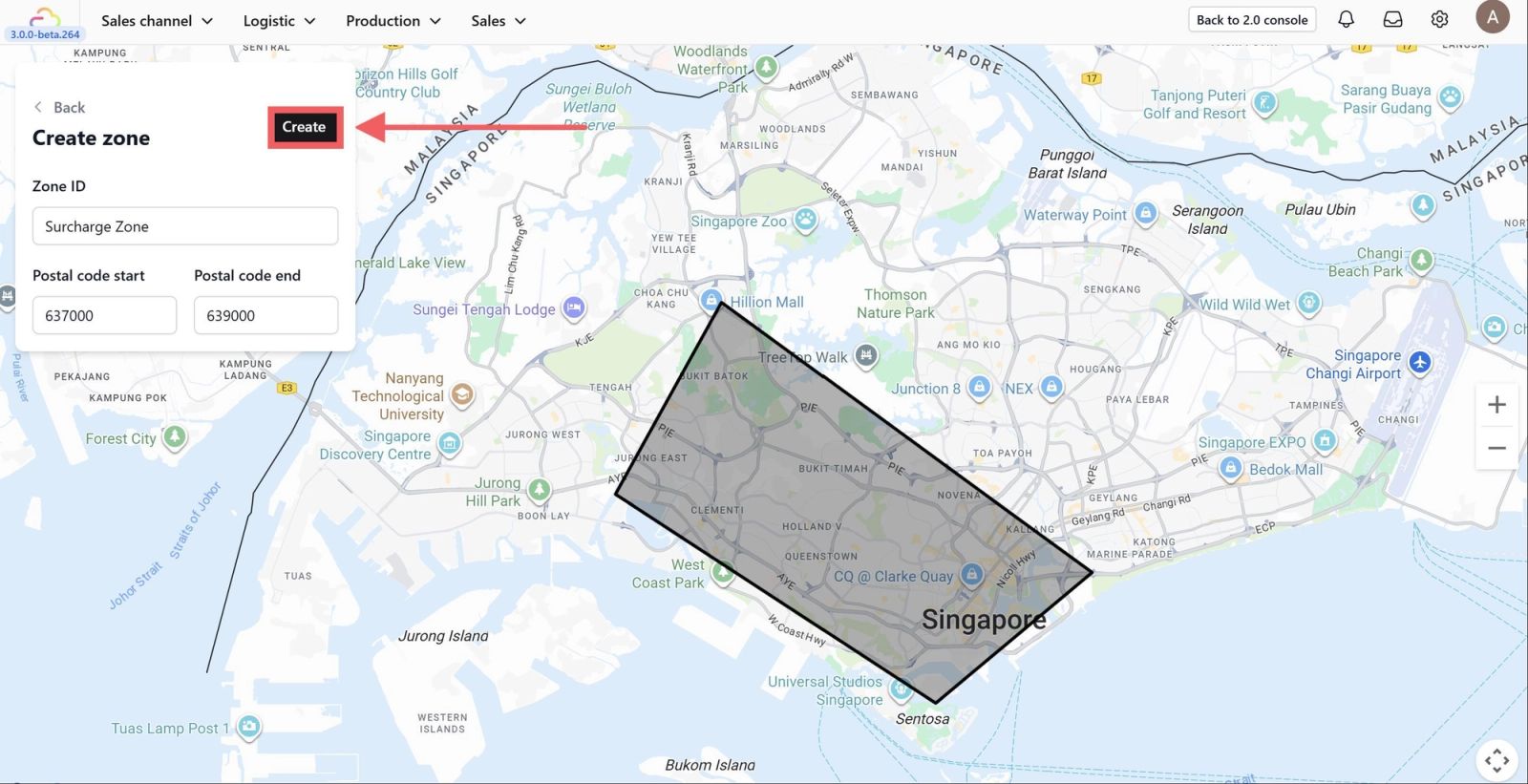
5. Enter a Zone ID and click Create
Give feedback
Up next
Setting Up Service AreasDefine where your services are available by assigning custom zones to control which locations customers can book from.
Read more