
Setting Up Recurring Scheduler

In this article
The Recurring Scheduler is designed to help you build a predictable, subscription-based revenue stream. Instead of waiting for customers to remember to book their next service, this tool allows you to lock in their future orders in advance. Whether it is a daily corporate delivery, a weekly home laundry pickup, or a monthly maintenance visit, the scheduler generates these orders automatically based on the frequency you define.
Contents
Contents
Why Use Recurring Scheduler?
- Guaranteed Revenue: By securing repeat orders in advance, you can forecast your income and workload more accurately.
- Customer Convenience: Your customers don't need to manually book every time. They appreciate the "set and forget" convenience.
- Reduce Churn: A scheduled habit makes it much harder for customers to switch to a competitor. You become part of their routine.
The Scheduler Dashboard
To access this feature, go to Settings > Automation > Recurring Scheduler in the 3.0 Console.
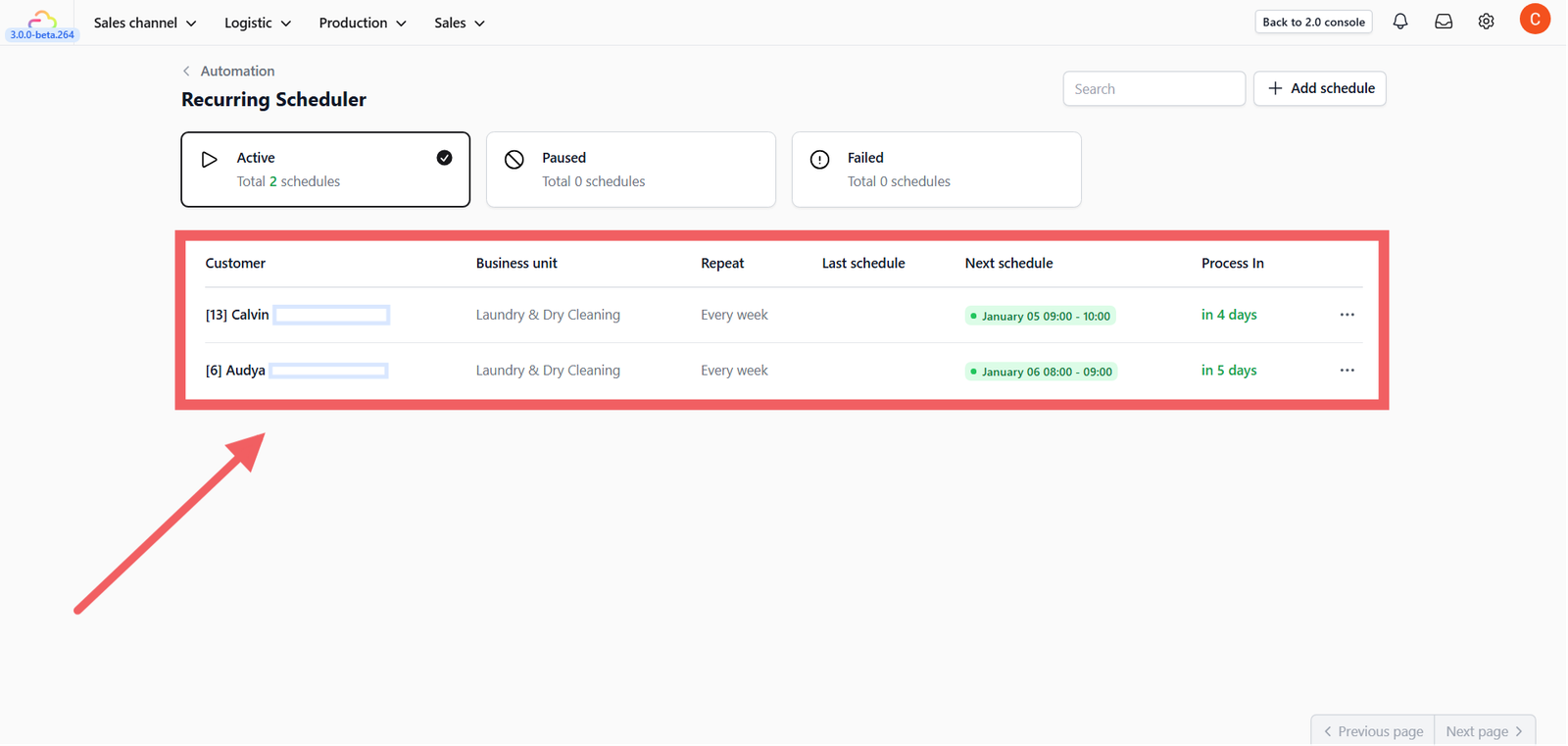
The main dashboard gives you an overview of all schedules, categorized by status:
- Active: Schedules currently running.
- Paused: Schedules temporarily stopped.
- Failed: Schedules that encountered an error (e.g., payment failure).
The table displays key details like the Customer, Repeat Frequency, and the Next Schedule date.
Create a New Schedule
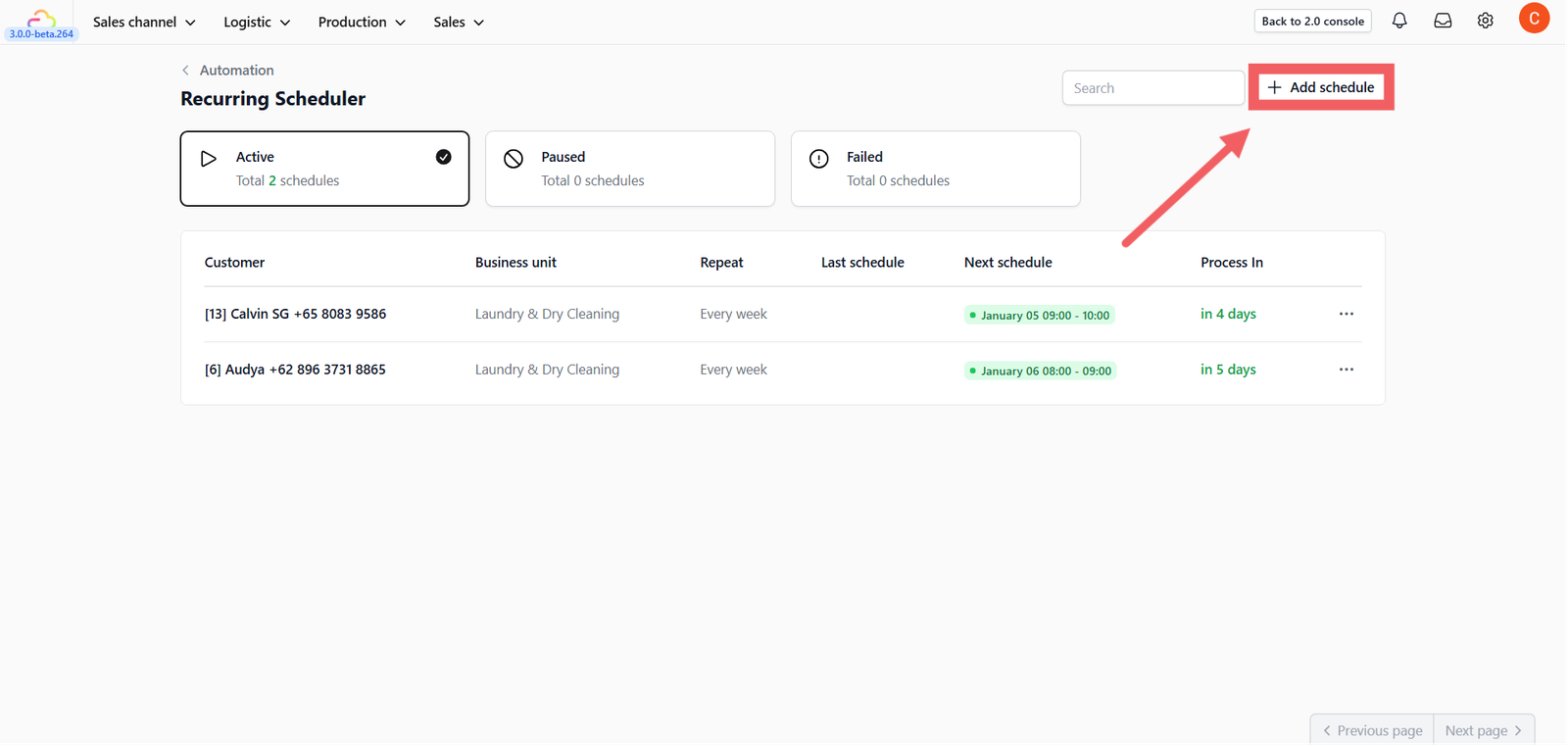
Click the + Add Schedule button to start.
Basic Configuration
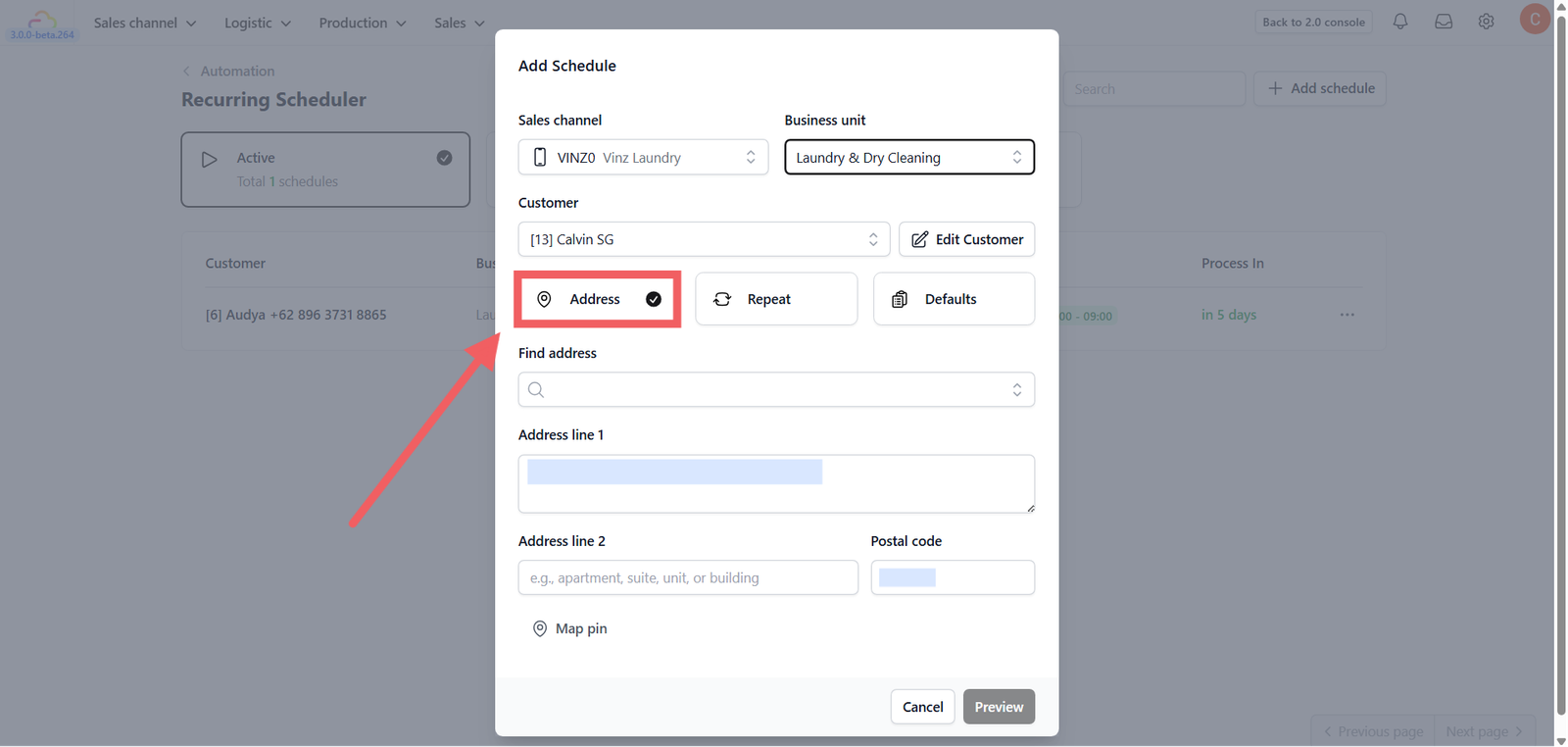
- Sales Channel: Select the source (Typically "Online Store").
- Business Unit: Choose the branch/outlet handling the order.
- Customer: Select an existing customer or click + New Customer to create one on the spot.
- Address: Choose the customer's pickup/delivery address.
Define Frequency & Timing
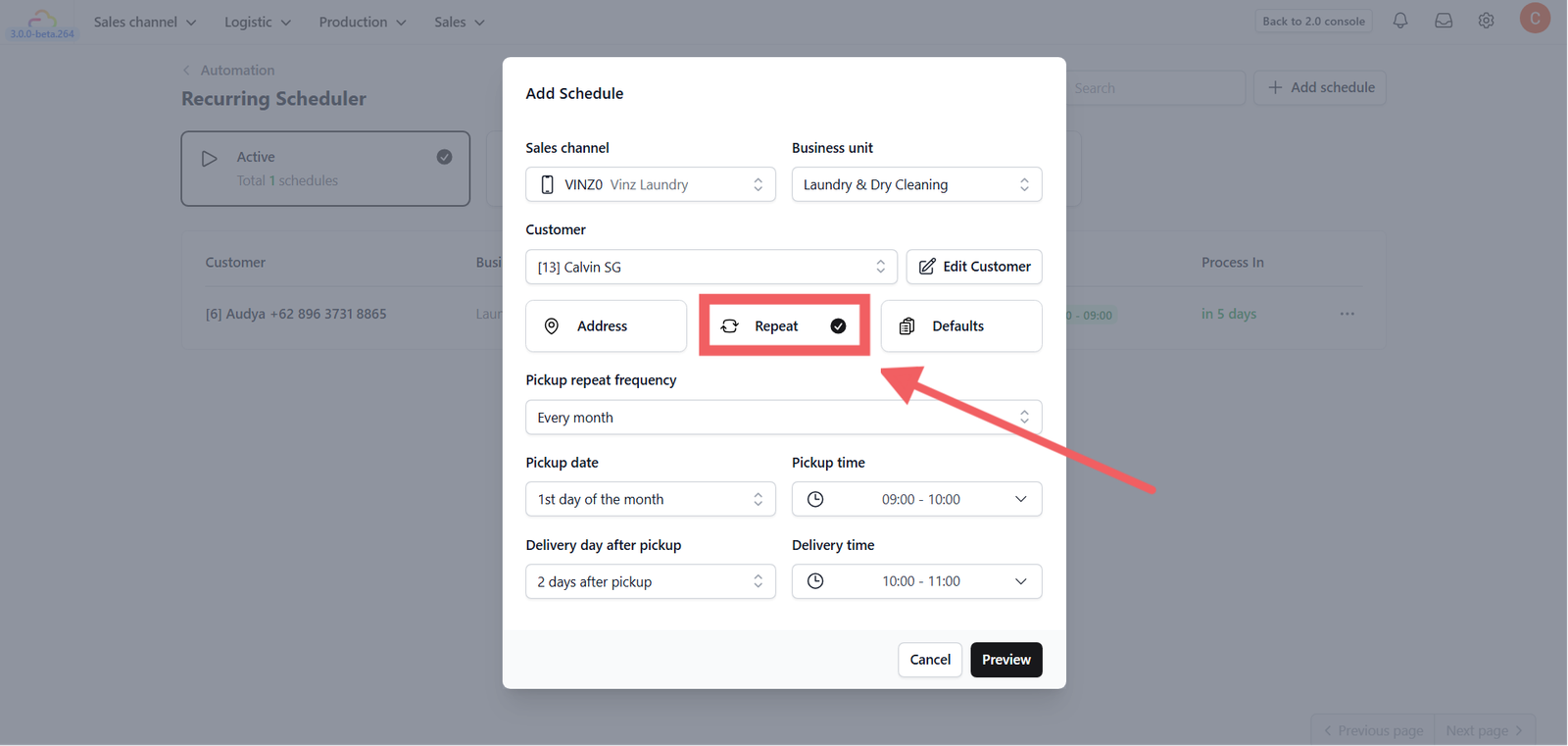
Click the Repeat button. This is the core rule of the schedule. The options change based on your selection:
A. Frequency Types
- Every Day: Useful for daily services.
- Every Week (or 2-4 weeks): Useful for weekly subscriptions.
- Every Month (or 2-4 months): Useful for monthly billings.
B. Setting Pickup & Delivery Logic Depending on the frequency, the settings differ:
- If "Every Day": You only set the Pickup Time.
- If "Every Week": You must choose the Pickup Day (Monday - Sunday).
- If "Every Month": You must choose the Pickup Date (1st - 28th of the month).
Delivery Rules: After setting the Pickup, define when the delivery happens:
- Same Day: Delivered on the day of pickup.
- Next Day: Delivered 1 day later.
- Up to 14 Days: Select the gap between pickup and delivery.
Configure Defaults (Payment & Notes)
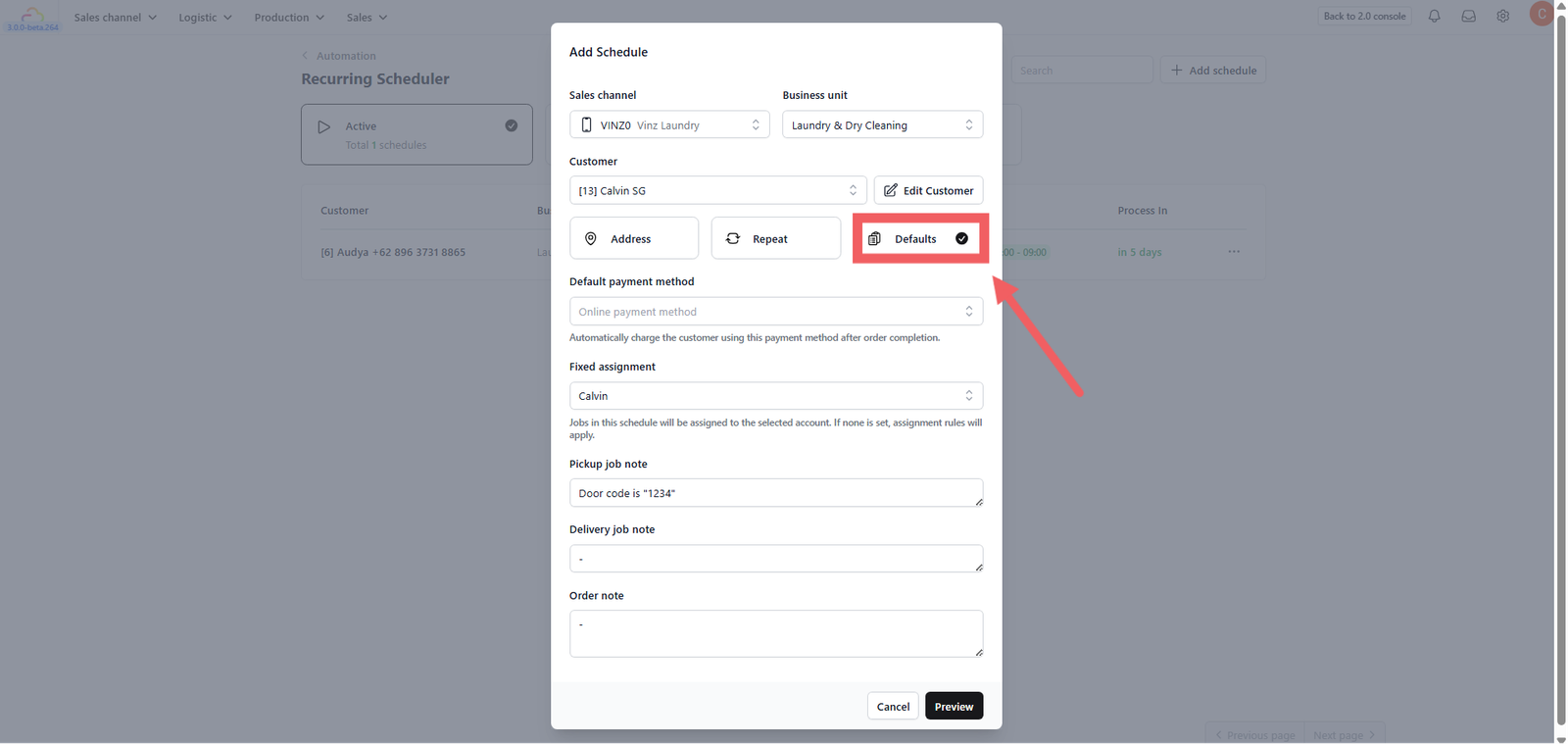
Click to the Defaults section. Here you define how the order handles payment and operations.
- Payment Method: Currently fixed to Online Payment. The system will automatically charge the customer's saved method after the order is completed.
- Fixed Assignment: Assign these recurring jobs to a specific driver or staff member automatically.
- Notes (Optional): Pre-fill the Job Note, Order Note, or Pickup Note (e.g., "Door code is 1234").
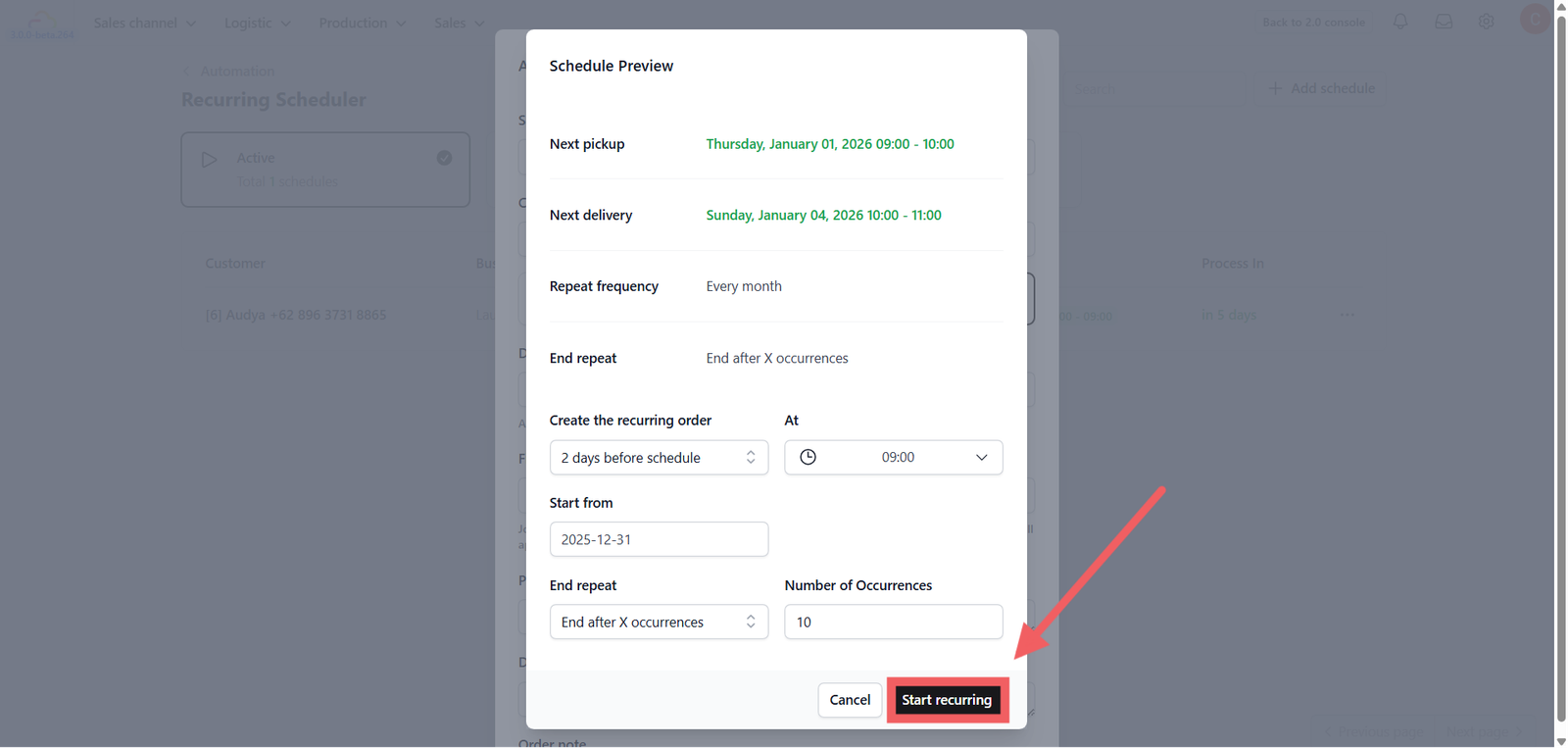
Once configured, you will see a Preview summary on the right/bottom.
1. Review Dates
Check the Next Pickup and Next Delivery timestamps to ensure the logic is correct.
2. Creation Timing
Decide when the system should generate the order ticket:
- On the schedule day: Creates the order at the exact pickup time.
- X days before: Creates the order in advance (up to 9 days) at a specific time.
3. Start & End Rules
- Start Date: When does this subscription begin?
- End Date:
- No end date: Runs forever until cancelled.
- End after X occurrences: Stops after a set number of orders (e.g., 10 times).
- End by date: Stops on a specific calendar date.
Click Start Recurring to activate.
Managing Schedules
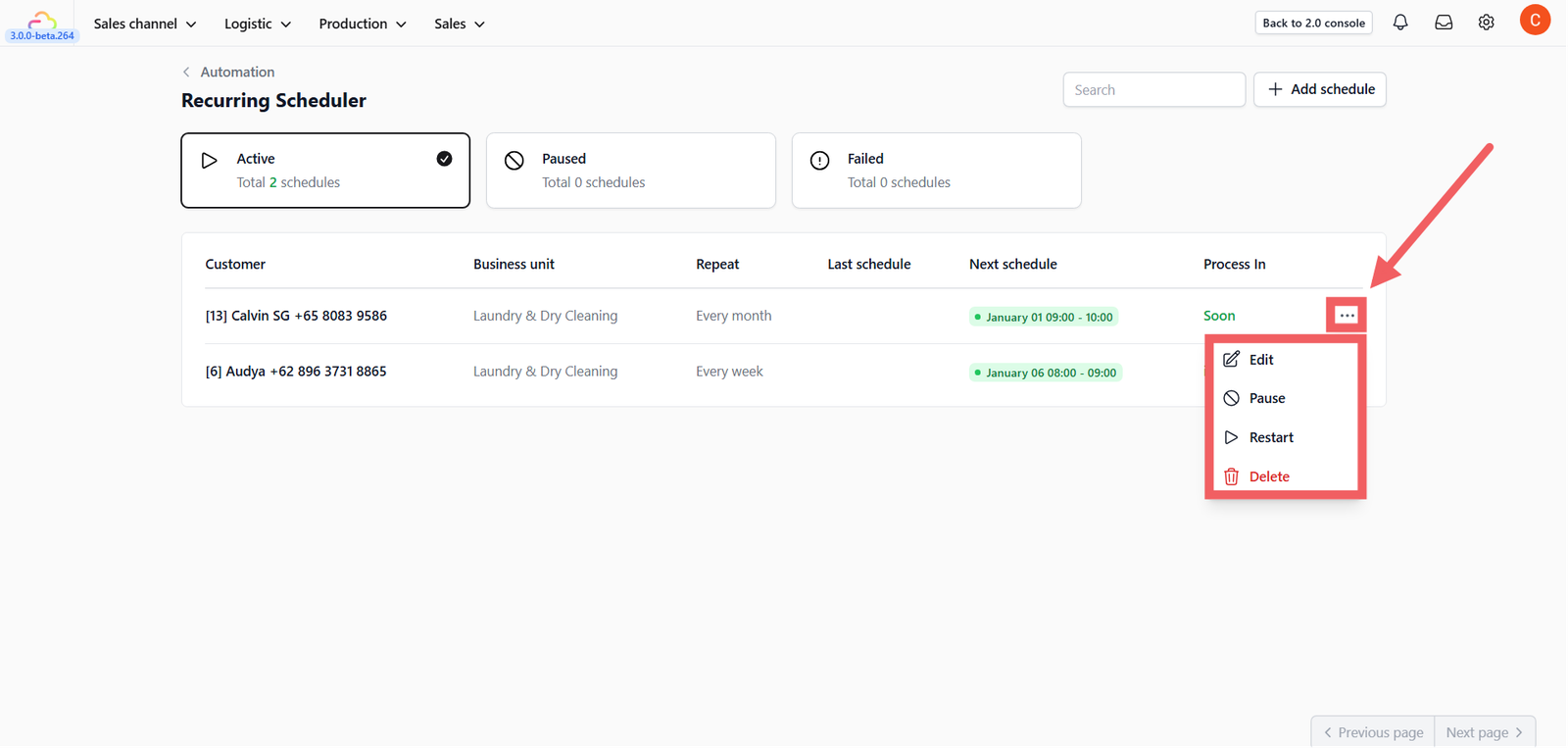
Back on the dashboard, you can manage existing schedules using the Three-dot Menu (⋮) on the right of each row:
- Edit: Modify the address or frequency.
- Pause: Temporarily stop the schedule (status becomes Paused).
- Restart: Resume a paused schedule.
- Delete: Permanently remove the schedule.
Give feedback
Up next
Setting Up Event NotificationsSilence makes customers anxious. Learn how to bridge the gap by triggering instant WhatsApp or Email updates for key events to boost trust.
Read more