
Introduction to Automation
In this article
Think of Automation as your "invisible super-employee." Running a service business involves hundreds of repetitive tasks every day sending receipts, scheduling weekly pickups, reminding staff about orders, and chasing payments. Doing this manually is slow, error-prone, and keeps you from focusing on growth. The Automation module takes these repetitive tasks off your plate. It ensures that critical actions happen exactly when they are supposed to, without you lifting a finger.
Contents
Contents
Why Use Automation?
- Eliminate Human Error: No more forgetting to send a confirmation or missing a scheduled pickup. The system follows your rules perfectly every time.
- Save Massive Admin Time: Instead of spending hours texting customers or creating orders manually, let the system handle it in the background.
- Scale Without Chaos: Whether you have 10 orders or 1000 orders a day, your automation handles the volume instantly without needing extra staff.
Understanding the Logic (Triggers vs. Actions)
To set up effective automation, you need to understand the "Cause and Effect" relationship:
- The Event (Trigger): This is what happens in the system (e.g., "A new order is placed").
- The Action: This is what the system does in response (e.g., "Send an email or Whatsapp notification").
Core Automation Features
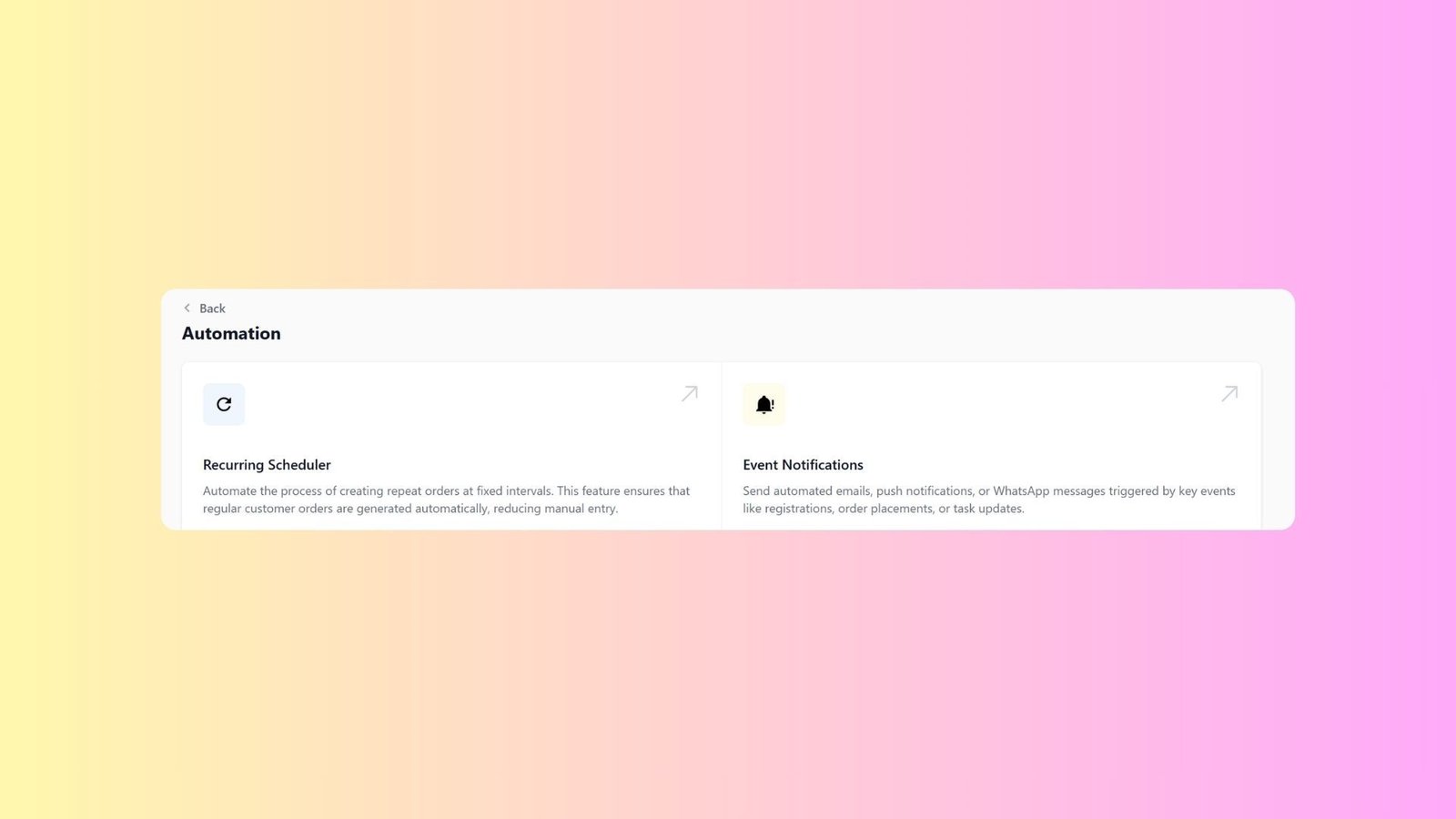
The Automation module consists of two powerful tools:
- Recurring Scheduler: Automate repeating orders or subscriptions (e.g., Generating a laundry pickup order every Monday automatically).
- Event Notification: Set up real-time system alerts triggered by specific activities (e.g., Sending a WhatsApp message immediately after a payment is received).
(Detailed setup guides for these features are available in the next articles).
How to Access Automation Settings
Unlike the Loyalty module, Automation is fully integrated into the EasyBiz Cloud 3.0 Console.
- Log in to your 3.0 Console dashboard.
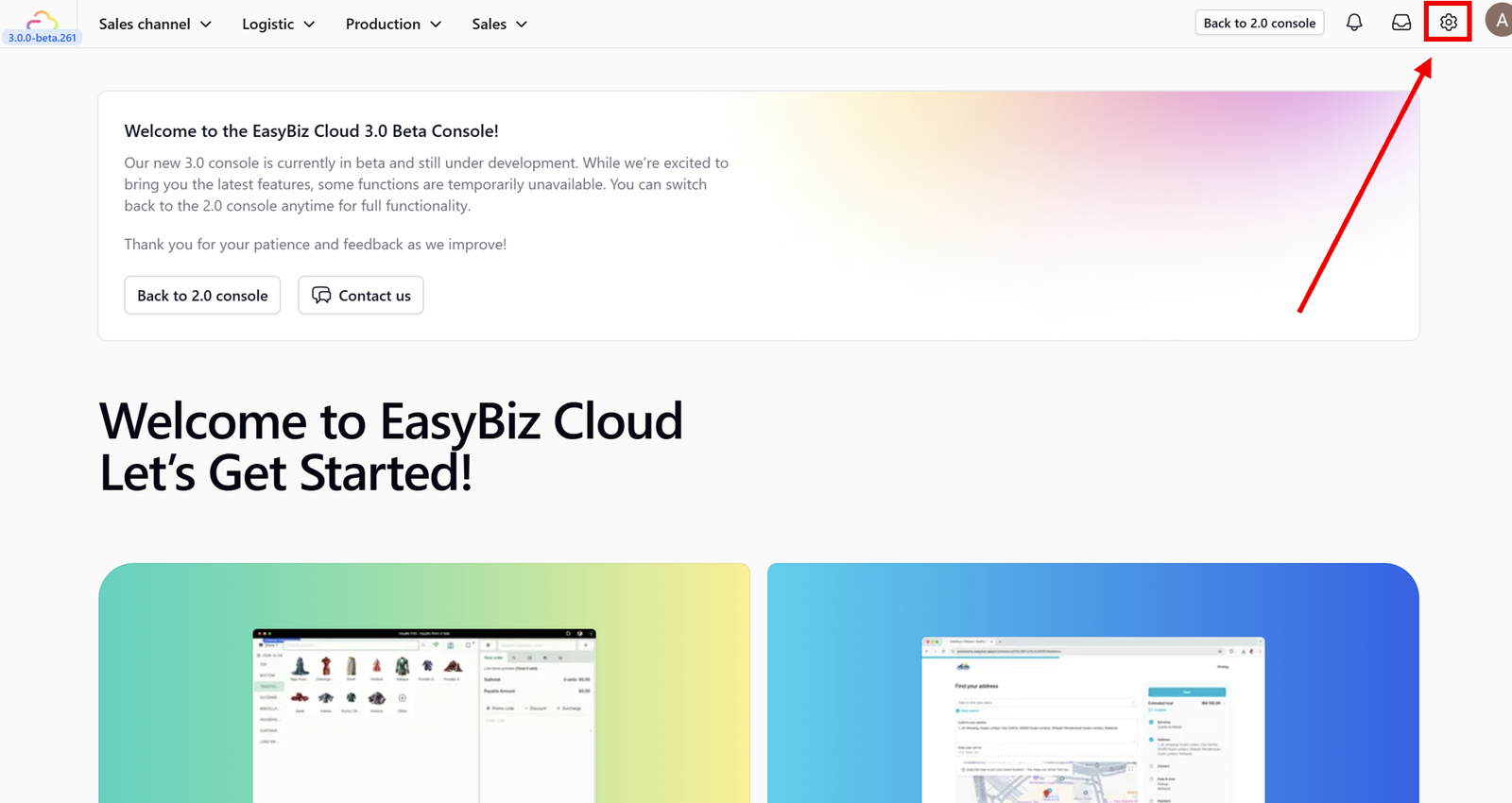
2. Navigate to the main menu and click on Settings.
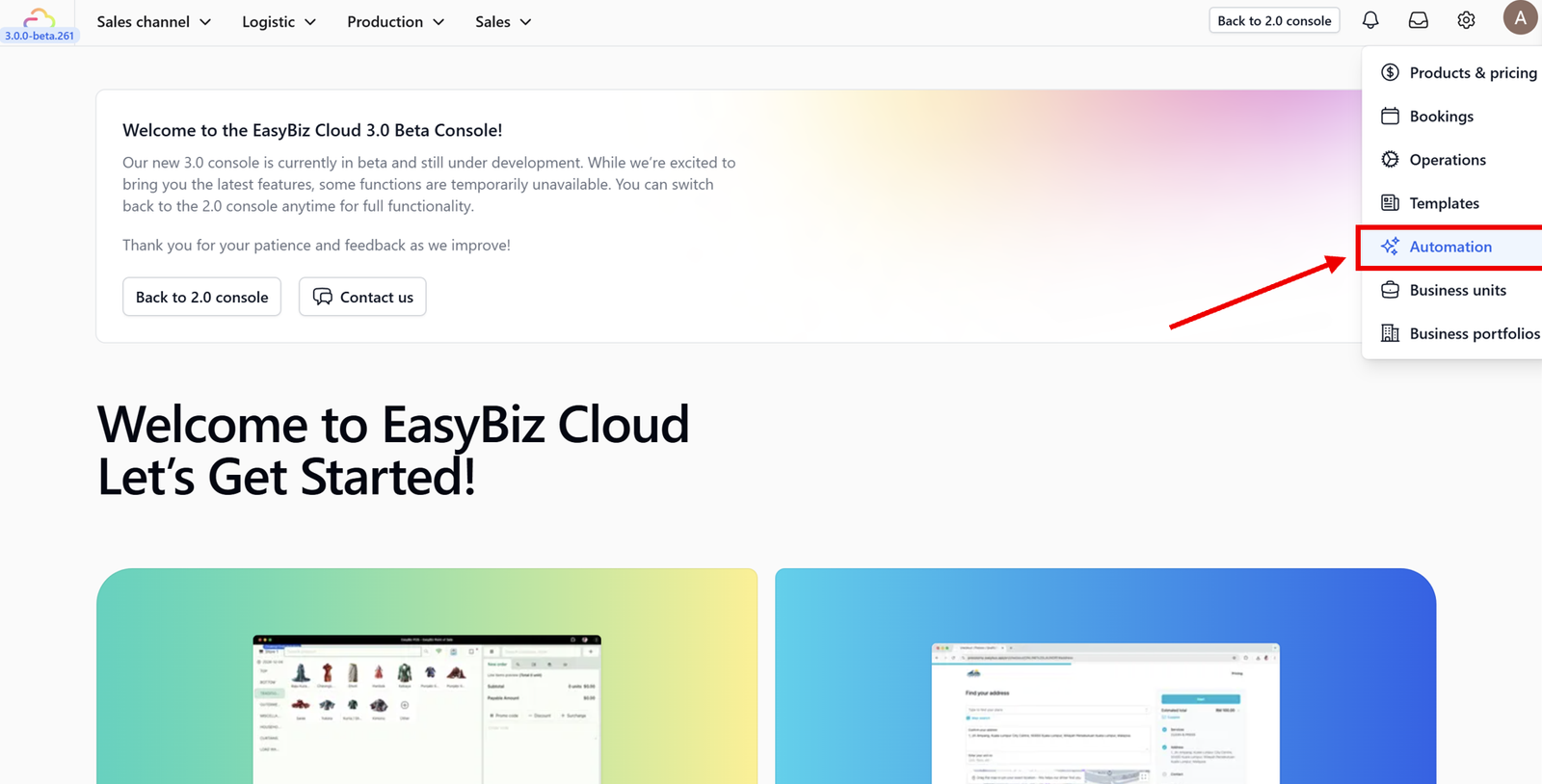
3. From the side menu options, select the Automation section.
Give feedback
Up next
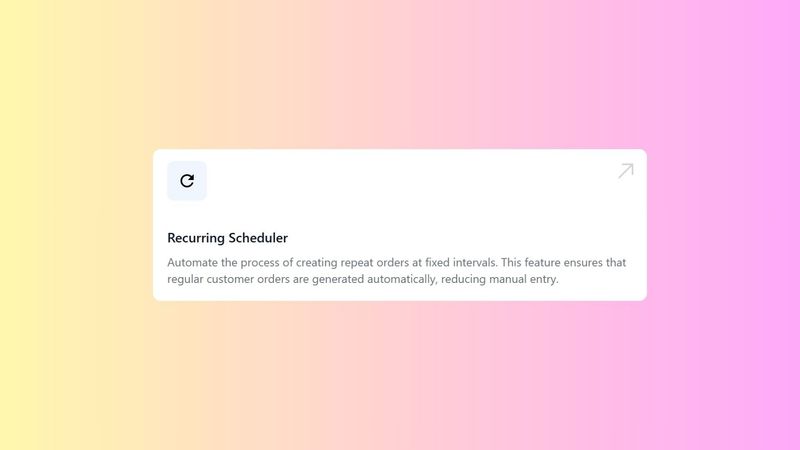
Setting Up Recurring SchedulerTurn one-time customers into loyal subscribers. Learn how to automatically generate daily, weekly, or monthly orders to secure predictable revenue without manual booking.
Read more