
First, Check Which Sign-In You Are Using
EasyBiz uses three different sign-in details. They cannot replace one another. First, check which screen you are on:
| You are trying to... | Use this | If you forgot it or it stopped working |
|---|---|---|
| Open the EasyBiz Console to manage your business | Your Console account login: email and password, or Google | Ask your account owner or an admin to reset your Console password |
| Connect a POS device to your shop | The POS sign-in code: an 8-character code such as XXXX-YYYY |
Tap Retry on the POS device to get a new code |
| Clock in as a staff member at the POS | Your clock-in PIN: a 4-digit number | Ask an admin to check or change your PIN |
A Console password belongs to a person's account. A POS sign-in code connects a device. A clock-in PIN identifies the staff member using that device.
Console: "Email or password not correct"
Check the email address for typos. The Console asks for your email first — click Continue with email — and only shows the password box if the email is recognised.
Make sure you are using the email your account was created with. If a colleague set up your account, confirm with them which address they used.
If the password is the problem, ask someone with user-management access to reset it (see the next section).
Console: Resetting a Forgotten Password
This section is for a forgotten Console account password. It does not reset a POS sign-in code or a clock-in PIN.
Ask your account owner, or an admin with user-management access, to reset it for you:
The admin clicks the ⚙️ Settings icon in the top-right corner.
Under Administration, they click Users & Access.
They open your account and select Reset Password.
They set a new password and share it with you securely. Sign in with it, then change it to something only you know.
If you can still sign in and only want to change your password, open your own account page in the Console and use the same Reset Password option.
Console: "Invalid account"
If you see Invalid account — "You are signed in with an account that is not authorized to access EasyBiz Cloud" — the email you entered, or the Google account you signed in with, is not linked to your business's EasyBiz account. This happens a lot when you have both a personal and a work Google account in the same browser.
Click Change email.
Sign in again with the email address (or Google account) that was actually added to your business's EasyBiz account.
Not sure which one that is? Ask whoever manages your team's users — they can see every login email under Users & Access.
Console: "Your account has been disabled"
This means an admin has disabled your account — this is a deliberate switch, not a technical fault. Ask your account owner to re-enable it from your account page in Users & Access.
If you tried the wrong password many times in a row, you may instead see a message that your account is temporarily disabled. That block clears by itself — wait a few minutes, then try again with the correct password.
POS: The Sign-In Code Is Not Working
The POS sign-in code connects a POS device to your shop. It is not a Console password or a staff clock-in PIN. The POS device shows an 8-character code, such as XXXX-YYYY, which an admin enters in the Console. See Sign In to Your POS for the full guide.
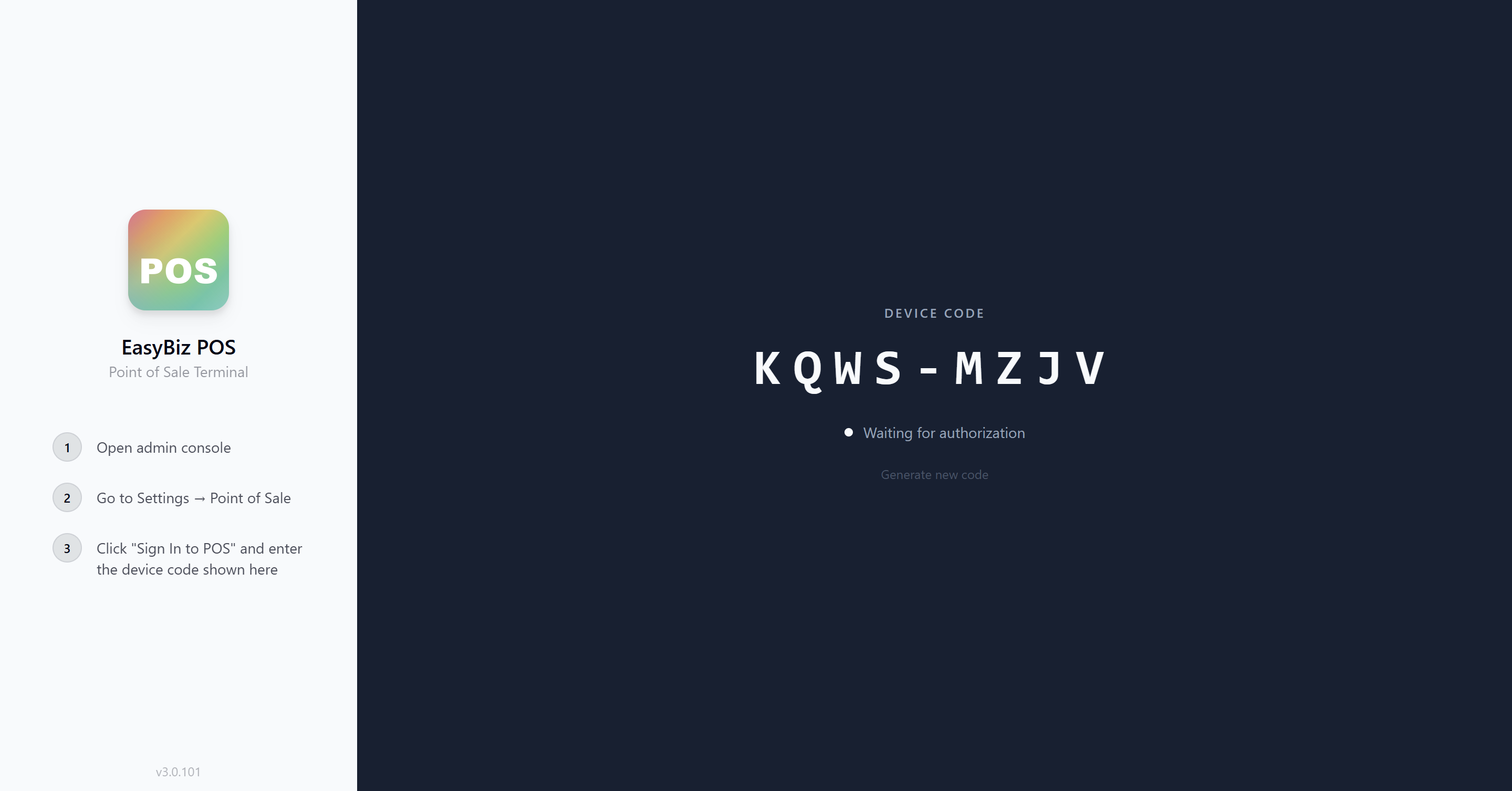
The code expired. Each code is valid for 30 minutes. Use the code currently shown on the POS screen. An older code from a photo or message may no longer work.
The code shows an error. Tap Retry on the POS device to get a new code.
The code is not accepted. Enter every letter exactly as shown. If it still fails, tap Retry and use the new code.
The admin cannot find where to enter it. In the Console, go to ⚙️ Settings → Sales Channels → Point of Sale → Sign in to a shop POS. Choose the shop and POS app, enter the code, then click Sign in.
The POS signed itself out. Another device may have signed in to the same shop, which signs out the older device. Sign in again with a new code. If you need several devices at the same time, ask about the Multi-Station setting.
POS: Staff Cannot Clock In
This section is for a forgotten 4-digit clock-in PIN. It does not reset the staff member's Console password or reconnect the POS device.
Ask an admin to check or change the PIN:
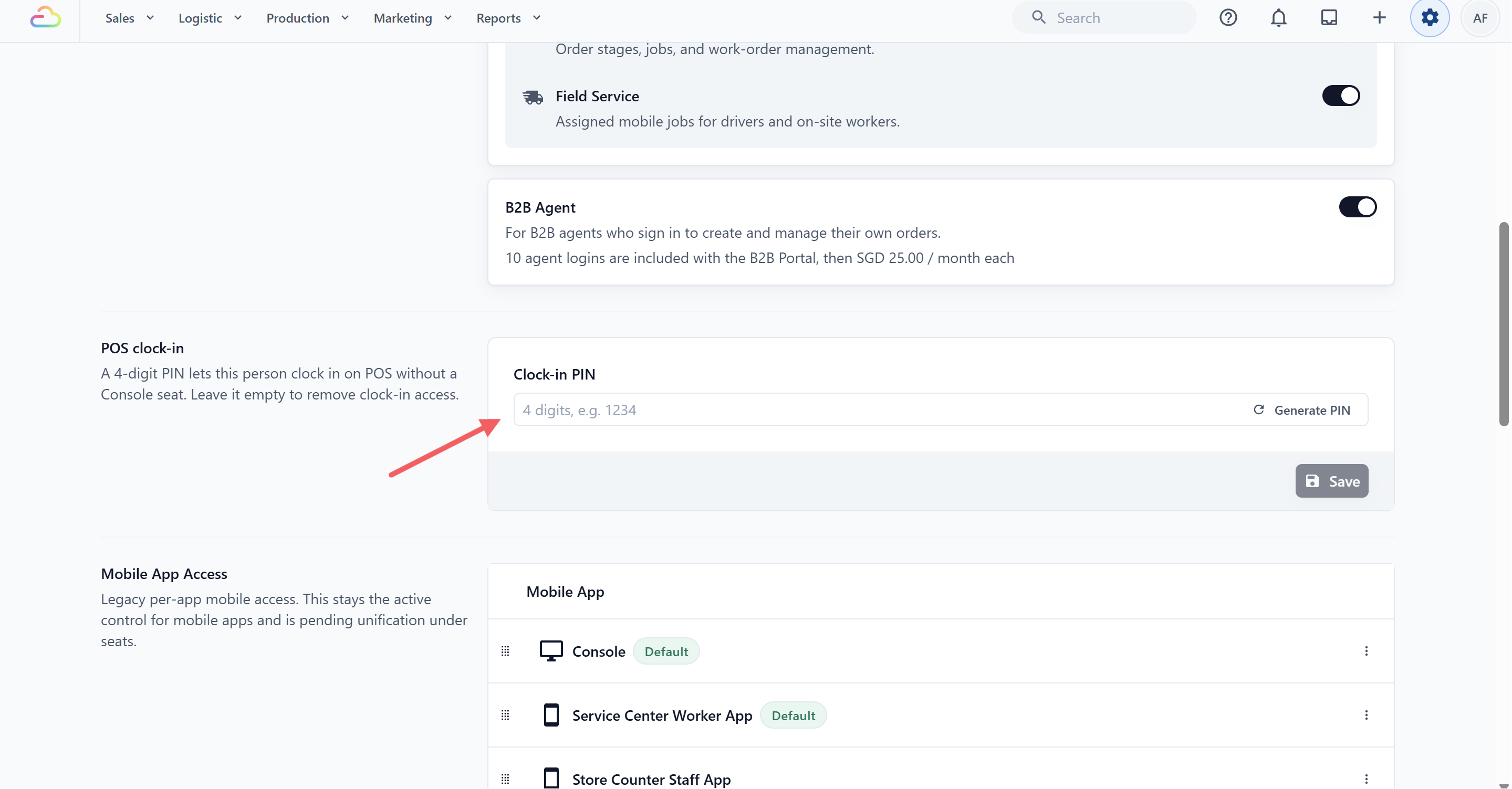
- In the Console, go to ⚙️ Settings → Users & Access.
- Open the staff member's account.
- Under POS clock-in, check the current PIN or enter a new 4-digit PIN. The admin can also select Generate PIN.
- Save the change, then ask the staff member to try the PIN on the POS again.
Still Stuck? Contact Support
From inside the Console: click the Help icon (question mark) at the top of the screen. The Assistant can answer questions straight away, and it can open a support ticket for you — replies from the EasyBiz team appear in the same Help panel.
If you cannot sign in at all: email hi@easybizcloud.com from the email address linked to your account, and describe what you see on screen.
FAQs
Is there a "forgot password" link I am missing?
No — there is currently no self-service reset link on the sign-in page. Ask your account owner or an admin with the Manage Users & Access permission to reset your password from the Console.
I never set a password — my boss created my account. How do I sign in the first time?
Whoever created your account set an initial password. They can tell it to you directly, or send you a sign-in email containing your login details. After you sign in, change the password to something only you know.
Can I sign in to the POS with my email and password?
No. The POS signs in by device code only — an admin enters the 8-character code from the POS screen into the Console. See Sign In to Your POS.
Why does my sign-in code keep changing?
Codes expire after 30 minutes for security, and the POS refreshes the code automatically as it gets old. Always use the code currently on screen.
My whole team shares one login. Is that a problem?
Yes — give each person their own login so you can control access individually and see who did what. See Inviting Your Team and Managing Access. Counter staff who only need to be identified at the POS can use free clock-in passcodes instead.